In Time PRO Overview
In Time PRO is a web-based application that helps organizations track work time, tasks, attendance, and productivity. This page gives you an overview before you explore specific parts of the product — covering what In Time PRO does, why companies use it, who typically uses it, its main features, how these features work together, and a few key concepts that will help you get started.
🕒 What is In Time PRO?
In Time PRO is a web-based application that helps organizations manage their team's time, tasks, attendance, and productivity — all in one place.
| Capability | Description |
|---|---|
| ⏱️ Time Tracking | Track time spent on projects, tasks, and timesheets |
| 👀 Activity Monitoring | Attendance, screenshots, app/website usage, live streaming, and real-time status — mostly automatic via a Desktop Application (see Activities) |
| 🏖️ Leave Management | Simple request-and-approval flow for employees and managers |
| 📁 Client & Project Management | Manage billable/non-billable projects and pull reports |
| ⚙️ Organization Setup | Add users, assign roles, configure company profile, locations, and working days — see Global Settings |
Coming Soon: An Invoices feature is in development but not yet available.
When your organization signs up, you get your own private, secure workspace called a tenant — your data stays separate from every other company using In Time PRO. The platform itself is run behind the scenes by a separate team called the host (see Who Uses In Time PRO?).
❓ Why Use In Time PRO?
| Question | How In Time PRO Helps | Where to Look |
|---|---|---|
| What did my team work on? | Log time against tasks → clear timesheets | Time Tracking, Timesheet |
| Were people present and productive? | Attendance, screenshots, app/website usage, live status | Activities |
| Who's working on what? | Assign people to projects, manage workload | Projects, Clients |
| How do I manage time off? | Employee request → manager approval | Leaves |
| How do I bill and track client work? | Track billable projects, share progress (Invoices planned) | Clients, Invoices |
| How do I set up my company? | Configure company, locations, working days, users | Global Settings |
🏢 Who Uses In Time PRO?
Think of it like an apartment building — a building manager (Host) and individual tenants (Tenants).
| Level | Who | What They Manage |
|---|---|---|
| Host | The team running the entire platform behind the scenes | Customer companies (tenants), plans/editions, trial requests, platform-wide settings |
| Tenant | Your company's private space | Everyday work: dashboard, projects, time tracking, timesheets, activities, reports |
👤 Roles Within a Tenant
| Role | Typical Responsibilities |
|---|---|
| Admin | Full access — clients, invoices, reports |
| Manager | Manages a team and its projects (usually no financial reports) |
| Program Manager | Views/creates projects, timesheets, tasks, reports across a program |
| Employee | Tracks time on assigned projects, sees own data |
| Contractor | Tracks time on assigned projects, can submit invoices |
| Accountant | Handles invoices, reports, journal entries |
| Client | External user — reviews projects/team/tasks/timesheets via Client Portal |
| Super Admin | Elevated host-level access, incl. sign-in as another user for support |
These eight roles — Admin, Super Admin, Manager, Program Manager, Employee, Contractor, Accountant, and Client — are the only ones you can currently assign. (See Administration → Roles for more detail.)
⚠️ Note: Access also depends on permissions granted to the role and features enabled under the subscription plan — a role title alone doesn't guarantee full access. See Global Settings.
🖥️ Application Layout
Overall Structure
| Region | Location | Description |
|---|---|---|
| Left Sidebar | Fixed, left | Global navigation (Dashboard, Projects, Activities, Time Tracking, Timesheet); collapsible |
| Top Header Bar | Fixed, top | Logo, page title, global search, utility icons, profile dropdown |
| Main Content Area | Right of sidebar | Renders selected module's content |
📌 Sidebar Menu
| Menu Item | Purpose |
|---|---|
| Dashboard | Landing/home screen with summary widgets |
| Projects | Project listing and management |
| Activities | Activity tracking (expandable sub-menu) |
| Time Tracking | Time capture module |
| Timesheet | Timesheet submission and history |
🔧 Header Utility Icons
| Icon | Function |
|---|---|
| Theme toggle | Switch dark/light mode |
| Settings | App/account settings |
| Help | Support/help center |
| Export | Download data |
| Notifications | Alerts with count badge |
| User profile | Name, avatar, dropdown menu |
📊 Dashboard Layout
| # | Section | Content |
|---|---|---|
| 1 | Welcome/Status panel | Greeting, clock in/out, active session time |
| 2 | Current Projects panel | Project details, progress bar, manager, team |
| 3 | KPI cards row | Arrival Time, Active Time, Time at Work, Productivity, etc. |
| 4 | Productivity Bar chart | Hourly productivity trend |
| 5 | Organization widgets | Members, Birthdays, Leave Report |
| 6 | My Timesheet table | Recent timesheet entries with status |
| 7 | Analytics widgets | Productivity, Category, Application usage (Most Productive/Unproductive/Neutral apps) |
| 8 | My Projects table | Project list with progress and status |
⚠️ Note: What a user actually sees depends on their role permissions and the company's plan — not every role sees every dashboard element listed above. Role and access details are covered separately in Global Settings.
📋 Application at a Glance
Here's a quick map of everything you'll find in In Time PRO, grouped by what you'll actually use it for.
🚀 Getting Started
| Area | What You'll Use It For |
|---|---|
| Getting Started | What to expect when you sign in for the first time |
| Authentication | Signing in, resetting your password, two-factor verification, or client OTP sign-in |
🏠 Your Daily Workspace
| Area | What You'll Use It For |
|---|---|
| Dashboard | Your home screen after sign-in — content adapts to your role |
| Time Tracking | Your day-to-day work against tasks and calendars |
| Timesheet | Formal, period-based time records submitted for approval |
| Activities | Real-time tracking — attendance, apps/websites, screenshots, live streaming |
| Leaves | Requesting time off, or approving requests if you're a manager |
👥 Managing Work
| Area | What You'll Use It For |
|---|---|
| Clients | Client company records and access to the Client Portal |
| Projects | Client and internal projects — teams, tasks, and allocation |
| Reports | Timesheet, attendance, productivity, and project allocation reports (Leave Report currently disabled) |
⚙️ Admin & Configuration
| Area | What You'll Use It For |
|---|---|
| Global Settings | Header controls (search, theme, notifications, profile) + company-wide settings: Company Profile, Organization Unit, Products & Services, Manage Users, App Productivity, Lookup Metadata |
| Help | In-app help articles and support ticket submission |
🔜 Coming Soon
| Area | What You'll Use It For |
|---|---|
| Invoices | Invoice summaries and draft forms, separate from plan billing — not yet available |
| Integrations | A single hub for connecting Outlook, Keka, Azure DevOps, etc. (some connections already work today at the project/profile level) — not yet available |
| Subscription | Your company's plan details, payment history, and plan invoices — not yet available |
🔒 Platform-Level Only
| Area | Note |
|---|---|
| Host Administration | Manages tenants, editions, and trial requests — for platform operators only; not covered in this documentation |
💡 Good to know: What you actually see in each area depends on your role's permissions and your company's plan. Role and access setup is covered in Global Settings.
🧭 Typical User Journey
There's no single path through In Time PRO — where you go and what you do depends entirely on your role. Here's what a typical journey looks like for each type of user.
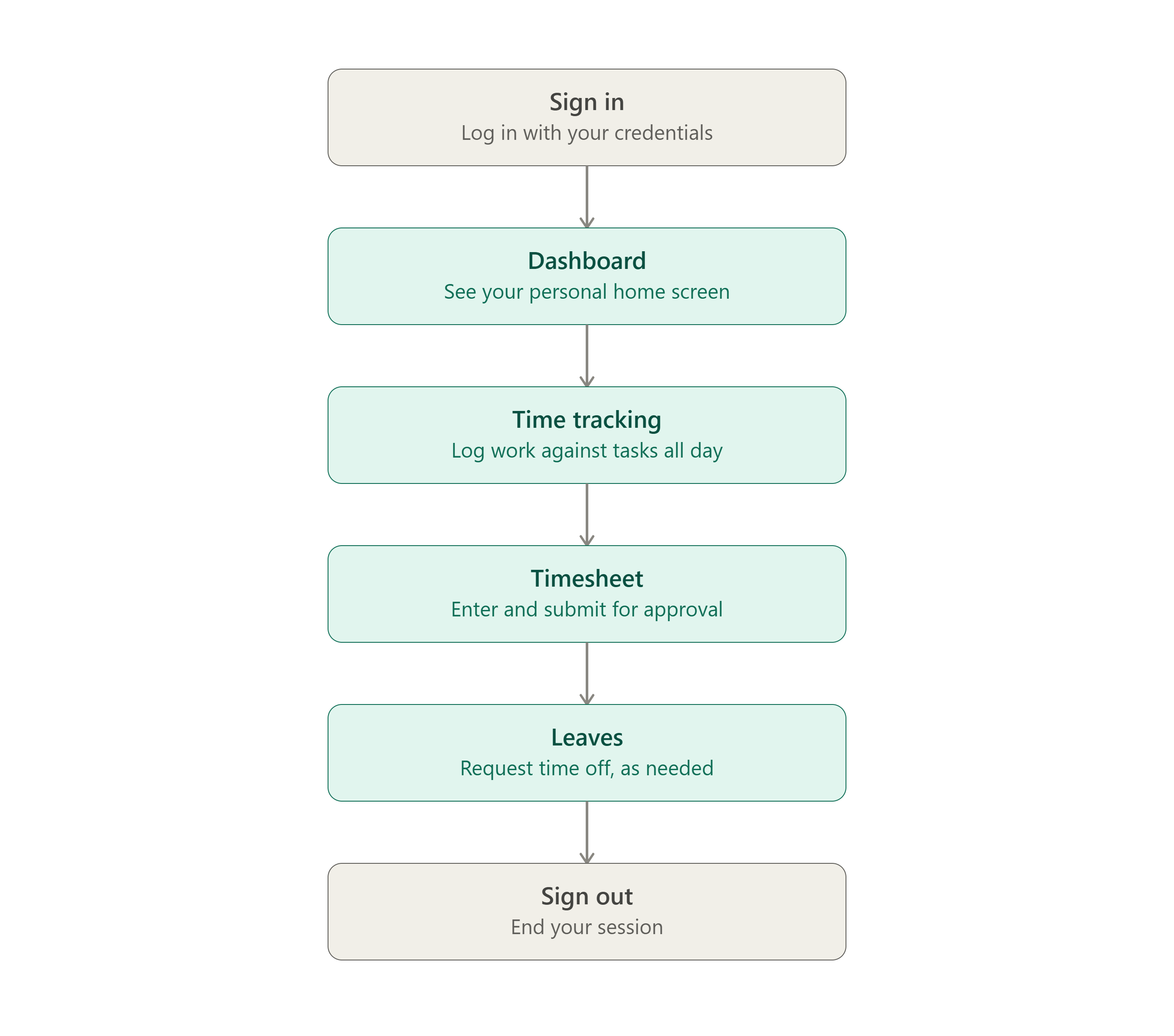
👤 Employee or Contractor
Your journey is simple and repeats daily:
Sign In → Dashboard → Time Tracking → Timesheet → Leaves (as needed) → Sign Out
| Step | What Happens |
|---|---|
| 1️⃣ Sign In | Log in with your credentials |
| 2️⃣ Dashboard | Land on your personalized home screen with today's snapshot |
| 3️⃣ Time Tracking | Log your work against tasks and calendars throughout the day |
| 4️⃣ Timesheet | Enter and submit your formal time record for approval |
| 5️⃣ Leaves | Request time off whenever you need it |
| 6️⃣ Sign Out | End your session |
Employee/Contractor workflow
The Employee/Contractor journey shown as a flow.
🧑💼 Manager, Program Manager, or Admin
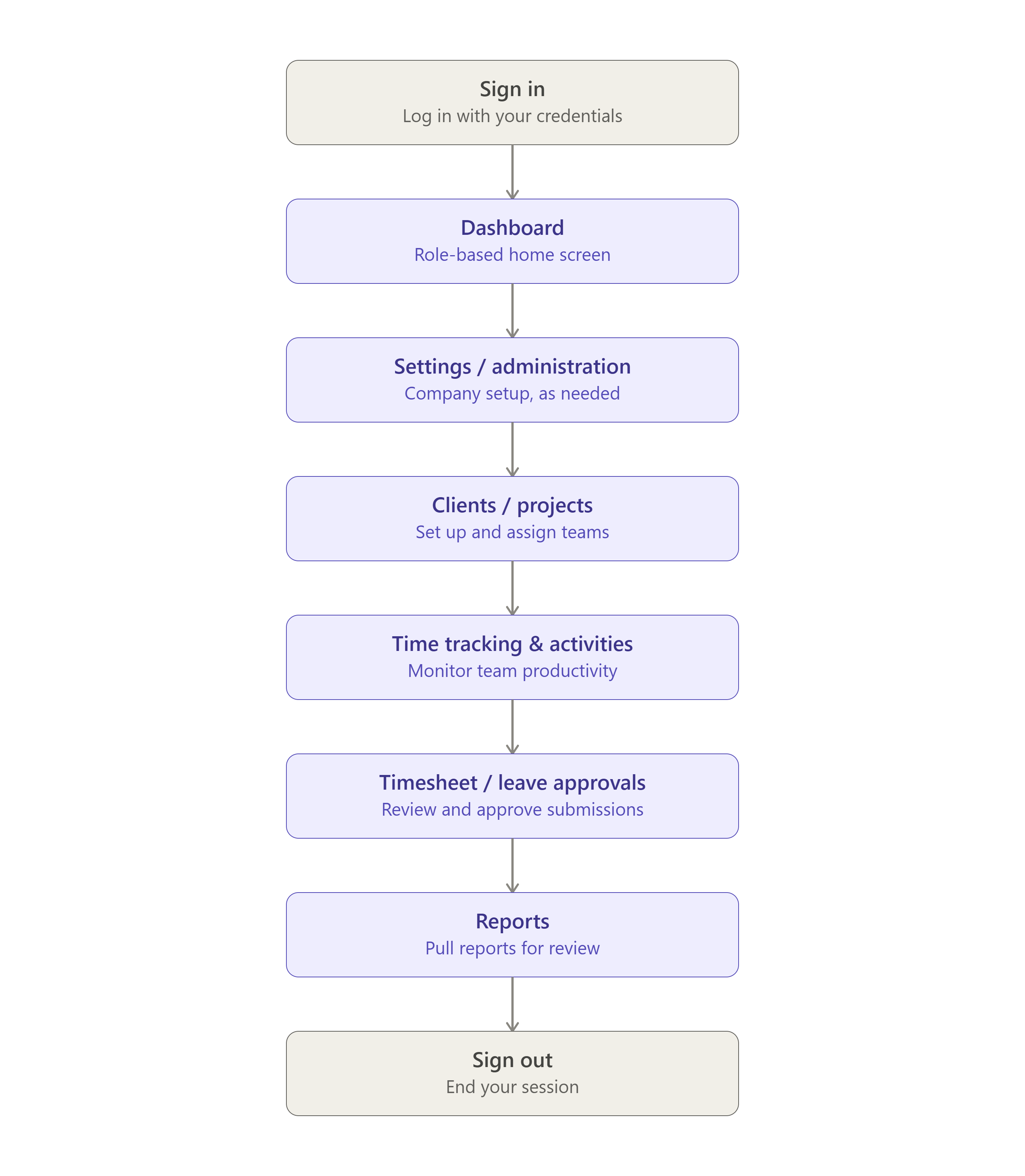
Your journey is broader — it includes setup, oversight, and approvals:
Sign In → Dashboard → Settings/Administration → Clients/Projects → Oversight → Approvals → Reports → Sign Out
| Step | What Happens |
|---|---|
| 1️⃣ Sign In | Log in with your credentials |
| 2️⃣ Dashboard | Land on your role-based home screen |
| 3️⃣ Settings / Administration | Handle company setup tasks, as needed |
| 4️⃣ Clients / Projects | Set up new clients/projects and assign teams |
| 5️⃣ Time Tracking & Activities | Monitor team activity and productivity |
| 6️⃣ Timesheet or Leave Approvals | Review and approve submissions from your team |
| 7️⃣ Reports | Pull reports for tracking, planning, or review |
| 8️⃣ Sign Out | End your session |
Manager/Admin workflow
The Manager/Program Manager/Admin journey shown as a flow.
🤝 Client (External User)
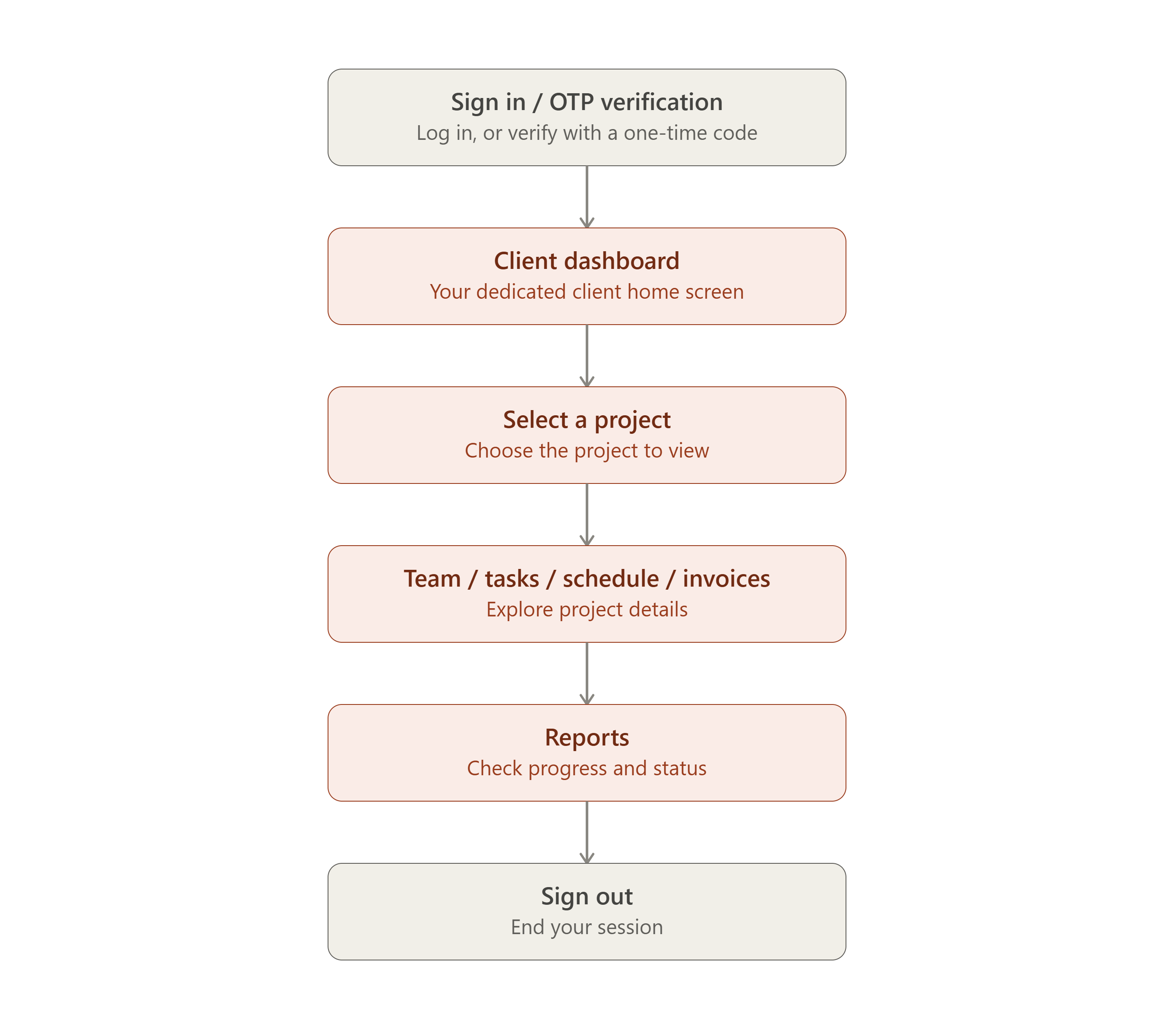
Your journey is focused on visibility into your own project(s):
Sign In (or OTP) → Client Dashboard → Select Project → Explore Details → Reports → Sign Out
| Step | What Happens |
|---|---|
| 1️⃣ Sign In / OTP Verification | Log in normally, or verify with a one-time password |
| 2️⃣ Client Dashboard | Land on your dedicated client home screen |
| 3️⃣ Select a Project | Choose the project you want to view |
| 4️⃣ Team / Tasks / Work Schedule / Invoices | Explore project details relevant to you |
| 5️⃣ Reports | Check progress and status reports |
| 6️⃣ Sign Out | End your session |
Client workflow
The Client (external user) journey shown as a flow.
🛠️ Host Operator (Platform Team)
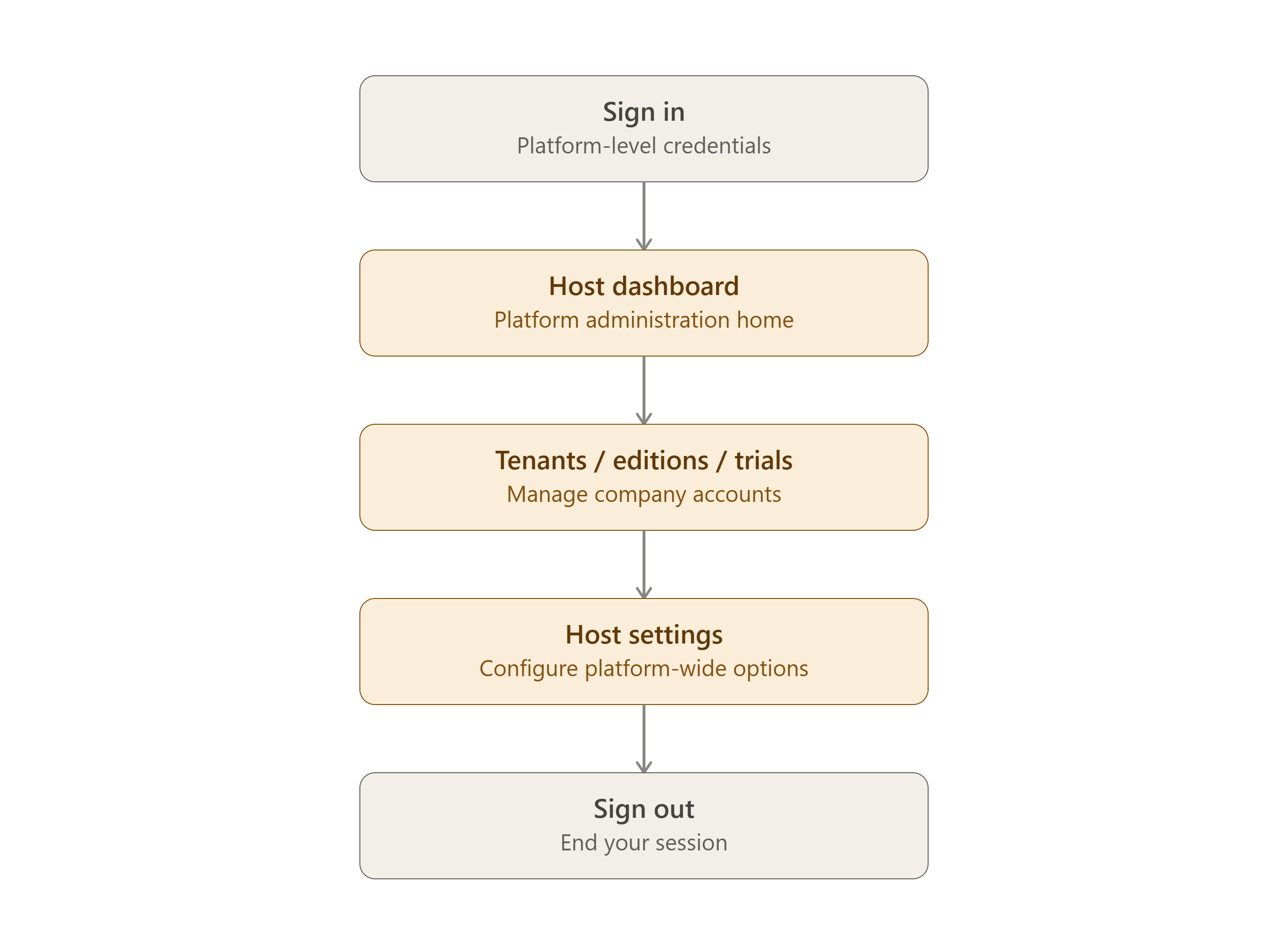
Not a company user — this is the team that runs the platform itself.
Sign In → Host Dashboard → Manage Tenants/Editions/Trials → Host Settings → Sign Out
| Step | What Happens |
|---|---|
| 1️⃣ Sign In | Log in with platform-level credentials |
| 2️⃣ Host Dashboard | Land on the platform administration home screen |
| 3️⃣ Tenants / Editions / Trial Requests | Manage company accounts, product editions, and trial sign-ups |
| 4️⃣ Host Settings | Configure platform-wide settings |
| 5️⃣ Sign Out | End your session |
Host operator workflow
The Host operator (platform team) journey shown as a flow.
🆕 New Company Signing Up
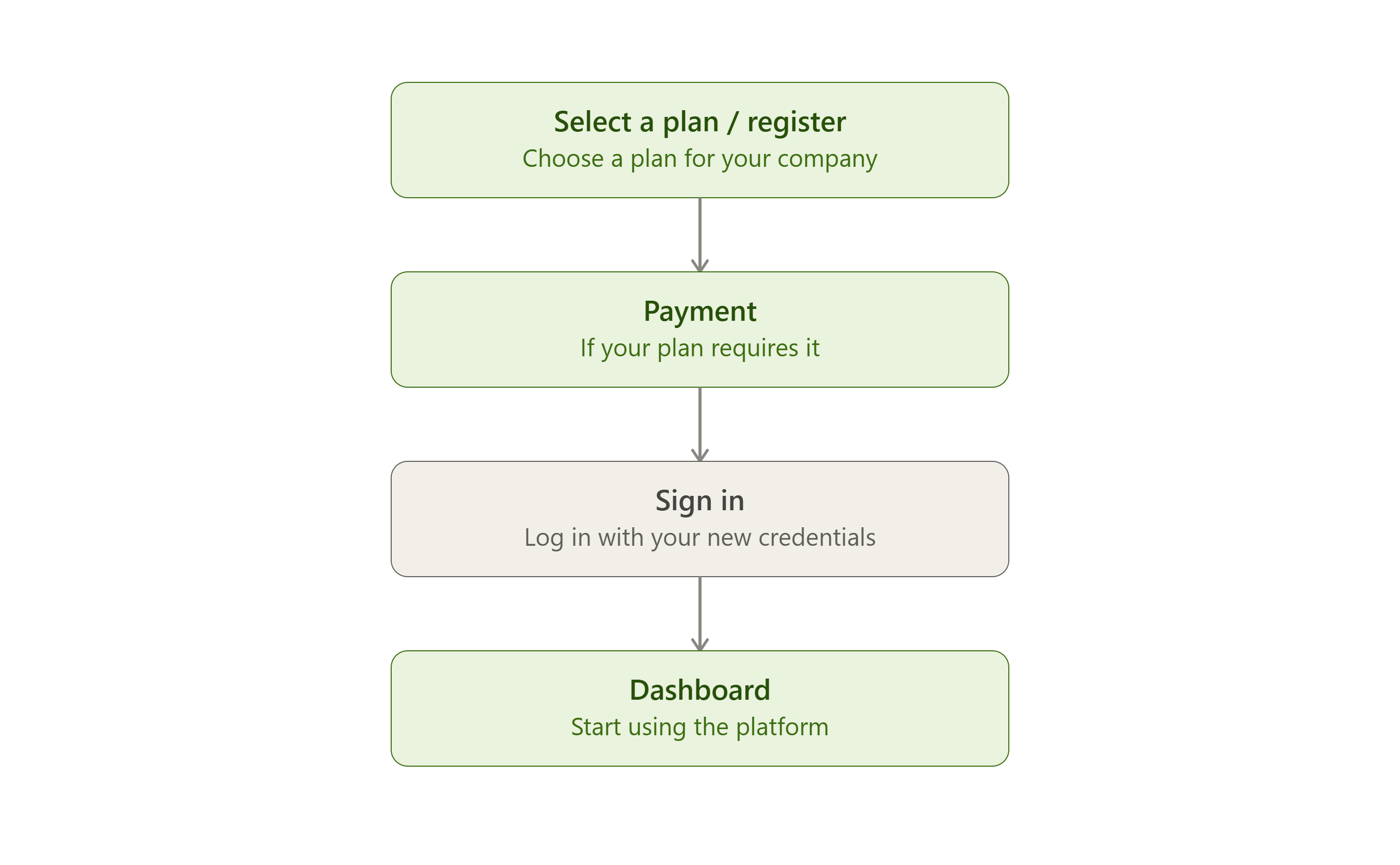
Select a Plan / Register → Payment (if applicable) → Sign In → Dashboard
| Step | What Happens |
|---|---|
| 1️⃣ Select a Plan / Register | Choose a subscription plan and register your company |
| 2️⃣ Payment | Complete payment, if your plan requires it |
| 3️⃣ Sign In | Log in with your new credentials |
| 4️⃣ Dashboard | Begin using the platform from your home screen |
New company sign-up workflow
The new company sign-up journey shown as a flow.
💡 How In Time PRO Knows Where to Send You
The moment you sign in, the system automatically routes you to the right place:
- 🛠️ Host administrators → land on the Host Dashboard
- 🏢 Company users (employees, managers, admins) → land on their Dashboard
- 🤝 Clients → land on the Client Dashboard
No need to navigate manually — your role decides your starting point.
📘 Quick Wiki: Important Concepts for New Users
A fast-reference guide to the core concepts you'll encounter across In Time PRO.
🏛️ Tenant vs. Host
Nearly everyone works inside their company's workspace (tenant). A separate host console exists solely for the platform operator — regular users never interact with it.
👤 Roles
The product experience differs by role: Admin, Super Admin, Manager, Program Manager, Employee, Contractor, Accountant, and Client.
⚠️ Note: "Timesheet Approval" appears as a role-like label but is not an actual assignable role — see the Roles page for details.
🏠 Dashboard
Your landing page right after sign-in. Its layout varies by role, and some roles get both a personal view and a team view.
📁 Projects
The core unit of work — each project has assigned team members and tasks. Projects can be:
- Client-billed (flat-rate or hourly), or
- Internal
⏱️ Time Tracking vs. Timesheet
| Feature | Purpose |
|---|---|
| Time Tracking | Where day-to-day task work happens |
| Timesheet | Where that tracked time is formalized, submitted, and approved |
👁️ Activities
Gives supervisors visibility into attendance, screenshots, app/website usage, and live or real-time tracking — available when your company's plan includes it.
🏖️ Leaves
A fully working, standalone module for requesting and approving time off. Requests route to an approver configured on your project, or to your reporting manager. See Leaves.
📊 Reports
Generated summaries drawn from timesheet, attendance, productivity, and allocation data.
⚠️ Note: Leave Report is currently disabled.
🤝 Clients
External customers. Some users are clients, and they interact through a project portal instead of the standard staff menu.
⚙️ Company Profile / Settings
Where your company's identity lives — locations, working days, holidays, activity-capture rules, user management, and the products/services catalog.
💻 Desktop Application
Installed on a user's device to capture task and activity data for Time Tracking and Activities. Shown in-product as the:
- Agent App, or
- "In Time PRO for Windows" / "In Time PRO for Mac"
🔀 Four Different Ways People Are Grouped
These four are easy to mix up — each is a separate setting, configured independently:
| Grouping | What It Means | Where It's Set |
|---|---|---|
| Project Team | Who's assigned to a specific project | On the Project itself |
| Organization Unit | Your company's department structure — unrelated to projects | Organization Unit |
| Reporting Manager | Who a person reports to | Per-person, in Manage Users |
| Member Allocation | How much of a person's capacity is assigned across projects (does not use Organization Units) | Member Allocation |
💡 Key takeaway: A person's project work, department, manager, and capacity are four independent settings — not one.
🎛️ Plan / Features
Some areas can be enabled or disabled based on your company's subscription plan — not every area described in this wiki will appear for every company.
🚧 Modules Still Under Development
Invoices, Subscription, and Integrations (as a unified, company-wide hub) currently appear in the menu as a preview of what's planned — none are usable yet. Check each page for what's already available today through other parts of the product.
ℹ️ Note: Leaves is fully functional and not part of this in-development list.