Activities
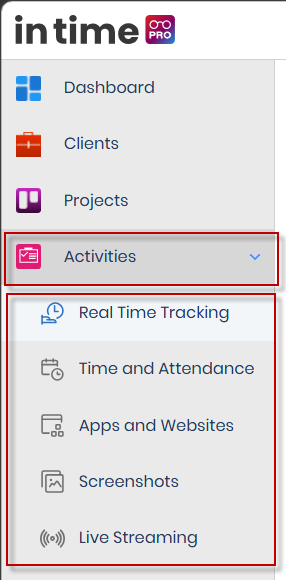
Activities is the area of In Time PRO where authorized users — usually Managers and Admins — review how people in the organization are working: whether they're currently online, what their attendance looked like today, which applications and websites they used, screenshots captured by the Desktop Application, and near-live still images of a selected person's screen.
Activities is a monitoring area, not a data-entry area. Nobody types their activity into these screens — everything shown here is captured automatically by the Desktop Application installed on a person's computer. The five Activities screens exist purely to let an authorized person view, filter, and act on that captured data (for example, approving offline time or deleting a screenshot).
1. Overview
1.1 What Activities is for
Use Activities when you need to:
- See who is currently working, checked in but not actively online (slacking), or offline right now, or on a past day.
- Review one person's arrival, departure, active time, and productive time for a day, week, or month.
- Review and approve or reject offline (manual) time that someone entered by hand, if your role allows it.
- See which applications and websites were used, and for how long.
- Browse screenshots captured throughout the day.
- Watch near-live still images of selected people's screens — not a video call.
1.2 The five Activities screens
| Screen | What it's for |
|---|---|
| Real Time Tracking | A team-wide list (or map) of who is working, slacking, or offline today, plus status counts. Opening a person from here shows their Time and Attendance. |
| Time and Attendance | One person's attendance and productivity for a day, week, or month — arrival/departure, productivity bar, application usage, screenshots, and offline-time approvals. |
| Apps and Websites | Application and website usage across the organization, broken down by employee and by organization unit. |
| Screenshots | Screenshots captured for a selected person and date, grouped by hour, with preview, download, and delete. |
| Live Streaming | Repeated still images pulled from the Desktop Application of selected people's screens, refreshed every few seconds. |
There is no sixth Activities screen. If you don't see one of these five, see Role-Based Access below.
1.3 How Activities is organized
Activities is a parent item in the left-hand menu. Clicking it expands or collapses the list of the five screens above — it does not open a page of its own.
If you open Activities without picking a specific screen (for example, using an old link), you land on Time and Attendance by default.
1.4 How activity data reaches these screens
Activities does not collect anything by itself. The information you see on all five screens comes from the Desktop Application running on a person's computer:
Person's computer
      ↓
Desktop Application
   (captures status, apps & websites, location, screenshots, live stills)
      ↓
Activity data for that person and day
      ↓
The relevant Activities screen (Real Time Tracking, Time and Attendance,
Apps and Websites, Screenshots, or Live Streaming)
      ↓
Reviewed by an authorized Manager/Admin (or the person's own Time and Attendance)
Because the Desktop Application is what captures the data, a person who never installs or runs it will show little or no activity information — this is a data-collection gap, not a bug in the Activities screens. See Help for setup information.
2. Activities vs. Other Modules
Activities is easy to confuse with a few other menu items. They are not the same screens.
| Module | Where it lives | Relationship to Activities |
|---|---|---|
| Time Tracking | Main menu → Time Tracking | People start and stop task timers here. This is unrelated to Real Time Tracking, even though the names sound similar. |
| Timesheet | Main menu → Timesheet | People submit weekly/daily hours here for approval. This is a different list from the offline time reviewed on Time and Attendance. |
| Dashboard | Main menu → Dashboard | Some widgets have a View All link that opens Time and Attendance, Real Time Tracking, or Screenshots for you. |
| Reports | Main menu → Reports | Attendance and productivity reports are separate pages, built for exporting and summarizing, not for live monitoring. |
| Projects → Activities tab | Inside a project's details | A tab inside a specific project, gated by its own Activities permission. It is not the Activities menu covered in this guide. |
| App Productivity (Settings) | Settings | Administrators classify applications as Productive, Unproductive, or Neutral here. Time and Attendance and Live Streaming use that classification; Apps and Websites does not show those labels. |
3. Accessing Activities
- Sign in to In Time PRO.
- In the left-hand menu, select Activities to expand it.
- Select one of the five screens listed above.
You only see Activities in your menu if:
- Your organization's subscription (edition) includes the Activities feature, and
- Your role has permission for at least one of the five screens, and
- That specific screen's own feature is turned on for your organization (for example, Real Time Tracking can be switched off for your company even while Activities generally is switched on).
If Activities is missing entirely, ask your administrator — it's normally an edition setting or a role permission, not a fault.
4. Roles and Permissions — How They Work Together
Two separate things control what you see in Activities, and both must be true at once:
- Edition feature — whether your company's plan includes that screen at all. This is configured by In Time PRO for your organization, not by an individual administrator.
- Role permission — whether your specific role has been granted access to that screen, configured by an administrator under Administration → Roles.
A role is a bundle of permissions (see Administration → Roles for the full explanation of roles). Two people with the same role normally see the same Activities screens — unless an administrator later changes that role, or a personal setting (like hiding exports) changes what one person sees.
Beyond the five "can I open this screen at all" permissions, several Activities screens also have extra permissions that show or hide specific buttons or sections without hiding the whole page — for example, you might be able to open Screenshots but not see the Delete button, or open Time and Attendance but not see the Pending / Approved / Declined tabs. These are covered in Section 6, Permissions.
5. Role-Based Access
The table below reflects the default access given to each role when a new organization is set up. An administrator can change any of this afterward under Administration → Roles, so treat this as the out-of-the-box starting point, not a hard rule.
Your organization must also have the matching edition feature turned on for each screen — if a feature is off, the menu item stays hidden even for Admin.
| Role | Real Time Tracking | Time and Attendance | Apps and Websites | Screenshots | Live Streaming |
|---|---|---|---|---|---|
| Admin | Yes | Yes | Yes | Yes | Yes |
| Super Admin | Yes | Yes | Yes | Yes | Yes |
| Manager | Yes | Yes | Yes | Yes | Yes — Conditional, see note below |
| Program Manager | Yes | Yes | Yes | Yes | No |
| Employee | No | Yes | No | No | No — Conditional, see note below |
| Contractor | Yes | No | Yes | Yes (page opens; filter row hidden — see Screenshots permissions) | No |
| Accountant | Yes | No | Yes | Yes | No |
| Client | No | No | No | No | No |
Conditional — Live Streaming for Employee and Manager. Two different setup paths exist for creating a new organization, and they disagree on Live Streaming for exactly two roles: one path grants Live Streaming to Manager but not Employee; the other grants it to Employee but not Manager. Which one applies to your organization depends on how your tenant was originally created. If Live Streaming looks "backwards" for your Employee or Manager users, that's this known discrepancy — ask your administrator to check the Permissions tab for the role in question, since either state is expected depending on setup path, and either can also simply be edited to match what your organization wants.
Client users are also excluded from the employee pickers used throughout Activities (see Section 7) and from Real Time Tracking lists — they sign in through a separate Client Portal and never see this menu.
This table intentionally does not include a "Timesheet Approval" row. That role name exists as a placeholder in the product but is not currently created or assignable — see Administration → Roles.
5.1 Why one person sees a screen and another doesn't
Example:
- Priya (Employee) has only Time and Attendance by default. She does not see Real Time Tracking, Apps and Websites, Screenshots, or Live Streaming.
- Amit (Manager) has all five screens by default. He sees the full Activities menu.
An administrator can grant Priya access to Screenshots later, under Administration → Roles. After she signs in again (or refreshes), Screenshots appears in her menu.
5.2 Why a button can be hidden even when the page itself is visible
The menu permission hides an entire screen. A handful of extra permissions hide only specific parts of a screen that's otherwise visible to you:
- You can open Screenshots but not see the project/user filter row if you lack the screenshot view permission (this is the default for Contractor).
- You can open Screenshots but not see Delete if you lack the screenshot delete permission.
- You can open Time and Attendance but not see Pending / Approved / Declined if you lack the offline-time approval permission.
- Export can be hidden on several screens by your own Other Settings option that hides exports — this is a personal setting, not an Activities permission.
6. Permissions
Administrators grant these under Administration → Roles → [role] → Edit → Permissions. The names below match the permission names you'll see listed there.
There are no separate "create" or "edit" permissions for activity records themselves on these web pages. All the underlying activity data — app usage, presence, location, screenshots — is captured by the Desktop Application, not typed in on these screens. The permissions below only control viewing, exporting, approving offline time, and deleting screenshots.
| Permission | Screen it affects | What it allows | If it is not granted |
|---|---|---|---|
| Activity | — | The parent category in the permission list. On its own it does not make the Activities menu appear — each screen below still needs to be granted individually. | Individual screens below can still be granted one at a time. |
| Real Time Tracking | Real Time Tracking | Lets you open the Real Time Tracking screen. | The menu item is hidden. |
| Time and Attendance | Time and Attendance | Lets you open the Time and Attendance screen. | The menu item is hidden. |
| Apps and Websites | Apps and Websites | Lets you open the Apps and Websites screen. | The menu item is hidden. |
| Screenshots | Screenshots | Lets you open the Screenshots screen. | The menu item is hidden. |
| Screenshot View | Screenshots | Lets you use the project / user / sort filter row on the Screenshots page. | You can still open the page (for example, from Time and Attendance's View All), but the filter row is hidden. |
| Screenshot Delete | Screenshots | Lets you delete a group of screenshots. | The Delete action does not appear. |
| Live Stream View | Live Streaming | Lets you open the Live Streaming screen. This is the only Live Streaming permission — there is no separate "start" or "stop" permission. | The menu item is hidden. |
| Offline Time Approval | Time and Attendance | Lets you see and use the Pending, Approved, and Declined tabs to approve or reject offline (manual) time. | Only the Productivity tab remains. |
| Time and Attendance Screenshots | Time and Attendance | Lets the Screenshots strip appear on the Time and Attendance Day view. | The Day view does not show the screenshots strip. |
Export is not an Activities permission at all. Export buttons on Real Time Tracking, Time and Attendance, and Apps and Websites are hidden instead by a personal Other Settings option that hides exports for that individual user.
6.1 What each permission controls, at a glance
- Menu visibility: the five screen permissions above.
- Buttons and sections on a page: Screenshots view, Screenshots delete, Time and Attendance approval tabs, Time and Attendance screenshot strip.
- Whose data you see: not controlled by these permissions at all — see Section 7. Employee pickers and team lists are scoped by your role and project assignments, separately from the permissions above.
- Typing a direct address: opening an Activities web address you don't have menu access to is not separately blocked by the page itself. The menu is what keeps most people from finding a screen they shouldn't use. If you land on an Activities address you don't believe you should have access to, ask an administrator not to share that link, and to review your role's permissions.
6.2 Default extra permissions by role
| Extra permission | Employee | Manager | Program Manager | Accountant | Contractor | Admin / Super Admin |
|---|---|---|---|---|---|---|
| Offline Time Approval (Pending / Approved / Declined tabs) | No | Yes | Yes | No | No | Yes |
| Time and Attendance screenshot strip | Yes | Yes | Yes | No | No | Yes |
| Screenshots filter row (Screenshot View) | No | Yes | Yes | Yes | No | Yes |
| Screenshots Delete | No | No | No | No | No | Yes |
7. Data Visibility — Who Can See Whose Data
The permissions in Section 6 answer "which page can I open?" This section answers "whose data shows up on it?" Two different visibility rules are used across Activities, and they don't always match:
7.1 Employee pickers (Apps and Websites, Screenshots, Live Streaming)
When you choose a person from a dropdown on these three screens:
| You are | People you can choose from |
|---|---|
| Admin | Everyone in the organization, except Client users |
| Anyone else | People on projects where you are the project manager or program manager, plus your teammates on those same projects |
7.2 Real Time Tracking lists, counts, and map
| You are | People included |
|---|---|
| Admin | Everyone except Client users |
| Anyone else | People on projects where you are project manager, program manager, or a team member, plus people who report directly to you |
7.3 Time and Attendance (opened from the menu)
Time and Attendance has no employee picker of its own. It opens your own day unless you arrived from Real Time Tracking, a Dashboard link, or a search result naming a specific person.
7.4 Apps and Websites — Usage Per Employee
| You are | People included |
|---|---|
| Admin | Everyone, then your filters apply |
| Anyone else | People whose manager is you |
The Total Usage chart and the left-hand application list on Apps and Websites do not apply this manager rule — with no person, project, or organization unit selected, that chart can show usage across the whole organization. Choose a filter to narrow it down.
7.5 A note on screenshots specifically
The employee picker on the Screenshots page is scoped the same way as Section 7.1. Do not assume that an employee can only ever see their own screenshots as a hard rule of the product — that specific restriction is not confirmed. What is confirmed is that the picker itself only lists people you're allowed to pick from in the first place, based on your projects.
8. Common Questions
Why is Activities missing from my menu entirely? Your organization's edition may not include Activities, or your role has no permission for any of the five screens. Ask an administrator to check.
Why do I only see Time and Attendance? That's the default for the Employee role. The other four screens need extra permissions (and the matching edition feature) that Employees don't get by default.
Why don't I see Live Streaming? Program Manager, Accountant, Contractor, and Client don't get it by default. Employee and Manager depend on which setup path created your organization — see the Conditional note above.
Why don't I see Pending / Approved / Declined on Time and Attendance? You need the Offline Time Approval permission. Employees, Accountants, and Contractors don't get it by default.
Why is the Screenshots filter row missing for me? You need the screenshot view permission. Contractor doesn't get it by default, even though Contractor does see the Screenshots menu item.
Why can't I delete a screenshot? Only roles granted the screenshot delete permission (Admin and Super Admin, by default) see Delete.
Why is Export missing on a screen I otherwise have full access to? Your personal Other Settings can hide exports for you specifically. That's not an Activities permission and won't show up on the Roles screen.
Is Real Time Tracking a live video wall? No. It loads when you open it or change the date, with status counts refreshing as people's status changes. Requesting a single still image from someone's screen (Take Screenshot) is a separate, one-off action.
Is Live Streaming a video call? No. It's a set of repeating still images pulled from the Desktop Application, not continuous video and not a call.
I opened an Activities web address that isn't in my menu — is that a bug? No, but it's also not something you should rely on. The menu is what hides items for most people; typing an address directly isn't separately blocked by the page. If you shouldn't have a particular screen, ask your administrator to review your role's permissions rather than relying on the menu alone.