Roles
1. Roles Overview
The Roles page lists every role available in your organization and lets an administrator control what each role is allowed to do. From here, an administrator can:
- See each role's display name, and whether it's marked Static or Default.
- Filter the role list by one or more permissions.
- Open a role and edit its Default status and its permissions.
- Delete a role — only if it isn't one of the built-in roles.
Roles is not where you assign a role to a specific person — that happens when a user is invited or edited under Settings → Manage Users.
2. Understanding Roles
A role is a named permission set — a label such as Manager or Employee that carries with it a specific set of things a user is allowed to see and do.
In simple terms:
A user is assigned a Role
        ↓
The Role carries a set of Permissions
        ↓
Those Permissions decide which menus, pages, and buttons
the user sees after signing in
When an administrator changes what permissions a role has, every user with that role is affected — not just one person. That's what makes Roles powerful, and also why changes here should be made carefully: editing the Manager role, for example, changes access for every Manager in the company at once.
Two extra ideas matter when working with roles:
- Static — a role built into the product (Admin, Manager, Employee, and so on). Static roles cannot be deleted, but their permissions can still be changed, and their Default flag can still be changed.
- Default — a role marked as the one that should be assigned to newly created users unless someone chooses a different role.
3. Available Roles
The Roles page currently shows these eight main built-in roles:
- Admin
- Super Admin
- Employee
- Manager
- Program Manager
- Contractor
- Accountant
- Client
Each is described below in terms of what it's typically used for and what it gets by default when a new company is set up. An administrator can still adjust any role's specific permissions afterward, so always check the actual Permissions tab for a role if you need to confirm exactly what it currently has.
Note: a Timesheet Approval role name exists as a placeholder inside the product but is not currently created or assignable. It will not appear in your Roles list, and you should not expect to assign it to anyone.
3.1 Admin
Admin is the primary administrative role for a tenant (your company's account). An Admin is intended to manage the day-to-day operation of the organization within In Time PRO.
- Receives essentially all tenant-level access by default — Administration (Roles, Member Allocation), Settings, Users, Clients, Projects, Timesheet, Reports, Dashboard, Activities, and more.
- Proxy Login is explicitly denied to Admin — even though Admin has broad access elsewhere, it cannot sign in as another user or tenant. That capability is reserved for Super Admin.
- Admin is a Static role — it cannot be deleted, and its Role Name cannot be changed from the Edit Role screen.
- Because Admin normally has every permission, most day-to-day administrative work — creating projects, managing users, reviewing timesheets and reports, and configuring Roles and Member Allocation — is done from this role.
3.2 Super Admin
Super Admin is the highest level of access in the tenant. Admin and Super Admin both provide broad administrative access — the main documented difference is that Super Admin can use Proxy Login, while Admin does not have Proxy Login access. Super Admin is intended for a very small number of trusted users who occasionally need to act on behalf of other accounts.
- Receives the same broad access as Admin, plus Proxy Login — the ability to sign in as another user.
- This is the main difference between Admin and Super Admin: Super Admin can use Proxy Login; Admin cannot.
- Also a Static role — cannot be deleted, Role Name cannot be changed.
- Because of the added Proxy Login capability, Super Admin should be assigned sparingly, and typically only to the people who genuinely need to impersonate another account for support or troubleshooting purposes.
3.3 Employee
Employee is the standard, non-administrative role and is the Default role — new users are normally assigned this role unless an administrator chooses otherwise.
By default, an Employee typically has access to:
- My Profile
- Time Tracking (logging their own work)
- Timesheet — their own timesheet and the Timesheet Projects tab
- Projects — viewing the projects they're assigned to
- Time Off — Leaves (My Leaves and Calendar), and, by default, the Leave Approval permission too (see the note below)
- Activity — their own time and attendance information
- Dashboard — My Dashboard and its widgets
- Basic visibility into Company Profile and the Users list
By default, an Employee does not get:
- Administration — Roles or Member Allocation
- Team Timesheet, timesheet approval, or timesheet summary access
- Clients or Reports
- Team Dashboard
Employee is the role most staff members will have, and it's intentionally focused on personal work rather than managing others.
By default, Employee (along with Contractor and Accountant) is also granted the Leave Approval permission — meaning a plain Employee can, by default, see the Leave Approvals tab in Leaves. This is confirmed, current default behavior. Whether this broad default is intentional product design is a separate question this documentation does not resolve — ON HOLD, product confirmation required.
3.4 Manager
Manager builds on everything an Employee has, plus additional access for overseeing a team and its projects:
- Team Timesheet, including timesheet approval and summary, and approve/reject actions on team submissions
- Broader Activity access: screenshots, real-time tracking, apps & websites, and the Offline Time Approval permission (the Pending/Approved/Declined tabs on Time and Attendance — this is a different permission from Leaves' own Leave Approval, which Manager already has as part of the Employee-level base access described above)
- Project Details tabs — Team, Allocation, Tasks, Timesheet, and Activities
- The ability to create tasks for their team
- Clients access (view)
- Reports — timesheet, leave, and attendance reports
- Team Dashboard and its widgets, in addition to My Dashboard
Manager does not, by default, get Administration (Roles or Member Allocation), the ability to create/edit/delete Projects, User management, or Proxy Login.
3.5 Program Manager
Program Manager is very similar to Manager, with the same general team-oversight access — Team Timesheet, Reports, Team Dashboard, Project Details tabs, and so on.
The main differences from Manager:
- Program Manager additionally gets view access to Organization Units.
- Program Manager's default permission set does not include the same live-streaming view access that Manager has.
In practice, treat Program Manager as a close counterpart to Manager, generally used for people overseeing a program or a wider set of projects rather than a single team.
3.6 Contractor
Contractor is intended for external or project-based staff who need day-to-day access without the broader team-management capabilities of Manager.
By default, a Contractor typically has:
- My Profile and the ability to view the Users list
- Clients (view)
- Projects (view)
- Activity — including screenshots, apps & websites, and real-time tracking for their own work (not Time and Attendance)
- Time Off — both Leaves access and the Leave Approval permission
- Timesheet — their own timesheet and the Timesheet Projects tab
- Products & Services and Organization Units (view)
- Reports — the same three report types available to Manager
- A set of Dashboard widgets — but not the Dashboard menu item itself. Contractor's default setup does not include the
Pages.Tenant.Dashboardpermission, so those individual widget permissions never actually surface anywhere by default — this is confirmed behavior, not a configuration error. An administrator can grant the Dashboard permission if a Contractor in your organization needs it.
3.7 Accountant
Accountant covers a similar general shape of access to Contractor — Clients, Projects, Activity, Time Off (including the Leave Approval permission), Timesheet, viewing Users, Products & Services, Organization Units, and Reports — with one addition and one notable gap:
- Accountant additionally gets view access to screenshots.
- Accountant's default setup does not include any Dashboard access at all — not even the widget-level permissions that Contractor gets. Accountant does not see the Dashboard menu item.
New companies created today and older, existing tenants can have different starting permissions — the product has used more than one default-permission setup over time, so an established organization's Accountant role may not exactly match a brand-new company's defaults. If your Accountant users have narrower or different access than this description (for example, access centered mainly on Time Off), that's this kind of setup difference rather than a documentation error — check your administrator's Roles screen for what your organization actually has configured.
3.8 Client
Client is a special case:
- Client receives no permissions from the standard default permission set — nothing is automatically granted to it.
- Client users don't use the regular staff sidebar, Roles, or Member Allocation at all. They sign in through a separate Client Portal, and what they see there is governed by dedicated Client-specific behavior rather than the normal permission tree.
- Client still exists as an assignable role (so you can mark a person as a Client when inviting them), but you should not expect to control its access the same way you would Manager or Employee — its behavior is largely built into the product rather than driven by the Permissions tab.
4. Role List
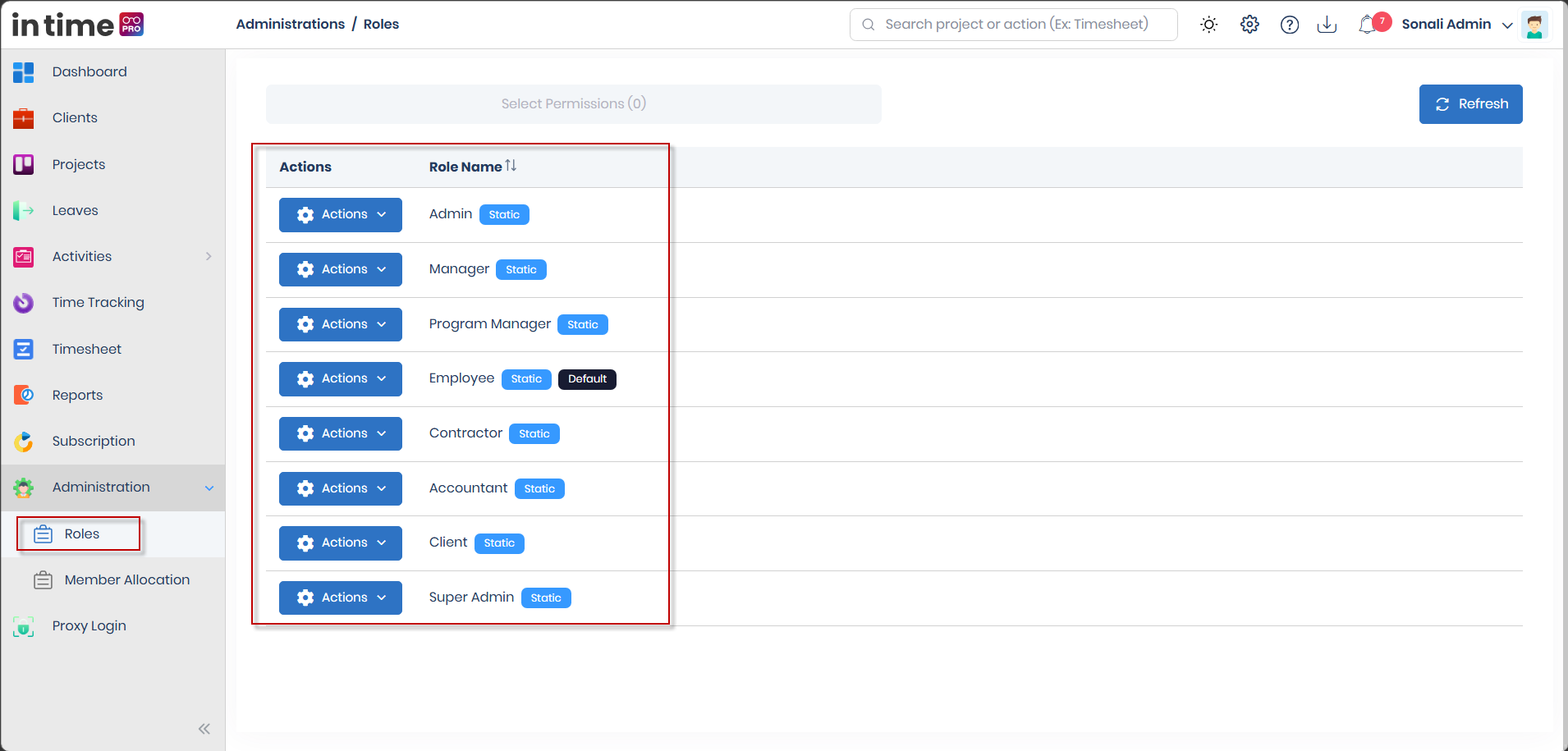
The Roles page lists every role for your organization in a simple table:
| Column | What it shows |
|---|---|
| Actions | The row-level menu (Edit / Delete / History) — only shown if you have permission to edit or delete roles |
| Role Name | The role's display name, sortable, along with its badges |
Each role name can carry one or both of these badges:
- Static — a badge with the tooltip "Static roles cannot be deleted." All eight built-in roles (Admin, Super Admin, Employee, Manager, Program Manager, Contractor, Accountant, Client) are Static.
- Default — a badge with the tooltip "Assign to new users by default." Employee carries this badge out of the box.
Above the table:
- Select Permissions (N) — opens a filter so you can narrow the role list down to only roles that have specific permissions granted.
Nshows how many permissions are currently selected for the filter. - Refresh — reloads the role list.
If there are no roles to show (for example, after filtering by a permission nothing has), you'll see a No Data Found message.
What this page does not currently offer: the current Roles screen does not display a Create Role option, and it also has no Clone Role option, no way to assign users to a role directly from this screen, and no way to restore a role once it has been deleted. If custom-role creation is available in your organization, it may depend on the configured role-management functionality or permissions — if you need a role beyond the main built-in roles and don't see an option for it here, speak with your In Time PRO administrator or support contact.
Select Permissions filter
Clicking Select Permissions opens a dialog titled "Select Permissions" where you can search and select permissions to filter the role list by. Choosing permissions and closing the dialog reloads the list to show only roles that currently have those permissions granted, and shows a confirmation such as "N permission filtered." This filter only changes what you see on this page — it does not change any role's actual permissions.
5. Actions Menu
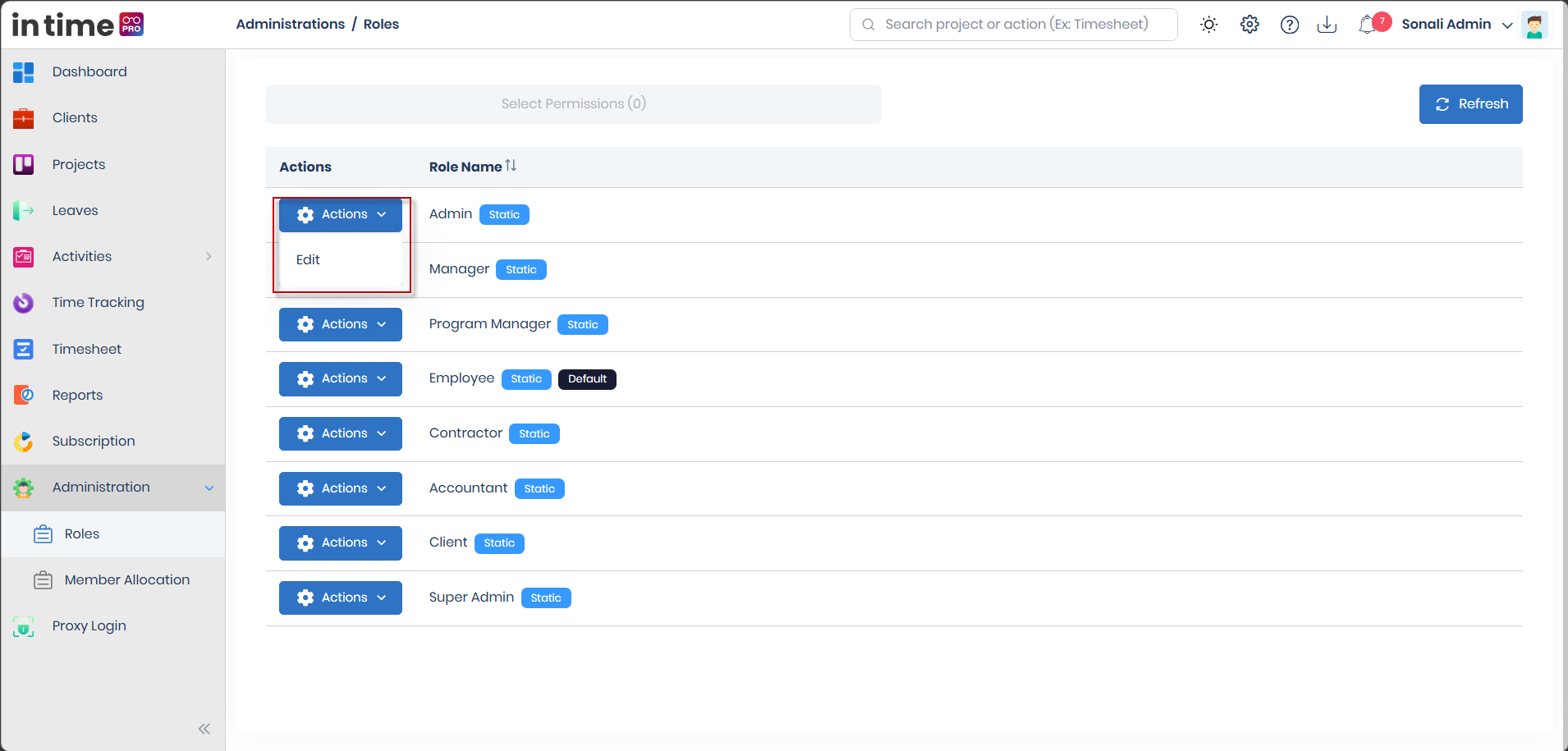
Each role row has an Actions menu (only visible if you have permission to edit or delete roles, or if role history is enabled for your organization). It can contain:
| Action | When it's available | What it does |
|---|---|---|
| Edit | You have permission to edit roles | Opens the role for editing — its Default flag and its permissions |
| Delete | The role is not Static, and you have permission to delete roles | Removes the role after a confirmation |
| History | Role history tracking is turned on for your organization | Shows a history of changes made to that role |
Because all eight built-in roles are Static, Delete never appears for them — you cannot delete Admin, Manager, Employee, Program Manager, Contractor, Accountant, Client, or Super Admin. Delete only becomes available for a custom role (one created outside the standard set), and only for users with delete permission.
There is no separate "Clone", "View Permissions", or "Assign Users" action on this menu — editing permissions is done entirely through Edit.
6. Editing a Role
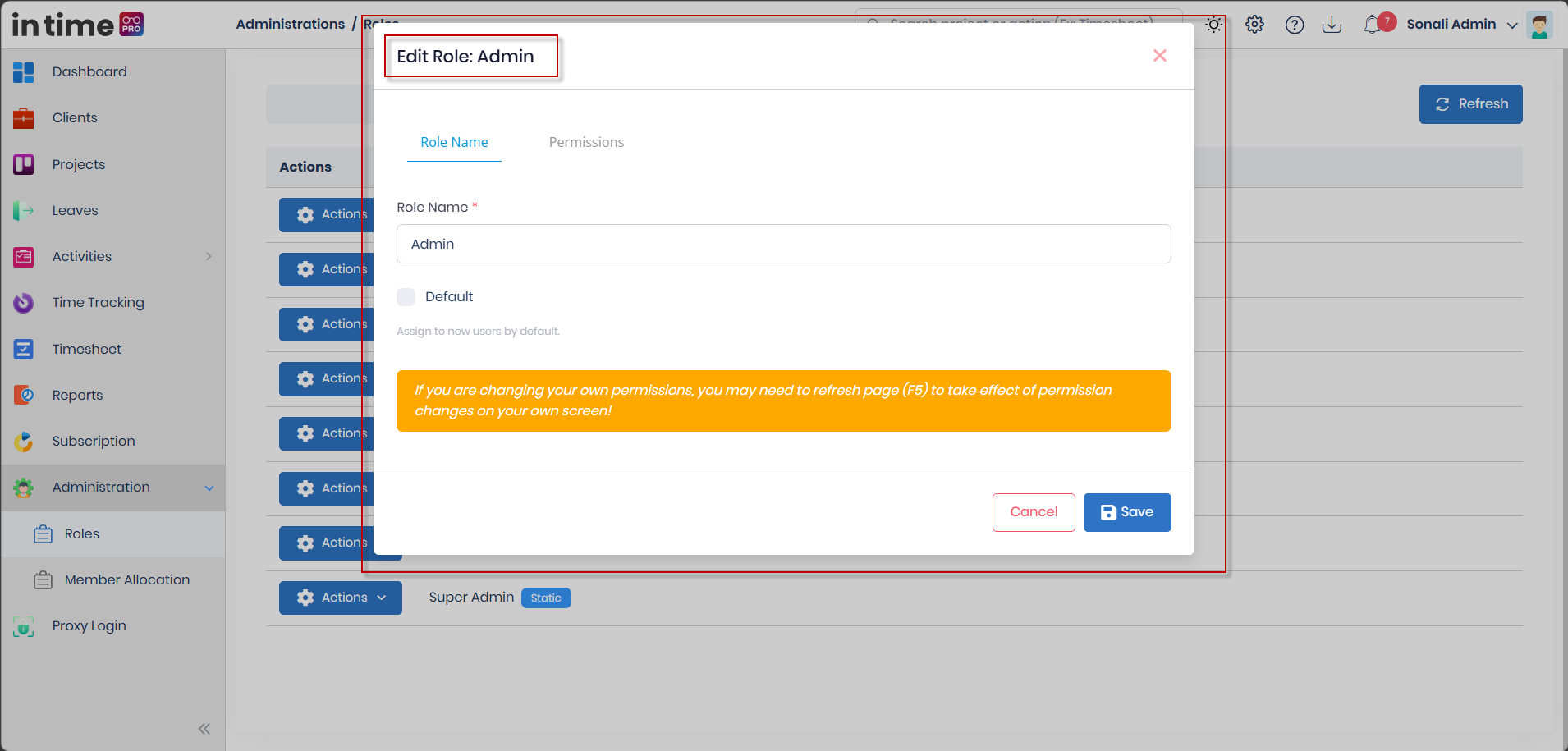
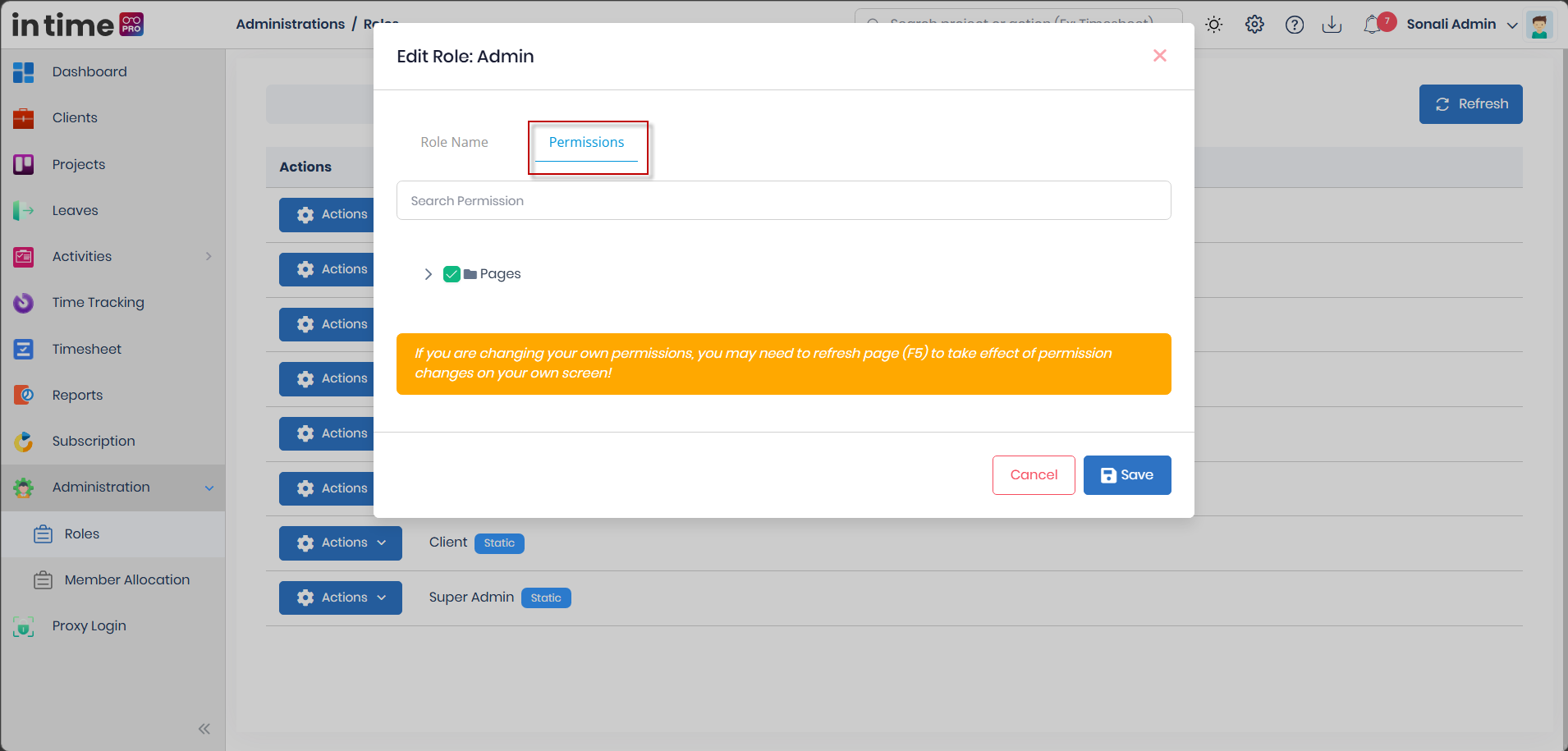
Clicking Edit on any role opens a dialog titled "Edit Role: [role name]" with two tabs: Role Name and Permissions.
At the bottom of the dialog there's an important warning:
"If you are changing your own permissions, you may need to refresh page (F5) to take effect of permission changes on your own screen!"
In plain terms: if you edit the permissions of the role you yourself are logged in as, your own screen may not immediately reflect the change. Press F5 (or refresh your browser) after saving so your own menus and buttons update correctly.
6.1 Role Name
The Role Name field shows the role's display name. It is always shown as read-only (disabled) on this screen — for every role, including custom ones. In other words:
- You can see what a role is called.
- You cannot rename a role from the current Edit Role screen.
There is no workaround available on this page for renaming a role.
6.2 Default Role
The Default checkbox marks whether this role should be assigned to new users by default when no other role is chosen. Its help text reads "Assign to new users by default."
- Turning this on for a role means new users will typically be set to that role automatically going forward.
- Employee carries this flag out of the box in a newly set-up company.
- Changing which role is marked Default does not retroactively change any existing user's role — it only affects how new users are set up going forward.
6.3 Permissions
The Permissions tab is where the actual access controlled by this role is set. See Understanding Permissions below for a full explanation of how this tree works and what each group of permissions means.
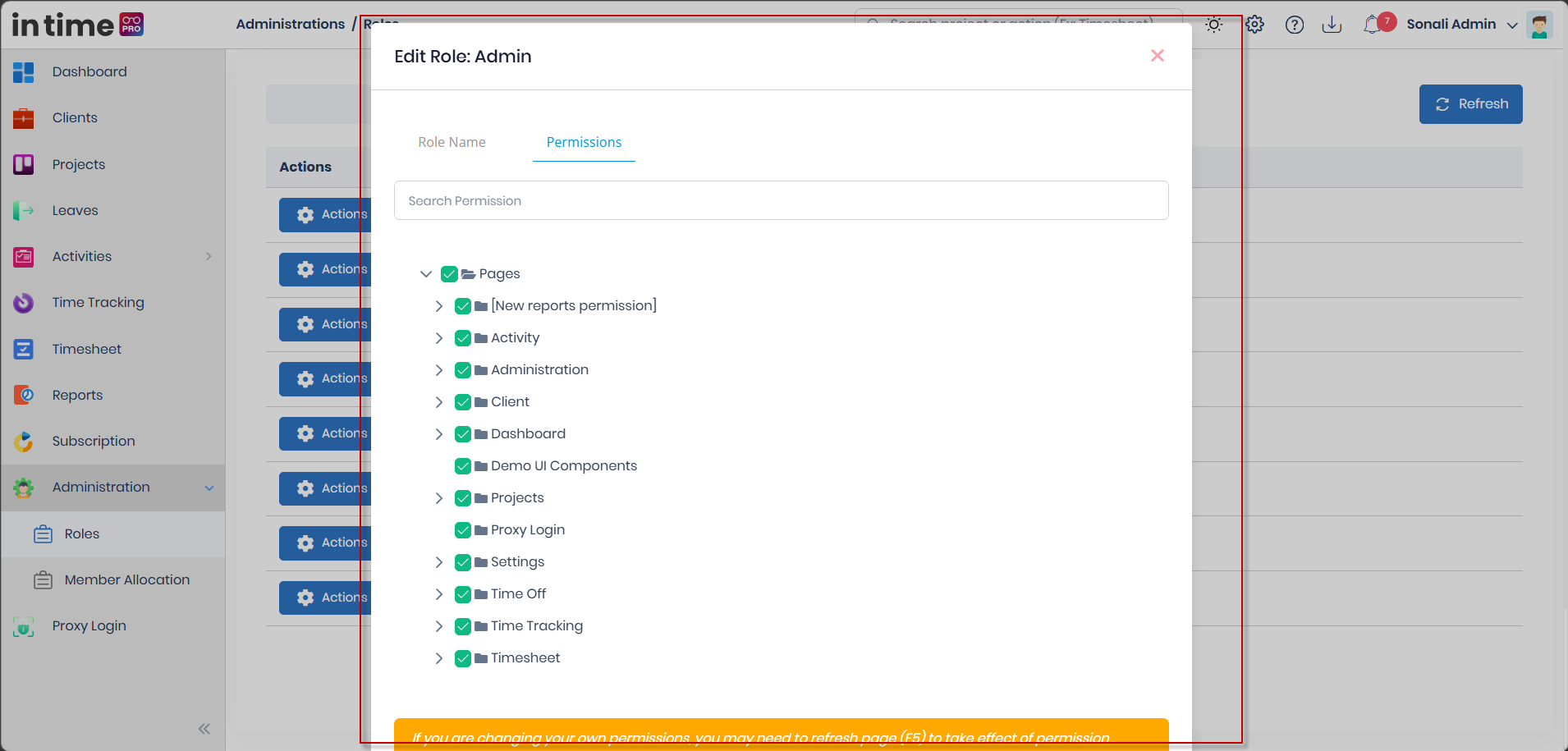
Saving: click Save to apply your changes — the button is disabled while the form is invalid or while saving is in progress. A success message ("Saved successfully.") confirms the change, the dialog closes, and the role list reloads. Click Cancel to close without saving; Cancel is disabled while a save is in progress.
There is no confirmation step before Save — permission changes take effect for the role as soon as you save.
7. Understanding Permissions
A permission is a specific thing a role is or isn't allowed to do — for example, opening the Roles page, deleting a project, or approving a team member's timesheet. Permissions are organized in a tree:
- A parent permission represents a broader category of access, such as "Administration" or "Timesheet."
- A child permission represents a more specific action or piece of access underneath that category, such as "Deleting role" or "Team Timesheet."
Selecting a parent permission selects its related child permissions, making it easier to grant a complete category of access in a single step instead of clicking every individual item. Individual child permissions can also be adjusted separately where supported — so a role can be given only part of a category rather than all of it.
Why this matters:
- Removing a permission from a role removes the related menu item, page, or action for every user with that role — it does not just hide it cosmetically, it also blocks the underlying action.
- Permission changes affect every user who currently has that role — not just one person, so changes here should be made carefully.
An important limitation to keep in mind: In Time PRO's permission tree controls most menus, pages, and buttons — but a handful of screens (particularly around Clients, Projects, and Timesheet data) still make some decisions based on a person's role name directly (for example, whether someone is specifically an Admin, Manager, or Client) rather than purely from the permission tree. In practice this means that for a small number of behaviors, changing a permission alone may not change what a Client, Admin, or Manager experiences on certain screens — the role name itself still matters in those specific cases. This is called out again in Changing Role Permissions below.
8. Permission Categories
The permission tree is organized into these top-level categories, matching what you'll see when you open the Permissions tab on a role (Host/company-management-only categories are omitted here since they don't apply to a normal tenant administrator):
- Administration — Roles, Member Allocation
- Settings — Users, Organization Units (these control the corresponding Settings screens, not anything under this Administration menu — you'll see them here because a role's overall access is configured in one place)
- Company Profile
- Products and Services
- Clients
- Time Off
- Activity
- Timesheet
- Projects
- Dashboard
- Time Tracking
- Reports
- Proxy Login
This catalog documents the permissions that were confirmed while writing this guide. It may not list every individual sub-permission for every screen — for example, the Resource Dashboard view and Accountant's Account View (both mentioned in Dashboard) don't have a separately confirmed entry here. If a screen or option you see doesn't match a permission name in this guide, it's likely still controlled by one of the categories above — check with your administrator if you need the exact permission name.
9. Detailed Permission Explanation
This section explains what each permission actually controls, in plain terms.
Administration
| Permission | What it controls | Why it's granted | What happens without it |
|---|---|---|---|
| Roles | Access to the Roles page itself | So an administrator can review and adjust what each role can do | The Roles menu item doesn't appear, and role-related actions can't be performed |
| Creating new role | The ability to create a brand-new role | Reserved for future/administrative use | The current Roles screen does not display a Create Role option; if custom-role creation is available in your organization, it may depend on the configured role-management functionality or permissions |
| Editing role | Shows the Edit action on a role row | So an administrator can change a role's Default flag and permissions | Edit does not appear on role rows |
| Deleting role | Shows the Delete action on non-static roles | So an administrator can remove a custom role that's no longer needed | Delete does not appear, even for custom roles |
| Member Allocation | Access to the Member Allocation page and everything on it | So an administrator can manage project allocations and member profiles | The Member Allocation menu item doesn't appear |
| View Member Allocation | Intended as a narrower, view-only version of Member Allocation access | Defined for future use | Currently has no separate effect — access to Member Allocation is controlled entirely by the Member Allocation permission above |
| Manage Member Allocation | Intended as the ability to make changes within Member Allocation | Defined for future use | Currently has no separate effect, for the same reason as above |
Settings-related permissions you may see in the tree
| Permission | What it controls | User impact |
|---|---|---|
| Users | Access to the Manage Users screen (under Settings) | Without it, the Users entry doesn't appear |
| Changing permissions | Ability to change another user's individual permission overrides | Rarely used day to day; most access is controlled at the role level instead |
| Login for users | Ability to sign in as another user for support purposes | A sensitive permission — grant carefully |
| User CRUD | Ability to create, edit, or delete users | Without it, a user can typically only view the Users list, not manage it |
| View Users | Ability to see the Users list | Without it, the Users list is hidden entirely |
| Organization Units | Access to the Organization Units screen | Controls whether Organization Units appears under Settings |
| Organization unit CRUD | Ability to add, edit, or delete organization units and their members | Without it, Organization Units may be visible but read-only |
| Organization unit view | View-only access to Organization Units | Grants visibility without edit rights |
Company Profile, Products & Services
| Permission | What it controls | User impact |
|---|---|---|
| Company Profile | Access to company profile settings | Without it, the Company Profile screen is hidden |
| View Company Profile | View-only access | Grants visibility without edit rights |
| Products and Services | Access to the Products & Services screen | Without it, this Settings screen is hidden |
Clients
| Permission | What it controls | User impact |
|---|---|---|
| Clients | Whether the Clients menu appears at all | Without it, Clients is hidden from the sidebar |
| Client CRUD | Ability to create, edit, archive, delete, or restore a client | Without it, a user can typically only view clients |
| View Client | Ability to see the Clients list and details | Without it, Clients data isn't visible |
Time Off
| Permission | What it controls | User impact |
|---|---|---|
| Time Off | Access to Leaves — the My Leaves and Calendar tabs | Without it, the Leaves menu is hidden |
| Leave Approval | Access to the Leave Approvals tab in Leaves — approve or reject leave requests from others | Without it, a user can request their own time off but can't approve anyone else's |
"Leave Approval" here is a different permission from the one that controls Time and Attendance's Pending / Approved / Declined tabs (which is about offline manual time, not leave requests). The two are easy to confuse because both are "approval" permissions, but they gate two separate features. Don't assume granting or removing one affects the other.
Activity
| Permission | What it controls | User impact |
|---|---|---|
| Activity | Access to the Activity section overall | Without it, activity tracking screens are hidden |
| Real Time Tracking | Live view of what team members are doing right now | Typically reserved for Manager and above |
| Time and Attendance | Access to attendance summaries | Shows arrival/departure and attendance data |
| Offline Time Approval | Access to Time and Attendance's Pending / Approved / Declined tabs, to review offline (manual) time entries | Without it, only the Productivity tab remains on Time and Attendance. See Time and Attendance. |
| Screenshots | Ability to view captured screenshots (where screenshot tracking is used) | A sensitive permission tied to monitoring features |
| Apps and Websites | Visibility into which applications/websites were used | Supports productivity review |
| Live Streaming / View | Access to a live activity stream, where available | Typically reserved for Manager and above |
Timesheet
| Permission | What it controls | User impact |
|---|---|---|
| Timesheet | Access to the Timesheet area overall | Without it, timesheet menus are hidden |
| Projects (Timesheet) | The Projects tab within Timesheet | Lets a user see which projects their timesheet covers |
| My Timesheet | A user's own timesheet | Almost every role has this — it's how someone submits their own time |
| Team Timesheet | Visibility into a team's submitted timesheets | Typically granted to Manager, Program Manager |
| Timesheet Approval | Ability to approve/reject a team's timesheet | Works together with Team Timesheet |
| Timesheet Summary | A rolled-up view of timesheet totals | Useful for reviewing overall hours across a team |
| Approve / Reject | The specific actions on a submitted team timesheet | Lets a Manager or Program Manager accept or send back a submission |
Projects
| Permission | What it controls | User impact |
|---|---|---|
| Projects | Whether the Projects menu appears | Without it, Projects is hidden |
| Project CRUD | Ability to create, edit, archive, or delete a project | Reserved mainly for Admin |
| View Project | Ability to view project details | Grants read access to project information |
| Project Details — Team / Allocation / Tasks / Timesheet / Activities | Access to each specific tab inside a project's details page | Controls what a user can see once they open a project |
Dashboard
| Permission | What it controls | User impact |
|---|---|---|
| Dashboard | Access to the Dashboard area | Without it, the Dashboard is hidden |
| My Dashboard | The user's own personal dashboard view | Nearly every role has this |
| Team Dashboard | A team/organization-wide dashboard view | Typically reserved for Manager and above |
| Dashboard widget permissions | Individual widgets shown on the dashboard (attendance stats, leave reports, productivity charts, and so on) | Controls which specific cards/widgets appear |
Time Tracking
| Permission | What it controls | User impact |
|---|---|---|
| Time Tracking | Access to the Time Tracking area | Without it, Time Tracking is hidden |
| CRUD Task | Ability to create, edit, or delete tasks | Reserved for Manager and above in most setups |
| View Task | Ability to view tasks | Grants read access to task lists |
Reports
| Permission | What it controls | User impact |
|---|---|---|
| Reports | Whether the Reports menu appears | Without it, Reports is hidden entirely |
| Timesheet Report | Access to the timesheet report | Shows timesheet totals across people/projects |
| Leave Report | Access to the leave report | Shows leave usage across people (this specific report is currently disabled for use — see Reports) |
| Attendance Report | Access to the attendance report | Shows attendance patterns across people |
The Reports module also offers Productivity Report and Project Allocation Report cards. This permission catalog does not have separate confirmed entries for those two report types — whether they're gated by their own sub-permission or by the general Reports permission above is not confirmed in this documentation.
Proxy Login
| Permission | What it controls | User impact |
|---|---|---|
| Proxy Login | Ability to sign in as another user/tenant | Reserved for Super Admin; explicitly denied to Admin |
10. Changing Role Permissions
To change what a role can do:
- Go to Administration → Roles.
- Find the role and open Actions → Edit.
- Switch to the Permissions tab.
- Select or clear checkboxes for the permissions you want to grant or remove.
- Click Save.
A few things to keep in mind while doing this:
- Checking a parent item in the tree automatically checks the items underneath it — you don't need to click every child individually if you want to grant a whole category.
- You can search within the permission tree using the search box (placeholder "Search Permission") to quickly find a specific permission instead of scrolling.
- Permissions are not shown as read-only or "locked" anywhere in this tree — anything visible in it can be selected or cleared, subject to your own access.
- As noted earlier, a few areas of the application (particularly some Client-, Project-, and Timesheet-related behavior) still key off a person's role name in addition to the permission tree. If you remove a permission from, say, Manager, but a screen still behaves differently for "anyone named Manager" specifically, that's this kind of role-name-based behavior — not a bug in your permission change.
11. Saving Permission Changes
Clicking Save on the Edit Role dialog applies your changes immediately to that role — there is no separate "publish" or approval step. After saving:
- A confirmation message, "Saved successfully," appears.
- The dialog closes and the role list reloads.
- The permission change applies to every user currently assigned that role.
12. Permission Changes and Page Refresh
If you change permissions for the role you are currently signed in as, your own browser session may still be using your old permission list. To make sure your own screen reflects the update:
- Press F5 (or refresh the page) after saving.
- Other users affected by the change will pick up the new permissions the next time they sign in or refresh their own session.
This is exactly what the warning message on the Edit Role screen is telling you, and it's worth remembering any time you're adjusting the permissions of your own role.
13. Role Permission Examples
Example 1 — Employee access. A typical Employee only needs My Profile, Time Tracking, Timesheet (their own), Projects (view), Time Off, and their own Dashboard. There's usually no reason to add Reports, Clients, or Administration permissions to this role — doing so would give every Employee in the company that access at once.
Example 2 — Manager access. A Manager builds on the Employee set by adding Team Timesheet, approvals, Reports, Team Dashboard, Client visibility, and Project Details tabs — because a Manager's job involves overseeing a team's work, not just their own.
Example 3 — Administrator access. Admin and Super Admin are meant to carry nearly the full permission set, since they're responsible for configuring the company itself — including Roles and Member Allocation, which no other role gets by default.
Example 4 — Restricting access. If you remove the Team Timesheet permission from Manager, Managers will lose the ability to see and approve their team's timesheets — the Team Timesheet tab and the approve/reject actions will disappear for every Manager. Keep in mind that a few areas of the app (see Understanding Permissions) also check a person's role name directly, so removing a permission won't necessarily change every single role-based behavior tied to that role's name.
14. Role Restrictions and Limitations
To avoid confusion, here's a plain list of things the current Roles screen does not support:
- The current Roles screen does not display a Create Role option. If custom-role creation is available in your organization, it may depend on the configured role-management functionality or permissions.
- The Role Name field is always read-only — no role can be renamed here, including custom roles.
- There is no Clone Role option.
- There is no way to assign a role to a specific user from this page — that's done from Settings → Manage Users.
- Static (built-in) roles can never be deleted, no matter who is signed in.
- There is no Restore option for a deleted role — deletion is final.
- Deleting a role first removes it from every user who has it, then deletes the role itself — no confirmation beyond the initial delete prompt.
15. Role-Based Access Summary
| Role | Sees Administration | Roles | Member Allocation | Notes |
|---|---|---|---|---|
| Admin | Yes | Yes | Yes | Everything except Proxy Login |
| Super Admin | Yes | Yes | Yes | Everything, including Proxy Login |
| Employee | No (by default) | No | No | Default role for new users |
| Manager | No (by default) | No | No | Broad team/project oversight elsewhere |
| Program Manager | No (by default) | No | No | Similar to Manager |
| Contractor | No (by default) | No | No | Project/activity-focused access |
| Accountant | No (by default) | No | No | Time off/reports-focused access |
| Client | No | No | No | Uses a separate Client Portal entirely |
An administrator can grant Administration access to any of these roles by adding the matching permission — this table describes what a newly set up company looks like out of the box, not a hard restriction.
16. Administration Permissions Summary
A quick-reference list of every permission you may encounter while editing a role's Permissions tab, grouped by area:
| Category | Permissions |
|---|---|
| Administration | Roles, Creating new role, Editing role, Deleting role, Member Allocation, View Member Allocation, Manage Member Allocation |
| Users (Settings) | Users, Changing permissions, Login for users, User CRUD, View Users |
| Organization Units (Settings) | Organization Units, Organization unit CRUD, Organization unit view |
| Company Profile | Company Profile, View Company Profile |
| Products & Services | Products and Services |
| Clients | Clients, Client CRUD, View Client |
| Time Off | Time Off, Leave Approval |
| Activity | Activity, Real Time Tracking, Time and Attendance, Offline Time Approval, Screenshots, Apps and Websites, Live Streaming/View |
| Timesheet | Timesheet, Projects (Timesheet), My Timesheet, Team Timesheet, Timesheet Approval, Timesheet Summary, Approve, Reject |
| Projects | Projects, Project CRUD, View Project, Project Details (Team, Allocation, Tasks, Timesheet, Activities) |
| Dashboard | Dashboard, My Dashboard, Team Dashboard, Dashboard widget permissions |
| Time Tracking | Time Tracking, CRUD Task, View Task |
| Reports | Reports, Timesheet Report, Leave Report, Attendance Report |
| Proxy Login | Proxy Login (Super Admin only; explicitly denied to Admin) |
See Detailed Permission Explanation above for what each of these actually does.
17. Common Questions
Where do I assign a role to a person?
Not in Administration → Roles. Go to Settings → Manage Users, and assign the role when you invite or edit that person.
Can I create a new role?
The current Roles screen does not display a Create Role option. If custom-role creation is available in your organization, it may depend on the configured role-management functionality or permissions — speak with your administrator or support contact if you need a role beyond the main built-in roles.
Can I rename a role?
No. The Role Name field is always read-only on the Edit Role screen, for every role.
Why can't I delete Manager, Employee, or another built-in role?
All eight built-in roles are marked Static, and Static roles can never be deleted. Only a custom role can be deleted, and only by a user with delete permission.
I changed my own role's permissions and nothing changed on my screen — is it broken?
No — refresh your browser (F5). Your session may still be using the permission list from before your change.
What happens to users if I delete a role?
The role is removed from every user who had it, and then the role itself is deleted. This can't be undone — there's no restore option.
Is "Leave Approval" the same permission as the one that approves offline time on Time and Attendance?
No. Leave Approval (Pages.TimeOff.Approval) controls the Leave Approvals tab in Leaves. A separate permission, Offline Time Approval (Pages.Activity.TimeApprovals.New), controls the Pending/Approved/Declined tabs on Time and Attendance. They're easy to confuse because both are about approving something, but they're unrelated permissions.