Timesheet
Timesheet is where you record the work you do every day, submit it for approval, and track its status until it is approved. This guide walks a first‑time user through everything Timesheet can do — from filling in a single day's hours to understanding how managers approve or reject submitted work, and how admins review Timesheet activity project‑wise using Summary.
1. Timesheet Overview
Timesheet is the module in In Time PRO used to record, review, submit, approve, and summarize project/task working hours.
Why Timesheet exists:
- It gives every employee a simple, structured way to record what they worked on each day.
- It gives managers and admins a clear, organized view of how time is being spent across projects and people.
- It creates an approval trail — every submitted timesheet is reviewed and either approved or rejected, so there is accountability on both sides.
- It connects day‑to‑day work with project management and billing. Hours recorded here can be marked as billable or non‑billable, which supports invoicing and client reporting.
- It works alongside actual time tracking (the Desktop Application and Time Tracking module) so that the hours you enter can be backed up by the time the system has actually observed you working.
In short: Time Tracking and the Desktop Application capture the time you actually spend working, and Timesheet is where you turn that time into a formal, described, and approvable record.
Main Timesheet tabs
Timesheet is organized into four top‑level tabs. Each has a distinct purpose, and this guide keeps them in clearly separated sections below.
| Tab | Purpose |
|---|---|
| My Timesheet | Enter, review, and submit your own daily hours against your assigned projects and tasks (default tab). |
| Submitted Timesheet | Review the timesheets you have already submitted and check their approval status. |
| Approvals | Available to configured approvers only — review, approve, or reject timesheets submitted by team members. |
| Summary | Available to authorized/internal users — review Timesheet activity project‑wise and drill down into project‑ and user‑level detail. |
The complete relationship between the tabs
The four tabs are not independent screens — they are stages of one continuous flow. Understanding this relationship is the key to understanding the whole module:
Project Assignment
        ↓
User becomes a Project Team Member
        ↓
Project becomes available in My Timesheet
        ↓
User creates/selects Task
        ↓
User records Description + Duration
        ↓
User saves Timesheet information
        ↓
User reviews Logged Hours / totals
        ↓
User submits Timesheet
        ↓
Submitted Timesheet
        ↓
Approval workflow
        ↓
Approved / Rejected / Pending / Overdue
        ↓
Admin/authorized user can review project-wise Summary
        ↓
Admin can filter by Project/User
        ↓
Admin can open View Project
        ↓
Admin can review project/user Timesheet information
        ↓
Admin can generate Timesheet Report where required
Every section in this guide maps onto one step of this flow — from Project Assignment and Timesheet (§8) through My Timesheet entry, Submitted Timesheet, Approvals, all the way to Summary and the Timesheet Report. See Complete Timesheet Lifecycle at the end of this guide for the same flow presented as one continuous reference diagram.
2. Who Uses Timesheet
Timesheet is used by everyone who logs time, and by the people who review that time. What a person can see and do depends on their role and the permissions given to them by the administrator.
| Role | What they typically do in Timesheet |
|---|---|
| Employee / User | Enters their own daily hours, reviews their week, saves their entries, and submits their timesheet for approval. Can see only their own timesheet in My Timesheet and Submitted Timesheet. |
| Manager / Approver | Does everything an employee does, plus reviews timesheets submitted by their team in Approvals, and approves or rejects them. Approval rights come from being configured as an approver on a project, not just from having a "Manager" title. |
| Admin / authorized user | Does everything an employee does, plus typically has visibility into Summary — the project‑wise and user‑wise Timesheet overview — in addition to entering and submitting their own time. |
| Client | Uses a separate, read‑only client portal timesheet view rather than the internal My Timesheet/Approvals/Summary screens described in this guide. See Client Portal. |
Approve and reject actions are only available to the people configured as approvers for a specific project. Simply having a manager‑type role does not automatically make someone an approver — the Timesheet Approvals tab and the Summary tab are shown or hidden based on your permissions and role. See Role and Access Overview for a full explanation.
3. How Timesheet Works — The Complete Workflow
Timesheet follows a simple, repeatable cycle:
- Work is performed — you work on a project or task during the day.
- Time is tracked or logged — either automatically through Time Tracking or the Desktop Application, or manually by you.
- Daily Timesheet information is entered — you open Timesheet and record the project, task, description, and hours for that day.
- You review the week's Timesheet — before submitting, you check that all days, projects, and hours look correct.
- You save/submit the Timesheet — your entries are saved, and once you are ready, you submit them.
- The Submitted Timesheet becomes available for review — it moves out of My Timesheet and appears under Submitted Timesheet with a Pending status.
- The Approver reviews the submitted Timesheet — they check the project, dates, tasks, and hours.
- The Approver approves or rejects it — with an optional (or required, for rejection) comment.
- The approved/rejected status is reflected in the system — you can see the updated status in Submitted Timesheet.
- Summary/report information is updated accordingly — project‑level and team‑level views in Summary, and exports from the Timesheet Report, reflect the latest submitted, approved, and pending hours.
Work performed → Time tracked/logged → Daily entry in Timesheet → Weekly review
   → Save/Submit → Submitted Timesheet (Pending) → Approver review
   → Approve/Reject → Status updated → Summary/Reports updated
4. Timesheet and the Desktop Application
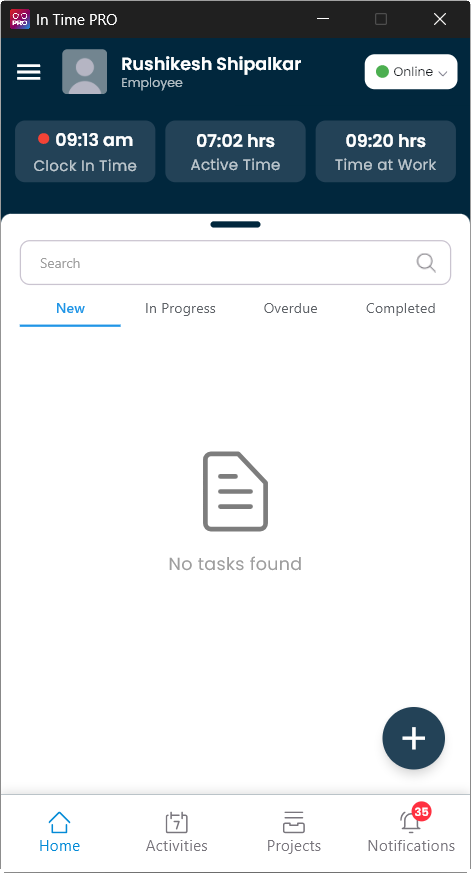
In Time PRO includes a Desktop Application (shown in the product as the Agent App, or as "In Time PRO for Windows" / "In Time PRO for Mac" on the download screen) that runs on your computer and tracks your actual working and active time throughout the day.
What the Desktop Application does:
- It records when you clock in, how long you are active, and how much time you spend "at work" during the day.
- It shows your assigned tasks (grouped as New, In Progress, Overdue, and Completed) so you always know what you are expected to work on.
- It runs quietly in the background and reflects your clock‑in time, active time, and time at work directly on its home screen.
Screenshot: Desktop Application
Why you should use it:
If your organization requires time tracking, keeping the Desktop Application running while you work ensures that your actual working time is captured automatically, instead of you having to remember and reconstruct it later.
How tracked time relates to Timesheet:
- Time tracked through the Desktop Application (and the Time Tracking module in the web app) can be reflected as logged time against your tasks.
- Timesheet is where this time is formally recorded, described, and submitted for approval — it is the record of the work performed, not just the raw tracked minutes.
- Manually entered Timesheet hours are hours you type in yourself for work that was not captured by a running timer (for example, offline work or work you forgot to track live).
Difference between actual tracked time and manually entered Timesheet information:
| Actual tracked time (Desktop Application / Time Tracking) | Timesheet entry | |
|---|---|---|
| How it is created | Automatically, while a timer runs or the Desktop Application is active | Entered by the user (directly, or carried over from tracked time) |
| What it shows | Raw active/working time against a task | A described, dated, project‑wise record ready for approval |
| Approval | Not itself approved | Goes through the Submit → Approve/Reject workflow |
Desktop Application / Time Tracking
        ↓
Actual tracked working time
        ↓
Can be used as a reference
        ↓
Timesheet
        ↓
Project/task-wise formal record
        ↓
Submit
        ↓
Approval
How to use tracked time as a reference: Before filling in your Timesheet, you can check your Active Time / Time at Work in the Desktop Application or your task history in Time Tracking, and use that as a guide for how many hours to record and against which task.
Timesheet duration is not automatically identical to the Desktop Application / Time Tracking time. You still review, adjust if needed, and confirm the duration and description you actually submit.
5. How to Access Timesheet
Main Menu → Timesheet
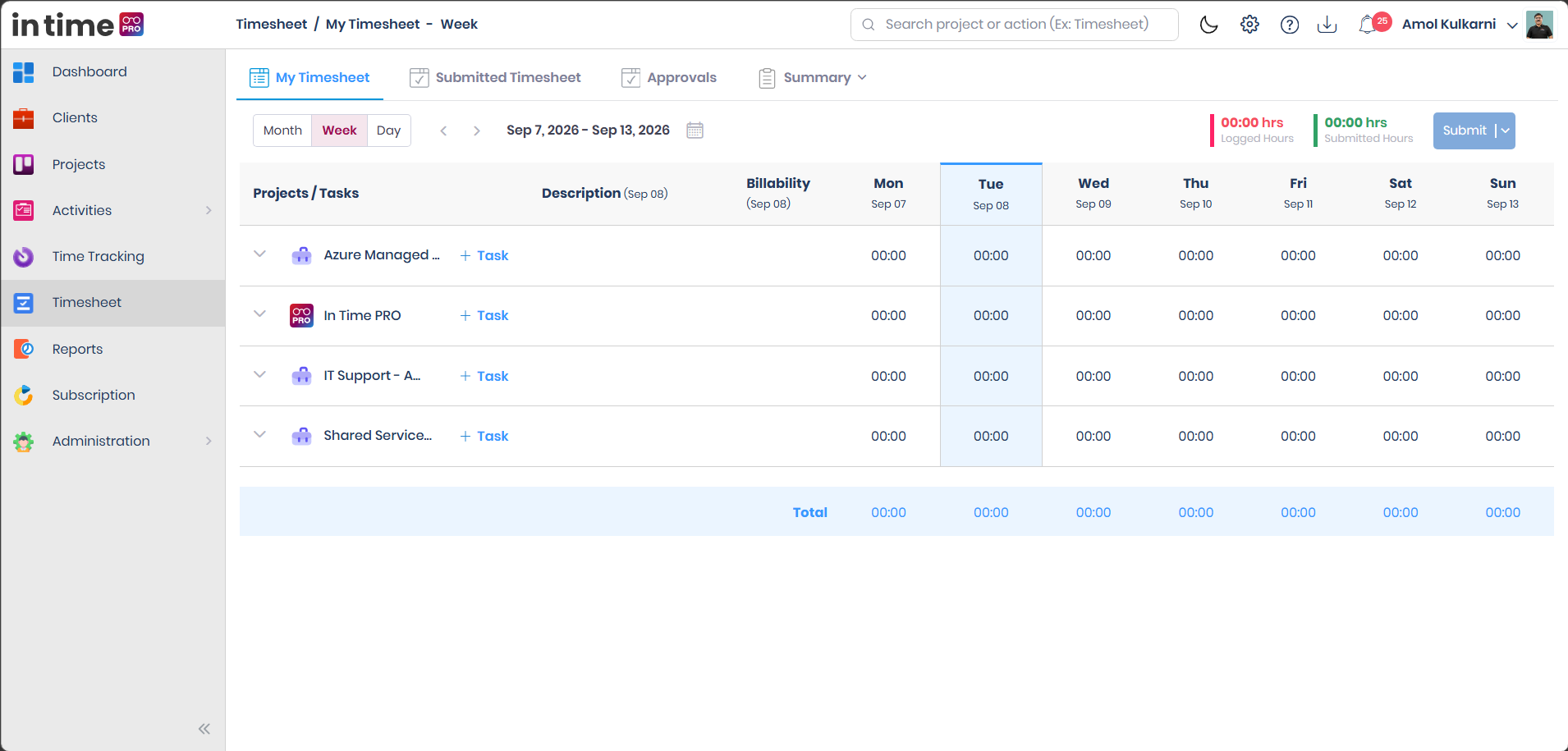
My Timesheet opens first, and Week is the usual default view. From here you can switch to Submitted Timesheet, Approvals, or Summary using the tabs at the top of the page.
Users with access to this feature can open it from the main menu. If Timesheet is missing from your menu, ask your administrator to review your access. The tabs that appear after you open Timesheet depend on your role and permissions — see Role and Access Overview.
Screenshot: Timesheet Main Page
6. Timesheet Screen Overview
Every screen in Timesheet shares a similar layout, so once you learn one, the others feel familiar.
| Element | What it is used for |
|---|---|
| Tabs (My Timesheet, Submitted Timesheet, Approvals, Summary) | Switch between entering time, reviewing what you submitted, approving team timesheets, and viewing project summaries |
| Month / Week / Day toggle | Choose how much of the calendar you want to see at once |
| Date navigator (◀ ▶ and calendar icon) | Move to the previous or next period, or jump to a specific date using the calendar picker |
| Logged Hours / Submitted Hours | Running totals shown at the top right of My Timesheet |
| Submit button | Sends your current, unsubmitted hours for approval |
| + Task | Opens a panel to add a new task row to your timesheet |
| Status badges (Pending, Approved, Rejected, Overdue) | Show the current approval state of a timesheet at a glance |
| Filter icon / search fields | Narrow down long lists such as Submitted Timesheet or Approvals |
| Pagination controls | Move between pages of results and change how many rows are shown per page |
7. My Timesheet
My Timesheet is your personal Timesheet area — it is used by the logged‑in user to record their own project/task work and working hours. Only your own assigned projects, tasks, and hours appear here. My Timesheet supports three views: Month, Week, and Day, described separately below.
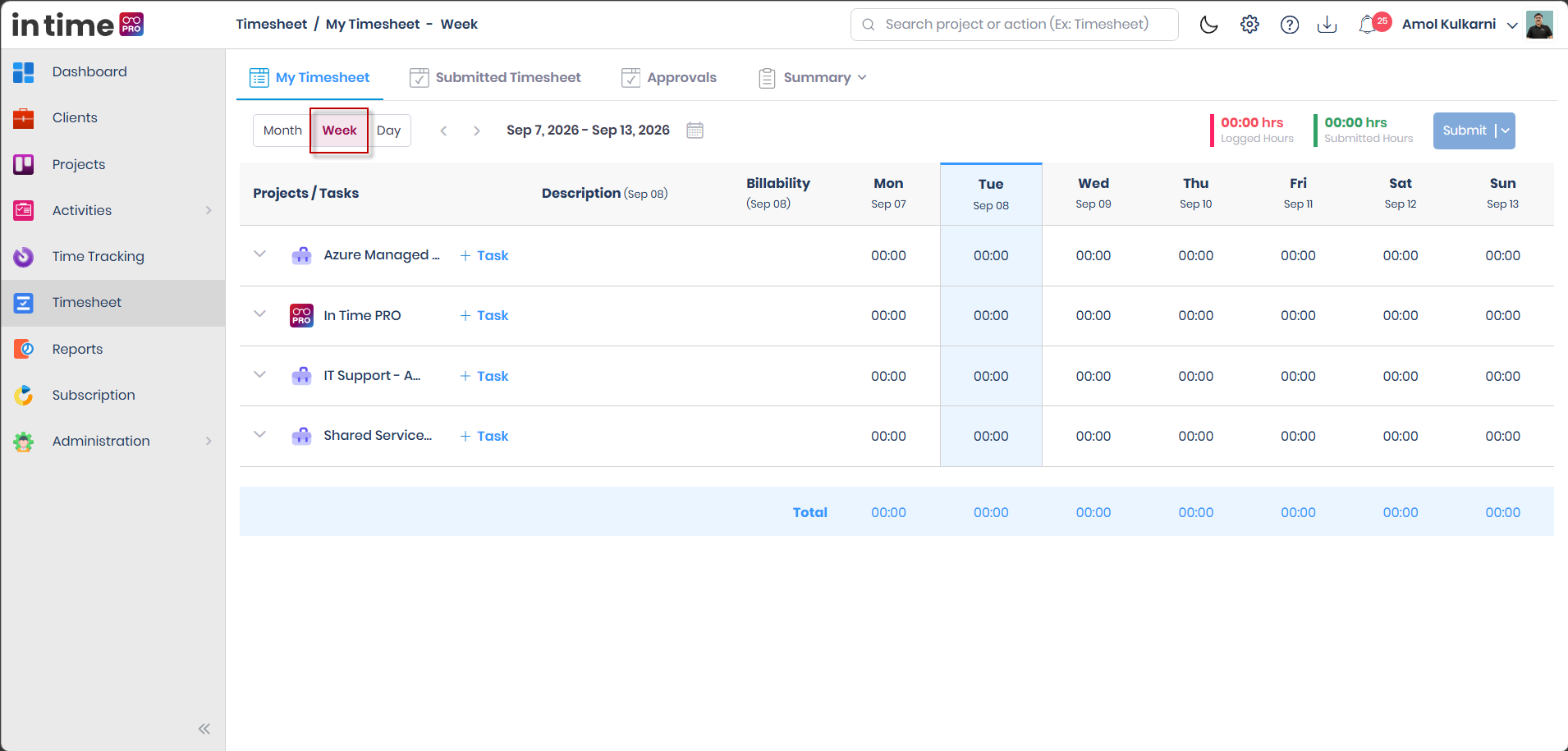
7.1 Week View
Week View is the normal/default working view in My Timesheet.
- The current week is displayed, with days Monday to Sunday shown as columns.
- Each row is a project you are assigned to. Expand a project row to see its tasks.
- Duration can be entered for each day.
- Daily and weekly totals are visible — a Total row at the bottom adds up the hours for each day and for the whole week.
- Description and Billability fields apply to the day column currently selected/highlighted.
- Logged Hours and Submitted Hours are shown at the top right, along with the Submit button.
You can create a task in Week View and reuse that same task throughout the selected week — see Task Reuse During the Week.
Use Week View when you want to review and complete a full week of work before submitting.
Screenshot: My Timesheet – Week View
7.2 Day View
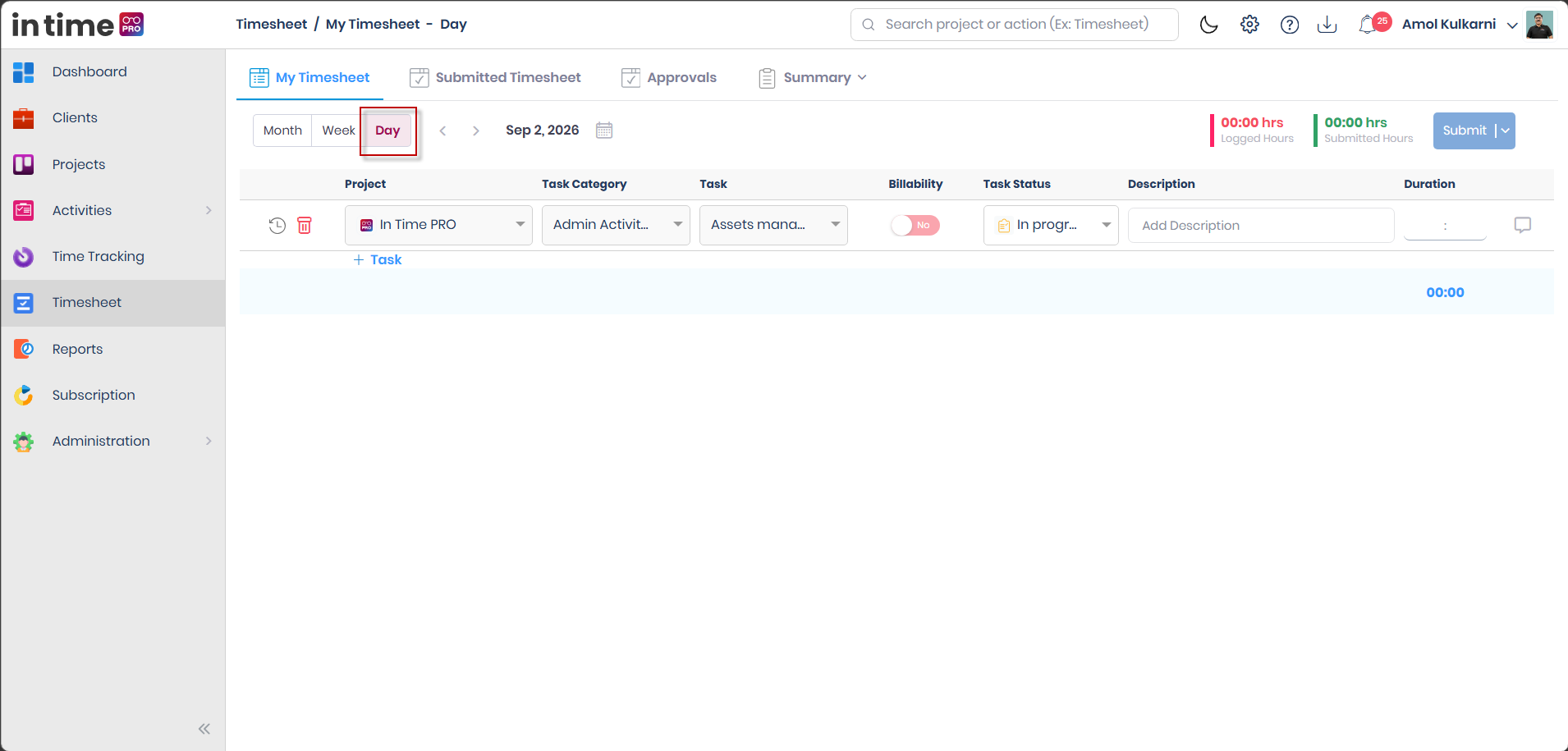
Day View focuses on one specific date. It lays out that day as a flat, detailed grid, which is useful when you need to enter several tasks with more detail for a single date.
- You can review and enter project/task work for that day.
- You can select an existing task, or create a task if the right one does not already exist.
- You can enter Description and Duration for each task.
Columns you will see in Day view:
| Column | What to enter |
|---|---|
| Project | The project the work belongs to |
| Task Category | The category or type of work (for example, Project Management, Learning & Training) |
| Task | The specific task you worked on |
| Billability | Whether this entry is Billable (Yes) or Non‑Billable (No) |
| Task Status | The current status of the task itself (New, In Progress, Overdue, Completed) — this is different from the Timesheet's own Pending/Approved/Rejected/Overdue approval status |
| Description | A short note describing the work done |
| Duration | The number of hours (HH:MM) spent on that task that day |
Small icons next to each row let you view history and delete a row, and a comment icon lets you add notes for that task.
Day View is especially useful when: you worked on several different tasks in one day and want a detailed, itemized breakdown, rather than the wider week‑at‑a‑glance layout of Week View.
Screenshot: My Timesheet – Day View
7.3 Month View
Month View displays Timesheet information for the selected month.
- Days are displayed in a calendar layout.
- Project/task information can be reviewed for the relevant dates.
- Duration can be reviewed for each day.
- Total hours can be reviewed — both per day and for the month.
Month View is for review only — you cannot save drafts or submit hours from this view.
When Month View is useful: if you want to review all the Timesheet work recorded during a full month (for example, reviewing everything logged in September), Month View gives you a month‑level view instead of clicking through week by week. Use it to spot patterns across the month or to quickly locate a day you need to go back and fix in Week or Day view.
Screenshot: My Timesheet – Month View
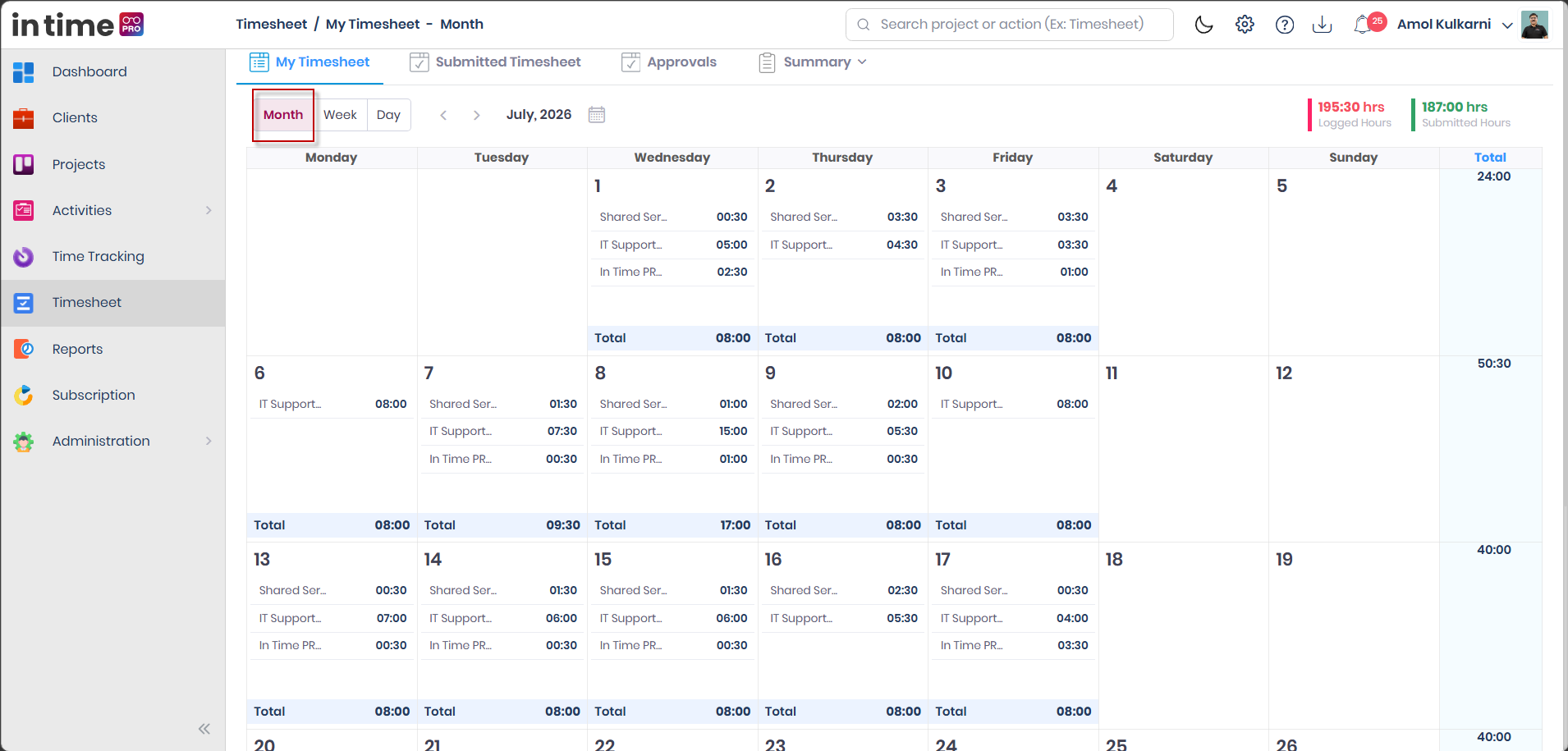
Use Week or Day to enter and submit hours. Use Month only to review a broader period at a glance.
7.4 Date Navigation
All three views share the same way of moving between periods, but the amount of time each step moves depends on which view is open:
| Control | Month View | Week View | Day View |
|---|---|---|---|
| ◀ Previous arrow | Goes to the previous month | Goes to the previous week | Goes to the previous day |
| ▶ Next arrow | Goes to the next month | Goes to the next week | Goes to the next day |
| Calendar/date picker icon | Jumps directly to any month | Jumps directly to any week | Jumps directly to any date |
Use the arrows for quick, short moves (for example, checking yesterday), and the calendar picker when you need to jump further back or forward, such as reviewing a week from several months ago.
8. Project Assignment and Timesheet
This relationship is very important to understand before entering any Timesheet data.
A project only appears in your My Timesheet if you have been assigned to it as a Project Team Member. Simply knowing about a project, or being its manager, is not enough on its own for time entry — the assignment is what makes the project available for you to log hours against.
Project
   ↓
User is assigned to Project Team
   ↓
User becomes associated with project
   ↓
Project becomes available in My Timesheet
   ↓
User can create/select task
   ↓
User can record Timesheet hours
What this means in practice:
- Timesheet project availability depends on your project association/team membership — not every project in the organization automatically appears for every user.
- If a project you expect to see is missing from My Timesheet, the most common reason is that you have not yet been added as a team member on that project. Contact your administrator or project manager to check your assignment.
- Your assignment also carries dates — you can generally only record time on a project within the period your assignment on that project is active. Days outside your assigned period on the project are locked for entry.
- Once you are removed from a project's team, that project stops appearing for new entries in My Timesheet, though your previously submitted history remains visible.
9. Multiple Projects
A user may be assigned to more than one project at a time. My Timesheet shows every project you are currently assigned to as its own row (Week view) or as its own selectable option (Day view and Month view), and lets you record work separately for each one.
Example:
User is assigned to:
- Project A
- Project B
- Project C
Project A                Project B                Project C
   ↓                        ↓                        ↓
Task A1                  Task B1                  Task C1
   ↓                        ↓                        ↓
Duration                 Duration                 Duration
For a week like this, you would:
- Expand Project A, select or create the relevant task, and record your hours and description for that project.
- Do the same for Project B, under its own row.
- Do the same for Project C, under its own row.
Each project keeps its own tasks, descriptions, and hours — entries under one project never mix with another. This project‑wise recording keeps your Timesheet data organized, even when you split your day across several projects. The Total row still adds up hours across all projects for each day and for the week, so you can see your combined workload alongside the project‑wise breakdown.
When you submit, you can choose to submit all projects at once, or use the Submit dropdown to submit a single project — useful if one project's timesheet is complete while you are still finishing entries on another.
Screenshot: Project Selection [SCREENSHOT PLACEHOLDER - Add screenshot here]
10. Task Creation
When the user needs a task that does not already exist, use + Task to add it:
My Timesheet
   ↓
Select Project
   ↓
+ Task
   ↓
New Task form
   ↓
Enter task information
   ↓
Save
   ↓
Task becomes available under the project
Screenshot: New Task
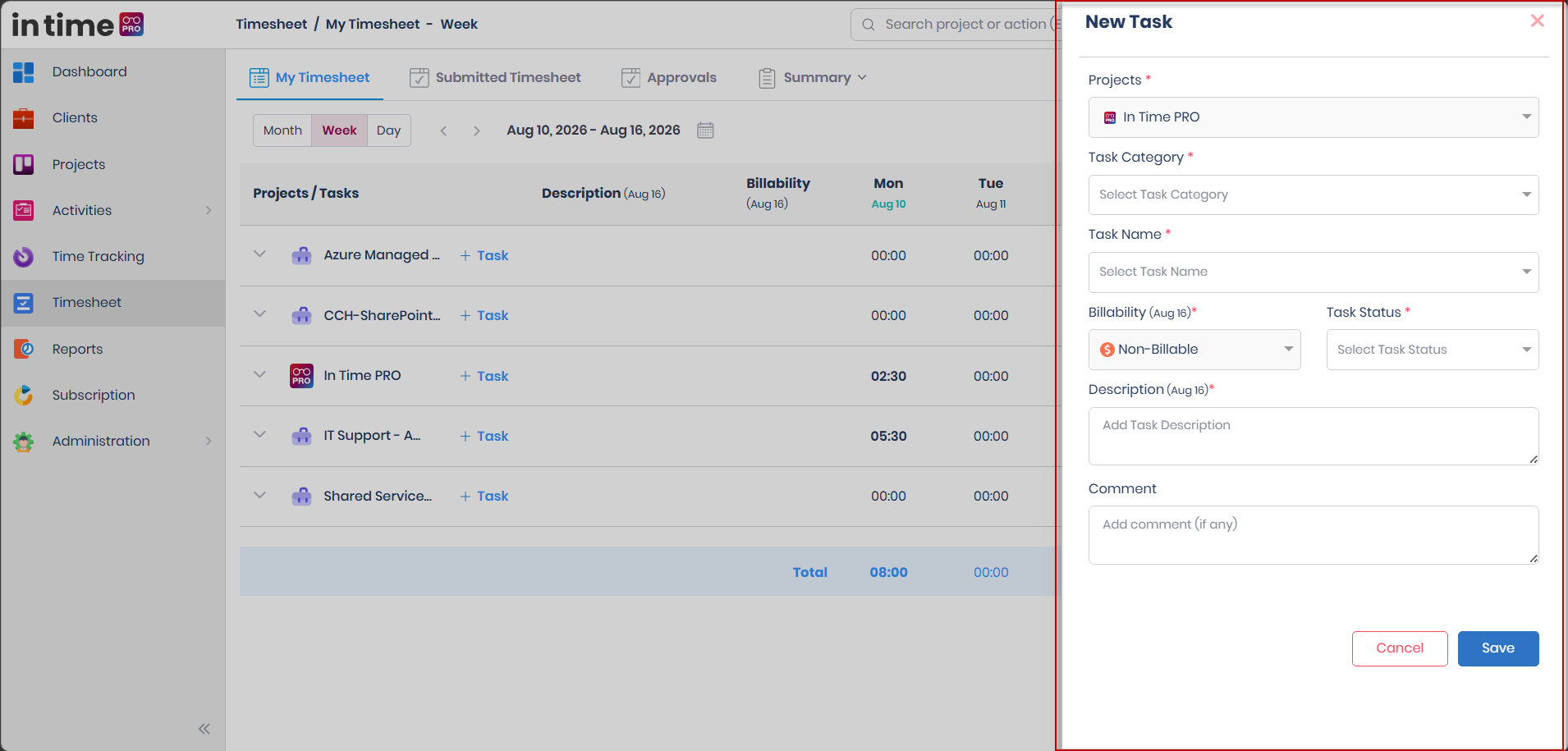
Task fields
| Field | Required? | What it is for |
|---|---|---|
| Projects | Yes | The project this task belongs to. |
| Task Category | Yes | The category or type of work the task falls under. See Task Category below. |
| Task Name | Yes | The specific work/task you are recording time against. See Task Name below. |
| Billability | Where the project allows it | Marks the task as Billable or Non‑Billable. See Billability below. |
| Task Status | Yes | The current progress of the task itself — see Task Status values below. |
| Description | Yes, for the day the task applies to | A short note describing the work done. See Description below. |
| Comment | No | An optional note. See Comment below. |
Screenshot: Task Fields [SCREENSHOT PLACEHOLDER - Add screenshot here]
Task Category
Task Category is used to classify the type/category of work performed — for example, Project Management or Learning & Training, depending on the categories set up for your project. The categories available to choose from are the ones your project/organization has configured; this guide does not list a fixed category list because it can vary between projects.
Task Name
Task Name identifies the actual work/task against which you record time.
Examples (illustrative only — not fixed system values, your own project's task list will differ):
- Bug Fixing
- Dashboard Development
- Documentation
- Testing
You can select an existing task name or add a new one, depending on what your project allows.
Screenshot: Task Category / Task Name [SCREENSHOT PLACEHOLDER - Add screenshot here]
Task Status values
Task Status describes the progress of the task itself — it is not the same as the Timesheet's approval status (covered separately in Understanding Timesheet Status vs Task Status).
| Task Status | Meaning |
|---|---|
| New | The task has just been created and work has not yet started. |
| In Progress | Work on the task is currently underway. |
| Overdue | The task has passed its expected completion point and is still not finished. |
| Completed | The task has been finished. |
Do not mix Task Status with the Timesheet Approval Status (Pending, Approved, Rejected, Overdue). They track two completely different things — see Understanding Timesheet Status vs Task Status.
Screenshot: Billability / Task Status [SCREENSHOT PLACEHOLDER - Add screenshot here]
Description
Description is an important field — describe the actual work performed for the selected project/task on that specific day.
Good examples:
- Fixed dashboard pie chart rendering issue.
- Investigated reported bug.
- Completed frontend changes.
- Worked on Timesheet documentation.
Meaningful descriptions help the approver understand what work was actually performed when they review your submission. Avoid generic descriptions such as "Worked on project" — they don't give your approver (or your future self, reviewing old entries) any real information about what was done.
Comment
Comment is used for additional information or clarification about the task/work — for example, a remark that doesn't belong in the day‑to‑day Description field. Comment is optional; you can leave it blank when there is no additional information you need to add.
Save
Save stores the task/Timesheet task information.
Project
   ↓
Task
   ↓
Task appears in My Timesheet
   ↓
User can record daily hours
Expected Result
The new task is added under the selected project in your timesheet grid, ready for you to record duration and a description against it for the relevant day(s).
Cancel
Cancel closes the task form without saving the entered task information. Any details you had typed in are discarded.
11. Task Reuse During the Week
This is an important workflow: you do not need to create the same task again every day.
If a user creates a task on Monday, the same task can be used for the relevant days of that week. Once a task has been added to a project, it stays available under that project for the rest of the week — and beyond, until you remove it. For each day, you can record or update:
- Daily Description — what you specifically worked on that day for this task.
- Daily Duration — how many hours you spent on this task that day.
Example:
| Day | Task | Duration |
|---|---|---|
| Monday | Bug Fixing | 02:00 |
| Tuesday | Bug Fixing (same task) | 03:00 |
| Wednesday | Bug Fixing (same task) | 01:30 |
The task remains the same, while the daily Description and Duration can be recorded or updated for each day.
Why this is useful: Ongoing work — such as an extended bug fix, a recurring meeting, or a multi‑day activity — rarely fits neatly into a single day. Reusing the same task lets you keep a consistent, easy‑to‑review record across the week, with only the day‑wise description and duration changing, instead of creating a confusing list of near‑duplicate tasks.
12. Daily Timesheet Entry — Complete Flow
This is the complete, dedicated step‑by‑step flow for entering a day's Timesheet work, bringing together everything explained above:
- Open Timesheet.
- Open My Timesheet.
- Select Month, Week, or Day view.
- Select the required date.
- Identify the required project.
- Select an existing task, or select + Task.
- If creating a task, select the Task Category.
- Enter or select the Task Name.
- Select Billability.
- Select the Task Status.
- Enter the Description.
- Enter the Duration.
- Add a Comment if required.
- Save.
- Repeat for other tasks/projects/days.
- Review your totals.
- Submit Timesheet.
Screenshot: Description / Duration Entry [SCREENSHOT PLACEHOLDER - Add screenshot here]
Keep this flow in mind as you go through the more detailed sections below — each one explains a single step from this list in depth.
13. Duration and Working Hours
Duration represents the time spent working on the selected project/task for a particular day, entered in HH:MM format.
Example: 02:30 = 2 hours 30 minutes.
Recorded duration contributes to:
-
Daily total
-
Weekly total
-
Monthly total
-
Logged Hours
-
Duration must be entered for any day you want counted; a row with a description but no duration does not contribute hours.
-
Duration is checked against a maximum of 24 hours per day — the total duration across all tasks for a single day cannot exceed 24 hours. See Timesheet Validations and Restrictions for the full list of confirmed restrictions.
-
Duration can be based on what the Desktop Application or Time Tracking recorded for you, or entered manually — see Timesheet and the Desktop Application.
14. Daily, Weekly, and Monthly Totals
Timesheet automatically totals your recorded duration at several levels so you can quickly check your progress:
| Total | Where you see it | What it adds up |
|---|---|---|
| Daily total | Bottom of the Day view grid; each day's column footer in Week view | All duration entered across every project/task for that single day |
| Weekly total | The Total row at the bottom of Week view | All duration entered across every project/task for the whole week |
| Monthly total | Month view | Duration for each day of the month, with a running total for the month |
Use these totals to confirm your week looks complete before you submit, and to spot a day that looks unusually low or high before it becomes a problem later.
15. Billability
Each task entry can be marked Billable or Non‑Billable, indicating whether the recorded project/task work is billable to the client.
- Billable — the client is charged for this work.
- Non‑Billable — the client is not charged for this work.
This switch may be disabled for some users depending on the project's billing setup and your role — in that case, the value is fixed by the project configuration and cannot be changed from your entry.
Non‑Billable Reason: For some projects, when time is marked Non‑Billable, you may be asked (or an approver may need) to select a Non‑Billable Reason from a project‑specific list. This records why that portion of work is not chargeable to the client (for example, internal training or an internal meeting), which keeps billing records clear and consistent.
16. Saving Your Timesheet (Autosave)
Autosave keeps your descriptions and hours safe as drafts while you work, before you formally submit.
| Setting | Behavior |
|---|---|
| Off (default) | Your typed description and duration are not kept as a draft. If you navigate away, refresh, or your session expires before you submit, unsaved edits can be lost. |
| On | Your edits are saved as drafts automatically while you work, and restored if you come back later. They are finally processed once you choose Submit. |
Submitted, locked, and future days are never affected by Autosave, since they cannot be edited in the first place.
Turn Autosave on if you tend to leave the Timesheet page before submitting, or if you enter hours over several short sessions during the day.
17. Logged Hours, Submitted Hours, and Submit Timesheet
Logged Hours
Logged Hours is the total time you have recorded against your tasks for the period you are viewing, whether or not it has been submitted yet. It is shown at the top of My Timesheet and updates as you enter or change hours.
- If you use the Desktop Application or Time Tracking timers, that captured time contributes to your logged hours.
- If you type hours in manually, those are added the same way.
- Always check Logged Hours before submitting, to make sure it reflects the work you actually did.
Submitted Hours
Submitted Hours represents the hours that have already been submitted through the Timesheet workflow. Before you submit, this shows your existing submitted total for the period; after you submit new entries, the newly submitted duration is added into this figure, and those hours move out of the editable part of the grid.
Logged Hours vs Submitted Hours:
| Logged Hours | Submitted Hours | |
|---|---|---|
| What it counts | Everything you have recorded, whether submitted or not | Only the portion already sent for approval |
| Can it still change? | Yes, until you submit | No, once submitted — the entry becomes read‑only |
| Where it's shown | Top of My Timesheet | Top of My Timesheet, alongside Logged Hours |
Comparing the two tells you, at a glance, whether there is still unsubmitted work sitting in your timesheet for the period you are viewing.
Submitting Your Timesheet
Saving and submitting are two different things:
- Saving keeps your entered hours and descriptions as your own personal draft. Nobody else can see them yet, and you can keep changing them freely.
- Submitting sends your timesheet into the approval process. Once submitted, those days become read‑only to you and are now waiting for an approver's decision.
Before submitting, review:
- Your project/task entries.
- Your Description for each entry.
- Your Duration for each entry.
- Your daily/weekly totals.
Step‑by‑step:
- Enter your daily work information (project, task, description, hours) for the period.
- Verify the project, task, task category, and description are correct.
- Verify the logged hours for each day and the week total.
- Make any corrections needed — this is your last chance to edit before submission.
- Review the full week's entries one more time.
- Select Submit. You can submit all projects at once, or use the dropdown next to Submit to submit a specific project only.
- Confirm the success message.
Submit
   ↓
Timesheet enters submission/approval workflow
Screenshot: Submit Timesheet
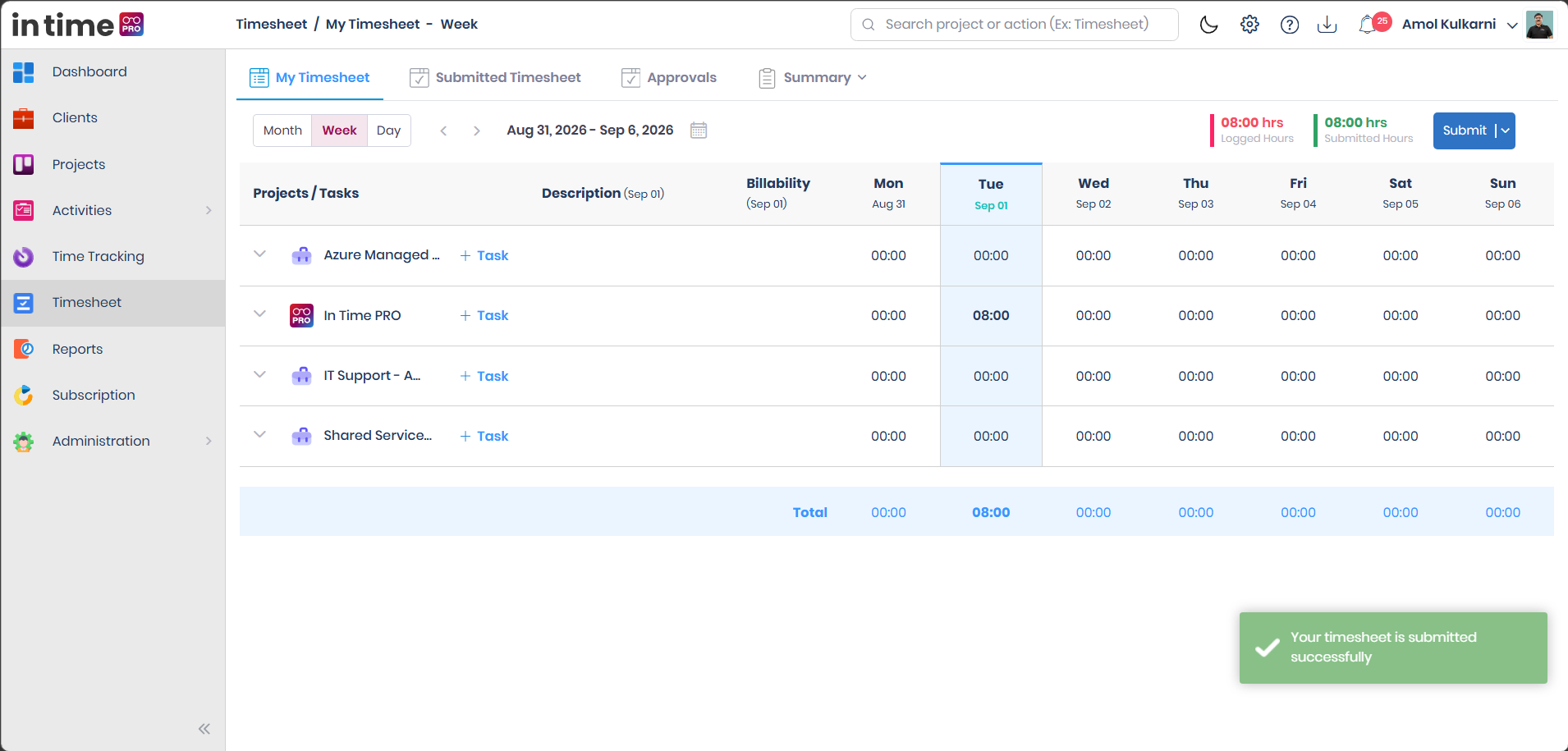
Expected Result
You see a confirmation such as "Your timesheet is submitted successfully." The submitted days move out of the editable grid, Logged Hours for those days is reflected under Submitted Hours, and the record now appears in Submitted Timesheet with a Pending status.
Confirmed validation conditions on submit:
- Hours must be greater than zero — a timesheet with no logged hours cannot be submitted.
- A Description is required for any entry that has hours.
- Future dates are restricted — you cannot submit time for a date that hasn't happened yet.
- Maximum 24 hours per day applies across all tasks combined.
- Locked/submitted dates cannot be edited or resubmitted, except through the resubmission flow after a rejection.
See Timesheet Validations and Restrictions for the full list.
If everything you tried to submit was already submitted earlier (no new changes), the system shows a message explaining that there is nothing new to submit, instead of creating a duplicate record.
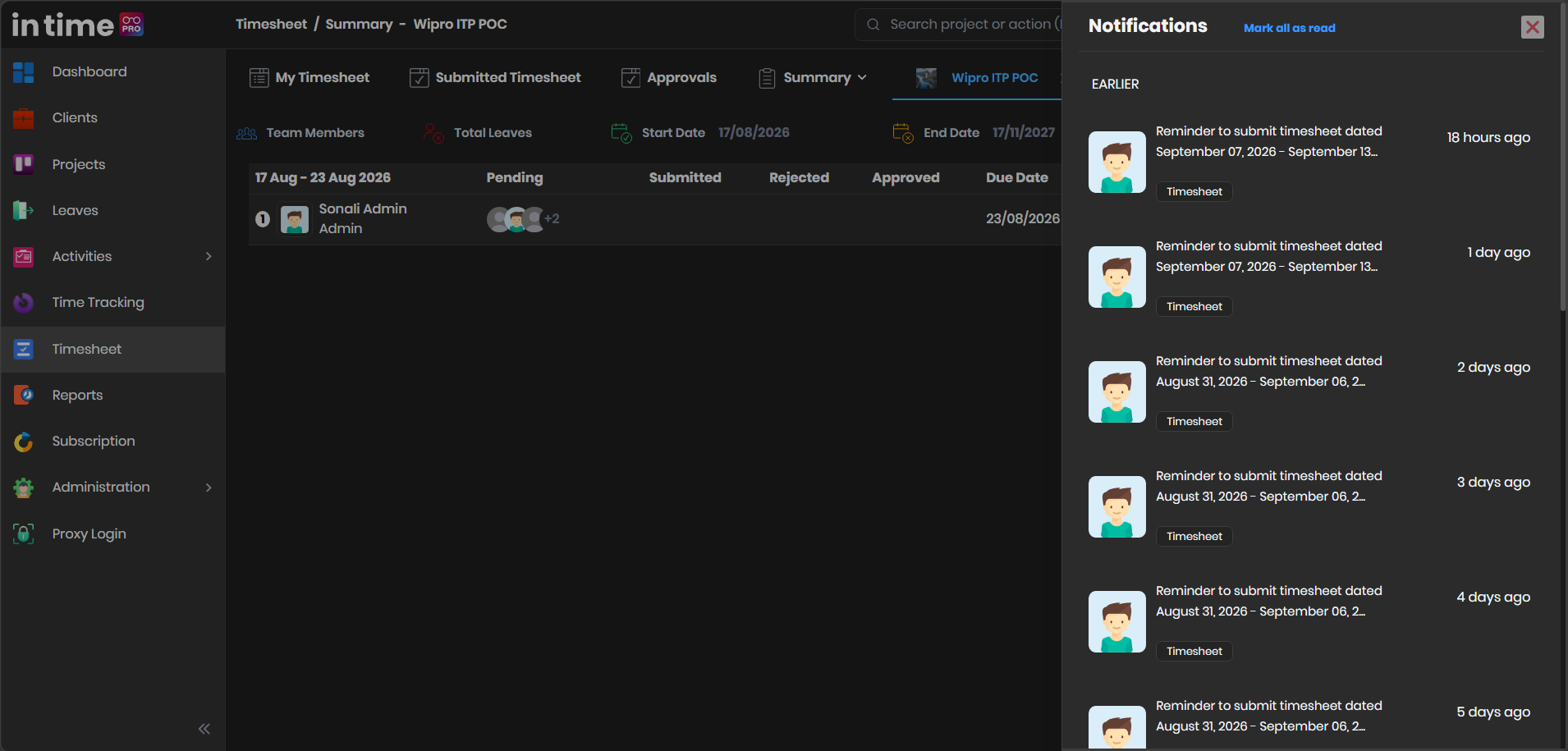
18. Timesheet Reminders and Notifications
Timesheet entries are expected to be completed regularly and on time. If you have not completed the required entries, In Time PRO reminds you so nothing is missed.
Types of reminders you may see:
- Pop‑up / in‑application reminder — when you log in, a "Timesheet Reminder – Pending Submission" dialog can appear on your Dashboard, listing the projects that still need a timesheet submitted for recent working days.
- Email reminders — sent to prompt you to complete and submit outstanding timesheets.
- Notification bell — pending items and reminders are also reflected in the notification bell in the top bar.
Screenshot: Timesheet Reminder Pop-up
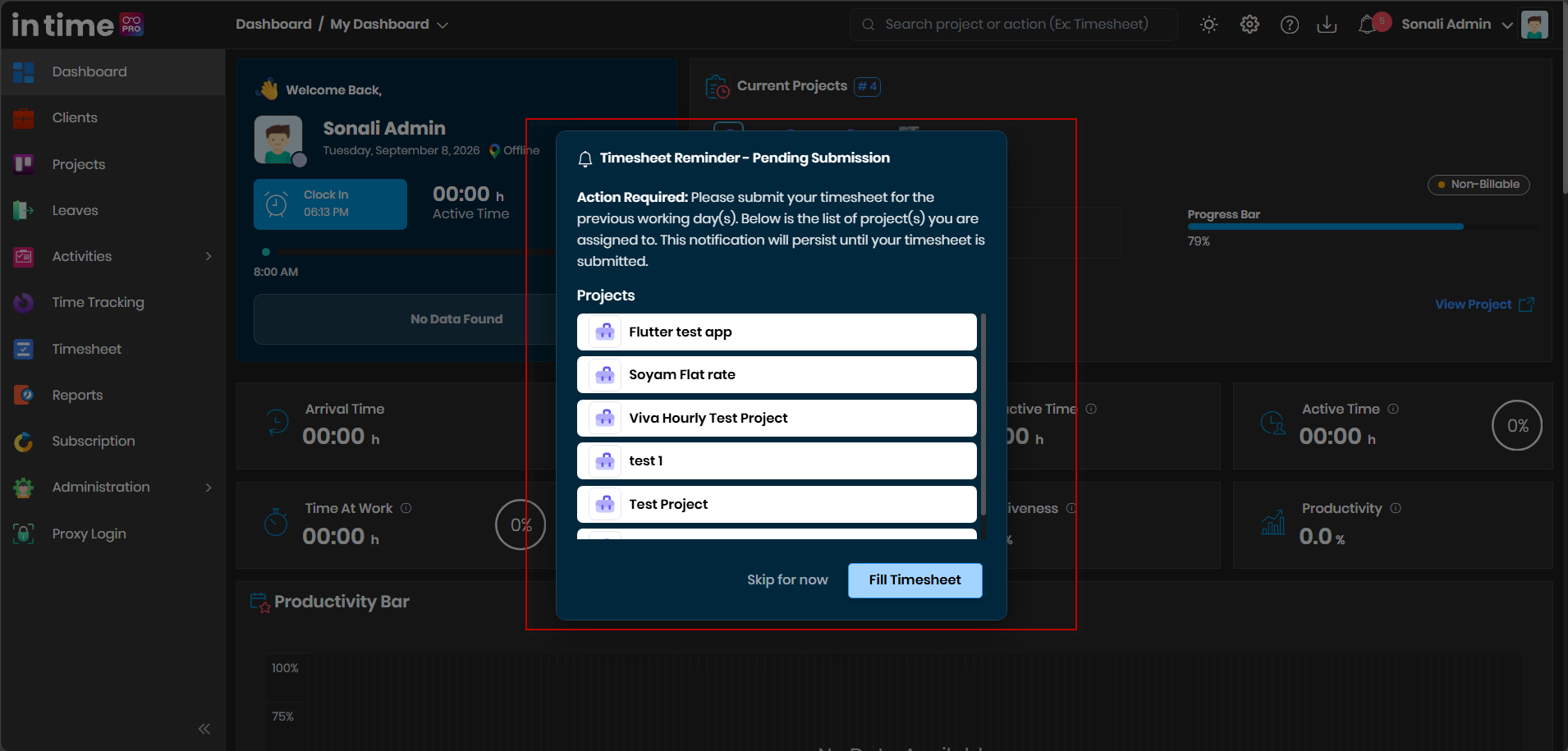
Screenshot: Timesheet Reminder Notification
What the reminder pop‑up shows:
- A message explaining that a timesheet is due for previous working day(s).
- A list of the projects you are assigned to that need attention.
- Two options: Skip for now (dismiss the reminder for the moment) and Fill Timesheet (go straight to My Timesheet to complete your entries).
What you should do when you receive a reminder:
- Open Timesheet (or select Fill Timesheet directly from the pop‑up).
- Check which days or projects are missing entries.
- Fill in the required project, task, description, and hours for those days.
- Save/submit as applicable, so the reminder does not continue to appear.
Reminders will keep appearing until your timesheet is submitted. Do not treat them as optional — completing your timesheet promptly keeps your record accurate and avoids a backlog of missing days.
19. Submitted Timesheet
Submitted Timesheet is used to review timesheets that have already been submitted, along with their current status.
Screenshot: Submitted Timesheet
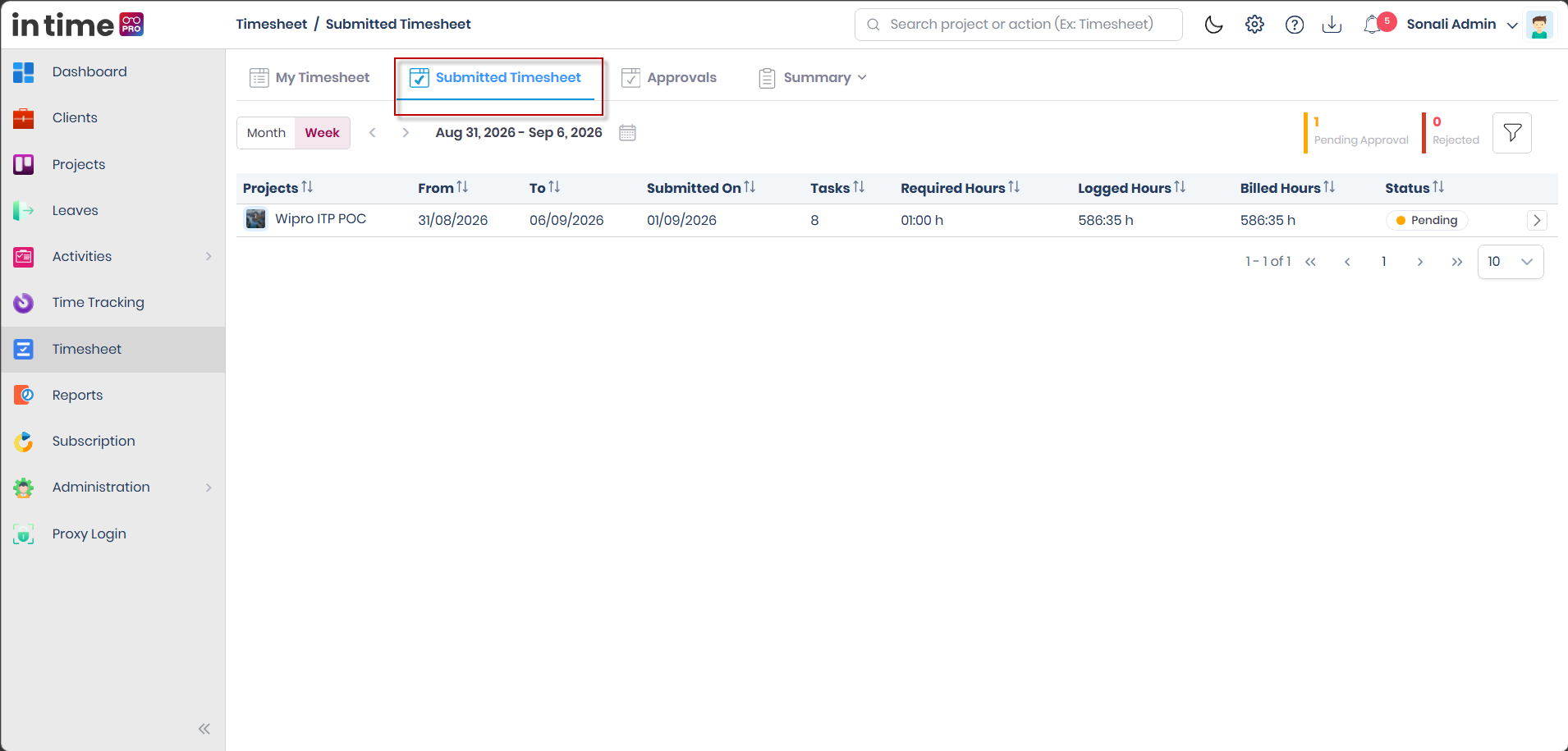
Understanding the Submitted Timesheet List
| Column | What it means |
|---|---|
| Projects | The project the submission belongs to |
| From | The first date included in this submission |
| To | The last date included in this submission |
| Submitted On | The date you submitted this timesheet |
| Tasks | The number of task entries included |
| Required Hours | The number of hours expected for this period (see below) |
| Logged Hours | The total hours you recorded for this period |
| Billed Hours | The hours counted as billable for this period (see below) |
| Status | Pending, Approved, or Rejected |
At the top of the list you will also see quick counters for Pending Approval and Rejected items, plus a filter icon to narrow down the list.
Required Hours
Required Hours shows how many hours you are expected to have worked for that period (for example, based on your assigned weekly working hours on the project). Compare Logged Hours against Required Hours to see whether you have met the expected working time.
- If Logged Hours is less than Required Hours, you may be short on time for that period and should check whether any work is still missing from your timesheet.
- If Logged Hours matches or exceeds Required Hours, your recorded time meets the expectation for that period.
Billed Hours vs Logged Hours
- Logged Hours is the total time you recorded, regardless of whether it can be charged to a client.
- Billed Hours is the portion of that time that counts as billable for the project, based on each entry's Billability setting and the project's billing rules.
Example: You log 09:39 hours in a week, but a small part of that was marked Non‑Billable (for example, an internal meeting). Your Submitted Timesheet may then show Logged Hours: 09:39 h and Billed Hours: 09:38 h — the small difference reflects the non‑billable portion.
Billed Hours matters because it is what the organization can use for client billing, while Logged Hours simply reflects the work performed.
Viewing Submitted Timesheet Details
Select a project row in Submitted Timesheet to open its details in a new tab. The detail view shows a day‑by‑day breakdown:
| Column | What it means |
|---|---|
| Day/Date | Each day included in the submission |
| Tasks | The task worked on that day |
| Task Category | The category of that task |
| Description | The note you entered for that day's work |
| Logged Hrs | Hours recorded that day |
| Status | Approved, Pending, or Rejected for that day |
| Billability | Yes or No |
Screenshot: Submitted Timesheet Detail
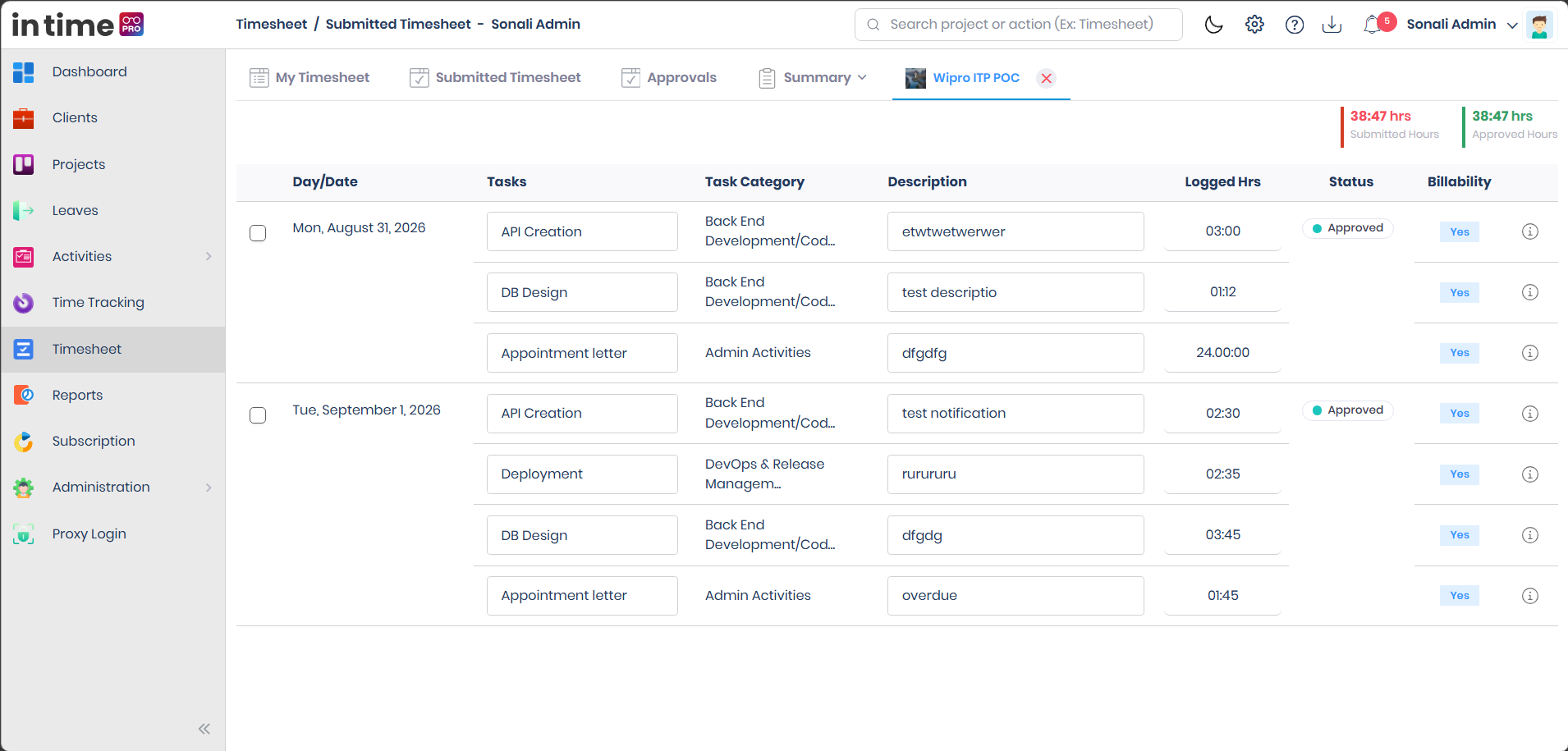
Expected Result
You can see exactly which days, tasks, and hours make up a submission, and what their individual approval status is.
Rejected Timesheet handling and resubmission
If a submitted timesheet comes back Rejected, its days become editable again for you in the detail view. Correct the hours or description as indicated by the approver's comment, then resubmit. Once resubmitted, the timesheet re‑enters the approval workflow with a Pending status.
Example
Here is an example of what a Submitted Timesheet entry might look like once approved:
| Field | Example value |
|---|---|
| Project | Selected Project |
| From | Week/period start date |
| To | Week/period end date |
| Submitted On | Date the timesheet was submitted |
| Tasks | 5 |
| Required Hours | 00:00 h |
| Logged Hours | 09:39 h |
| Billed Hours | 09:38 h |
| Status | Approved |
This is only an illustrative example — the field names and hour values are shown as they would appear, but the actual project, dates, and hours you see will always reflect your own real Timesheet data.
20. Approvals
Approvals is where designated approvers review submitted timesheets and decide whether to approve or reject them. Approval authority depends on the project's configured approval flow — a person sees and can act on a timesheet in Approvals because they have been set up as an approver for that project, not simply because of their job title or being an Admin.
Approvals
   ↓
Review submitted Timesheets
   ↓
Open Timesheet details
   ↓
Review project/user/date/hours
   ↓
Approve OR Reject
   ↓
Approval status updated
Screenshot: Approvals
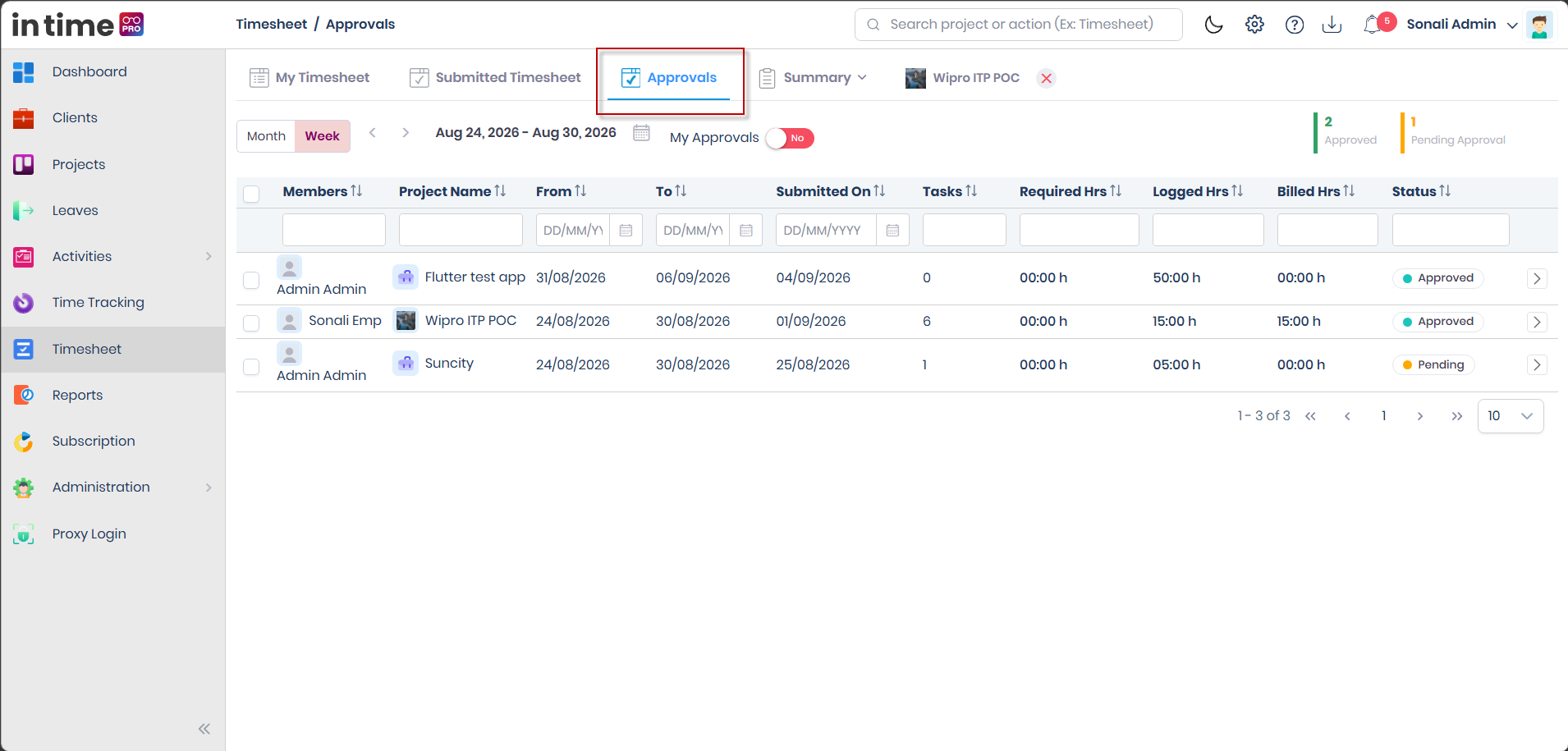
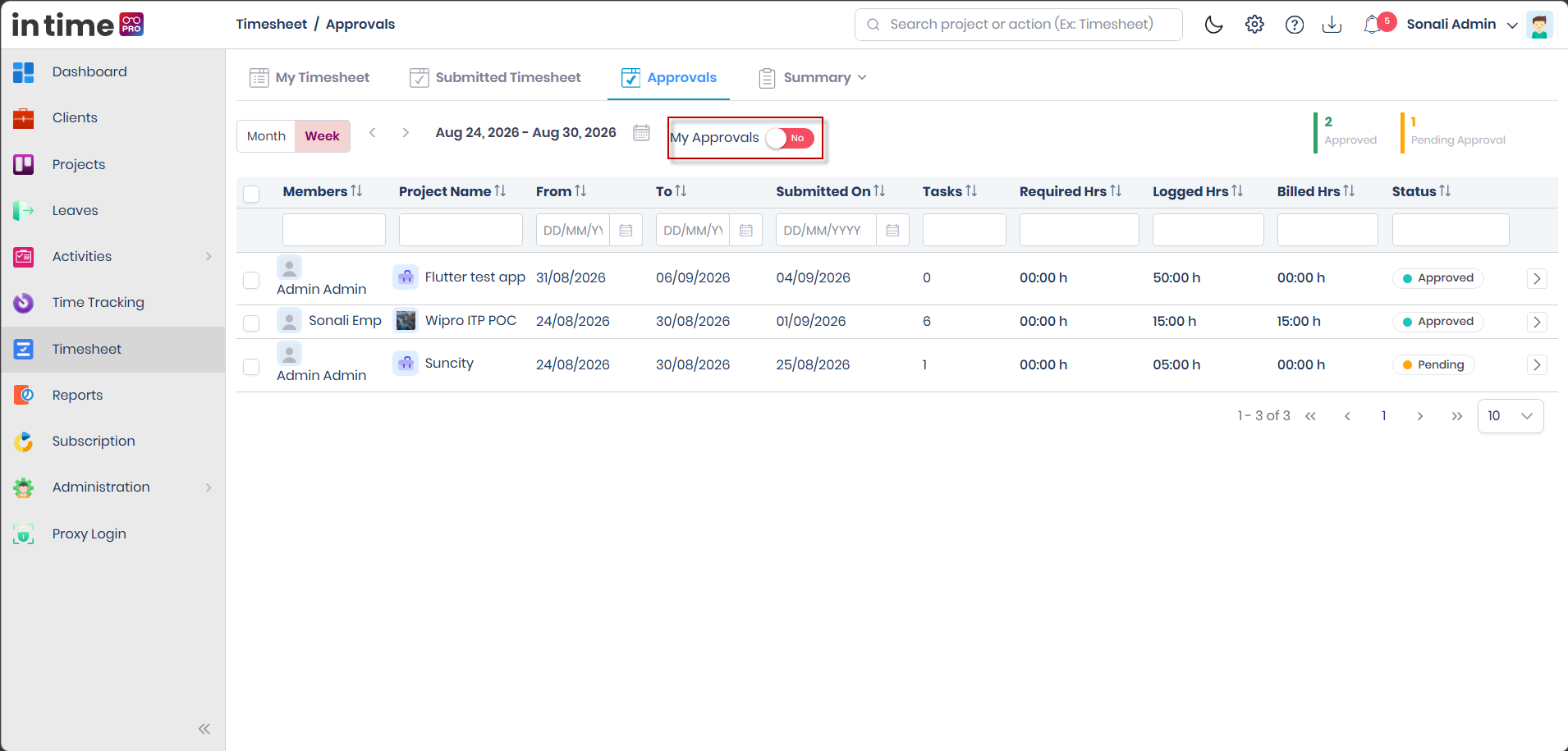
| Column | What it means |
|---|---|
| Members | The employee who submitted the timesheet |
| Project Name | The project the submission belongs to |
| From | Start date of the submission |
| To | End date of the submission |
| Submitted On | Date the employee submitted it |
| Tasks | Number of task entries |
| Required Hrs | Expected hours for the period |
| Logged Hrs | Hours the employee recorded |
| Billed Hrs | Billable hours for the period |
| Status | Pending, Approved, or Rejected |
At the top of the page you can see counters for Approved and Pending Approval, and search/filter fields under each column heading (Members, Project Name, From, To, Submitted On, and more) so you can quickly find a specific employee, project, or date range. Results are shown with pagination controls at the bottom of the list.
My Approvals Toggle
The My Approvals toggle, near the top of the Approvals screen, controls whose timesheets you are viewing:
- My Approvals ON (Yes) — shows only the timesheets that are relevant to you specifically as the current approver, waiting on your own approval action.
- My Approvals OFF (No) — shows the other Timesheet records you have visibility into according to your role and permissions (for example, a broader set of projects you can see as a program/project manager), not only the ones waiting on your own decision.
Use this toggle to quickly focus only on the items that need your personal decision, instead of scrolling through everything you can merely see.
Screenshot: My Approvals Toggle
Approving a Timesheet
- Open Approvals.
- Locate the employee/project timesheet you need to review, using the filter fields if the list is long.
- Review the From/To date range.
- Review the number of Tasks.
- Compare Required Hrs against Logged Hrs.
- Check Billed Hrs for accuracy.
- Open the timesheet's detail view if you need to see day‑by‑day tasks and descriptions.
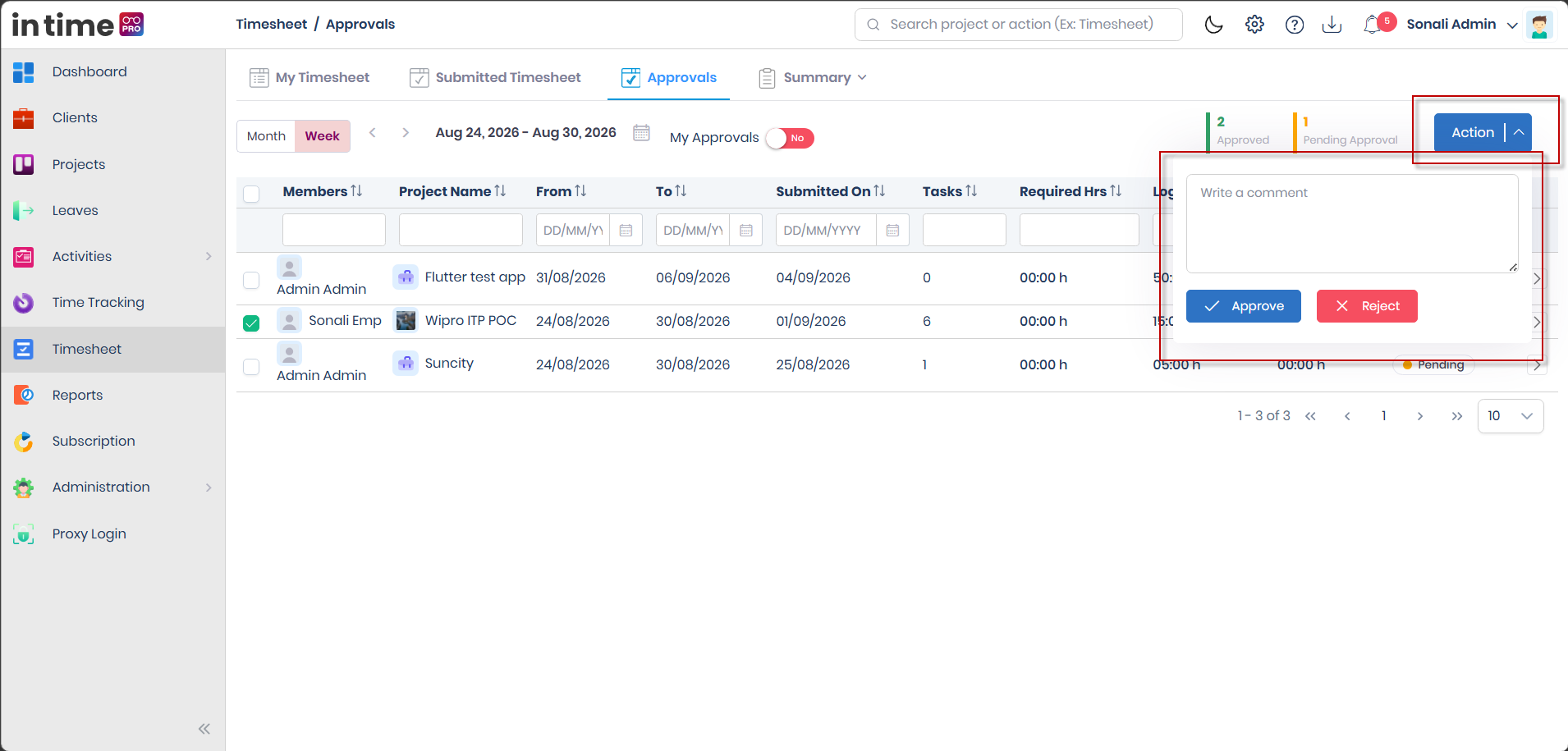
- Select the checkbox next to the timesheet (or multiple timesheets for bulk action).
- Select Action to open the approve/reject panel.
- Review the information shown one more time.
- Optionally add a comment.
- Select Approve.
Screenshot: Approval Action
Expected Result
A confirmation message such as "Timesheet is approved" (or, for multiple items, "Selected timesheets have been approved successfully") appears, and the Status column updates to Approved.
Rejecting a Timesheet
- Select the checkbox next to the timesheet you want to reject (or multiple timesheets).
- Select Action to open the approve/reject panel.
- Enter a clear comment explaining why the timesheet is being rejected — this is required.
- Select Reject.
Expected Result
The timesheet's Status changes to Rejected, and the employee is notified. The employee should open their Submitted Timesheet, review the reason in the comment, correct or complete the hours/description as needed, and submit the timesheet again for approval.
A comment is required when rejecting a timesheet. This gives the employee a clear reason for the rejection and tells them what to fix before resubmitting.
Bulk Approve and Reject
You are not limited to acting on one timesheet at a time. Select the checkboxes next to several rows in the Approvals list, then choose Action once — the Approve or Reject decision applies to every timesheet you selected. This is useful at the end of a submission cycle, when several team members' timesheets are ready for the same decision.
Approval Details, History, and Comments
Opening a timesheet's detail view (from Approvals or from Submitted Timesheet) lets you review more than just the current status:
- Approval details — the project, date range, tasks, required/logged/billed hours for the submission you are reviewing.
- Approval history/timeline — a record of each approval level's action and when it happened, so you can see the full path a timesheet has taken through the approval chain (including any rejection and resubmission).
- Task‑level comments — notes attached to an individual task entry.
- Timesheet‑level comments — the comment(s) added during approve/reject actions, which the employee can also read from their own Submitted Timesheet detail view.
Use the approval details, history, and comments together to understand not just the current state of a timesheet, but how it got there.
Approve/reject access depends on the appropriate approver access/approval flow being configured for the project. Not every Admin automatically has approval rights over every timesheet — see Role and Access Overview.
21. Understanding Timesheet Status vs Task Status
Timesheet uses two different sets of statuses that are easy to confuse but track different things. Keep them separate.
Task Status
Describes the progress of an individual task (set when you create or edit the task — see Task Creation).
| Task Status | Meaning |
|---|---|
| New | The task has just been created and work has not yet started. |
| In Progress | Work on the task is currently underway. |
| Overdue | The task has passed its expected completion point and is still not finished. |
| Completed | The task has been finished. |
Timesheet Approval Status
Describes where a submitted timesheet stands in the approval process (shown in Submitted Timesheet, Approvals, and Summary).
| Status | Meaning |
|---|---|
| Pending | The timesheet has been submitted and is waiting for the approver to review it. No action has been taken yet. |
| Approved | The approver has reviewed and accepted the timesheet. This is the timesheet's final, confirmed state. |
| Rejected | The approver did not accept the timesheet, usually with a comment explaining why. The employee needs to review the comment, make corrections, and resubmit. |
| Overdue | A timesheet that has been pending for approval beyond the expected approval window. |
In the Project-wise Weekly Summary (see Summary), you will also see a Submitted count alongside Pending, Rejected, and Approved. There, "Submitted" simply counts how many timesheet entries were sent in for that week — it is a count within that weekly breakdown, not an additional value in the main Pending/Approved/Rejected/Overdue status list described above.
Why these are not the same thing
The table below lines the two lists up side by side only to show that they are separate concepts — it is not a mapping, and one status does not cause or determine the other:
| Task Status | Timesheet Approval Status |
|---|---|
| New | Pending |
| In Progress | Approved |
| Overdue | Rejected |
| Completed | Overdue |
This table does not mean "New becomes Pending" or "Completed becomes Overdue." It simply lines up the two independent lists to make the point that Task Status and Timesheet Approval Status are unrelated sets of values. A task can be marked Completed while its timesheet entry is still Pending approval, or the other way around — the two statuses answer different questions ("is the work done?" versus "has the recorded time been approved?").
22. Summary
Summary is used for project‑level Timesheet overview and review, for Admin or other authorized users, depending on their role and permissions. It is not automatically available to every user — it is intended for people who need to understand how timesheets are progressing across projects and team members, rather than reviewing one submission at a time.
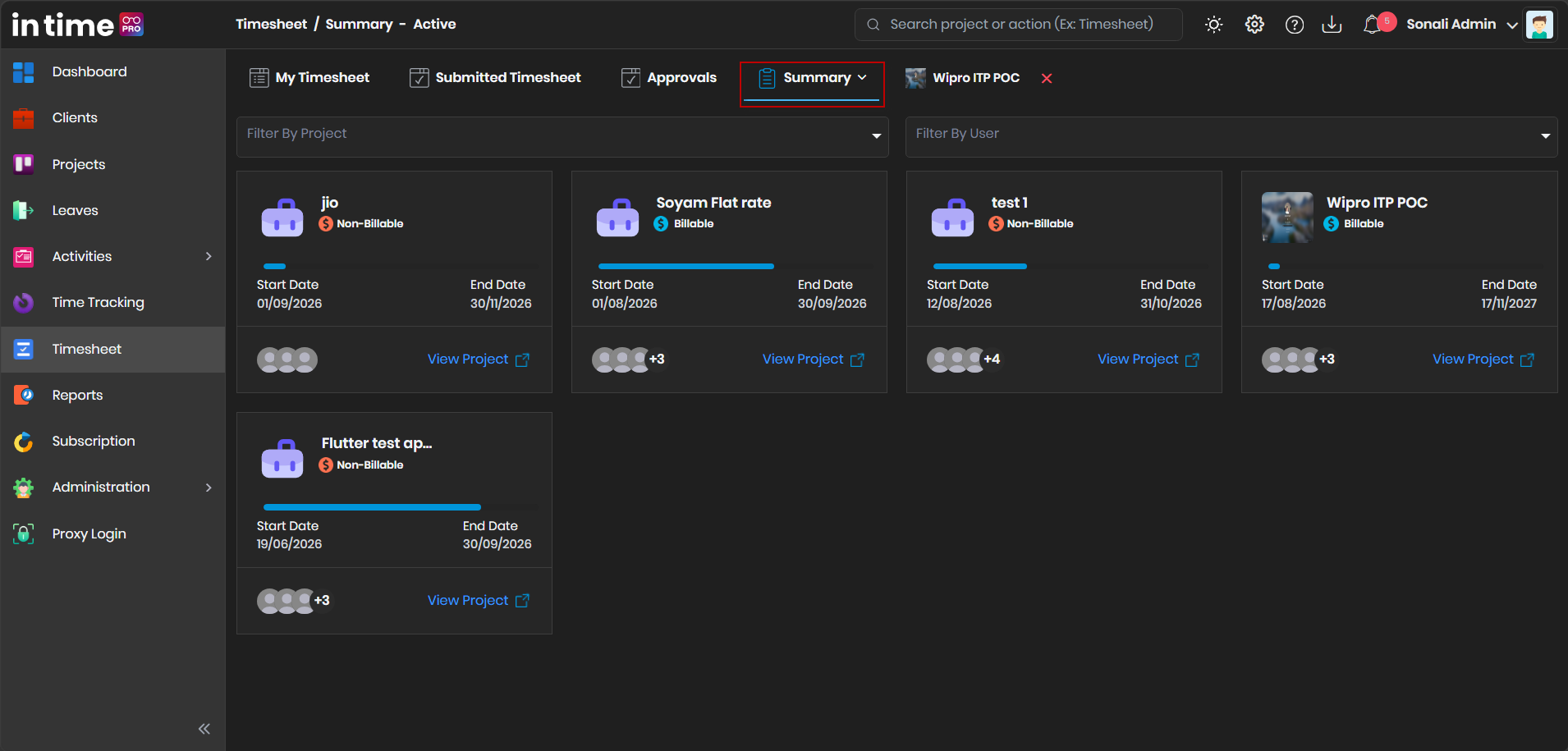
The Summary screen shown in the application is titled Timesheet / Summary – Active, and sits alongside the other three top‑level tabs:
- My Timesheet
- Submitted Timesheet
- Approvals
- Summary (selected)
Screenshot: Timesheet – Summary
22.1 Active Project (default view)
When Summary is opened, Active Project is displayed by default. The Summary page displays project cards, and contains:
- Filter By Project
- Filter By User
- A grid of project cards
Select a project card to open its detailed, project‑wise Timesheet summary.
Screenshot: Summary – Active Project
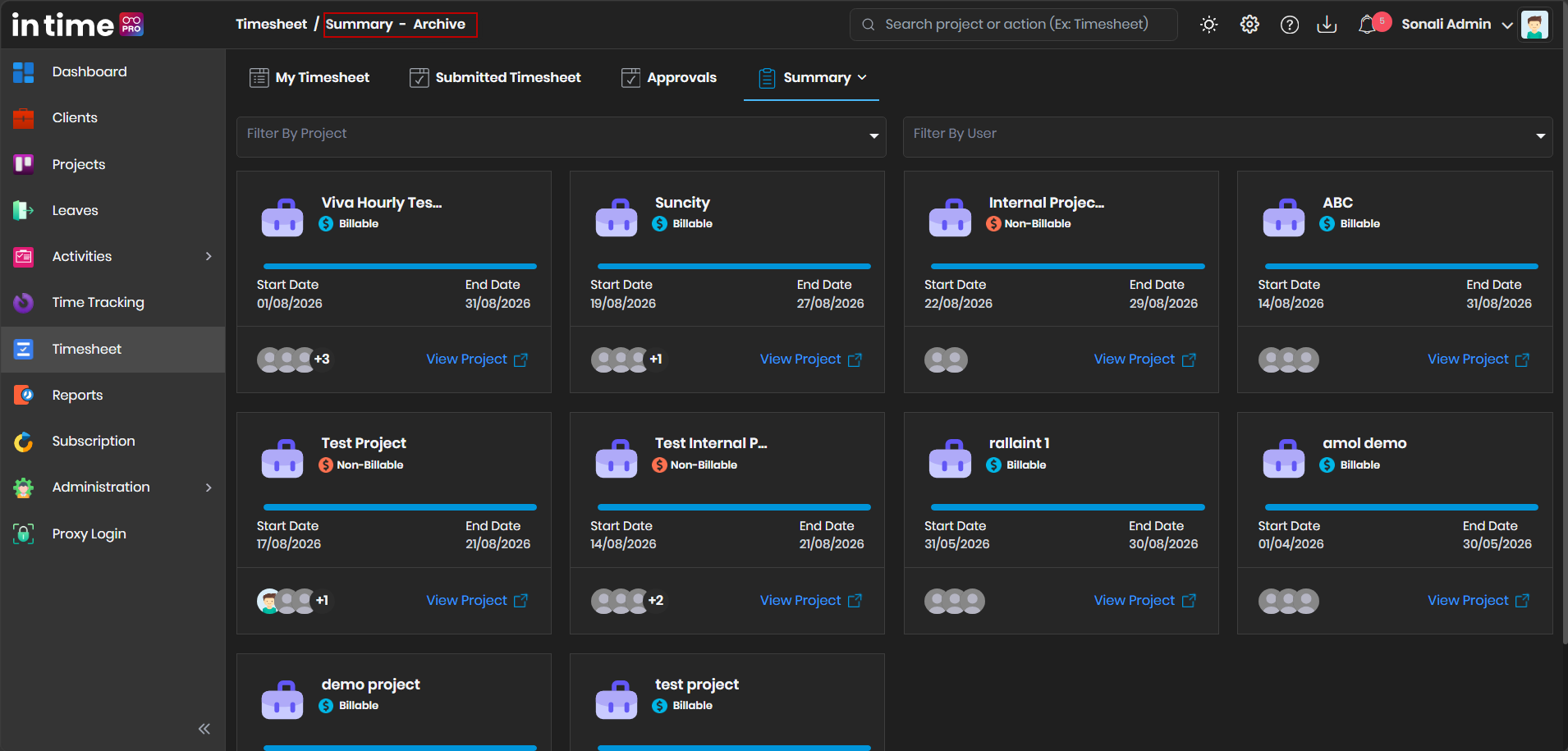
22.2 Active Project / Archive Project
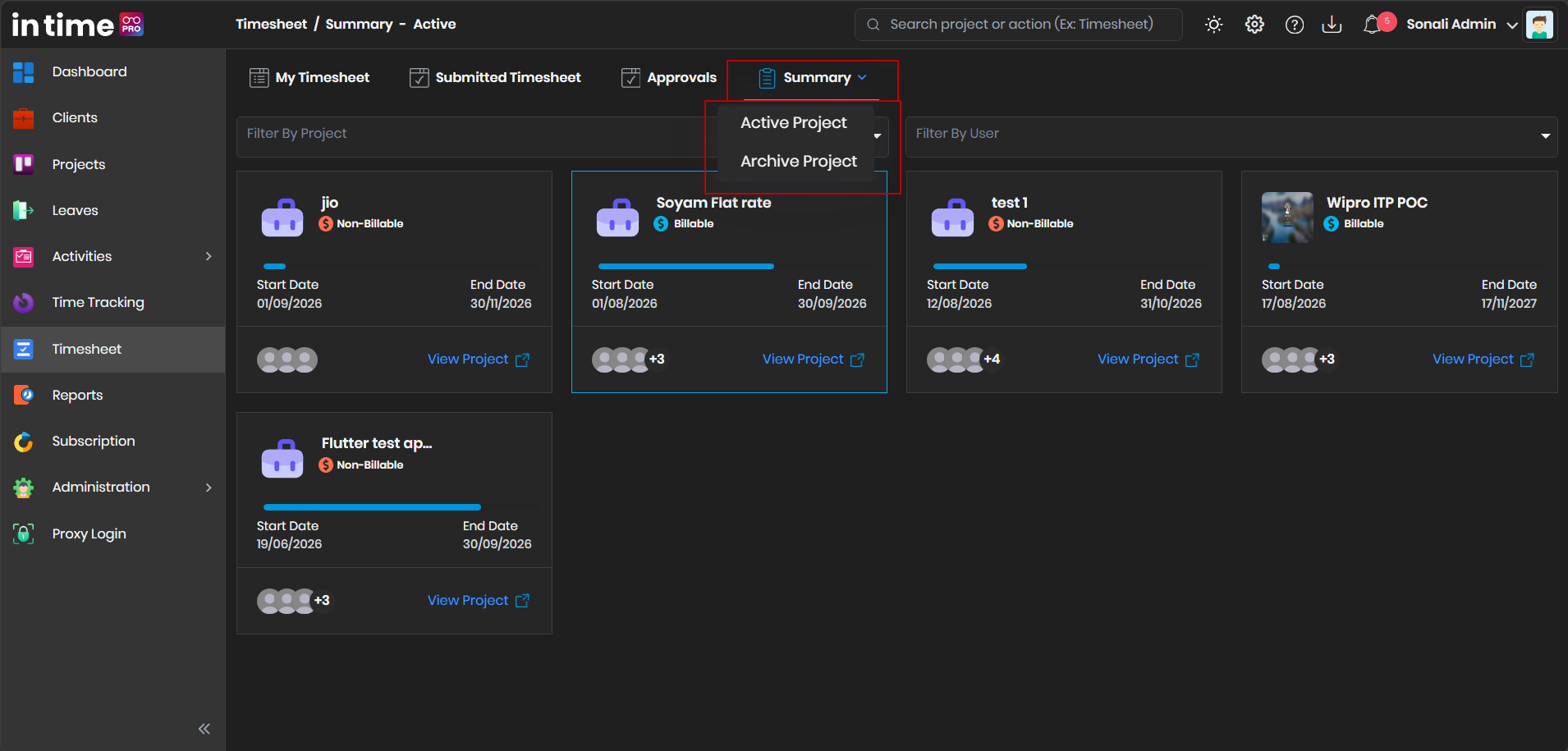
The Summary heading contains a dropdown with two options:
- Active Project — used to review active project information. This is the default.
- Archive Project — used to review archived project information/history.
The user can switch between these options at any time.
Screenshot: Summary – Active Project / Archive Project Dropdown
Screenshot: Summary – Archive Project
22.3 Filter By Project
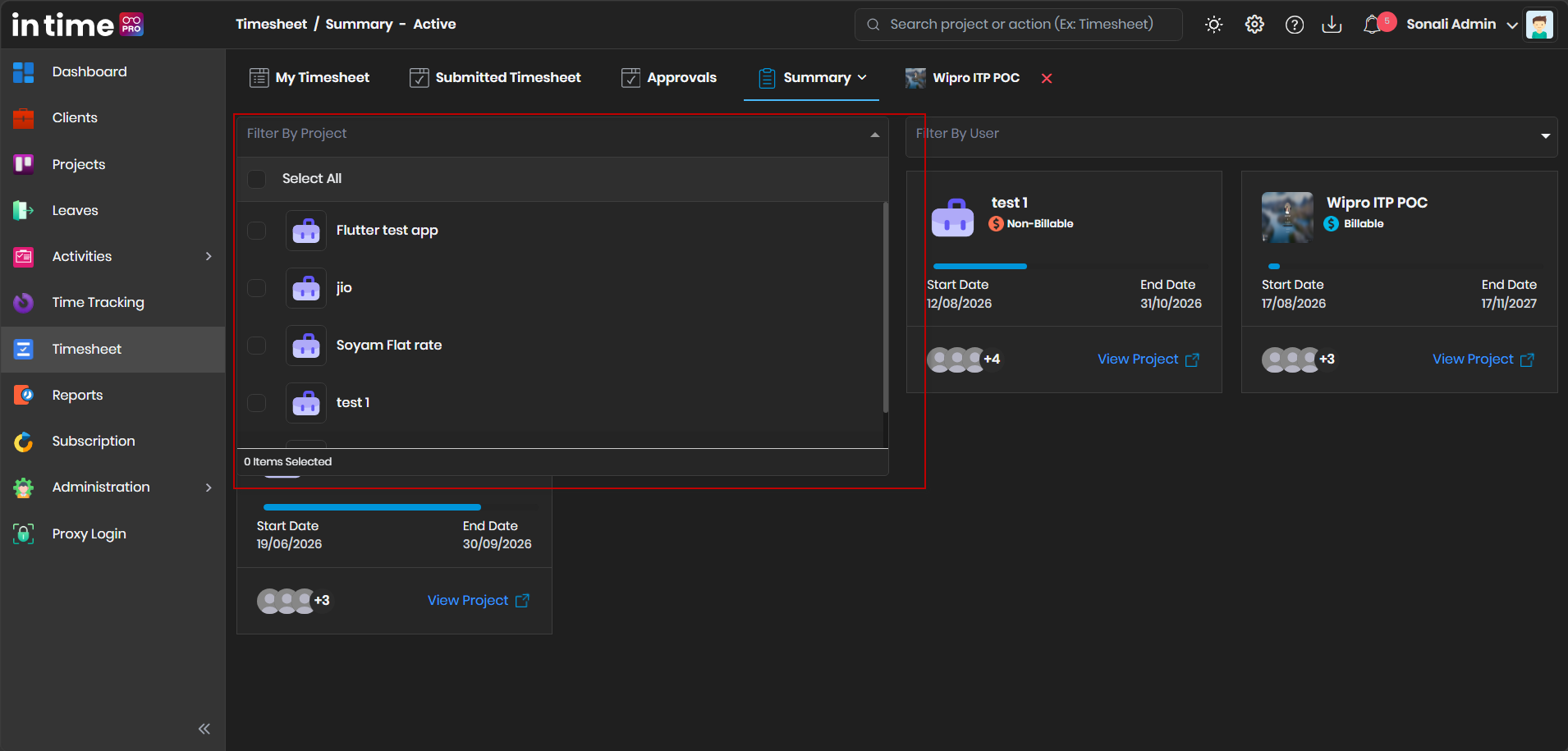
The Summary page contains a Filter By Project control.
Summary
   ↓
Filter By Project
   ↓
Select required project
   ↓
Project-specific Summary information
Why it is useful: it allows an Admin/authorized user to find a specific project instead of scanning through every project card.
Screenshot: Summary – Filter By Project
22.4 Filter By User
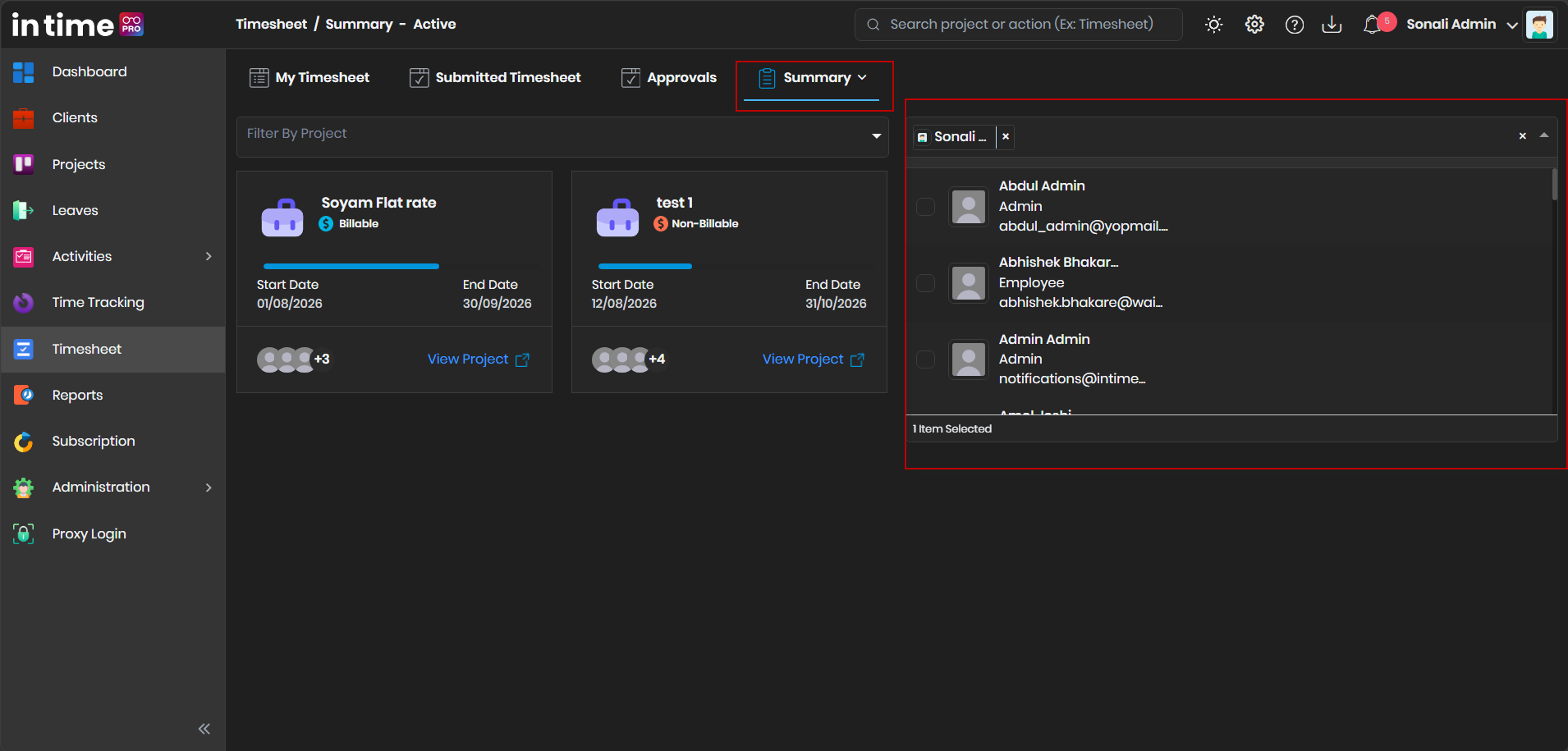
The Summary page also contains a Filter By User control.
Summary
   ↓
Filter By User
   ↓
Select required user
   ↓
Review information related to that user
This is useful when an Admin wants to review one particular user's Timesheet/project activity. Where supported, Filter By Project and Filter By User can be used together, narrowing the Summary down to one specific user on one specific project.
Screenshot: Summary – Filter By User
Filter By Project and Filter By User only change what is displayed on the Summary screen. They do not change anyone's project membership, permissions, or approval rights.
22.5 Project Cards
Each project card gives you a quick overview of one project's status:
| Project Card Item | Meaning |
|---|---|
| Project Name | Name of the project |
| Billable / Non‑Billable | Project billing indicator |
| Progress | Visual project progress |
| Start Date | Project start date |
| End Date | Project end date |
| Team Members | Users associated with the project |
| +N | Additional team members beyond the ones shown as icons |
| View Project | Opens the detailed, project‑wise Timesheet summary |
Screenshot: Summary – Project Cards [SCREENSHOT PLACEHOLDER - Add screenshot here]
Any project names, team member names, or dates you see on a project card in a screenshot are only examples of how a card can look. They are not fixed or default values — your own Summary screen will always show the real projects, members, and dates available to you.
22.6 View Project
This is a very important workflow. When the Admin/authorized user selects View Project on a card, the selected project opens in a detailed, project‑wise Timesheet Summary.
Summary
   ↓
Select Project
   ↓
View Project
   ↓
Project-wise Timesheet Summary
   ↓
Review project information
   ↓
Review weekly Timesheet information
   ↓
Review team member/user Timesheet status
   ↓
Open detailed user/group information where available
   ↓
Take appropriate action / generate report
Screenshot: Summary – View Project [SCREENSHOT PLACEHOLDER - Add screenshot here]
After opening a project this way, you can review:
- The project's team members.
- Timesheet records for the project, broken down by week.
- Timesheet status for each member each week — Pending, Submitted, Rejected, and Approved counts.
- Logged Hrs and Billed Hrs for each member each week.
- Due Date and Approval Date for each week.
- The option to send a reminder to a team member who still needs to complete or submit their timesheet.
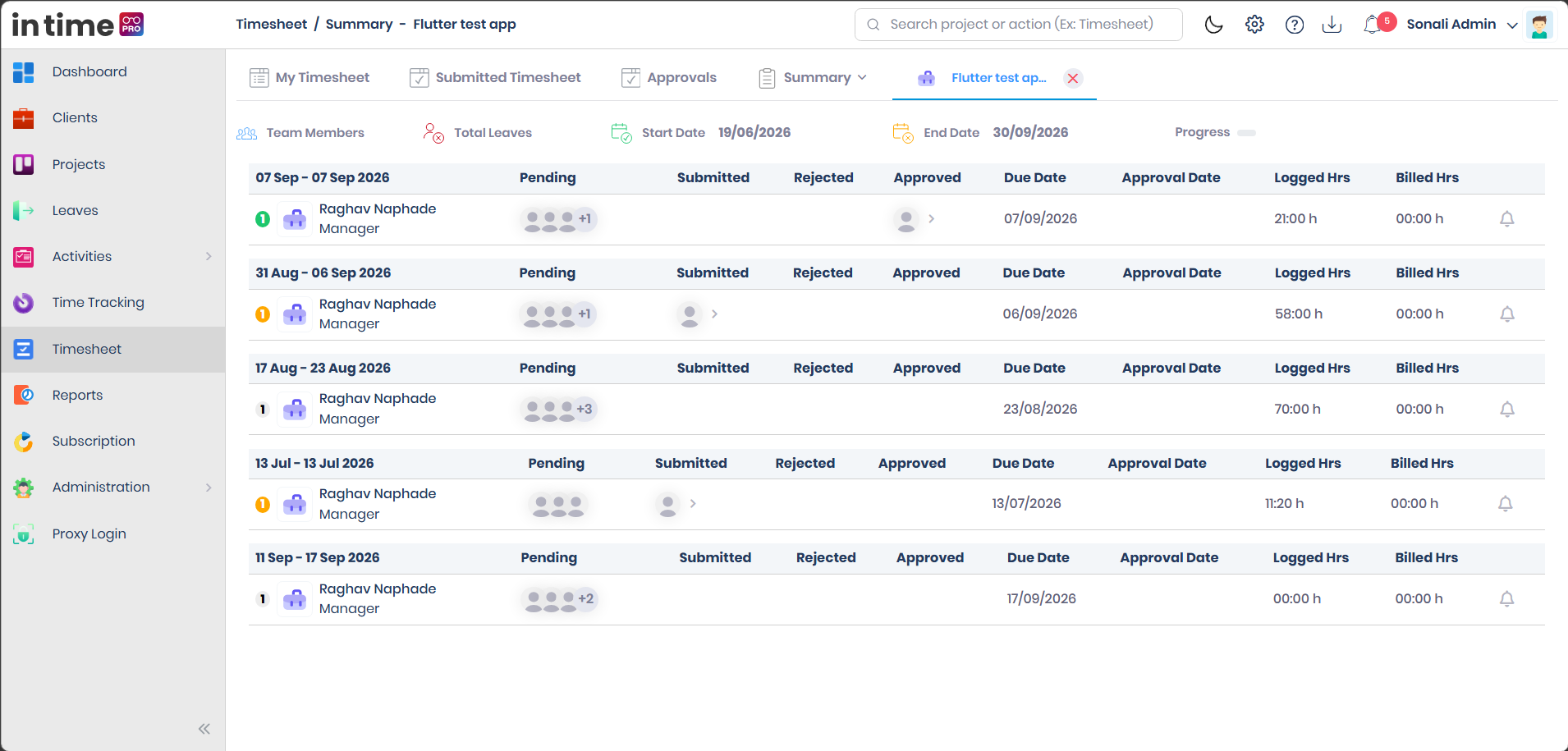
In short, View Project does not just show a static detail page — it opens a working view where you can track exactly who has submitted, who is pending, who was rejected, and who needs a reminder, for that specific project.
Screenshot: Project Summary
22.7 Project-wise Weekly Summary
The project detail view opened from View Project is organized into weekly sections, each covering a 7‑day date range (for example, a section header showing the Monday‑to‑Sunday dates for that week). The exact dates shown always reflect the project's own timeline, not a fixed example range.
Screenshot: Project-wise Weekly Summary [SCREENSHOT PLACEHOLDER - Add screenshot here]
At the top of this view you will see:
| Item | What it means |
|---|---|
| Team Members | The people assigned to this project |
| Total Leaves | Leave taken by team members during the project period |
| Start Date / End Date | The project's duration |
| Progress | Overall project progress |
Below that, each weekly section lists team members with the following columns:
| Column | What it means |
|---|---|
| Pending | Timesheet entries submitted but awaiting approval for that week |
| Submitted | Entries that have been submitted for that week |
| Rejected | Entries rejected for that week |
| Approved | Entries approved for that week |
| Due Date | The date by which the timesheet for that week is expected |
| Approval Date | The date the timesheet for that week was approved |
| Logged Hrs | Total hours logged by the member that week |
| Billed Hrs | Total billable hours for that member that week |
Due Date
The Due Date tells you by when a team member's timesheet for a given week is expected to be submitted. It helps:
- Employees know when they need to have their week completed.
- Managers/Admins quickly spot upcoming or missed deadlines and follow up with the right person before it becomes a backlog.
Approval Date
The Approval Date shows when a submitted timesheet was actually approved. This is different from Submitted On (which shows when the employee sent it) — comparing the two tells you how long a timesheet waited for approval.
22.8 Team Member / User Timesheet Summary
The project‑wise Summary allows an Admin/authorized user to review Timesheet information for the users/team members associated with the project. From an admin/manager perspective, the weekly rows let you see, member by member:
| Item | What it means |
|---|---|
| User | The team member the row belongs to |
| Timesheet week/date | The weekly period being reviewed |
| Timesheet status | Pending, Submitted, Rejected, or Approved counts for that week |
| Logged hours | Total hours logged by that member that week |
| Billed hours | Total billable hours for that member that week |
| Due date | When that member's timesheet for the week is expected |
| Approval date | When that member's timesheet for the week was approved |
Screenshot: User/Team Member Timesheet Summary [SCREENSHOT PLACEHOLDER - Add screenshot here]
This gives you a fast way to see who is on track and who needs a nudge, without opening every individual submission.
22.9 Project Summary Drill-down
From the weekly, member‑by‑member rows described above, you can drill down further into an individual team member's Timesheet detail for that week:
Project Summary
   ↓
Weekly section
   ↓
User/team member
   ↓
Timesheet details
Opening a member's row this way lets you review that person's Timesheet details for the selected week — the same kind of day‑by‑day information available from Submitted Timesheet details, but reached from the project's Summary instead of from the employee's own Submitted Timesheet list. Use this drill‑down when a weekly summary number (for example, an unexpectedly low Logged Hrs total) raises a question you want to inspect at the day level.
22.10 Send Reminder
Next to each member's weekly row in the project‑wise Summary, a bell/reminder icon is available.
Project Summary
   ↓
Identify relevant user/timesheet
   ↓
Send Reminder
   ↓
Enter/select reminder information
   ↓
Send reminder
Screenshot: Send Reminder
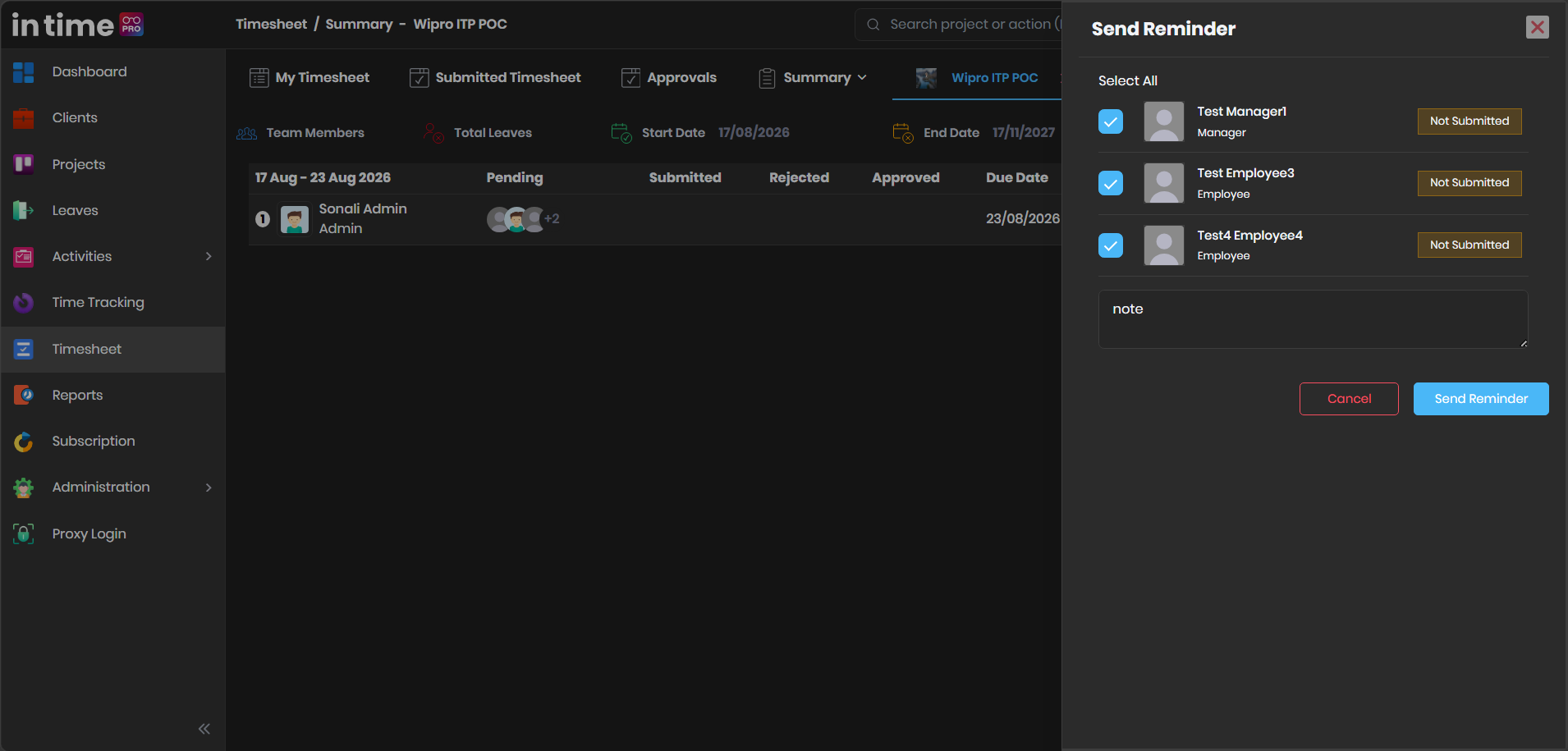
- Why it is used: to remind a relevant user about Timesheet completion/submission — prompting a team member who has not yet completed or submitted their timesheet for that week, without having to contact them outside the application.
- Where it is available: from the project‑wise Summary view opened using View Project.
- How to use it: select the reminder icon on the relevant member's row, then send the reminder for that member/week/project.
Send Reminder is a helpful follow‑up tool for admins and project managers who monitor Timesheet completion across a project, so incomplete timesheets are chased proactively rather than only discovered later.
23. Timesheet Report
Timesheet Report is a separate feature from Summary, found under the Reports module rather than inside Timesheet itself.
| Summary | Timesheet Report | |
|---|---|---|
| What it is for | Project‑level overview and drill‑down — browsing project cards, drilling down into a project, and following up with individual team members | Reporting/generating Timesheet information as a downloadable file |
| Where it lives | Inside the Timesheet module (Summary tab) | Inside the Reports module |
| Typical use | Day‑to‑day monitoring of who has submitted, who is pending, who needs a reminder | Producing a shareable, exportable record of Timesheet data for a project or user |
Admin/authorized users can use Timesheet Report for reporting requirements such as reviewing project‑wise or user‑wise Timesheet information where supported by the report's filters.
How to use it:
- Open Reports from the main menu.
- Open the Timesheet Report card.
- On Generate Report, set the report title, and choose the project(s), team member(s), date period, billability, and grouping options (Overall Summary, Task Wise, or Unsubmitted Timesheet) you need.
- Choose Export.
- Open Export History and wait until Download becomes available.
- Choose Download to save the file.
Screenshot: Timesheet Report [SCREENSHOT PLACEHOLDER - Add screenshot here]
Typical use after reviewing Summary: After reviewing project‑ or user‑wise Timesheet status in Summary, an admin can go to Reports → Timesheet Report, select the same project or team member, and generate a downloadable report for record‑keeping, sharing with stakeholders, or further analysis.
For full details on filters, grouping options, and Export History, see Reports.
24. Timesheet and Actual Working Time
New users sometimes confuse four related but different numbers. Here is how they relate:
| Concept | What it represents |
|---|---|
| Actual tracked/active time (Desktop Application, Time Tracking) | The time the system observed you actually working, task by task |
| Logged Hours (Timesheet) | The time you have recorded in your Timesheet for a period — built from tracked time, manual entries, or both |
| Required Hours | The number of hours you are expected to work for that period |
| Billed Hours | The portion of Logged Hours that is billable to the client |
Example: Suppose the Desktop Application shows you were active for 7 hours today. When you open your Timesheet, you record those 7 hours against the right project and task, and add a description — this becomes your Logged Hours for the day. If your project expects 8 Required Hours per day, you can see you are 1 hour short and may need to check for missing work. If 6 of those 7 hours were client‑chargeable, your Billed Hours for the day would be 6.
25. Employee End-to-End Workflow
This is the complete cycle an employee follows, from being assigned to a project through to their timesheet being approved:
Project created
   ↓
Employee assigned to Project Team
   ↓
Project becomes available in My Timesheet
   ↓
Open Timesheet
   ↓
My Timesheet
   ↓
Select Week / Month / Day
   ↓
Select Project
   ↓
Select existing Task OR create Task
   ↓
Task Category
   ↓
Task Name
   ↓
Billability
   ↓
Task Status
   ↓
Description
   ↓
Duration
   ↓
Comment if required
   ↓
Save
   ↓
Continue for other days/projects/tasks
   ↓
Review Logged Hours
   ↓
Submit
   ↓
Submitted Timesheet
   ↓
Approval
   ↓
Approved / Rejected / Pending / Overdue
Step‑by‑step:
- Be assigned to a project as a Project Team Member — this makes the project available in My Timesheet.
- Open Timesheet from the main menu.
- Land on My Timesheet and choose Month, Week, or Day as needed.
- Select the project you worked on.
- Create a new task (using + Task) or select an existing one you can reuse during the week.
- Set the Task Category, confirm the Task Name, and choose Billability.
- Set the Task Status to reflect the task's real progress.
- Add a clear Description of the work performed.
- Enter the Duration for that day.
- Add a Comment if extra context is useful.
- Save — let Autosave keep your entry safe, or continue recording further days/tasks/projects.
- Review your Logged Hours and daily/weekly totals for accuracy.
- Select Submit to send your Timesheet for approval.
- Confirm it now appears in Submitted Timesheet with a Pending status.
- Wait for the approval workflow to complete — check back in Submitted Timesheet for the final Approved or Rejected status (or Overdue, if it has been pending beyond the approval window), and resubmit if rejected.
26. Admin End-to-End Workflow
This is the complete cycle an admin or other authorized user follows to review Timesheet activity project‑wise and generate reporting output:
Login
   ↓
Timesheet
   ↓
Summary
   ↓
Active Project
   ↓
Filter By Project / Filter By User
   ↓
Select Project
   ↓
View Project
   ↓
Review Project-wise Timesheet Summary
   ↓
Review Weekly Sections
   ↓
Review Users / Team Members
   ↓
Review Pending / Submitted / Rejected / Approved
   ↓
Review Due Date / Approval Date
   ↓
Review Logged Hrs / Billed Hrs
   ↓
Send Reminder if required
   ↓
Generate Timesheet Report
Also keep in mind:
Active Project
       ↕
Archive Project
Archive Project can be selected instead of Active Project whenever historical/archived project information needs to be reviewed.
Step‑by‑step:
- Open Timesheet from the main menu.
- Open the Summary tab.
- Confirm you are viewing Active Project (the default), or switch to Archive Project when reviewing closed/archived project history.
- Use Filter By Project or Filter By User to narrow the list down to what you need.
- Review the relevant project card — its billing type, progress, dates, and team members.
- Select View Project to open the project's detailed Timesheet summary.
- Review the weekly, member‑by‑member breakdown — Pending, Submitted, Rejected, Approved, Logged Hrs, Billed Hrs, Due Date, and Approval Date.
- Drill down into an individual member/week if you need day‑level detail.
- Use Send Reminder on any member who still needs to complete or submit their timesheet.
- When you need the information as a downloadable file, open Reports → Timesheet Report, generate the report for the required project or user, and download it from Export History.
Admins can repeat this cycle for each project, and switch between Active Project and Archive Project whenever historical, closed‑project information is needed.
Complete Timesheet Lifecycle
This diagram connects every stage of Timesheet into one continuous reference — from the moment a project assignment is made, through daily entry and approval, to the admin‑side Summary and reporting workflow:
Project Assignment
      ↓
Task Creation
      ↓
Daily Time Entry
      ↓
Description + Duration
      ↓
Save
      ↓
Review Totals
      ↓
Submit
      ↓
Submitted Timesheet
      ↓
Approval
      ↓
Approved / Rejected / Pending / Overdue
      ↓
Summary
      ↓
Project/User Filtering
      ↓
View Project
      ↓
Weekly Project Summary
      ↓
User/Team Member Review
      ↓
Reminder if required
      ↓
Timesheet Report
Every link in this chain is documented in detail earlier in this guide:
| Stage | Section |
|---|---|
| Project Assignment | Project Assignment and Timesheet |
| Task Creation | Task Creation |
| Daily Time Entry / Description + Duration | Daily Timesheet Entry — Complete Flow, Duration and Working Hours |
| Save | Save |
| Review Totals | Daily, Weekly, and Monthly Totals |
| Submit | Logged Hours, Submitted Hours, and Submit Timesheet |
| Submitted Timesheet | Submitted Timesheet |
| Approval / Approved / Rejected / Pending / Overdue | Approvals, Understanding Timesheet Status vs Task Status |
| Summary / Project & User Filtering / View Project | Summary |
| Weekly Project Summary / User Review | Project-wise Weekly Summary, Team Member / User Timesheet Summary |
| Reminder | Send Reminder |
| Timesheet Report | Timesheet Report |
27. Status Reference
Use this table as a quick lookup whenever you see a status somewhere in Timesheet:
| Where you see it | Status values | What they track |
|---|---|---|
| Task (My Timesheet, task detail) | New, In Progress, Overdue, Completed | The task's own progress |
| Timesheet submission (Submitted Timesheet, Approvals, Summary) | Pending, Approved, Rejected, Overdue | Where a submitted timesheet stands in the approval process |
See Understanding Timesheet Status vs Task Status for full definitions of each value, and why the two lists must not be confused.
28. Timesheet Validations and Restrictions
Timesheet applies several checks to keep entries accurate and to protect submitted/approved work from being changed. These are the confirmed, user‑facing restrictions:
| Restriction | What it means for you |
|---|---|
| Future date block | You cannot create or edit a timesheet entry for a date that hasn't happened yet. |
| Maximum 24 hours per day | The total duration across all tasks for a single day cannot exceed 24 hours. |
| Description required when hours are entered | Any row with duration must also have a description before you can submit. |
| Project assignment / team membership required | You can only record time on projects where you are an assigned Project Team Member. |
| Project date restrictions | You can only record time within the dates your assignment on that project is active. |
| Submitted/pending/approved days are locked | Once a day has been submitted (and while it is pending or approved), it becomes read‑only. |
| Rejected Timesheet editing/resubmission | A rejected day becomes editable again so you can correct it and resubmit; it is not locked the way a pending or approved day is. |
| Duplicate submitted period | If you try to submit a day/project period that has already been submitted with no changes, the system does not create a duplicate — it lets you know there is nothing new to submit. |
| Reminder‑related project lock | A project can be temporarily disabled for new entries if a required timesheet for recent working days is missing, until that missing timesheet is completed. |
These restrictions apply consistently across Week, Day, and Month views, and are designed to keep your submitted history accurate and auditable rather than to unnecessarily block your work.
29. Role and Access Overview
Access to Timesheet features is not identical for everyone. Use this section as the authoritative summary of what depends on role and permissions.
- My Timesheet and Submitted Timesheet are generally available to any user who has access to the Timesheet module — these always show only your own work, and this availability is the same whether you are an Employee, Manager, Program Manager, Contractor, or Accountant.
- Approvals visibility and the ability to approve/reject depend on your role/permissions and on being configured as an approver in the relevant project's approval flow. Having a manager‑type role does not, by itself, guarantee approval rights on every project.
- Summary visibility depends on your role and permissions, and is intended for authorized internal users (such as Admins and Managers) who need a project‑wide or user‑wide Timesheet overview — it is not a screen every Employee will necessarily see.
- Project/team assignment always affects Timesheet entry availability, regardless of role — a project only appears in My Timesheet once you are assigned to its team. See Project Assignment and Timesheet.
- Client users do not use My Timesheet, Submitted Timesheet, Approvals, or Summary at all. They review Timesheet‑related information through a separate, read‑only client portal view. See Client Portal.
- Timesheet Report, under Reports, follows the access granted for that report — it is separate from Timesheet's own permissions.
By role, in general terms:
| Role | My Timesheet / Submitted Timesheet | Approvals | Summary |
|---|---|---|---|
| Admin / Super Admin | Yes — own work | Only for timesheets where they are the configured approver | Typically available, subject to permissions |
| Manager | Yes — own work | Only for projects where they are a configured approver | Typically available, subject to permissions |
| Program Manager | Yes — own work | Only for projects where they are a configured approver | Typically available, subject to permissions |
| Employee / User | Yes — own work | Only if separately granted and configured as an approver | Not typically available |
| Contractor | Yes — own work | Only if separately granted and configured as an approver | Not typically available |
| Accountant | Yes — own work | Only if separately granted and configured as an approver | Not typically available |
| Client | Uses the separate client portal instead | Not available | Not available |
If a tab or action described in this guide does not appear on your screen, it most likely means your account has not been granted that specific access — check with your administrator rather than assuming the feature is unavailable in the product.
30. Best Practices for New Users
- Fill your Timesheet daily — don't wait until the end of the week.
- Select the correct project for every entry, and remember a project only appears once you are assigned as a Project Team Member.
- Select the correct task and task category so your work is categorized properly; reuse an existing task across the week instead of recreating it each day.
- Add a meaningful description for every entry with hours — this is required before you can submit. Avoid generic text such as "Worked on project."
- Verify your Logged Hours before submitting, comparing them against what you actually worked (and, where used, against your Desktop Application's tracked time).
- Check your Required Hours so you know whether you have met the expected time for the period.
- Review all entries for the week before you submit — once submitted, days become read‑only.
- Submit your Timesheet on time, before the due date, to avoid reminders and delays for your approver.
- Check your approval status regularly in Submitted Timesheet.
- Respond promptly to rejected timesheets — read the comment, correct the entry, and resubmit.
- Pay attention to reminders and notifications — they exist to help you stay on track.
- Keep the Desktop Application running while you work, if your organization requires time tracking, so your actual working time is captured automatically.
For admins/authorized users:
- Review Summary regularly, not only at month‑end, so pending or rejected timesheets don't pile up.
- Use Filter By Project or Filter By User to focus on one area instead of scanning every card.
- Use Send Reminder proactively for team members who are behind, rather than waiting for them to notice on their own.
- Switch to Archive Project when you need historical information from a closed project.
- Use Timesheet Report whenever you need Timesheet data as a shareable file, rather than trying to read it directly off the Summary screen.
31. Common User Scenarios
Scenario 1 — "I worked on a project today. How do I record my work?" Open Timesheet → My Timesheet, go to Week or Day view, select the project and task, enter your hours and a description, and let Autosave (if enabled) keep your draft safe. Submit once your week is complete.
Scenario 2 — "I forgot to fill my Timesheet. What happens?" The system tracks missing days. You will likely receive a reminder (pop‑up or email) prompting you to complete the missing entries. Open Timesheet, go back to the missing day using the date navigator, and fill in the details.
Scenario 3 — "I received a Timesheet reminder email/pop‑up. What should I do?" Open Timesheet (or select Fill Timesheet directly from the pop‑up), check the listed projects for missing days, complete the required entries, and save/submit them.
Scenario 4 — "My Timesheet is showing Pending. What does it mean?" Your timesheet has been submitted successfully and is now waiting for your approver to review it. No further action is needed from you unless the approver asks for changes.
Scenario 5 — "My Timesheet was Approved. What does that mean?" Your approver has reviewed and accepted your submitted hours. This is the final, confirmed state for that period.
Scenario 6 — "My Timesheet was Rejected. What should I check?" Open Submitted Timesheet, find the rejected entry, and read the approver's comment. Correct the hours, task, or description as indicated, then resubmit.
Scenario 7 — "My Logged Hours and Billed Hours are different. What does that mean?" Some of your logged time was marked (or configured) as Non‑Billable, so it is not counted toward Billed Hours. This is expected when part of your work — such as internal meetings — is not chargeable to the client.
Scenario 8 — "I want to check my previous week's Timesheet. How do I do it?" In My Timesheet, use the ◀ (previous) navigation arrow or the calendar icon to move back to the week you need, or check the record directly in Submitted Timesheet if it was already submitted.
Scenario 9 — "How can an approver review and approve a team member's Timesheet?" Open Approvals, locate the employee/project row (using the My Approvals toggle and filters if needed), review the dates, tasks, and hours, select the checkbox, choose Action, and select Approve (add a comment if useful).
Scenario 10 — "How can an admin/manager check Timesheet status project‑wise?" Open Summary, select Active Project or Archive Project, optionally use Filter By Project/Filter By User, and select View Project to see the weekly, member‑by‑member breakdown of Pending, Submitted, Rejected, and Approved hours.
Scenario 11 — "A team member hasn't submitted their timesheet. How do I remind them?" Open Summary → View Project for the relevant project, find the member's row for the week in question, and use the Send Reminder option.
Scenario 12 — "I need Timesheet data as a file to share with someone outside the system." Open Reports → Timesheet Report, set the project/member/period/grouping you need, choose Export, and download the file from Export History.
32. Troubleshooting / Important Checks
| Situation | What to check |
|---|---|
| A project is missing from My Timesheet | Confirm you have been assigned as a Project Team Member on that project — see Project Assignment and Timesheet. |
| A Timesheet entry seems to be missing | Confirm you are looking at the correct week/day using the date navigator; check whether the entry still needs to be added under + Task. |
| Logged Hours are not what you expected | Review each day's entries in Week or Day view; compare against your Desktop Application's Active Time or Time Tracking history. |
| Required Hours are not fully met | Check whether any work for the period is still missing from your Timesheet, and add it before submitting. |
| Timesheet is still Pending | This means it has not yet been reviewed by your approver. No action is required from you; follow up with your approver if it has been pending for an unusually long time. |
| Timesheet is Rejected | Open the entry in Submitted Timesheet, read the approver's comment, correct the issue, and resubmit. |
| You received a reminder | Open Timesheet, complete the missing days listed, and save/submit — the reminder will stop once the required entries are complete. |
| Project or task looks incorrect | Edit the row before submitting (submitted days become read‑only); use + Task if the right task is not listed yet. |
| Desktop Application tracked time and Timesheet hours don't match | Compare the Desktop Application's Active Time/Time at Work with what you entered in Timesheet, and adjust your manual entries so they reflect the actual work performed. |
| Approvals or Summary tab is missing | This is controlled by your role/permissions and (for Approvals) whether you are configured as an approver on the relevant project — see Role and Access Overview. |
| Can't find a project in Summary | Check whether it is under Archive Project instead of Active Project, and confirm your Filter By Project/Filter By User selections. |