Dashboard
The Dashboard is your home page in In Time PRO Web after you sign in. It gives you a quick, daily view of your work — attendance, active and productive time, projects, timesheets, leave, and activity information — without having to open every area individually. What you see depends on your role and the access your organization has given you.
1. Dashboard Overview
The Dashboard is the main daily work summary you land on after signing in. It typically shows:
- Who you are, whether you're clocked in, and your status for the day
- Today's attendance and productivity numbers
- Your current and assigned projects
- Recent timesheets and a reminder if any are pending
- Your leave usage for the year
- Organization members and today's birthdays
- Application and productivity activity, where tracking data is available
Not every role sees the same Dashboard. The Dashboard is built around two kinds of information:
- Personal information — your own attendance, activity, projects, and timesheets. This is usually called My Dashboard.
- Team or organization information — attendance, projects, and leave/timesheet activity across a team or company, shown to roles such as Admin, Manager, and Program Manager. This is usually called Team Dashboard.
The rest of this page explains what each role sees and what each section on the Dashboard means. See Admin — My Dashboard below for a full screenshot walkthrough.
2. Dashboard Views and Role-Based Access
In Time PRO shows a different Dashboard experience depending on your role. In general:
Dashboard
├── Admin Dashboard
│   ├── My Dashboard
│   └── Team Dashboard
│
├── Manager Dashboard
│   ├── My Dashboard
│   └── Team Dashboard
│
├── Program Manager Dashboard
│   ├── My Dashboard
│   └── Team Dashboard
│
├── Employee Dashboard
│   └── My Dashboard
│
├── Contractor
│   └── No Dashboard menu item by default (see note below)
│
├── Accountant
│   └── No Dashboard menu item by default (see note below)
│
└── Client Dashboard
    └── Separate Client Portal Dashboard
- Admin sees both My Dashboard and Team Dashboard.
- Manager can see My Dashboard and a Team Dashboard scoped to their team and projects.
- Program Manager can see My Dashboard and a Team Dashboard scoped to their program/projects.
- Employee sees My Dashboard only.
- Contractor does not get the Dashboard menu item by default — see the note below.
- Accountant does not get the Dashboard menu item, or any Dashboard widgets, by default.
- Client uses a separate Client Portal Dashboard, not the regular staff Dashboard.
A role name is a starting point, not a guarantee — what you actually see also depends on the permissions your administrator has granted and which features are enabled for your company's plan.
Contractor does not see My Dashboard by default. Confirmed: Contractor's default permission set does not include the Dashboard menu permission (Pages.Tenant.Dashboard), even though Contractor is separately granted several individual Dashboard widget permissions (Top Stats, Arrival Time, Leave Reports, and others). Without the parent Dashboard permission, none of those widgets have anywhere to appear — so by default, Contractor sees no Dashboard at all. An administrator can grant Pages.Tenant.Dashboard if a Contractor in your organization needs Dashboard access.
"Timesheet Approval" is a role name that exists as a placeholder in the product, but it is not currently created or assignable — see Administration → Roles. It is intentionally left out of the tables on this page for that reason.
Role comparison
| Role | Dashboard View | Main Purpose |
|---|---|---|
| Admin | My Dashboard + Team Dashboard | Personal work and organization-wide overview |
| Manager | My Dashboard + Team Dashboard | Personal work and manager-scoped team/project overview |
| Program Manager | My Dashboard + Team Dashboard | Personal work and program/project overview |
| Employee | My Dashboard | Personal attendance, activity, projects, and timesheets |
| Contractor | None by default | Widget permissions are granted but never surface without the Dashboard menu permission — see note above |
| Accountant | None by default | No Dashboard menu permission or widgets by default |
| Client | Client Portal Dashboard | Client-specific projects and information |
3. Admin Dashboard
The Admin Dashboard is the most complete Dashboard experience and provides both:
- My Dashboard — the administrator's own personal work summary.
- Team Dashboard — an organization-wide overview.
3.1 Admin — My Dashboard
Admin My Dashboard typically includes:
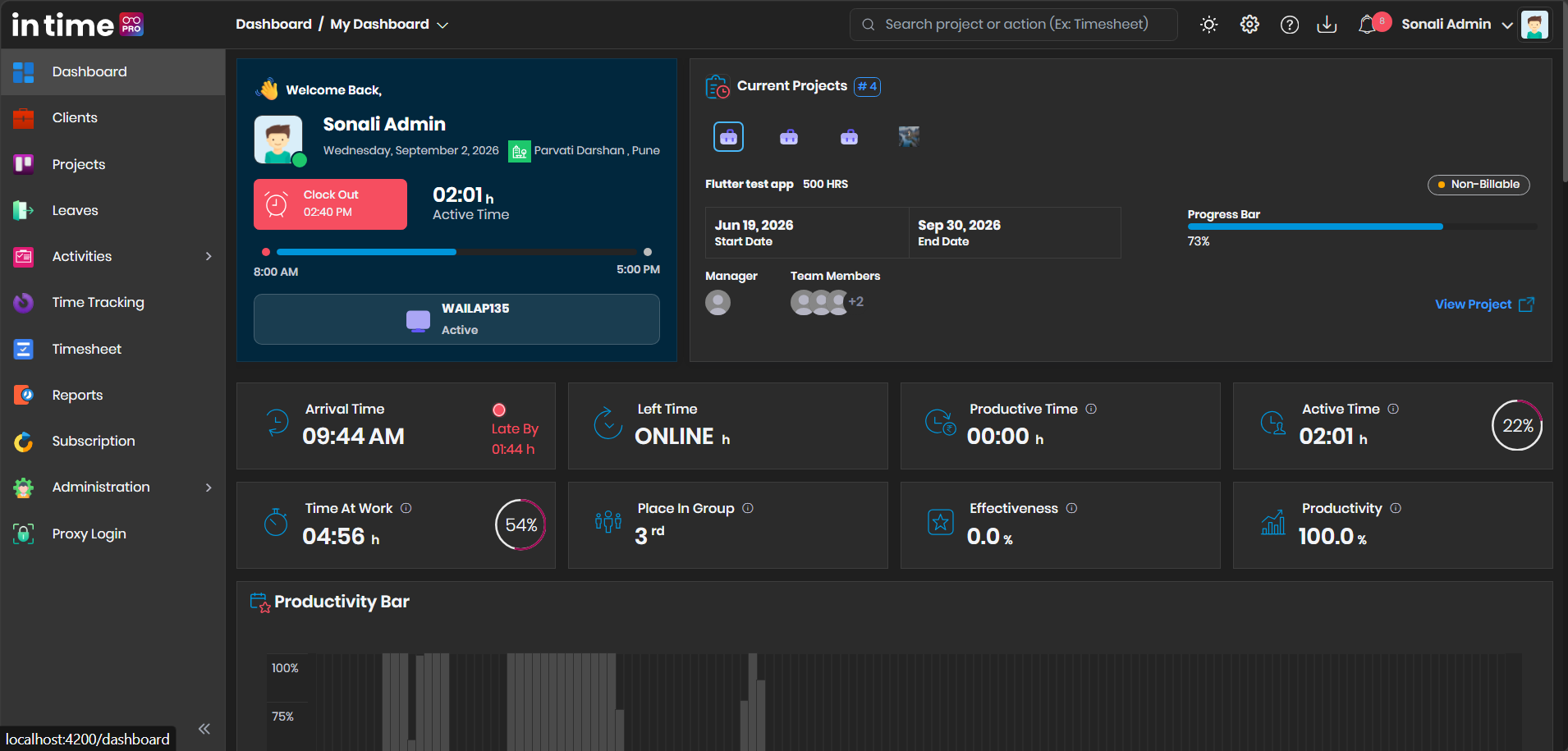
- Welcome / user information — your name, photo, date, location, and status
- Clock In / Clock Out — start or end your work day
- Active Time — time actively tracked during the day
- Arrival Time — when you started work today
- Left Time — when you finished, or "Online" if you're still working
- Productive Time — time spent on activity classified as productive
- Time At Work — total time between arrival and now (or when you left)
- Place In Group — your position among peers for the day
- Effectiveness — productive time as a share of your expected working hours
- Productivity — an overall productivity percentage for the day
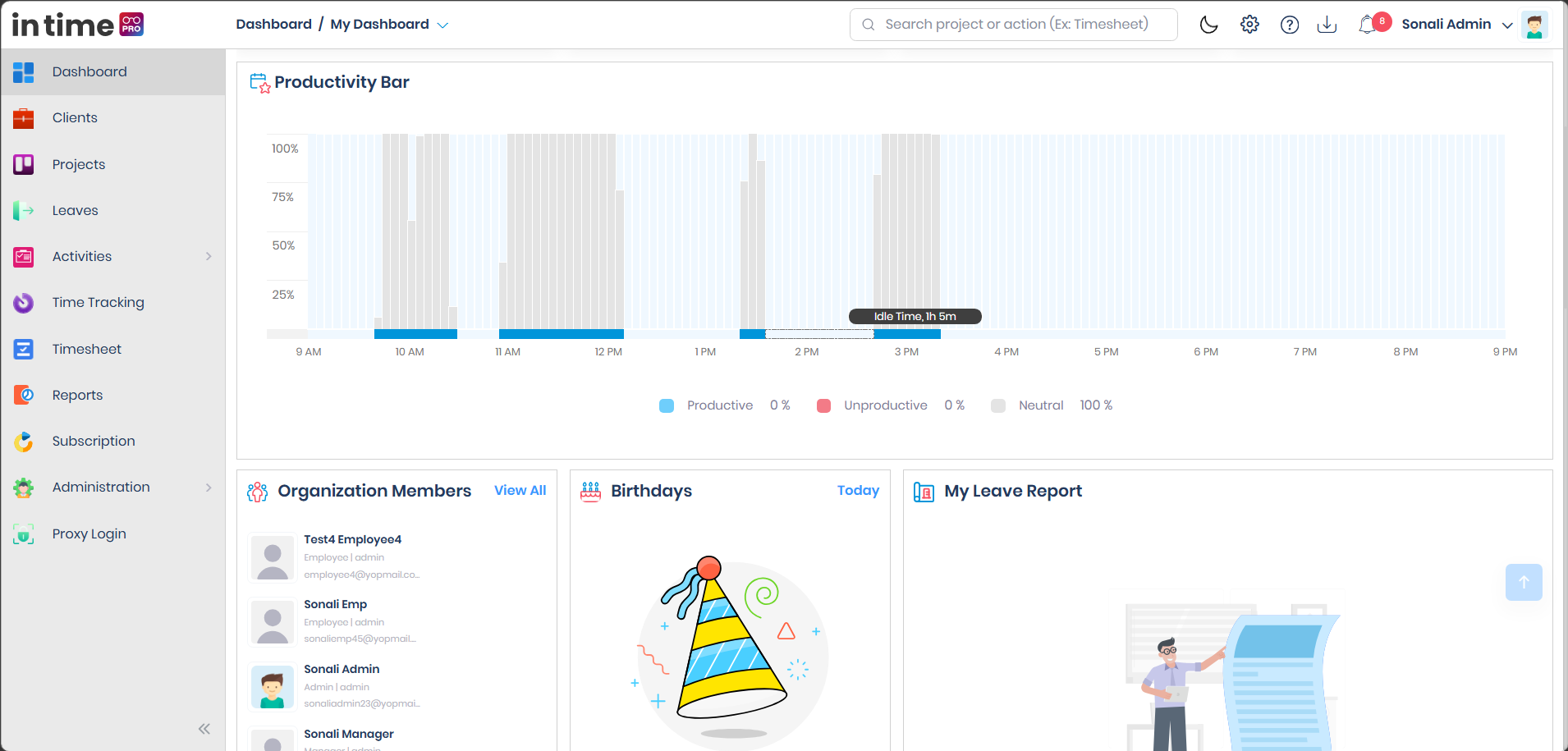
- Productivity Bar — a timeline view of the day's activity
- Current Projects — projects you're currently assigned to or managing
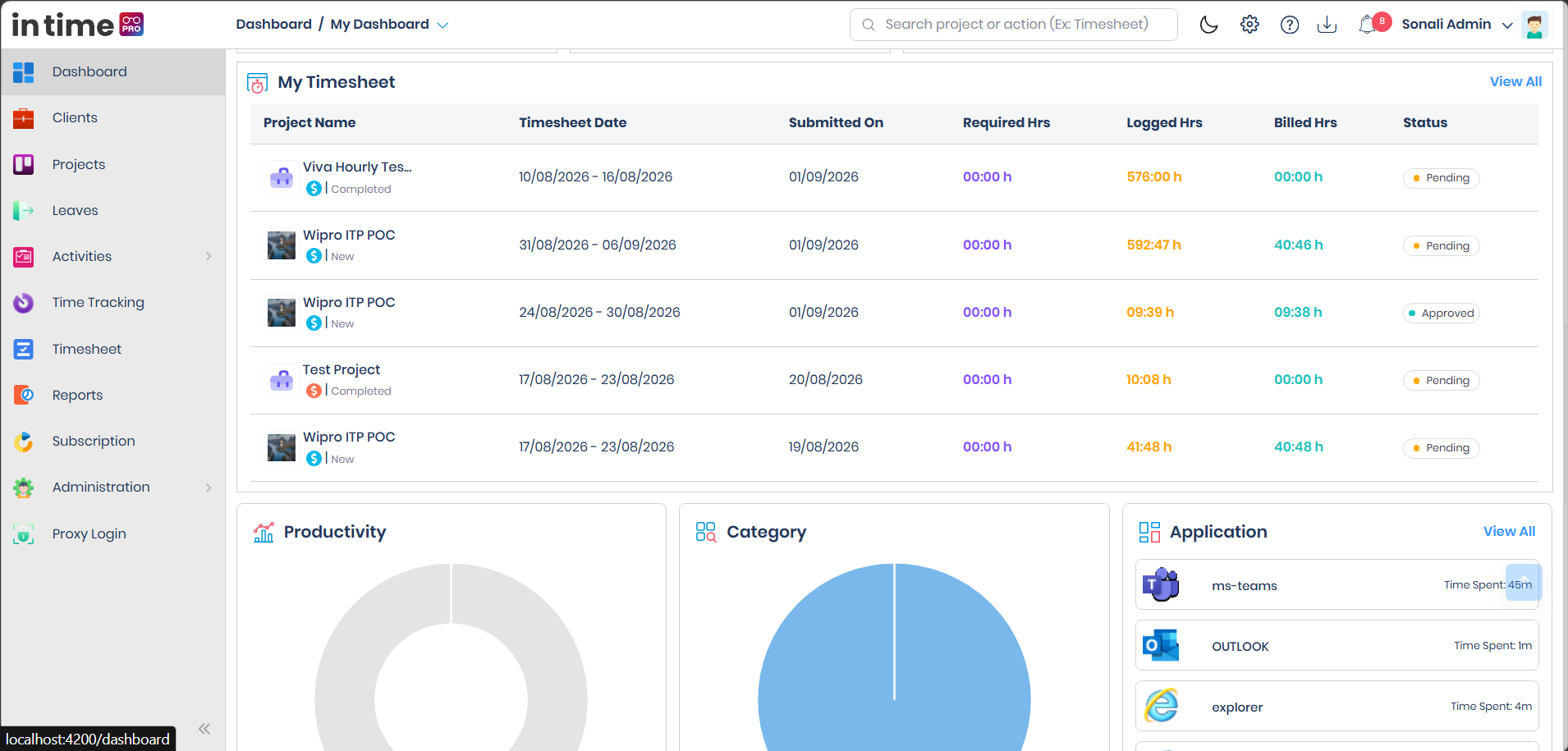
- My Timesheet — your recent submitted timesheets and their status
- Productivity chart, Category chart, Application list — how your day's activity breaks down
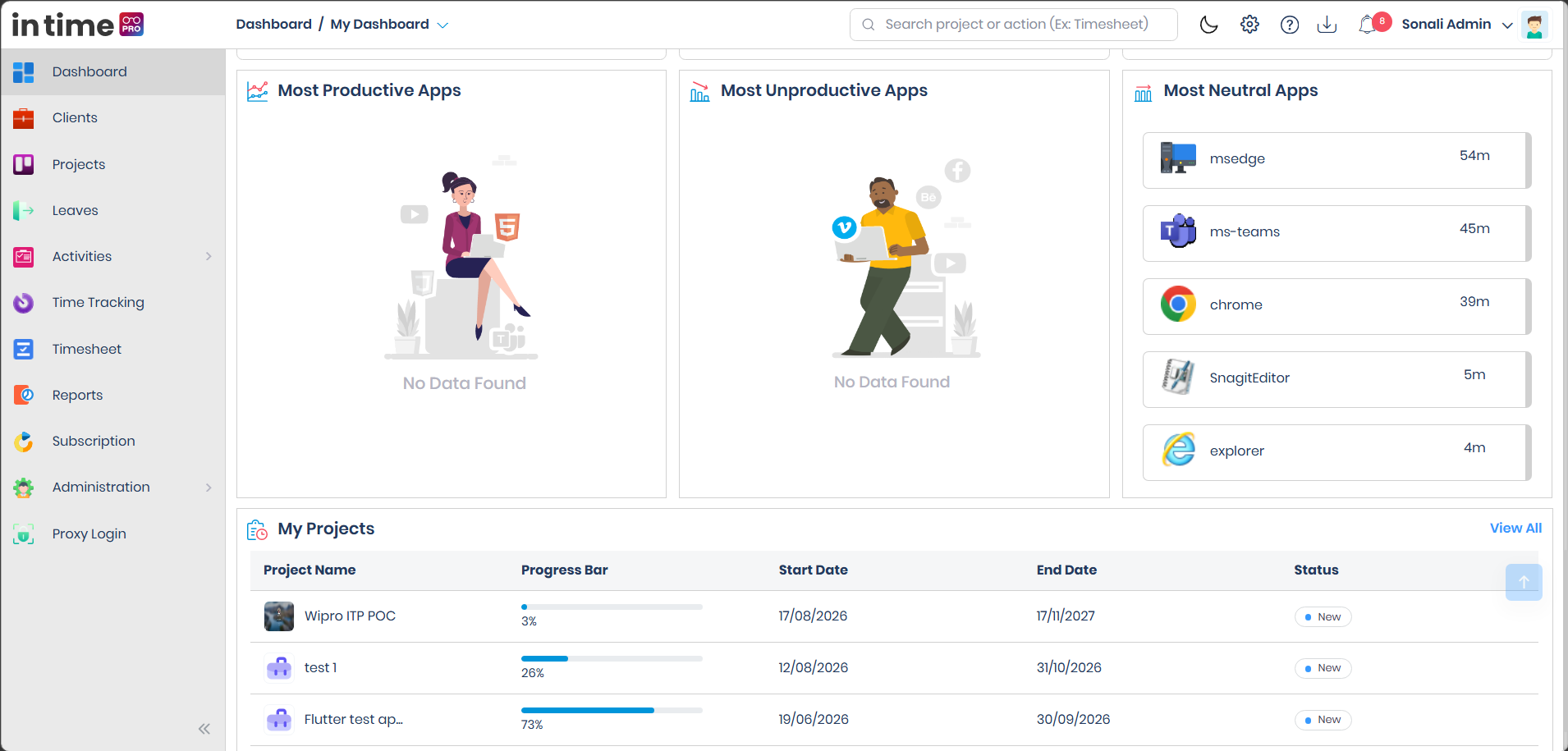
- Most Productive / Unproductive / Neutral Apps — the applications you used most, grouped by classification
- My Projects — projects you're on, with status and progress
- Organization Members — a quick list of people in your organization unit
- Birthdays — colleagues with a birthday today
- My Leave Report — your leave usage for the current year
Screenshot: Admin — My Dashboard (Welcome, Current Projects, Attendance & Time Summary)
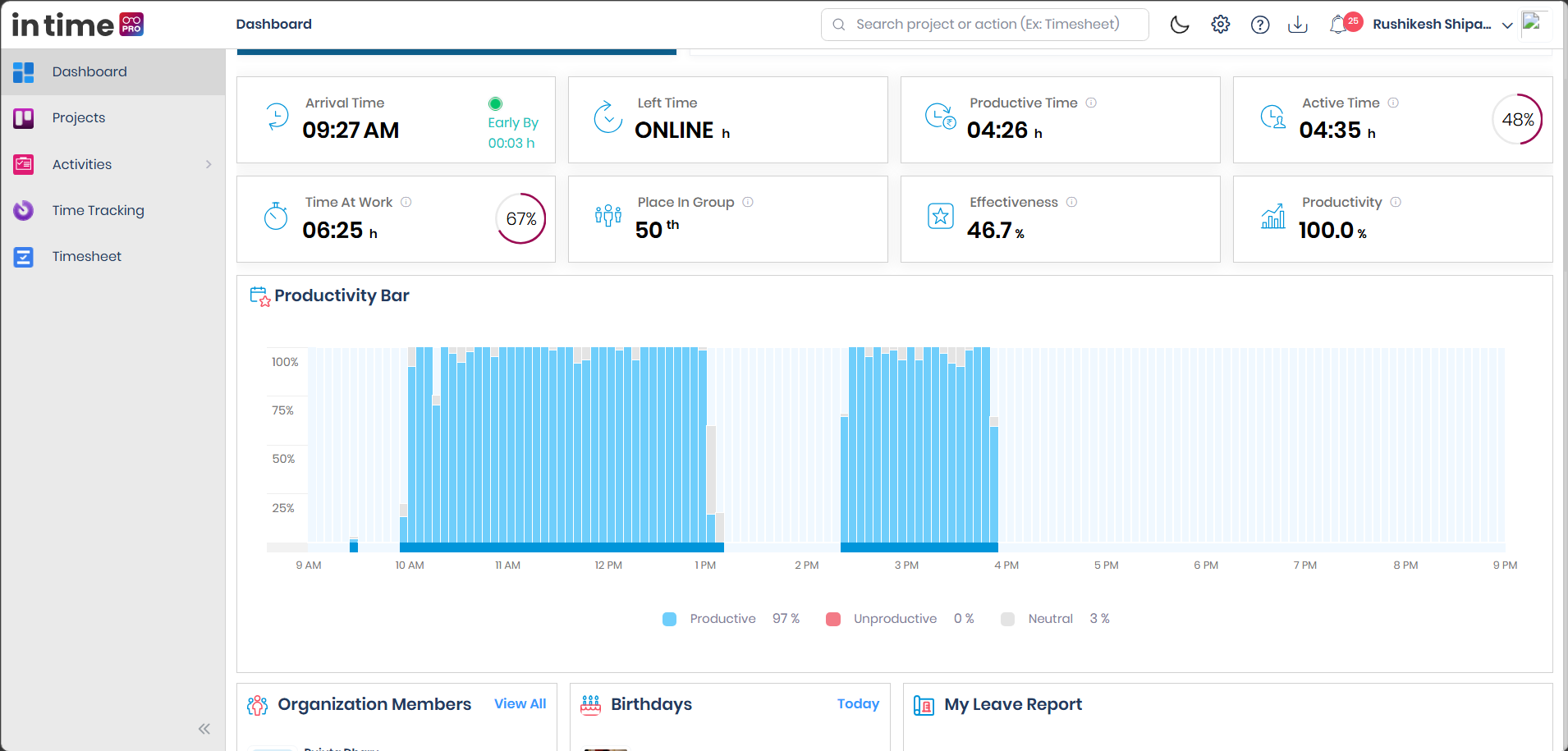
The Welcome card with Clock In/Out, Current Projects, and the Arrival Time, Left Time, Productive Time, Active Time, Time At Work, Place In Group, Effectiveness, and Productivity cards.
Screenshot: Admin — My Dashboard (Productivity Bar, Organization Members, Birthdays, My Leave Report)
The Productivity Bar for the day, followed by Organization Members, Birthdays, and My Leave Report.
Screenshot: Admin — My Dashboard (My Timesheet, Productivity, Category, Application)
My Timesheet with recent submitted timesheets and status, followed by the Productivity and Category charts and the Application list.
Screenshot: Admin — My Dashboard (Most Productive/Unproductive/Neutral Apps, My Projects)
Most Productive Apps, Most Unproductive Apps, and Most Neutral Apps, followed by the My Projects table.
4. Admin — Team Dashboard
4.1 Admin — Team Dashboard
Team Dashboard is different from My Dashboard. My Dashboard focuses on the logged-in user's own work and personal information. Team Dashboard provides an organization- or team-level overview.
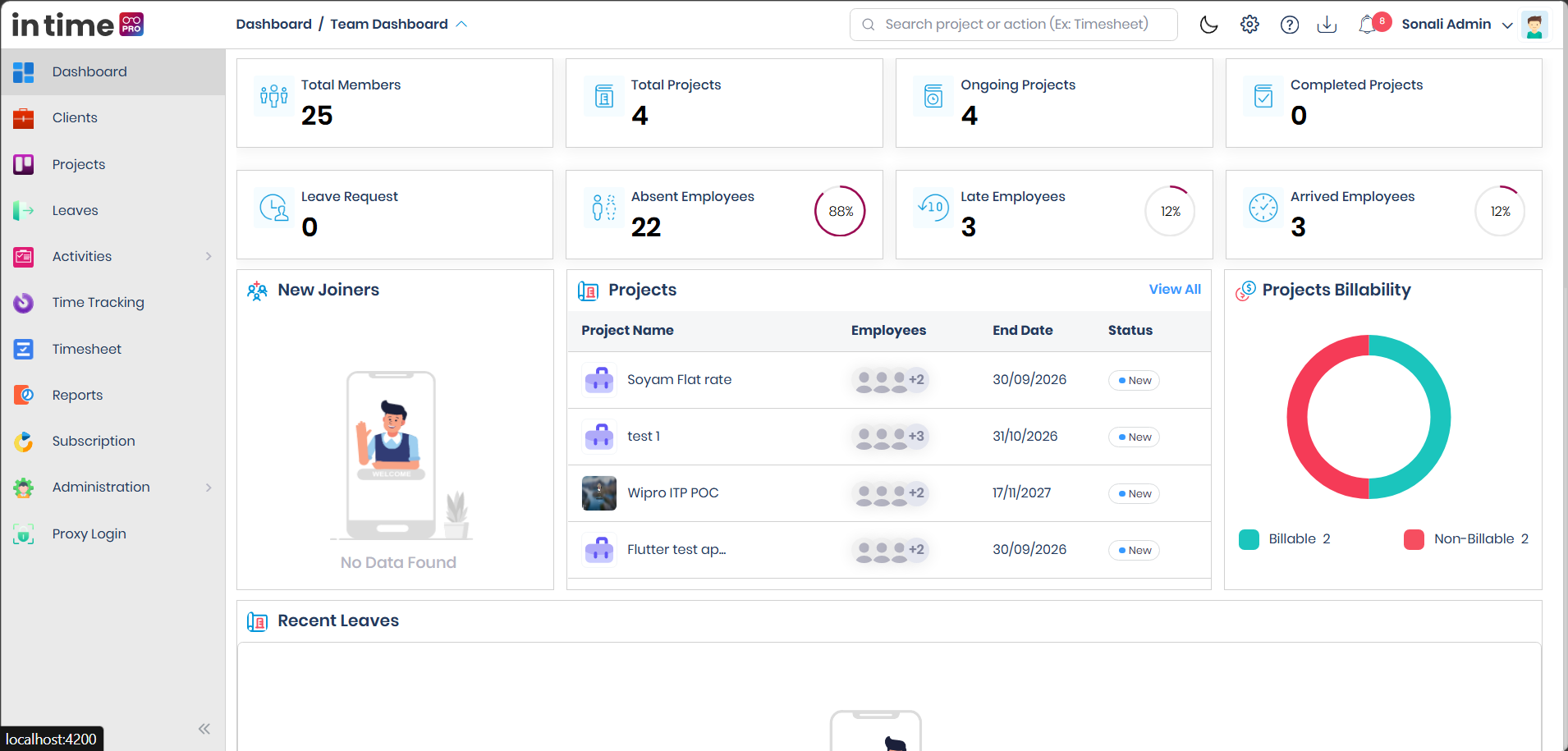
For Admin, Team Dashboard sections include:
| Section | What it shows |
|---|---|
| Total Members | Number of people in the organization |
| Total Projects | Number of projects in the organization |
| Ongoing Projects | Projects currently in progress |
| Completed Projects | Projects that have finished |
| Leave Request | A count of leave requests needing attention |
| Absent Employees | People not marked as arrived today |
| Late Employees | People who arrived after their scheduled start time |
| Arrived Employees | People who have started work today |
| New Joiners | People who recently joined the organization |
| Projects | A list of projects with status and team information |
| Projects Billability | A breakdown of billable vs non-billable projects |
| Recent Leaves | Recently submitted leave requests |
| Recent Timesheet | Recent timesheet activity across the team |
| Team Tracking | Live status of team members, where available |
For Admin, Team Dashboard shows organization-wide information rather than only the administrator's personal information. Project and member data reflects the organization's available team and project data, according to the logged-in user's access.
Leave Request and Recent Leaves reflect leave activity recorded through Leaves — requests submitted there, and pending approvals, will show up here.
Screenshot: Admin — Team Dashboard (Members, Projects, Attendance, Billability)
Total Members, Total Projects, Ongoing Projects, Completed Projects, Leave Request, Absent Employees, Late Employees, Arrived Employees, New Joiners, Projects, Projects Billability, and Recent Leaves.
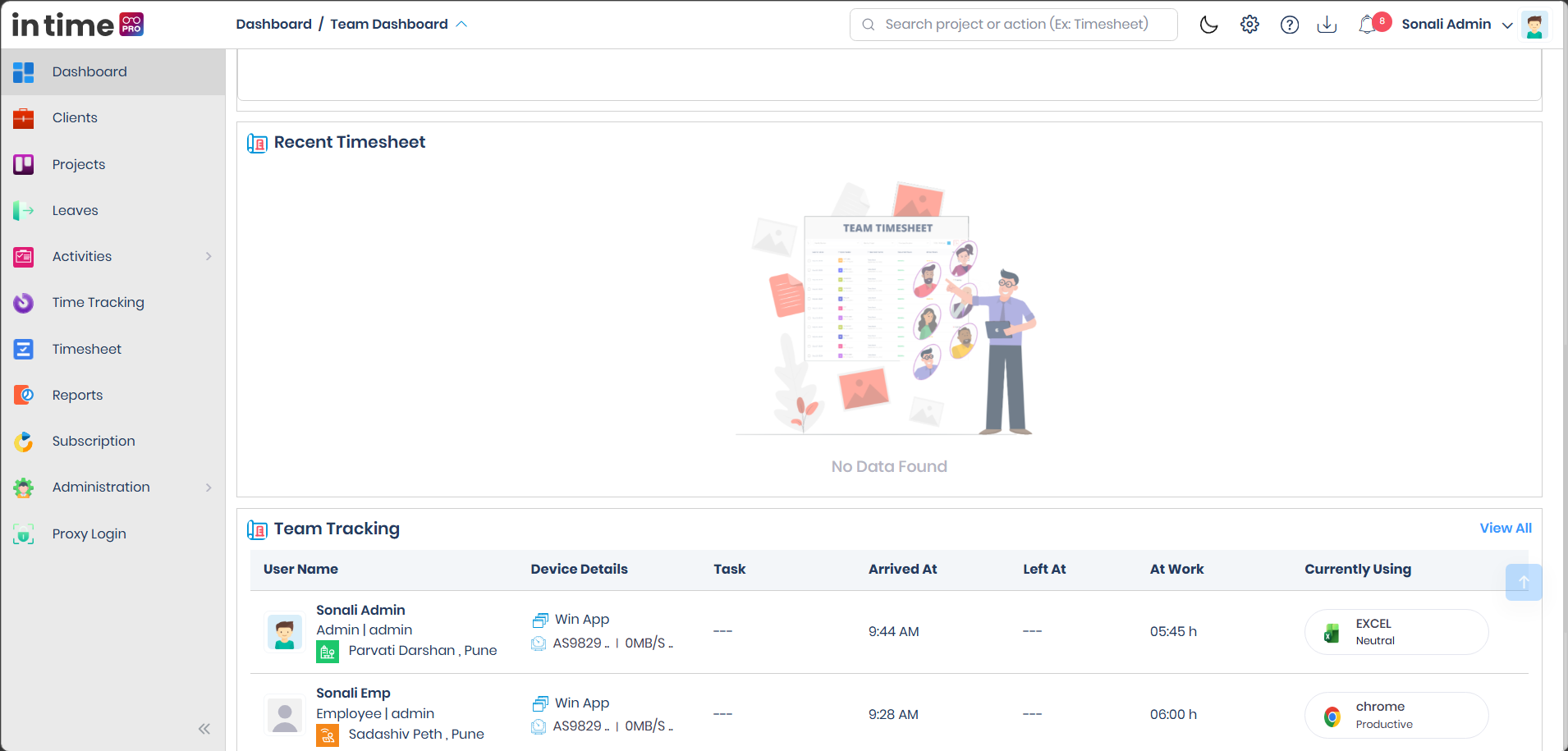
Screenshot: Admin — Team Dashboard (Recent Timesheet, Team Tracking)
Recent Timesheet, followed by the Team Tracking list showing each member's device, arrival time, time at work, and current application.
5. My Dashboard vs Team Dashboard
| My Dashboard | Team Dashboard |
|---|---|
| Personal work summary | Team/organization summary |
| Personal attendance | Employee attendance overview |
| Personal active/productive time | Team attendance statistics |
| Current/My Projects | Team projects |
| My Timesheet | Team timesheet information |
| My Leave Report | Leave requests/recent leaves |
| Personal application/activity data | Team tracking information |
| Personal productivity | Team/project overview |
When you switch from My Dashboard to Team Dashboard, the purpose of the information changes — from tracking your own work to seeing team or organization-level visibility. See Switching Dashboard Views below for the view selector.
6. Role-Specific Dashboard Behavior
Admin
Admin sees both My Dashboard and Team Dashboard. My Dashboard shows the administrator's own personal work information. Team Dashboard provides an organization-wide overview of members, projects, attendance, leave, and timesheets.
Manager
Manager sees My Dashboard for personal information, and a Team Dashboard for manager/team/project-scoped information. Manager data reflects the team and projects available to that manager — it is not necessarily an organization-wide view.
Program Manager
Program Manager sees My Dashboard for personal information, and a Team Dashboard for program/project-related information. Data is scoped according to the program manager's project responsibilities.
Employee
Employee sees My Dashboard only, focused on personal attendance, productivity, assigned/current projects, timesheets, leave, and activity. Team Dashboard is not documented as an available Employee feature. Runtime verification required to confirm exactly what happens if an Employee selects the Team Dashboard option from the header.
Contractor
Contractor does not see My Dashboard by default. Contractor's default permissions do not include the Dashboard menu permission (Pages.Tenant.Dashboard) — confirmed. Contractor is separately granted several individual Dashboard widget permissions, but without the parent Dashboard permission, those widgets have no page to appear on. An administrator can grant Contractor the Dashboard permission if your organization needs this.
Accountant
Accountant's default permissions include no Dashboard access at all — no Dashboard menu permission and no Dashboard widget permissions — confirmed.
Earlier versions of this page described an Account View for Accountant, separate from Team Dashboard. That has not been confirmed against the permission data used for this update, which shows Accountant with no Dashboard-related permissions by default. ON HOLD, product confirmation required — until this is resolved, don't rely on Accountant having any Dashboard-area view (including an "Account View") by default.
Client
Client users do not use the regular staff My Dashboard / Team Dashboard layout. Instead, they sign in to a separate Client Portal Dashboard, focused on their own projects — a simple welcome screen plus a My Projects list, reached through its own navigation (Dashboard, one group per project, and Reports).
The full Client experience — sign-in, Client Dashboard, navigation, and which screens are actually functional versus stub — is covered in its own guide: see Client Portal.
7. Switching Dashboard Views
If your role has more than one Dashboard view available, you can switch between them from the header:
- Open Dashboard.
- Open the Dashboard view selector in the header.
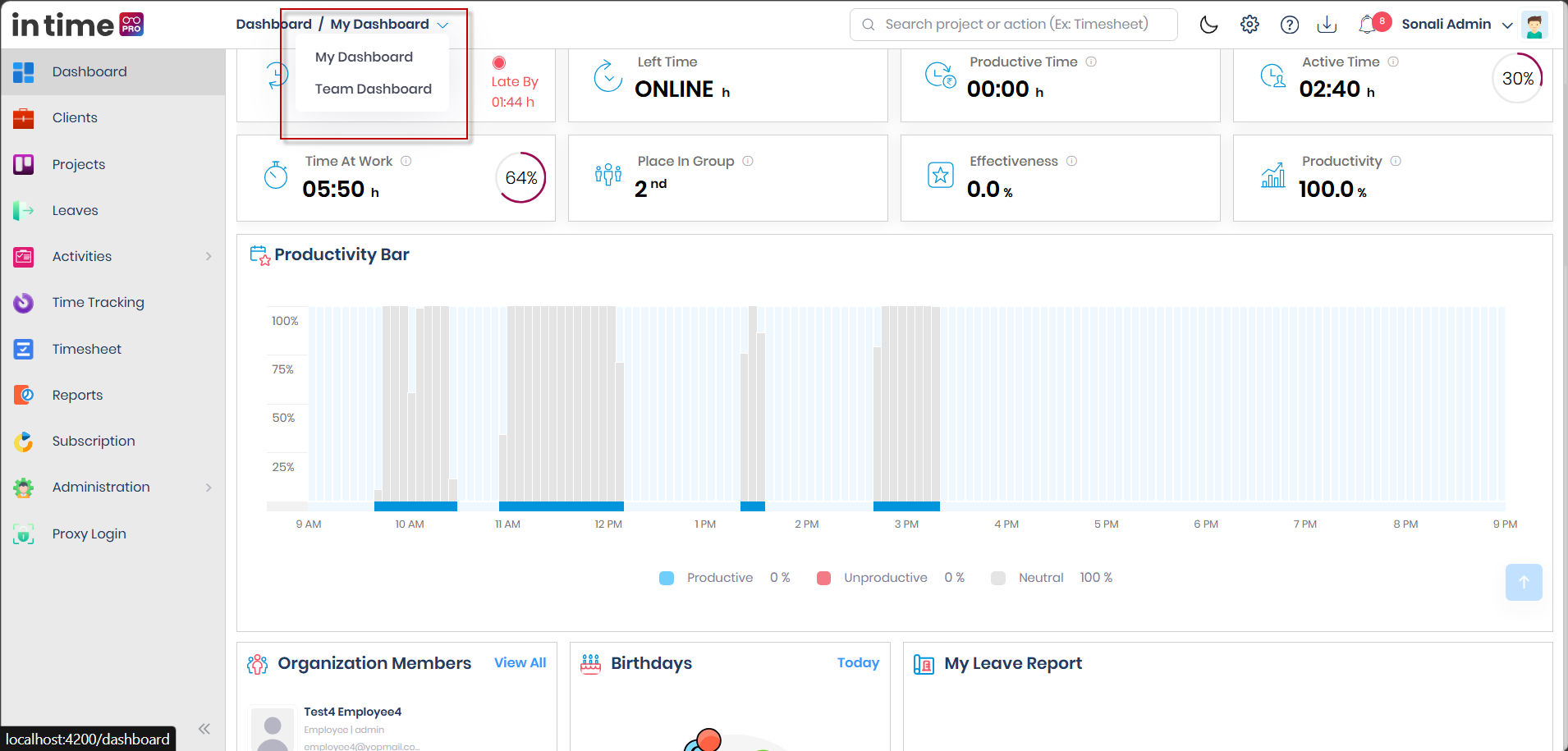
- Select My Dashboard or Team Dashboard, if available.
- The Dashboard content changes according to the selected view and your role/access.
Not every role sees the Team Dashboard option, and the options available to you depend on your role, access, and how your organization's application is configured. If a Team Dashboard option is visible but selecting it does not appear to change the page content for your role, this is a known area under review — treat it as unexpected behavior and check with your administrator rather than assuming it is intended.
Screenshot: Dashboard view dropdown
The Dashboard view selector, opened from the breadcrumb next to Dashboard in the header.
8. Timesheet Reminder
The Timesheet Reminder appears when you have pending timesheet entries or submissions for previous working days.
The reminder:
- Reminds you to complete any required timesheet entries.
- May list the assigned projects associated with the pending timesheet work.
- Remains relevant until the required timesheet has been submitted.
From the reminder, you can:
| Option | What it does |
|---|---|
| Fill Timesheet | Takes you to your timesheet to complete the missing entries |
| Skip for now | Dismisses the reminder for the current session |
The Timesheet Reminder is a normal part of the Dashboard experience and does not indicate a problem — it simply reflects that some previous working days still need timesheet entries for your assigned projects.
Screenshot: Timesheet Reminder - Pending Submission
The Timesheet Reminder popup, showing the list of assigned projects with pending submissions, and the Skip for now / Fill Timesheet actions.
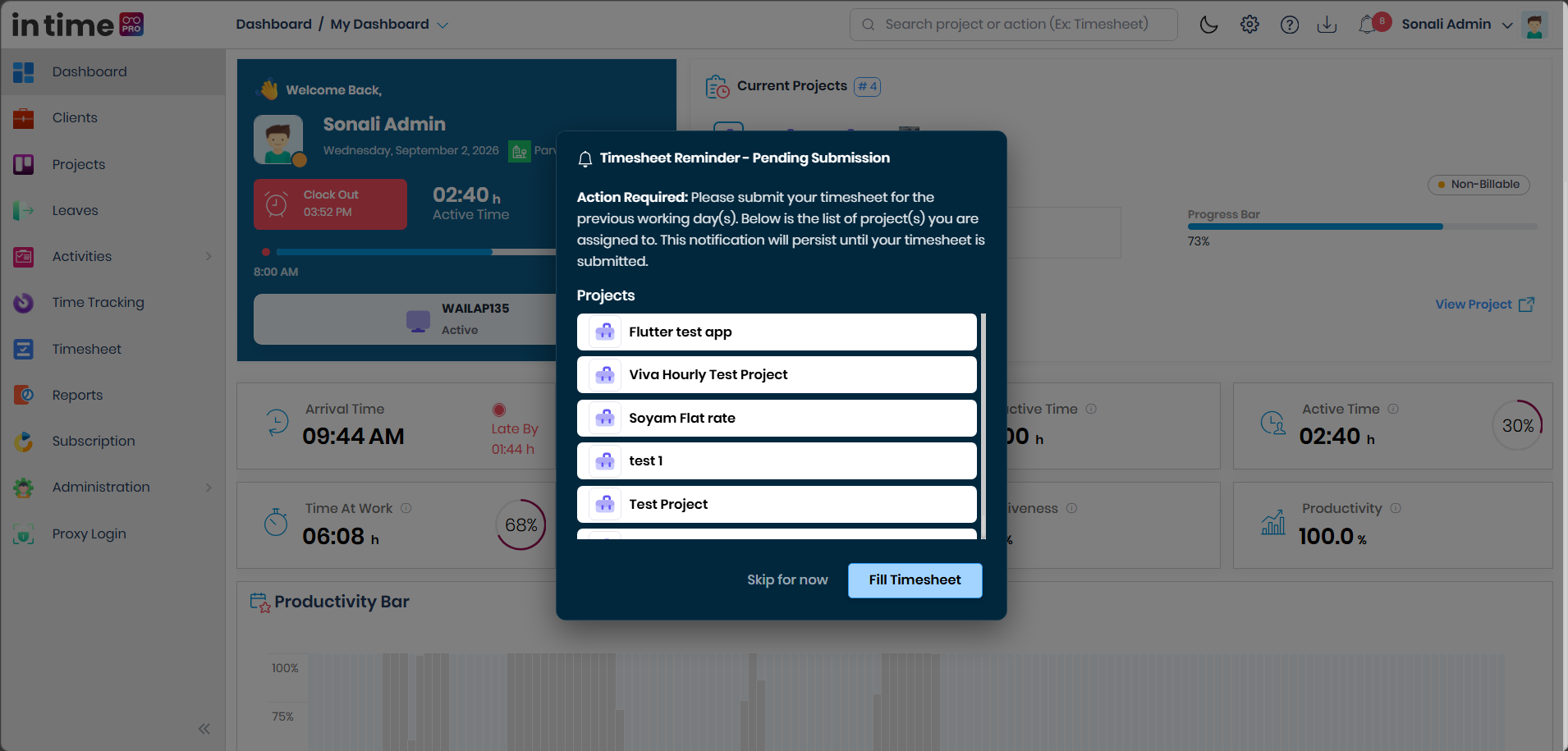
The screenshot above shows a typical pending submission notification: a list of assigned projects with missing timesheet entries, and a Fill Timesheet action to complete them.
9. Dashboard Widgets
Welcome / Attendance
Shows your name, today's date, your location, your current status, and Clock In / Clock Out actions. When available, it can also show the application, device, and project you're currently active on.
Attendance and Productivity Cards
| Card | What it means |
|---|---|
| Arrival Time | When you started work today |
| Left Time | When you finished today, or "Online" if you're still working |
| Productive Time | Time spent on activity classified as productive |
| Active Time | Time actively tracked during the day |
| Time At Work | Total time between arrival and now (or when you left) |
| Effectiveness | Productive time as a share of your expected working hours |
| Productivity | An overall productivity percentage for the day |
| Place In Group | Your position among peers for the day |
Productivity Bar
The Productivity Bar gives a timeline-style view of your day, showing productive, unproductive, and neutral activity across the hours you worked.
Screenshot: Productivity Bar
The Productivity Bar, with the Productive / Unproductive / Neutral legend below the chart.
Current Projects
Shows the projects you're currently assigned to or managing, based on today's date falling within the project's start and end dates.
My Timesheet
Shows your recent, submitted timesheet records and their approval status.
Applications
Shows the applications you used and time spent on each.
Productivity / Category
Charts that summarize your activity and productivity for the day, when tracking data is available.
My Projects
Shows the status and progress of projects you're assigned to.
Organization Members
Shows a quick list of relevant people in your organization.
Birthdays
Shows colleagues with a birthday today, where available.
My Leave Report
Shows a summary of your leave usage and status for the current year. This widget is a read-only summary — to submit a leave request or review your leave activity in full, use Leaves.
10. Empty and No-Data States
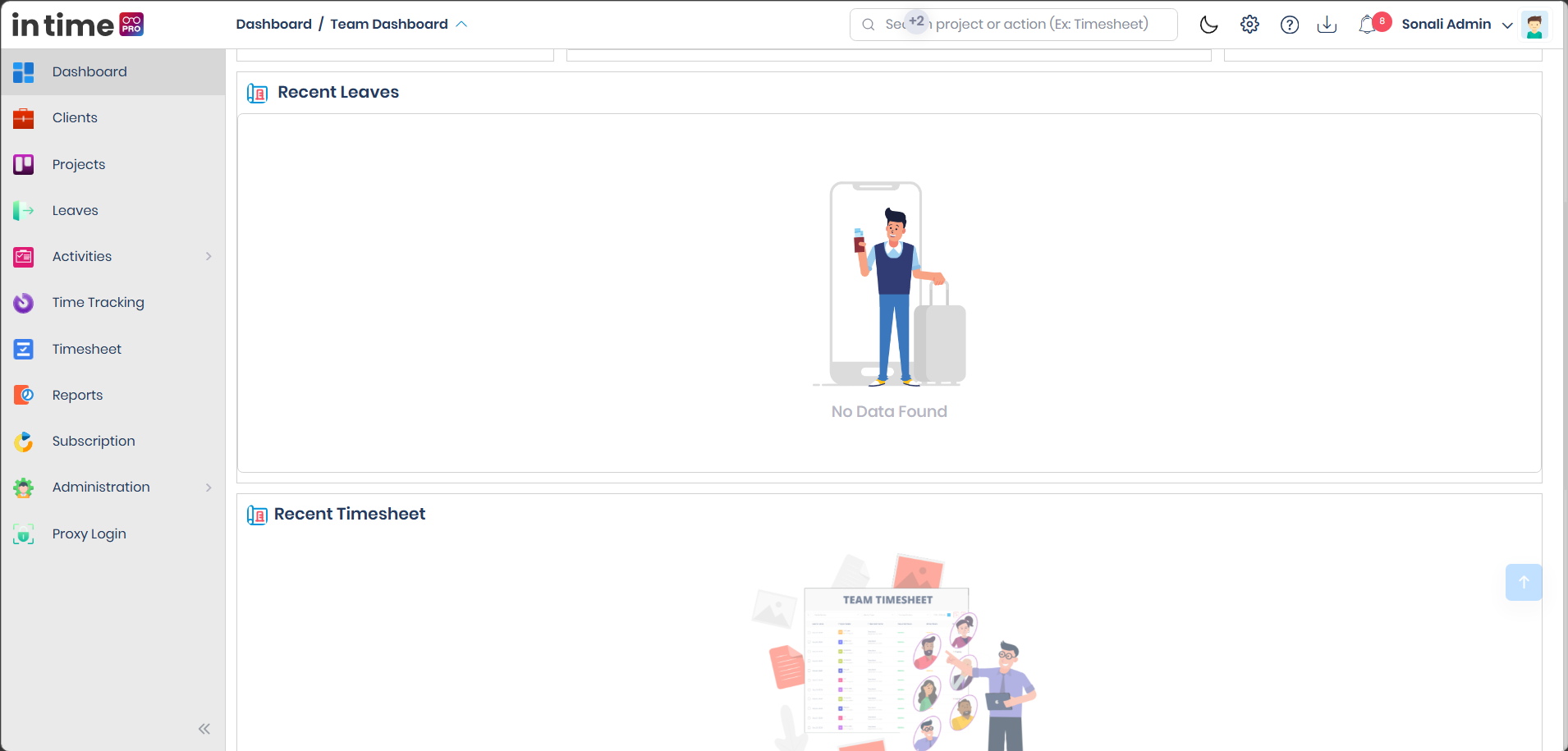
Some Dashboard widgets may show No Data Found when there is no relevant data yet. An empty state does not necessarily indicate an application problem — data typically appears once there is activity, a project assignment, a timesheet submission, or other required information.
Screenshot: Dashboard empty state
A No Data Found illustration shown on the Recent Leaves widget when there is no data for the current view.
11. Actions Available from Dashboard
| Action | What it does |
|---|---|
| Clock In | Starts your tracked work day |
| Clock Out | Ends your tracked work day |
| View Project | Opens the details of a project shown on the Dashboard |
| View All | Takes you to the full area for a widget, such as Users, Leaves, Timesheet, or Projects |
| Fill Timesheet | Takes you to your timesheet to complete pending entries |
| Skip | Dismisses the Timesheet Reminder for the current session |
| Switch Dashboard view | Moves between My Dashboard and Team Dashboard, where available |
12. Dashboard Role Matrix
| Role | My Dashboard | Team Dashboard | Other Dashboard View |
|---|---|---|---|
| Admin | Yes | Yes | Resource Dashboard |
| Manager | Yes | Yes, role/team scoped | — |
| Program Manager | Yes | Yes, program/project scoped | — |
| Employee | Yes | Not normally available | — |
| Contractor | No, by default — confirmed | No | — |
| Accountant | No, by default — confirmed | No | Not confirmed — see the note under Accountant above |
| Client | Client Portal Dashboard | No regular staff Team Dashboard | Client project views |
The Contractor and Accountant rows above reflect confirmed permission data (no Dashboard menu permission by default for either role). The Resource Dashboard (Admin) view is not covered by that same confirmation and is presented as previously documented.