Clients
Clients is where your organization keeps a record of every company it works with. Each client record stores the company's name, address, contact people, and status. Projects are attached to clients, so keeping this list accurate makes it easier to set up projects, run reports, and handle invoicing later on.
Overview
A client is a customer organization — for example, a company your team does project work for. A client record can hold:
- Company details: name, photo/logo, address, country/state/city, ZIP code, time zone, website, and notes.
- One or more contact people, each with a name, phone number, email, and a role (Technical or Billing).
- A status: Active, Archived, or Deleted.
- The projects linked to that client.
Clients is available to Admin, Manager, and Program Manager users by default (unless your administrator has changed this). Client users don't use this screen at all — they sign in separately through the Client Portal, a project-focused workspace covered in its own guide: see Client Portal.
How to access
Main Menu → Clients
If Clients isn't visible in your menu, ask your administrator to check your access.
Role-Based Access
Not everyone can see or do the same things in Clients. In simple terms, there are two levels of access: being able to view the client list, and being able to manage it (create, edit, archive, delete, restore).
| Capability | Admin | Manager | Program Manager | Contractor | Accountant |
|---|---|---|---|---|---|
| View the Clients list | Yes — every client in the organization | Yes — clients linked to the projects assigned to them | Yes — clients linked to the projects assigned to them | Yes (view only) | Yes (view only) |
| Open client details | Yes | Yes, for the clients they can see | Yes, for the clients they can see | Yes, for the clients they can see | Yes, for the clients they can see |
| Create a new client | Yes | Not by default | Not by default | Not by default | Not by default |
| Edit a client | Yes | Not by default | Not by default | Not by default | Not by default |
| Archive / Delete / Restore | Yes | Not by default | Not by default | Not by default | Not by default |
| Manage contacts | Yes, through create/edit | Not by default | Not by default | Not by default | Not by default |
| Search and filter the list | Yes | Yes | Yes | Yes | Yes |
| Export the list | Yes | Yes | Yes | Yes | Yes |
By default, Manager, Program Manager, Contractor, and Accountant can only view clients — they get the same permission level (view only, no create/edit/archive/delete). Only Admin gets those management options by default. Your administrator can change this for individual people if needed, so always go by what actually appears on your own screen.
Contractor and Accountant are confirmed to get the same permission level as Manager for Clients (view only — Pages.Clients + view, no CRUD). Whether the exact scope of which clients they see matches Manager's specific project-linked rules described below (for example, the wider Active-list behavior) is not separately confirmed for Contractor and Accountant — ON HOLD, product confirmation required. If you're signed in as a Contractor or Accountant, go by what actually appears on your own screen.
Admin
Admin has the most access in Clients. An Admin can see every client in the organization, no matter its status, and can create new clients, edit existing ones, manage their contacts, and archive, delete, or restore them.
Manager
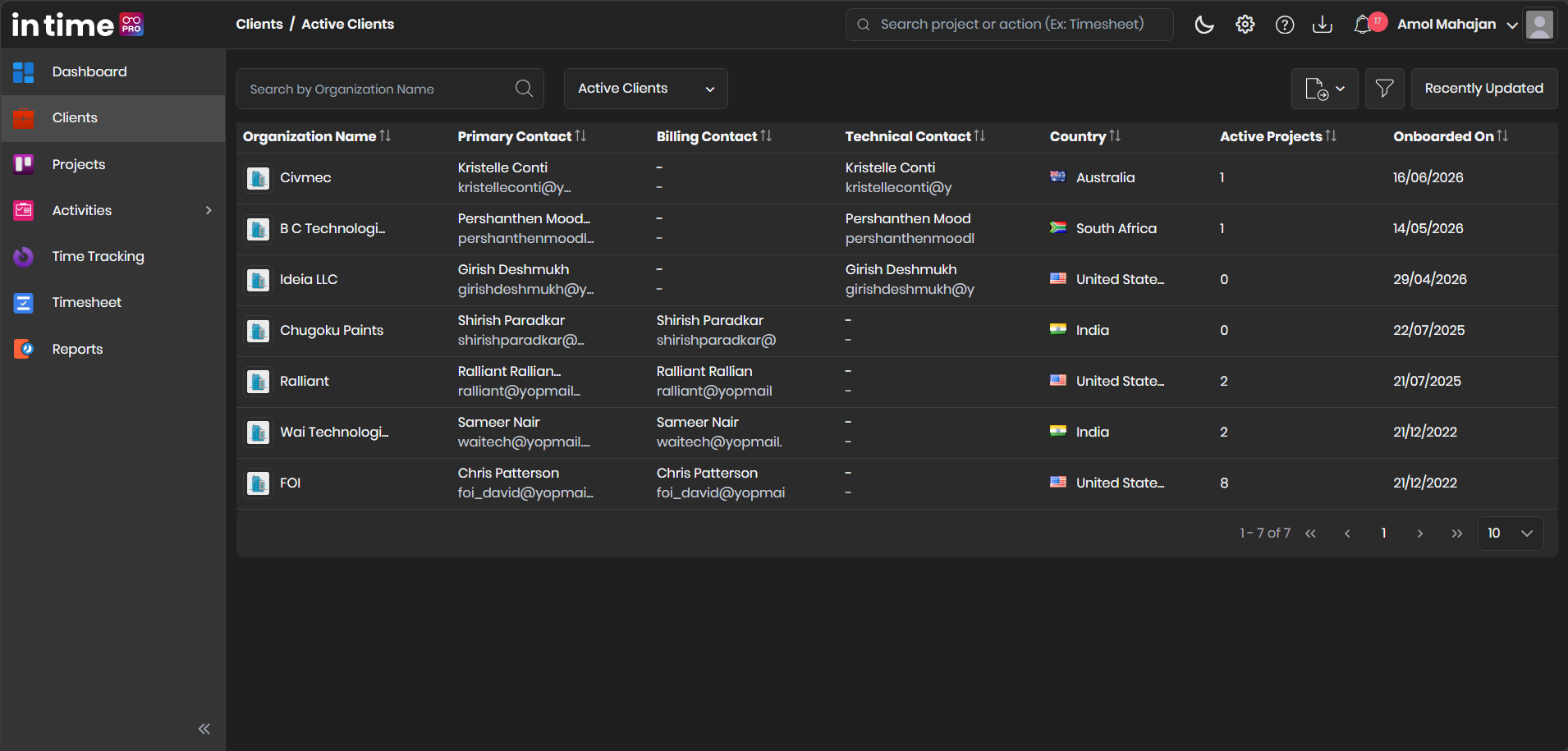
A Manager sees the clients connected to the projects assigned to them, not every client in the organization. For the Active list, a Manager may also see clients linked to projects that have any project manager assigned, not only their own projects. For the Archived and Deleted lists, a Manager only sees clients linked to their own assigned projects.
A Manager can search, filter, sort, and export the clients they can see, and can open client details and view the related projects. Creating, editing, archiving, deleting, or restoring a client is not available to a Manager unless their administrator has specifically turned it on for them.
Program Manager
A Program Manager's access works the same way as a Manager's: they see clients linked to projects where they are the assigned Program Manager, with the same wider view for Active clients described above. A Program Manager can view, search, filter, sort, and export the clients available to them, and open client details and projects. Creating, editing, archiving, deleting, or restoring a client is not available by default.
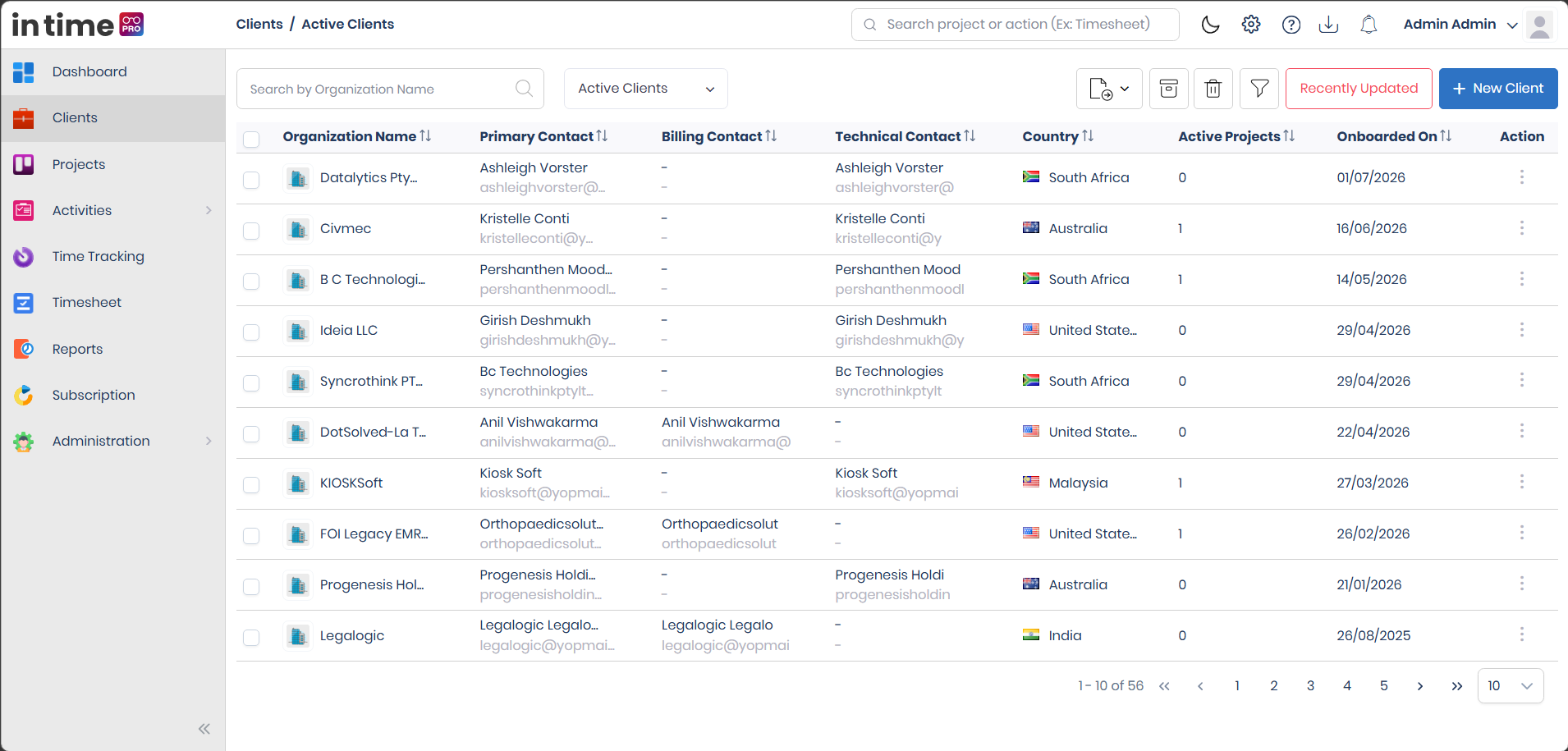
Screenshot: Clients – Admin View
Screenshot: Clients – Manager View
Active Clients
Active is the screen you see by default when you open Clients. It lists every client that hasn't been archived or deleted — in other words, the clients your organization is currently working with. The newest clients appear at the top.
Columns
| Column | What it shows |
|---|---|
| Organization Name | The client's name and logo (or a default company image). Click it to open the client's details. |
| Primary Contact | The name and email of the contact person marked as Primary for this client. |
| Billing Contact | Which contact appears here depends on the Primary Contact's role: if the Primary Contact is set as Billing, the Primary Contact is shown; if the Primary Contact is set as Technical, the first other contact is shown instead. |
| Technical Contact | Works the opposite way from Billing Contact: the Primary Contact is shown here if they're set as Technical, otherwise the first other contact is shown. |
| Country | The client's country, with its flag. |
| Active Projects | The number of the client's projects that are currently running — not archived or deleted, and where today's date falls between the project's start and end dates. |
| Onboarded On | The date the client was added to In Time PRO, shown in your organization's date format. |
| Action | Buttons such as Edit, Archive, or Delete for that client, shown only to users who can manage clients. Which buttons appear depends on the client's current status. |
The Billing Contact and Technical Contact columns only show the Primary Contact plus one other contact. If a client has more than two contacts, the extra Billing or Technical contacts are still saved and can be seen on the client's own contact list — they just don't all fit as separate columns in the main table.
Using the list
- Tick the checkbox next to one or more clients (shown to users who can manage clients) to act on several clients at once, or to export just those rows.
- Click a client's name, or anywhere on its row, to open that client's details.
- Use the Action button on a row to Edit, Archive, or Delete that client, if you have access to those options.
If the list is empty, you'll see a No Data Found message. While the list is loading, a short placeholder appears.
Screenshot: Clients – Active Clients
Search
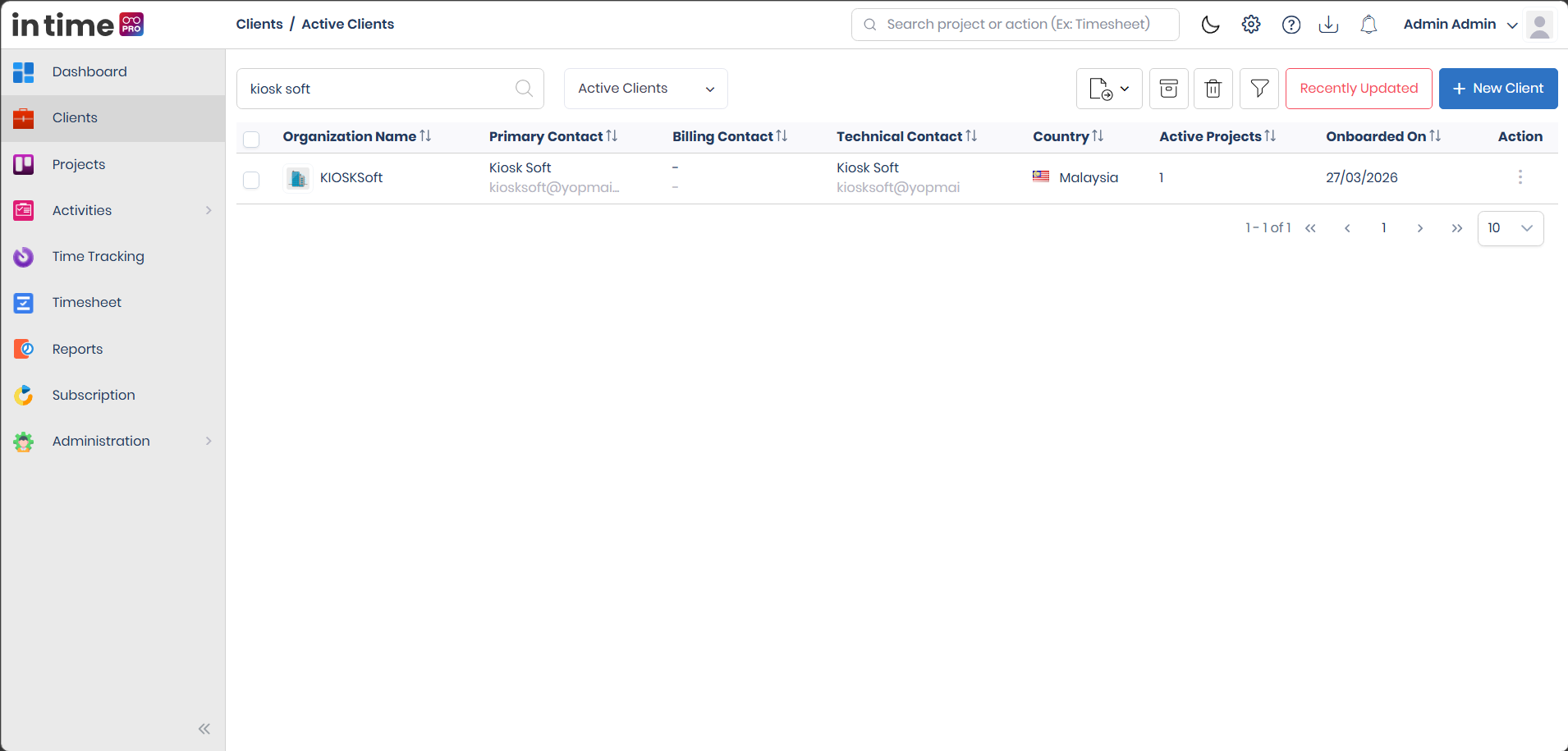
Use the Search by Organization Name box above the list to quickly find a client.
Typing a search term checks two things at once:
- the client's organization name; and
- the full name of the client's primary contact.
Searching doesn't care about uppercase or lowercase letters, and the list updates as you type — there's no need to press Enter or click a search button. Search only looks through the list you currently have open (Active, Archived, or Deleted), so switch to the right one first if you can't find the client you expect. Clearing the search box brings back the full list for that view.
If nothing matches, the table shows its usual empty-results message.
Screenshot: Client Search
Filter
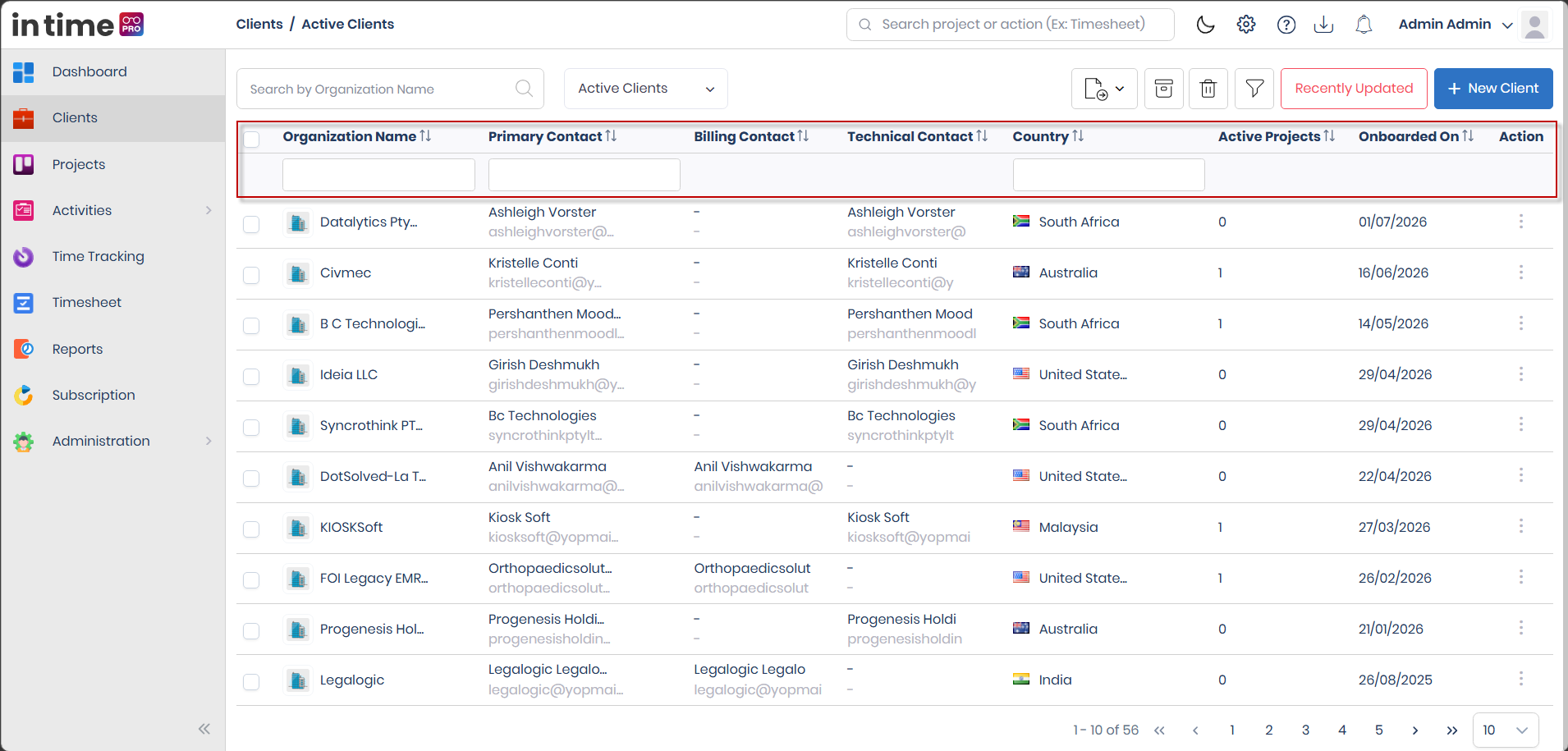
Click the Filter button above the list to show a row of filter boxes under the column headings. You can filter by:
| Filter | How it matches |
|---|---|
| Organization Name | Shows clients whose name contains the text you type. |
| Primary Contact | Shows clients whose primary contact's email contains the text you type. |
| Country | Shows clients whose country name contains the text you type. |
You can use more than one filter at the same time — for example, filtering by Country and Organization Name together narrows the list down to clients that match both. Filters apply as soon as you type and work together with the current view (Active, Archived, or Deleted) and any search text you've already entered.
Clicking Filter again clears all the filters you've set (it does not clear the Search box).
Use Filter when you're working with a long client list and want to narrow it down to a specific country, contact, or name, instead of scrolling through everything.
Screenshot: Client Filter
Sorting
Click any column heading that supports sorting to sort the list by that column; click it again to switch between ascending and descending order (for example, A-to-Z or Z-to-A).
You can sort by: Organization Name, Primary Contact, Billing Contact, Technical Contact, Country, Active Projects, and Onboarded On. The Selection checkbox and Action columns can't be sorted.
Sorting applies to whatever clients are currently shown, so it works together with the selected status view, your search text, and any filters you've applied.
Recently Updated
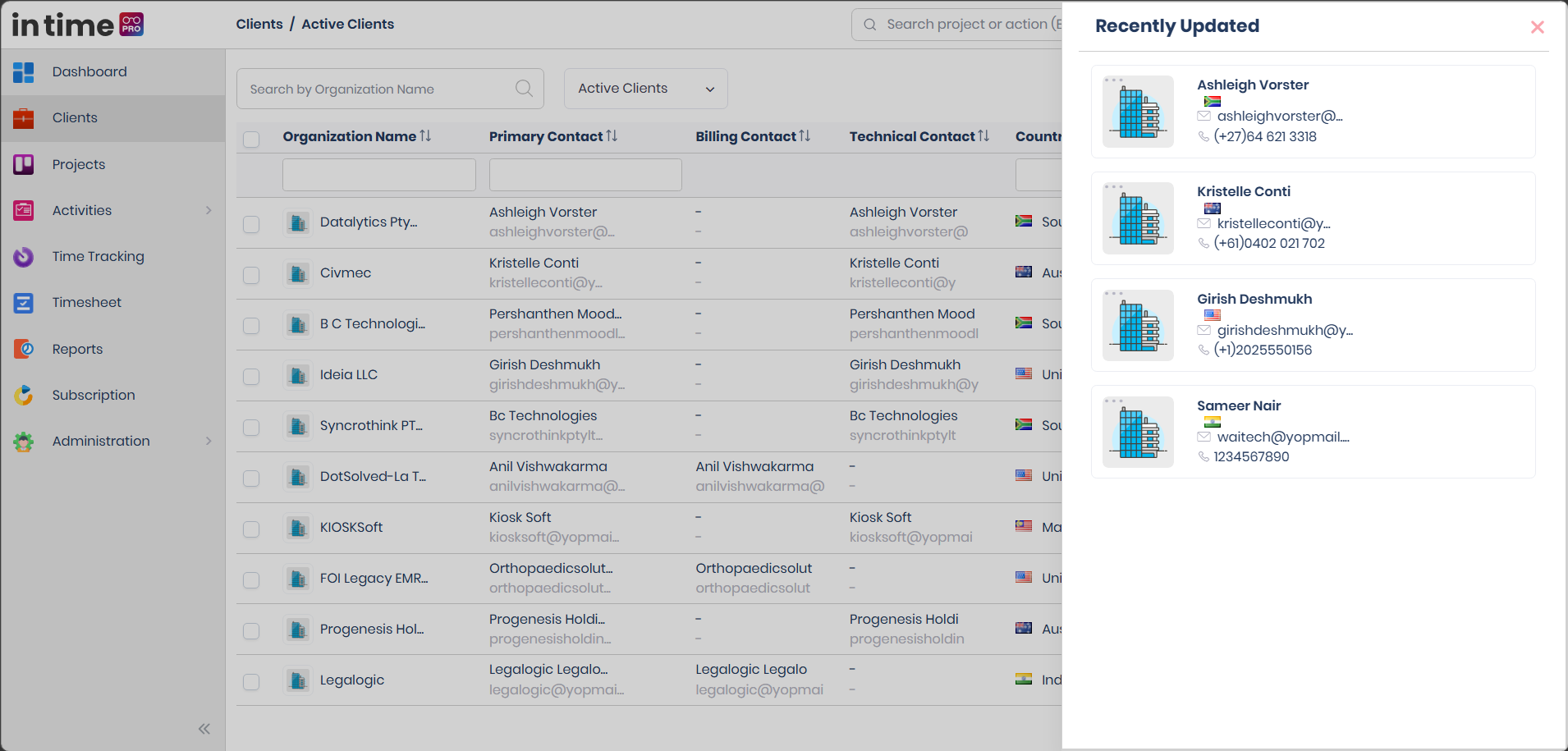
The Recently Updated button opens a side panel showing the clients that were most recently added or changed, so you can quickly get back to something you (or your team) just worked on, without having to search for it.
- The panel shows up to four clients, with the most recently updated ones first.
- Each entry shows the client's contact name, contact email, phone number, country, and logo.
- Admin sees recently updated clients from across the whole organization, including archived ones. Managers and Program Managers only see recently updated clients among the clients linked to their own assigned projects, also including archived ones.
- Because this panel is based on contacts rather than one entry per client, a client with several contacts can appear more than once.
- Clicking an entry opens that client's details, except while you're viewing the Deleted list.
- If you have permission to manage clients, an Edit option is also available directly from this panel.
Recently Updated is a separate shortcut panel — it doesn't change what's shown in, or how you sort, the main client list.
Screenshot: Recently Updated
Export
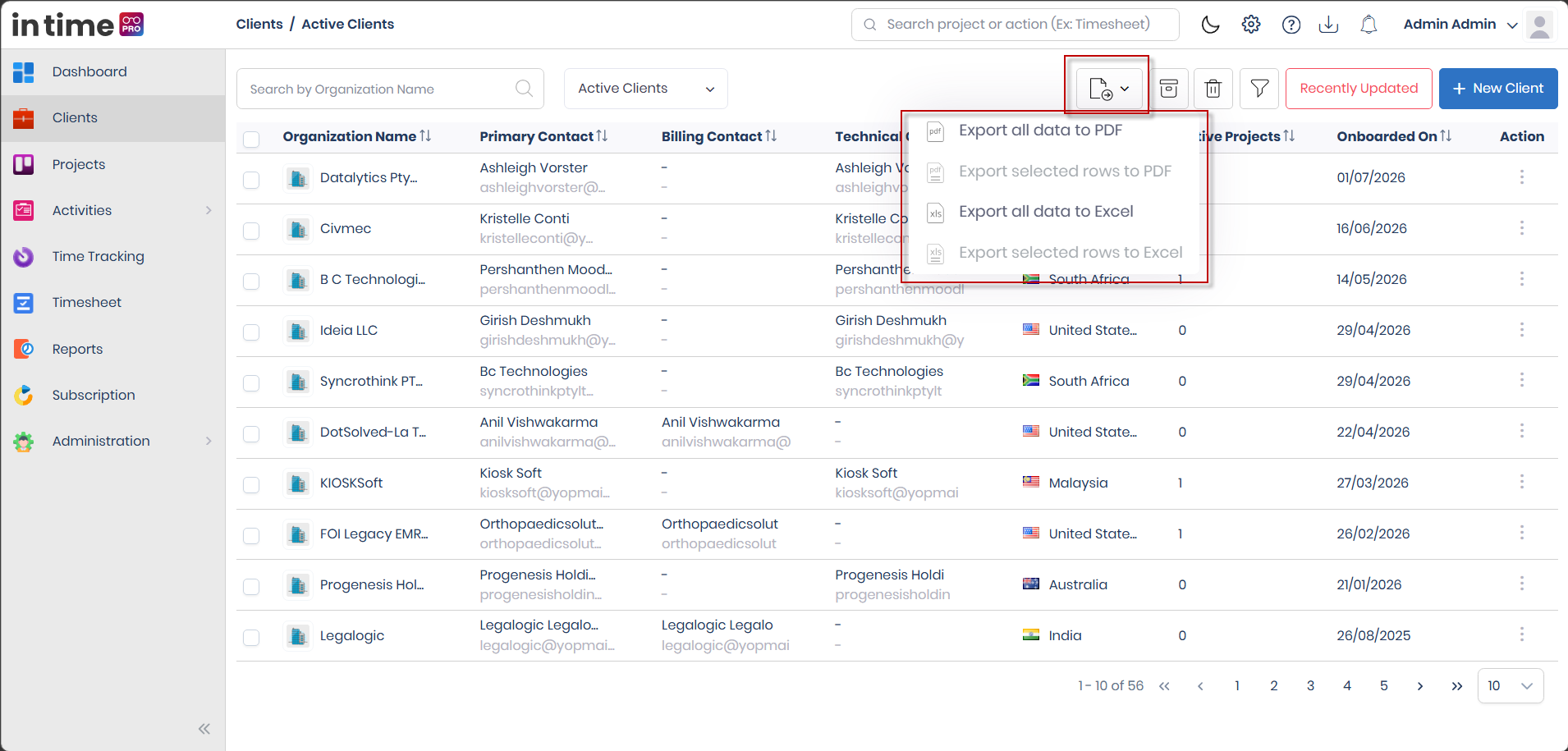
Use the Export option above the list to download the current client list so you can use it outside In Time PRO — for reporting, sharing, or keeping records.
Four export choices are available:
- Export all data to PDF
- Export selected clients to PDF
- Export all data to Excel
- Export selected clients to Excel
The "selected clients" options only become available once you've ticked one or more clients in the list; the selection checkboxes themselves are only shown to users who can manage clients. If you can only view clients, you can still use the "all data" export options, just not the selected-clients ones.
What "all data" exports: whatever is currently shown on your screen — that is, the status you have open (Active, Archived, or Deleted), together with any search text or filters you've applied. It does not export every client record in the system, and it doesn't include anything beyond what's currently on your screen.
What's included in the export: Client Name, Primary Contact, Billing Contact, Technical Contact, Country, Active Projects, and Onboarded On — the same information shown in the main table.
In the current version, the Billing Contact and Technical Contact values in the exported file can appear swapped under their headings. If this matters for your records, check each contact's role by opening the client's details rather than relying only on the export.
The Export option can be turned off for an individual person through their own "hide exports" setting. It isn't tied to any particular role — Admin, Manager, and Program Manager can all export unless this personal setting has been turned on for them.
Screenshot: Export Options
Client Status / Client Views
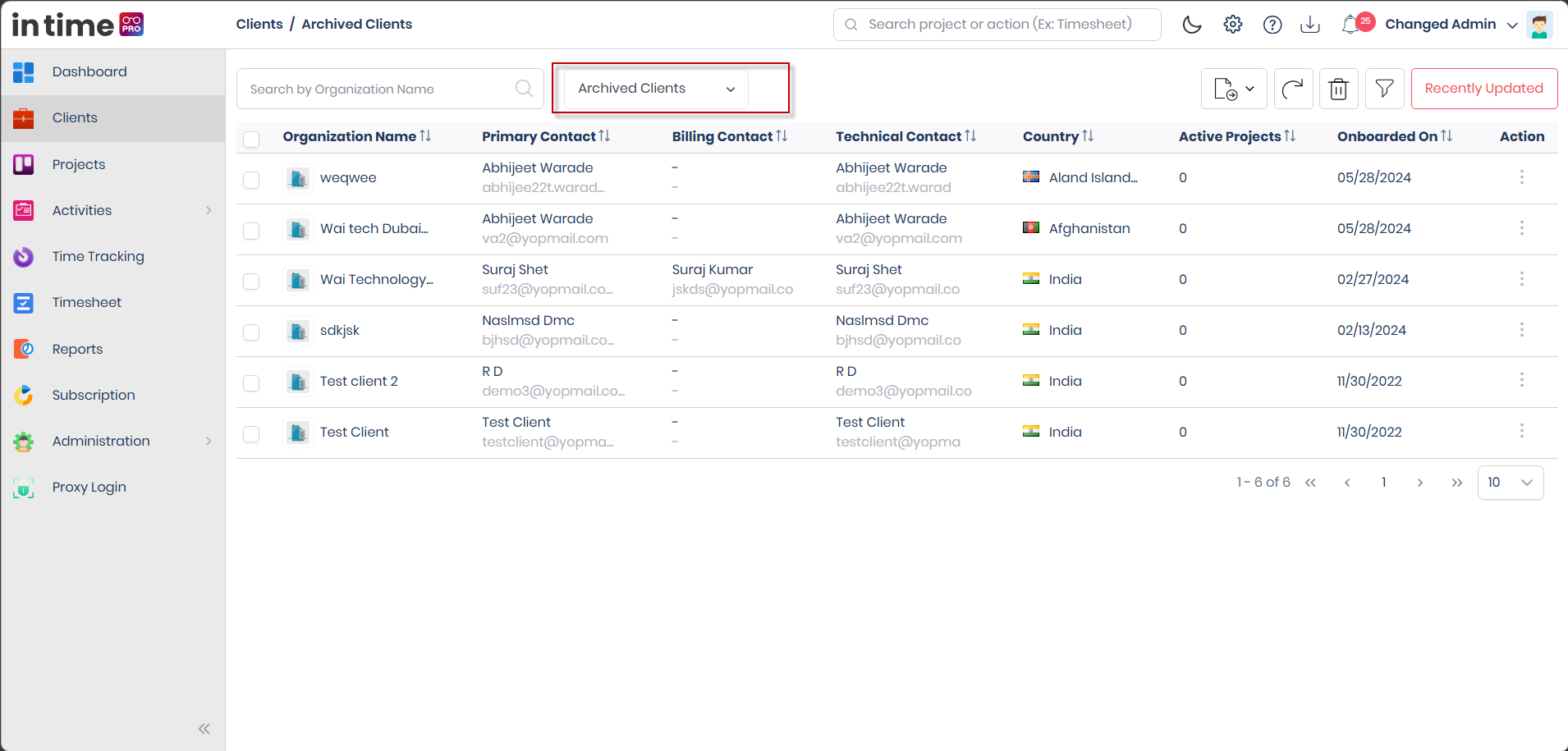
Every client is always in one of three states, which you switch between using the status selector above the list.
Active Clients
Active is the view you see by default. A client stays Active as long as it hasn't been archived or deleted — these are the clients your organization is currently working with.
- Available actions (for users who can manage clients): Edit, Archive, Delete — one at a time, or, for Archive and Delete, for several selected clients at once.
- Clicking a client opens its details.
Screenshot: Clients – Active Clients
Archived Clients
A client moves here after someone archives it, either one at a time or several at once from the Active list. Use Archive when your organization has paused work with a client, or the relationship is on hold, but you might need the client's information again later.
- Archiving a client also archives its contacts and all of that client's projects.
- Available actions (for users who can manage clients): Restore, Delete — one at a time or for several selected clients at once.
- Clicking a client still opens its details.
Screenshot: Archived Clients
Deleted Clients
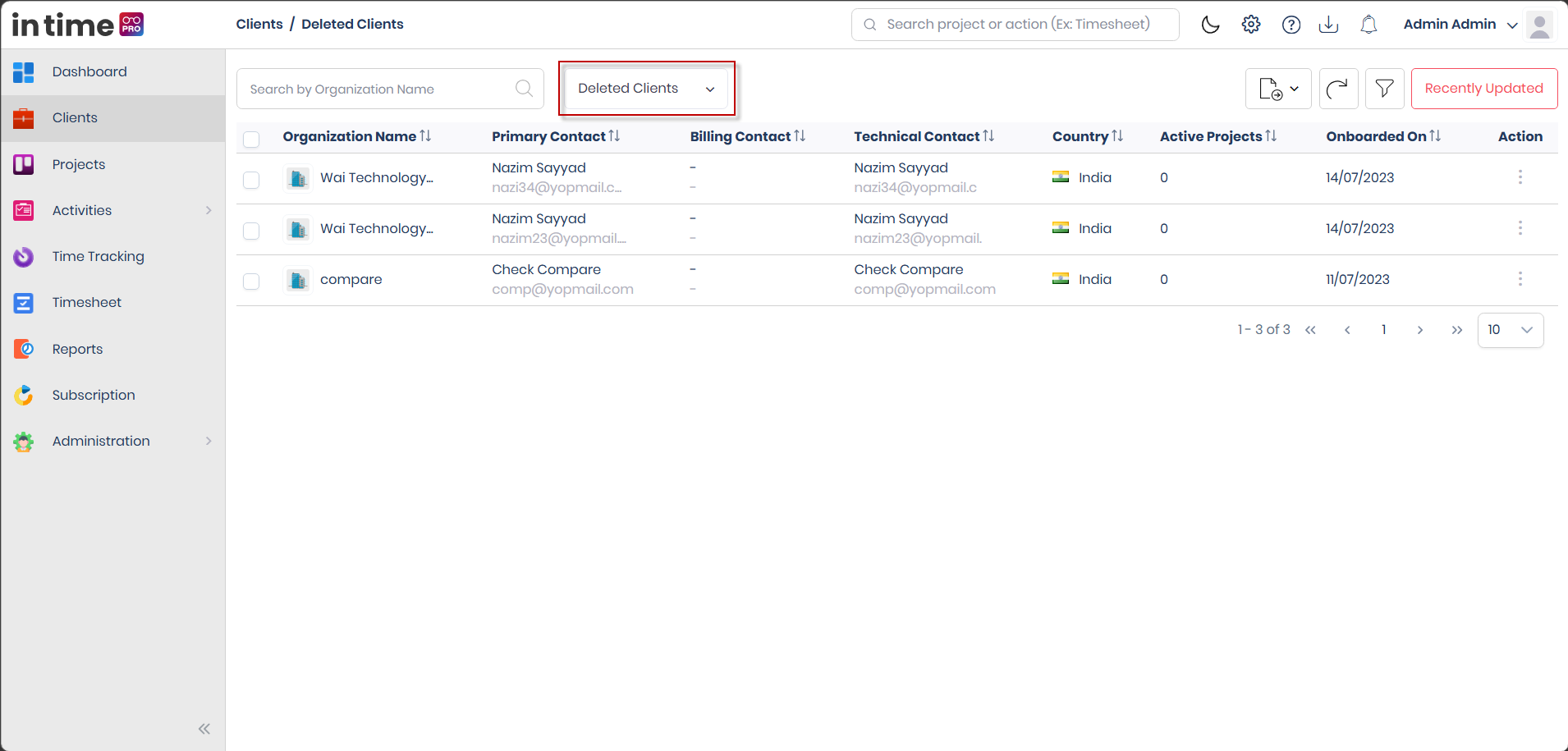
A client moves here after someone deletes it, either one at a time or several at once, from the Active or Archived list.
- Deleting a client also updates its contacts and marks all of that client's projects as deleted.
- The only available action (for users who can manage clients) is Restore — one at a time or for several selected clients at once.
- Clicking a row here does not open client details, unlike the Active and Archived views.
Screenshot: Deleted Clients
Archive vs. Delete
Archive and Delete both move a client out of your everyday Active list, but they mean different things and are used in different situations:
| Archive | Delete | |
|---|---|---|
| When to use it | The client relationship is paused or temporarily on hold | The client relationship has ended |
| Where the client goes | Archived Clients | Deleted Clients |
| Can it be undone? | Yes — Restore brings it back to Active | Yes — Restore brings it back to Active |
| Effect on contacts and projects | Contacts and projects are archived along with the client | Contacts and projects are marked deleted along with the client |
Both Archive and Delete can be undone using Restore — there is currently no way in the application to permanently erase a client record. Choose Archive when you expect to work with the client again later, and Delete when the relationship with that client is truly over.
Create New Client
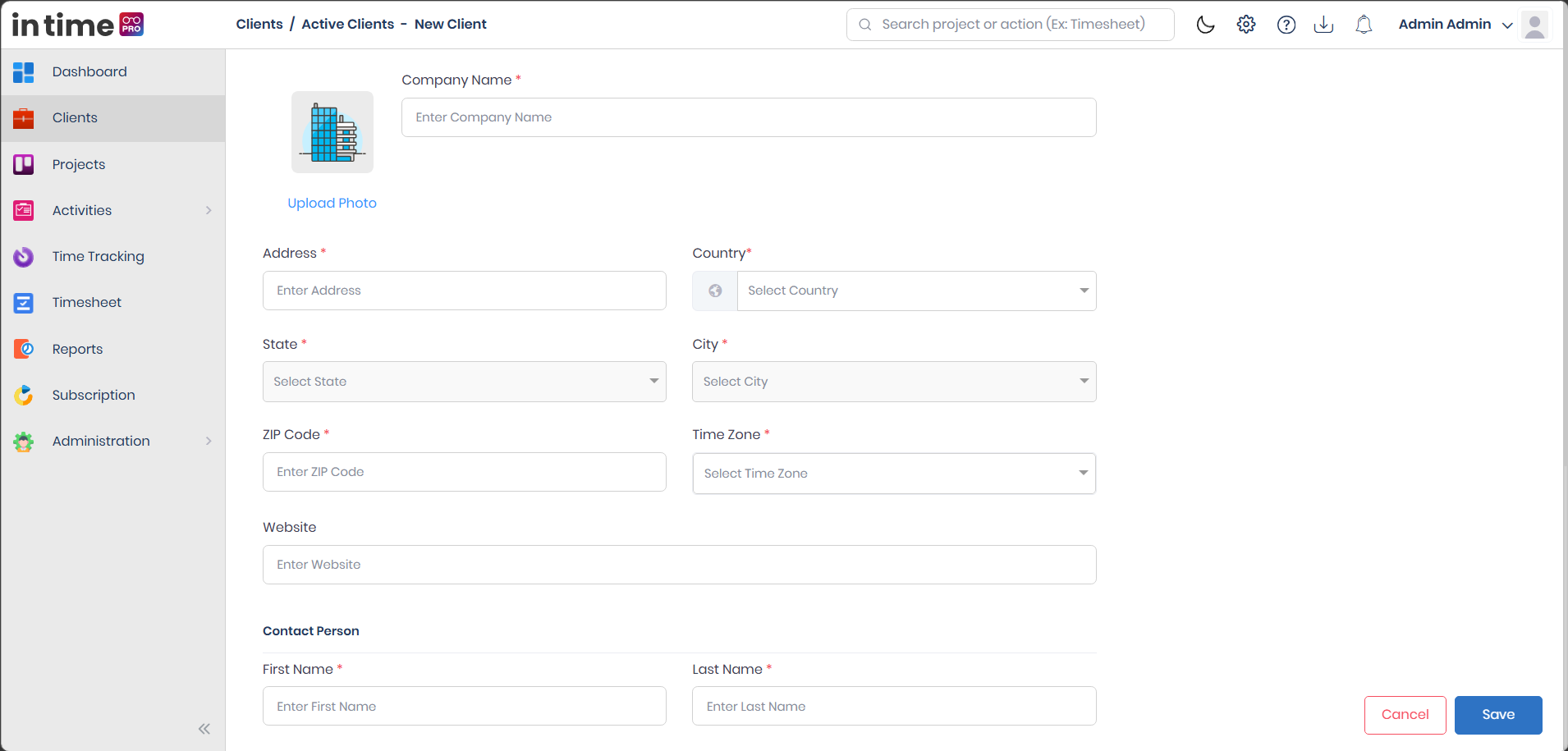
The New Client button appears on the Active Clients screen for users who can manage clients. It opens a form for entering the company's information and adding contact people.
Company details
| Field | Required? | What to enter |
|---|---|---|
| Company Name | Yes | The client organization's name (up to 25 characters). It must be unique — the system checks for this without caring about uppercase or lowercase letters, even against clients that were deleted earlier, and shows Company Name Already Exists if it isn't. |
| Upload Photo | No | A logo or image for the client, in PNG, JPG, or JPEG format. You can preview it and remove it before saving. |
| Address | Yes | The client's street address. |
| Country | Yes | Select the client's country. Changing this clears whatever you'd already chosen for State and City, since those depend on the country. |
| State | Yes | Select from the states available for the chosen country. |
| City | Yes | Select from the cities available for the chosen state. |
| ZIP Code | Yes | The postal code. |
| Time Zone | Yes | The client's time zone. |
| Website | No | The client's website address (entered as plain text). |
| Note | No | Any extra notes about the client (up to 4000 characters). |
Saving
When you save, the form checks the required fields in order — Company Name, Address, Country, State, City, ZIP Code, and Time Zone — and shows a message for the first one you've missed. It then also checks that:
- at least one contact person has been added, and
- one of those contacts is marked Primary.
Once everything is filled in and the company name isn't a duplicate, the client is saved, you'll see New client added successfully, and you're taken back to the Clients list. If you try to leave the form without saving your changes, you'll be asked to confirm first.
Screenshot: Create New Client – Company Details
Contact Person
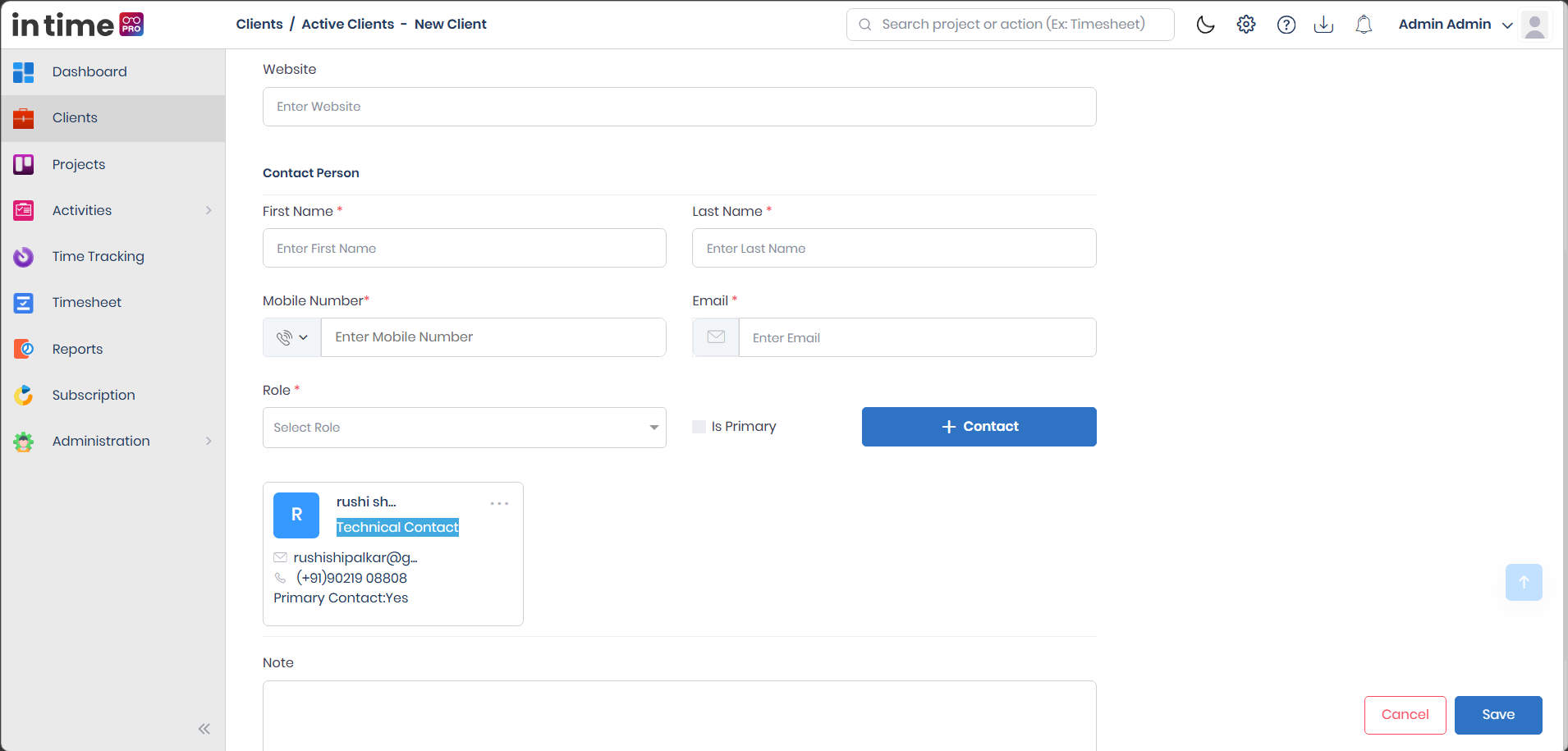
Every client needs at least one contact person — someone at that organization you can reach out to. You add contacts while creating or editing a client.
| Field | Required? | Notes |
|---|---|---|
| First Name | Yes | Up to 25 characters; spaces aren't allowed while typing. |
| Last Name | Yes | Same rules as First Name. |
| Mobile Number | Yes | Choose the country calling code, then enter the number. The number is checked against the format used in the selected country. |
| Yes | Must be a valid email address. It's checked against existing accounts and against the other contacts you've already added for this client — a duplicate shows Email Already Exists. | |
| Role | Yes | Choose Technical Contact or Billing Contact. |
| Is Primary | See below | A checkbox marking this contact as the client's main contact. |
After filling in a contact's details, click + Contact to add them to the client. Added contacts appear as cards showing their name, role, email, phone, and whether they're Primary, with Edit and Delete options while you're still filling out the form.
Screenshot: Create New Client – Contact Person
Is Primary
The Primary Contact is the one main point of contact for the client — it's the name and email shown for that client in the main Clients list and on the client's overview page.
- A client must have exactly one primary contact before it can be saved. If none is marked, you'll see Add a Primary Contact.
- Once you've added a primary contact, the Is Primary checkbox is switched off for any further contacts you add, so you can't mark a second one by mistake. To change who the primary contact is, edit the current primary contact first — that frees up the option so you can assign it to someone else.
- Being the Primary Contact has nothing to do with a contact's Role — a primary contact can be set as either Technical or Billing.
Billing Contact and Technical Contact
Each contact you add is given a Role: either Technical Contact or Billing Contact. This has nothing to do with whether that contact is also the Primary Contact:
- Primary Contact — the client's main point of contact, shown by name and email throughout the Clients list and overview.
- Technical Contact — the person to reach out to for technical matters related to the client's work.
- Billing Contact — the person to reach out to for billing or invoicing matters.
For example, a client might have one Primary Contact who is also their Billing Contact, plus a separate person added as the Technical Contact for day-to-day technical questions. You can add as many contacts as you need under either role — there's no limit on how many Technical or Billing contacts a client can have, though (as noted under Active Clients) the main list only shows one contact per Billing/Technical column.
Edit Client
Users who can manage clients can edit an Active client from:
- the Action button on that client's row in the Active list;
- the Recently Updated panel; or
- the edit option on the client's own details page.
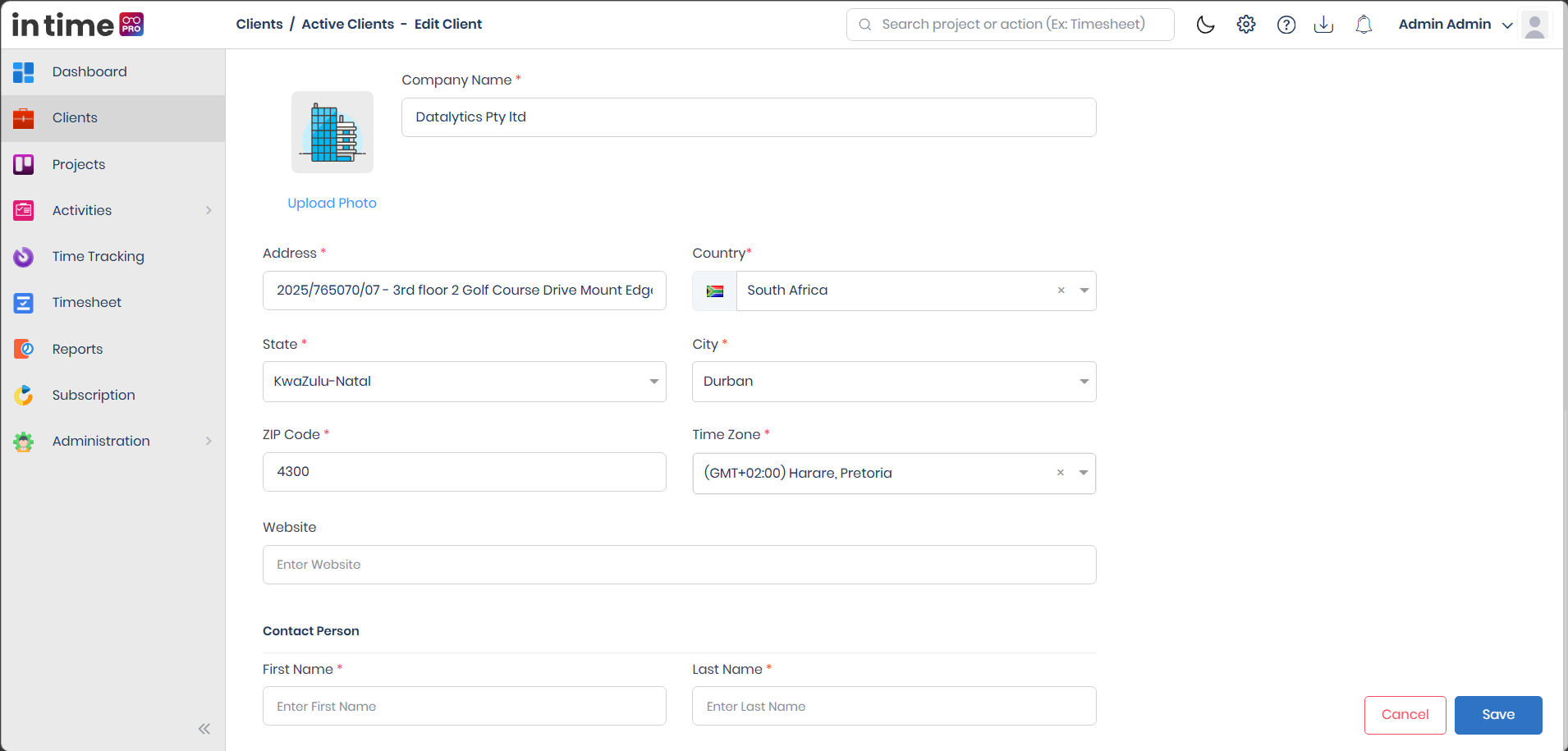
Editing opens the same form used for creating a client, already filled in with the client's current company details and contacts. You can update the company information, and add, change, or remove contacts, the same way as when creating a new client.
Saving runs the same checks as Create (required fields, at least one contact, exactly one primary contact, and no duplicate company name). Once saved, you'll see Changes updated successfully and be taken back to the Clients list.
Editing is not available for Archived or Deleted clients — restore the client to Active first if it needs changes.
Screenshot: Edit Client
Delete, Archive, and Restore
For users who can manage clients:
- Archive — select one or more Active clients and choose Archive. This happens right away (there's no confirmation step) and shows Archived successfully. Archiving also archives the client's contacts and all of the client's projects.
- Delete — select one or more clients (from Active or Archived) and choose Delete. You'll be asked to confirm before it completes; once confirmed, you'll see Deleted successfully. Deleting also updates the client's contacts and marks the client's projects as deleted.
- Restore — from the Archived or Deleted view, select one or more clients and choose Restore. This happens right away and shows Restored successfully, bringing the client (along with its contacts and projects) back to Active.
As explained above under Archive vs. Delete, both actions can be undone using Restore — there's currently no way in the application to permanently remove a client.
Client Details / Client Projects
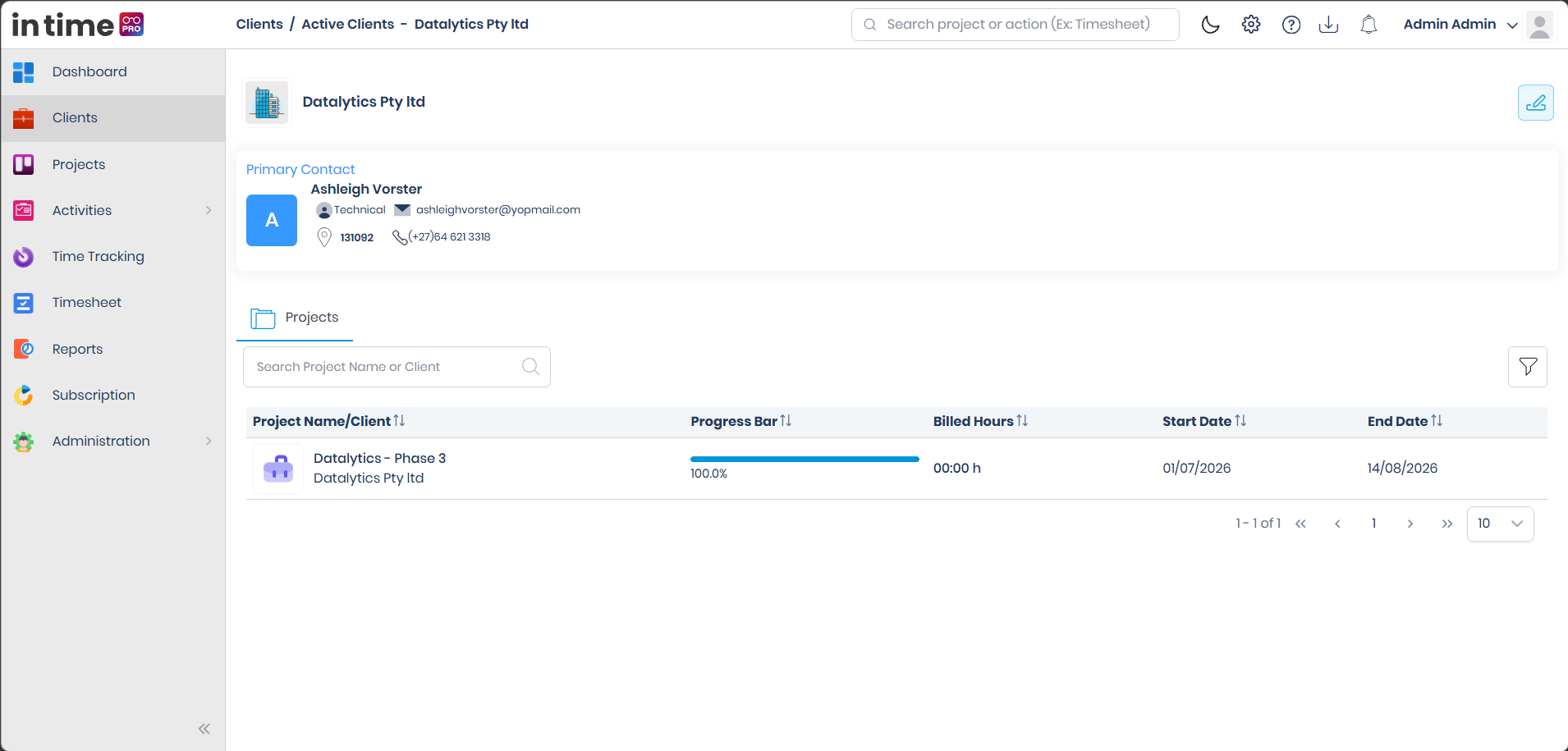
Clicking a client (in the Active or Archived view) opens its details page, showing:
- the client's name, logo, and address information;
- the Primary Contact, along with their role, email, and phone number;
- the client's other (non-primary) contacts and their roles, in a contacts panel; and
- a Projects tab.
The Projects tab lists the projects linked to that client — project name, progress, billed hours, start date, and end date — and has its own sorting, column filters, and pagination, separate from the main Clients list.
Client details can't be opened from the Deleted view; restore the client first if you need to review it.
Screenshot: Client Details / Projects
Pagination
The Clients list is split into pages at the bottom of the table:
- The default page size is 10 rows.
- You can change it to 20, 30, 50, or 100 rows per page.
- The footer shows something like "1 - 10 of 42" so you always know how much of the list you're looking at.
- Use the page controls to move between pages.
Pagination, search, filtering, and sorting all work together on the status view you currently have open (Active, Archived, or Deleted).
User Guidance / Best Practices
- Keep client company details and contact information up to date, especially the Primary Contact — it's what's shown throughout the Clients list and overview.
- Give the Technical and Billing roles to the right people, so the correct contact is reached for the right kind of question.
- Use Archive when a client relationship is paused but might start again later — it keeps the information safe and easy to bring back, without cluttering your Active list.
- Use Delete only when a client relationship has truly ended, and only if your account has access to it.
- For long client lists, combine Search, Filter, and Sorting to find what you need quickly, use Recently Updated to jump back to something you just changed, and use Export when you need the list outside In Time PRO.
Common validation messages
| Situation | What you see |
|---|---|
| Company Name missing or blank | Warning that Company Name is required |
| Address, Country, State, City, ZIP Code, or Time Zone missing | Matching field-required warning |
| Duplicate company name | Company Name Already Exists |
| No contact added | Please add at least one Contact Person |
| No contact marked Primary | Add a Primary Contact |
| Contact email already used | Email Already Exists |
| Phone number doesn't match the selected country's format | Number Format does not match country |
| Unsupported image type uploaded | Warning to upload a PNG, JPG, or JPEG file |
| No client selected for a group action | Please select clients |
| Leaving the form without saving | Confirmation prompt before discarding changes |
| List is empty | No Data Found |