Client Portal
The Client Portal is the separate part of In Time PRO that users with the Client role sign in to. It is not the internal Clients module covered elsewhere in this guide — it's an outward-facing workspace built around the projects a client is involved in, rather than a full company workspace.
Overview
What it is: A project-focused workspace for external client users, reached by signing in with the Client role. Instead of the regular staff sidebar (Dashboard, Clients, Projects, Time Tracking, and so on), a Client sees a Client Dashboard, one navigation group per project they're associated with, and a Reports link.
Why it exists: Organizations that do client-billed work often want to give the client visibility into their own project — its team, tasks, timesheets, and schedule — without giving them access to the company's internal tools or other clients' information.
Who can access it: Only users assigned the Client role. Client access is decided by role name, not by the permission tree used for staff roles — a Client user is granted no permissions from the standard permission set at all. What a Client can do is built into the product for that role, rather than configured through Administration → Roles the way Manager or Employee access is. See Administration → Roles → Client for how this differs from every other role.
Client Portal vs. the internal Clients module
These are two different things that are easy to confuse because they share the word "client":
| Internal Clients module | Client Portal (this page) | |
|---|---|---|
| Who uses it | Staff — Admin, Manager, Program Manager (and, per Roles, Contractor/Accountant view access) | External users signed in with the Client role |
| What it shows | Every client company your organization works with — records, contacts, status | One client's own view of their project(s) — nothing about other clients |
| Where it lives | Main staff sidebar → Clients | Its own separate sign-in and navigation, described below |
Client Portal vs. the normal staff Dashboard
The Client Portal's Client Dashboard is a different, simpler screen from the My Dashboard / Team Dashboard that staff roles use — it is not the same widget-based dashboard described in Dashboard. See Client Dashboard below for what it actually shows.
How Client access works
- A Client user does not use the regular sign-in destination — after signing in, they land directly on the Client Dashboard.
- See Authentication → Client Sign In for how a Client actually signs in (typically a link with a one-time verification step, rather than the standard email/password screen).
- Settings and Download (the Desktop Application) are hidden for Client users — a Client does not install or use the Desktop Application. Help remains available to Client users, the same as every other role.
Navigation
After signing in, a Client sees:
- Dashboard — the Client Dashboard, described below.
- One navigation group per project the client is associated with, each expanding to:
- Team
- Task
- Timesheet View
- Timesheet Summary — only shown if the client is set up as a timesheet approver for that project (see below)
- Work Schedule
- All Invoices
- Consult Us
- Reports
Client Dashboard
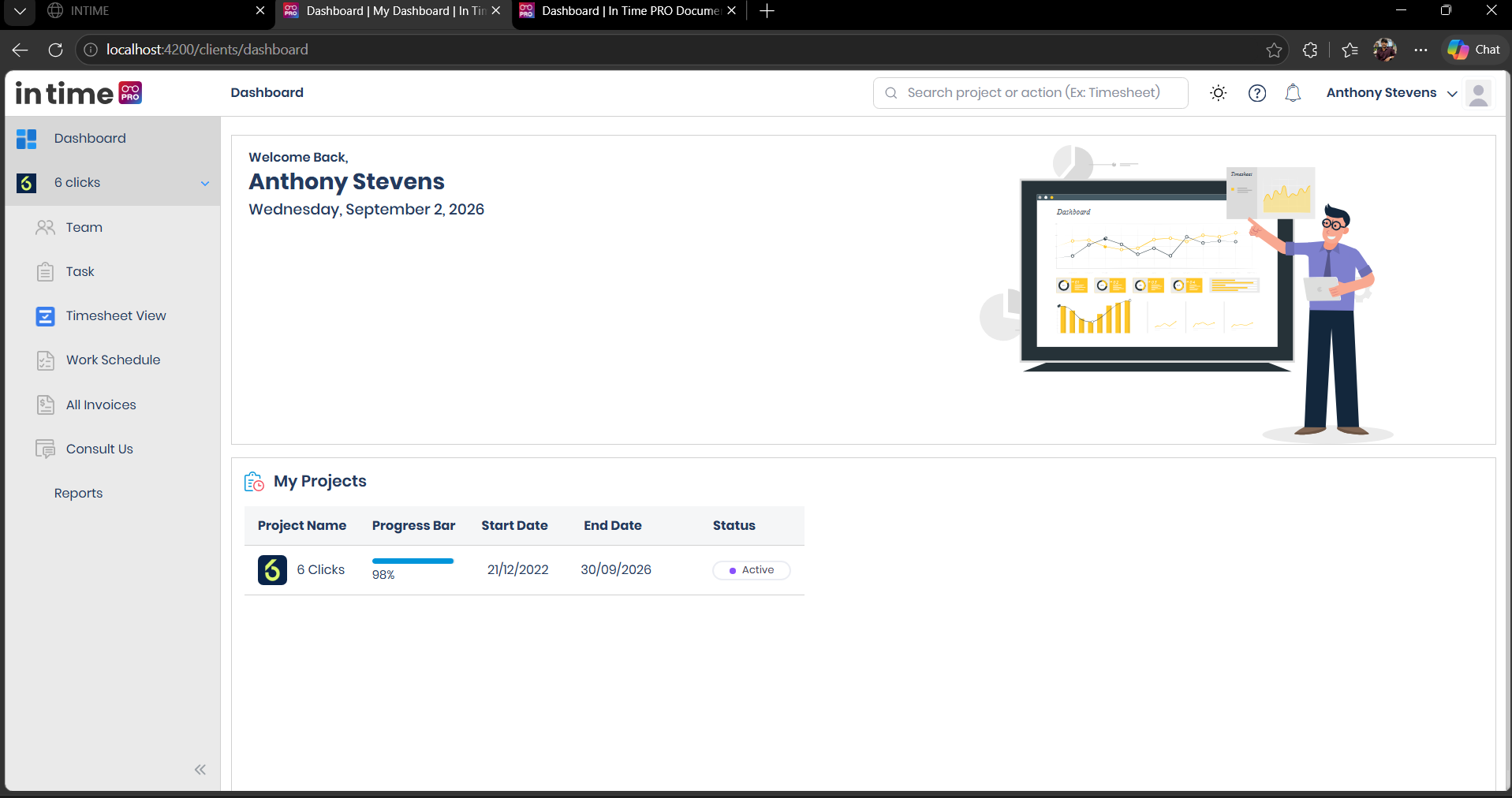
The Client Dashboard is a much simpler screen than the widget-based Dashboard staff roles see (see Dashboard → Client for that comparison). It shows:
- A Welcome Back message, the signed-in client's name, the current date, and a dashboard illustration.
- A My Projects section listing the projects associated with the client:
| Field | What it shows |
|---|---|
| Project Name | The name of the project |
| Progress Bar / Progress Percentage | The project's progress |
| Start Date | When the project started |
| End Date | When the project is scheduled to end |
| Status | The project's current status |
Screenshot: Client Portal Dashboard
The Client Portal Dashboard, including the welcome section, client-specific navigation, and My Projects section.
Team
Shows the team assigned to that project, with an export option — the client-facing equivalent of a project's Team tab.
Task
Shows that project's task list.
Timesheet View
Shows the project's timesheet list and details — a read-only view for the client, distinct from the internal Timesheet module staff use to enter and approve time.
Timesheet Summary
Shown only when the client is configured as a timesheet approver for that project (see Projects → Timesheet Approvals, which supports choosing one of the client's own contacts as an approval level). When shown, it reuses the same underlying Timesheet Summary view described in Timesheet → Summary.
Work Schedule, All Invoices, and Consult Us
These three items appear in the Client Portal navigation, but currently show no data — each is a heading with an empty "No Data Found" body. They are not fully functional features yet, even though they appear in the menu. Do not rely on them for real work, and don't be concerned if they look empty — that's their current state for every client, not something specific to your account.
Reports
Reports is shown in the Client Portal navigation and opens the same Reports module used elsewhere in the product. Unlike staff roles, a Client is not given any of the standard Reports permissions — the menu item is shown regardless. Whether report data actually loads correctly for a Client, or what a Client would see if they opened a report, is not confirmed in this documentation — ON HOLD, product confirmation required.
What the Client Portal is not
- It is not the internal Clients module — a Client user cannot see or manage other client companies.
- It is not Manage Users, Administration, or company Settings — a Client has no administrative access anywhere in the product.
- It is not the staff Activities monitoring area.
- It does not include the Desktop Application — a Client is never prompted to download or use it.
A note on what a Client is described as being able to do
When inviting a user, the Client role card describes it as getting "access to view and approve their own projects and their team's timesheets, tasks, invoices, payments for assigned projects" (see Manage Users → Inviting a User). Based on what's confirmed above, Team, Task, and Timesheet View are implemented, while Work Schedule, All Invoices ("payments"), and Consult Us are not yet functional. Treat that invite-screen description as the long-term intent for the role rather than a guarantee of what's usable today.