Projects
Projects is where work gets set up in In Time PRO. This guide walks you through everything you can do here — from browsing the project list, to creating a new project step by step, to managing an existing one — in plain language, with no technical background assumed.
Projects Overview
What is a project?
A project is a piece of work your organization is delivering — either for a client, or purely for internal purposes. Every project brings together:
- A client (for client-facing work) — see Client Assignment.
- A team: a Program Manager, one or more Project Managers, and one or more team members — see Project Team.
- One or more products or services being delivered — see Project Services.
- Dates, billing details, and approval settings that control how time on the project is tracked and approved — see Project Settings.
Why projects are used
Projects give your organization one place to organize work, decide who's doing it, and control how their time is billed and approved. Once a project exists, the people assigned to it can track time against it, submit timesheets, and work with its tasks. Reports and dashboards across In Time PRO also use project assignment to decide what each person can see.
How project assignment works
Only people assigned to a project — as a team member, Project Manager, or Program Manager — can generally see and use it elsewhere in In Time PRO, such as in Time Tracking or Timesheets. For example: if Rahul is added as a Team Member on "Project A," Project A becomes available to Rahul wherever project selection is supported for him. See What happens after a project is created for the full picture of where an assigned project shows up.
Project Access and Visibility
Not everyone sees the same projects or has the same options. Access breaks down into two things: which projects you can see, and whether you can manage them (create, edit, archive, delete, restore).
Admin
An Admin sees every project in the organization, for whichever status (Active, Archived, or Deleted) is selected — not just projects they're personally assigned to. Admin also has full management access by default: creating, editing, archiving, deleting, and restoring projects, along with acting on several projects at once.
Manager (Project Manager)
A Manager sees the projects where they are assigned as a Project Manager, a team member, or the Program Manager — not every project in the organization. Managing projects (create, edit, archive, delete, restore) is not available to a Manager by default; an administrator has to turn that on for them specifically.
Program Manager
A Program Manager's visibility works the same way as a Manager's: they see projects where they're on the team, assigned as Project Manager, or assigned as Program Manager. Like Managers, Program Managers don't get project management options by default.
Employee and Contractor
Employees and Contractors see the projects where they're assigned as a team member, Project Manager, or Program Manager. They can view and work within those projects, but they don't get project management options (create, edit, archive, delete, restore) by default.
A few personal account settings can also change what someone sees, regardless of their role:
| Setting | Effect |
|---|---|
| Disable new project creation | Hides the New Project button even for someone who otherwise has management access. |
| Hide exports section | Hides the Export option on the Projects list. |
| Hide projects section | Hides Projects from the main menu entirely. |
The Active / Archived / Deleted status selector is available to Admin, Super Admin, Manager, and Program Manager. Employees, Contractors, and Accountants only see the Active list and don't get this selector.
Opening a project's details generally works the same for everyone who can see that project — just click its name or card. The one exception is the Deleted Projects list, where clicking a project does not open its details; restore it first if you need to work with it again.
Quick reference: who can do what
| Action | Admin (default) | Manager / Program Manager (default) | Employee / Contractor (default) |
|---|---|---|---|
| See the Projects menu | Yes | Yes | Yes |
| See every project in the organization | Yes | No — only assigned projects | No — only assigned projects |
| See every project on the Dashboard | No — only assigned projects | Only assigned projects | Only assigned projects |
| Switch Active / Archived / Deleted | Yes | Yes | No |
| Create, edit, archive, delete, restore | Yes | Only if specifically granted | Only if specifically granted |
| Export the list | Yes, unless hidden | Yes, unless hidden | Yes, unless hidden |
| Open project details | Yes | Yes, for assigned projects | Yes, for assigned projects |
| Project Details – Settings tab | If assigned as Program Manager or Project Manager on that project | If assigned | Not available |
Your administrator can adjust these defaults for individual people, so always go by what actually appears on your own screen.
Projects List
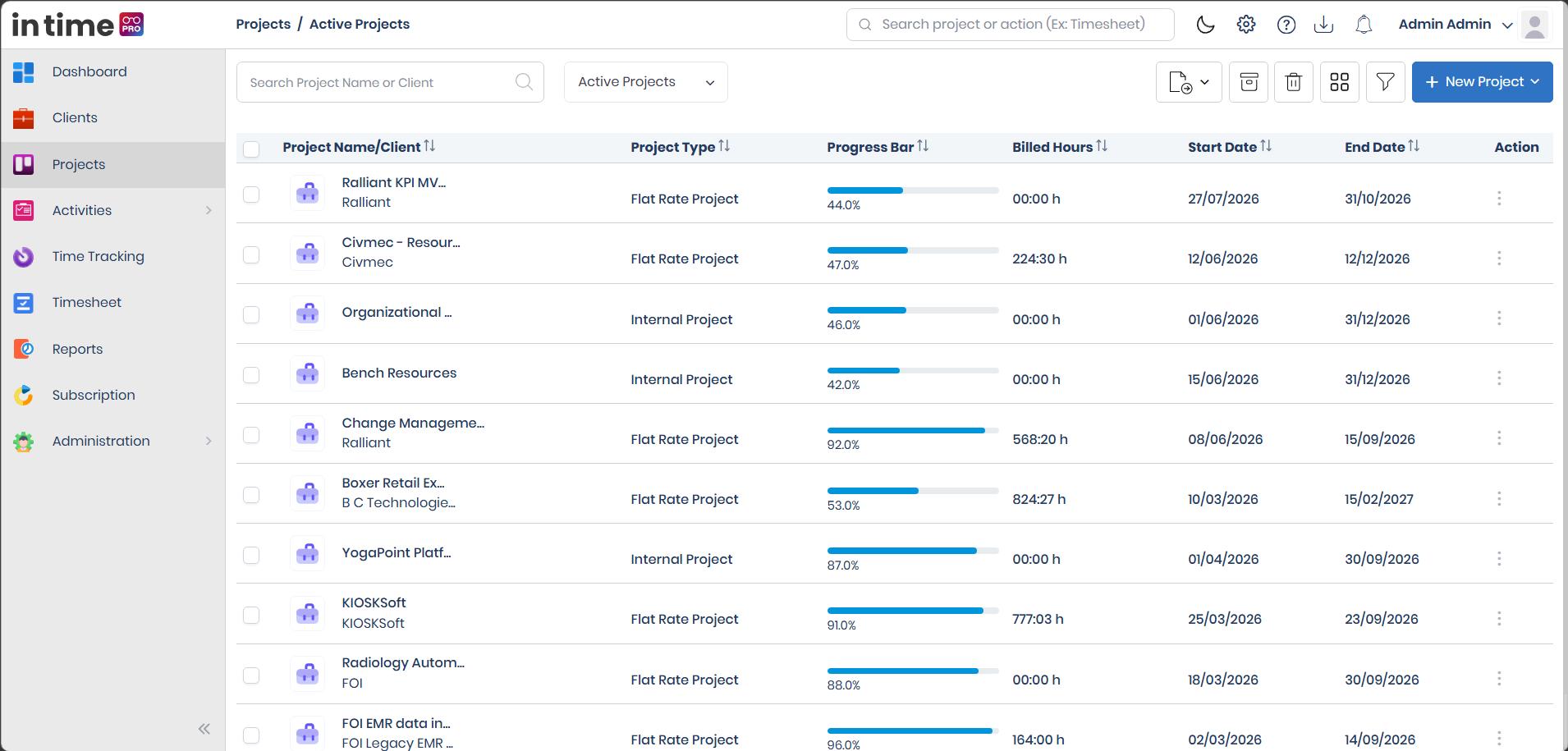
The Projects list shows the projects available to you, based on your role and the project assignments described above. It opens on Active Projects by default.
What is it and why is it useful?
The list is your everyday starting point for project work — it lets you find a project quickly, see its key facts at a glance, and jump into its details or actions.
Columns
| Column | What it shows |
|---|---|
| Selection checkbox | Shown only to users who can manage projects. Used to archive, delete, or restore several projects at once. |
| Project Name / Client | The project's image, name, and the client it's linked to. Click it to open the project's details. |
| Project type | Flat Rate Project, Hourly Project, or Internal Project. |
| Progress | A progress bar showing how far along the project is between its Start Date and End Date. This reflects time elapsed, not how much of the actual work is finished. |
| Billed Hours | The total approved, billed hours recorded for the project. |
| Start Date | The project's start date, in your organization's date format. |
| End Date | The project's end date. |
| Action | Buttons such as Edit, Archive, Delete, or Restore, depending on the project's status and your access. |
List view and Grid view
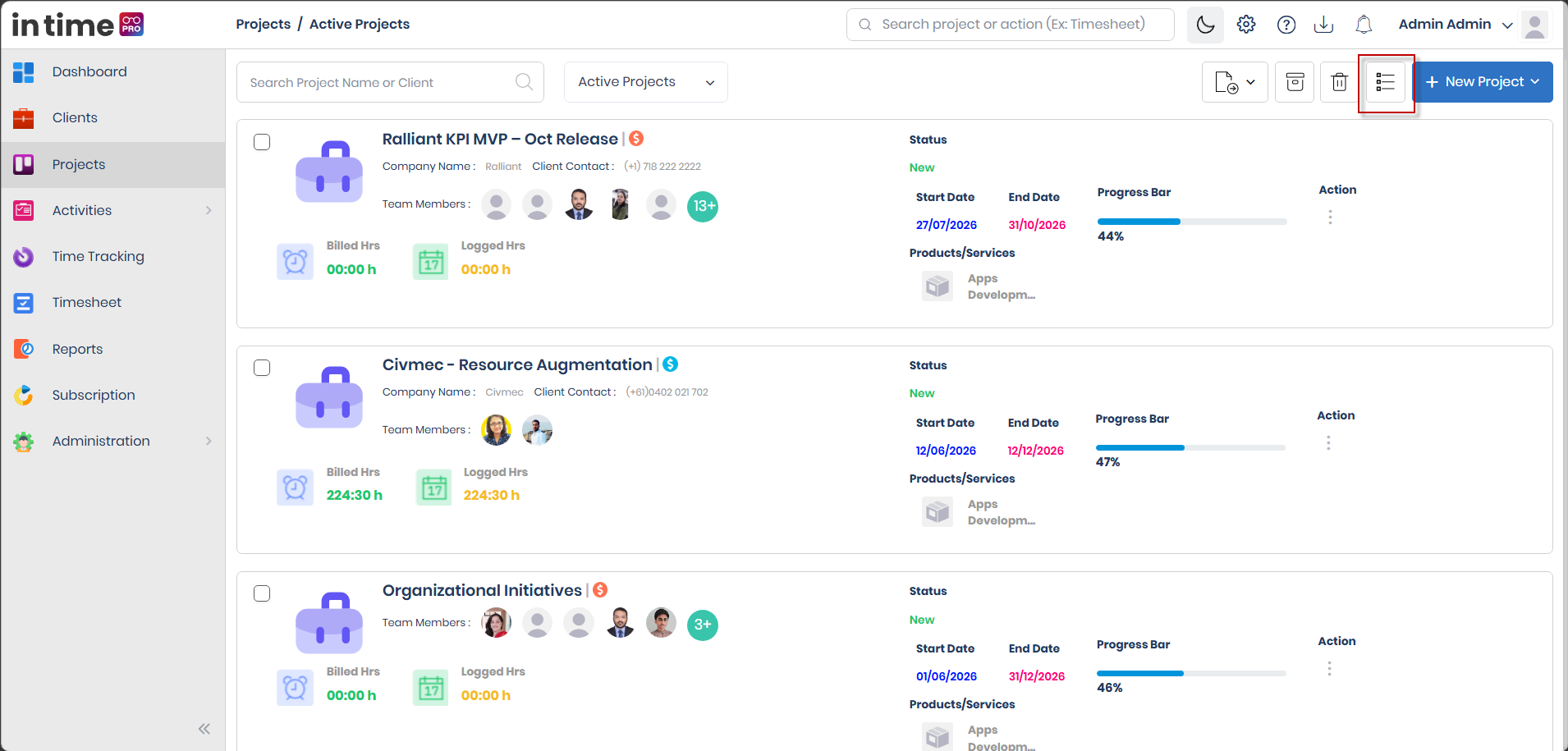
You can display the Projects list as a list (a table of rows) or a grid (project cards), using the view switch in the toolbar.
Grid view shows each project as a card with its image and name, the client name and contact phone (where available), the project's managers, icons for its products/services, a progress bar, its start and end dates, and its billed hours. Use grid view when you'd rather scan through project cards than a table — for example, when reviewing a smaller set of projects at a glance. Switch back to the table any time using the same toggle.
Screenshot: Projects – Grid/List View
If no projects match the current status or your search, you'll see a No Data Found message.
Screenshot: Projects – Active Projects
Search, Filter, Sort and Export
Search
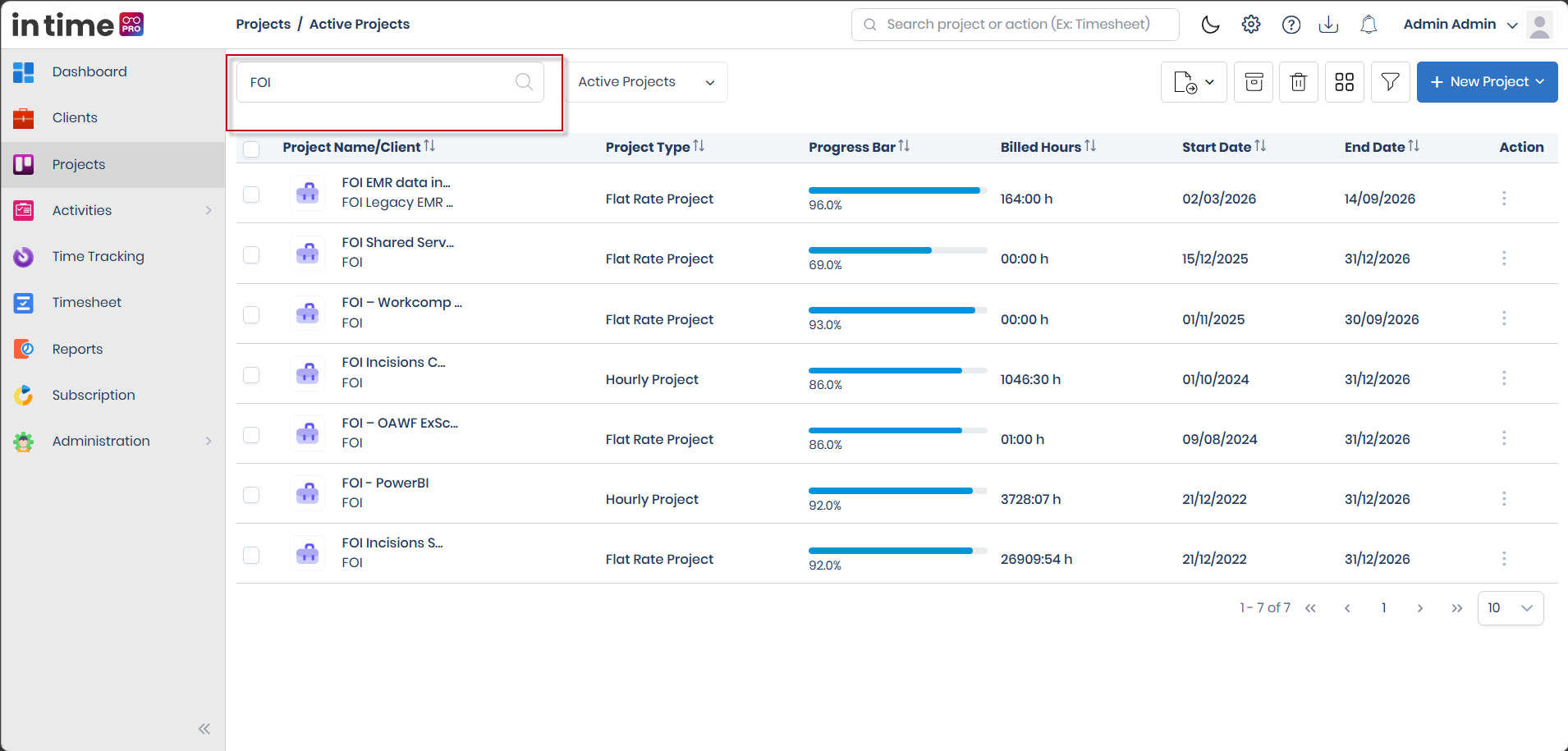
What is it? A search box above the list, labeled Search Project Name or Client.
Why is it used? To quickly find a specific project without scrolling through the whole list.
How to use it: Type into the box. Searching only matches the project name — it does not currently search by client name, even though the label mentions it. It's not case-sensitive, and it only looks through the list you currently have open (Active, Archived, or Deleted).
What happens next? The list updates to show only matching projects. Clearing the search box brings back the full list for that status.
Screenshot: Projects – Search
Filter
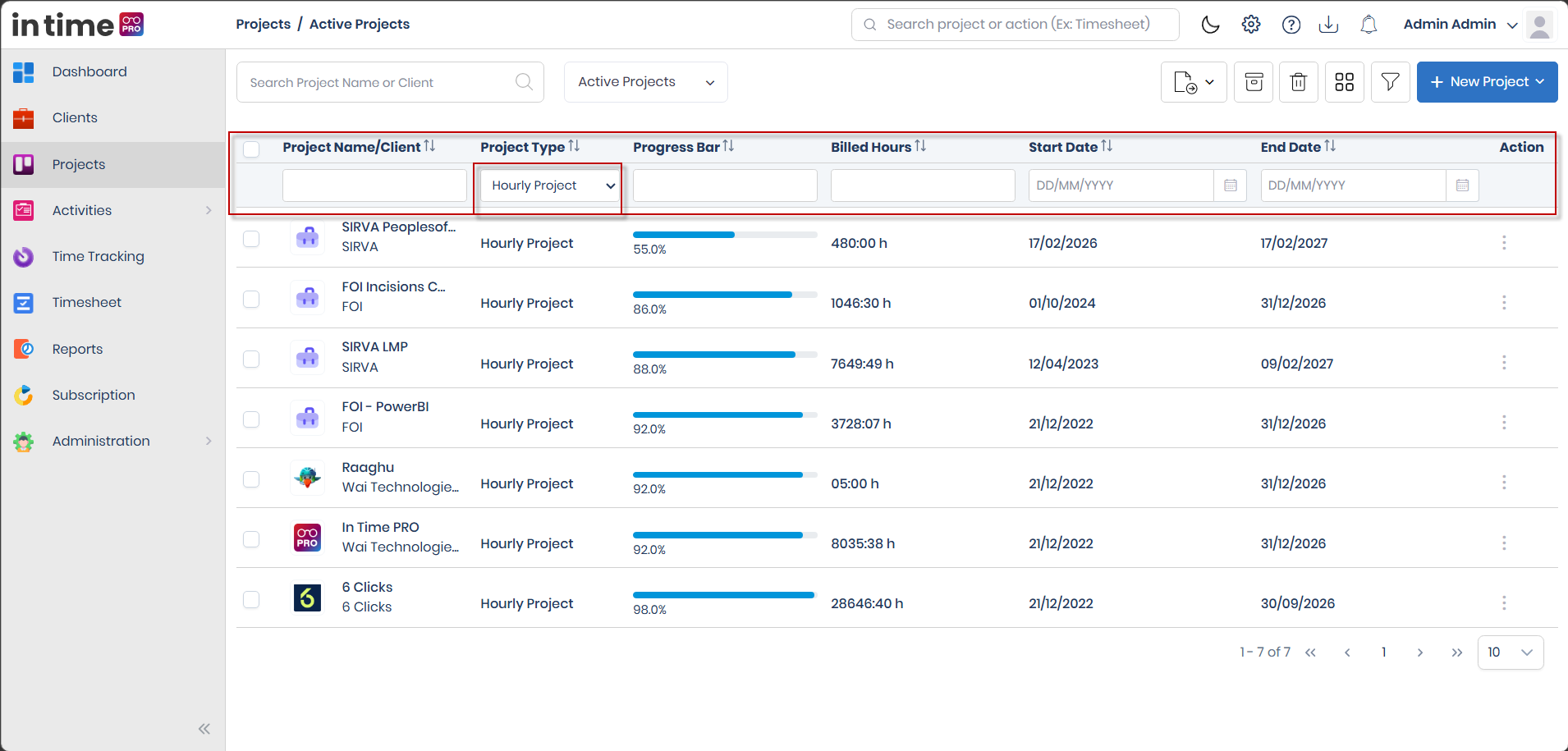
What is it? A row of filter boxes that appears under the column headings (in list view) when you click the Filter button.
Why is it used? To narrow the list down using more than one condition at a time — for example, a specific project type together with a date range.
How to use it: Click Filter, then fill in any of these:
| Filter | How it matches |
|---|---|
| Project Name / Client | Shows projects whose name contains the text you type. |
| Project type | Choose All, Hourly Project, Internal Project, or Flat Rate Project. |
| Progress | Shows projects whose progress value contains the text you type. |
| Billed Hours | Shows projects whose billed hours contain the text you type. |
| Start Date | Filter by start date. |
| End Date | Filter by end date. |
What happens next? The list updates as you fill in each filter. Clicking Filter again hides the filter row and clears the filters you've set.
Screenshot: Projects – Filter
Sorting
Click a sortable column heading to sort the list by that column: Project name, Project type, Progress, Billed hours, Start date, or End date. Click it again to reverse the order. Newest projects load first from the server; sorting a column then reorders whatever page of results is currently loaded.
Pagination
- Default page size: 10 rows.
- You can change it to 20, 30, 50, or 100 rows per page.
- The footer shows something like "1 - 10 of 42" so you know how much of the list you're looking at.
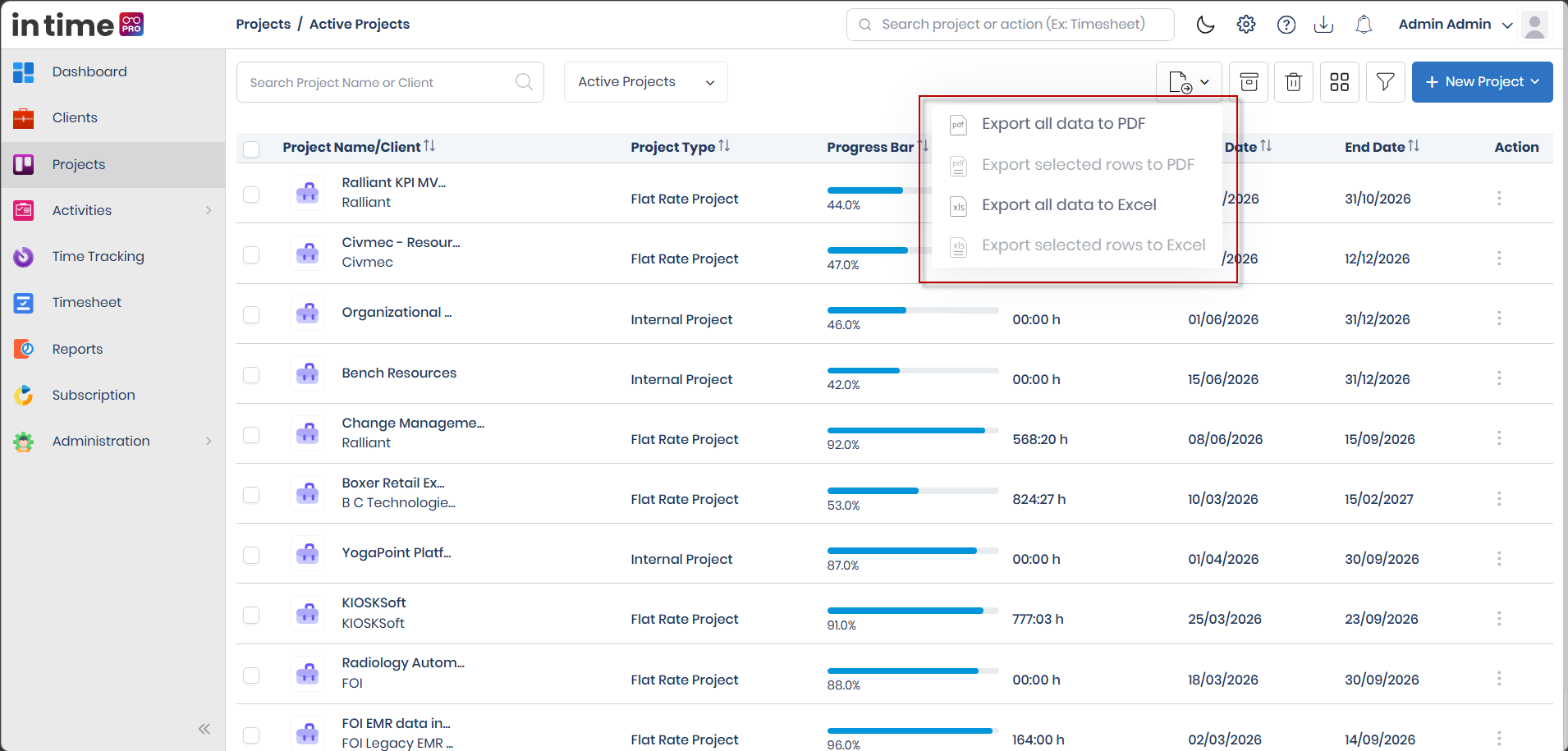
Export
What is it? An option in the toolbar that downloads the current project list as a file, unless your account has exports hidden.
Why is it used? To share or review project information outside In Time PRO, for example in a spreadsheet or a printed report.
How to use it:
| Option | What it exports |
|---|---|
| All to PDF | Every row currently in view (respecting any filters you've applied) |
| Selected to PDF | Only the rows you've checked |
| All to Excel | Every row currently in view |
| Selected to Excel | Only the rows you've checked |
What happens next? A file downloads containing the project name, program manager, project managers, client name, client contact, project status, billing status, billed hours, completion percentage, start date, end date, and description. Employees get a shorter export with fewer columns than other roles. The downloaded file is named after the status tab you were viewing — for example, Active Projects List, Archived Projects List, or Deleted Projects List.
Screenshot: Projects – Export
Project Status
Every project is always in one of three states, switched using the status selector above the list.
| Status | What it means | Typical use |
|---|---|---|
| Active | Current work — not archived and not deleted. | Day-to-day project management. |
| Archived | Closed or paused work, kept for reference. | Finished or on-hold work you want out of your everyday list. |
| Deleted | Removed from normal use, but still recoverable. | Projects you no longer need in Active or Archived, but aren't ready to give up entirely. |
Active Projects
Active is the default view. These are the projects your organization is currently working on. With management access, you can Edit, Archive, or Delete a project here, one at a time or (for Archive/Delete) several at once.
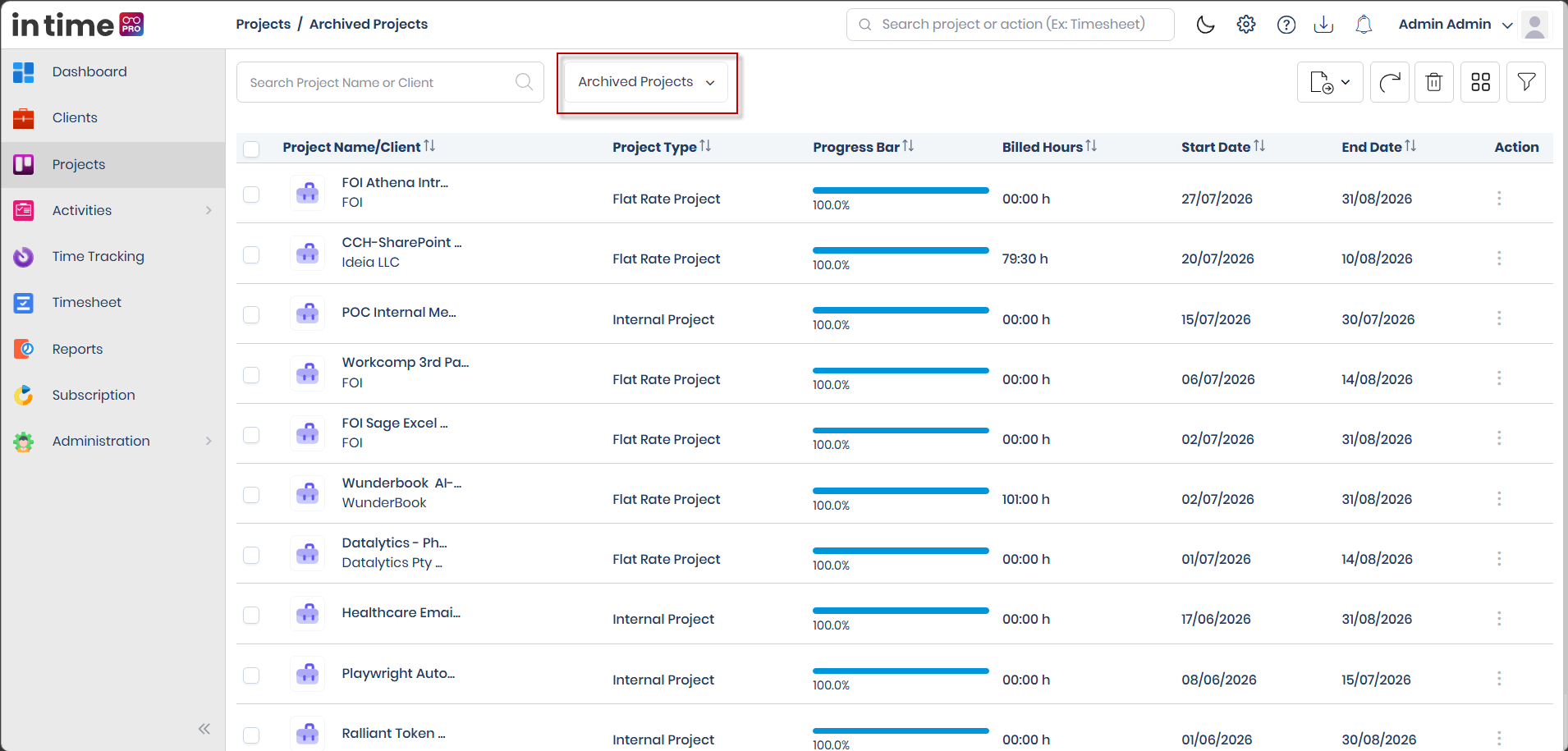
Archived Projects
A project moves here after it's archived — this happens right away, without asking you to confirm. Use Archive for work that's finished or paused but that you might want to refer back to. From here, with management access, you can Restore a project back to Active, or Delete it.
Screenshot: Projects – Archived
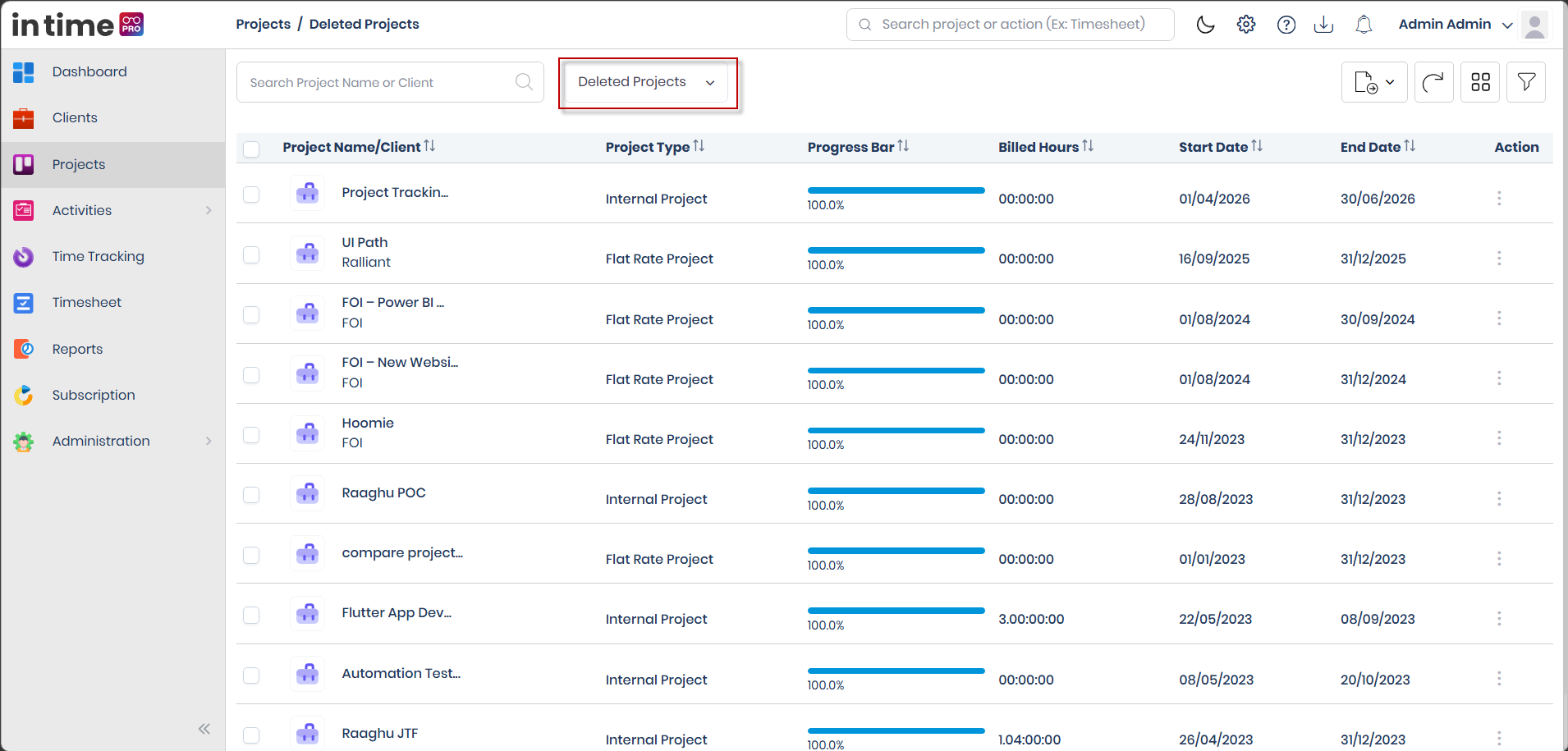
Deleted Projects
A project moves here after it's deleted from either the Active or Archived list — this always asks you to confirm first ("Are you sure you want to Delete?"). From here, the only available action is Restore, which brings the project back to Active. Clicking a project in this list does not open its details — restore it first if you need to work with it.
Screenshot: Projects – Deleted
A few important rules
- Projects with a past end date: When you open the Active list, projects whose End Date has already passed may be automatically moved to Archived by the system.
- Restoring from Archived: If a project's End Date isn't far enough in the future, restoring it can fail with a message that it needs its end date extended. Edit the project to update the end date, then restore it.
- Restoring from Deleted doesn't check the end date — the project simply returns to Active.
- While a project is Archived or Deleted, time can't be tracked against it until it's restored.
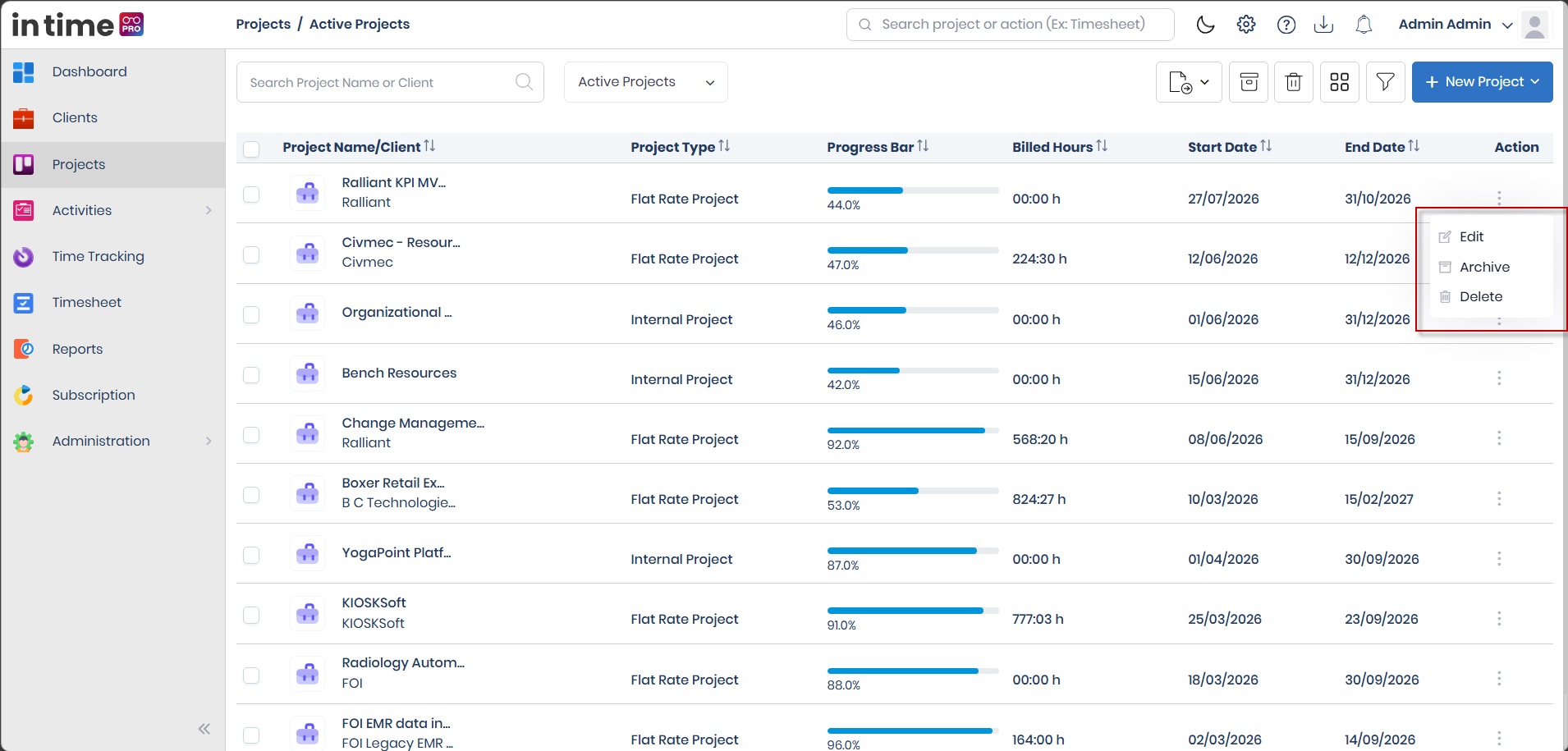
Project actions
Actions are available from the row's Action menu, and from the toolbar once you've selected one or more rows. All of them require project management access.
| Status | Actions available |
|---|---|
| Active | Edit, Archive, Delete |
| Archived | Restore, Delete |
| Deleted | Restore |
If you try to act on several projects at once without selecting any first, you'll see a warning to select projects. If you try to leave a create or edit screen without saving, you may be asked to confirm that your changes won't be saved.
Screenshot: Project Actions
How to Create a Project
Creating a project is the most important workflow in this module. Here's the whole process at a glance:
Projects → New Project → Select Project Type → Enter Project Information → Assign Client → Assign Project Team → Add Services → Configure Project Settings → Save
You can follow the steps below to create your first project. Each step is explained in more detail later in this guide, so you can come back to any of them if you need more information.
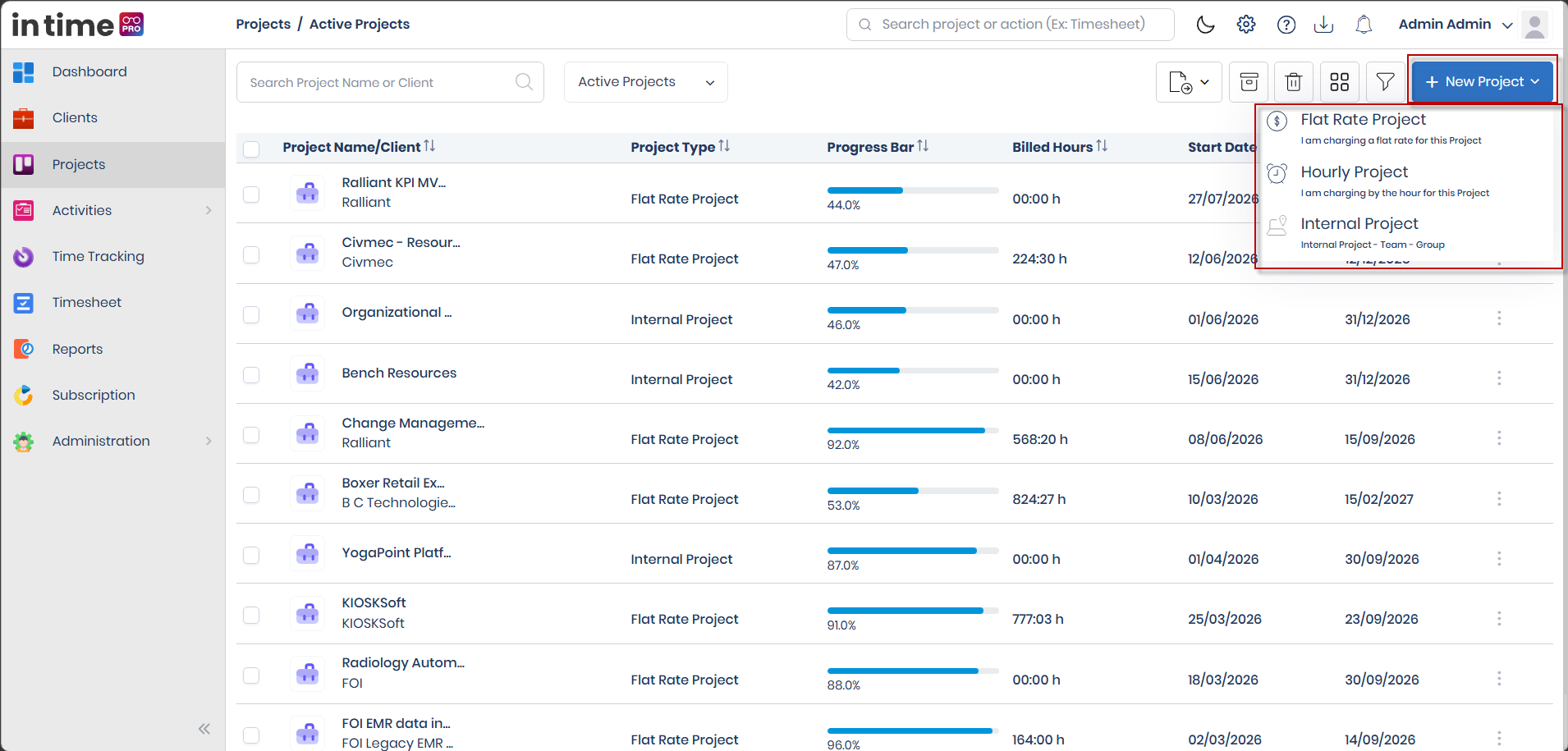
STEP 1 — Open New Project
Go to Projects, make sure you're on the Active Projects view, and click New Project. This button only appears if you've been given permission to manage projects, and if your organization hasn't disabled project creation for your account.
STEP 2 — Select Project Type
Choose one of three project types: Flat Rate Project, Hourly Project, or Internal Project. This choice decides how the project is billed and which fields you'll fill in next. See Select Project Type for a full explanation of each option.
Screenshot: New Project – Project Type Selection
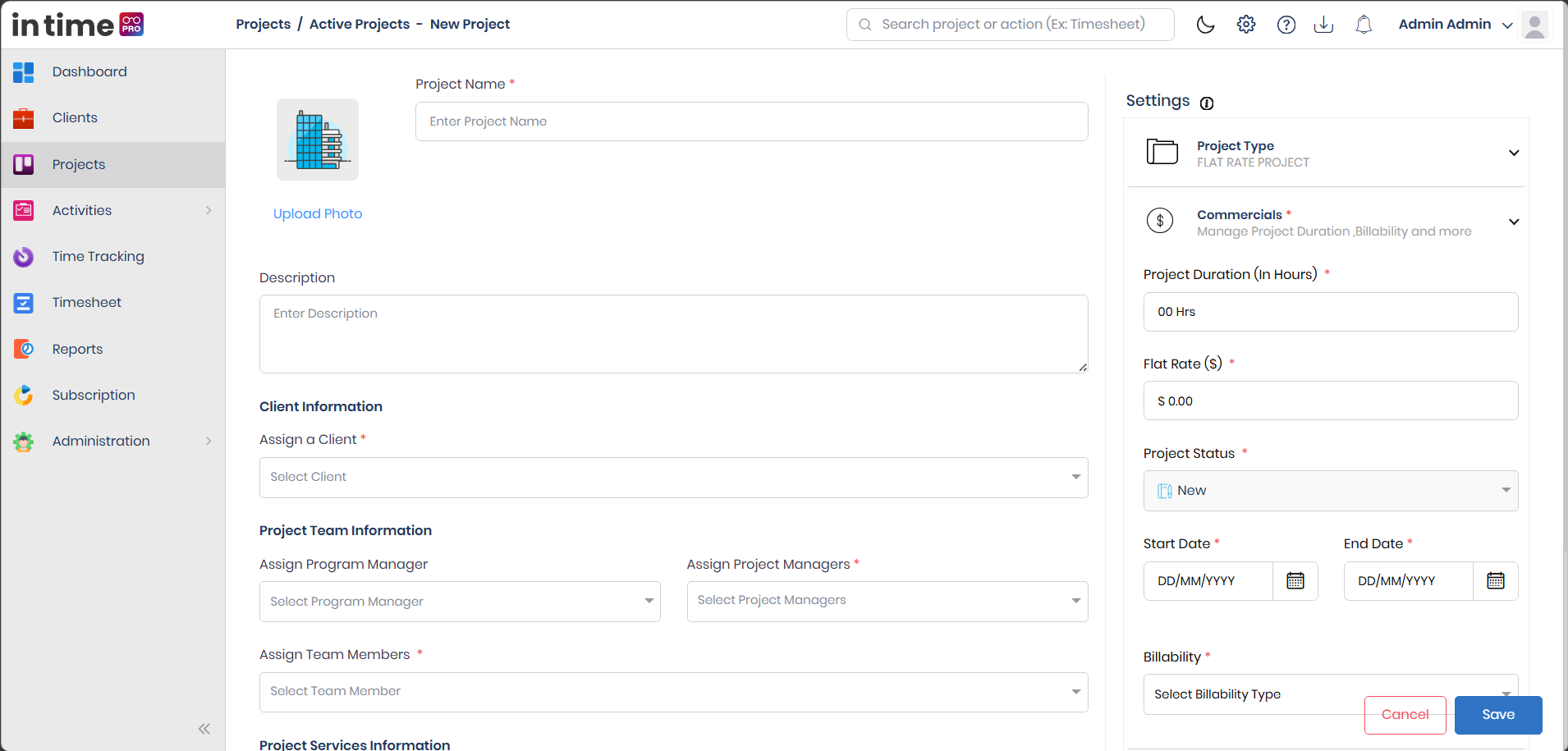
STEP 3 — Enter Basic Project Information
Give the project a name, and optionally a description and a photo. See Project Basic Information.
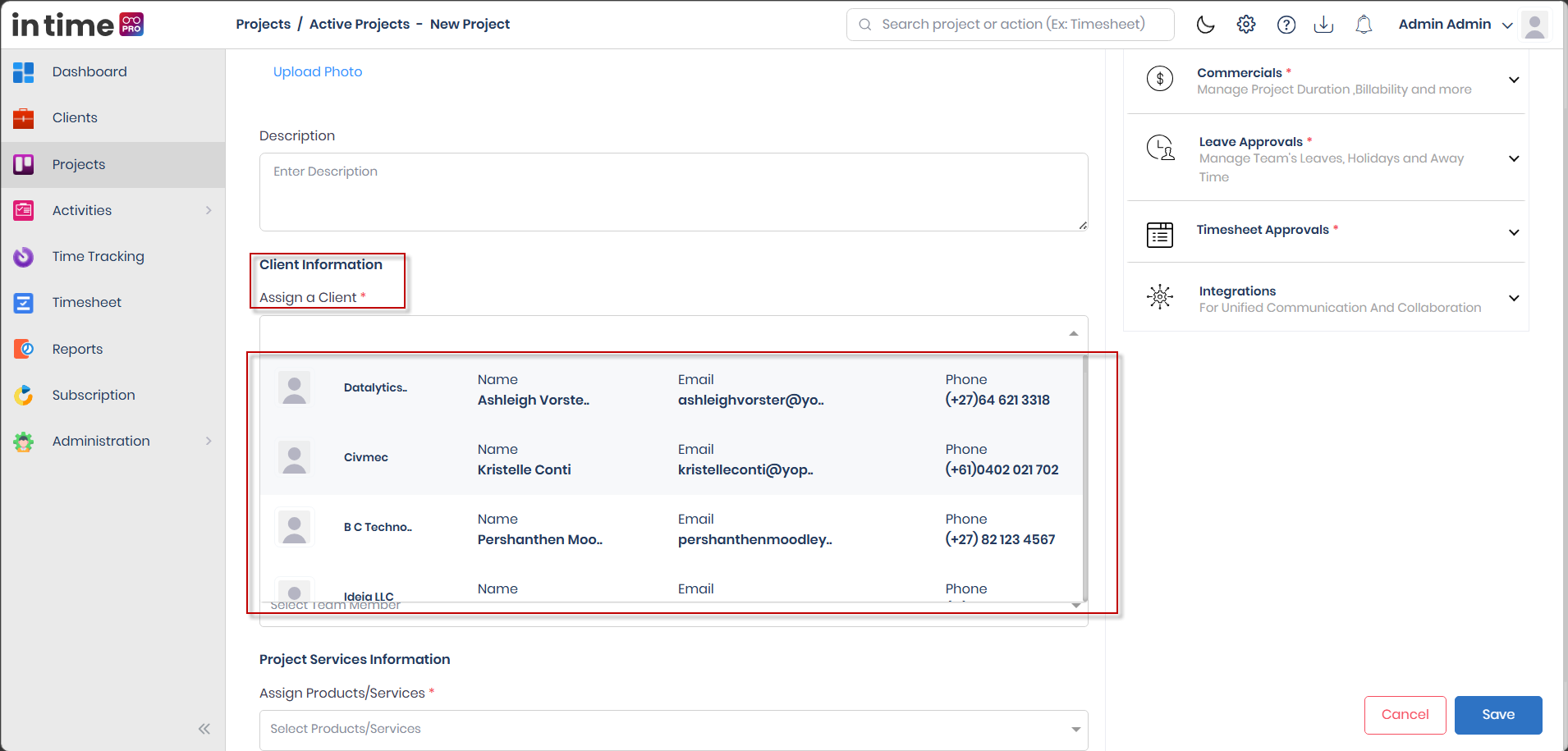
STEP 4 — Select Client
For Flat Rate and Hourly projects, choose the client this work is being done for. See Client Assignment.
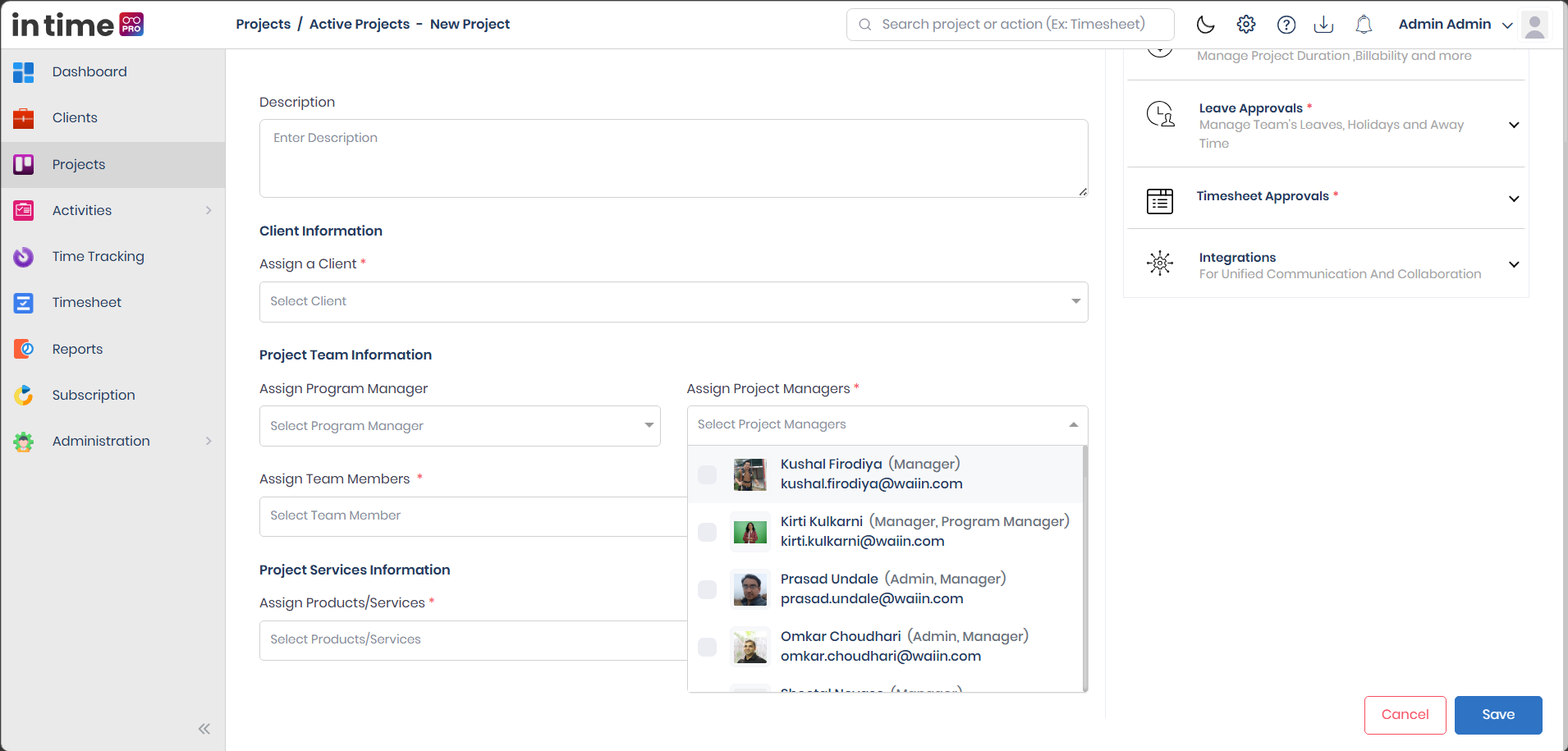
STEP 5 — Add Project Team
Assign a Program Manager (optional), at least one Project Manager, and at least one team member. See Project Team.
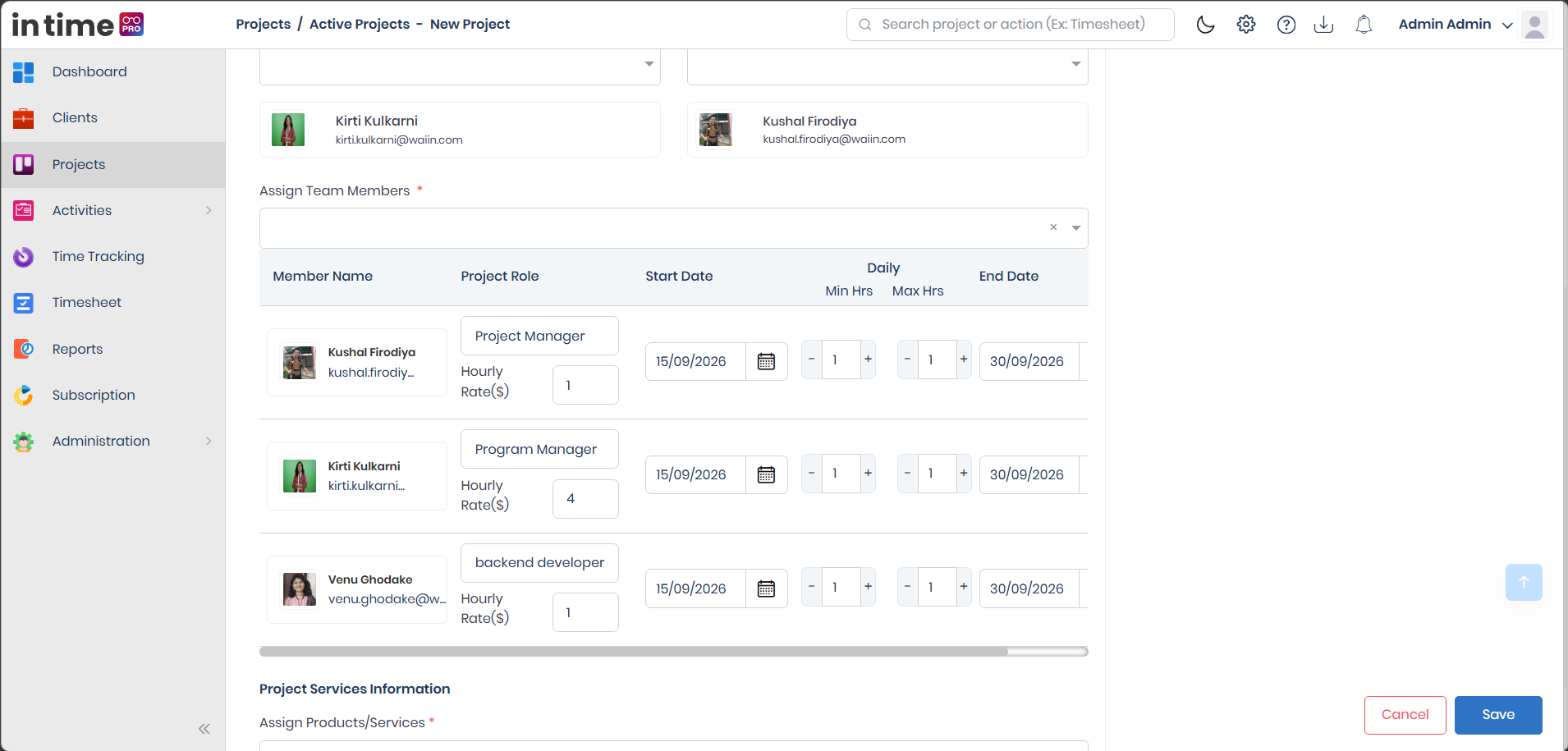
STEP 6 — Configure Team Member Details
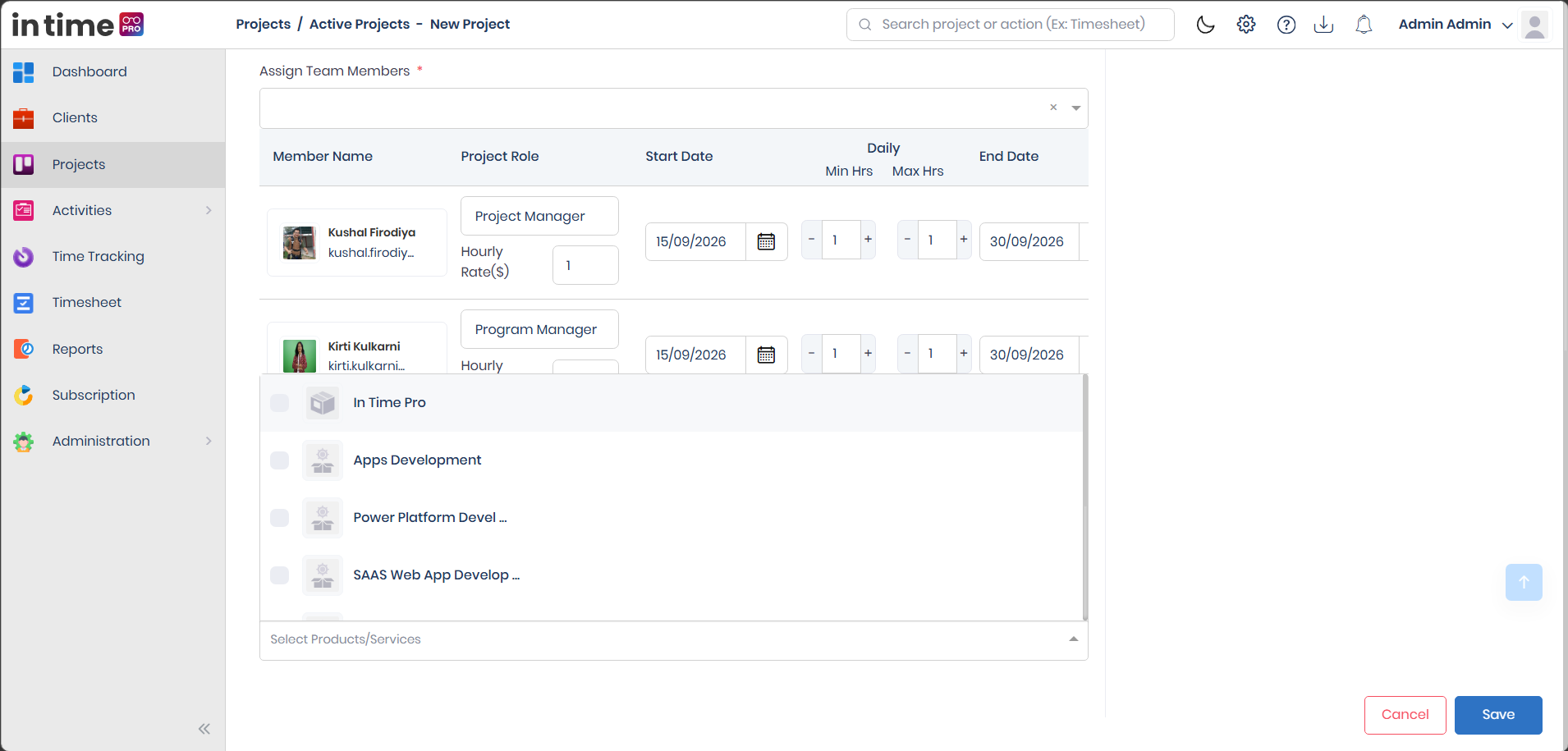
For each team member, fill in their project role, assignment dates, daily working hours, and billing rate. See Team Member Details.
STEP 7 — Add Project Services
Select at least one product or service that this project is delivering. See Project Services.
STEP 8 — Configure Project Settings
Set the project's Commercials (duration, rate, dates, billability), and — where needed — Leave Approvals, Timesheet Approvals, and Integrations. See Project Settings.
STEP 9 — Review and Save
Before saving, check that the project name is unique, that at least one Project Manager and one team member are assigned, that a product/service is selected, and that your dates make sense. Click Save.
Once you save successfully, you're returned to the Projects list with a confirmation message: New project added successfully. The people you've added to the project — the Program Manager, Project Manager(s), and team members — may receive an email and an in-app notification letting them know they've been added.
Select Project Type
| Project type | What it means | When to use it |
|---|---|---|
| Flat Rate Project | You charge the client a fixed total amount for the whole project. | The project's price is agreed upfront, regardless of hours worked. |
| Hourly Project | You charge the client by the hour. | Billing depends on the time actually spent — one rate for the whole project, a rate per team member, or a rate per service. |
| Internal Project | Non-client work for your own organization. | Internal initiatives that aren't billed to a client at all. |
Flat Rate and Hourly projects share the same creation form, since they both need a client. Internal projects use a separate form focused on internal team work and don't have a client section at all.
Flat Rate Project
Use a Flat Rate Project when you're charging the client one fixed total amount for the whole engagement, regardless of how many hours it takes.
-
Go to Projects → New Project → Flat Rate Project.
-
Enter the Basic Information: Project Name, and optionally a Description and photo.
-
Under Client Information, choose the client this project is for, from your organization's active clients.
-
Under Project Team Information, assign your team — Program Manager (optional), at least one Project Manager (required), and at least one Team Member (required) — filling in each member's row.
-
Under Project Services Information, select at least one Product/Service.
-
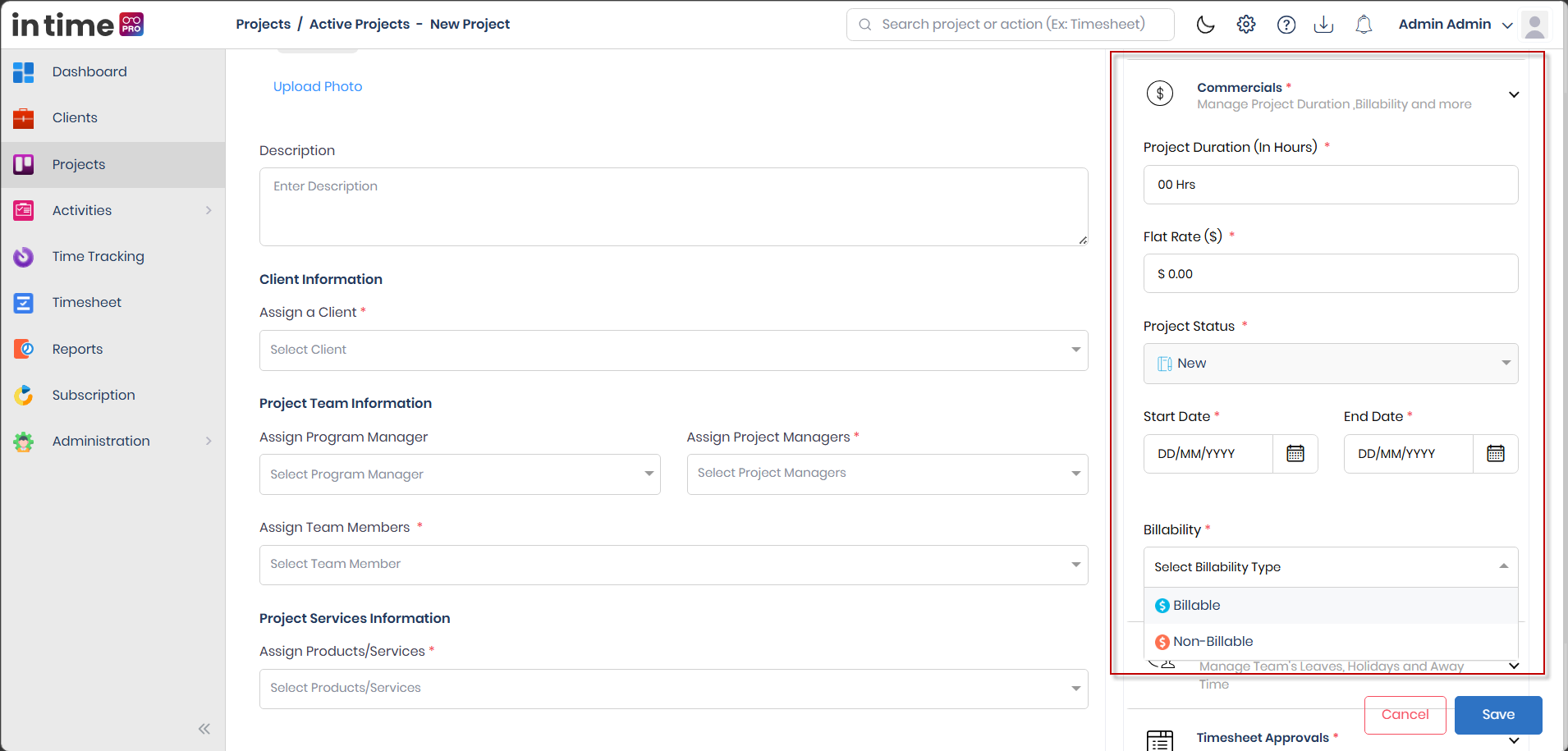
Open Settings and complete the Commercials section:
- Project Duration (In Hours) — Required: Yes. What to enter: the total number of hours the project is planned to take. Why it's needed: this is checked against your team's daily hours to make sure the project has enough time budgeted for the assigned team.
- Flat Rate ($) — Required: Yes. What to enter: the fixed total amount you're charging for the whole project. Must be more than 0.
- Start Date and End Date — Required: Yes. What to enter: the period the project runs for.
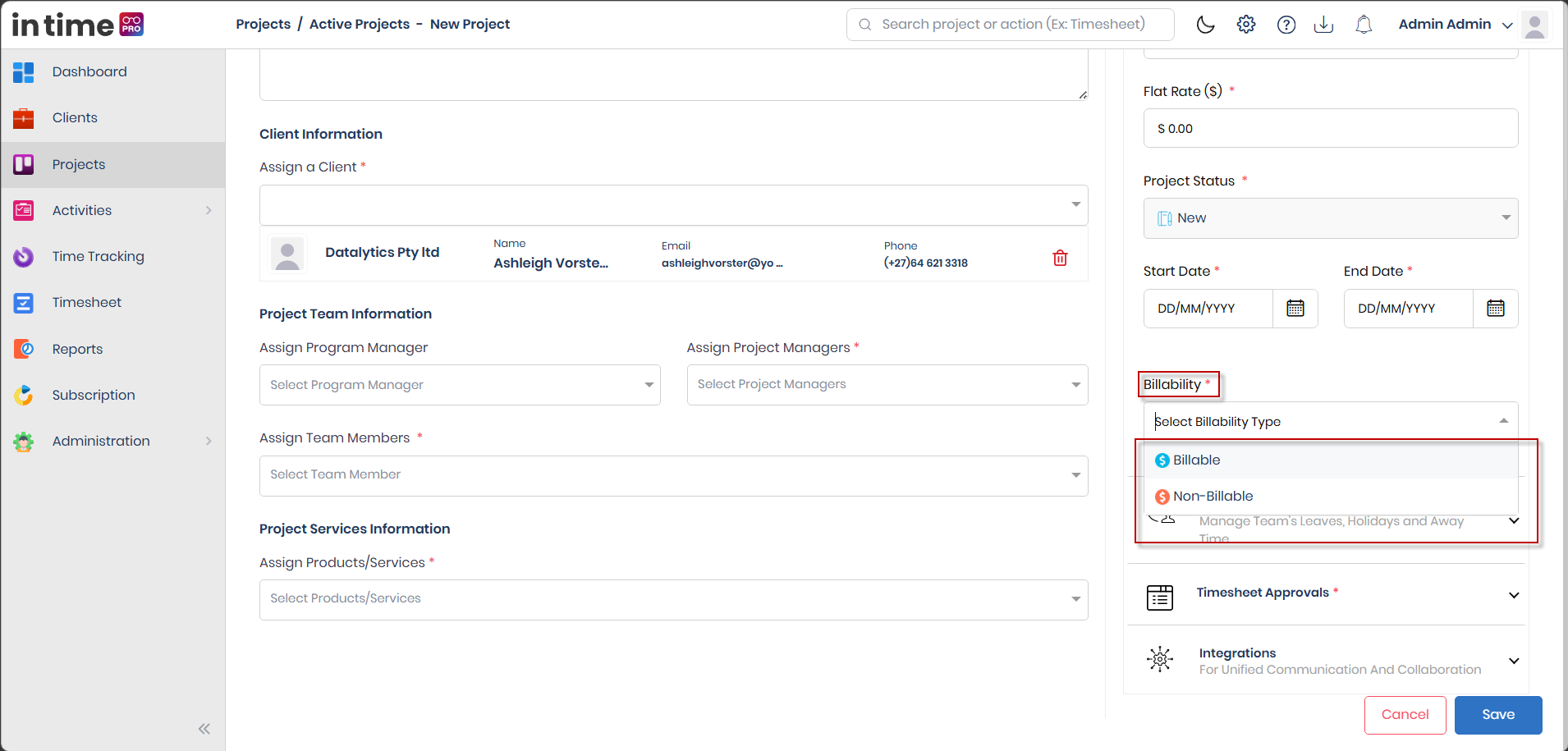
- Billability — Required: Yes. What to enter: Billable or Non-Billable. Why it's needed: this decides whether time recorded on the project can be billed — see Billability.
- If Billable, choose Billability Status Authority — who is allowed to mark time entries billable or non-billable day to day: Manager or Employee.
-
Optionally set up Leave Approvals, Timesheet Approvals, and Integrations.
-
Click Save.
Screenshot: Flat Rate Project Form
Hourly Project
Use an Hourly Project when billing depends on the time actually worked, rather than one fixed total. This is the main difference from a Flat Rate Project — instead of one agreed total, the project bills based on hours.
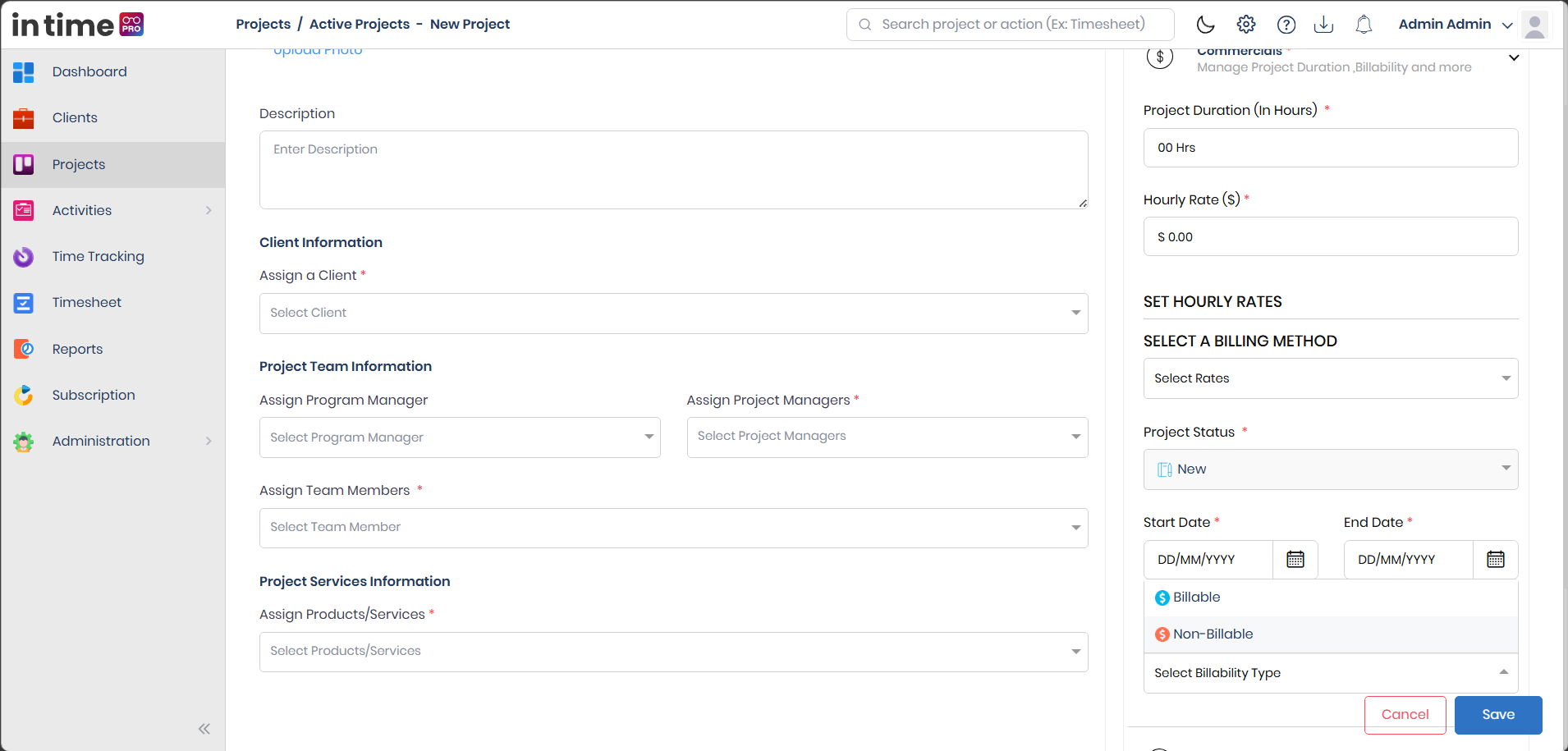
Steps 1–5 are the same as a Flat Rate project, including choosing a client. Then, under Settings → Commercials:
- Project Duration (In Hours) — Required: Yes. What to enter: the total number of hours the project is planned to take.
- Hourly Rate ($) — Required: Yes. What to enter: the project-level hourly rate, if you're using a single rate. Must be more than 0.
- Set Hourly Rates — choose how hourly billing is worked out:
- Single Hourly Rate — one rate for the whole project.
- Team Member Rates — a different rate per team member.
- Service Rates — a different rate per selected product/service.
- Start Date, End Date, and Billability (and, if Billable, who controls it — Manager or Employee), the same as a Flat Rate project.
Then, as with Flat Rate, optionally configure Leave Approvals, Timesheet Approvals, and Integrations, and click Save.
Screenshot: Hourly Project Form
Internal Project
Use an Internal Project for work your organization does for itself, with no client involved and nothing billed externally — for example, internal training, tooling, or company initiatives.
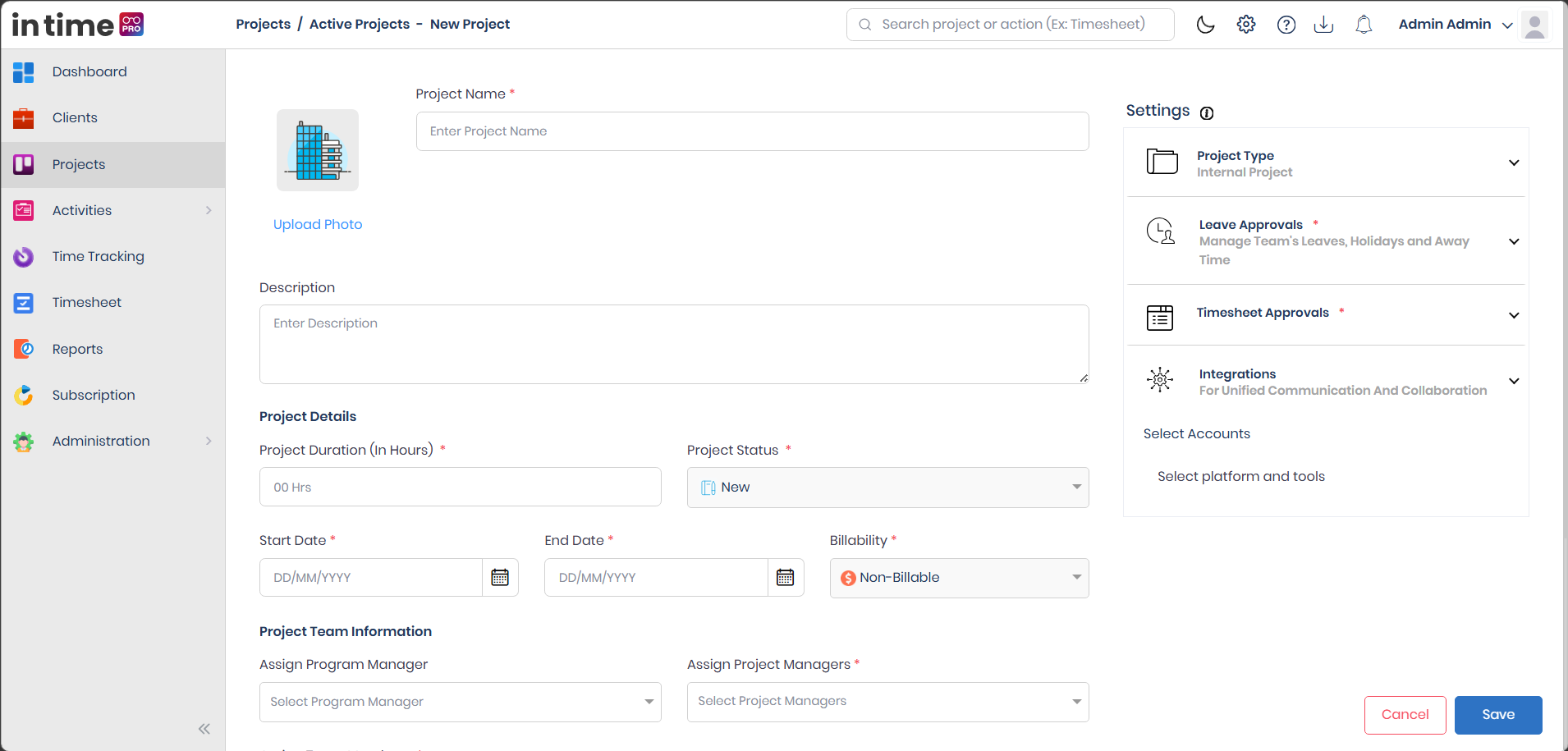
Internal Projects differ from Flat Rate and Hourly projects in a few ways:
- There's no client to select — the form has no Client Information section at all.
- The project is always Non-Billable, since there's no client to bill.
- Its duration, dates, status, and billability are entered directly in the project's own details, rather than in a separate Commercials panel.
- Leave Approvals and Timesheet Approvals must be configured (at least Level 1) before you can save — they're not optional the way they are for Flat Rate and Hourly.
- There's no Client Approver option for timesheets, since there's no client contact to choose from.
Creating an Internal Project
-
Go to Projects → New Project → Internal Project.
-
Enter the Basic Information: Project Name, and optionally a Description and photo.
-
Fill in the project's own details:
- Project Duration (In Hours) — Required: Yes.
- Project Status — Required: Yes. Starts as New and becomes editable once the project exists.
- Start Date and End Date — Required: Yes.
- Billability — Required: Yes, and always Non-Billable for Internal projects.
-
Assign your team: Program Manager (optional), at least one Project Manager (required), and at least one Team Member (required), the same way as other project types.
-
Select at least one Product/Service.
-
In Settings:
- Project type is fixed as Internal Project.
- Leave Approvals — Required: Yes. You must configure at least a Level 1 approver and its approval window before you can save. See Leave Approvals.
- Timesheet Approvals — Required: Yes. Choose a Timesheet Submission Frequency and configure at least a Level 1 approver before you can save. See Timesheet Approvals.
- Integrations — optional Azure DevOps connection. See Integrations.
-
Click Save.
Team members work the same way on an Internal Project as on any other — they use the same assignment fields described under Project Team and Team Member Details, and they track time and submit timesheets against the project the same way once assigned.
Screenshot: Internal Project Form
Project Basic Information
These fields appear the same way on every project type.
Project Name
Required: Yes
What to enter: A clear, descriptive name for the project (up to 70 characters). It can't be blank or made up only of spaces, and it must be different from any other project's name.
Why it's needed: This is how the project is identified throughout In Time PRO — in the list, in reports, in notifications, and wherever the project is selected.
Upload Photo
Required: No
What to enter: An image representing the project, in PNG, JPG, or JPEG format.
Why it's needed: Helps the project stand out visually in the list and grid views.
Description
Required: No
What to enter: A short summary of what the project is about.
Why it's needed: Gives anyone opening the project quick context about its purpose.
Screenshot: New Project – Basic Information
Client Assignment
What is it?
Every Flat Rate and Hourly project is linked to a client — the customer organization the work is being done for and billed to.
Why is it used?
The client connects the project to the right customer record — their contact details, their portal access (if enabled), and their billing information all rely on this link.
How to use it
Required: Yes, for Flat Rate and Hourly projects. Internal projects don't use a client at all.
What to enter: Choose the client under Client Information — the client must already exist in the Clients module before you can pick it here. See Clients for how to add one. When you select a client, you'll see their name along with their primary contact's name, email, and phone number, so you can confirm you've picked the right one.
What happens after saving?
Once the project is saved, the client cannot be changed from the project's edit screen — the client selection is locked in from that point on. If you picked the wrong client, you'll need to create a new project with the correct one.
Screenshot: Client Selection
Project Team
Every project needs a team. This is how the right people get access to the project elsewhere in In Time PRO — see What happens after a project is created.
Select the users who will work on this project, in one of three roles:
Program Manager
Required: No (optional)
What to select: One person overseeing the project at a higher level. Only users who hold the Program Manager role in your organization appear in this list, and only one Program Manager can be assigned per project.
What happens after saving: Assigning someone as Program Manager also adds them to the project team automatically, with the role "Program Manager."
Project Manager
Required: Yes — at least one
What to select: The person or people responsible for managing this project day to day. Only users who hold the Manager role in your organization appear in this list. You can assign more than one.
What happens after saving: Assigning someone as a Project Manager also adds them to the project team automatically, with the role "Project Manager."
Team Members
Required: Yes — at least one
What to select: The people who will actually work on the project and track time against it. Team members are chosen from a broader list of users in your organization — not limited to a specific role.
A few rules to keep in mind:
- A person can be a Project Manager or Program Manager and also appear as a team member — when that happens, their project role on the team is filled in automatically based on their assignment.
- The same person can't be added to the team twice.
- Removing someone from the team also removes their Program Manager or Project Manager assignment, if they had one.
- Approvers you choose later for Leave Approvals or Timesheet Approvals can only be picked from people who are already on the project's team.
- Everyone you assign must already exist as a user in the system (added through Manage Users) — you can't create a new user from the project form itself.
Screenshot: Project Team Information
Team Member Details
When you add someone to the team, you'll fill in a row of details for them:
| Field | What it means |
|---|---|
| Member Name | Shown for reference only — this isn't something you fill in. |
| Project Role | Required. The role this person plays on the project (for example, "Developer" or "Designer"). This is filled in automatically if they were assigned as Program Manager or Project Manager. |
| Start Date | Required. When this person's assignment to the project begins. Must fall within the project's own start and end dates. |
| End Date | Required. When this person's assignment to the project ends. Must also fall within the project's own start and end dates. |
| Daily Min Hrs | Required. The minimum hours this person is expected to work on the project each day. Must be greater than 0. |
| Daily Max Hrs | Required. The maximum hours this person is expected to work on the project each day. Must be greater than or equal to the minimum, and greater than 0. |
| Hourly Rate ($) | Required. The billing rate that applies to this person's time on this project. |
Example: If a team member is assigned from 1 September 2026 to 30 September 2026, that's the window during which they're expected to be working on this project — their time tracking and billing for this project apply within that period.
Screenshot: Team Member Details
Project Services
What is it?
Project Services (Products/Services) are the specific offerings from your organization's catalog that this project is delivering — for example, "Web Development" or "Consulting."
Why is it used?
Attaching services to a project records what's actually being delivered, and — for Hourly projects using the Service Rates billing method — lets you set a different hourly rate per selected service.
How to use it
Required: Yes — at least one
What to select: One or more items from your organization's Products/Services catalog (set up under Global Settings).
Screenshot: Project Services
Project Settings
The Settings panel on the project form groups together the sections that control how the project is billed and approved: Commercials, Billability, Leave Approvals, Timesheet Approvals, and Integrations. Each is explained in its own section below. On Flat Rate and Hourly projects, you can also switch the project between Flat Rate and Hourly here before saving a new project — switching changes which commercial fields apply. Internal projects always show their type as fixed.
Commercials
What is it?
Commercials is where you set the money and timing details of a project: its planned duration, its rate (flat or hourly), and its start and end dates. Flat Rate and Hourly projects have their own Commercials section; Internal projects show the same kind of fields directly in the project's own details instead of a separate Commercials panel.
Why is it used?
This is what determines how much time is planned for the work, and how that time turns into billing.
What you configure
- Project Duration (In Hours) — the total planned hours for the project.
- Flat Rate ($) or Hourly Rate ($) — depending on the project type.
- Start Date and End Date — the period the project runs for.
Screenshot: Commercials
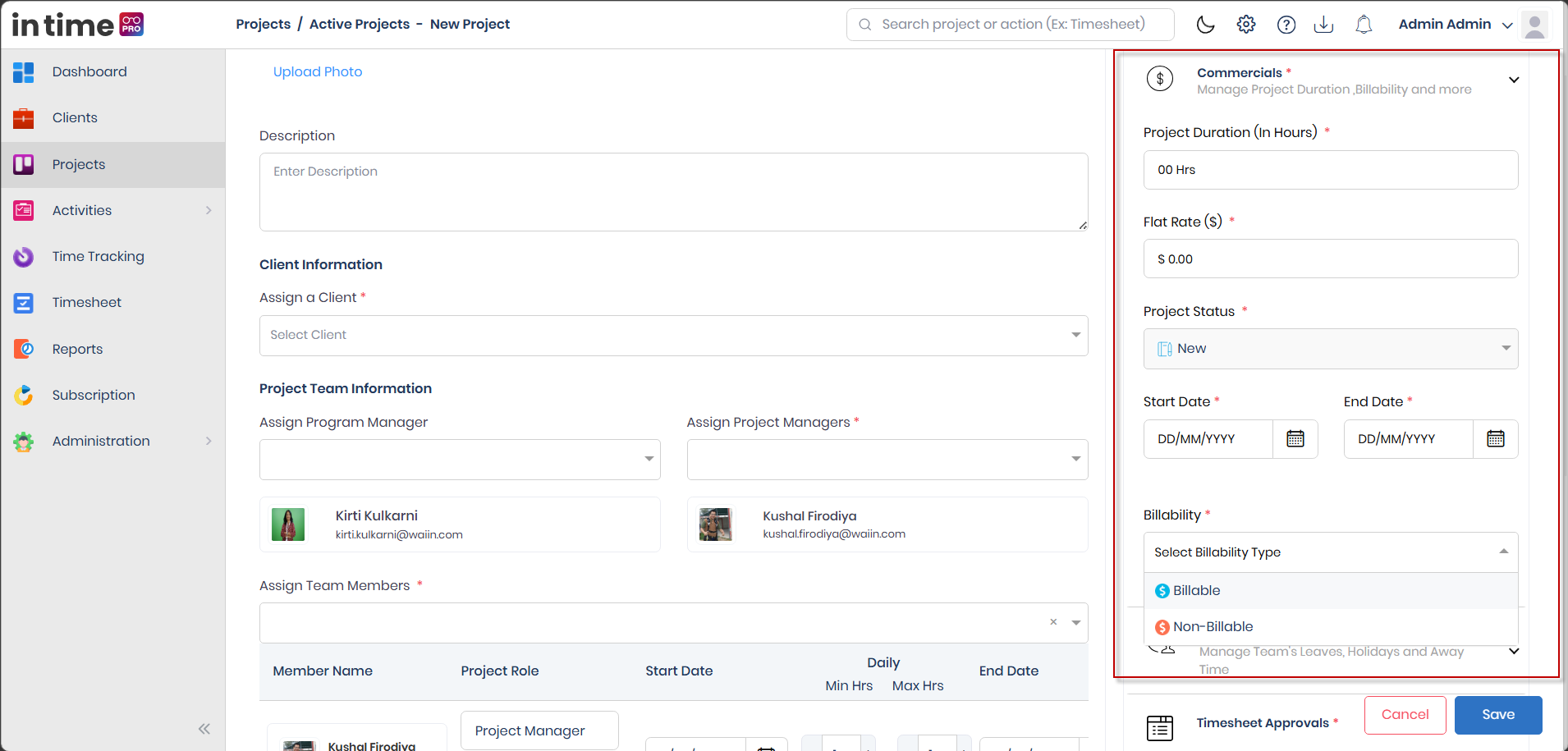
Billability
What is it?
Billability tells the system whether time spent on the project should be billed to the client.
What Billable means
Time recorded against the project can be billed. Choose this when the client is paying for the work being tracked.
What Non-Billable means
Time recorded isn't billed. Choose this for work that isn't charged to anyone — internal projects are always Non-Billable, since there's no client to bill.
Why it matters
Billability affects how time on the project is treated in reports and billing — it's the difference between hours that count toward what a client is charged and hours that don't.
How to configure it
If a project is Billable, you also choose Billability Status Authority — who is allowed to mark specific time entries or tasks as billable or non-billable day to day: the Manager, or the Employee doing the work.
Example: A client project where the client is paying for all development hours would be set to Billable. An internal training project, where no one is being charged, stays Non-Billable.
On a new project, Billability starts as read-only and becomes editable once the project has been saved for the first time.
Screenshot: Billability
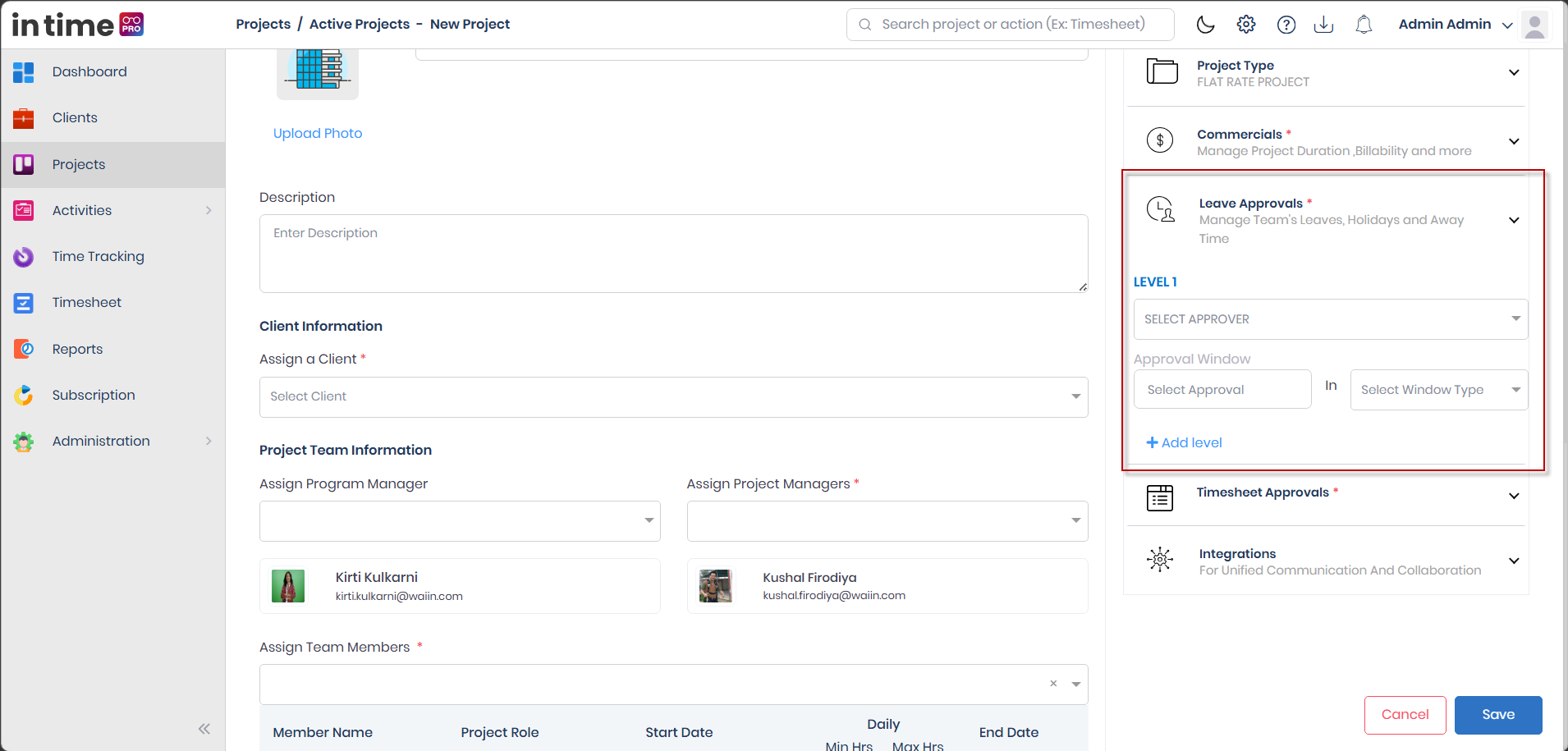
Leave Approvals
Leave Approvals is where you configure who approves Leaves time-off requests submitted by people working on this project — it's the project-side setup for a real, working feature, not future scaffolding.
What is it?
Leave Approvals control who needs to approve time-off requests from people working on this project.
Why is it used
Configuring approvals at the project level means leave requests related to this project's work go to the right people for sign-off before they're approved. If no approver applies from a project, a leave request can fall back to the requester's reporting manager instead.
How approval levels work
The Leave Approvals design supports up to 5 approval levels per project. Each level you configure needs:
- An Approver, chosen from people already on the project's team.
- An Approval window — how long that approver has to respond, in hours or days.
For Flat Rate and Hourly projects, Leave Approvals are optional — but once you start filling one in, all the levels you've started must be completed before you can save. For Internal projects, at least Level 1 must be configured when the project is created.
Level 1 is the active approval level for current use — this is what actually decides a leave request today.
Approval Levels 2–5 are currently on hold for current use. The approval-chain structure fully supports these levels, and when they are enabled, a leave request will move through the configured approval levels sequentially — Level 1, then Level 2, then Level 3, and so on, up to Level 5, where applicable. This "on hold" status describes today's availability/configuration, not a gap in the feature itself — Levels 2–5 are a supported part of the design, not an unfinished or future feature. Do not configure or rely on Levels 2–5 for current approvals; use Level 1 as the effective approval step until these levels are enabled.
What happens after a leave request is submitted
Team member submits a leave request in Leaves
   → Level 1 approver reviews it   (the active step today)
   → Level 2 approver reviews it   (on hold — sequential step once enabled)
   → Level 3 approver reviews it   (on hold — sequential step once enabled)
   → Level 4 approver reviews it   (on hold — sequential step once enabled)
   → Level 5 approver reviews it   (on hold — sequential step once enabled)
   → Final approved or rejected result
See Leaves for the full request-and-approval workflow, including leave statuses and who can approve by default.
Screenshot: Leave Approvals
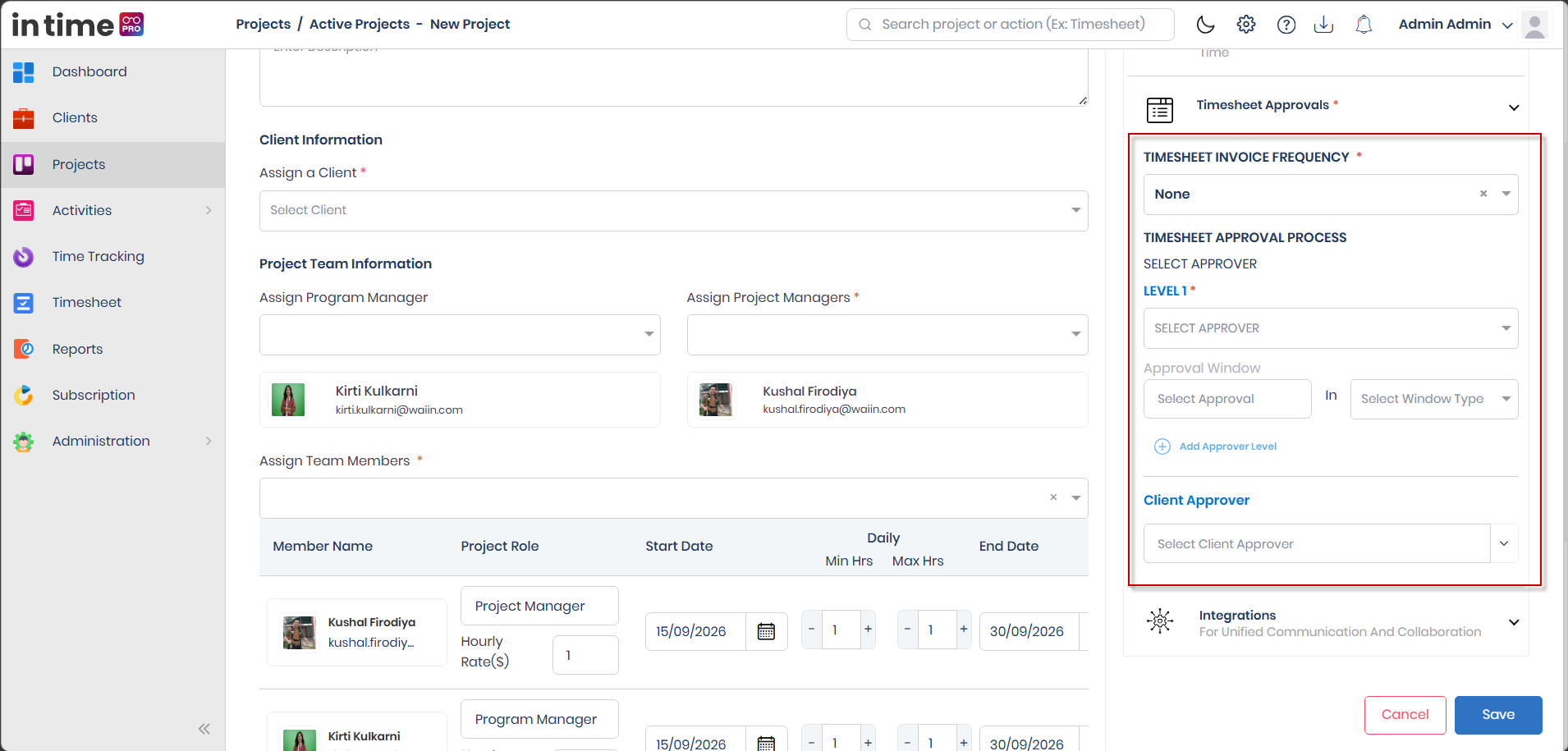
Timesheet Approvals
What is it?
Timesheet Approvals control how often team members submit timesheets for this project, and who needs to approve them.
Why is it used
This ensures time logged against the project is reviewed and signed off before it counts toward billing or reporting.
What you configure
| Field | What it means |
|---|---|
| Timesheet Submission Frequency | How often timesheets are submitted for this project: None, Bimonthly, Monthly, Weekly, or Daily. Required for Internal projects on create. |
| Level 1 approver | The first person who must approve a submitted timesheet, chosen from the project team, along with their approval window. Required for Internal projects on create. |
| Levels 2–5 | Additional approval levels you can add with Add Approver Level, up to 5 total. Optional. |
| Client Approver | For Flat Rate and Hourly projects, you can also have one of the client's own contacts approve timesheets. If you choose one, an approval window is required. Not available for Internal projects. |
For Flat Rate and Hourly projects, this section is optional until you start adding approvers — once you do, the frequency and approval windows must be completed before saving.
What happens after a timesheet is submitted
Once set up, a submitted timesheet for this project moves through the configured approval levels in order. If a level approves it, it moves to the next level (if any); if a level rejects it, the team member is notified so they can correct and resubmit it.
Screenshot: Timesheet Approvals
Integrations
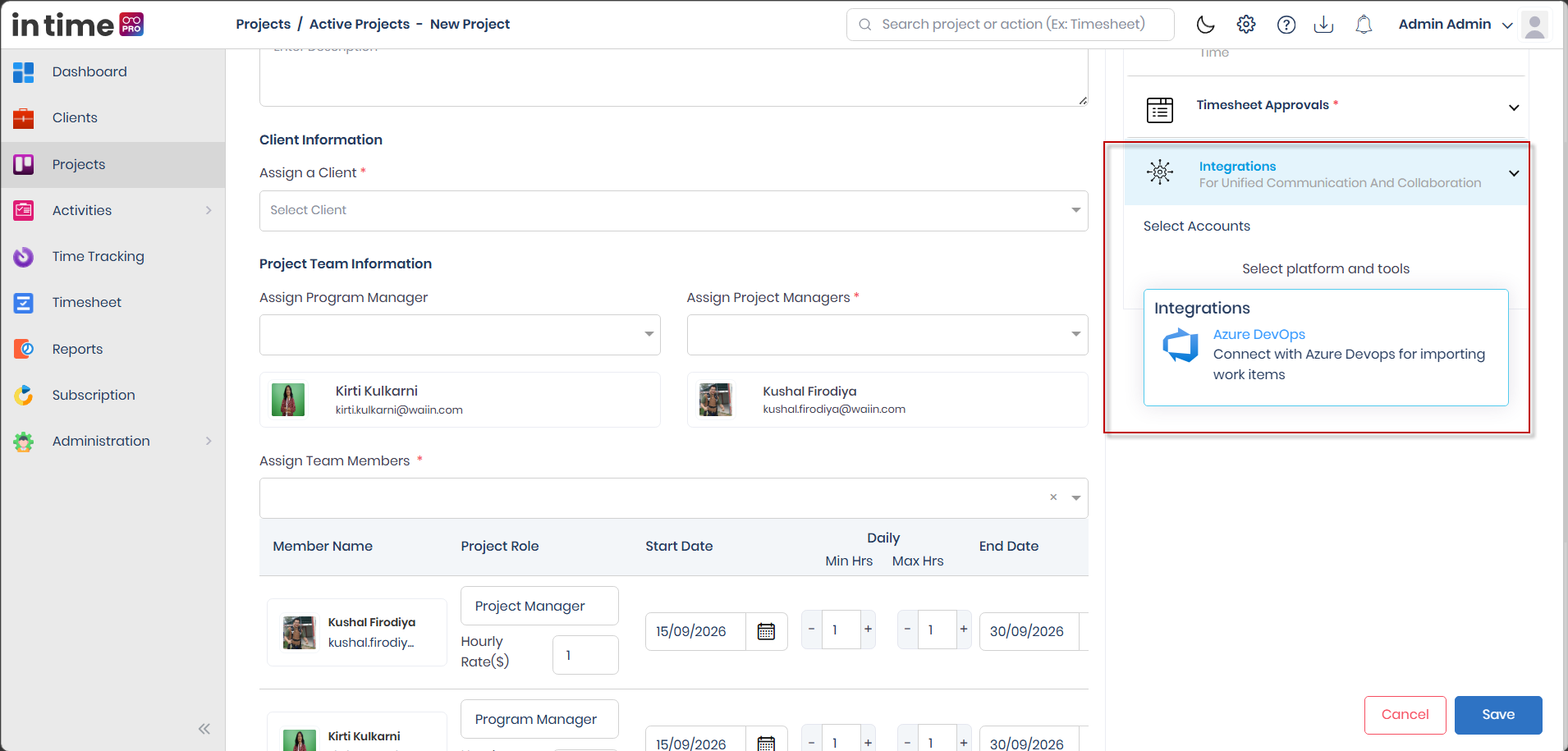
What is it?
An integration connects the project with another service, so project-related information can be used between the two systems. The only integration currently available on a project is Azure DevOps, which lets you bring in work items from an Azure DevOps project into In Time PRO.
Why is it used
If your team already tracks work items in Azure DevOps, connecting it means you don't have to recreate that information separately in In Time PRO.
How to configure it
- In Integrations, choose Select platform and tools → Azure DevOps.
- Enter the Project Name, Project URL, and Personal Access Token for your Azure DevOps project.
- Click Add.
Connecting Azure DevOps is optional — you can save the project without it.
Treat your Azure DevOps Personal Access Token like a password. Don't share it in chat messages, tickets, or screenshots.
Screenshot: Integrations
Save and Validation
When you click Save, the system checks that all required information has been entered before the project can be created or updated. Common messages you might see:
| Situation | What you see |
|---|---|
| Project name left blank | Project name is mandatory |
| Project name already used by another project | Project name already exists |
| No client selected (Flat Rate or Hourly) | Client is mandatory |
| No Project Manager selected | Project Manager is mandatory |
| No team members added | Team Members are mandatory |
| No product or service selected | Products/Services are mandatory |
| Billability not chosen | Billability is mandatory |
| Start or end date missing | Start Date / End Date is mandatory |
| End date earlier than start date | End date must be greater than start date |
| Project duration left blank | Project Duration is mandatory |
| Duration too short for the team's hours | Project Duration should be greater than the team's working hours |
| A team member's minimum hours are more than their maximum | Minimum hours should be less than or equal to maximum hours |
| Flat rate or hourly rate missing or zero | Flat Rate is mandatory / Hourly Rate is mandatory |
| Leave or timesheet approvals started but not finished | Please complete the approval settings |
| A team member's row is incomplete | Please complete that member's role, dates, billing rate, and hours |
If you leave the create or edit screen without saving, you'll be asked to confirm that your changes won't be saved.
When creating a new project, the system checks for a duplicate project name before saving. When editing an existing project, renaming it isn't checked the same way — avoid renaming a project to match another project's name.
What Happens After Project Creation
Once a project is saved, it appears in Active Projects for anyone allowed to see it — Admin sees it immediately across the organization, while other roles see it once they're assigned to it as a team member, Project Manager, or Program Manager.
Being assigned to a project makes it available in several other places too, but not identically everywhere:
| Area | Who sees the project there |
|---|---|
| Projects list | Admin sees every project. Everyone else sees projects where they're a team member, Project Manager, or Program Manager. |
| Dashboard – Current Projects | Only projects you're personally assigned to — this applies even to Admin, unlike the full Projects list. |
| Time Tracking | Your assigned projects. |
| My Timesheet (project picker) | Only projects where you're listed as a team member. Being a Project Manager or Program Manager alone isn't enough to see a project here if you're not also on the team list. |
| Team Timesheet / project timesheet views | Projects a Manager or Program Manager manages. |
| Activities | Your assigned projects. |
| Reports (project filter) | Your assigned projects. For Admin, this filter may only list projects that have at least one team member. |
| Universal search | Projects within your assignment scope (or all projects, for Admin). Opens the project's details. |
| Client Portal | Flat Rate and Hourly projects linked to a client can appear in that client's own portal (team, tasks, timesheets), where the client has portal access. |
| In-app notifications | Clicking a project assignment notification takes you straight to that project's details. |
Example: If Rahul is added as a Team Member on "Project A," Project A becomes available to Rahul in Projects, Time Tracking, My Timesheet, and Activities. If Rahul is only assigned as Project Manager (and not added as a team member), Project A still shows up for him in Projects and Time Tracking, but not in his My Timesheet project picker.
A couple of things worth knowing:
- Admin sees every project in the Projects module, but only assigned projects on the Dashboard's Current Projects widget.
- Client information linked to a project stays connected to it; if a client is archived or deleted, that can affect its related projects — see Clients.
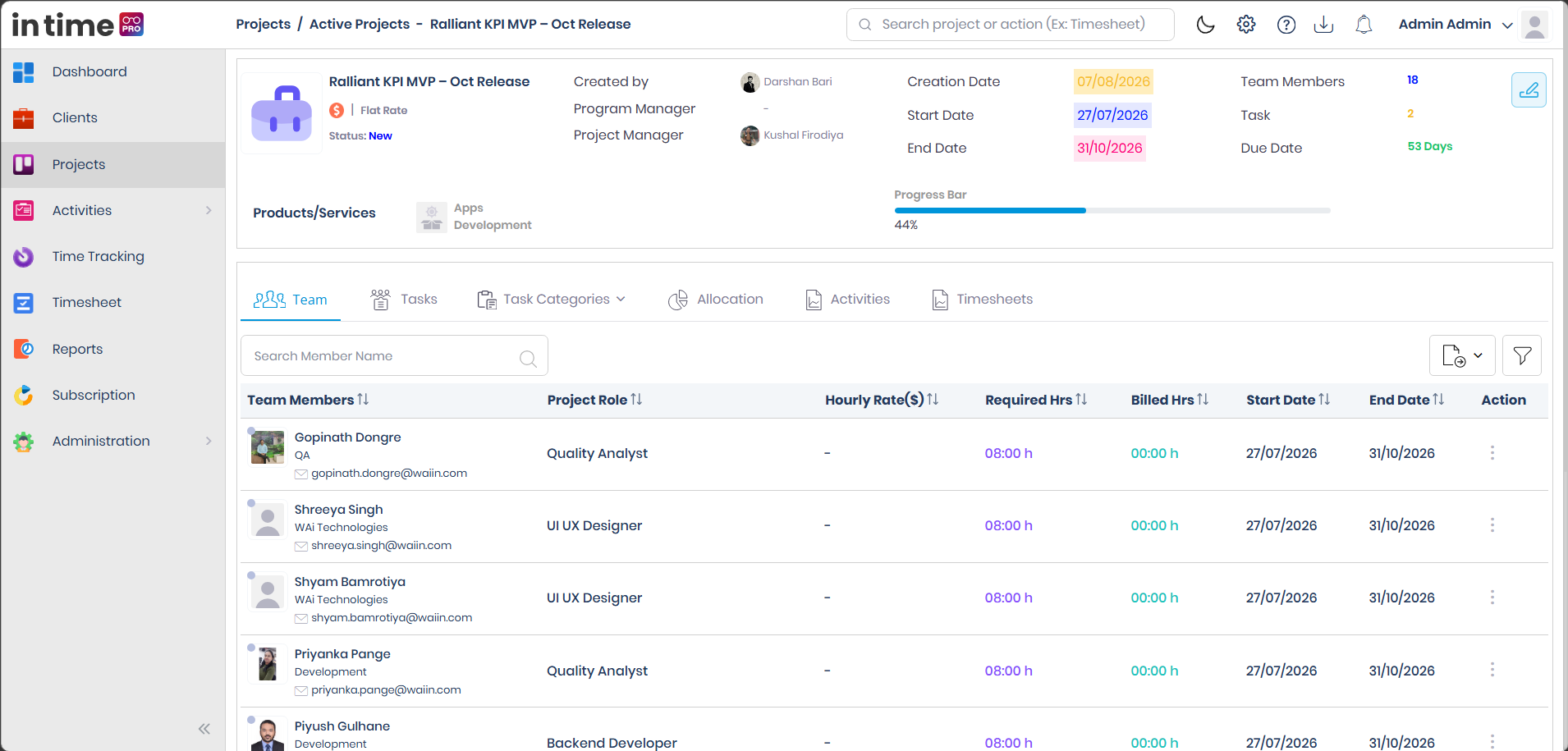
Project Details
Click a project's name (from the Active or Archived list — not from Deleted) to open its details. You can also reach a project's details from Universal search or from an in-app assignment notification.
The top of the page shows the project's image, name, description, whether it's Billable or Non-Billable, its type, its status (New, Active, Completed, Closed), who created it, its Program Manager and Project Manager(s), its key dates, how many team members and tasks it has, how many days remain, its progress bar, and the products/services attached to it (the first two, with a View More option for the rest). An Edit button appears here too, if you have management access.
Screenshot: Project Details
Tabs
Which of these tabs you see depends on your role and the permissions you've been given:
| Tab | What you can do |
|---|---|
| Team | Always visible. Review the project team, search and filter members, and see their role, department, rates, and hours. Export to PDF or Excel. With management access, you can remove someone from the project (this takes you to Edit). Employees and Contractors see fewer financial columns here. |
| Tasks | Always visible. View, filter, and manage the project's tasks, and export them to PDF or Excel. |
| Allocation | A weekly calendar of team member allocation. Requires Allocation permission. |
| Task Categories | Manage the timesheet task categories used on this project. Hidden if you don't have Timesheet permission and aren't a Manager or Program Manager. |
| Activities | The project's activity information. Requires Activities permission — if you expect this tab and don't see it, ask your administrator to check your permissions. |
| Timesheets | A timesheet grid scoped to this project, with its own filter and export. Requires Timesheet permission. |
| Settings | Visible only to the project's assigned Program Manager or Project Manager(s). Includes options to disable the timesheet pop-up reminder and to disable backdated timesheets for this project. |
| Non-billability Reasons | Shown for Billable projects where billability control is enabled. Requires Activities permission. |
The Team, Tasks, and Timesheets tabs each have their own Export option (PDF and Excel), separate from the Export on the main Projects list — each exports whatever data is currently loaded in that tab.
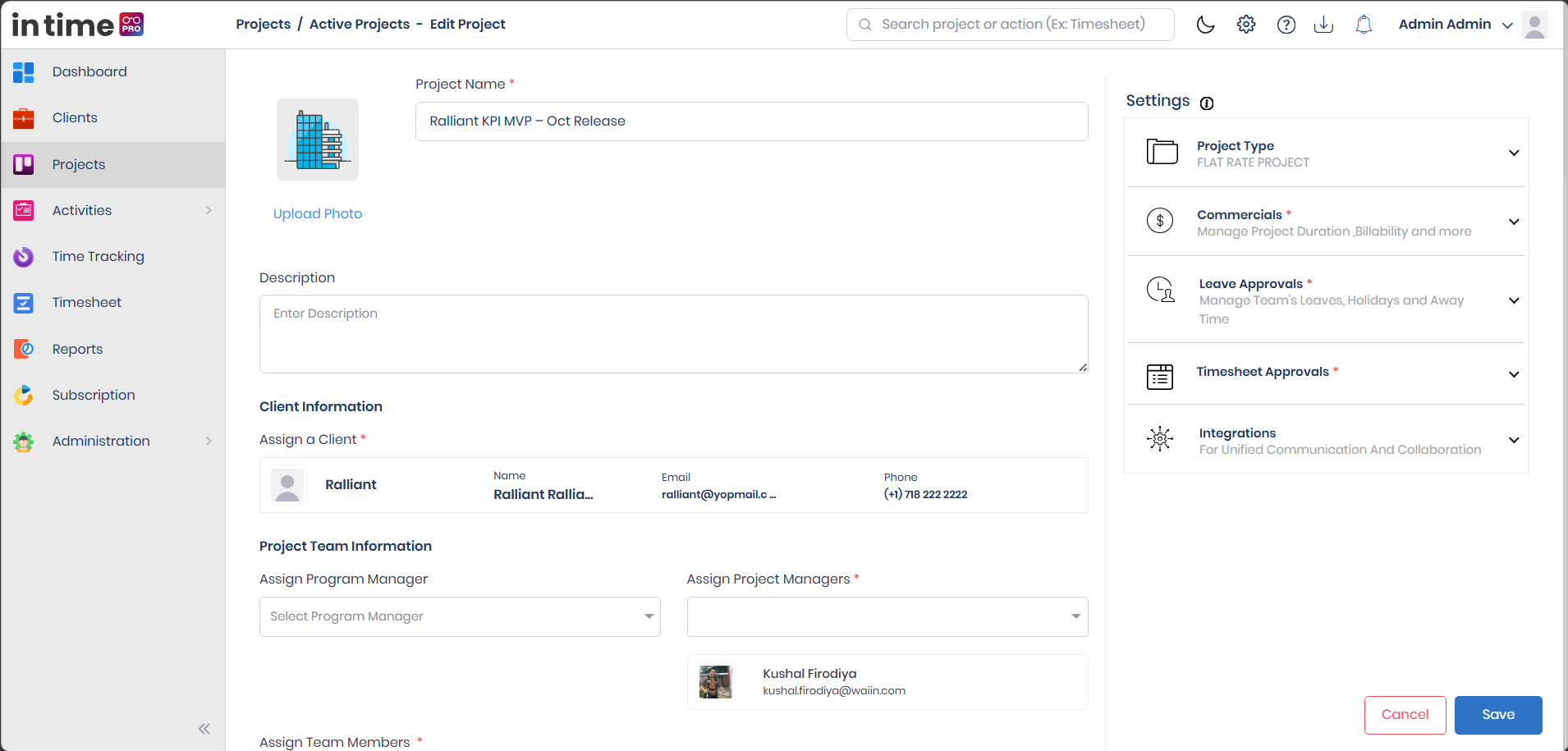
Edit Project
Users with management access can edit an Active project from the list's Action menu, or from the Edit button on the project's details page.
Editing opens the same form used to create the project — Flat Rate and Hourly share one form, and Internal uses its own. You can update most fields, including the team, dates, products/services, commercial details, and approval settings. The client cannot be changed once the project is created — it's shown as read-only. Project Status and Billability also become editable only once the project exists (they're locked on the create screen).
Saving runs the same checks as creating a project. Once saved, you'll see Changes updated successfully, and you're returned to the Projects list or the project's details, depending on where you started editing from.
Editing is only available to users with project management access, and only for projects you're allowed to manage.
Screenshot: Edit Project
Archive, Delete, and Restore
Archive
What it means: Archiving moves an Active project out of your everyday list, without deleting it. Use it for work that's finished or paused, but that you might want to refer back to later.
How to use it: Select one or more Active projects and choose Archive. This happens immediately — there's no confirmation step.
Who can do it: Users with project management access.
Delete
What it means: Deleting moves a project (from Active or Archived) to the Deleted list. It's a step further than archiving — meant for projects you no longer need in your regular lists.
How to use it: Select one or more projects and choose Delete. You'll be asked to confirm ("Are you sure you want to Delete? You can't undo this action."). Despite that wording, a deleted project can still be brought back using Restore, described next.
Who can do it: Users with project management access.
Restore
What it means: Restore brings a project back to Active, from either Archived or Deleted.
How to use it: Select one or more projects in the Archived or Deleted list and choose Restore. Restoring from Archived may ask you to extend the project's end date first if it hasn't passed the check described under A few important rules; restoring from Deleted doesn't have that check.
Who can do it: Users with project management access.
Archive vs. Delete
Archive and Delete both move a project out of your everyday Active list, but they're used for different situations: Archive is the lighter step for work that's finished or paused, while Delete is for projects you want out of both Active and Archived. Both can be reversed using Restore.
User Guidance / Best Practices
- Create the client first (for Flat Rate and Hourly projects) before starting the project, since it can't be added or changed from the project form afterward.
- Keep project names unique and clear, since duplicate names aren't allowed on create.
- Make sure each team member's assignment dates fall within the project's own start and end dates.
- Assign people as team members (not just as Project Manager or Program Manager) if they'll need to use My Timesheet for that project.
- Use Archive for work that's finished or paused, and Delete only for projects you no longer want in your everyday lists — both can be reversed with Restore.
- If you're missing an expected option (New Project, Edit, a tab, or a lifecycle action), check with your administrator about your project management access and your account's Other Settings.