Manage Users
Overview
Manage Users is where you invite people into In Time PRO, keep their information current, and control whether they're active in your organization. From here you can invite a new person and assign them a role, edit an existing person's details, archive or delete someone who has left, and open an individual's profile to manage their leaves, apps and productivity, and tracking settings.
Manage Users works together with two other setup areas:
- Organization Unit — the department/title structure you assign people into. See Organization Unit.
- Products & Services / Company Profile — company-wide defaults such as locations and tracking settings, which a user's profile can override for that one person.
How to open
Settings → Manage Users.
User List
The user list has two tabs:
- Users — a dropdown lets you switch between three lists:
- Active Users — everyone currently active in your organization.
- Archived Users — people who have been archived. Typically only available to Admin-level users.
- Deleted Users — people who have been deleted. Typically only available to Admin-level users.
- Reporting Managers — typically Admin-only, this tab shows each manager along with the people who report to them.
You can search the list by employee name.
Screenshot: Manage Users — Reporting Managers
The Reporting Managers tab, listing each manager along with the people who report to them.
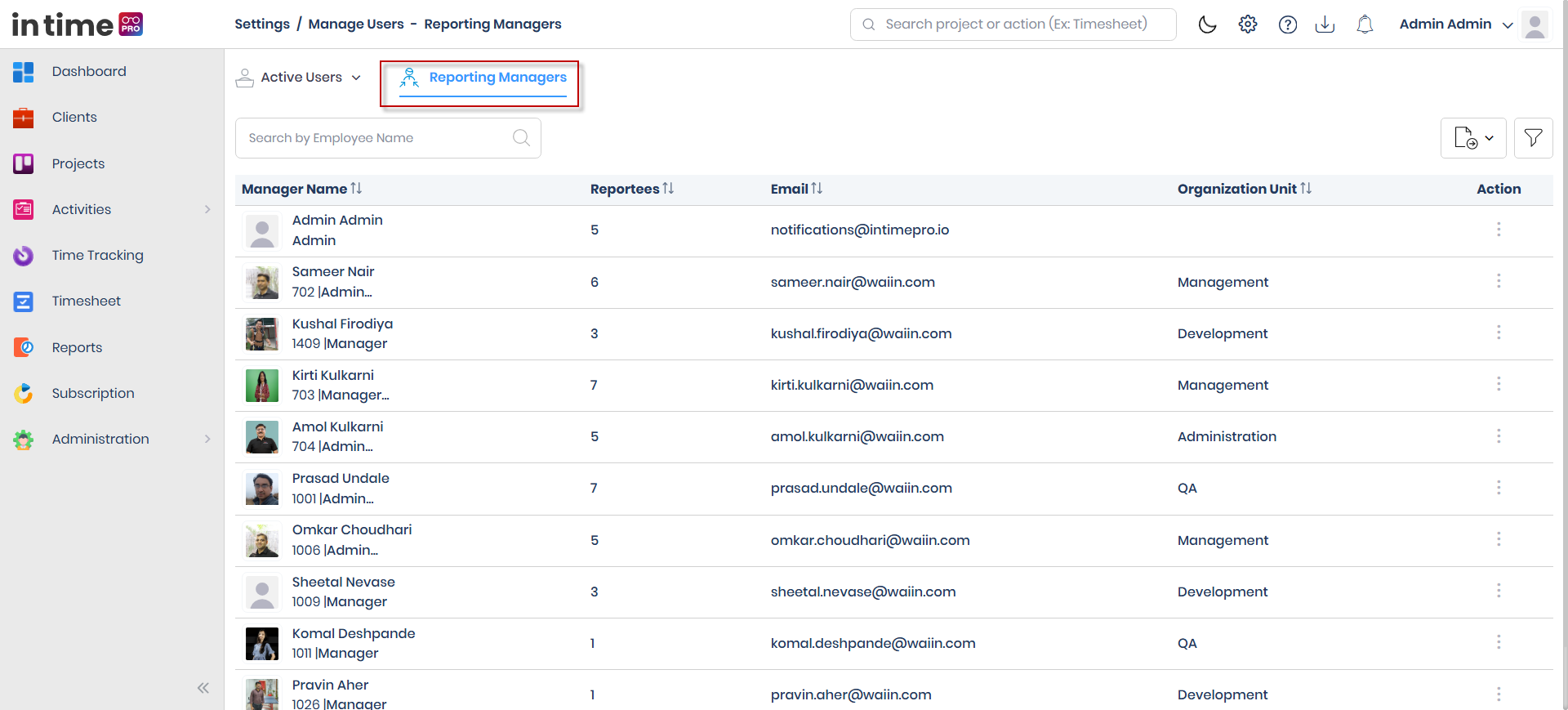
Table columns
| Column | What it shows |
|---|---|
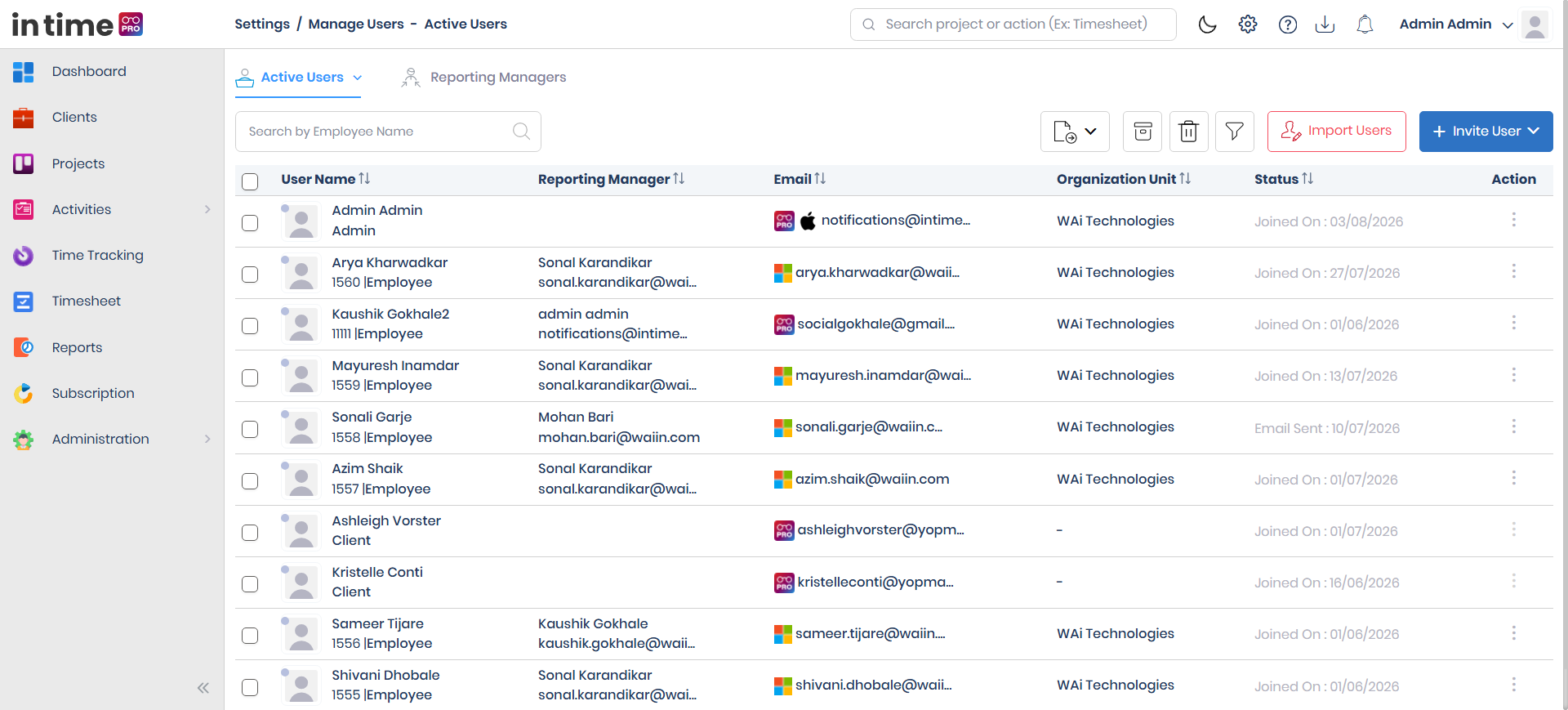
| User Name | Photo, name, employee ID (if set), primary role, and a colored status dot showing live presence (Busy, Idle, Meeting, Online, Offline, Private Time) when the Desktop Application is running |
| Reporting Manager | The person's assigned manager |
| Sign-in method icon(s) — Microsoft, Google, In Time PRO, Apple — plus the email address | |
| Organization Unit | The department/unit they belong to |
| Status | For Active users: either "Email Sent" with the invite date (not yet confirmed) or "Joined On" with the date they joined. For Archived users: "Archived On". For Deleted users: "Deleted On". This column also shows which device(s) the person has used to track time (Windows, web, Mac, Android, iOS). |
| Action | A menu of row actions — see below |
Toolbar actions
If you have edit access, the toolbar above the list lets you:
- Export the list
- Archive, delete, or restore selected users in bulk
- Apply column filters
- Import Users
- Invite User
Screenshot: Manage Users — User List
The Manage Users list, with the Active/Archived/Deleted dropdown, table columns, and the Export, Import Users, and Invite User actions.
Inviting a User
- Click Invite User.
- Choose a role from the role cards. Each card shows a short description of what that role can do:
| Role | Description shown when inviting |
|---|---|
| Super Admin | Gets full In Time PRO and Proxy Login access. |
| Admin | Gets full access to the account, including clients, invoices, and reports. |
| Manager | Gets full access to the account but cannot see financial reports. |
| Program Manager | Gets access to view and create projects, timesheets, tasks, time tracking, reports, and people. |
| Employee | Can track time for assigned projects and can only see their own information. |
| Contractor | Can track time for assigned projects and can send invoices. |
| Accountant | Can access invoices and reports and can create journal entries. |
| Client | Gets access to view and approve their own projects and their team's timesheets, tasks, invoices, and payments for assigned projects. |
This is the description shown on the invite screen itself. For Client specifically, treat it as the long-term intent for the role rather than a guarantee of what's usable today — see Client Portal for which of these areas are actually implemented.
- Choosing a role opens the invite form.
Login methods
Choose at least one way the person will sign in: Microsoft, Google, In Time PRO (password-based), and/or Apple. At least one login method is required.
Personal Information fields
| Field | Required | Notes |
|---|---|---|
| Photo | No | — |
| First Name | Yes, max 25 characters | Letters and spaces only |
| Last Name | Yes, max 25 characters | — |
| Yes | Must be unique and a valid email address | |
| Employee Id | Yes | Must be unique |
| Joining Date | Yes | — |
| Organization Unit | Yes | — |
| Designation | Yes | — |
| Role | Yes | You can select more than one role; Client is not offered here as an additional role alongside others |
| Reporting Manager | Yes, unless the person is being made an Admin | — |
| Address Line, Country, State, City, ZIP Code | Yes | — |
| Mobile Number | Yes | Validated against the selected country's phone format |
| Reporting Location | Yes | The work location this person reports to (from Company Profile → Locations) |
| Leaves / Month | Yes | Numeric; disabled if the person is marked On Probation |
| Date of Birth | No | — |
| Cost | Yes | Numeric, must be greater than 0 |
| On Probation | No | A checkbox; disables Leaves/Month while checked |
Save sends an activation email to the new user automatically. You'll see the confirmation "User Invited Successfully".
Updating a User
Open a user's profile from the Action menu → Edit, update the same personal-information fields, and save. Email and Employee Id must still stay unique across your organization.
Resending an Invitation
If someone hasn't confirmed their account yet, use Resend from the Action menu to send the activation email again. You'll see the confirmation "Invitation email sent successfully".
Archiving, Deleting, and Restoring Users
- Archive (Active users, single or bulk) — moves a user out of the active list without permanently removing them.
- Delete (Active users) — not offered for your own account, and not offered for Client-role users from this menu.
- Restore (from Archived or Deleted) — brings a user back to Active.
- Delete (from Archived) — permanently removes the record, where available.
Deleting or archiving prompts a confirmation before completing. You cannot delete your own account — attempting to do so shows "You cannot delete your own account".
Importing Users
- Import Users opens a panel where you upload a spreadsheet of new users.
- Rows that can't be processed appear afterward as a downloadable "Invalid Users List" from your Notifications, so you can fix and re-import them.
User Profile Tabs
When you open an individual user's profile — from Edit, or from the Invite flow right after creating them — you'll see the following tabs.
Personal Information
The same fields as the invite form, kept up to date.
Account Information
- Employee Name and Email Address are shown for reference and are read-only here.
- Timezone is the one field on this tab that's actually saved when you click Save. Choose the user's timezone.
- Language is shown but is not currently saved when you save this tab.
- Other controls shown here — Communication preferences, Login Verification setup, a password-reset-verification checkbox, and a "Deactivate this account" button — are visual only in the current version and don't currently perform an action. Don't rely on them.
- Save shows "Changes updated successfully" and returns you to Manage Users.
Change Password
Only shown if the user signs in with a password (not for users who only use Microsoft, Google, or Apple sign-in). Lets you set a new password for them, following the same complexity rules as My Profile: minimum 6 characters, including a number, an uppercase letter, a lowercase letter, and a special character.
Leaves
- Summary cards: Available Balance, Currently Booked, Estimated Balance.
- Search leave requests, and view a month-by-month (Jan–Dec) table of leave activity for the year.
- Clicking a row shows that leave request's details.
Apps and Productivity
- Three tabs: Productive, Unproductive, Neutral — the same idea as the company-wide App Productivity page, but scoped to just this one user.
- Search by application name, select one or more applications, and use Move To to reclassify them for this person.
Settings
Per-user tracking options — the same kinds of settings as company-wide Capture Settings (screenshots, tracking days, and tracking toggles), but overriding the company default just for this individual. Use this when one person needs different tracking rules than the rest of the company.
Step-by-step workflow
- Open Settings → Manage Users.
- Confirm the Active Users list loads.
- Click Invite User.
- Choose a role.
- Fill in the Personal Information fields and choose at least one login method.
- Click Save.
- Optionally, open the new user's profile to fine-tune their leaves, apps and productivity, and settings.
- Confirm the person appears under Active Users.
Expected result
The user is created or updated. The invite path sends an activation email. The person appears in the correct list (Active, Archived, or Deleted) and can sign in according to the chosen login method once activated.
Common validations
| Situation | What you see |
|---|---|
| Missing first or last name | First name / last name is required |
| Missing or invalid email | Email is required / invalid email address |
| Duplicate email | Email already exists |
| Missing Employee Id | Employee Id is required |
| Duplicate Employee Id | Employee Id already exists |
| Missing joining date | Joining date is required |
| Missing designation or organization unit | Designation / organization unit is mandatory |
| No login method selected | Please select one login method |
| Passwords don't match | Passwords don't match |
| Attempting to delete your own account | You cannot delete your own account |
| Unsaved changes when leaving a form | A confirmation prompt asks if you want to discard changes |