Authentication
Authentication is how In Time PRO checks who you are before letting you into the application. This page explains how to sign in, what to do if you forget your password, when you might be asked for extra verification, and how signing out works.
Overview
To use In Time PRO, you sign in with the account your organization has set up for you. Your organization is recognized from the web address you open, so always use the address and account details your administrator has given you.
After you sign in successfully, In Time PRO takes you to the area available for your account — this depends on your role, so it may look different from what a colleague sees.
How to Sign In
- Open the In Time PRO web address for your organization.
- Enter your email address or username.
- Enter your password.
- Optionally, select Remember Me to stay signed in longer.
- Select Sign In.
If your organization has enabled it, you can also sign in with Microsoft instead of a password — see Sign In with Microsoft below.
If you're not sure what account or web address to use, contact your administrator.
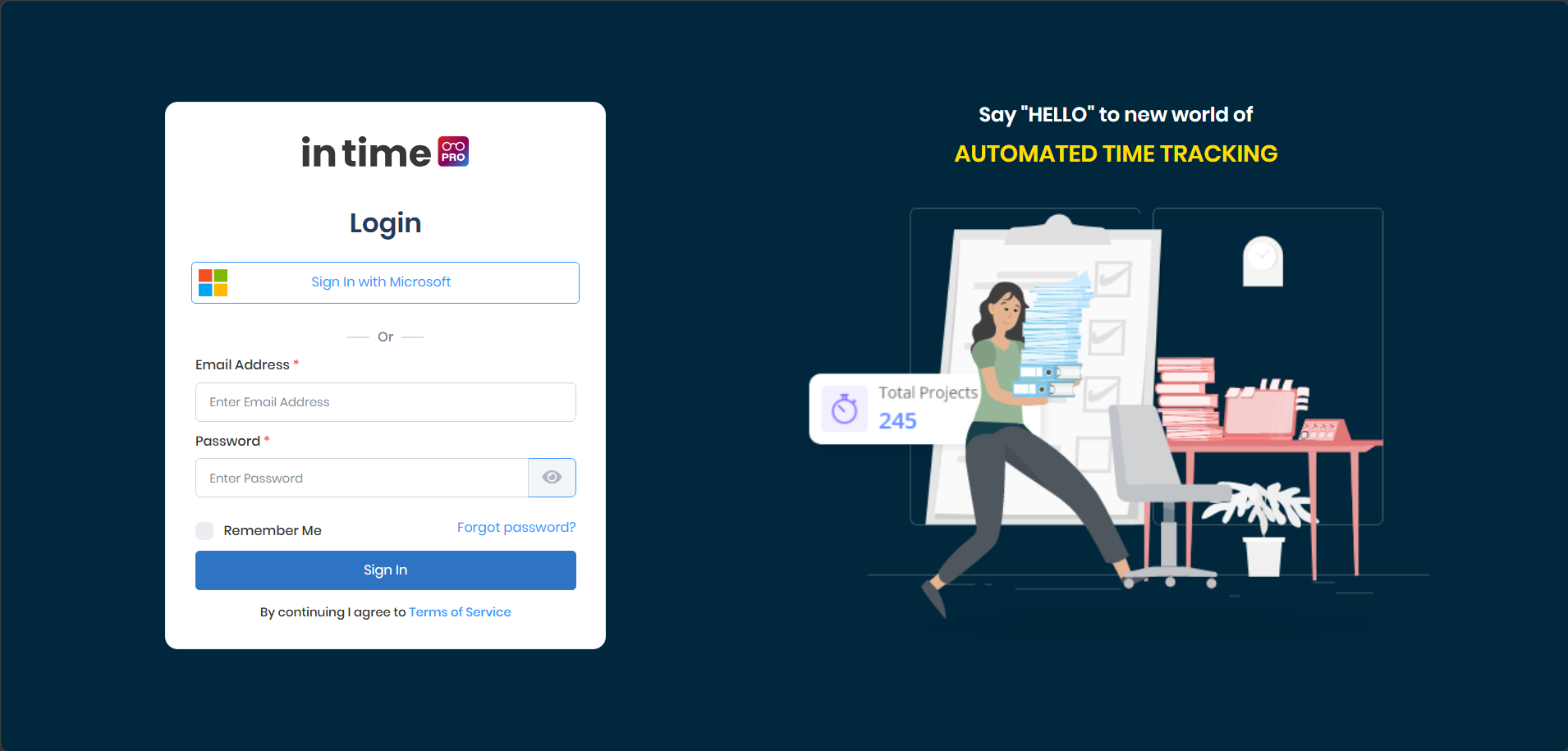
The In Time PRO login screen.
Sign In with Microsoft
If your organization has this enabled, you can sign in using your Microsoft work account instead of an email and password.
- On the login screen, select Sign In with Microsoft.
- A Microsoft window opens — choose your account and complete Microsoft's own sign-in steps.
- Once Microsoft confirms your identity, you're signed in to In Time PRO.
If Microsoft sign-in isn't available for your organization, or something goes wrong during the process, use the regular email and password option instead, or contact your administrator.
What Happens After Sign In
Once you've signed in successfully, In Time PRO takes you to the area set up for your account. What you see depends on your role and how your organization is set up — for example, an administrator may land on a different area than a regular employee. This page doesn't cover what's inside each area; that's explained in the Dashboard and other documentation.
If your account requires an extra step — such as changing your password or completing verification — you'll be guided through that first before you reach your usual area. See Forgot Password, Password Reset, and Two-Factor Verification below.
Forgot Password
If you can't remember your password, you can request a password reset:
- On the login screen, select Forgot password.
- The Forgot Password page opens, asking for your email address.
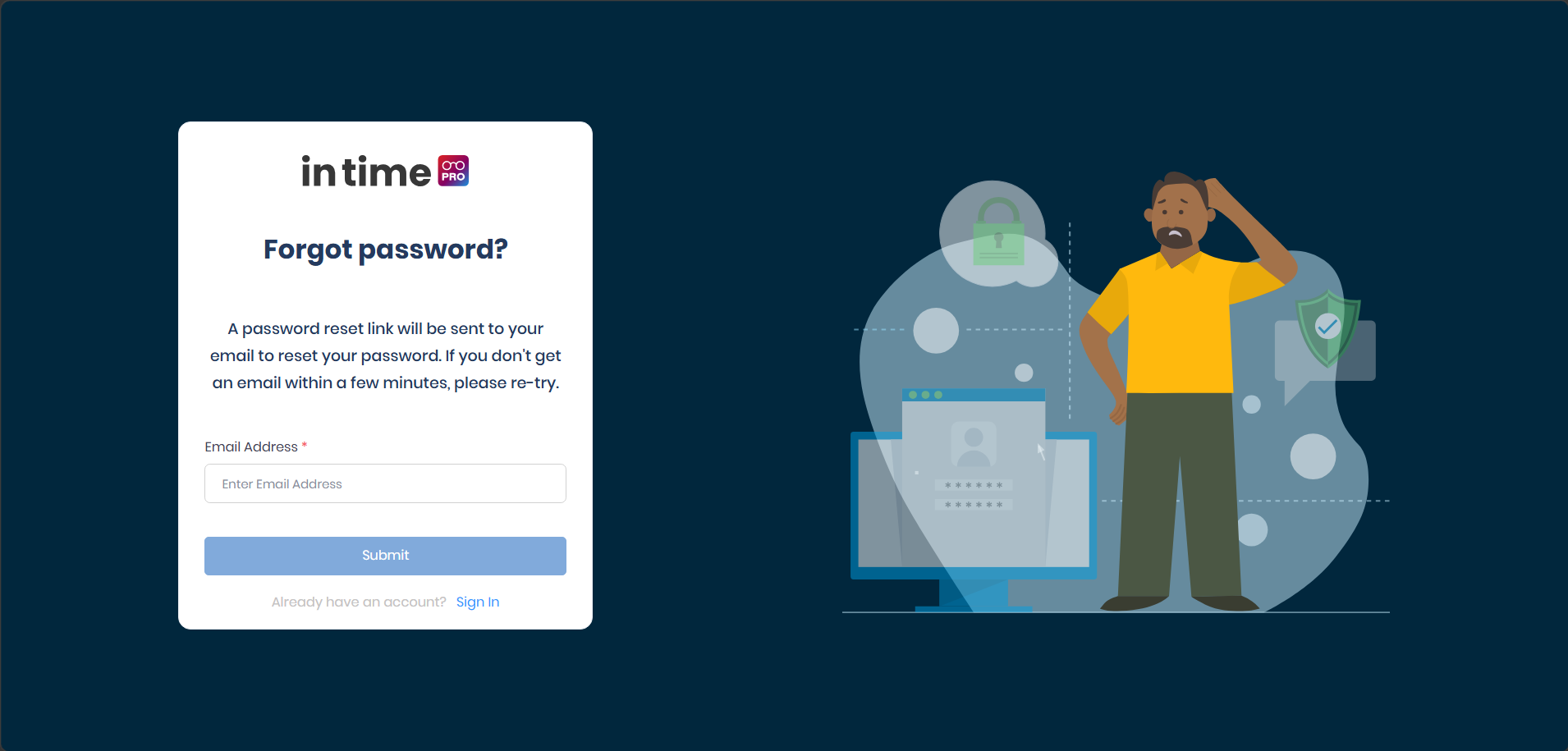
The Forgot Password page where you can request a password reset.
- Enter your email address and submit the request.
- Check your inbox for an email containing a password reset link.
Forgot Password is available for accounts that use an In Time PRO password. If your account uses Microsoft sign-in, use your organization's Microsoft account recovery process instead.
Password Reset
Password Reset is where you actually create your new password. You'll reach this page in one of two ways:
- By opening the password reset link from the email described above, or
- Automatically, if In Time PRO requires you to set a new password before you can continue signing in (for example, if your administrator requires it).
To complete the reset:
- Enter a new password that meets the requirements shown on the screen.
- Confirm your new password.
- Submit to save your new password.
After your password is successfully changed, you'll typically be signed in automatically. Otherwise, return to the login screen and sign in using your new password.
Two-Factor Verification
Some organizations require an extra verification step in addition to your password, for added security. If this applies to your account:
- After entering your password, you'll be asked to send a verification code.
- Choose how you'd like to receive it (for example, by email) and request the code.
- Enter the code you received before the on-screen timer runs out.
If the timer runs out before you enter the code, you'll need to start the sign-in process again.
If two-factor verification isn't set up for your account or organization, you won't see this step.
Email Confirmation
Your email address needs to be confirmed before you can sign in with a password. If you try to sign in before confirming your email, you'll see a message asking you to verify it first.
Check your inbox for a confirmation email from In Time PRO. If you can't find it or it has expired, contact your administrator for help.
Client Sign In
Client users sign in differently from regular employees. Instead of the standard login screen, clients typically use a link provided by the organization, which leads to a one-time verification step:
- Open the client sign-in link you were given.
- Enter the verification code sent to your email.
- Complete verification before the on-screen timer runs out — if it expires, select the option to resend a new code.
Once verified, you're signed in. If your link is tied to a specific project, you may be taken directly to that project's information.
This sign-in method is only for client users — regular employees and administrators use the standard email/password or Microsoft sign-in described above. Once signed in, a Client lands in the Client Portal, a separate workspace from the regular staff application — see Client Portal for what a Client can see and do there.
Desktop Application Sign In
In Time PRO also offers a separate Desktop Application (shown in the product as the Agent App, or as "In Time PRO for Windows" / "In Time PRO for Mac" on the download screen) for organizations that track work activity automatically. Signing in to the Desktop Application is separate from signing in to the web application.
- Signing in to the In Time PRO web application does not automatically sign you into the Desktop Application.
- If you need the Desktop Application, you install it separately and sign in to it on its own, using your In Time PRO account.
Full details on installing and using the Desktop Application are covered in the Getting Started documentation.
Session and Sign Out
When you're done using In Time PRO, select Sign Out from your user menu. This ends your web sign-in session — you'll need to sign in again to return to the application.
If you leave In Time PRO open without using it for a while, your session may time out for security. You'll see a message that your session has expired, with an option to sign in again.
Signing out of the web application does not affect the Desktop Application. If you also use the Desktop Application, it's signed in and out separately.
Common Sign-In Messages
| Situation | What it means | What to do |
|---|---|---|
| Email or password is missing | A required field wasn't filled in | Enter both your email/username and password |
| Invalid login details | Your email/username or password wasn't accepted | Double-check what you entered and try again |
| Account not confirmed | Your email address hasn't been confirmed yet | Check your email for a confirmation link, or contact your administrator |
| Account disabled | Your account has been temporarily disabled | Contact your administrator |
| Wrong sign-in method | Your account is set up to sign in a different way (for example, with Microsoft instead of a password) | Use the sign-in method set up for your account |
| Password reset required | You need to set a new password before continuing | Follow the on-screen instructions to set a new password |
| Additional verification required | Two-factor verification is enabled for your account | Enter the verification code sent to you |
| Verification code expired | You didn't enter the code in time | Restart the sign-in process to receive a new code |
If you run into a message not listed here, or you're still unable to sign in, contact your administrator or see Help.