Organization Unit
Use Organization Unit to build out your company's structure and assign people to it. This is separate from project team assignment — it gives your organization a clear structure for reporting and grouping, independent of which projects people are working on.
Overview
Organization Unit maintains two parallel trees:
| Tree | What it represents |
|---|---|
| Organization Units | Your departments/teams (for example, Engineering, Finance, Human Resources) |
| Designation | Your job titles/levels (for example, Manager, Senior Developer, Associate) |
Units and designations can be nested — a unit can have parent and child units, shown as a tree — and people can be assigned as members of any node in either tree.
How to access
Settings → Organization Unit
The page has two tabs: Organization Units and Designation. If the menu or actions are missing, ask your administrator to review your access.
Layout
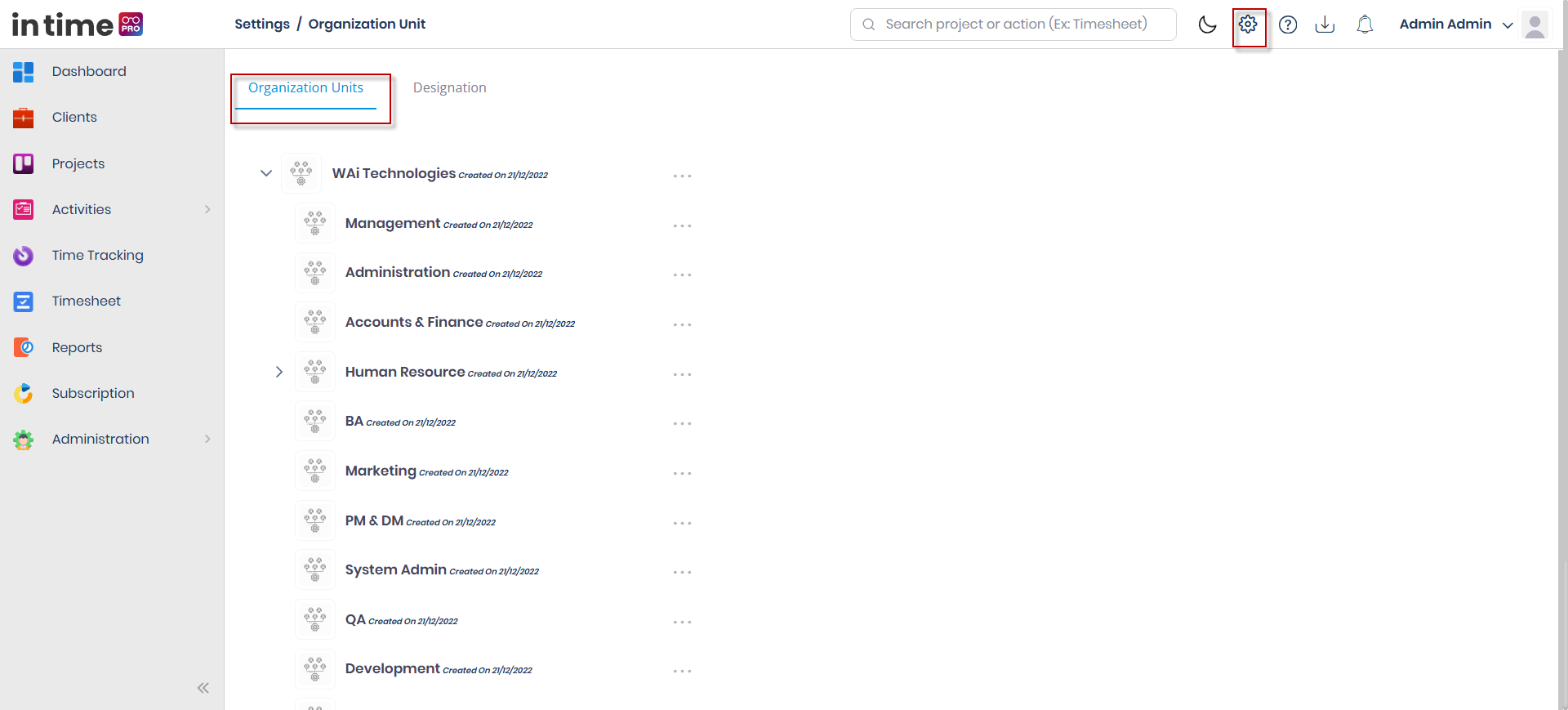
- A tree of units or designations on the left. Click a node to select it.
- The members of the selected node on the right.
- A search box above the tree that filters it to matching names.
- If you have management access, you can drag and drop nodes in the tree to reorganize the structure.
If no tree exists yet, an Add Root Unit button (shown only with edit access) lets you create the very first, top-level unit or designation.
Screenshot: Organization Units
The Organization Units tab, with the units tree on the left and the selected unit's members on the right.
What you can do
- Browse and search the Organization Units tree and the Designation tree
- Add, edit, and delete units and designations
- Reorganize the tree by dragging and dropping nodes (with management access)
- View and add members for a selected unit or designation
Adding or editing a unit or designation
From the tree's options menu, choose Add New Unit Organization (on the Organization Units tab) or Add New Designation (on the Designation tab). The same form is used to Edit an existing node, opened from that node's options menu.
| Field | Required | Notes |
|---|---|---|
| Photo | No | PNG, JPG, or JPEG; a default icon is used if none is set |
| Name | Yes, max 120 characters | Must be unique within its tree; can't be blank or spaces only |
| Description | No, max 255 characters | Free text |
Deleting a unit or designation
Choose Delete from a node's options menu. On success you see Successfully deleted.
The top-level (root) unit of a tree cannot be deleted — the Delete option is not offered for it.
Members panel
The right-hand side of the page shows the members of the currently selected unit or designation:
- The node's photo, name, creation date, and description.
- A New Users button (shown only with edit access) that opens a panel where you search by name and check the users you want to add. Users already assigned to the node, and users with the Client role, are excluded from the list. Adding members shows Successfully Added.
- Each member's card shows their photo, name, role(s), and email.
- If the selected unit or designation has no members yet, you see a No data found message.
Removing someone from a unit is not currently available as a direct, per-row action on this members list. If you need to remove someone from a unit, reassign them through Manage Users, or check with your administrator.
There is no option to assign roles directly to an organization unit or designation itself — roles are assigned to individual users. See Manage Users to manage a person's role.
Designation tab
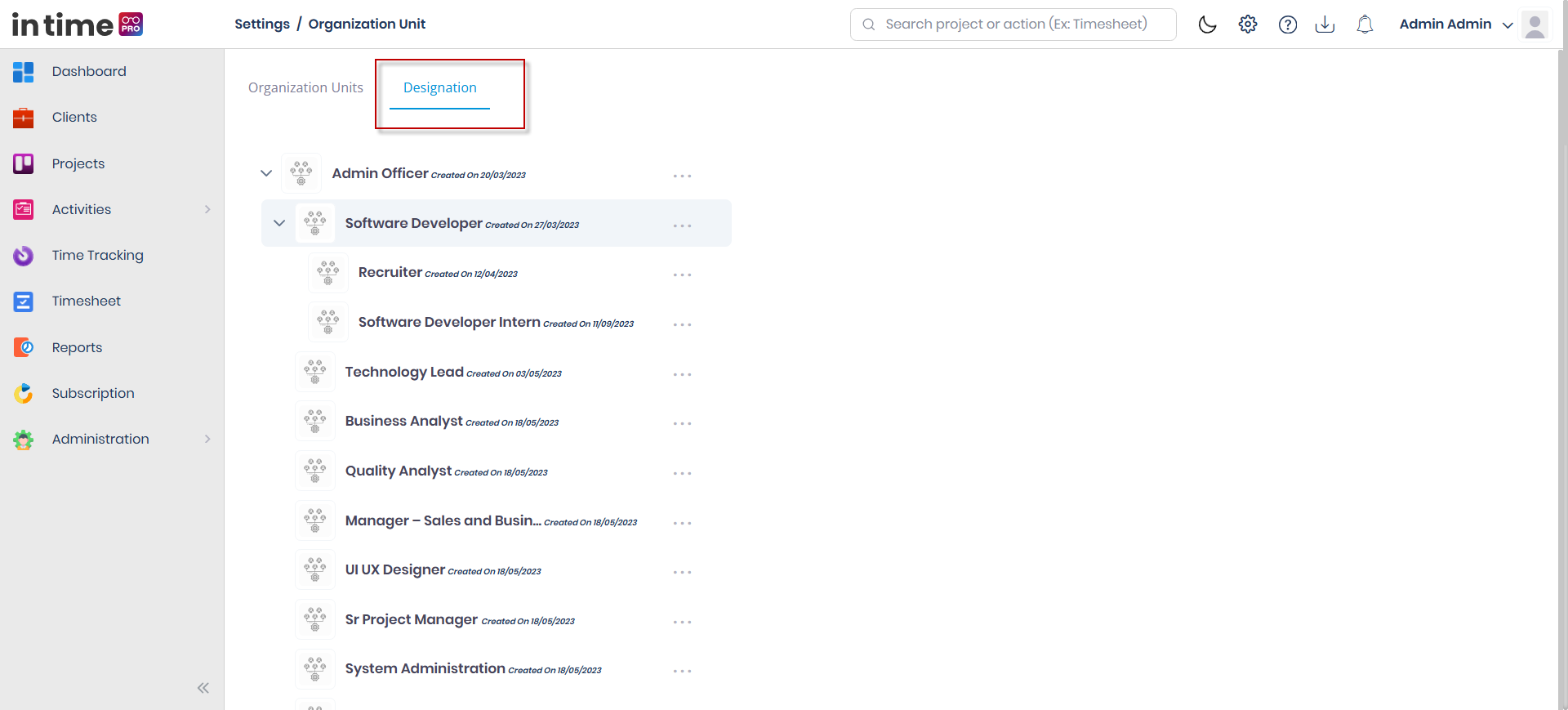
The Designation tab works the same way as Organization Units: it has its own tree, its own Add New Designation / Edit / Delete actions, the same field rules, and its own members panel with the same New Users behavior.
Screenshot: Designation Management
The Designation tab, with the designation tree on the left and the selected designation's members panel on the right.
Step-by-step workflow
- Open Settings → Organization Unit.
- On the Organization Units tab, if no tree exists yet, choose Add Root Unit to create the first, top-level unit.
- To add more structure, open a node's options menu and choose Add New Unit Organization, then fill in Name and, optionally, Description and Photo. Save.
- Select a unit in the tree, choose New Users, search for people by name, check the ones to add, and confirm.
- Switch to the Designation tab and repeat the same steps to build out your job-title structure, if needed.
Expected result
The unit or designation you created appears in its tree. Selecting it shows its details and member list on the right. Members you add appear as cards in the members panel, and the confirmation message Successfully Added appears.
Common validations
| Situation | What you see |
|---|---|
| Name left blank | "Organization unit name is mandatory" (or "Designation name is mandatory" on the Designation tab) |
| Duplicate name | "Organization Name Already Exist" (or the equivalent message on the Designation tab) |
| Trying to delete the root/top unit | The Delete option is not available for the root unit |