Time Tracking
Time Tracking is where you record time against the tasks assigned to you, create and manage tasks for your team, and review your work on a calendar. Time you track here is later available when you fill in your Timesheet.
This guide explains, in plain terms, how to open Time Tracking, what each tab shows, and what happens when you start a timer, log time by hand, create or edit a task, import tasks, or work with a task synced in from Azure DevOps.
Real Time Tracking and Apps and Websites are separate items under Activities — they are not part of this Time Tracking screen. See Related pages at the end.
1. Overview
Purpose of Time Tracking
Time Tracking is used to:
- See the tasks assigned to you and start or stop a timer on them
- Set your working status (for example Busy or Online)
- Add time by hand when the timer was not running
- Create and manage tasks for people on your projects, if your account is allowed to
- Import many tasks at once from a spreadsheet
- Review tracked work — and, if connected, Outlook meetings — on a calendar
Tracked time is calculated per task. That time is what becomes available later when you fill in a Timesheet.
How Time Tracking is organized
When you open Time Tracking you see these tabs:
| Tab | What it is for |
|---|---|
| My Tasks | Your assigned tasks, the main timer, and your status for today. |
| My Calendar | A calendar of your tracked work and, if connected, Outlook meetings. |
| Team Tasks | A shared list of tasks across the team. You can search, filter, comment, export, and — if allowed — create, import, or edit tasks. |
| New Task | Appears only after you select New Task on Team Tasks. Used to create one task. |
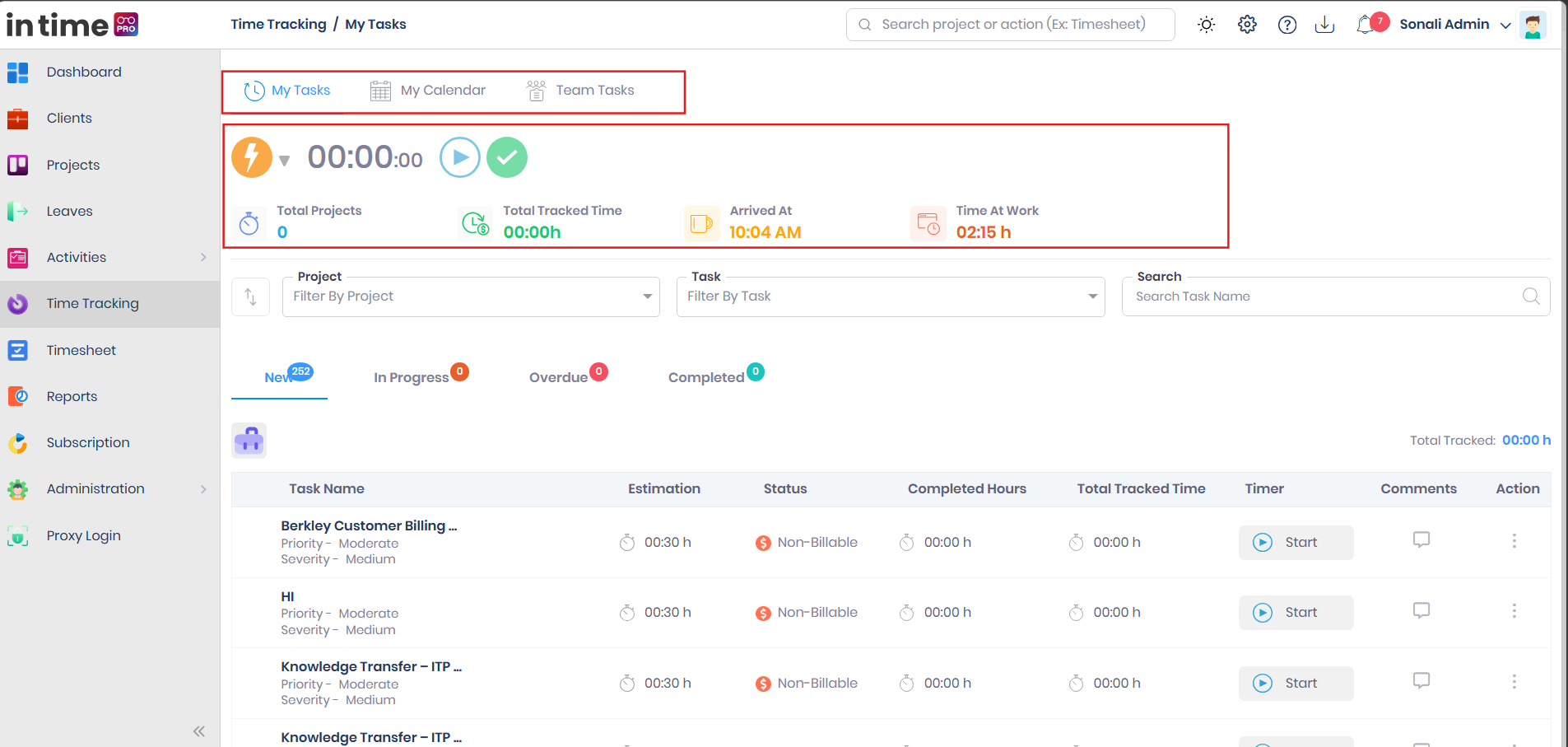
This screenshot shows the three main tabs at the top of Time Tracking, with My Tasks selected.
What you can see depends on your role and company settings
- Time Tracking appears in the menu only if your company has Time Tracking turned on and your account has access to it.
- New Task, Import New Tasks, and the Action menu on Team Tasks appear only if your account is allowed to create tasks. Project Managers and Program Managers usually have this; Employees usually do not, unless an administrator has granted it.
- Export on Team Tasks can be hidden for your account by an administrator.
- Private Time can be hidden for your account if it has been turned off in your company's tracking settings.
If Time Tracking is missing from your menu entirely, ask your administrator to review your access.
2. Accessing Time Tracking
- Sign in to In Time PRO.
- In the main menu, select Time Tracking.
You land on My Tasks. The page title shows Time Tracking and the name of the tab you're on.
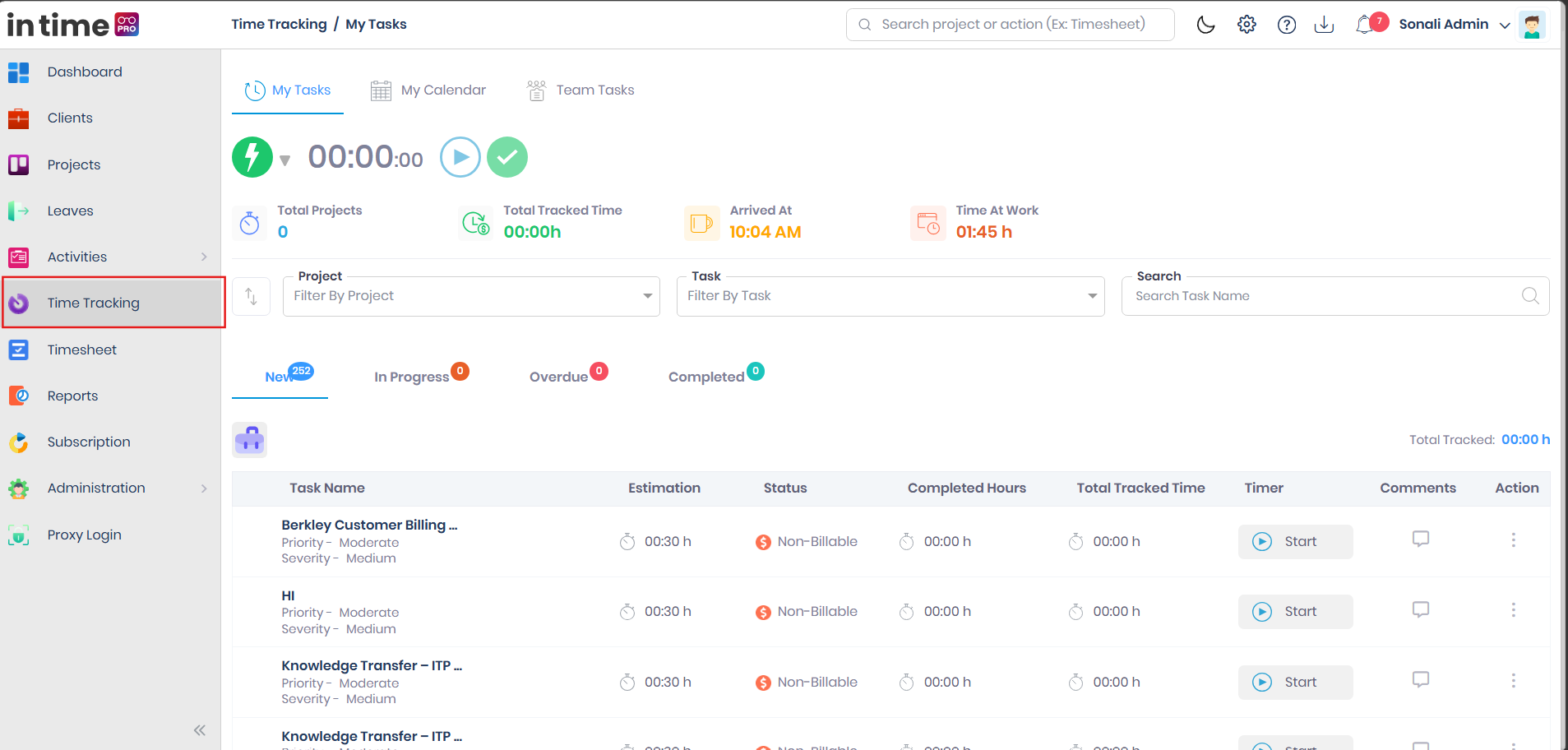
This screenshot shows Time Tracking highlighted in the left menu, with the My Tasks page opening.
Other ways in:
- Selecting a notification about a task opens Time Tracking and takes you to the status tab that contains that task.
- Opening Time Tracking from the Desktop Application's special path opens New Task automatically (only if your account can create tasks).
3. Time Tracking Main Page
The first screen you land on is My Tasks. From here you can:
- Change your status and use the large timer at the top
- See today's summary figures
- Filter and search your tasks
- Switch between New, In Progress, Overdue, and Completed
- Start or stop a timer, mark a task complete, add a comment, log time by hand, or view details
My Calendar and Team Tasks are described in their own sections below.
4. My Tasks
My Tasks is the list of tasks assigned to you. This is where you start and stop the timer.
The task list itself always reflects your current assignments — it is not filtered by date. The four summary figures above the list are specifically about today. A task can appear in the list even if you have not touched it today, but the figures only ever describe today's activity.
Task tabs
| Tab | What it contains |
|---|---|
| New | Tasks assigned to you that have not been started yet. Use Start to begin. Starting moves the task to In Progress (or straight to Overdue if it is already past its estimate). |
| In Progress | Tasks you have started. You see completed hours and remaining time against the estimate. You can start/stop, complete, log manual time, and view details. |
| Overdue | Tasks whose tracked time has passed the original estimate. You see Overdue by. An overdue task is not locked — you can still start/stop, complete, and log manual time on it. |
| Completed | Tasks you have marked complete. You can view details and comments, and select the filled tick to mark the task incomplete again. You cannot log manual time or start the timer on a completed task. |
Each tab heading shows a count badge.
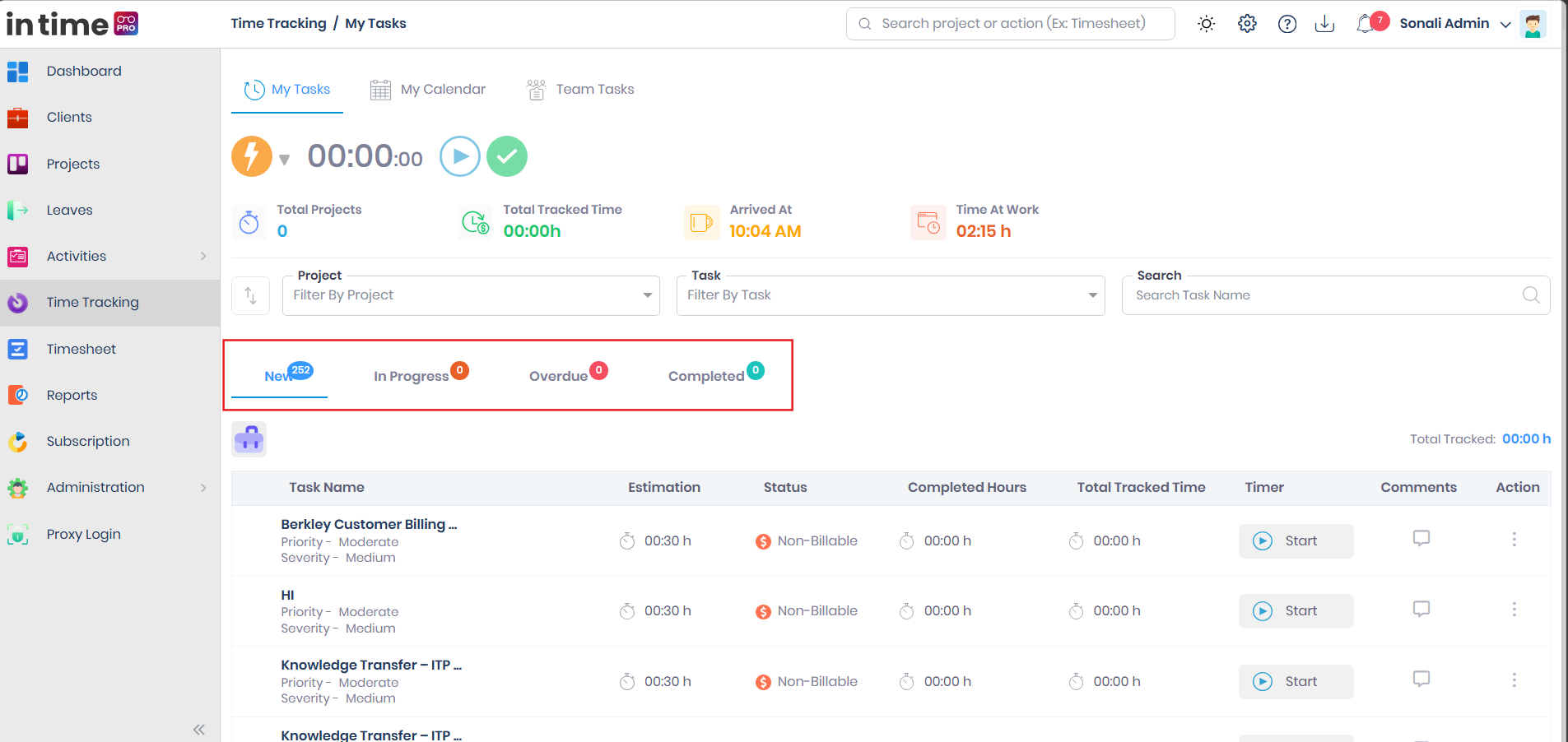
This screenshot shows the four status tabs with their count badges.
Empty list
If a tab has no tasks (or your filters exclude everything), you see an empty illustration and No Data Found.
Task row
Tasks are grouped by project. Each project shows its name, a short description if one exists, and Total Tracked for the tasks in the current tab.
Each row shows:
| Column | What it means |
|---|---|
| Complete circle | Marks the task complete. Hidden on New. On Completed, a filled tick lets you mark the task incomplete again. |
| Task Name | The task title, plus Priority (High, Moderate, Low) and Severity (Critical, High, Medium, Low). |
| Estimation | The original estimate for the task. |
| Billability Status | Billable, Non-Billable, or Not Available. |
| Completed Hours | Time already completed. On In Progress you also see Remaining. On Overdue you see Overdue by. |
| Total tracked times | Time recorded on this task, including both timer and manual entries. |
| Timer | Start, or a red Stop control showing the live elapsed time. |
| Comments | Opens the comment panel. |
| Action (three dots) | Log Manual Entry and View Details — or Link Project if the task has no project. |
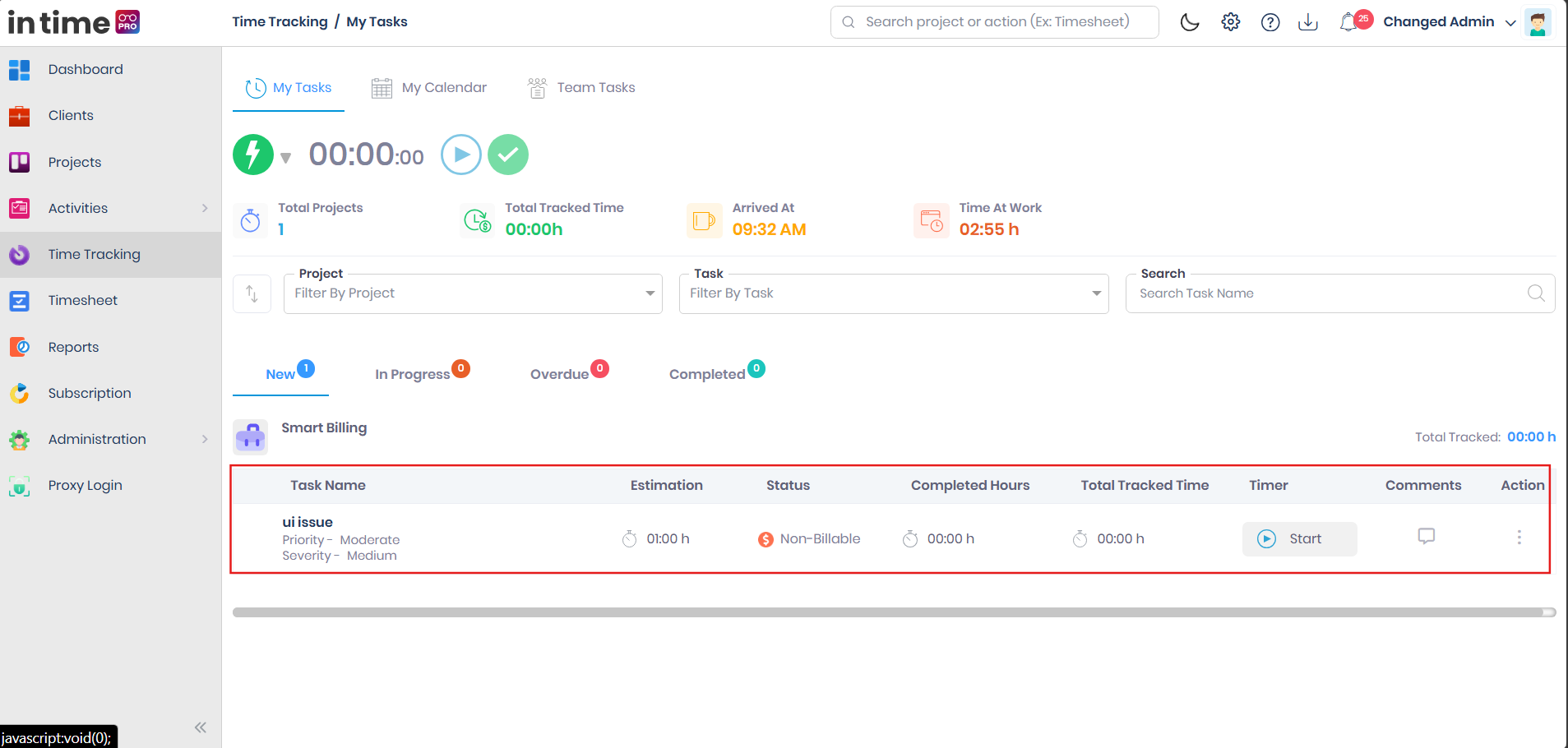
This screenshot shows one project group and a task row with Task Name, Estimation, billability, Completed Hours, Total tracked times, Start, comments, and the Action menu.
5. Status and Timer
Summary figures
Across the top of My Tasks you see four figures for today:
| Figure | What it means |
|---|---|
| Total Projects | How many projects you are currently aligned to. |
| Total Tracked Time | The total time you have already tracked today, shown as hours and minutes (for example 02:15 h). If nothing is tracked yet, you see 00:00h. |
| Arrived At | The time your first status update of the day was recorded — this can come from the Desktop Application starting your day, or from the first time you start a task timer or change your status in the web app, whichever happens first. An early approved manual time entry can set an even earlier Arrived At. If none of these has happened yet, you see a dash. |
| Time At Work | Usually the elapsed time from your Arrived At until now. If there is no Arrived At yet but you have approved manual time entries for today, Time At Work instead shows their total duration. If neither exists, you see 00h 00m. |
Total Tracked Time and Time At Work are not the same thing. Total Tracked Time is how much task time you have logged today (timer plus manual entries). Time At Work is based on when you arrived and is not limited to time spent on tasks. Do not treat the two as interchangeable.
These figures refresh after you start or stop a timer, or change your status.
Status dropdown
Select the coloured status circle to change how you appear:
| Status | What it means |
|---|---|
| Busy | You are actively working. Starting a task timer sets this for you automatically. |
| Idle | You are not actively working on a task. Choosing this stops any running task timer. |
| Online | You are available. Stopping a task timer sets this for you automatically. Choosing Online yourself also stops a running task timer. |
| Offline | You are signed off for work. Choosing this stops a running task timer. |
| Private Time | You are taking personal time. Choosing this stops a running task timer and starts a separate clock for private time. Hidden if private time is turned off for your account. |
Meeting is not offered on this dropdown. There is no confirmation message when you change status — the circle colour updates immediately.
The large timer
- When a task timer is running, the large clock shows that task's elapsed time, with the project and task name next to it.
- When Private Time (or another status with its own clock) is active, the large clock shows how long you've been in that status.
- When nothing is running, the clock shows
00:00and the project/task names may show dashes.
Start, Stop, and Complete from the header
| Button | When you see it | What happens |
|---|---|---|
| Start (green play) | No task timer is running, and a task is selected as the current task | Starts the timer on that task. Same rules as Start on the task row. Disabled if there is no current task. |
| Pause-style button | A task timer is running, or a private-time clock is running | If a task is running, this stops the task timer (it does not pause and resume). If only Private Time is running, this sets your status back to Online. |
| Complete (tick) | Always visible | Marks the current task as completed and moves it to the Completed tab. Disabled if there is no current task, or it is already completed. |
There is no Pause / Resume for a task. The header button that looks like pause stops the timer. To continue later, select Start again on the same task — this creates a new, separate time segment in the task's history.
Starting a timer
- Open Time Tracking → My Tasks.
- Open the tab that contains the task (New, In Progress, or Overdue).
- Find the task and select Start.
What happens:
- The row Start button becomes a red control showing elapsed time.
- Your status is set to Busy.
- The header timer starts matching this task.
- If the task was on New, it moves to In Progress (or Overdue if it's already past its estimate).
If another task is already running:
A confirmation appears:
| Title | Message | Buttons |
|---|---|---|
| Task In Progress | Starting a new task will stop your currently ongoing task. | Ok / Cancel |
Select Ok to stop the current task and start the new one, or Cancel to keep the current task running.
If the task has no project: Start is visible but does not start the timer — a tooltip reads Select project from action dropdown. Use Action → Link Project first. See Link Project.
Stopping a timer
From the task row: select the red control showing elapsed time. The timer stops, your status is set to Online, the row shows Start again, and the elapsed segment is saved to the task's history.
From the header: select the pause-style button while a task is running. This stops the timer the same way — it does not pause for later resume.
There is no success toast when a timer stops normally.
Pause / Resume
Pause and Resume are not available as a separate action. The header pause-style icon stops the running task (or ends Private Time and sets you to Online). To continue later, select Start on the task again — a new start–end segment is added to the task's history.
Stop vs. Complete
These two actions are easy to confuse:
- Stopping a timer only ends that time segment — the task's status does not change.
- Completing a task changes its status to Completed, whether or not a timer happens to be running (if one is, it is stopped automatically first).
6. Task Status Lifecycle
Every task moves through a small set of states.
New
  ↓ (Start)
In Progress
  ↓ (tracked time reaches or passes the Original Estimate)
Overdue
  ↓ (Complete)
Completed
- Starting a New task moves it to In Progress — unless its tracked time already reaches or passes the estimate, in which case it moves straight to Overdue.
- A task automatically becomes Overdue once its tracked time (timer time plus manual entries) reaches or passes its Original Estimate. Overdue does not mean the task is locked — it stays fully available to track and complete, just flagged as over its estimate.
- Completing a task moves it to Completed. If its timer is running, the timer is stopped first.
- Marking a Completed task incomplete moves it back to In Progress or Overdue, based on whether its tracked time is still within the original estimate. It does not return to New.
- Manual time entries can move a task between In Progress and Overdue the same way timer time does — they also never move a task back to New.
7. Filters, Search and Sort
On My Tasks:
| Control | How to use it |
|---|---|
| Sort (arrow icon) | Newest On Top or Oldest On Top. |
| Project | Filter by one or more of your projects. |
| Task | Filter by one or more tasks. |
| Search | Placeholder Search Task Name. The list updates when you leave the field, not on every keystroke. A single space is ignored. |
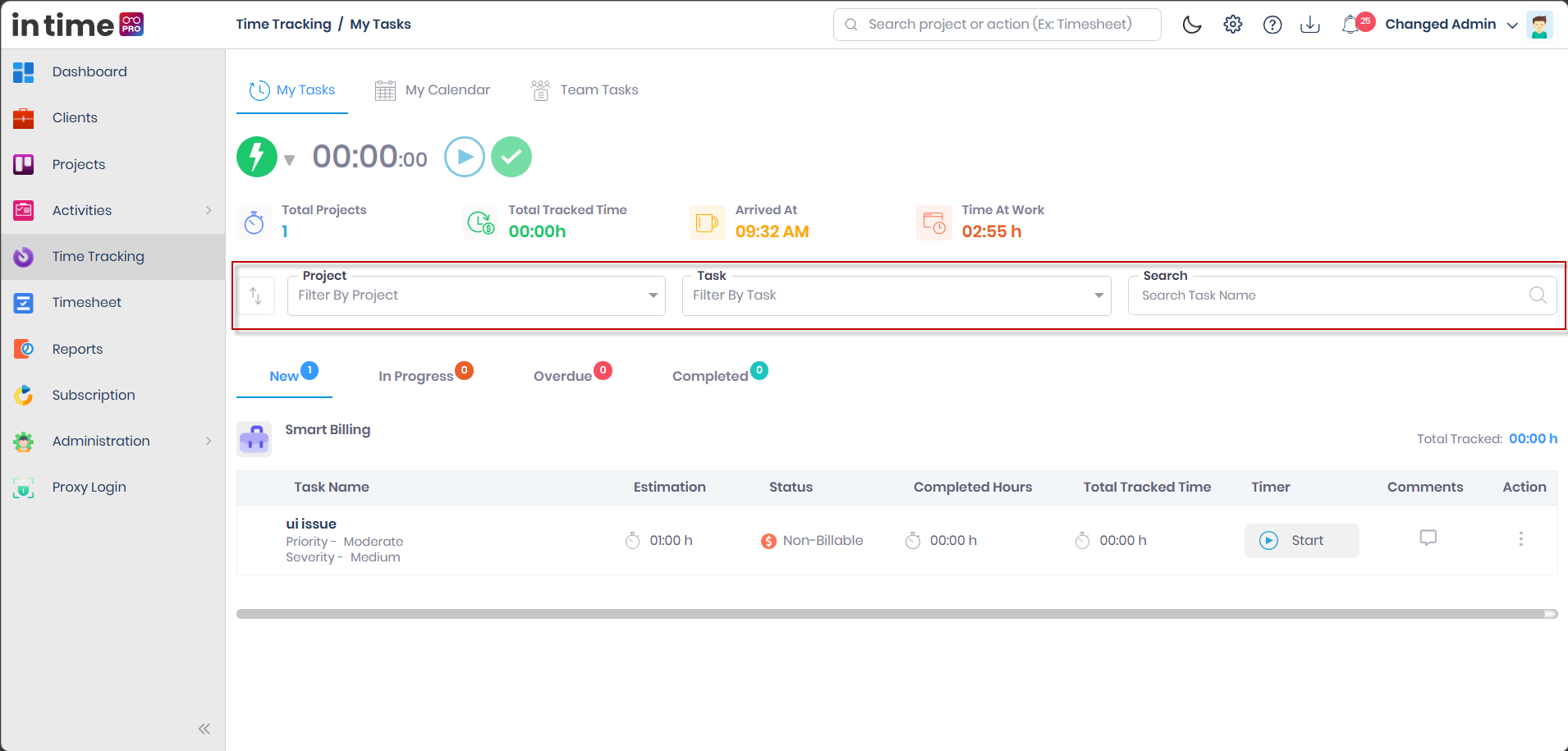
Project filter
A multi-select list of your projects.
- Placeholder: Filter By Project
- Select more than one project and leave the list open while you pick.
- The Task filter clears when you change projects.
- Your last project filter is remembered during the browser session.
Selecting projects updates both the task list and the Task filter options to match.
Task filter
A multi-select list of tasks from the projects you've filtered (or all your tasks if no project is selected).
- Placeholder: Filter By Task
- Search inside the list; Select all selects every task shown.
- A footer shows how many items are selected. Long names are shortened — hover to see the full name.
- Your last task filter is remembered during the browser session.
If nothing matches, you see no items found.
8. Task Details and History
Task History (Work Status)
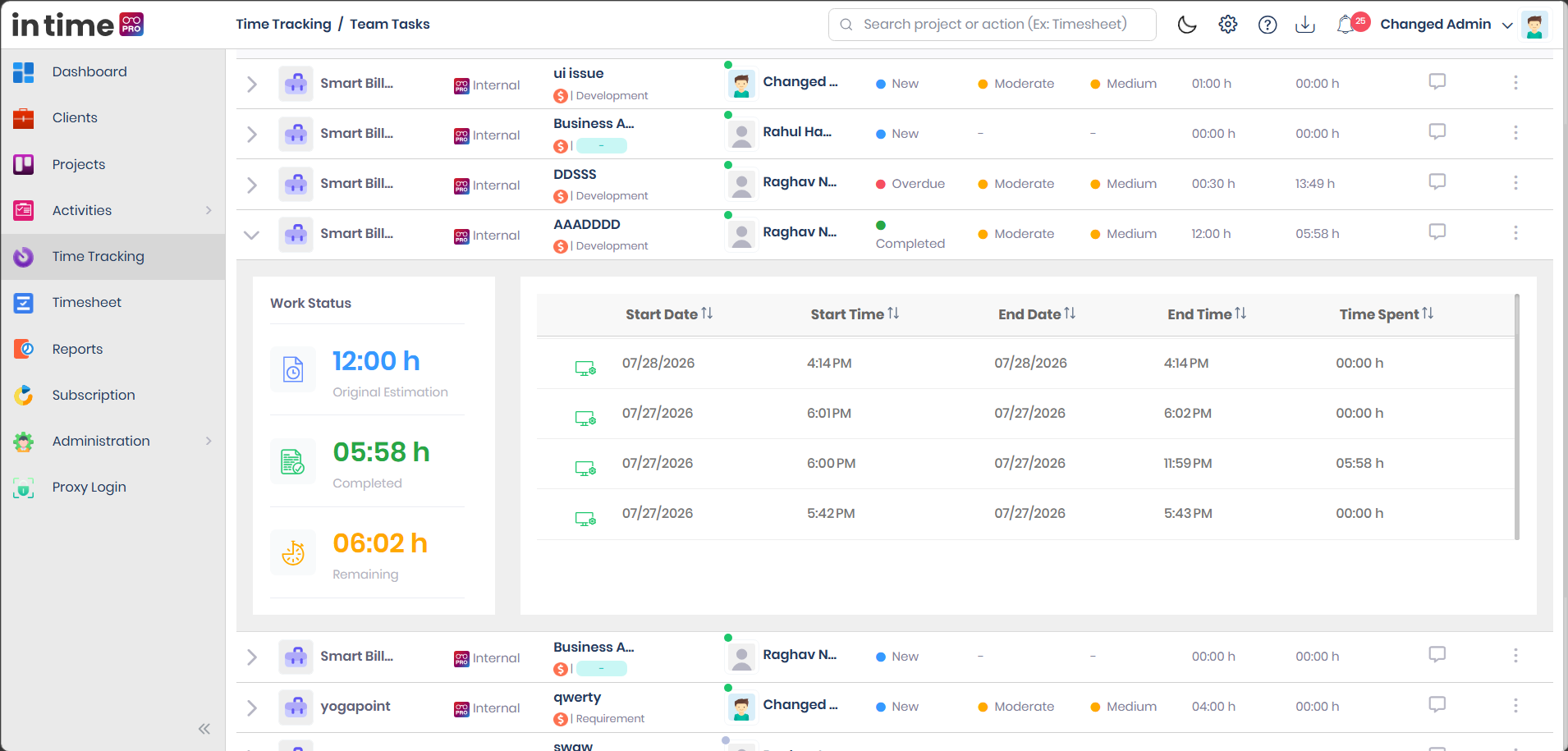
Select a task row (not the timer or Action menu) to expand Work Status underneath it.
Work Status figures:
| Figure | What it means |
|---|---|
| Original Estimation | The planned hours for the task. |
| Complete | Hours already completed. |
| Remaining | Estimate minus completed. If you're over the estimate, this shows 00:00. |
If there is no history yet, you see No time history is available for this task yet.
History table — each row is one period of work:
| Column | What it means |
|---|---|
| Person | Who recorded the time, with a small icon distinguishing a manual entry from a timer entry. |
| Start Date / Start Time | When that segment began. |
| End Date / End Time | When that segment ended. A still-running segment may not have an end yet. |
| Time Spent | Duration of that segment. |
| Edit (pencil) | Shown only for manual entries, and only when the task is not completed. Opens Log Manual Entry with that segment filled in. |
You can sort the table by any of the date/time columns or Time Spent. On Team Tasks, expanding a row shows the same Work Status for that assignee, but the edit pencil is not shown there.
Editing or deleting a manual history row:
- Expand the task on My Tasks.
- Select the pencil on a manual row.
- Change Start/End and select Save, or select Delete.
Save shows Your task has been updated. Delete shows Task log has been deleted and cannot be undone from the same screen.
Comments
Comments can be opened from My Tasks or Team Tasks — the same comment thread is shared between both views of a task.
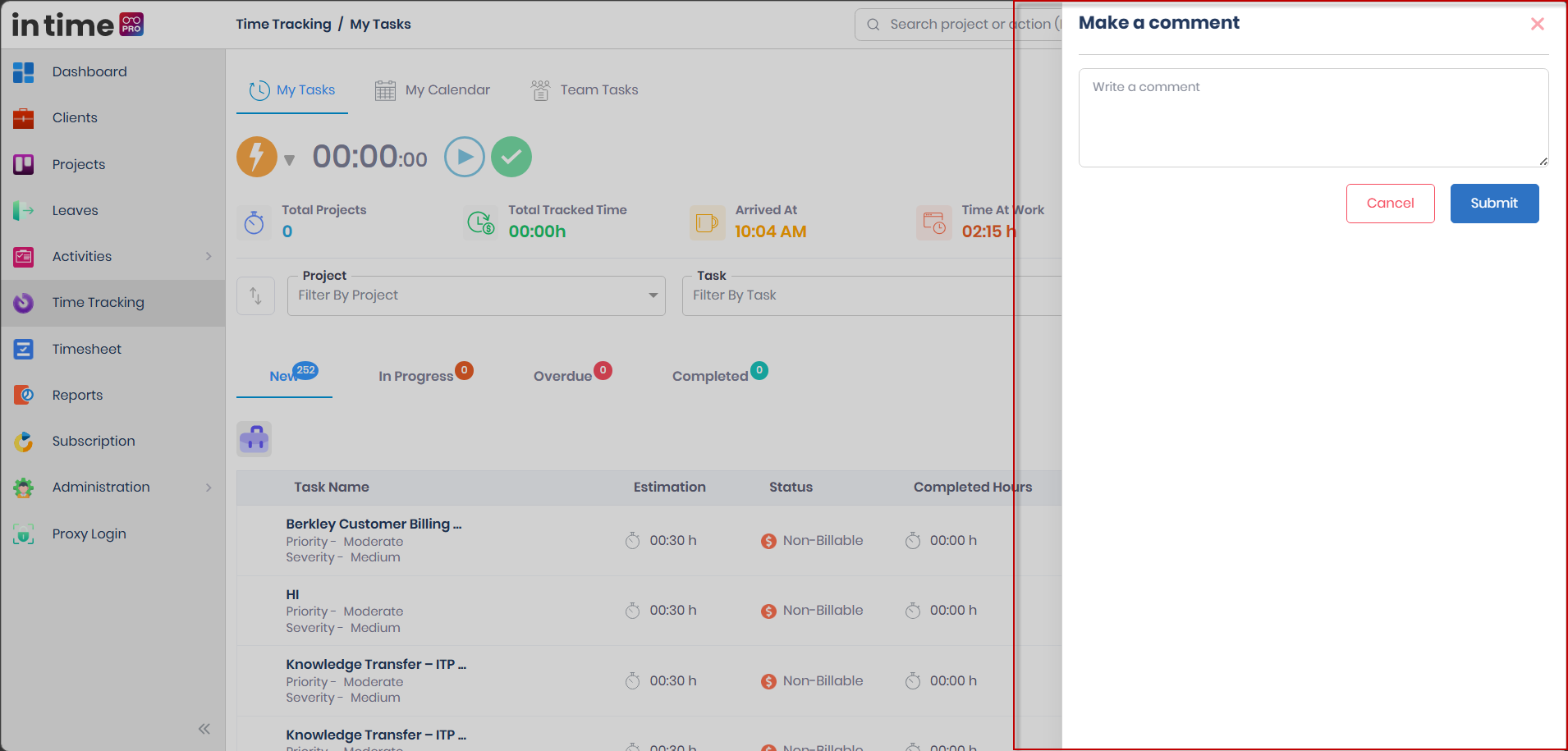
- Select the speech-bubble icon on a task.
- A panel titled Make a comment opens from the right.
- Type in Write a comment, then select Submit or press Enter.
- The comment is added under your name with today's date and time. The box clears — there is no separate success toast.
Submit stays disabled while the box is empty or a comment is being saved (only spaces count as empty). Existing comments are grouped by the person who wrote them, and anyone who can open the comment panel on that task can see the full thread.
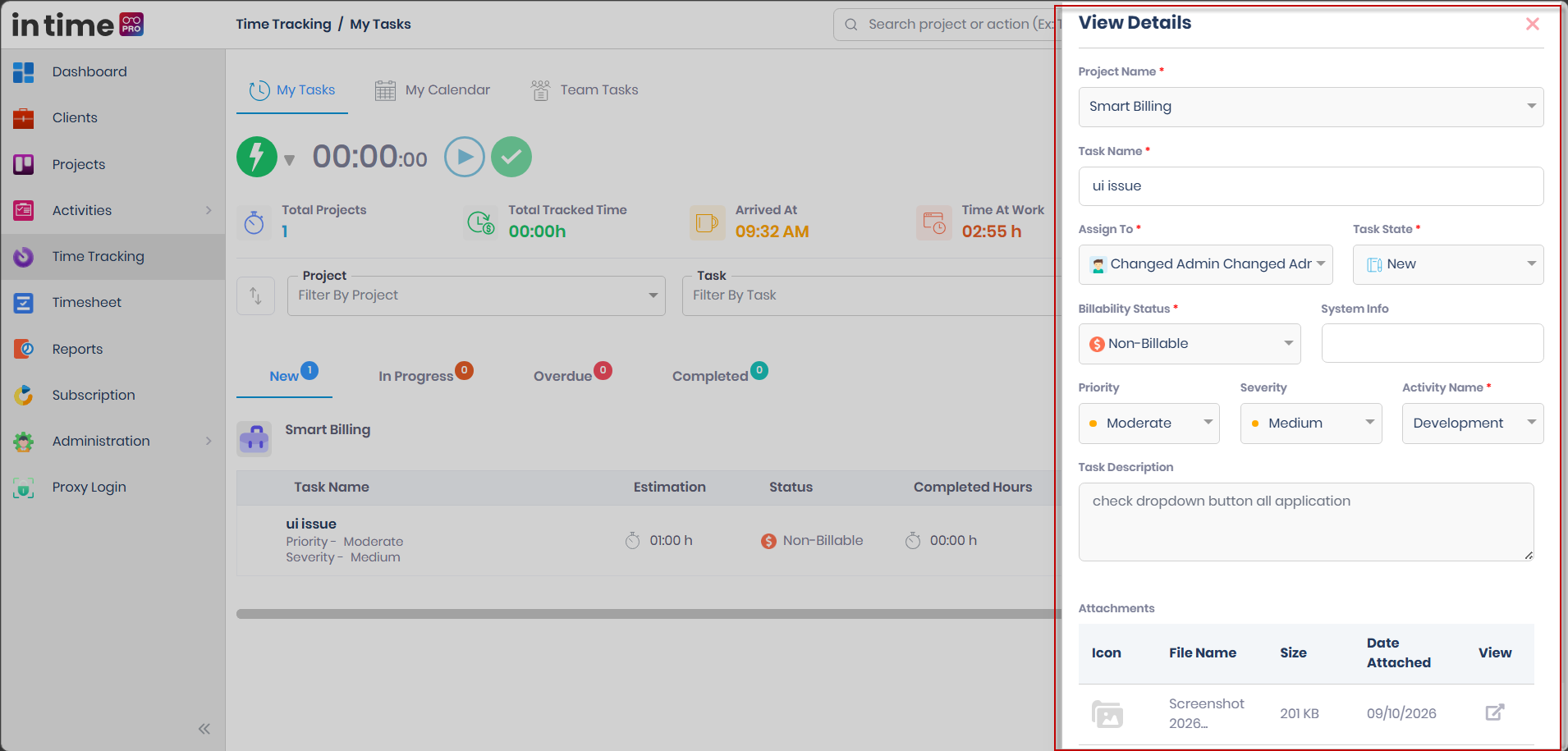
View Details
Shows a task's information and attachments. You do not use this panel to change a normal task's name or estimate.
- On My Tasks, select Action → View Details.
- A panel opens from the right.
| Field | What it means |
|---|---|
| Project Name | The project. |
| Task Name | The task title (not editable here). |
| Assign To | Who the task is assigned to. |
| Task State | New, In Progress, Overdue, or Completed. |
| Billability Status | Billable or Non-Billable. |
| System Info | Optional extra information (not editable here). |
| Priority / Severity / Activity Name | Planning fields. |
| Task Description | The description, or There is no task description for this task. |
| Attachments | A table of files, or There are no attachments for this task. |
Close closes the panel. For a normal task that already has a project, there is no Update button.
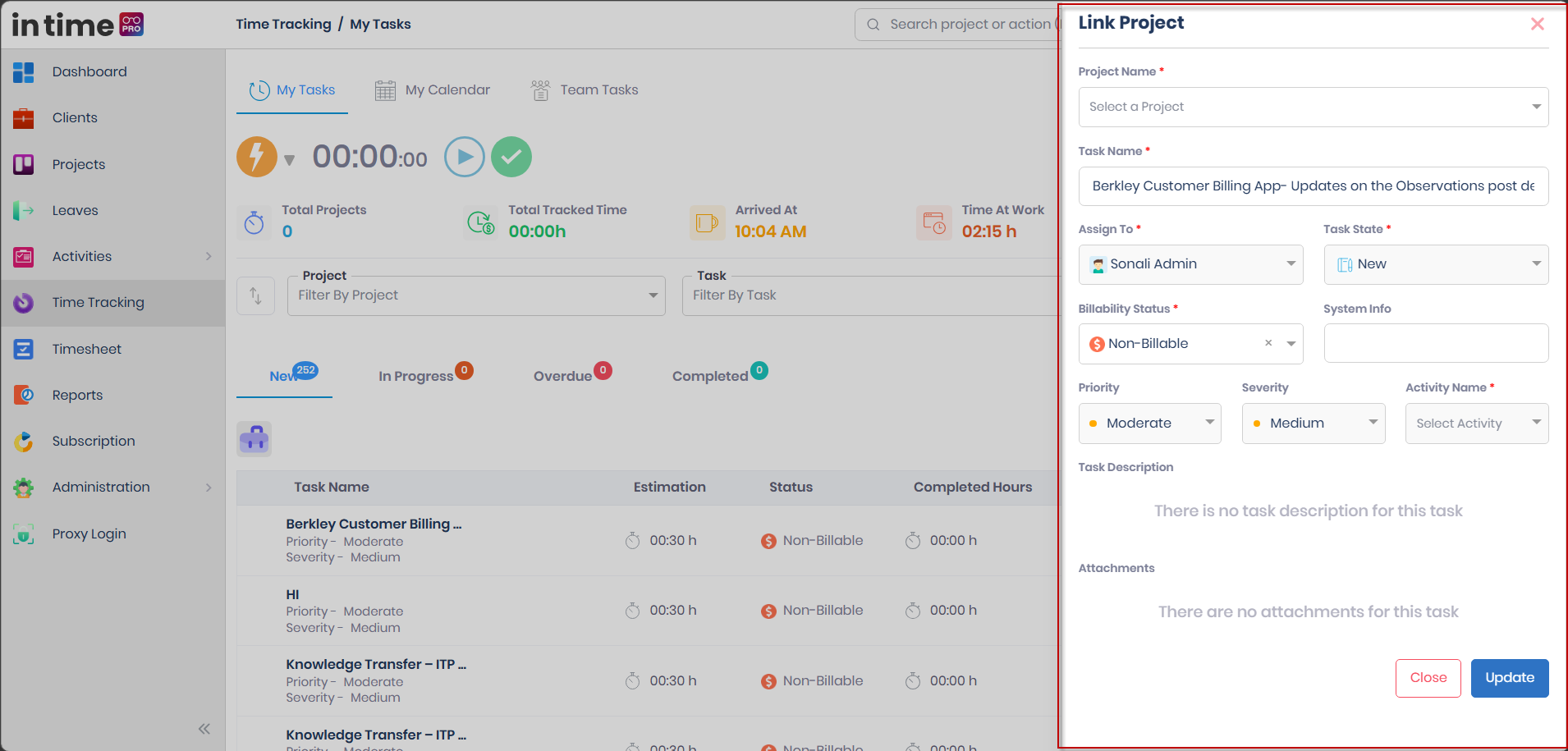
Link Project
Some tasks (for example items that came from Outlook) have no project. On those rows, Start does not run until a project is linked, and Action shows Link Project instead of View Details.
- Select Action → Link Project.
- Select Project Name (required) and Billability Status (required).
- Select Update.
On success you see Task linked to project successfully !!, and you can then start the timer.
9. New Task
New Task is how you create one task for someone on a project. Tasks created here are always Internal work items, and always start as New.
Who can use it
You need permission to create tasks. If you have it, New Task appears on Team Tasks. If not, you won't see the button or the tab.
How to open it
- Go to Time Tracking → Team Tasks.
- Select New Task. A New Task tab opens.
Closing the tab (or navigating away) while you've typed anything asks Are you sure? — Changes will not be saved.
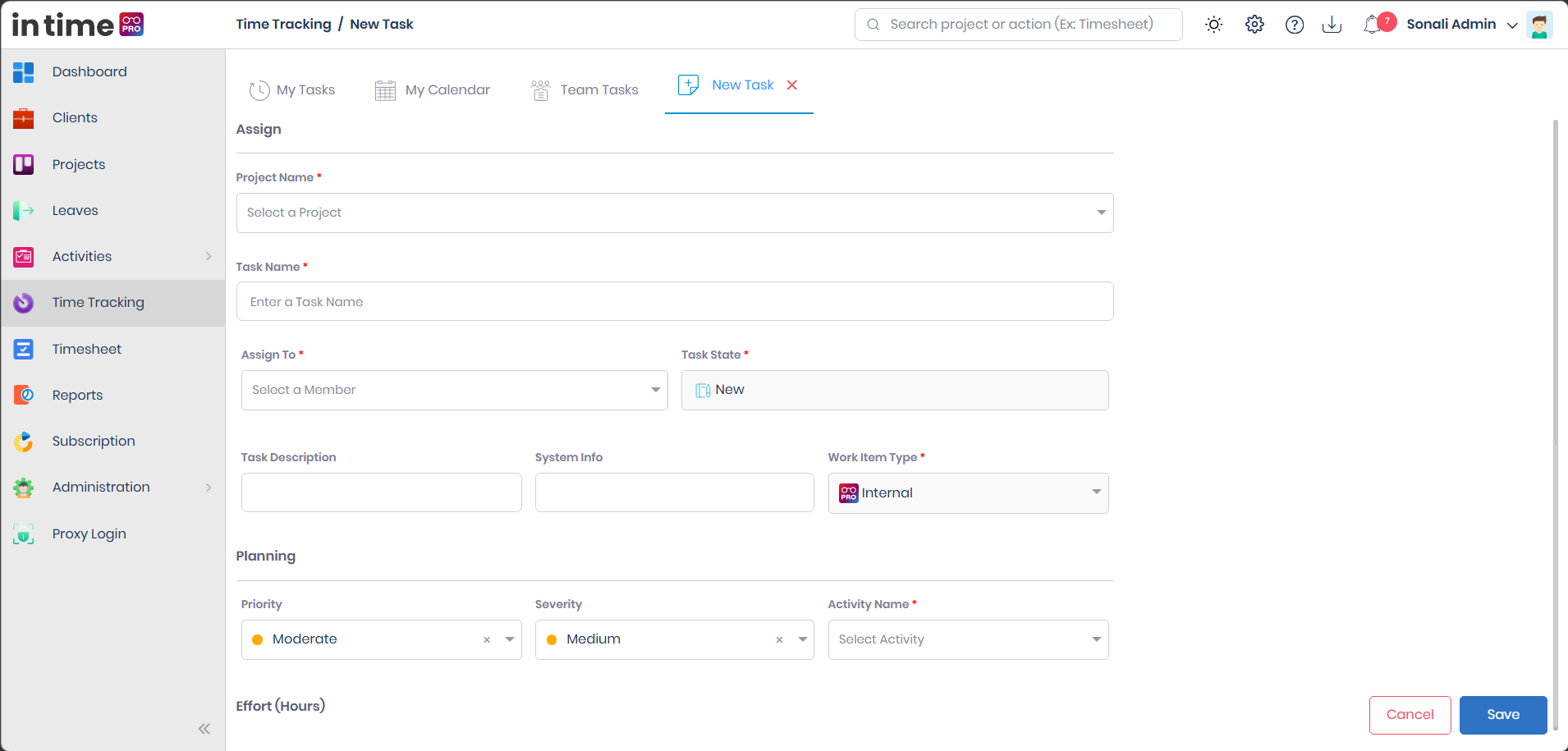
This screenshot shows the full form: Assign (project, task name, assign to, task state), Planning, Effort, Attachment, Comment, and Save / Cancel.
Fields
Assign
| Field | Required? | What it means |
|---|---|---|
| Project Name | Yes | The project this task belongs to. |
| Task Name | Yes | The title, up to 128 characters. Cannot be only spaces, and must be unique on that project. |
| Assign To | Yes | The person who will see this task on My Tasks. After you pick a project, this list shows members of that project, with photo, name, role, and email. |
| Task State | Yes (locked) | Always New when you create a task — you cannot change it here. |
| Task Description | No | A short description of the work. |
| System Info | No | Optional extra information. |
| Work Item Type | Yes (locked) | Always Internal for tasks created here — you cannot change it. |
Select Project Name
  ↓
Assign To list loads members of that project
  ↓
Select Assign To
  ↓
Save
  ↓
Task appears on the assigned member's My Tasks
Planning
| Field | Required? | What it means |
|---|---|---|
| Priority | No | High, Moderate, or Low. Default is Moderate. |
| Severity | No | Critical, High, Medium, or Low. Default is Medium. |
| Activity Name | Yes | Development, Design, Requirement, Documentation, Testing, or Miscellaneous. |
Effort (Hours)
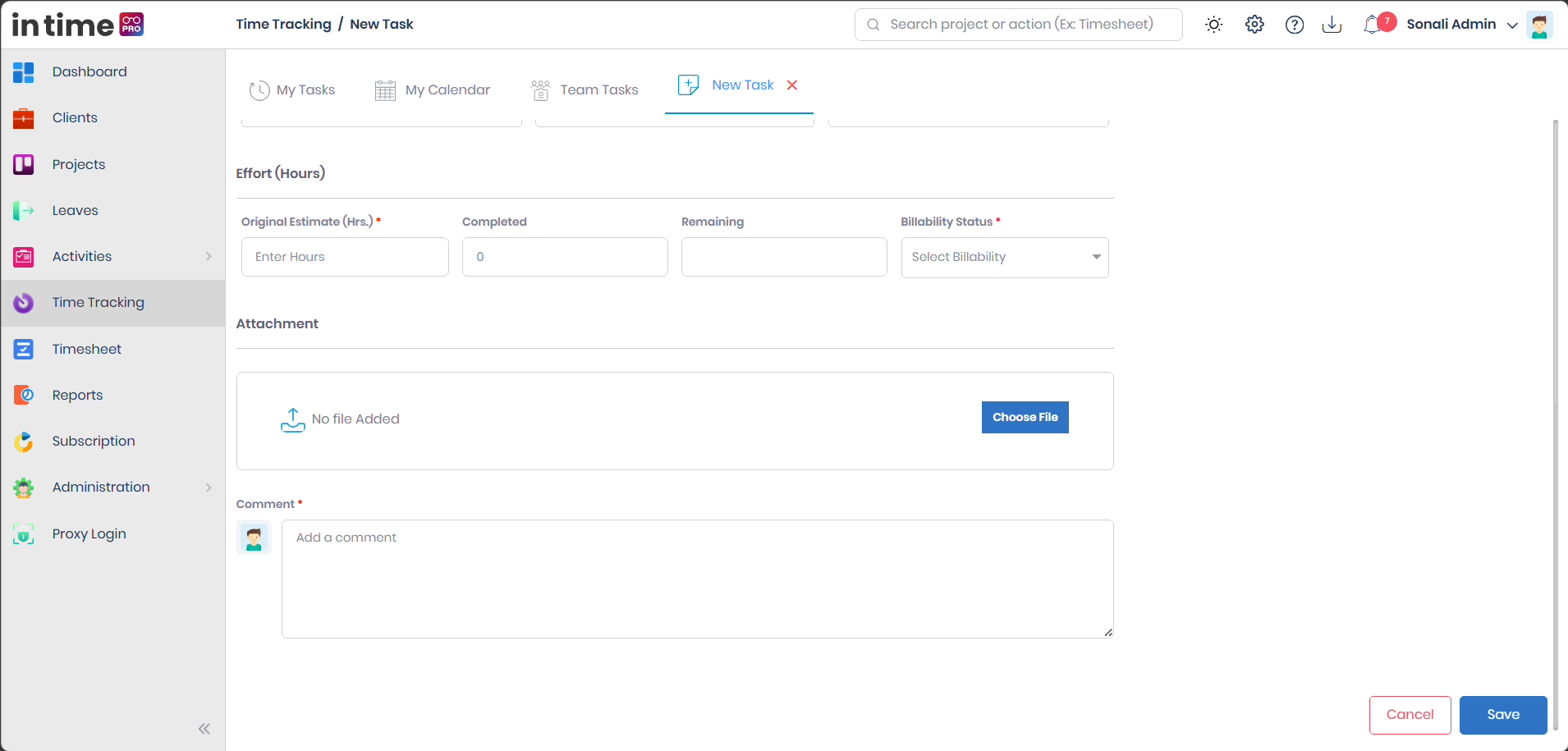
| Field | Required? | What it means |
|---|---|---|
| Original Estimate (Hrs.) | Yes | Planned hours. Numbers only, up to 4 characters. |
| Completed | No (locked) | Always starts at 0. |
| Remaining | Calculated | Filled automatically from the estimate minus completed. |
| Billability Status | Yes | Billable or Non-Billable. If the project is non-billable, only Non-Billable is offered. |
Attachment (optional, more than one file allowed)
- If no files are added, you see No file Added and Choose File.
- After choosing files, a table shows File Name, Size, Date Attached, and a delete action.
- Recognised types include PDF, ZIP, Word (doc/docx), and images (png/jpg). Other types can still be attached with a generic icon.
Comment
| Field | Required? | What it means |
|---|---|---|
| Comment | Yes | A note about the task, up to 500 characters. Placeholder: Add a comment. |
The form will not save if this is empty or only spaces (Discussion is mandatory / Discussion should not be empty).
Save and Cancel
- Select Save. Required fields are checked — missing ones show the messages above.
- If the task name already exists on that project, you see Task Name Already Exists.
- On success you see Task added successfully. The tab closes. If you assigned the task to yourself, it appears on your own My Tasks; the assigned person also receives an email. The task appears on Team Tasks either way.
If saving fails for another reason, you see There was an error in creating the task.
Cancel asks Are you sure? — Changes will not be saved.
10. Editing Tasks
Editing a team task changes the task itself (name, assignee, estimate, and so on) — it is not the same as logging timer time, which is only edited as a manual history row on My Tasks. See Task History.
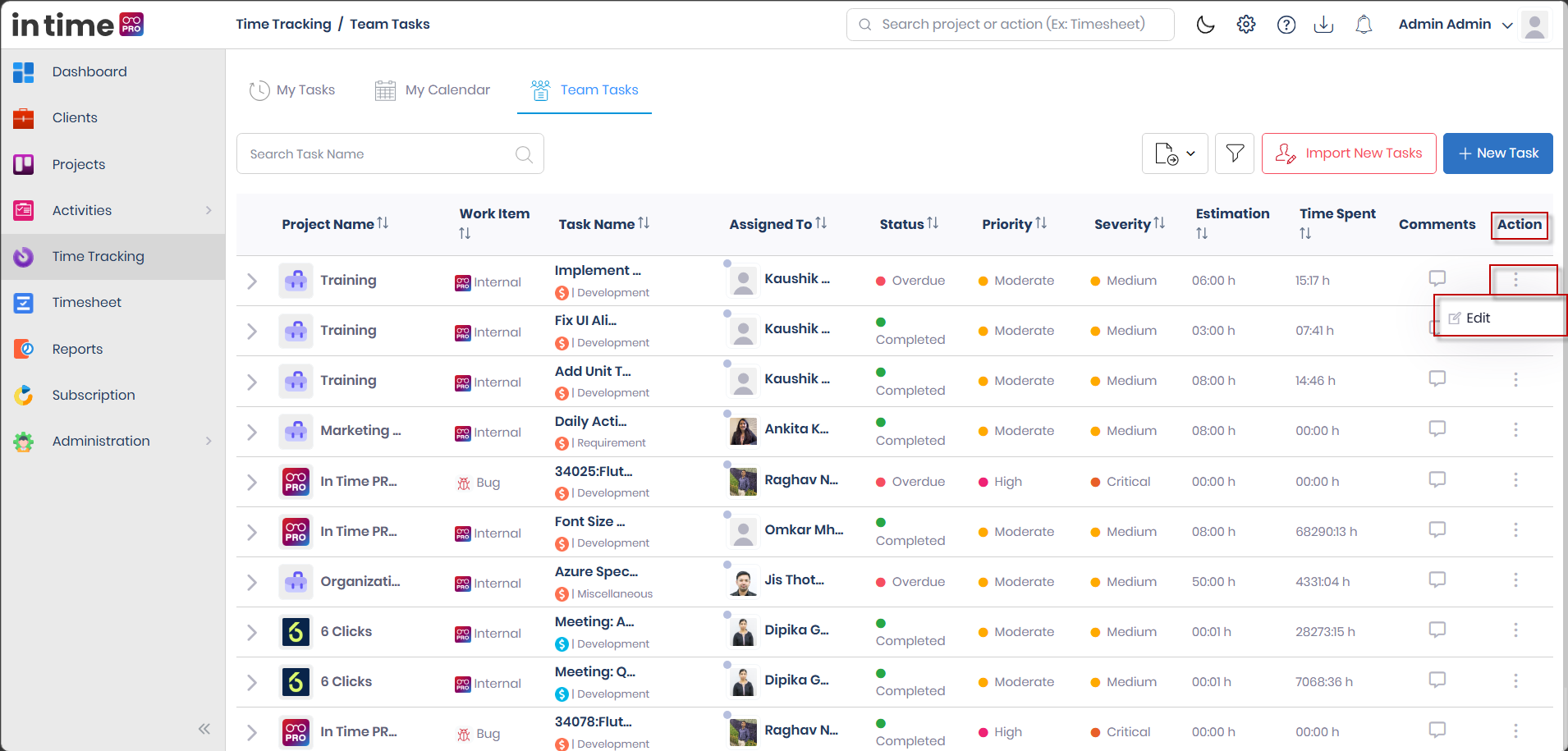
- On Team Tasks, open Action → Edit. A panel titled Edit Task opens from the right.
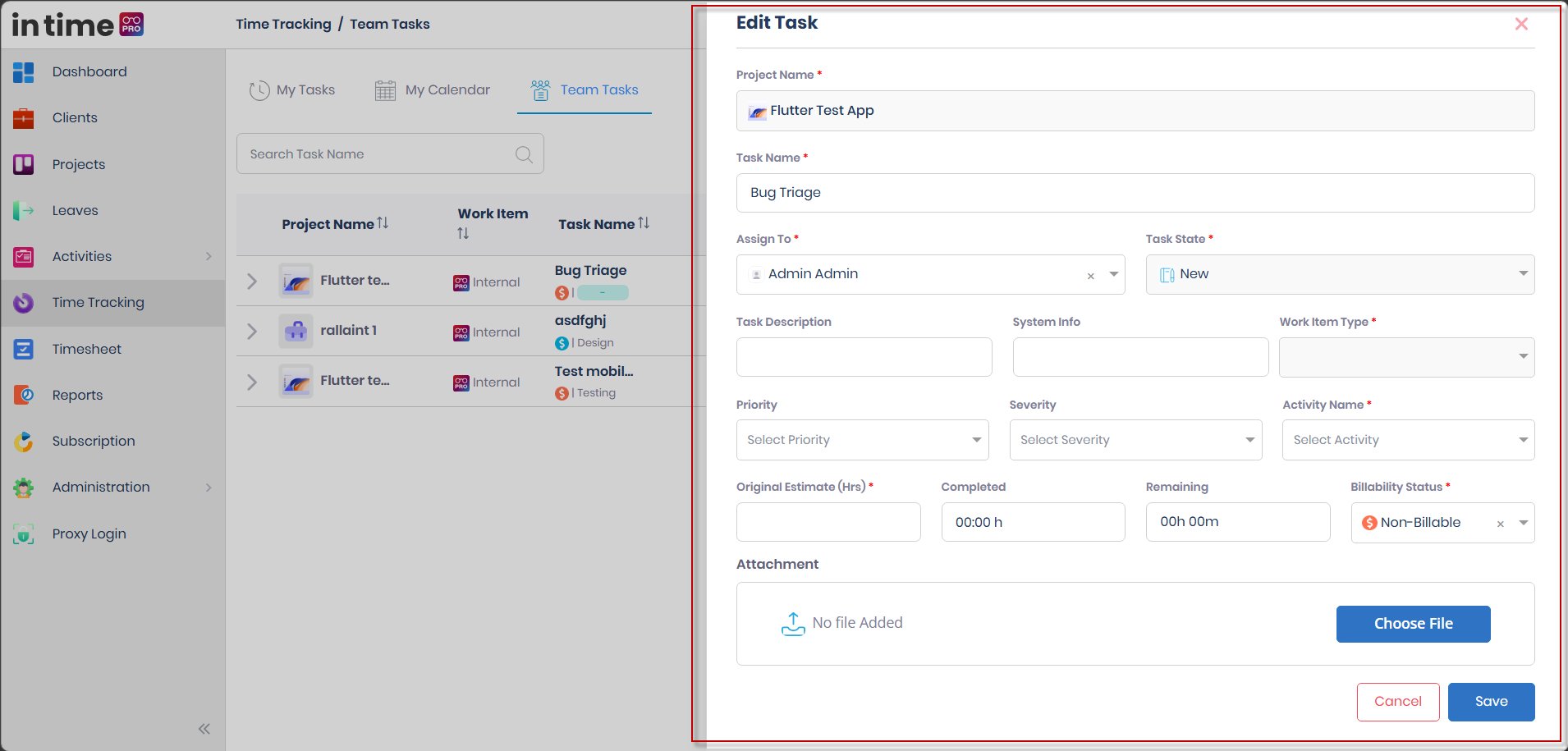
The form is similar to New Task, with these differences:
| Field | Editable? | Notes |
|---|---|---|
| Project Name | No | Locked. |
| Task Name | Yes, unless synced from Azure DevOps | Same uniqueness rule. |
| Assign To | Yes | You can move the task to another project member; the new person can receive an email that it was moved. |
| Task State | No | Locked — it changes automatically when someone starts the timer or marks the task complete. |
| Task Description / System Info | Yes, unless synced | |
| Work Item Type | No | Locked. |
| Priority / Severity / Activity Name | Yes, unless synced | |
| Original Estimate (Hrs) | Yes, unless synced | |
| Complete / Remaining | No | Shown for information; calculated. |
| Billability Status | Yes, unless synced | |
| Attachment | Yes | Add files or remove existing ones. |
For tasks synced from Azure DevOps, most fields are locked and Assign To remains available. See Work Item Types and Azure DevOps.
Save shows Changes updated successfully on success, or Task Name Already Exists if the name is taken. If the task's timer is currently running for the assignee, saving stops and restarts that timer so the live session stays attached to the updated task.
Cancel, or leaving Time Tracking with unsaved changes, asks Are you sure? — Changes will not be saved.
11. Importing Tasks
Use Import New Tasks to create many tasks from a spreadsheet instead of filling New Task one by one. You need the same create-task permission as New Task.
- Go to Team Tasks and select Import New Tasks. A popup titled Upload File to Import Tasks opens.
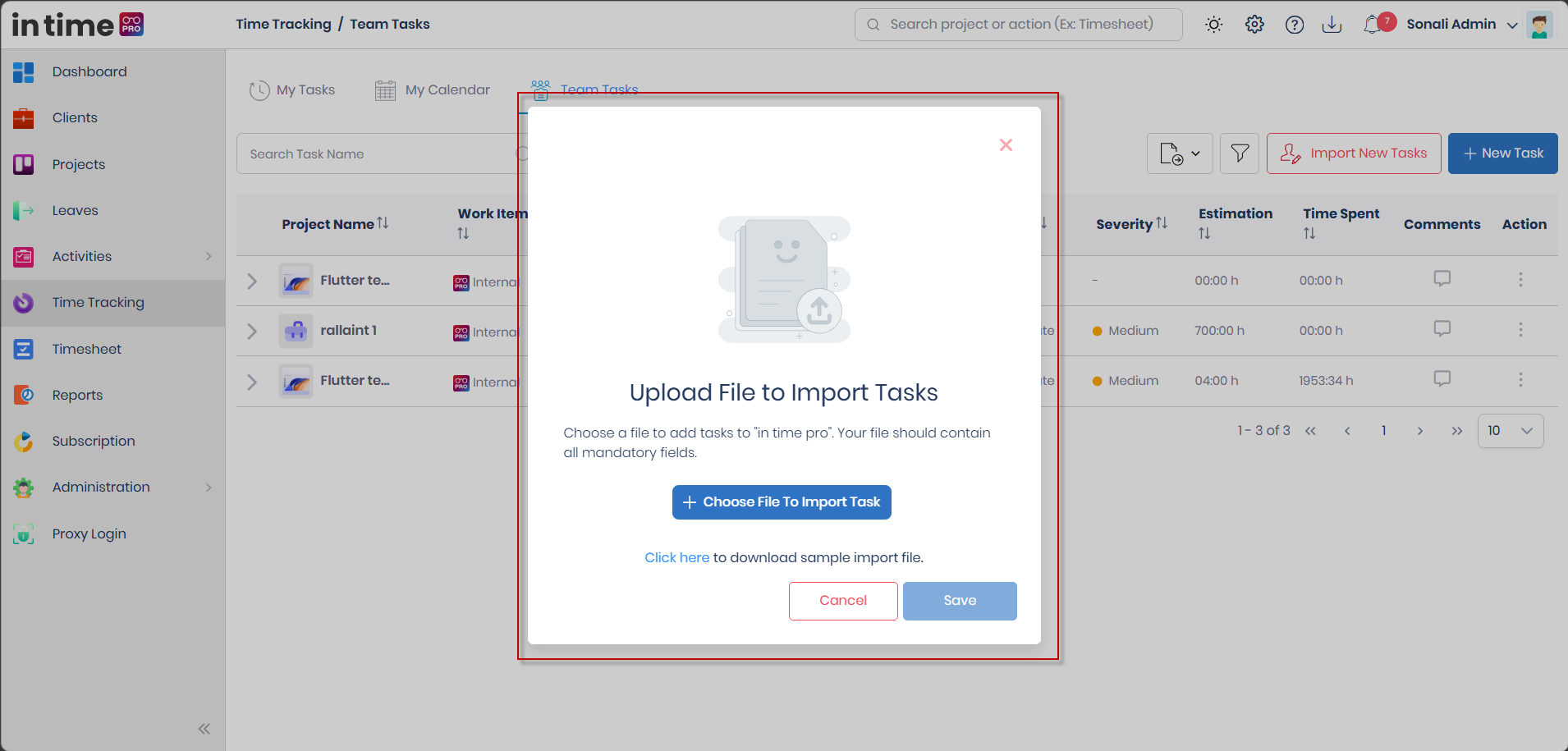
- Optional: select Click Here to download the sample import file, and fill your rows using its layout and mandatory columns.
- Select Choose File To Import Task and pick a .csv, .xls, or .xlsx file (maximum 10 MB).
- The file name and size appear — you can remove it and choose another.
- Select Save.
Save is disabled until a file is chosen and while an upload is in progress.
What happens after Save:
- You see upload progress (Uploading, then a percentage).
- Once accepted, you see Task import process has begun. — the popup stays open while the file is processed.
- When processing finishes, progress shows Completed, the popup closes, and Team Tasks refreshes.
- Check the notification bell for the import result (success, or errors found in the file).
If the upload fails, you see Task import process has failed. or Import users upload failed (file error), with progress showing Failed. You can try again.
12. Team Tasks
Team Tasks is the shared list of tasks. Everyone who can open Time Tracking can see this tab — creating, importing, and editing depend on permission, and which projects' tasks you see depends on your project access.
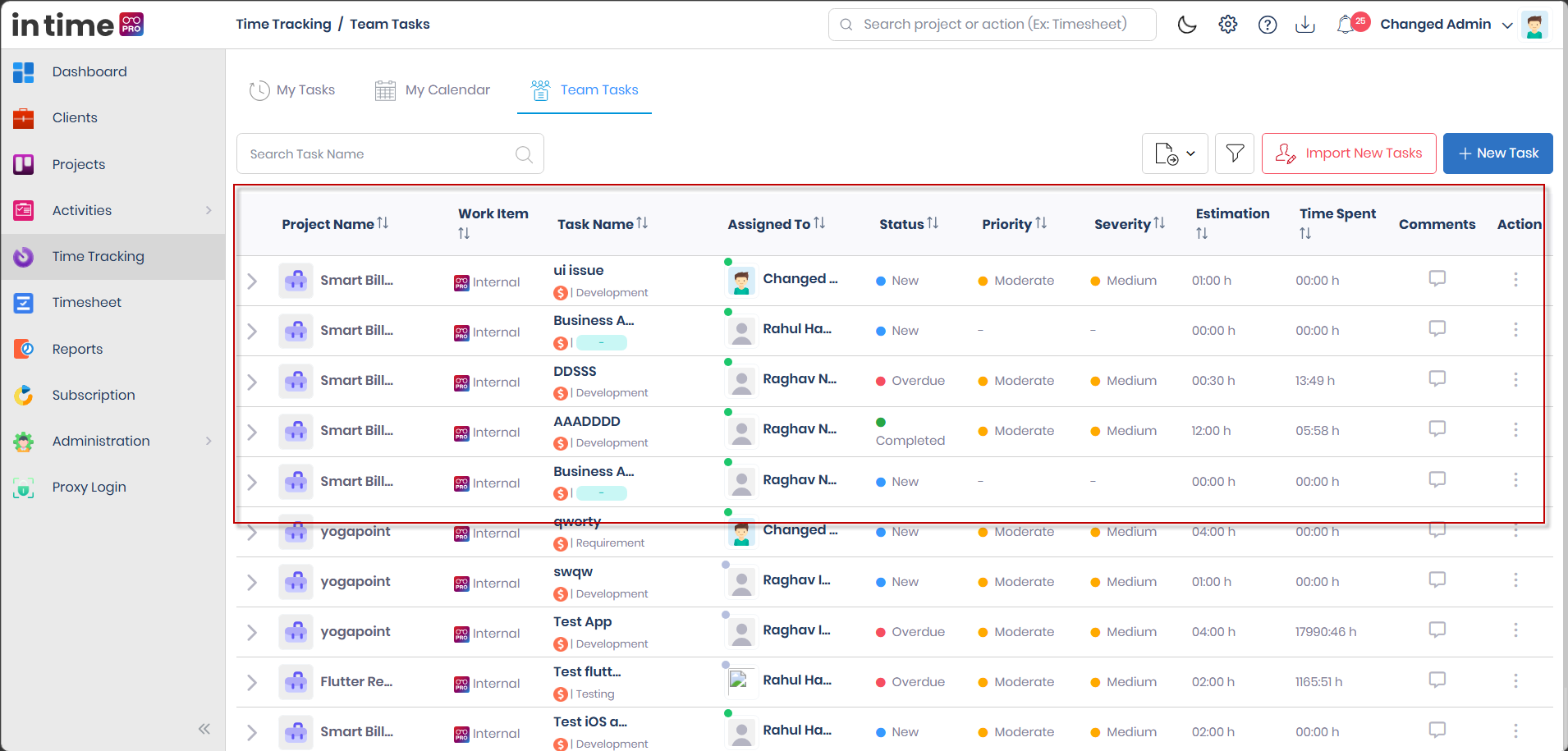
This screenshot shows the search box, Export, Filter, Import New Tasks, New Task, and the table of tasks.
Search, Filter, and Sort — what's the difference?
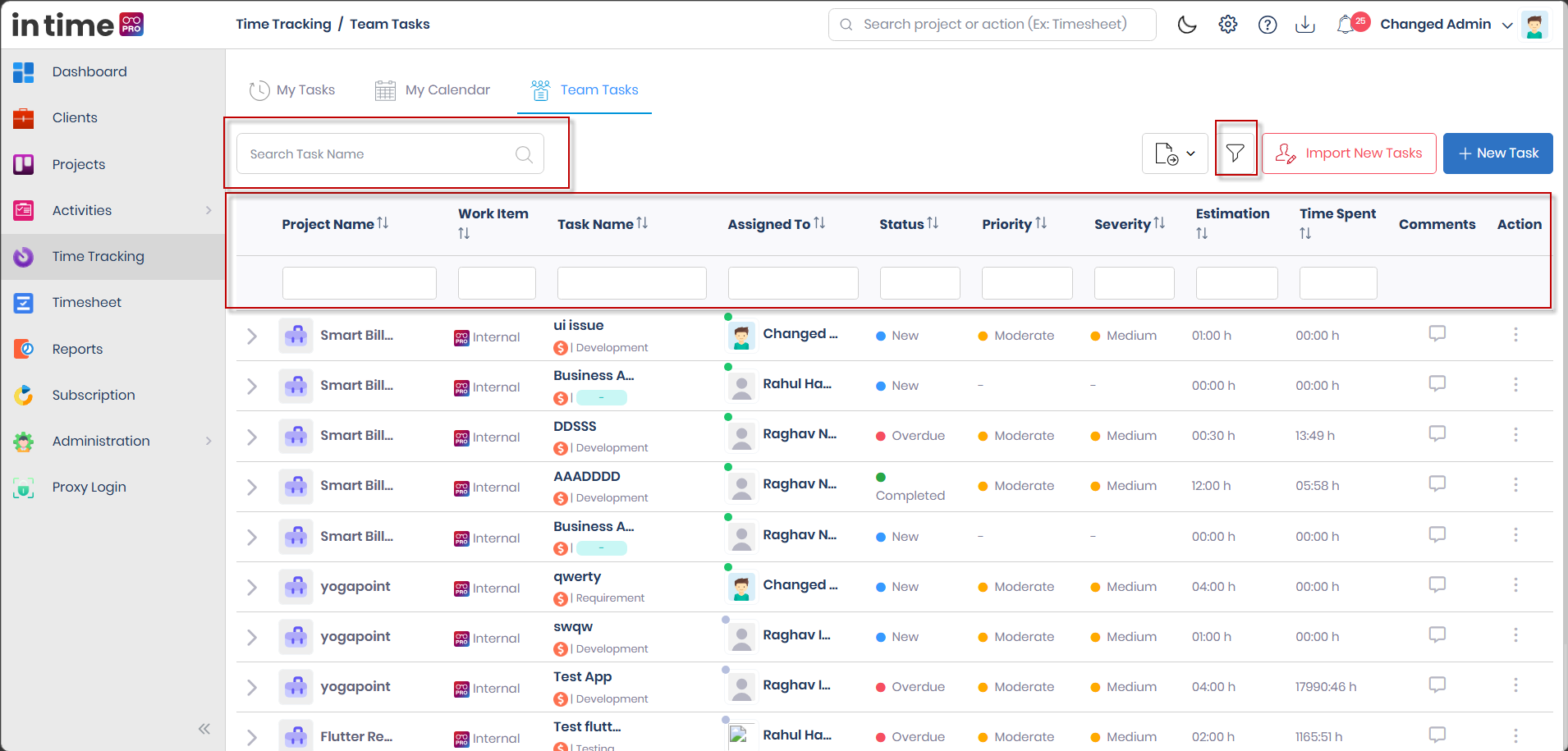
- Search finds rows matching text you type, across the task name, project name, or assigned person's name. Placeholder: Search Task Name. The list updates when you leave the field, not on every keystroke — clearing the box restores the full list.
- Filter narrows the list using conditions on specific columns. Select the Filter button (funnel) to reveal boxes under each column — Project Name, Work Item, Task Name, Assigned To, Status, Priority, Severity, Estimation, and Time Spend. Select Filter again to hide the boxes and clear those conditions. Disabled when the list has no rows.
- Sort, available by selecting a column header, changes the order of the rows you already see — it does not remove any rows.
You can use all three together.
Columns
| Column | What it means |
|---|---|
| Expand arrow | Opens Work Status / time history for that task. |
| Project Name | Project image and name. |
| Work Item | The type of item — Internal, or a type synced from Azure DevOps. See Work Item Types and Azure DevOps. |
| Task Name | Title, plus billability icon and activity (Development, Design, and so on). An Active badge can appear if someone is currently tracking this task. |
| Assigned To | Photo, name, and a status dot (Busy, Idle, Online, Offline, Private Time). |
| Status | New, In Progress, Overdue, or Completed. |
| Priority | High, Moderate, or Low. |
| Severity | Critical, High, Medium, or Low. |
| Estimation | Original estimate, as hours and minutes (for example 08:00 h). |
| Time Spend | Time already tracked on the task. |
| Comments | Opens the same comment panel as My Tasks. |
| Action | Shown only if you can create tasks. Edit opens the edit panel — see Editing Tasks. |
You can sort most columns by selecting the column header.
Empty list and pagination
If there are no tasks at all, you see an empty illustration. If filters remove every row, the table shows No Data Found.
The list can show 10, 20, 30, 50, or 100 rows per page, with a page report (for example 1 - 10 of 40).
Export
If export is enabled for your account, an Export control appears on Team Tasks.
- Select Export, then Export to PDF or Export to Excel.
- The file downloads as Team Tasks.pdf or Team Tasks.xlsx, and includes the rows you currently see after search/column filters — not necessarily the whole unfiltered list.
Columns in the file: Project Name, Work Item, Task Name, Assigned To, Status, Priority, Severity, Estimation, Time Spend.
If an administrator has turned off export for your user, this control is hidden.
13. Work Item Types and Azure DevOps
The Work Item column on Team Tasks tells you where a task came from.
| Work Item Type | Where it comes from |
|---|---|
| Internal | Created directly in Time Tracking, using New Task. |
| Other types — for example Bug, User Story, Task, Feature, Epic, Issue, Ticket, or a test-related type | Synced in from a connected Azure DevOps project. The exact types you see depend on what your connected Azure DevOps project uses; this list is illustrative, not exhaustive. |
How Azure DevOps items get here
If your project is connected to Azure DevOps, work items from that project (for example Bugs and User Stories) are brought into Team Tasks automatically, matched to the internal user whose name matches the Azure DevOps assignee. They appear alongside your Internal tasks, and the assigned person sees them on My Tasks like any other task — they can start a timer, log manual time, comment, and view details the same way.
This sync only goes one way, from Azure DevOps into In Time PRO. Creating a task with New Task does not create anything in Azure DevOps — tasks created here are always Internal. Editing a synced item in Time Tracking does not write changes back to Azure DevOps.
Editing a synced item
Opening Edit Task on an item that came from Azure DevOps locks most fields — Task Name, Task Description, System Info, Work Item Type, Priority, Severity, Activity Name, Original Estimate, and Billability Status cannot be changed here. Assign To remains available, so you can move the item to another team member.
14. Manual Time Entry
Use Log Manual Entry when you worked on a task but the timer was not running.
When it's available
On My Tasks, open Action (three dots) on a task. Log Manual Entry appears only if the task timer is not running, the task is not already Completed, and the task is linked to a project. On Completed tasks, only View Details is offered.
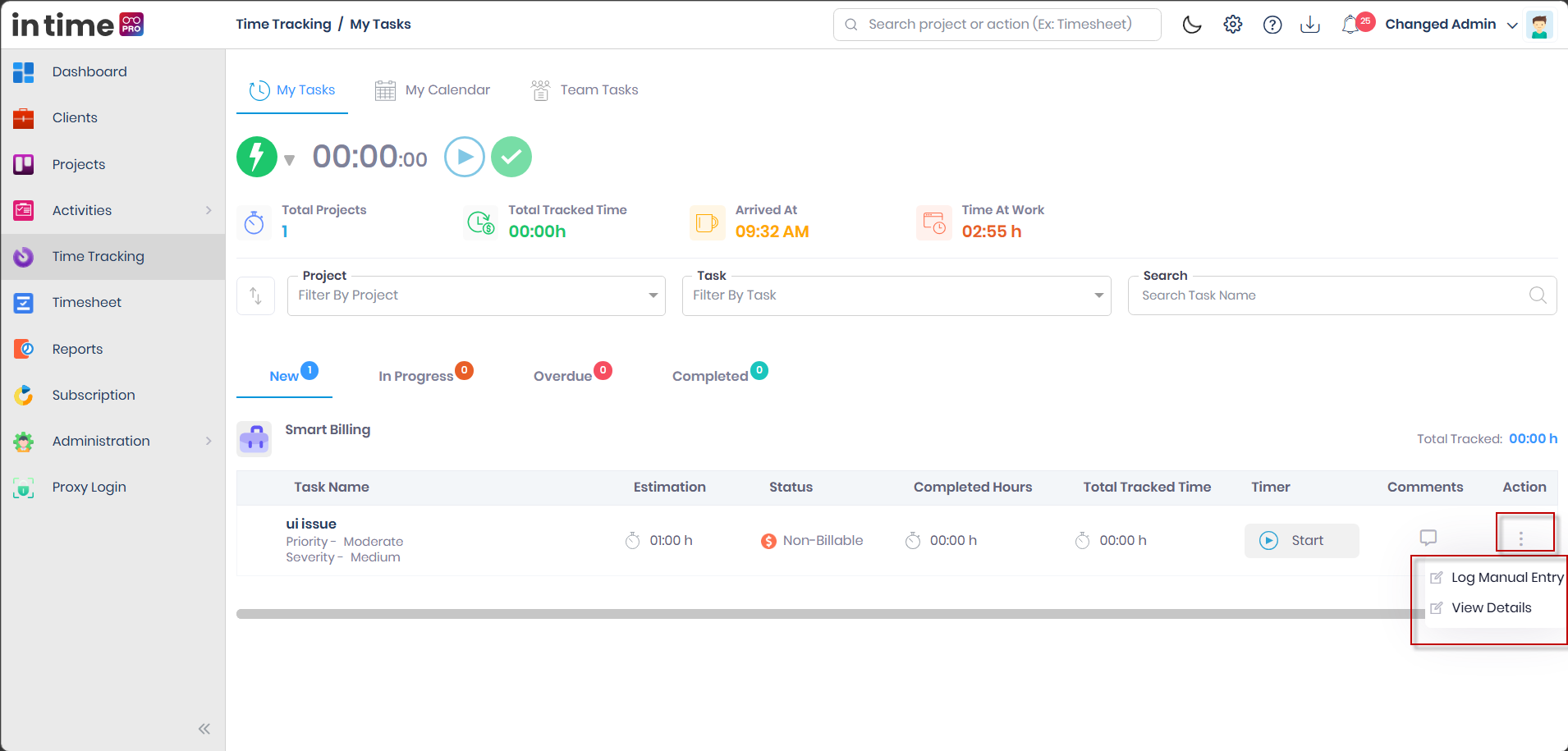
How to add an entry
- On My Tasks, find the task and select Action → Log Manual Entry. A panel opens from the right.
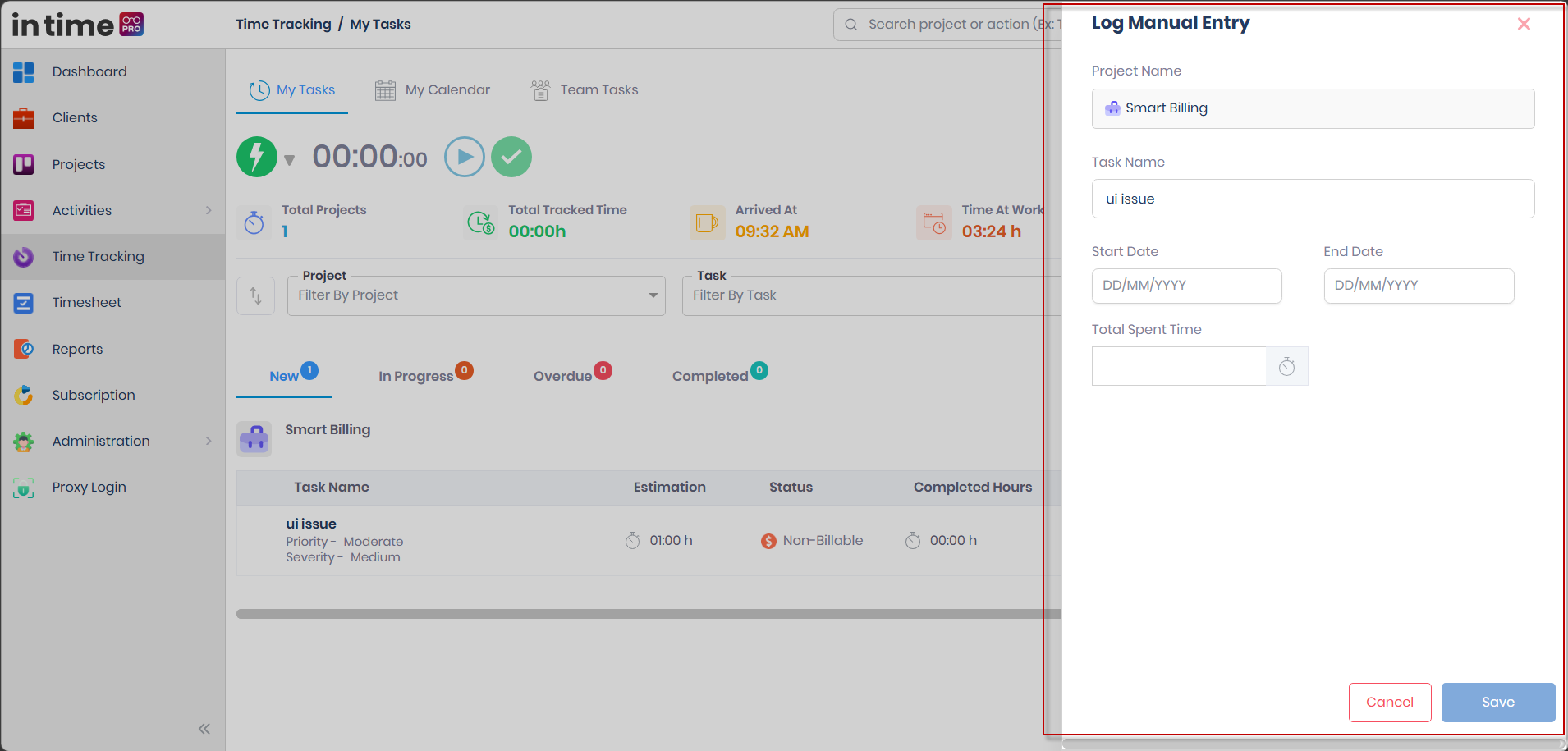
| Field | Required? | What it means |
|---|---|---|
| Project Name | Shown, locked | The project of this task — cannot be changed here. |
| Task Name | Shown, locked | The task name — cannot be changed here. |
| Start Date | Yes | Date and time work started. Pick from the calendar/time picker — limited to your dates on this project, and cannot be in the future. |
| End Date | Yes | Date and time work ended. Must be the same calendar day as the start, cannot be in the future, and cannot be earlier than the start. |
| Total Spent Time | Calculated | Filled automatically as X hrs Y min. |
Validation
| Situation | Message |
|---|---|
| Start is in the future | Start time cannot be in the future |
| End is in the future | End time cannot be in the future |
| End is earlier than start | End time cannot be earlier than start time |
| End is on a different day from start | End date should be same as start date |
| Zero duration (start = end) | End time cannot be same as Start Time — Save stays disabled |
Save stays disabled until Start and End are set, there are no warning messages, and the duration is not zero.
What happens when you save
- The system checks this period does not overlap existing tracked time on this task. If it overlaps: Invalid manual time entry — The manual time is conflicting with an existing task history item.
- The system checks whether a timesheet for that day is already submitted. If it is: Invalid manual time entry — A timesheet for this day already exists. The entry is not saved.
- The system checks the times fall inside your allocation dates on the project. If not: Invalid manual time entry — Task cannot be added outside of your project start and end date.
- If everything is valid: Manual time entry has been added. The task's completed and tracked hours update, and it may move between In Progress and Overdue if the extra time changes its state — see Task Status Lifecycle. A manual entry never moves a task back to New.
Cancel or the close icon closes the panel without saving.
15. My Calendar
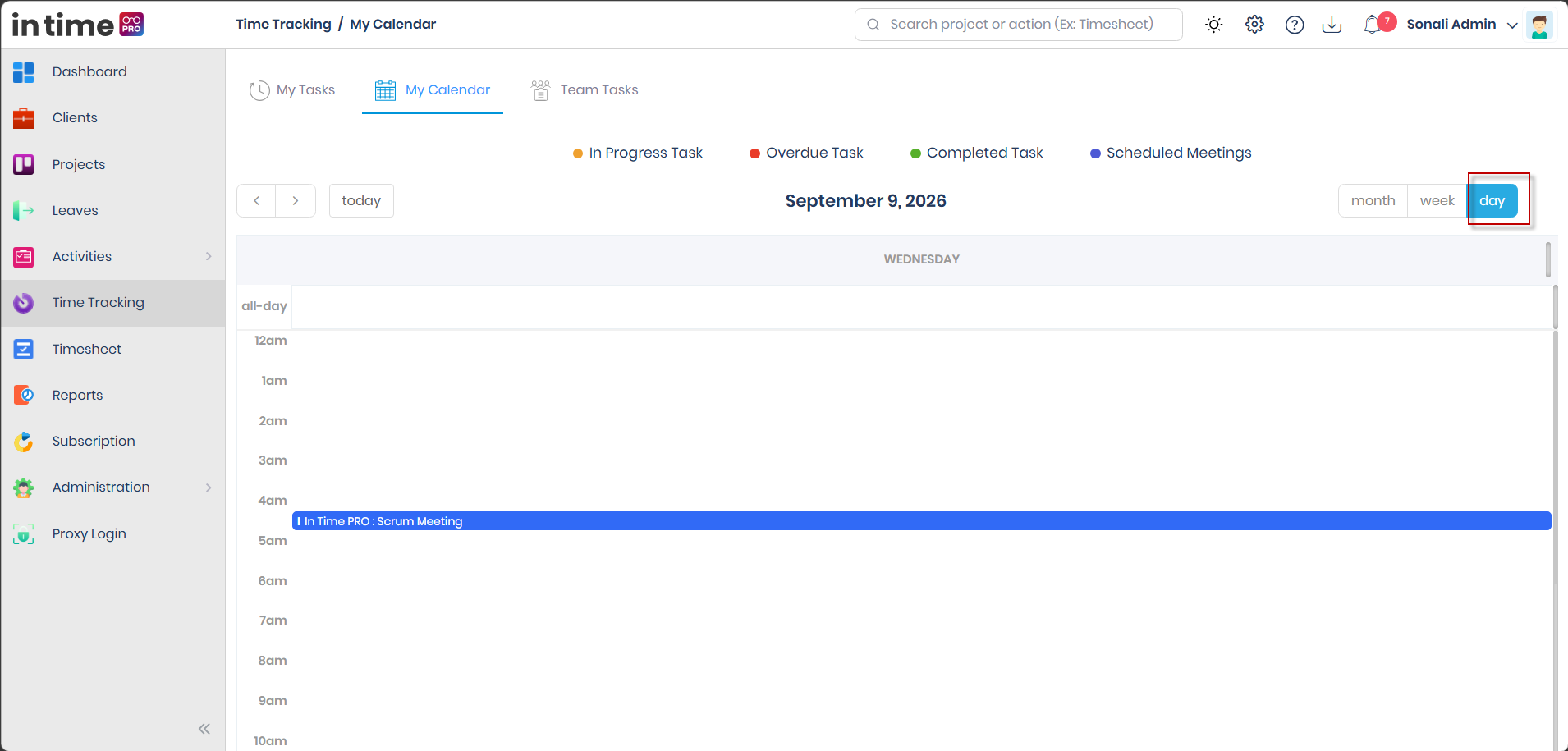
My Calendar shows your tracked work on a calendar. If your Outlook calendar is connected, meetings appear too.
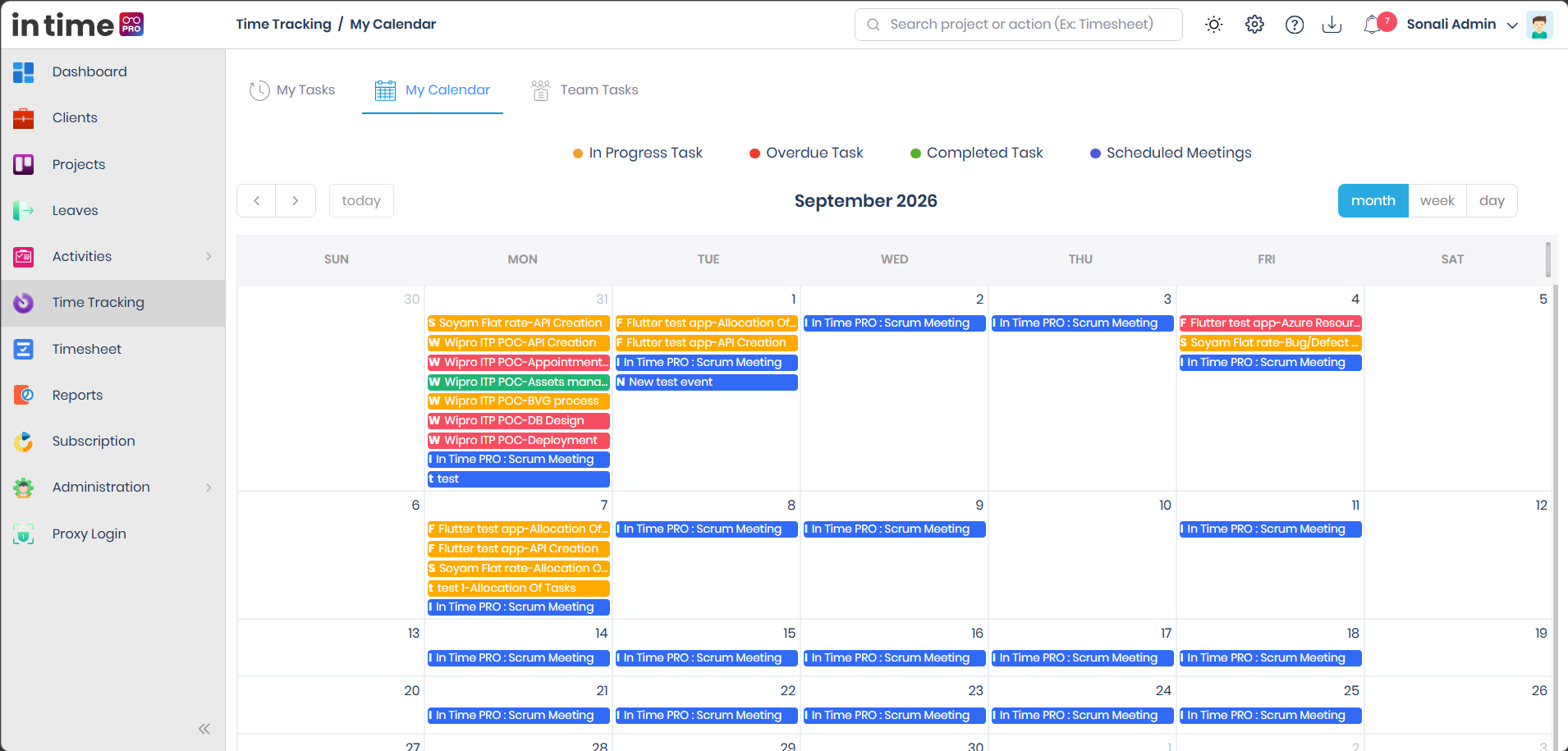
This screenshot shows the colour legend, the month grid, and a mix of task blocks and meeting blocks.
Colour legend
| Colour | Meaning |
|---|---|
| Orange | In Progress task time |
| Red / dark orange | Overdue task time |
| Green | Completed task time |
| Blue | Scheduled Meetings (Outlook) |
How to move around
- Prev / Next — previous or next period
- Today — jump to today
- Month / Week / Day — change the view
The calendar opens on Month. Week and Day views show a time axis (from about 7:00) with a "now" line. Weekends are included.
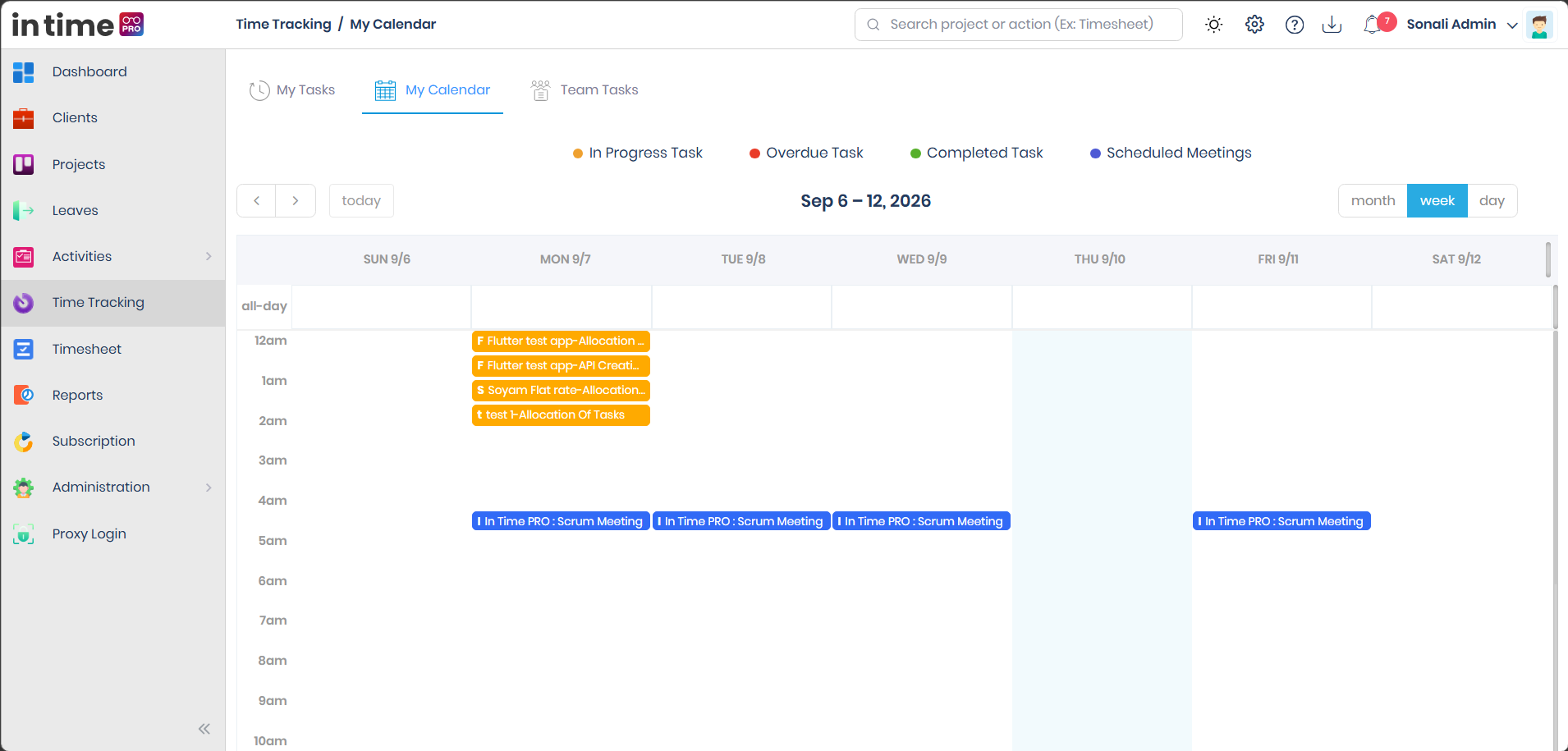
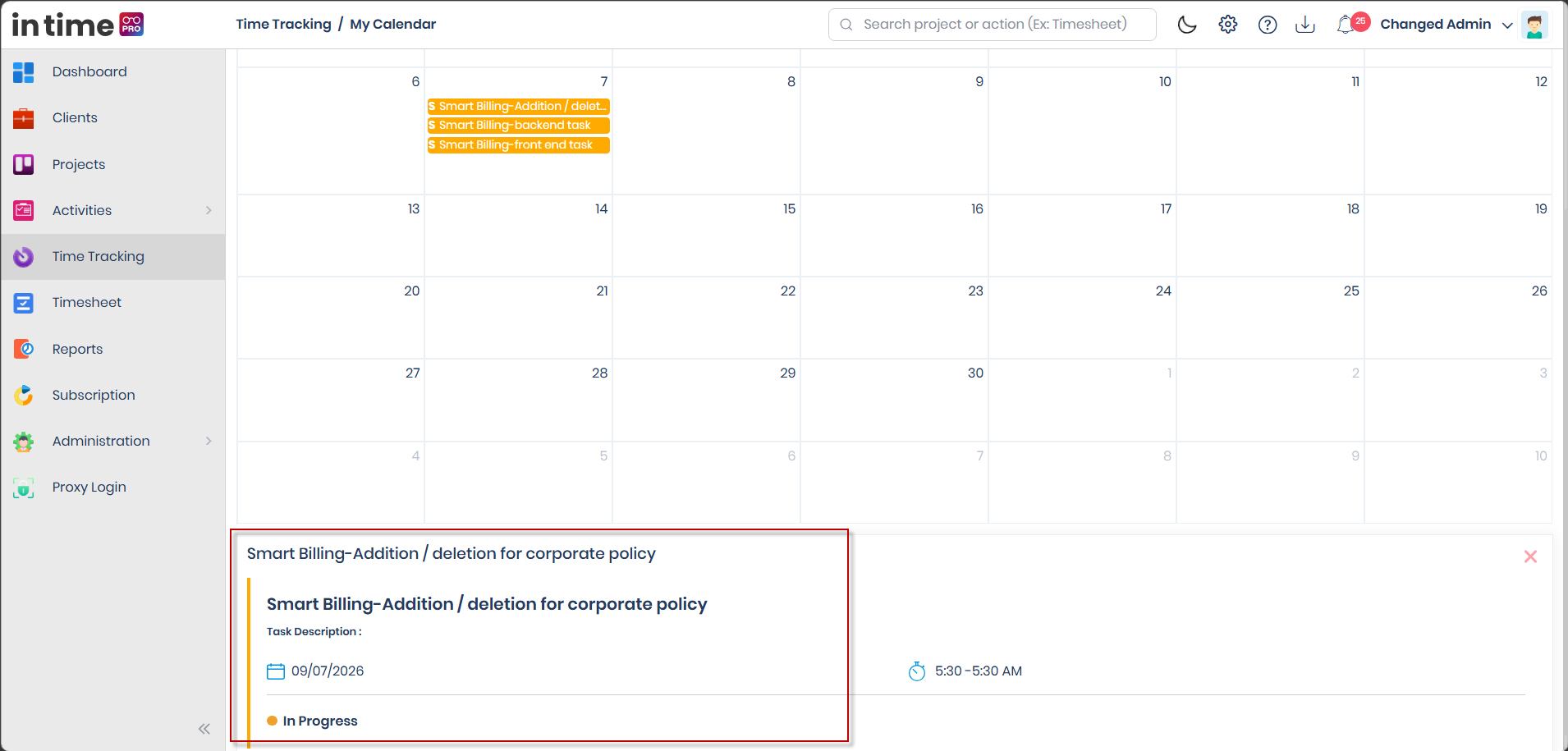
Task blocks
A task block is titled like Project name-Task name. Selecting it opens a details panel with the task name, Task Description, date and start–end time, and status (In Progress, Overdue, or Completed).
Calendar task details are view-only. You cannot start or stop a timer from this popup — use My Tasks for that.
16. Outlook Integration
If Outlook is connected for your account, meetings appear on My Calendar in blue. Selecting one shows the date and time, the organiser, and a Join link if the meeting has an online link.
Connecting Outlook is done from your profile / integrations, not from a button on this calendar. After you approve access, you're returned to My Calendar. If you cancel or the connection fails, you see Unable to connect the integration. and are sent back to the Dashboard.
Google Calendar is not available on this screen — only Outlook meetings can appear here.
17. Time Tracking and Timesheet
Time Tracking and Timesheet are separate modules, but they share the same underlying record of the time you track.
Project
  ↓
Task (assigned to you)
  ↓
Time Tracking (timer or manual entry)
  ↓
Tracked duration
  ↓
Available in Timesheet
- The hours you record here — whether from the timer or from Log Manual Entry — are the same hours available to you when you fill in your Timesheet. There is no separate copy step; Timesheet reads the same tracked time.
- If you added a Comment on a task in Time Tracking, that text can appear as a starting description when you later view or edit that day's entry in Timesheet. You can change the Timesheet description separately without affecting the task's Comment in Time Tracking.
- If you add a brand-new entry directly from Timesheet, rather than from a task you tracked here, you type its description yourself.
- If a day's timesheet has already been submitted, you cannot add a manual time entry for that day in Time Tracking. See Manual Time Entry.
Example: you select Start on a Bug, work for two hours, then Stop. That two-hour segment is stored against the task. When you later open Timesheet for that day, the same two hours are available there, ready to review and submit.
For the full Timesheet workflow — submitting, approvals, and status — see Timesheet.
18. Notifications
Time Tracking uses the notification bell and email in these cases:
| What happens | What you see / can do |
|---|---|
| A task is assigned to you | You can receive an email. A notification can open Time Tracking and take you to that task's status tab. |
| A task is moved to another person | The new assignee can receive an email that the task was moved. |
| You import tasks | Watch the notification bell after saving for whether the import finished or failed. You also see Task import process has begun. on the screen. |
| Outlook / calendar connection fails | Unable to connect the integration. You're returned to the Dashboard. |
Selecting a Time Tracking notification opens My Tasks and highlights the relevant task's tab when a task id is included. There is no in-app toast every time your status changes.
19. Desktop Application
Time Tracking works together with the Desktop Application:
| What depends on the Desktop Application | What you see in Time Tracking |
|---|---|
| Arrived At | Set from the first status update recorded for the day, from whichever source happens first — usually the Desktop Application starting your day, but starting a timer or changing status in the web app can set it too. Without any recorded status (and no early approved manual entry), Arrived At is a dash. |
| Start / Stop timer | Starting or stopping in the web app keeps the Desktop Application in sync, and the other way around. If the Desktop Application stops a timer, the web row stops too. |
| Status | Busy, Idle, Online, Offline, and Private Time stay in sync with the Desktop Application. |
| Opening New Task from the Desktop Application | Opening Time Tracking from the Desktop Application's special path lands you on New Task (if you can create tasks). |
| Outlook items | An Outlook-related update can open View Details / Link Project so you can attach a project. |
Arrived At is not exclusively set by the Desktop Application. The web app contributes to the same first-status-of-the-day record — you can still start and stop timers in the browser, but arrival time and some live status behaviour are more complete when the Desktop Application is running.
20. Role-Based Access
Time Tracking is shown when your company edition includes it and your account has access to the Time Tracking / Timesheet area.
Typical default access — actual visibility always depends on your role, permissions, project access, and company configuration, and administrators can change any of this:
| Who | My Tasks, My Calendar, Team Tasks (view, comment, start own timers) | New Task, Import, Edit on Team Tasks | Export |
|---|---|---|---|
| Employee | Yes, if Time Tracking is in the menu | Usually no | Depends on your export setting — an administrator can turn it off |
| Contractor | Yes, if Time Tracking is in the menu | Depends on permission | Same |
| Project Manager / Program Manager | Yes | Usually yes | Same |
| Admin | Yes | Usually yes | Same |
On Team Tasks, anyone can expand a row to see history and add comments. Only people with create-task permission see New Task, Import New Tasks, and Action → Edit.
You only see your tasks on My Tasks. Team Tasks shows tasks for the team on projects you're allowed to see — this project-based scope is why an Admin (who typically has access to every project) can see a much larger set of tasks, including Bugs and other items synced from Azure DevOps across every connected project, while an Employee's Team Tasks view is limited to the projects they belong to.
Private Time can be removed from the status list by a tracking setting. Export can be hidden by a user setting.
21. Validation and Messages
Confirmations
| When | Message | Buttons |
|---|---|---|
| Leaving New Task, or Time Tracking with it open, with unsaved changes | Are you sure? — Changes will not be saved | Yes / Cancel |
| Closing Edit Task with unsaved changes | Same | Yes / Cancel |
| Starting a task while another is running | Task In Progress — Starting a new task will stop your currently ongoing task. | Ok / Cancel |
| Invalid manual entry (overlap, timesheet exists, outside project dates) | Invalid manual time entry, plus the reason | Ok |
Success
| Action | Message |
|---|---|
| New Task saved | Task added successfully |
| Team task edited | Changes updated successfully |
| Manual entry added | Manual time entry has been added |
| Manual entry updated | Your task has been updated |
| Manual entry deleted | Task log has been deleted |
| Task completed | Moving task to Completed |
| Task marked incomplete | Marking task as incomplete |
| Task moved after manual time | Moving task to Inprogress / Overdue (never back to New) |
| Project linked | Task linked to project successfully !! |
| Import accepted | Task import process has begun. |
Errors and field messages
| Situation | Message |
|---|---|
| Project empty | Project name is mandatory |
| Task name empty | Task name is mandatory |
| Task name already used on the project | Task Name Already Exists |
| Assign To empty | Member selection is mandatory |
| Activity empty | Activity name is mandatory |
| Estimate empty | Original Estimate is mandatory |
| Billability empty | Please select billability status |
| Comment empty | Discussion is mandatory |
| New Task save failed | There was an error in creating the task |
| Import upload failed | Task import process has failed. |
| Outlook connect failed | Unable to connect the integration. |
22. Complete User Workflow
Example: an Azure DevOps Bug
- A Bug is created in Azure DevOps for a connected project and assigned to a developer.
- The Bug appears on Team Tasks, with its Work Item column showing Bug.
- The assigned developer sees it on their own My Tasks, under New.
- The developer selects Start. The timer starts, status becomes Busy, and the task moves to In Progress.
- The developer works for a while, then Stops the timer. The elapsed segment is saved and status returns to Online.
- Later, the developer Starts again — a second, separate time segment is added to the task's history.
- Once the tracked time reaches or passes the Original Estimate, the task automatically moves to Overdue, but stays fully usable.
- The developer completes the work and selects the complete (tick) button — the timer stops if still running, and the task moves to Completed.
- The tracked duration is now the same duration available when the developer fills in their Timesheet for those days.
- The developer, or their manager on Team Tasks, can review the day-by-day breakdown in Task History or a calendar view in My Calendar.
Example: creating an Internal task
- A Program Manager opens Team Tasks and selects New Task.
- They fill in Project Name, Task Name, Assign To, Planning, and Effort fields, and select Save.
- The new task — always Internal, always starting as New — appears on Team Tasks, and the assigned developer sees it on their own My Tasks, along with an email notification.
- From there, the same Start → In Progress → Overdue (if applicable) → Completed lifecycle applies as in the Bug example above.
23. Known Limitations
- You can run only one task timer at a time.
- There is no pause/resume — stop and start again.
- Marking a Completed task incomplete returns it to In Progress or Overdue only, never back to New. The same is true of a task moved by a manual time entry.
- Manual entries must start and end on the same day, cannot be in the future, and cannot overlap existing timer history.
- Manual entries are blocked for a day that already has a submitted timesheet.
- Manual entries must fall inside your project allocation dates.
- My Tasks search runs when you leave the search box, not while you type. Team Tasks search also matches project name and assignee name, not only the task title.
- Work Item Type and Task State cannot be chosen when creating a task here — new tasks are always Internal and New.
- Calendar task popups are view-only — timer controls are not available there.
- Google Calendar is not connected on this page — only Outlook.
- Export and Private Time can each be turned off per user.
- My Tasks always shows your current assignments; the four summary figures above it describe today's activity specifically — the two are not the same thing.
- Live start/stop and arrival time work best when the Desktop Application is connected, though the web app can also contribute to Arrived At.
24. Common Questions
Why is Time Tracking missing from my menu?
Your company may not have Time Tracking enabled, or your account may not have access. Ask an administrator.
Why don't I see New Task or Import?
Those require create-task permission. Employees often have view-and-track access only.
Why won't Start work on a task?
The task may have no project (use Link Project), another task may already be running and you cancelled the confirmation, or the Start button is briefly locked right after a previous click.
Can I pause a timer and come back?
No — stop it, then start again later. Both segments appear in the task's history.
Can I add time for a day I already submitted a timesheet?
Not with Log Manual Entry — you'll see that a timesheet for that day already exists.
Does completing a task stop the timer?
Yes, if that task's timer is running.
Where does Arrived At come from?
From the first status update recorded for the day, from whichever source happens first — usually the Desktop Application starting your day, but starting a task timer or changing status in the web app can set it too.
Where do Bugs and other Azure DevOps items come from?
They're synced in automatically from a connected Azure DevOps project. See Work Item Types and Azure DevOps.
Does creating a task in Time Tracking create anything in Azure DevOps?
No. The sync only goes one way, from Azure DevOps into In Time PRO. Tasks created with New Task are always Internal.
Can I change a task's project after it's created?
Not from Edit Task — Project is locked. Only Outlook-style items with no project can be linked once, via Link Project.