Getting Started
In Time PRO doesn't work the same way for everyone the first time. What you see and do first depends on things like your role, whether your organization is brand new, how you sign in, and whether you've been assigned to a project. This page walks through what you can expect, and is clear about what applies to everyone versus what only applies in certain situations.
Before You Begin
To get started, you'll need:
- A company account with In Time PRO, set up by your organization.
- A confirmed email address on that account.
- A way to sign in — a password, or Microsoft sign-in if your organization allows it.
- The In Time PRO web address for your organization.
You do not need to be assigned to a project, and you do not need the Desktop Application, just to sign in and start using In Time PRO. Those become relevant later, once you're working on project time and timesheets.
If you're not sure how to get an account, check with your organization's administrator — accounts are normally created and shared with you by them.
Sign In to In Time PRO
Start by signing in to the In Time PRO web application using your company account. Open the web address your organization gave you, and you'll see the sign-in screen with:
- Email address and password
- Sign in with Microsoft, if your organization has enabled it
Depending on your organization's setup, a Google sign-in option may also be available.
Enter your details (or choose a sign-in option) and continue. If your organization requires it, you may also be asked to enter a verification code after your password is accepted.
If you're having trouble signing in — for example, your account isn't recognized, hasn't been confirmed yet, or you're using the wrong sign-in method — see Authentication for a full walkthrough, or contact your administrator.
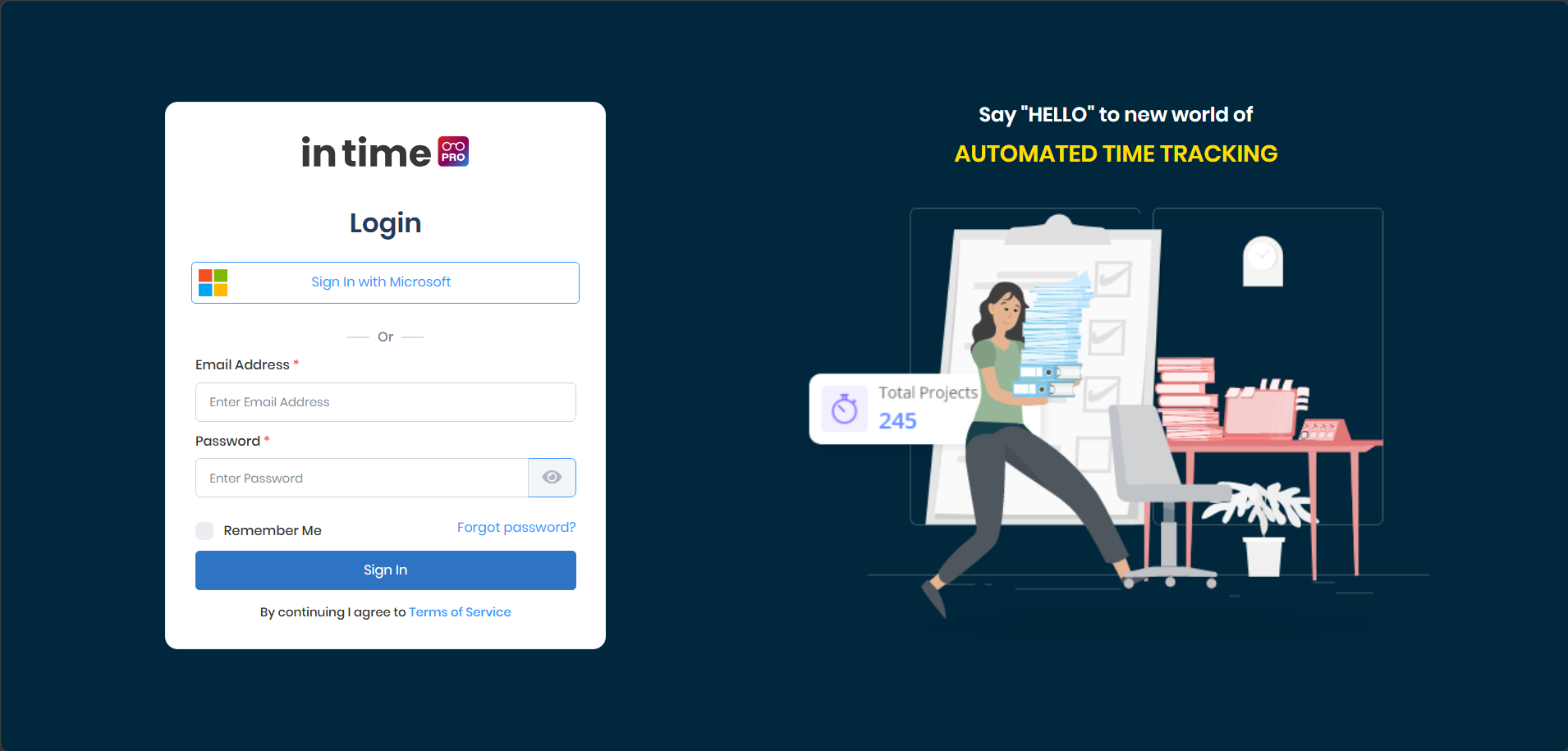
The In Time PRO web application login page.
What You See After Signing In
The sign-in screen is the same for everyone, but what you see next depends on your role and how your organization has set up your account. Your In Time PRO screen may look different from a colleague's screen because of this.
| Your role | What you typically see |
|---|---|
| Admin | A management view, with access to company setup and configuration areas |
| Manager | Areas for managing your team and their work |
| Employee / Contractor | Your normal working area — time tracking, tasks, and timesheets |
| Client | A separate Client Dashboard, focused on the projects you're involved with |
| Host Administrator | A separate, platform-level view — this applies only to the team that operates In Time PRO itself, not regular organization users |
This page doesn't cover every detail of each role's experience — that's covered in the Dashboard and other module documentation. The important thing to know here is that seeing a different set of menus and options than someone else is expected, not a problem.
Complete Initial Setup (If Applicable)
If your organization is brand new to In Time PRO, you may briefly be guided through some initial setup when you first sign in — for example, confirming company details, setting up departments, and inviting your team. This mainly applies to an administrator setting up a new organization, and it is not something every user goes through. Most people signing in to an organization that's already set up will go straight to their normal working area.
Company setup information can also be reviewed or updated at any time from Settings, without needing a special setup screen. What you see in Settings depends on your role — an Admin typically sees more company and configuration options, a Manager may see a different set, and an Employee usually sees only what's relevant to their own account. This is expected, and it's covered in more detail in the Global Settings documentation, including Company Profile and Manage Users.
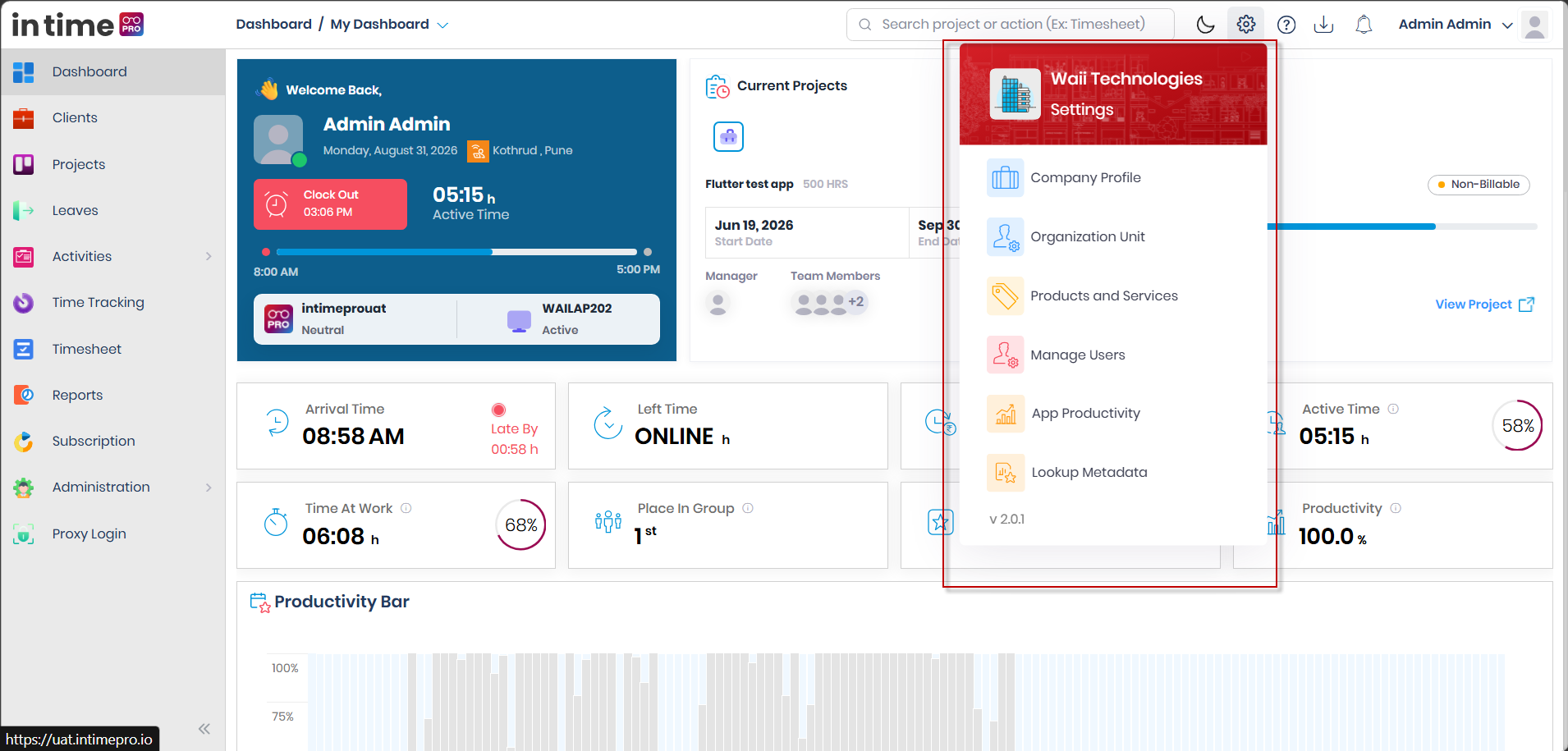
The Settings area an Admin sees, showing company setup and configuration options.
Download the Desktop Application
Depending on how your organization uses In Time PRO, you may be asked to install the In Time PRO Desktop Application. This is separate from the web application and is used to collect work-related tracking information and send it to In Time PRO.
You might see a prompt to download it shortly after signing in, or you can open the download screen yourself at any time from the download icon in the top bar of the web application.
Depending on your organization's setup, the Desktop Application can support information such as:
- Active/work time
- Application and window activity
- Screenshots, when your organization has configured this
- Information about the applications and websites being used
- Productivity-related activity information, where your organization has set this up
When the download prompt appears, you can:
| Option | What it means |
|---|---|
| Download | Starts installing the Desktop Application for your computer (Windows or Mac) |
| Remind me later | Closes the prompt for now; you may see it again later |
| Never ask me again | Stops the automatic prompt; you can still open the download screen yourself from the top bar whenever you need it |
If you have trouble installing the Desktop Application, contact your organization's administrator or IT support.
Client users do not see this option. The Client experience does not include the Desktop Application.
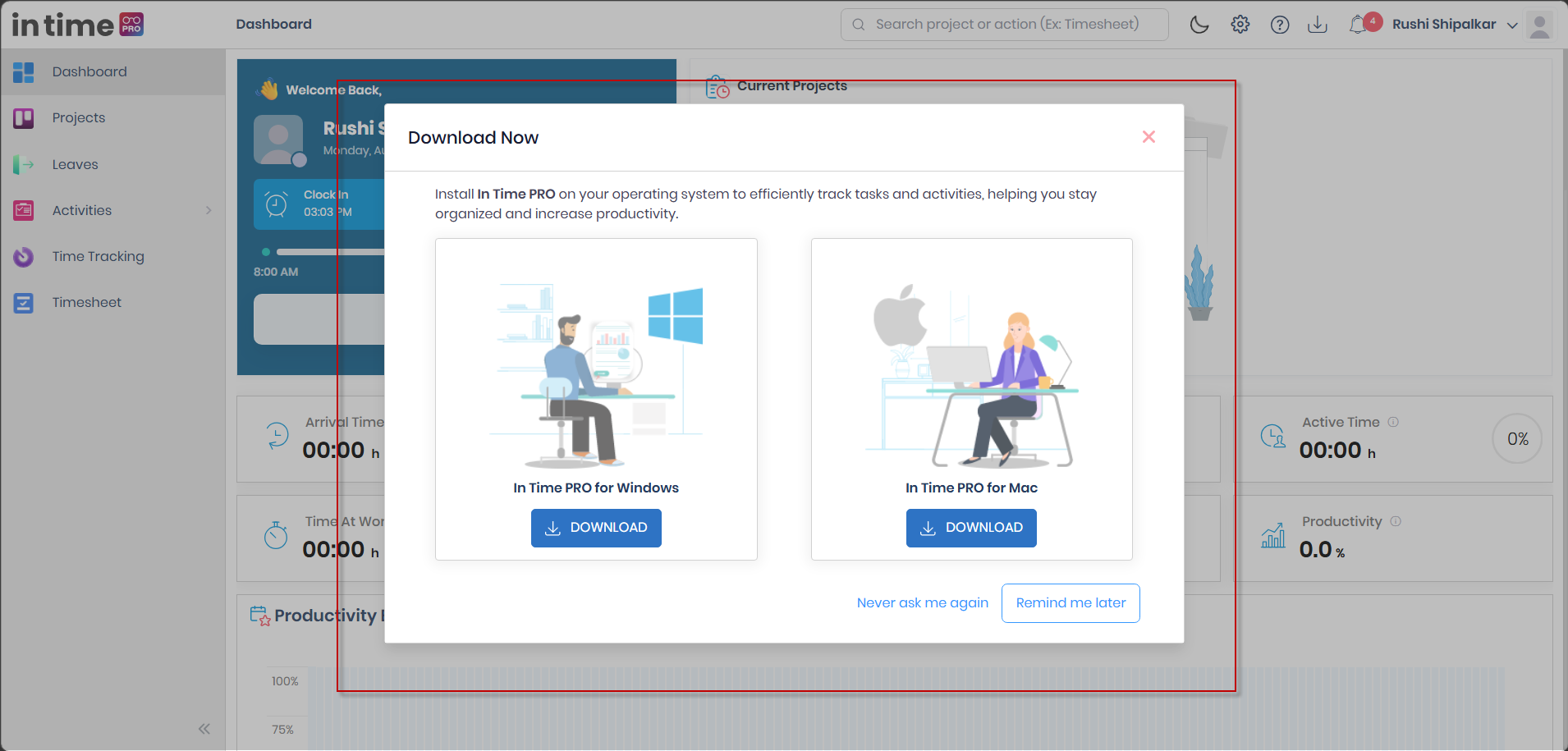
The Download prompt provides access to the In Time PRO Desktop Application.
Sign In to the Desktop Application
Signing in to the web application does not automatically sign you into the Desktop Application. After installing it, you'll need to open it and sign in separately, using your In Time PRO account.
Web login
    ↓
Download / install the Desktop Application
    ↓
Open the Desktop Application
    ↓
Sign in to the Desktop Application
    ↓
The Desktop Application can begin sending tracking information to In Time PRO
Similar to the web application, signing in to the Desktop Application may use email and password, or Microsoft sign-in, depending on your organization's setup.
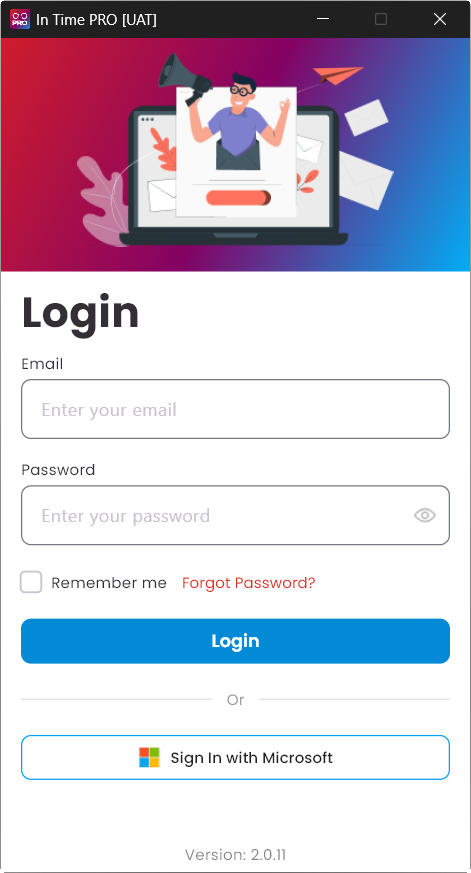
Sign in to the In Time PRO Desktop Application separately from the web application.
Understand Desktop Tracking
The web application is where you access In Time PRO day to day. The Desktop Application works alongside it, specifically for tracking-related information.
When the Desktop Application is installed, running, and signed in, it can collect the kind of information described above and send it to In Time PRO — which can then appear back in the web application. Signing in on the web by itself does not start any tracking; the Desktop Application has to be open, signed in, and running for that to happen.
More detail on how tracked information is shown in the web application is covered separately in the Activities documentation.
Project Assignment
Projects are how work is organized in In Time PRO. Being assigned to a project connects you to that work.
- You don't need to be assigned to a project just to sign in and use In Time PRO.
- Once you're assigned to a project, project-related work, tracking, and time information become relevant to you.
- Assignment is typically handled by an Admin, Manager, or another authorized person — you don't need to assign yourself.
If you expect to see a project and it isn't there, check with your administrator or manager.
Timesheet Reminder
You may sometimes see a Timesheet Reminder when you sign in. It's conditional — it does not appear for everyone, and it is not tied to being a first-time user.
A reminder can appear when:
- You've been assigned to a project, and
- There are previous working days that still need timesheet entries, and
- That project is set up to show the reminder.
For example: if you have been assigned to a project and some previous working days still need timesheet entries, In Time PRO may show a Timesheet Reminder. Days you were on leave, or holidays, generally aren't counted as missing.
From the reminder, you can:
| Option | What it does |
|---|---|
| Fill Timesheet | Takes you to your timesheet to complete the missing days |
| Skip for now | Hides the reminder for the rest of your current session |
The Timesheet Reminder does not appear simply because you signed in for the first time, opened your dashboard, or installed the Desktop Application — it only appears when the conditions above are met.
Your First-Time Journey
Not every step below applies to every user — conditional steps are marked.
Web Login
    ↓
You're taken to the area available for your role
    ↓
Complete or review initial company setup     (only if your organization is brand new)
    ↓
Download the Desktop Application              (only if your organization's workflow needs it)
    ↓
Install and sign in to the Desktop Application separately
    ↓
The Desktop Application provides tracking information while it's running
    ↓
Timesheet Reminder                              (only if you're assigned to a project with missing entries)
    ↓
Continue to the relevant In Time PRO areas
What to Do Next
- Learn your way around the main application navigation.
- Open the areas available for your role.
- If you're assigned to projects, see how project work is organized in Projects.
- Learn how to enter and manage timesheets in Timesheet.
- Explore other areas relevant to your role, such as Time Tracking, Leaves, Activities, and Reports.
If you're an administrator setting up a brand-new company, see Overview → Where Should I Start? for the recommended company-setup reading order — starting with Global Settings and Administration → Roles before creating clients and projects.