Member Allocation
1. Member Allocation Overview
Member Allocation is a people-first view for administrators: instead of starting from a project and picking members, you start from a person and manage which projects they're allocated to, how much of their time each project takes, and some basic profile information about them (experience, current billing status, availability, CV, and connected app integrations).
From Member Allocation, an administrator can:
- Search for a team member.
- Open that member's profile.
- Review their availability and current projects.
- Add, edit, or delete a project allocation for them.
- Upload or download their CV.
- Review their connected app integrations.
Member Allocation is available to users whose role has been granted the Member Allocation permission — typically Admin and Super Admin.
What Member Allocation is not: it is not built around Organization Units (it doesn't use them at all), and it is not a "pick a project, then choose members" screen — that project-first view exists separately on a project's own Team/Allocation tab. Member Allocation always starts from the person.
2. Member Allocation List
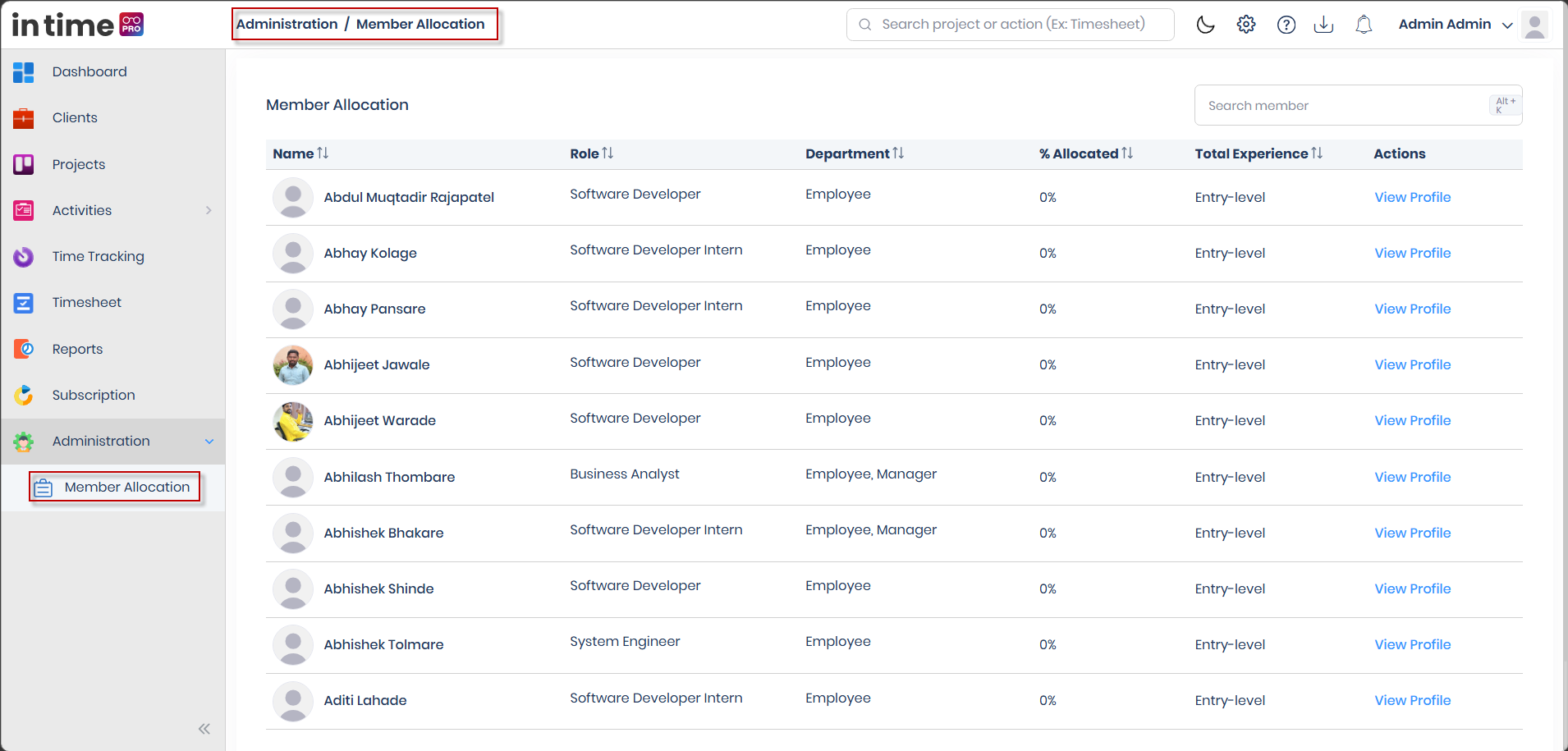
The list shows every eligible team member with these columns:
| Column | What it shows |
|---|---|
| Name | The member's photo and full name |
| Role | The member's designation/title |
| Department | Built from the role(s) the member holds (not from Organization Units) |
| % Allocated | The member's total current allocation percentage across all their active project allocations |
| Total Experience | The member's recorded experience (for example, "2 Y 3 M"), or Entry-level if none is recorded |
| Actions | View Profile — opens that member's profile |
The list is paginated, and shows a Total record count at the bottom. If there's nothing to show, you'll see a No Data Found message.
Who appears on this list: every active team member except users with the Client role — clients are never listed here, since Member Allocation is about staff capacity planning, not client management.
3. Searching Members
Use the Search member box at the top of the list to quickly find someone by name, role/designation, or department. You can also press Alt + K to jump straight to the search box. Typing pauses briefly before searching (so you don't need to press Enter), though pressing Enter also searches immediately.
4. Viewing Member Profile
Click View Profile on any row to open that person's Member Profile — the screen where you review and manage their allocations. If the profile can't be loaded for any reason, you're returned to the list.
5. Member Profile Overview
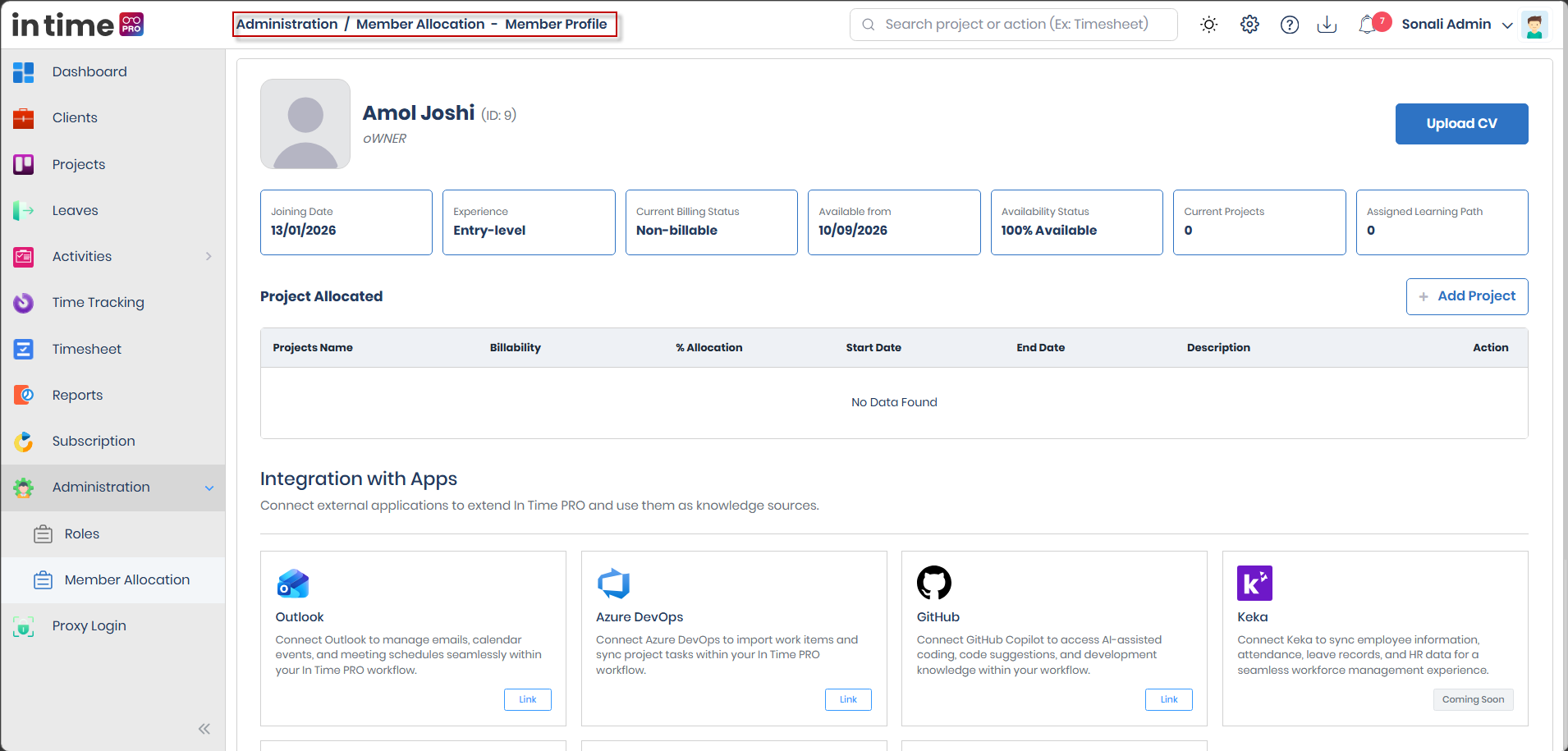
The Member Profile brings together everything relevant to planning that person's project work:
- A header with their photo, name, ID, and designation, plus Upload CV / Download CV.
- A row of metric cards summarizing joining date, experience, billing status, availability, current project count, and assigned learning path.
- The Project Allocated table, where allocations are added, edited, and removed.
- An Integration with Apps section, showing this person's connected apps for reference.
6. Profile Information
The metric cards near the top of the profile summarize the person at a glance:
6.1 Joining Date
The date the person joined the company. Helps you factor in tenure when deciding who to allocate to a project.
6.2 Experience
The person's recorded professional experience (years and months), or Entry-level if nothing has been recorded yet. This helps you judge whether someone is a good fit for a project based on seniority, not just availability.
6.3 Current Billing Status
Shows Billable if the person currently has at least one billable project allocation, otherwise Non-billable. This is a quick way to see whether someone is currently generating billable work for a client.
6.4 Available From
The date this person becomes available for new work. If they still have unallocated capacity (their % Allocated hasn't reached 100%), this shows today's date, since they already have room for more work. If they're fully allocated, it shows the earliest end date among their current allocations — the soonest point at which some of their capacity frees up.
6.5 Availability Status
Shown as a percentage — for example, "25% Available" — reflecting how much of the person's capacity is still unallocated across their current project allocations.
6.6 Current Projects
A count of how many project allocations this person currently has active. Useful for spotting someone who may be spread too thin, or someone with room to take on more.
6.7 Assigned Learning Path
Shows how many learning paths have been assigned to this person, where your organization uses that feature. This is for reference on this screen — it isn't something you manage from Member Allocation.
7. Project Allocated
The Project Allocated table lists every project this person is currently allocated to, with these columns:
| Column | What it shows |
|---|---|
| Projects Name | The project the allocation is for |
| Billability | Whether this allocation is Billable or Non-billable |
| % Allocation | How much of the person's total capacity is assigned to this project |
| Start Date | When this allocation begins |
| End Date | When this allocation ends (if set) |
| Description | Any notes about this allocation |
| Action | Edit or delete this allocation |
If the person has no allocations yet, this table shows No Data Found.
8. Adding a Project
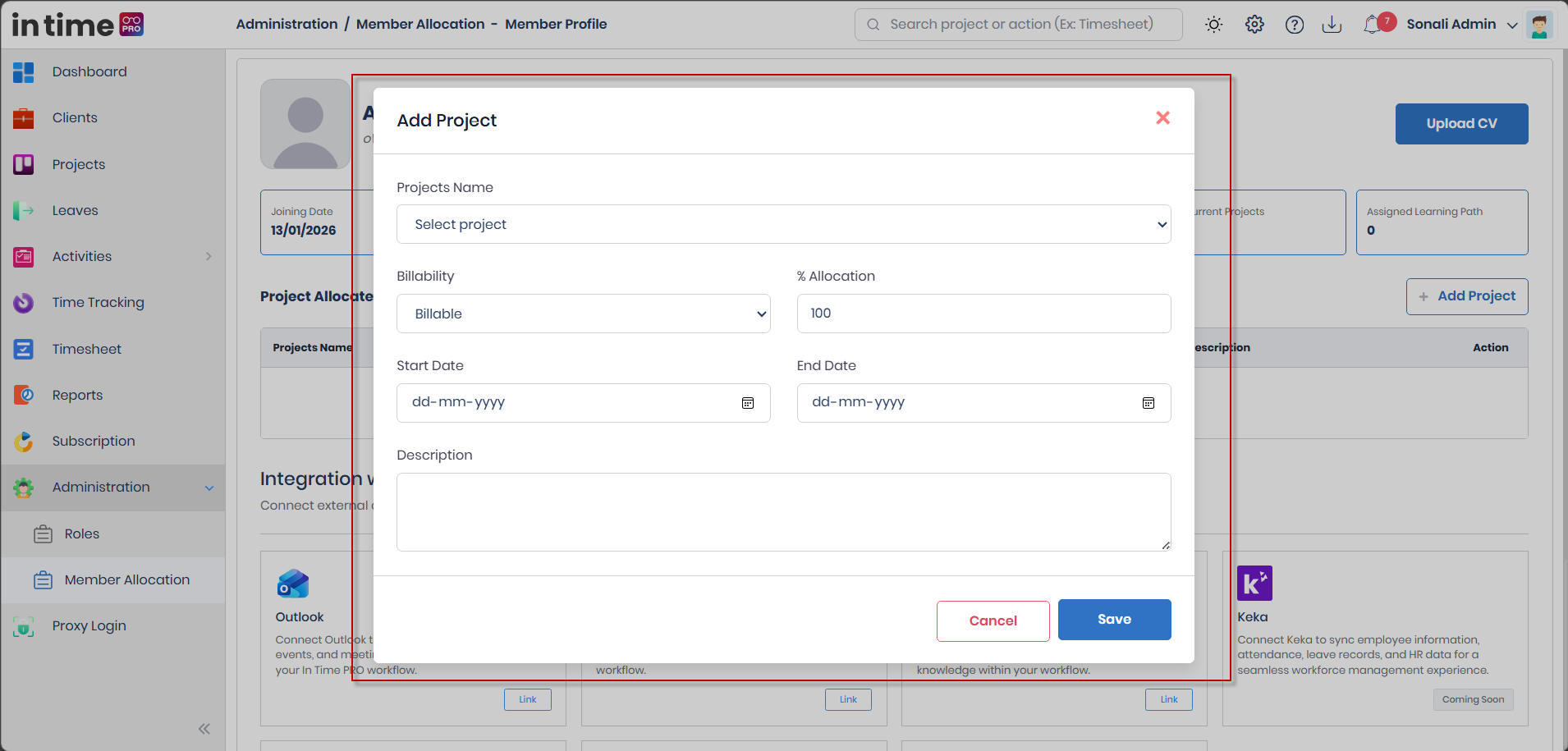
Click Add Project on the profile to allocate part of this person's capacity to a project. This is used whenever you need to assign someone — fully or partially — to a project.
9. Project Allocation Fields
| Field | Required | What it means |
|---|---|---|
| Projects Name | Yes | The project to allocate this person to. Only active, non-deleted projects appear in the list, with a placeholder of "Select project" |
| Billability | — | Whether this allocation counts as billable work. Defaults from the project's own billing type when you select a project, but can be changed |
| % Allocation | Yes | How much of the person's remaining capacity to assign to this project (see below) |
| Start Date | Yes | When the allocation begins |
| End Date | No | When the allocation ends |
| Description | No | Free-text notes about the allocation |
9.1 Billability
Marks whether this specific project allocation should be treated as Billable or Non-Billable work for that person. This feeds directly into the Current Billing Status shown on their profile — if any current allocation is billable, their overall status shows as Billable.
9.2 Allocation Percentage
Represents how much of the person's total available capacity is being given to this project. A hint such as "Maximum available: N%" appears if the person doesn't have their full 100% available, so you know how much room is left. All of a person's active allocation percentages are added together and cannot exceed 100% in total.
9.3 Start Date
The date this allocation begins. Required, since every allocation needs a defined starting point.
9.4 End Date
The date this allocation ends. Optional — leave it blank for an open-ended allocation. If set, it cannot be earlier than the Start Date.
9.5 Description
An optional free-text field for any notes about why or how this person is allocated to the project — useful context for other administrators reviewing the same profile later.
After filling in the fields, click Save. You'll see a confirmation ("Saved successfully."), the dialog closes, and the profile reloads to show the new allocation.
10. Editing Project Allocation
Use the row action menu on any allocation in the Project Allocated table and choose Edit to open the same fields described above, pre-filled with the current values (the dialog title changes to "Edit Project Allocation"). Adjust what's needed and click Save.
11. Deleting Project Allocation
Choosing Delete from the row action menu asks you to confirm:
"Are you sure you want to delete this project allocation?"
After confirming, the allocation is removed, you'll see a "Successfully deleted" confirmation, and the profile reloads. Removing an allocation also frees up that percentage of the person's capacity, which is reflected immediately in their Availability Status and Available From values.
12. Uploading CV
Use Upload CV in the profile header to attach a resume/CV for this person. Accepted file types are PDF, DOC, DOCX, PNG, JPG, and JPEG. This is useful for keeping a person's professional background on hand for resourcing and client-facing purposes. The button is disabled while a file is uploading, and you'll see a confirmation once it completes.
13. Downloading CV
Once a CV has been uploaded, the header button changes to Download CV, letting you retrieve the file that's on record for that person.
14. Integration with Apps
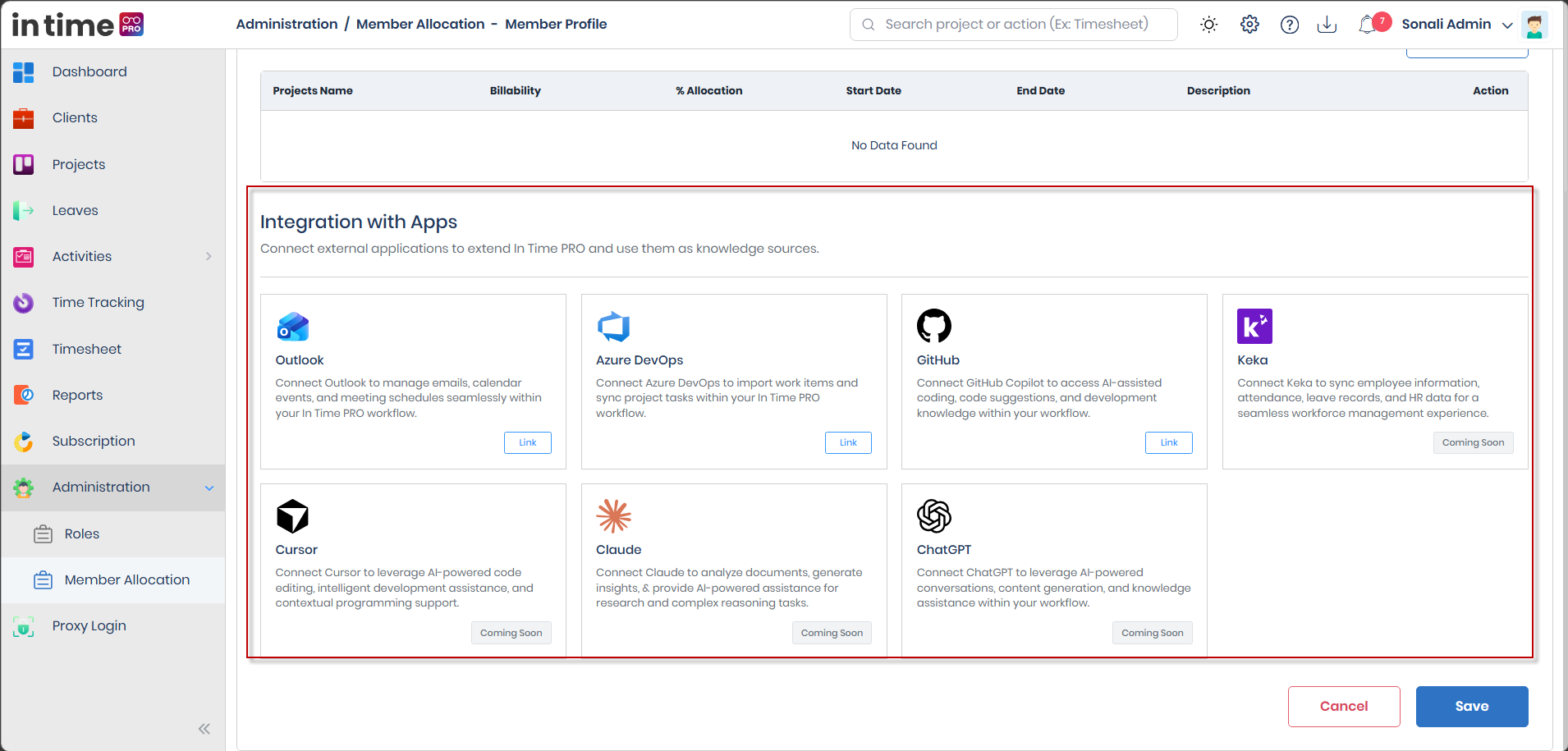
The Integration with Apps section shows the same set of integration cards used elsewhere in In Time PRO, displayed here for reference so an administrator can see which external applications and tools are connected for that person. Currently, Outlook, Azure DevOps, and GitHub show a Link action, while Keka and a few AI-assistant integrations (ChatGPT, Claude, and Cursor) show Coming Soon. Which integrations are available and which show Coming Soon can change over time as more are rolled out.
What each card can show:
- Linked — appears next to an integration's name when it's already connected for that person, so you can see their connection status at a glance.
- Link (or a similar connect/disconnect action) — a card can still show this kind of button here. On the Member Profile, however, it's for reference only: connecting or disconnecting an integration for a person is done from that person's own profile, not from an administrator's Member Allocation view, so using it on this screen does not connect or disconnect anything.
- Coming Soon — shown on a card for an integration that isn't available to connect yet, for anyone. It isn't an error.
In short, this section lets an administrator see at a glance which apps and tools a team member currently has connected, without managing those connections from the Member Profile screen.
15. Saving Member Profile
The profile footer has Cancel and Save buttons:
- Cancel returns you to the Member Allocation list without any additional confirmation.
- Save saves the profile's current summary information.
The metric cards on this page — Joining Date, Experience, Current Billing Status, Available From, Availability Status, Current Projects, and Assigned Learning Path — are shown for reference only. None of them have an editable field on the Member Profile screen, so there is nothing to type in or change for these values directly on this page.
Availability Status and Available From in particular are calculated automatically from the member's current project allocations, rather than being manually maintained values at all:
- Availability Status is calculated from the member's remaining allocation capacity — how much of their total capacity is still unallocated across their active project allocations.
- Available From is calculated from the member's current allocations — today's date if they still have unallocated capacity, or the nearest end date among their current allocations if they're fully allocated.
- These calculated values update automatically whenever a project allocation is added, edited, or removed — you don't set them directly.
- Treat Availability Status and Available From as informational, calculated values rather than fields you maintain manually.
16. Member Allocation Validation
While adding or editing an allocation, you may see messages such as:
| Situation | Message |
|---|---|
| No project selected | Project name is required |
| Allocation outside 0–100 | Allocation % must be between 0 and 100 |
| Allocation exceeds remaining capacity | Allocation % cannot exceed the remaining available percentage for this member |
| No start date | Please Select Date |
| End date earlier than start date | End date cannot be earlier than start date |
| Remaining capacity hint | Maximum available: N% |
| Deleting an allocation | Are you sure you want to delete this project allocation? |
| Wrong CV file type | CV must be a PDF, DOC, DOCX, PNG, JPG, or JPEG file. |
| Save succeeds | Saved successfully. |
| Delete succeeds | Successfully deleted. |
17. How Member Allocation Affects Other Modules
Adding, editing, or removing an allocation here isn't limited to this screen — it also updates the person's project team membership, which several other areas of In Time PRO rely on:
| Area | Effect of being allocated to a project |
|---|---|
| Projects list | The project can appear in the member's own Projects list |
| Team Tasks / task assignment | The member becomes a valid assignee for tasks on that project |
| Manual timesheet entries | The member can log manual time for that project within the allocation's dates |
| Timesheet views | The project appears on the member's timesheet, and the allocation percentage can be reflected in the week view |
| Activities / apps & websites | The member is counted as part of that project's team for activity tracking |
| Project Details — Team / Allocation tabs | The member appears in the project's own team list |
| Integrations | The project is included among the member's assigned-project integrations |
| Dashboard | The member is counted as assigned when utilization is calculated |
A few things Member Allocation deliberately does not do:
- It does not automatically add existing tasks to the member's My Tasks — being allocated to a project doesn't by itself assign any tasks; tasks are still assigned separately.
- It does not send an email notification to the member when they're allocated.
- Because of how some of this information is refreshed behind the scenes, it can occasionally take a short time before other screens fully reflect a brand-new allocation or a removal.
18. Member Allocation Workflow
The typical end-to-end flow looks like this:
Administration → Member Allocation
  → Search for a member (optional)
  → View Profile
    → Review availability, current projects, and experience
    → Add Project
      → Choose project, billability, allocation %, dates, and description
      → Save
        → Allocation appears in Project Allocated
        → The member becomes part of that project's team
        → Their Availability Status and Available From update automatically
This is always a member-first flow — you select the person, then decide which project(s) to allocate them to, rather than starting from a project and picking people.
19. Member Allocation Limitations
- Member Allocation does not use Organization Units in any way.
- There's no "select a project first, then pick members" option on this screen — that exists separately, on a project's own Team/Allocation tab.
- There's no bulk-allocation option — allocations are added one member and one project at a time.
- There's no Delete CV button on the current profile screen, even though a CV can be uploaded.
- Being allocated to a project does not automatically place any of that project's existing tasks on the member's My Tasks list.
20. Common Questions
Why does Member Allocation not show Client users?
Member Allocation is for planning staff project capacity. Clients are excluded from the list entirely and are managed through the separate Client Portal instead.
Does allocating someone to a project automatically give them their tasks?
No. Allocation controls project team membership, availability, and timesheet eligibility — it does not automatically place existing tasks on the person's My Tasks list.
Can I select a project first and then choose which members to allocate?
Not on this screen. Member Allocation always starts from the person. A project-first view of team membership exists separately on a project's own Team/Allocation tab.
Why does my % Allocation keep getting capped?
A member's combined allocation across all their current projects can't exceed 100%. The "Maximum available" hint shows how much room they have left.