App Productivity
Use App Productivity to define what counts as productive work for your organization. You classify the applications and websites people use, and choose how a productivity percentage is calculated. These settings drive what appears in Activities and related Reports.
How to access
Settings → App Productivity
App Productivity has three tabs: Categories, Productivity Definition, and Productivity Calculation.
What you can do
Categories
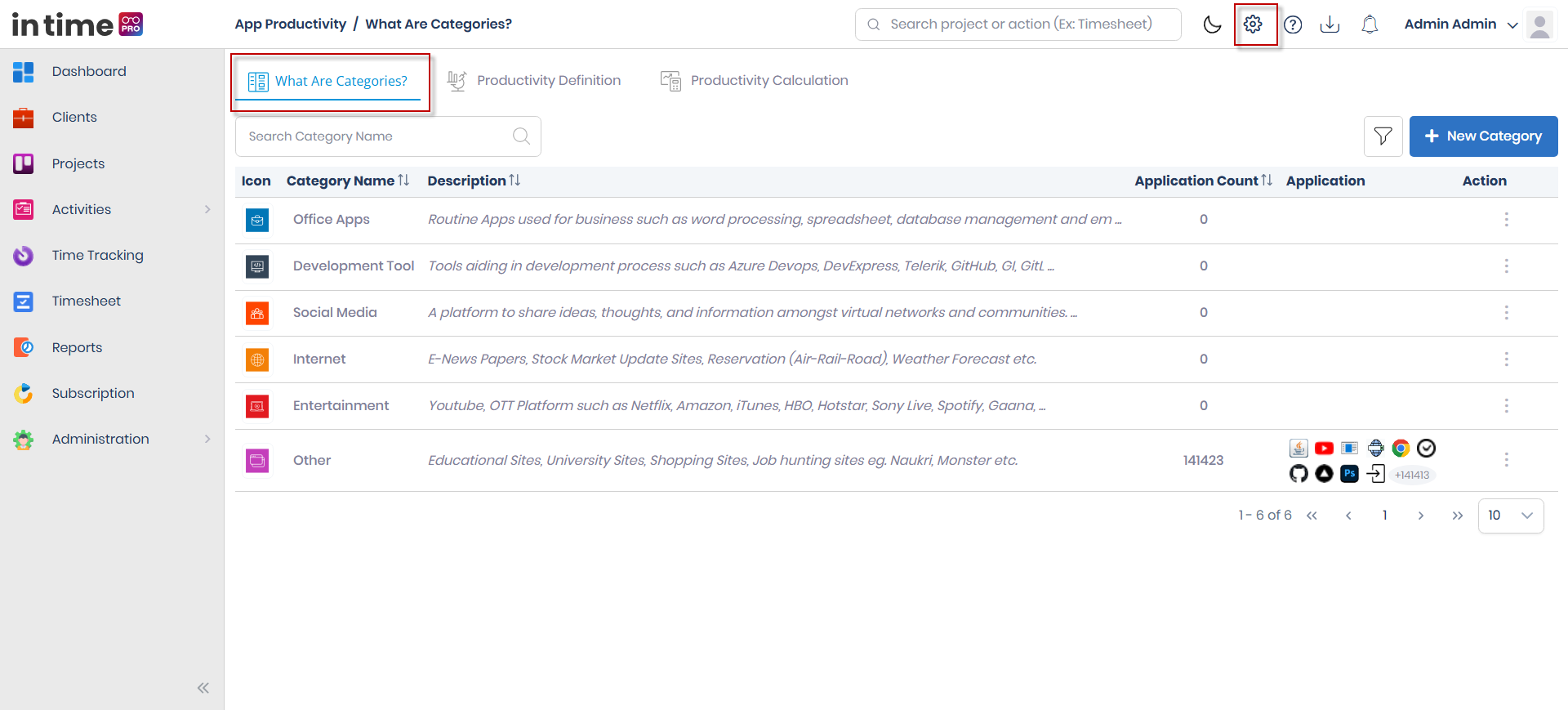
A category groups related applications together — for example, groupings like Office Apps, Development Tools, Social Media, Internet, and Entertainment. Any application that hasn't been assigned to a category automatically falls into a general Other category.
- Search the list by category name.
- New Category creates a category with a name, a description, and an icon — choose from a set of preset icons or upload your own — along with the applications assigned to it.
- Each row offers Edit Category, View Category, and Delete.
- The built-in Other category, along with a couple of the other default categories, is provided out of the box and cannot be edited or deleted.
Screenshot: App Productivity — Categories
The Categories tab, listing application categories with the New Category action and per-row Edit/View/Delete options.
Productivity Definition
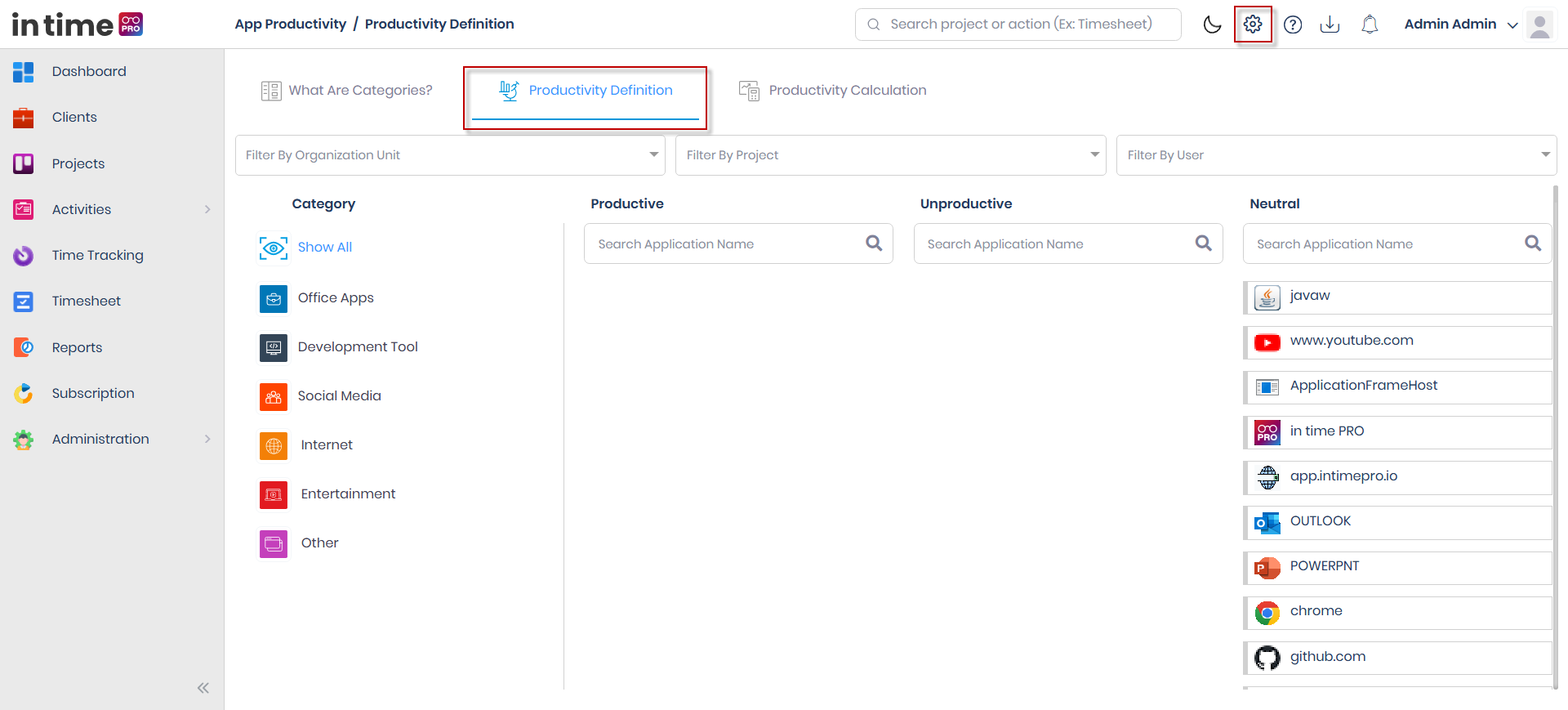
- Filter by Organization Unit, Project, and User to narrow down which applications you're classifying.
- Applications are grouped into three buckets: Productive, Unproductive, and Neutral.
- Select one or more applications and use Move To to reclassify them into a different bucket.
- New applications typically start out Neutral until someone classifies them here. The company-wide default classification for newly seen applications is fixed at Neutral — see Capture Settings.
Screenshot: App Productivity — Productivity Definition
The Productivity Definition tab, with the Organization Unit/Project/User filters and the Productive, Unproductive, and Neutral buckets.
Productivity Calculation
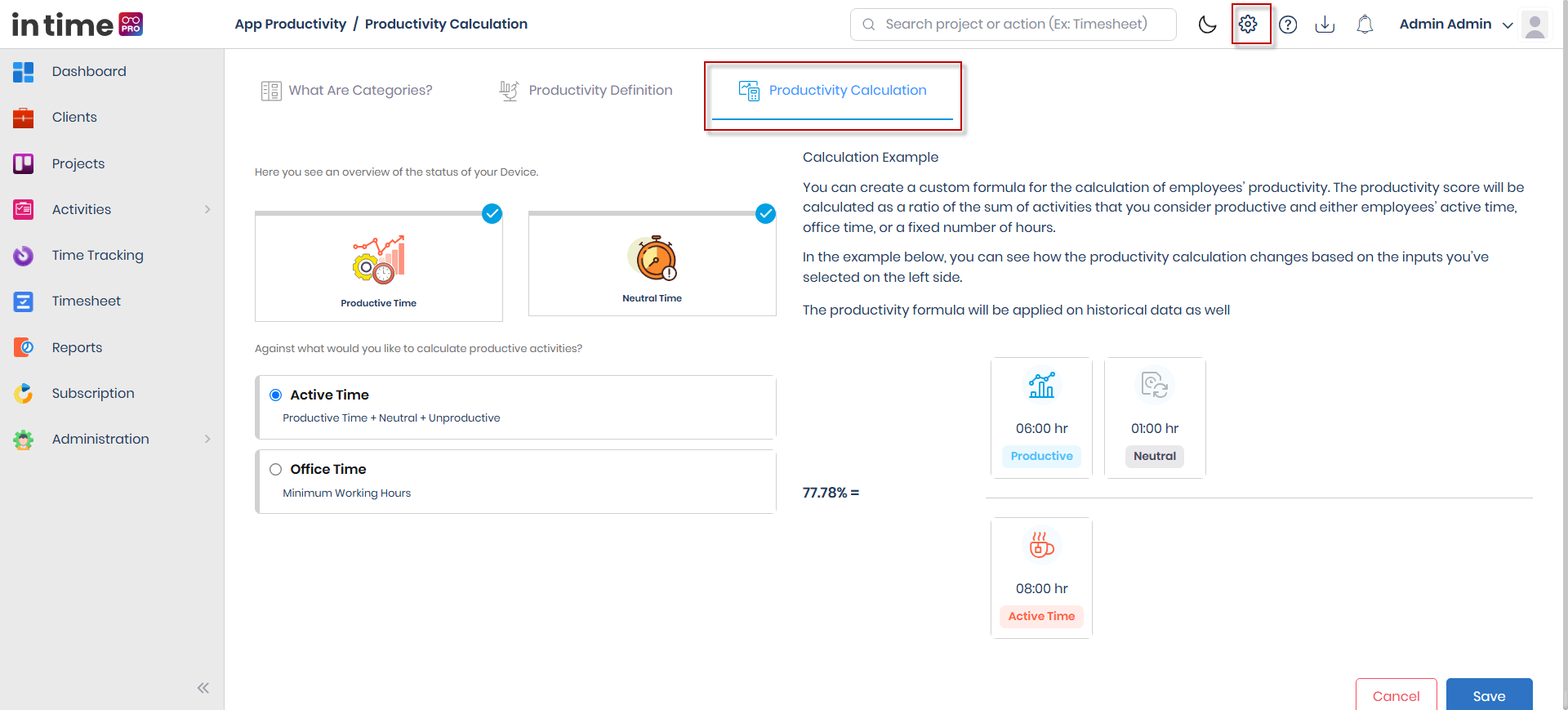
- Two toggles control what's included: whether to count Productive Time, and whether to also include Neutral Time.
- Choose what productivity is measured against:
- Active Time — productive time as a share of all actively tracked time (productive + neutral + unproductive).
- Office Time — productive time as a share of the location's minimum working hours (set under Track Working Days).
- The page shows a worked example with sample numbers — for instance, a sample day broken into productive, neutral, and unproductive hours — to illustrate how the percentage is calculated. This example is illustrative only; it does not reflect your organization's live numbers.
- Save applies your formula company-wide. You'll see Changes added successfully.
Screenshot: App Productivity — Productivity Calculation
The Productivity Calculation tab, with the Productive Time / Neutral Time toggles, the Active Time / Office Time choice, and a worked example.
Step-by-step workflow
- Open Settings → App Productivity.
- On Categories, create a category, assign apps, and save.
- On Productivity Definition, set your filters and move apps to Productive, Unproductive, or Neutral.
- On Productivity Calculation, choose your toggles and calculation basis, then save.
- Confirm the classifications in Activities or a Productivity report.
Expected result
Classifications update for the scope you set on Productivity Definition. Categories appear in the Categories list. After you save the formula, you see Changes added successfully.
Common validations
| Situation | What you see |
|---|---|
| Category name missing or invalid | Name is not valid |
| Duplicate category name | Save is blocked |
| Moving without selecting any apps | Please select apps |
| Leaving with unsaved changes | Confirm before leaving |