Real Time Tracking
1. Purpose
Real Time Tracking is a team-wide view of who is available right now (or on a past day you choose), how they're working (office, remote, or unknown location), and what they're currently using. From here you can open one person to review their full Time and Attendance, or request a one-off screenshot from their Desktop Application.
2. How to Open It
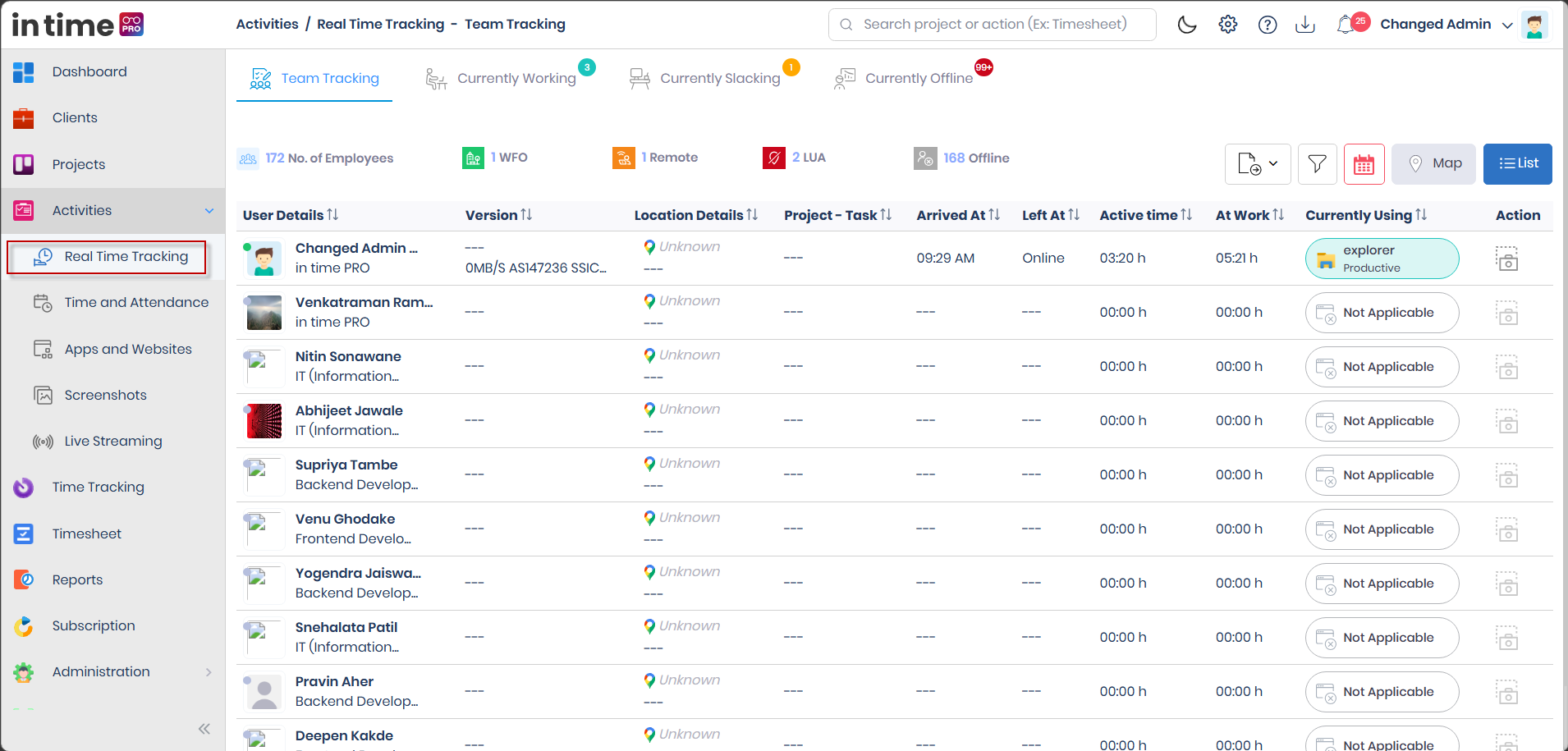
Activities → Real Time Tracking
This requires the Real Time Tracking permission and the matching edition feature. See Activities → Role-Based Access for who gets this by default.
You can also arrive here from a Dashboard team widget, or with a specific person already selected (for example, from a link naming that person) — in that case a tab opens directly for that person instead of the team list.
3. Is This "Live"?
Real Time Tracking is not a continuously updating video wall. In practice:
- The team table loads once when you open the page, and reloads when you change the date.
- Status counts on the tabs (Working / Slacking / Offline) update automatically as people's status changes, without you needing to reload the page.
- Take Screenshot (Section 8) is a separate, one-off request for a single still image — it does not turn this page into a live feed.
Treat the table as "current as of when you opened it or last changed the date," not as a security-camera-style live wall.
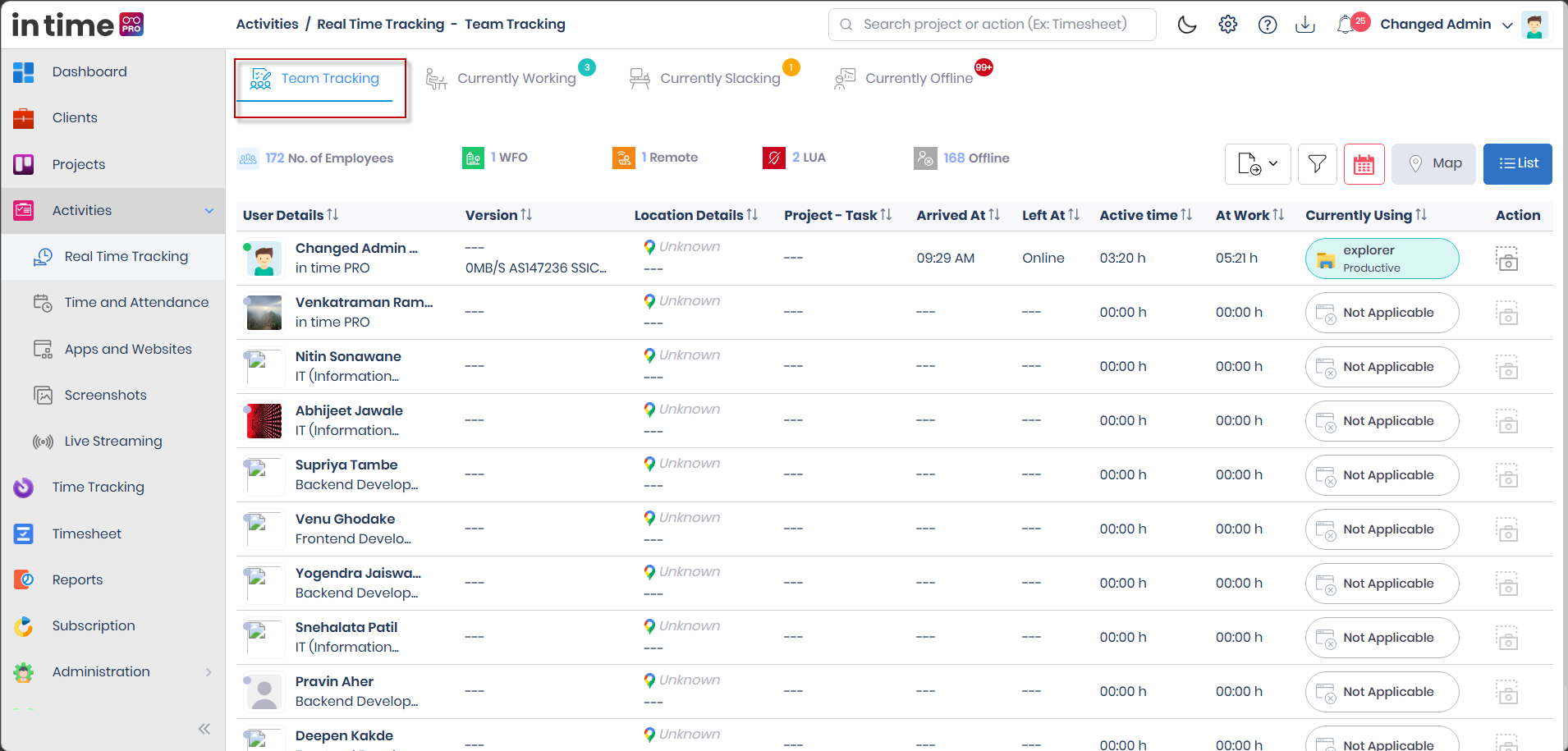
4. Tabs
| Tab | What you see |
|---|---|
| Team Tracking | The full team table (or map), plus the summary counts described in Section 5 |
| Currently Working | People whose latest status counts as working — checked in, and not Offline, Idle, or Private Time. The tab badge shows the working count (99+ once it passes 99) |
| Currently Slacking | People who are checked in, but whose current status is not Online and not Offline — for example Busy, Idle, Meeting, or Private Time. The tab badge shows this count |
| Currently Offline | People in your visible set who are not in the working or slacking group. The tab badge shows this count |
| (a person's name) | Opens as its own tab when you click a row — shows that person's Time and Attendance for the date you had selected |
Note on "slacking." Some in-product help text describes "slacking" as people using unproductive applications. That is not how this list actually works — it's based on status (Busy, Idle, Meeting, Private Time), not on which application is open. If someone appears here, it's because of their check-in status, not necessarily what they're doing.
5. Team Tracking Summary Counts
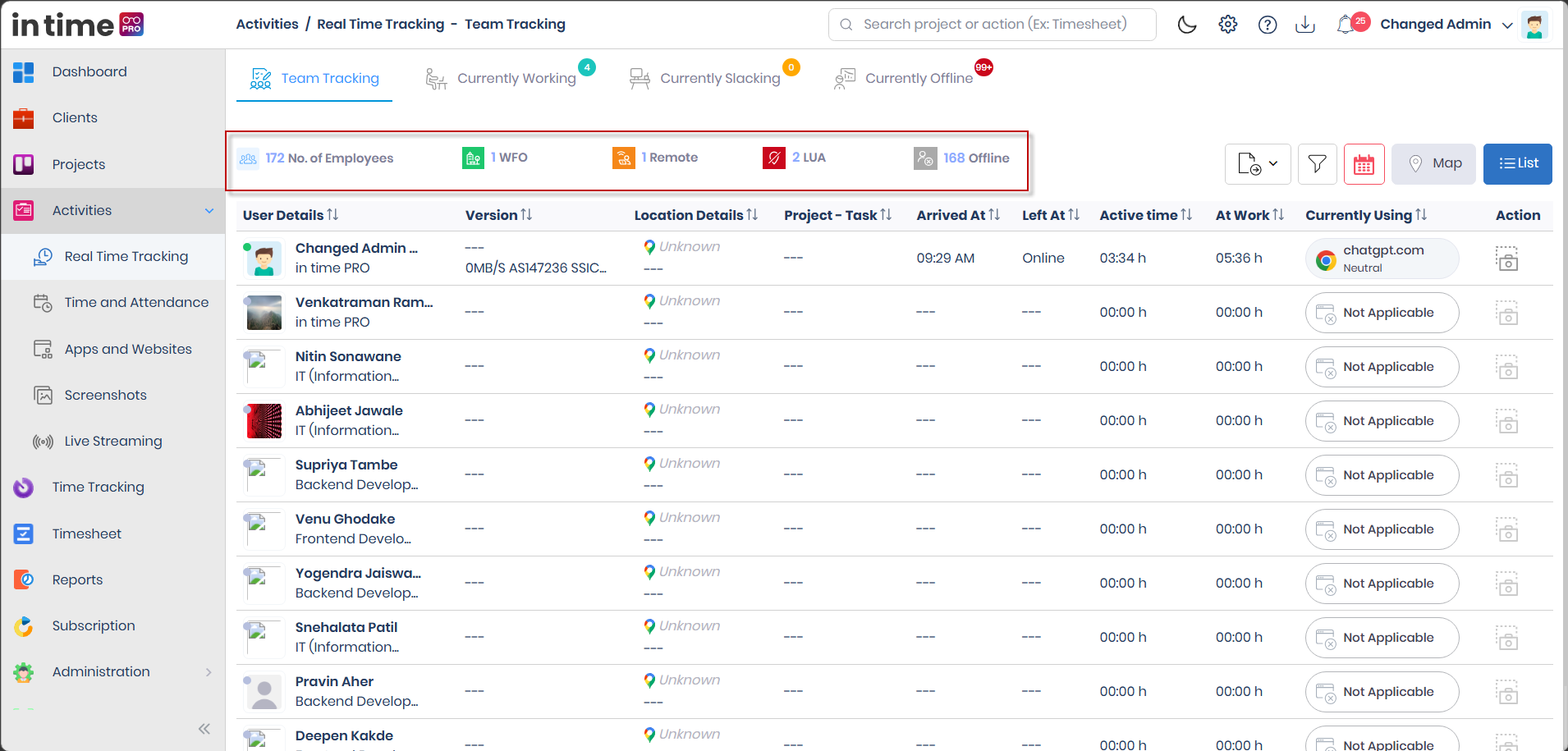
Across the top of Team Tracking you'll see a row of count tiles while the page loads (shown as shimmering placeholder bars) and then filled in:
| Label | What it means |
|---|---|
| No. of Employees | How many people are in your visible set for the selected date (see Activities → Data Visibility for how that set is decided) |
| WFO | Work From Office — people whose current working type is Office |
| Remote | Remote Working — people whose current working type is Remote |
| LUA | Location Unavailable — the person is not offline, but the app has no live location for them right now |
| Offline | Offline Users — people whose current status is Offline |
Not shown on this header: a WFH (Work From Home) summary tile does not currently appear next to WFO / Remote / LUA / Offline, even though "Home" appears as a location value in individual rows (Section 6). There is also no metric or label called LWA anywhere on this page — if you've heard that term, it does not correspond to anything shown here.
6. List View and Map View
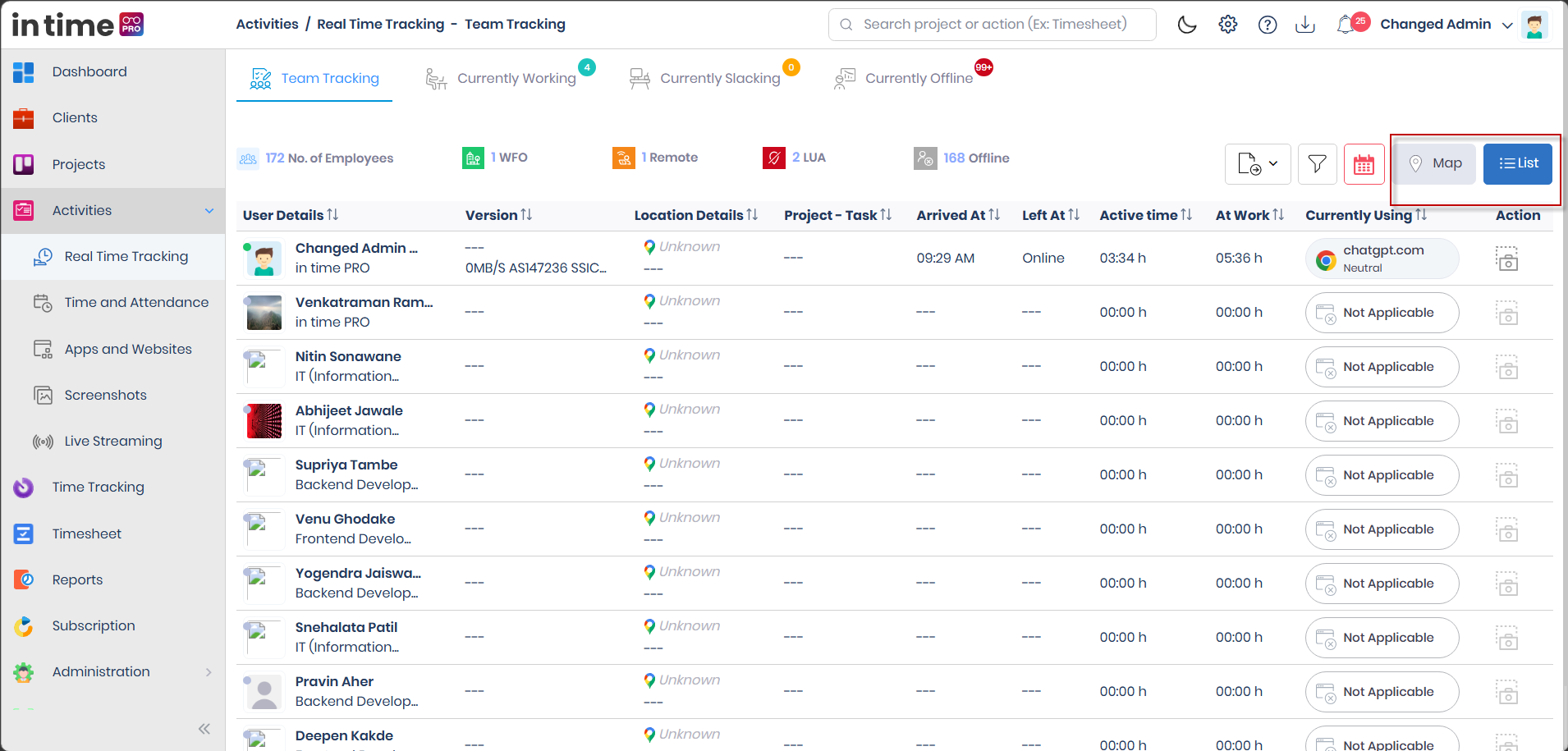
Use the List / Map toggle near the top of Team Tracking to switch how the team is displayed.
6.1 List
The default view — a table of your visible team (Section 7).
6.2 Map
Shows people who currently have a location, plotted on a map. The map opens centered on a default world view; click a marker to see that person's name, role, IP address, device, work type, and location. Use View details >> on a marker to open a side panel showing entry, exit, and duration information for job sites. A Search Member Name box lets you narrow the markers shown — it starts filtering once you've typed more than two characters.
If nobody currently has a location to show, you'll see a No Data Found message with an illustration.
Note: Organization unit, project, and member filter fields exist behind the scenes for the map, but they are not currently shown on the map's toolbar — use the Search Member Name box instead.
7. Team Tracking Table Columns
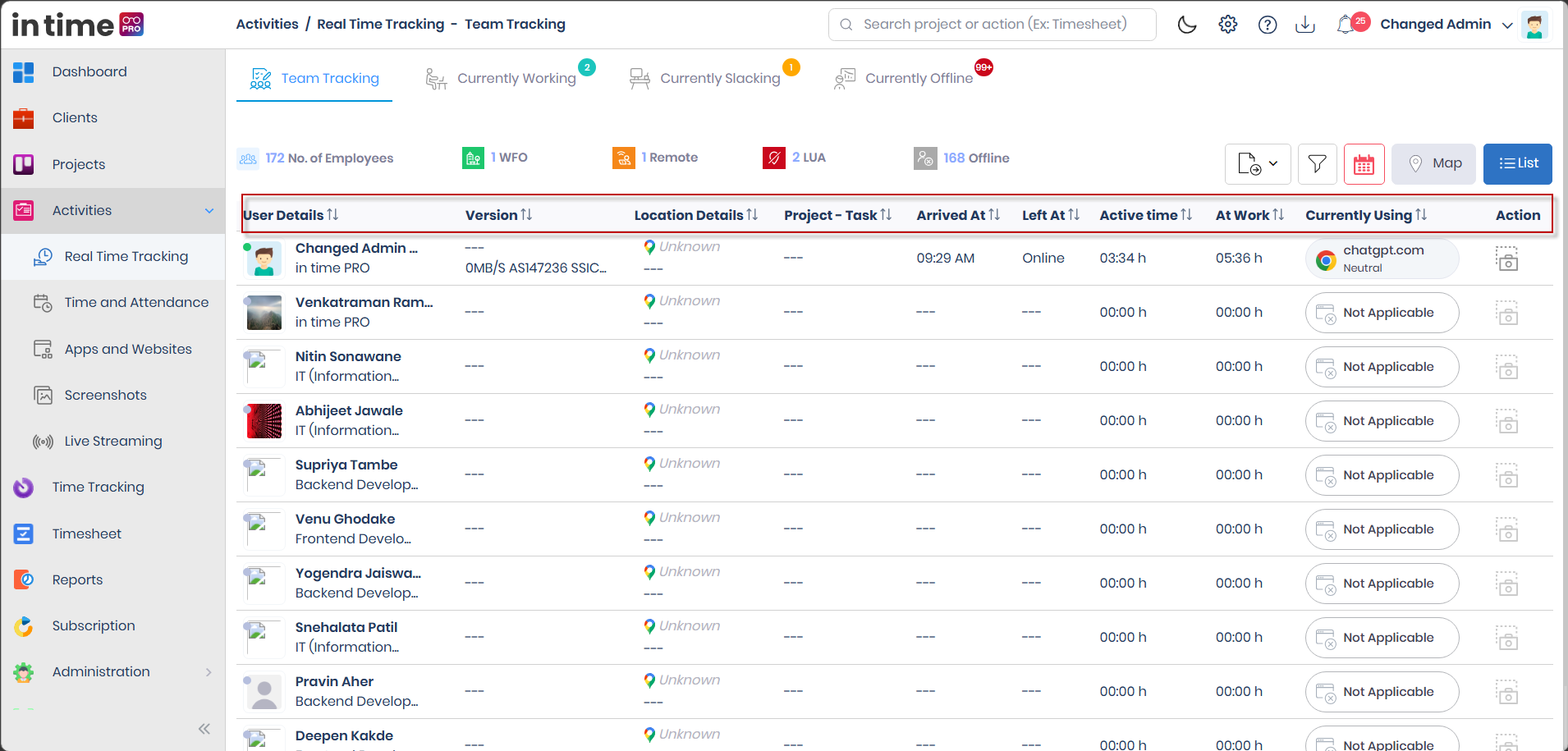
Each row in the Team Tracking list represents one person. Here's what every column means:
| Column | What it shows | Why it's useful |
|---|---|---|
| User Details | The person's photo, name, a colored status dot, and their role(s) | Identifies who the row belongs to and their current status at a glance |
| Version | The type of device and application version they're being tracked from (for example Windows, Mac, or Web) | Helps you tell what they're currently being tracked from |
| Location Details | Home, Office, Remote, or Unknown, plus a live location if one is available | Shows where the person is currently working from |
| Project - Task | The project and task they're currently working on, or --- if none | Shows what work is in progress right now |
| Arrived At | Their check-in time for the day, or --- if they haven't checked in | Tells you when their day started |
| Left At | Their check-out time, Online if they're still checked in with no check-out yet, or --- if neither applies | Tells you whether the person's day is finished |
| Active Time | Their tracked active time so far | How much time the Desktop Application has recorded as actively worked |
| At Work | Total time at work so far (from arrival) | A running total of time spent "at work" for the day |
| Currently Using | The application currently in focus, plus its classification: Productive, Unproductive, Neutral, or Not Applicable | Shows what someone is doing right now and how it's categorized (see App Productivity) |
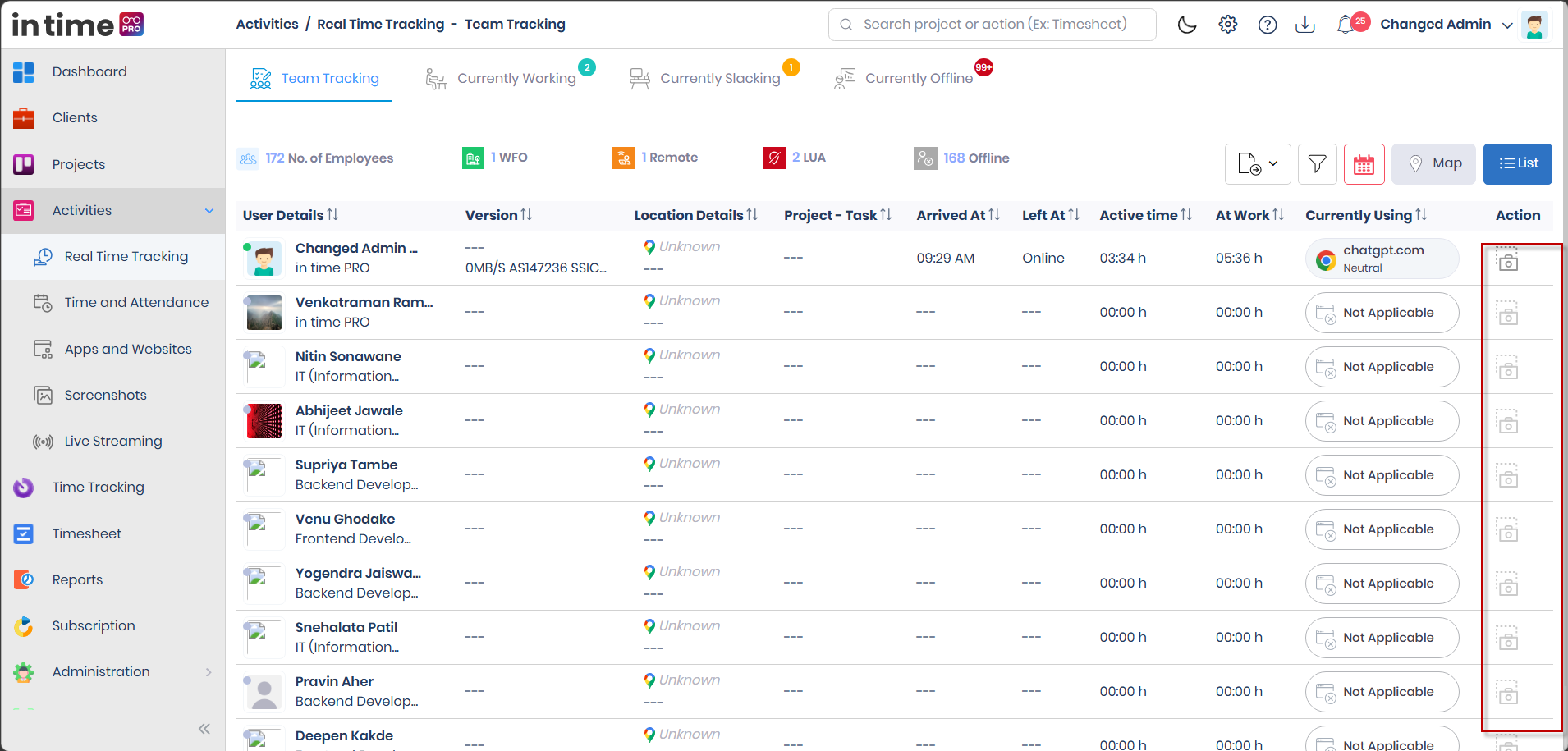
| Action | The Take Screenshot camera icon, shown only when screenshot capture is enabled for that person and they currently have an application status | Lets you request a one-off still image from that person's screen (Section 8) |
7.1 Status Dots
The colored dot next to a person's name reflects their current status:
| Status | Meaning |
|---|---|
| Busy | Marked busy |
| Idle | No recent activity detected |
| Meeting | In a meeting |
| Online | Actively checked in and online |
| Offline | Checked out or not tracked |
| Private Time | Time explicitly marked private |
8. Take Screenshot
Available in the Action column for a row where screenshot capture is enabled for that person and they have a current application status.
- Click the camera icon on that row.
- In Time PRO asks that person's Desktop Application for a picture.
- A window opens showing a loading placeholder, then the image once it arrives.
- Click Download to save the image.
If the live connection to that person's Desktop Application isn't available at that moment, you'll see a message that the connection isn't available instead of an image.
This is a one-off still image, separate from the ongoing Live Streaming screen — it does not start a continuous stream.
9. Filters, Calendar, and Export
| Control | What it does |
|---|---|
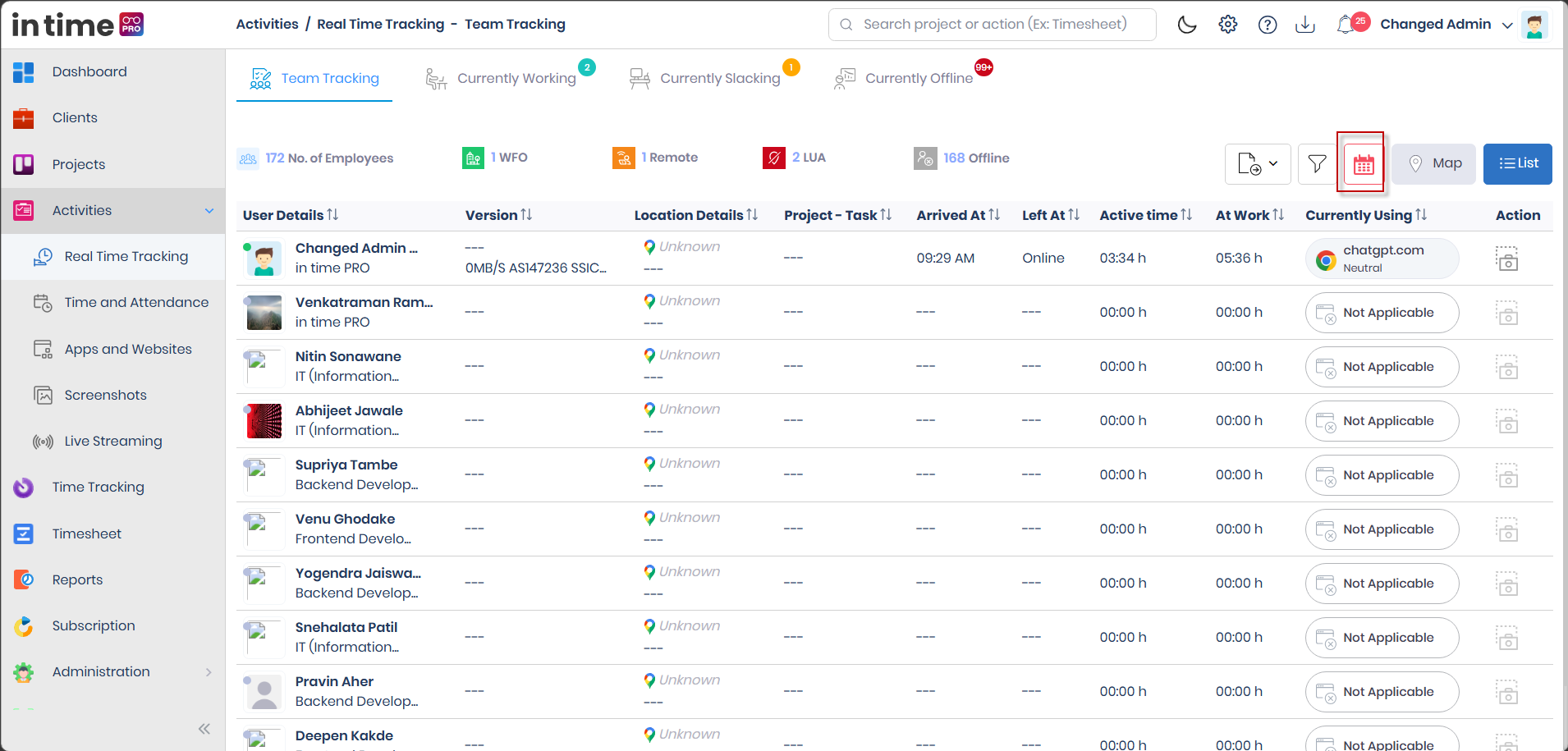
| Calendar | Pick a day to review — you cannot pick a future day. The list reloads for the date you choose. |
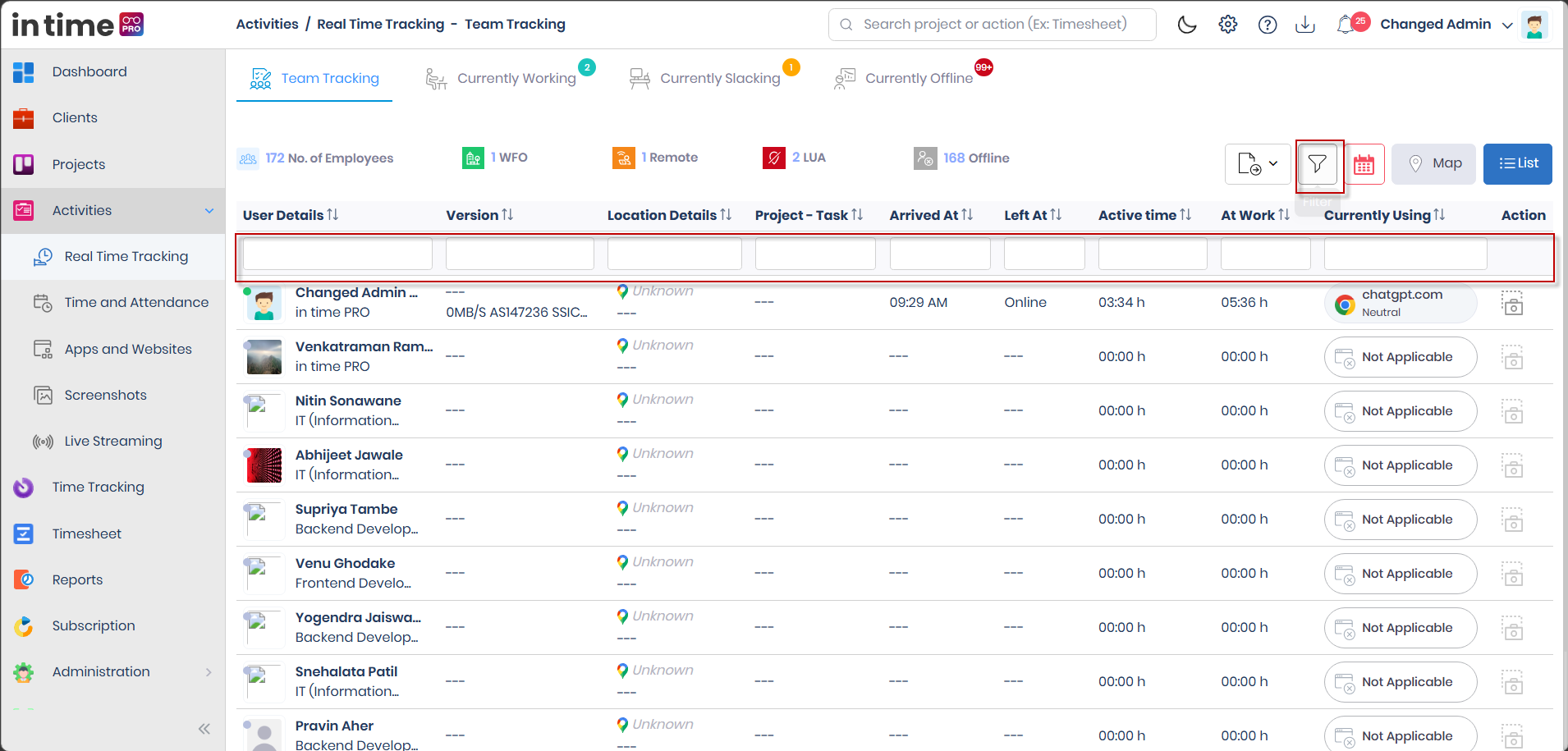
| Filter | Shows a column filter row above the table so you can search within the columns already loaded. It does not currently offer organization unit, project, or member dropdowns on this toolbar — those exist in the underlying design but are not shown here. |
| Export | Downloads a PDF or Excel file of the rows currently on screen (not the full unfiltered list), named Team Tracking List. Columns included: User Name, Version, Working Type, Location Details, Project, Task, Arrived At, Left At, and At Work. Working type in the file appears as WFH / WFO / Remote. Export can be hidden by your personal Other Settings option — see Activities → Permissions. |
There is no Newest/Oldest sort control currently shown on this screen.
10. Currently Working / Slacking / Offline Tables
These three status tabs use a slightly different table than Team Tracking:
| Column | What it shows |
|---|---|
| User Name | The person's name |
| Currently Using | Their current application |
| Active Projects | The project(s) they're currently active on |
| Productive Time | Time recorded as productive so far |
| Active Time | Tracked active time so far |
| Arrived At | Check-in time |
| Left At | Check-out time — shows ONLINE if they're still checked in with no check-out yet |
| At Work | Time at work so far |
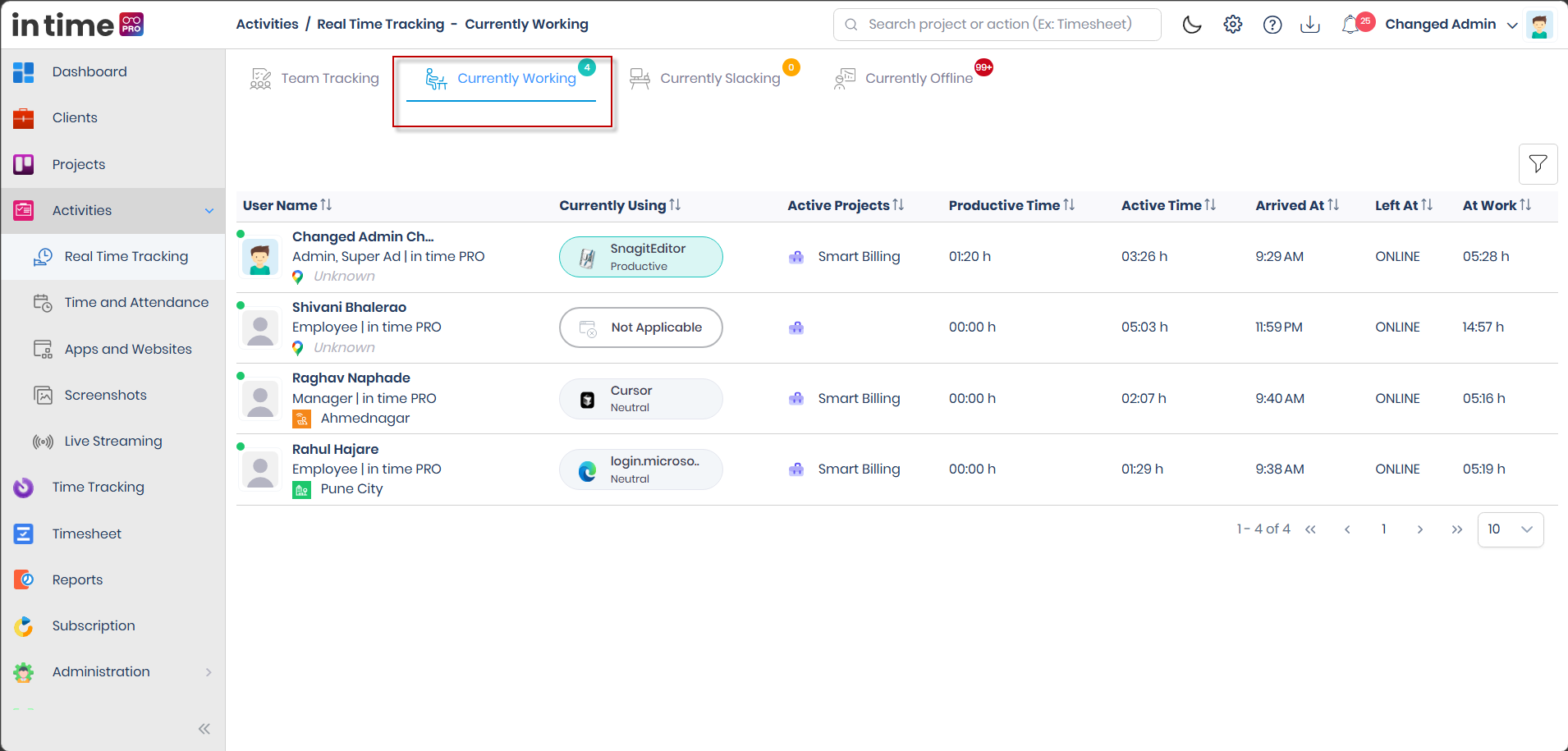
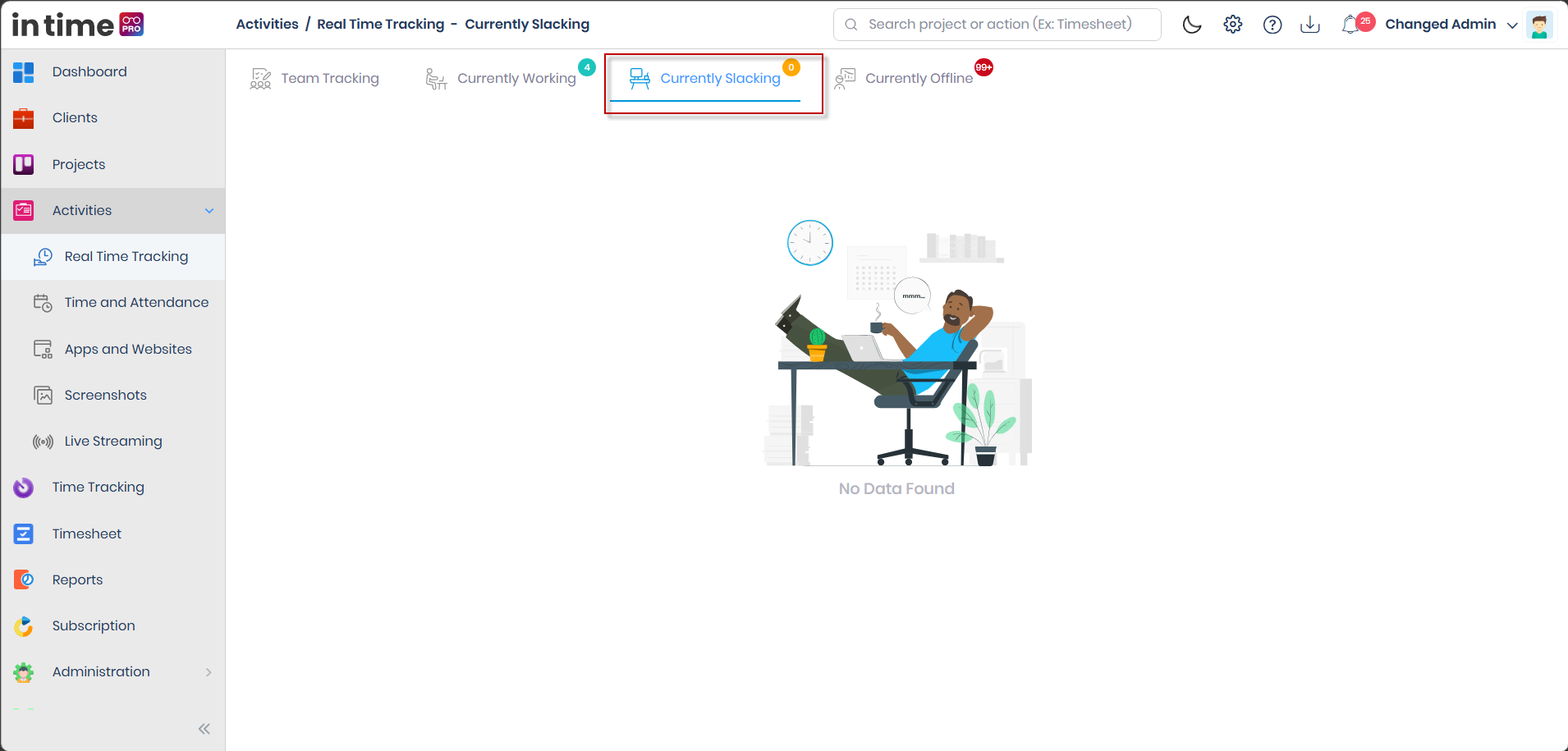
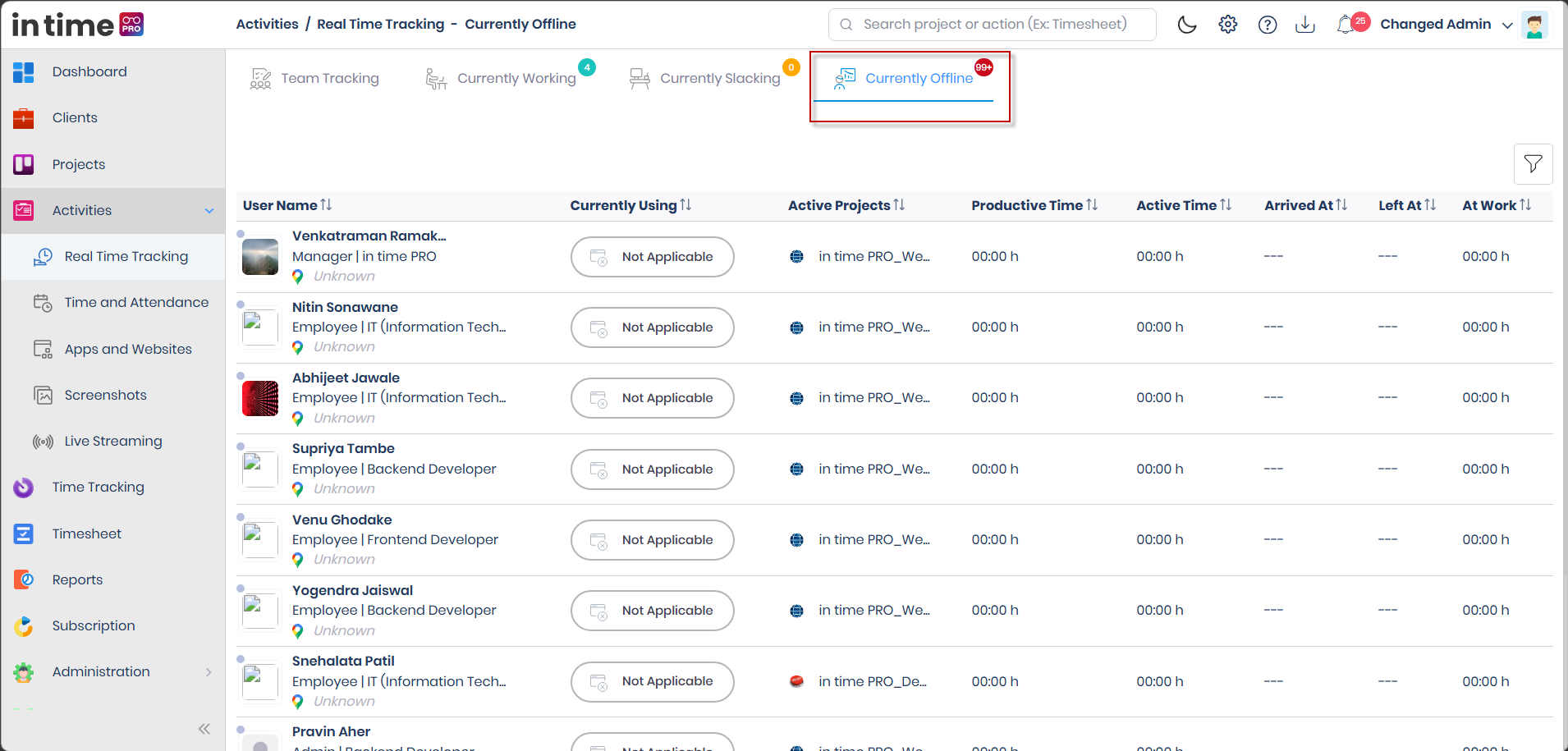
Clicking a person's row on any of these tabs opens their Time and Attendance for the selected date, in a new tab — the same behavior as clicking a row on Team Tracking. Close that tab with the × control on the tab itself.
11. Who Can Access Real Time Tracking
You need the Real Time Tracking permission and the Real Time Tracking edition feature. By default:
| Role | Access |
|---|---|
| Admin / Super Admin | Yes |
| Manager | Yes |
| Program Manager | Yes |
| Accountant | Yes |
| Contractor | Yes |
| Employee | No |
| Client | No |
("Timesheet Approval" is a placeholder role name that is not currently assignable — see Administration → Roles — so it's left out of this table.)
Whose rows you actually see (independent of the permission above) is described in Activities → Data Visibility: Admin sees everyone except Client users; everyone else sees people on projects they manage, project teammates, and their own direct reports.
12. Empty and Loading States
| Situation | What you see |
|---|---|
| Page loading | Shimmering placeholder rows |
| Team Tracking has nobody to show | No Data Found, with an illustration |
| A status tab (Working/Slacking/Offline) has nobody to show | No Data Found, with an illustration specific to that tab |
| Map has no located people | No Data Found, with a map-specific illustration |
| A page load fails | The loading indicator simply disappears — there is no dedicated error message on this screen |
13. Step-by-Step Workflow
- Open Activities → Real Time Tracking.
- Stay on Team Tracking for the full list, or switch to Currently Working, Currently Slacking, or Currently Offline.
- Use the Calendar if you need a day other than today (you can't pick a future date).
- Switch to Map if you want to see people's locations instead of a table.
- Use Filter to search within the loaded columns, or Export to download the current rows.
- Click a person's row to open their Time and Attendance in a new tab.
- Use the camera icon in Action to request a one-off screenshot, if that control is shown for that person.
14. Common Questions
Why does "Currently Slacking" include someone who's clearly working? This list is based on check-in status (Busy, Idle, Meeting, Private Time), not on whether their applications are productive. A person in a Meeting status will appear here even if they're actively working.
Why don't I see organization unit, project, or member filters on Team Tracking? They aren't shown on this toolbar today. Use the column Filter or the Calendar instead.
Why is there no WFH tile at the top of the page? Only WFO, Remote, LUA, and Offline are shown as summary tiles. Home does appear as a row-level location value, just not as a fourth counter tile.
What does LUA mean? Location Unavailable — the person is not offline, but there's no live location available for them right now.
Why can't I take a screenshot of someone? The camera icon only appears when screenshot capture is enabled for that specific person and they currently have an application status. If it's missing, capture may not be enabled for them, or they may not have a current status.
Is this page a live video wall? No — see Section 3.