Time and Attendance
1. Purpose
Time and Attendance shows one person's day — when they arrived, when they left, how productive/active they were, a productivity bar, application and category breakdowns, screenshots (if enabled), and — if your role allows it — offline time they've entered by hand that's waiting for approval.
Where Real Time Tracking shows the whole team at once, Time and Attendance always focuses on one individual at a time.
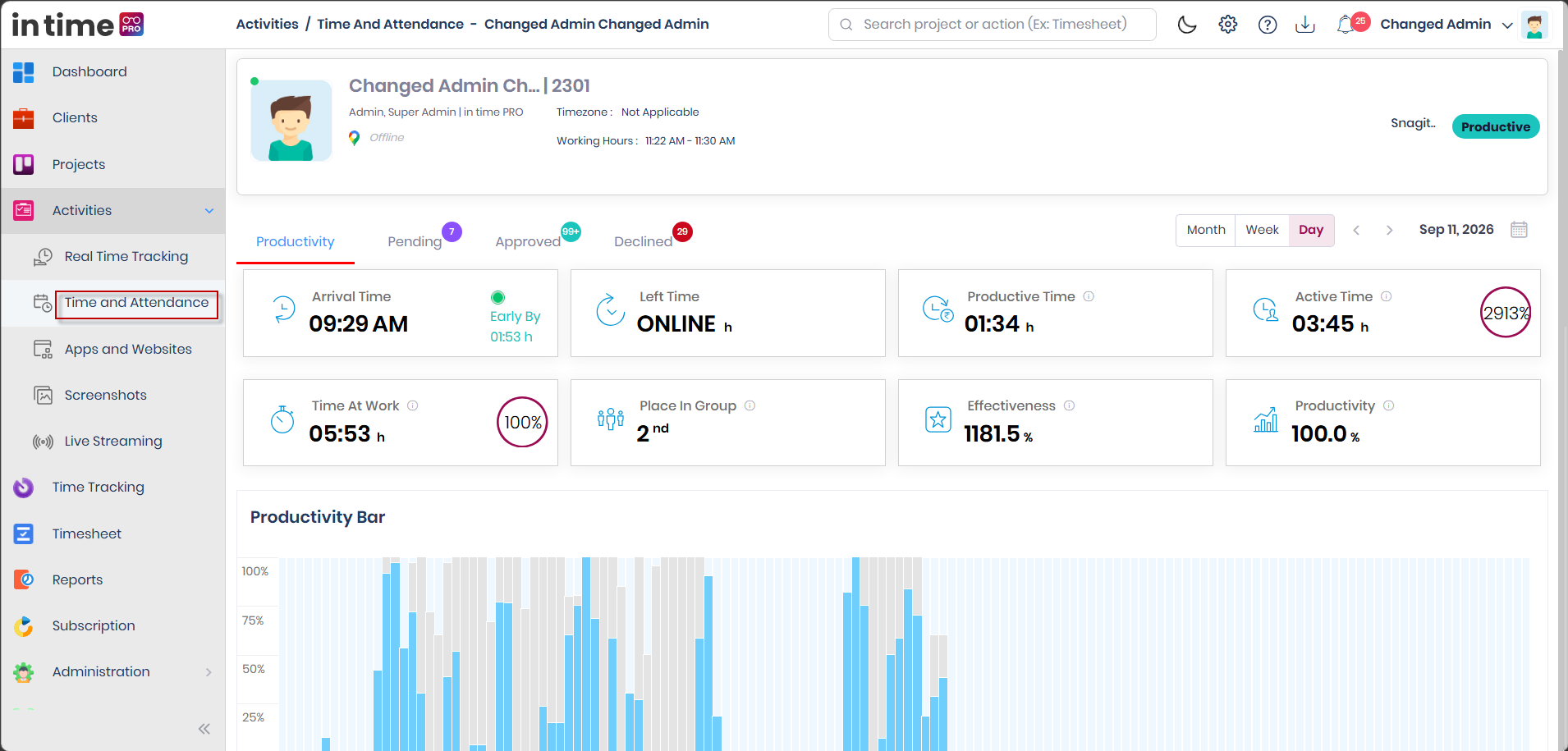
2. How to Open It
You can reach Time and Attendance in several ways:
- Activities → Time and Attendance — opens your own day by default.
- Clicking a person's row inside Real Time Tracking — opens that person's day in a new tab.
- A Dashboard widget's View All link on applications or productivity.
- The header search — choosing an employee from search can open their Time and Attendance. If you have neither the Real Time Tracking nor the Time and Attendance permission, you'll see: You do not have permission to access Time and Attendance.
- Some notifications.
This screen requires the Time and Attendance permission and its matching edition feature. There is no employee picker on this page itself — whose day you see depends entirely on how you arrived here.
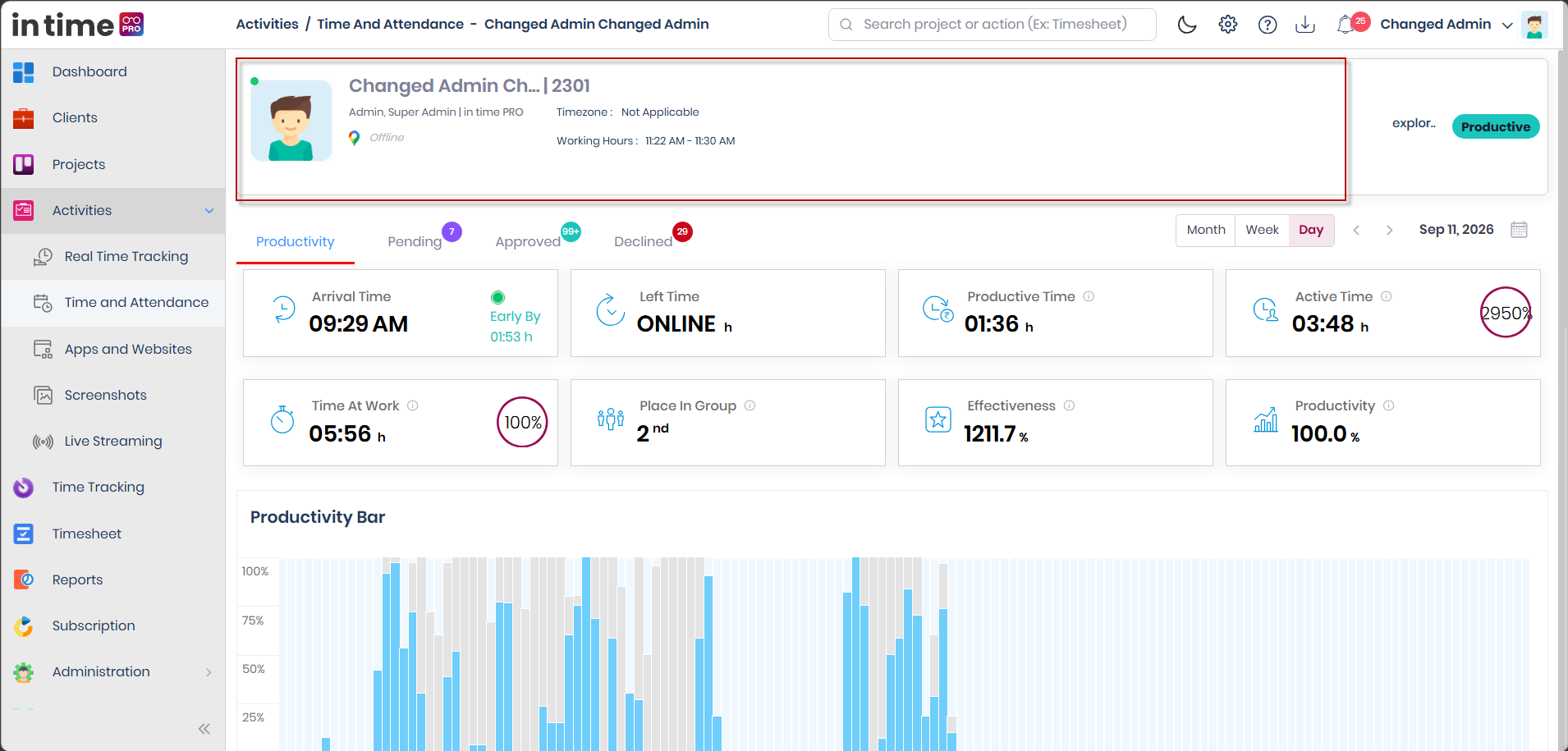
3. Header Card
At the top of the page, a card shows:
- Photo, name, and employee ID
- Roles and organization unit
- Current location, or Offline if there isn't one — with icons for Work From Home / Remote / Office when a location is available
- Timezone, or Not Applicable if none is set
- Working Hours (start–end), when configured
- Device name, when the person is not Offline
- Current application, with its Productive / Unproductive / Neutral classification
- A status dot: Online, Offline, Busy, Meeting, Idle, or Private Time
While this loads, you'll see a shimmering placeholder card.
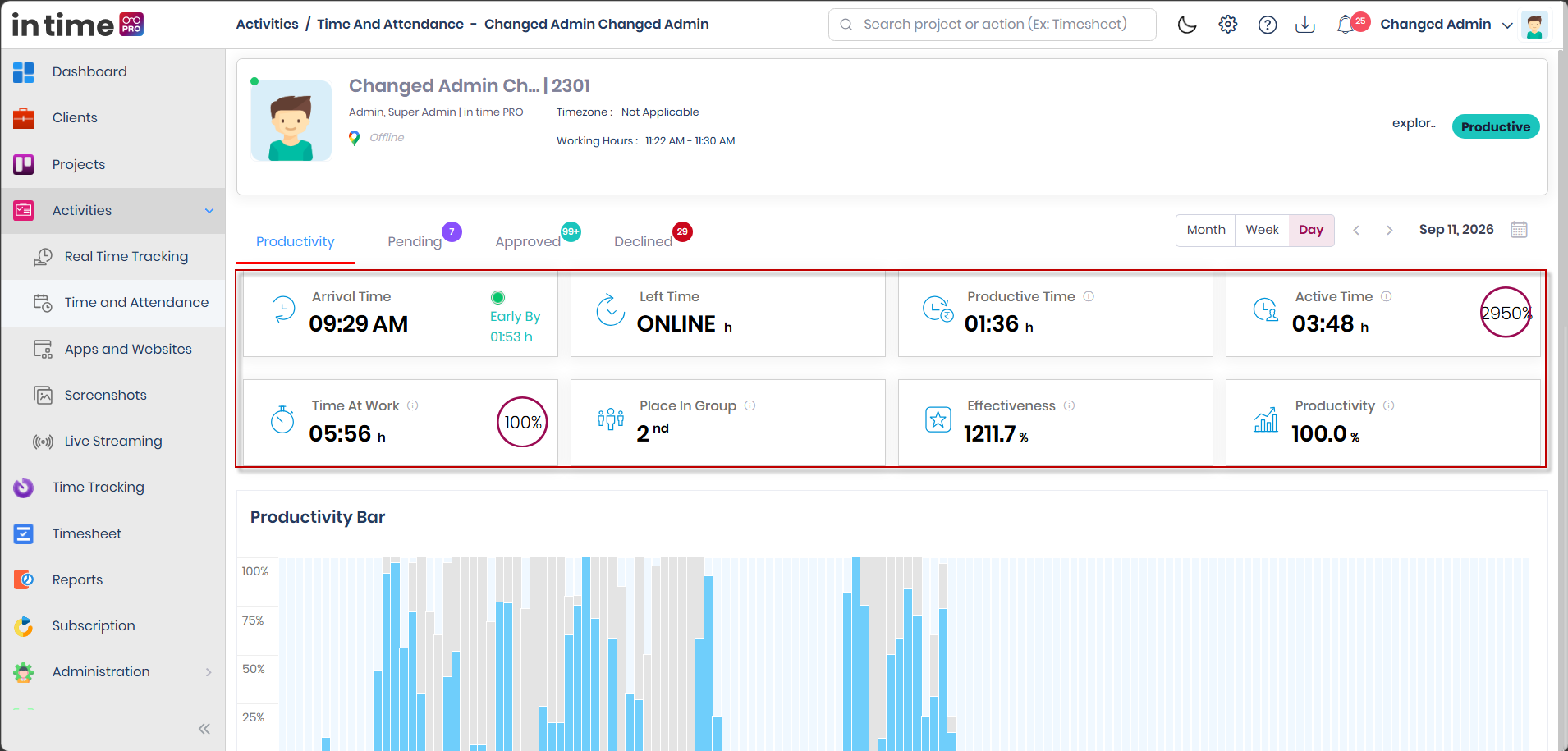
4. Summary Cards
| Card | What it means |
|---|---|
| Arrival Time | When the person arrived |
| Left Time | When they left, or ONLINE (or 00:00) if they're still checked in |
| Productive Time | Time spent on applications classified as Productive |
| Active Time | Time the computer was actively online — not counting powered-off or locked time |
| Time At Work | Total time from arrival until they left |
| Place In Group | This person's rank among their comparison group |
| Effectiveness | Productive time compared against the minimum required hours, shown as a percentage |
| Productivity | A productivity percentage, calculated using your organization's productivity formula (see App Productivity) |
On the Week and Month views, several of these cards show as averages across the period instead of a single day's figure. The Day view can also show late/early indicators next to Time At Work and Active Time.
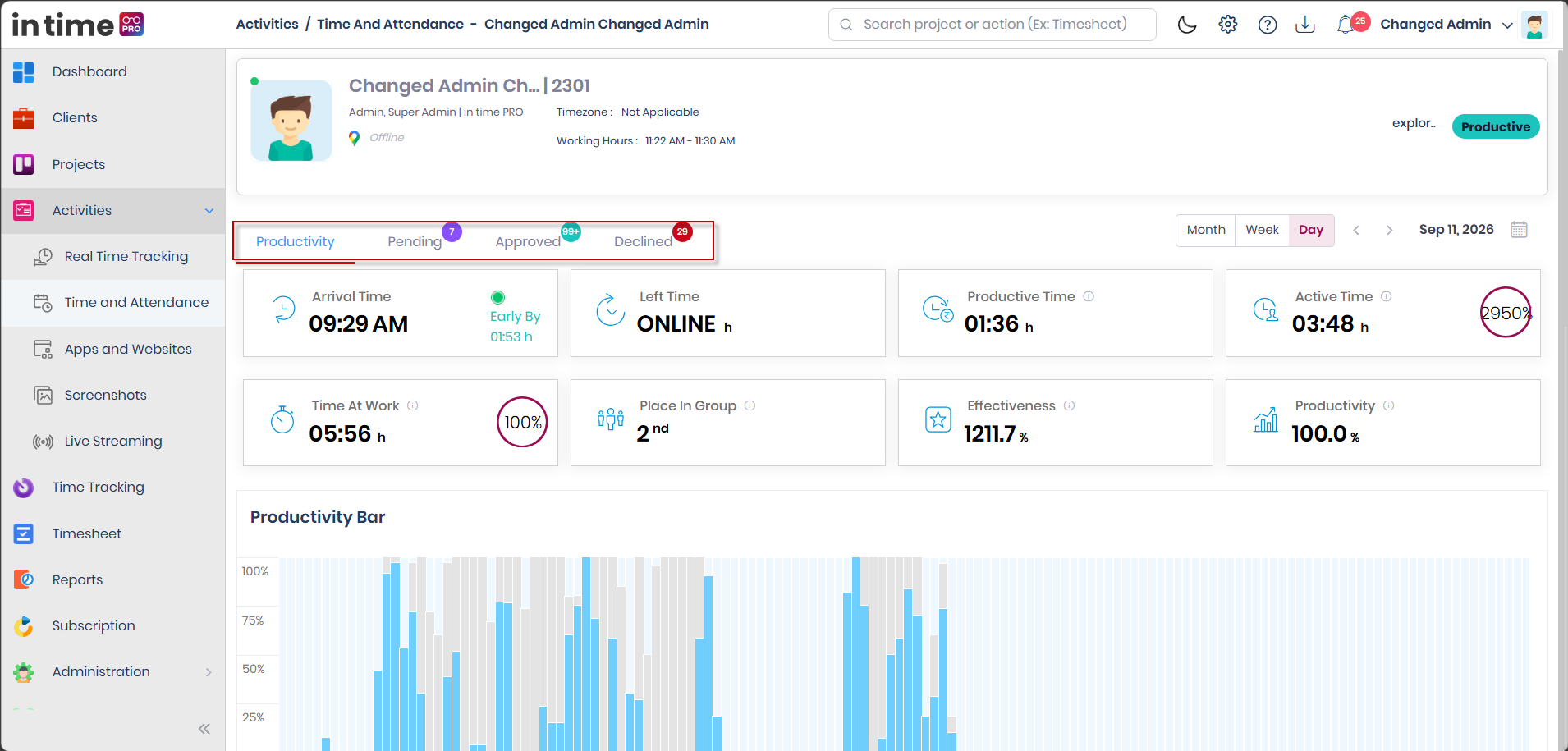
5. Tabs
| Tab | When it's shown |
|---|---|
| Productivity | Always available |
| Pending | Only if you have the Offline Time Approval permission. Shows a count badge (99+ past 99) |
| Approved | Same permission as Pending |
| Declined | Same permission as Pending |
Some links (for example, from a notification) can open this page directly on the Pending tab.
6. Day, Week, and Month
On the Productivity tab, use the Month, Week, and Day toolbar to change the time range shown. Day is the default. A date navigator lets you move backward and forward.
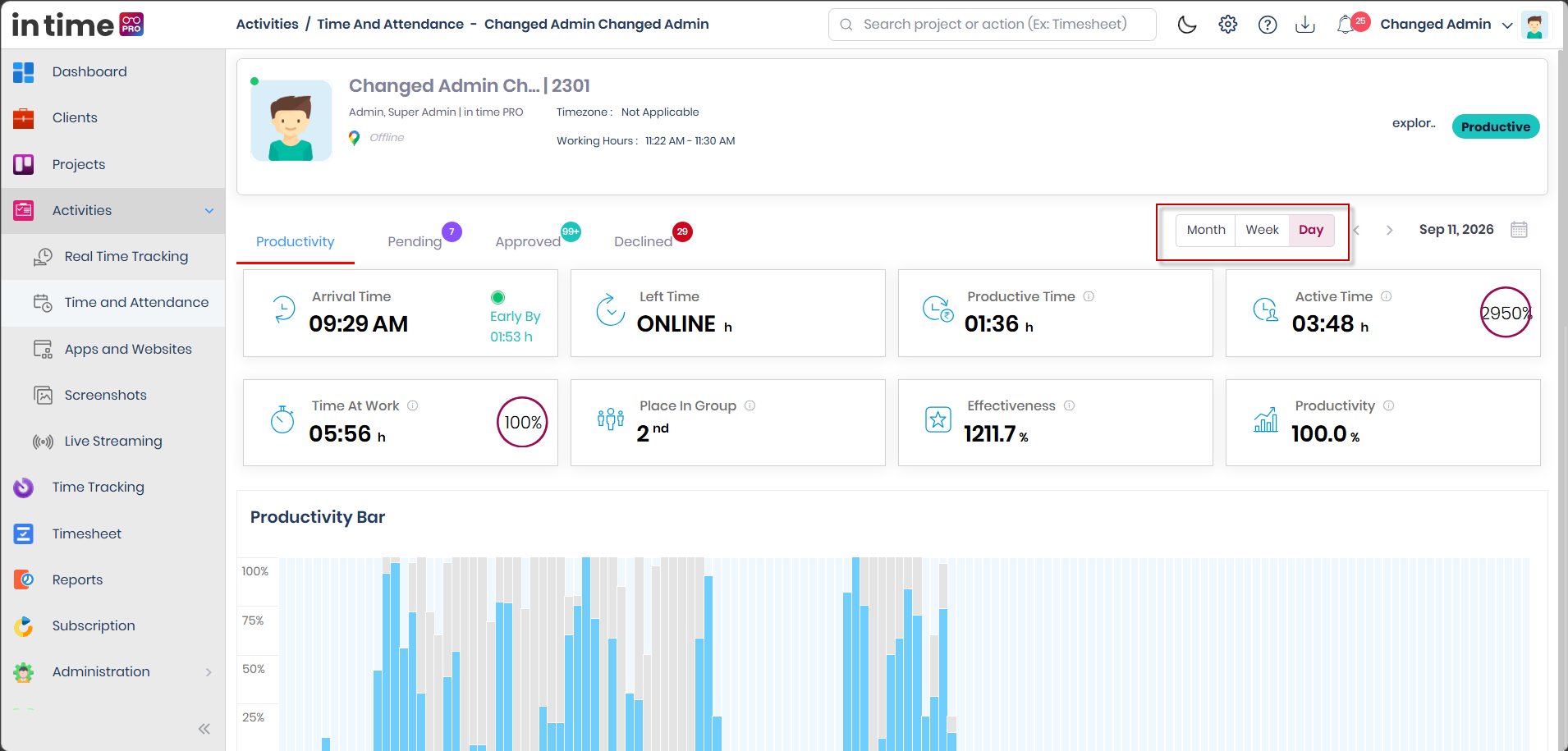
6.1 Day view
The Day view includes:
- The summary cards from Section 4
- A Productivity Bar — a strip made of small colored segments (about five minutes each) showing Productive, Unproductive, and Neutral time across the day. If there's no data, it shows No data available
- Charts for Productivity, Category, and Application, each with a View All option
- A Screenshots strip — shown only if you have the Time and Attendance Screenshots permission. View All here opens the full Screenshots page for this person and date
6.2 Week and Month views
Week and Month show stacked or calendar-style views instead of the single-day bar, plus Most Productive Apps, Most Unproductive Apps, Most Neutral Apps, and category charts. They do not include the screenshots strip — that only appears on Day. On Month, clicking a specific day switches you straight to that day's Day view.
7. Adding Offline Time
From the productivity bar, you can add Offline Time for a gap in the day — this opens a side drawer where you choose:
- Time range
- Project
- Task
- Category
- Productivity type (Productive / Unproductive / Neutral)
Saving creates a new entry on the Pending tab, waiting for approval.
Validation messages you may see while doing this:
| Situation | Message |
|---|---|
| The time range overlaps an existing entry | Manual Time Exists |
| Description left blank | Description is mandatory |
| Project left blank | Project is mandatory |
| Task left blank | Task is mandatory |
| Productivity type left blank | Productivity type is mandatory |
8. Pending, Approved, and Declined
These three tabs list offline (manual) time entries — time someone entered by hand rather than time the Desktop Application tracked automatically. They are not Timesheet rows, and they are not Time Off / leave requests. They're controlled by their own Offline Time Approval permission, which is separate from the Leave Approval permission used by Leaves.
Header tiles at the top summarize: Total Offline Times, Productive, Unproductive, Neutral.
| Column | What it shows |
|---|---|
| User Name | Who submitted the entry |
| Project Name | The project it's logged against |
| Submitted On | When it was submitted |
| Time Registered | The time range and duration |
| Type | Productive / Unproductive / Neutral |
| Description | What the person wrote |
8.1 Approving or Rejecting (Pending tab)
- Select one or more rows using the checkboxes.
- Open the Action menu.
- Optionally write a comment.
- Choose Approve or Reject.
Reject requires a comment — you'll see Comment is required for rejecting offline time if you try to reject without one. A successful action shows an Approved or Rejected confirmation.
If you don't have approval permission, you'll see: You don't have permission to approve or reject this timesheet (this is the exact on-screen wording, even though the entries themselves are offline time, not a timesheet).
8.2 Filtering and exporting these tabs
- Filter toggles column filters for user, project, submitted date, and type.
- A Search Member Name box is available on Pending.
- Export (unless hidden by your personal export setting) produces a PDF or Excel file — for example, Pending Offline Time, Approved Offline Times, or Declined Offline Time.
Empty state on any of these tabs: No Data Found.
9. Actions Summary
| Action | What happens | Permission / note |
|---|---|---|
| Switch Month / Week / Day | Changes the Productivity view | — |
| Date navigator | Reloads that time range | — |
| View All (applications) | Opens the full application list | — |
| View All (screenshots) | Opens Screenshots for this person and date | Requires the Time and Attendance screenshot permission; this View All link is hidden for the Employee designation on the strip itself |
| Save offline time | Creates a Pending entry | — |
| Approve / Reject | Updates the offline-time entry | Requires the offline-time approval permission |
| Export | Downloads a PDF or Excel file | Hidden if exports are turned off for you personally |
10. Who Can Access Time and Attendance
You need the Time and Attendance permission and its edition feature. By default:
| Role | Access |
|---|---|
| Admin / Super Admin | Yes |
| Manager | Yes |
| Program Manager | Yes |
| Employee | Yes (their own day) |
| Accountant | No |
| Contractor | No |
| Client | No |
("Timesheet Approval" is a placeholder role name that is not currently assignable — see Administration → Roles — so it's left out of this table.)
The Pending / Approved / Declined tabs additionally require the Offline Time Approval permission — granted by default to Manager, Program Manager, Admin, and Super Admin, but not to Employee, Accountant, or Contractor.
The screenshots strip on the Day view additionally requires the Time and Attendance Screenshots permission — granted by default to Employee, Manager, Program Manager, Admin, and Super Admin.
11. Step-by-Step Workflow
- Open Activities → Time and Attendance (shows your own day), or click a person from Real Time Tracking.
- Read the header card and summary cards.
- Switch between Day, Week, and Month as needed, using the date navigator to move around.
- On Day, review the productivity bar and the Productivity / Category / Application charts; use View All on either the applications list or the screenshots strip if shown.
- If you can approve offline time, open Pending, select entries, and Approve or Reject (with a comment for rejections).
- Export a tab if you need a PDF or Excel copy.
12. Common Questions
Why is there no employee dropdown on this page? Time and Attendance always shows one person at a time, decided by how you got there — your own account by default, or a specific person if you arrived from Real Time Tracking, a link, or search.
Is the permission for this tab the same as "Leave Approval" in Leaves? No. This tab's Offline Time Approval permission is separate from the Leave Approval permission used by Leaves. They control two different features — offline manual time here, versus leave requests there — even though both are "approval" permissions. See Administration → Roles for both.
Why can't I reject an entry without a comment? Rejecting always requires a comment, so the person knows why their offline time wasn't accepted. Approving does not require one.
Why don't I see the screenshots strip on Week or Month? The screenshots strip only appears on the Day view, regardless of your permissions.
Why is Export missing here? Your personal Other Settings can hide exports for you, independently of your Activity permissions.