Apps and Websites
1. Purpose
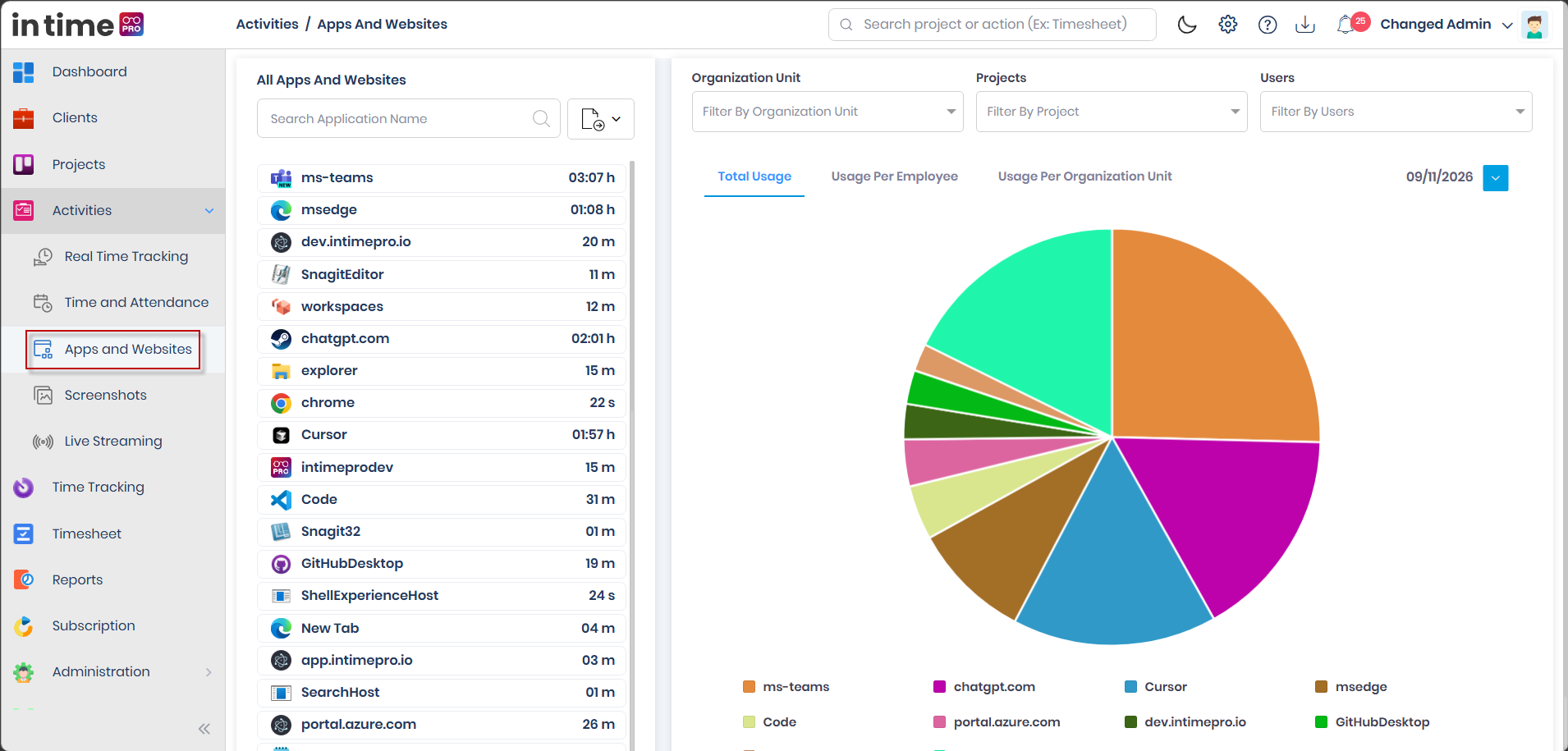
Apps and Websites shows which applications and websites were used, and for how long, for a selected day. You can break the same data down by employee and by organization unit, and drill into a single application to see who used it.
This page shows time spent, not the Productive / Unproductive / Neutral badges you see on Time and Attendance and Live Streaming — those classification badges are not shown here, even though the same underlying App Productivity classification exists for those other screens.
2. How to Open It
Activities → Apps and Websites
Requires the Apps and Websites permission and its matching edition feature.
3. Layout
The page is split into a left-hand application list and a right-hand filtered/tabbed view.
3.1 Left side — All Apps and Websites
- Search Application Name — a search box that filters the list; it searches about a second after you stop typing.
- A list of applications and websites, each with an icon and the total time spent.
- Clicking an application focuses the right-hand charts and tables on just that application; clicking it again clears the focus.
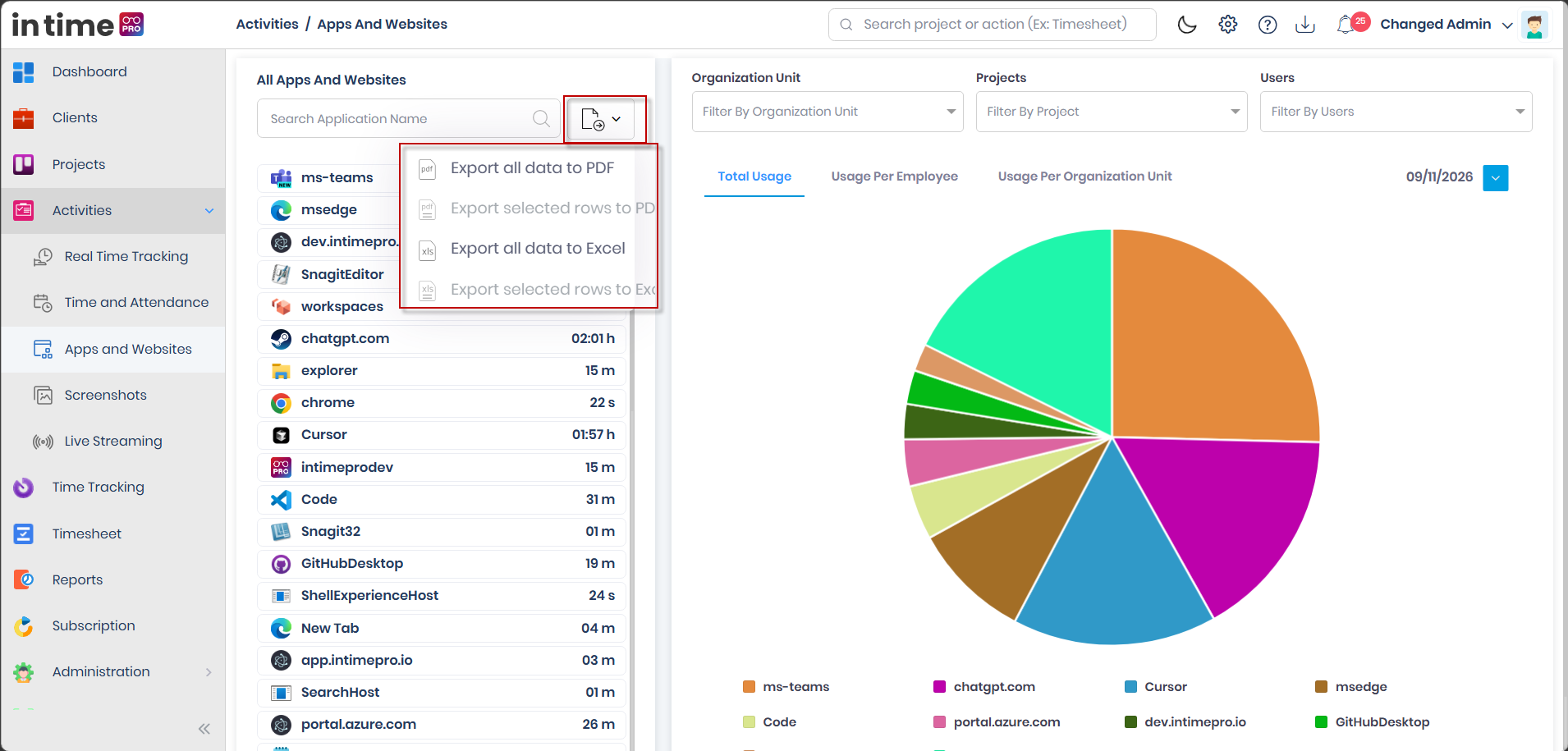
- An Export control for this list (unless exports are hidden for you — see Activities → Permissions).
Idle time (labeled something like "System is Idle") is excluded from this list.
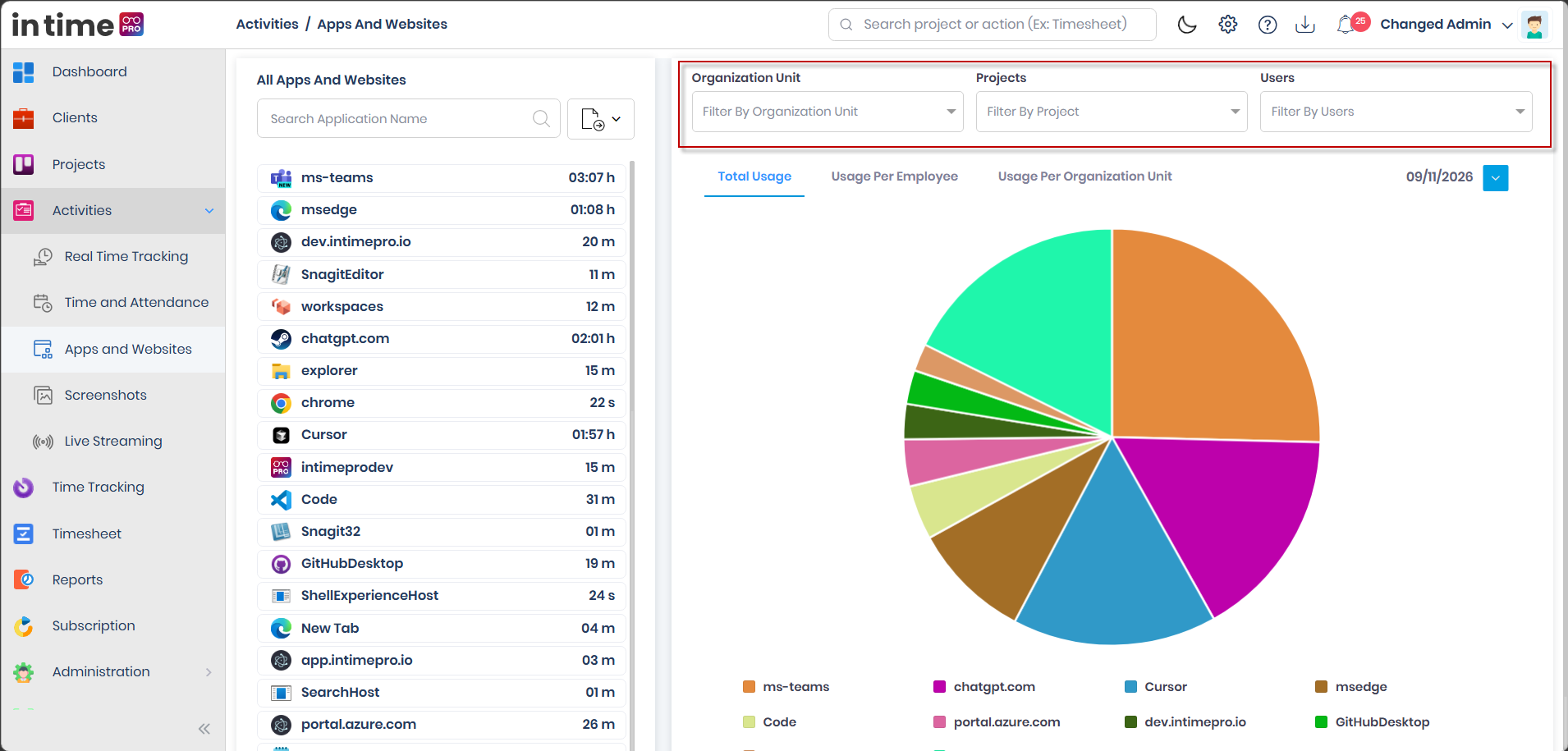
3.2 Right side — Filters
| Filter | Placeholder | Default |
|---|---|---|
| Organization Unit | Filter By Organization Unit | None |
| Project | Filter By Project | None |
| Users | Filter By Users | None |
| Date | Calendar | Today |
Choosing one of Organization Unit, Project, or Users clears the other two — you can only filter by one of those three at a time. This is intentional behavior, not a bug.
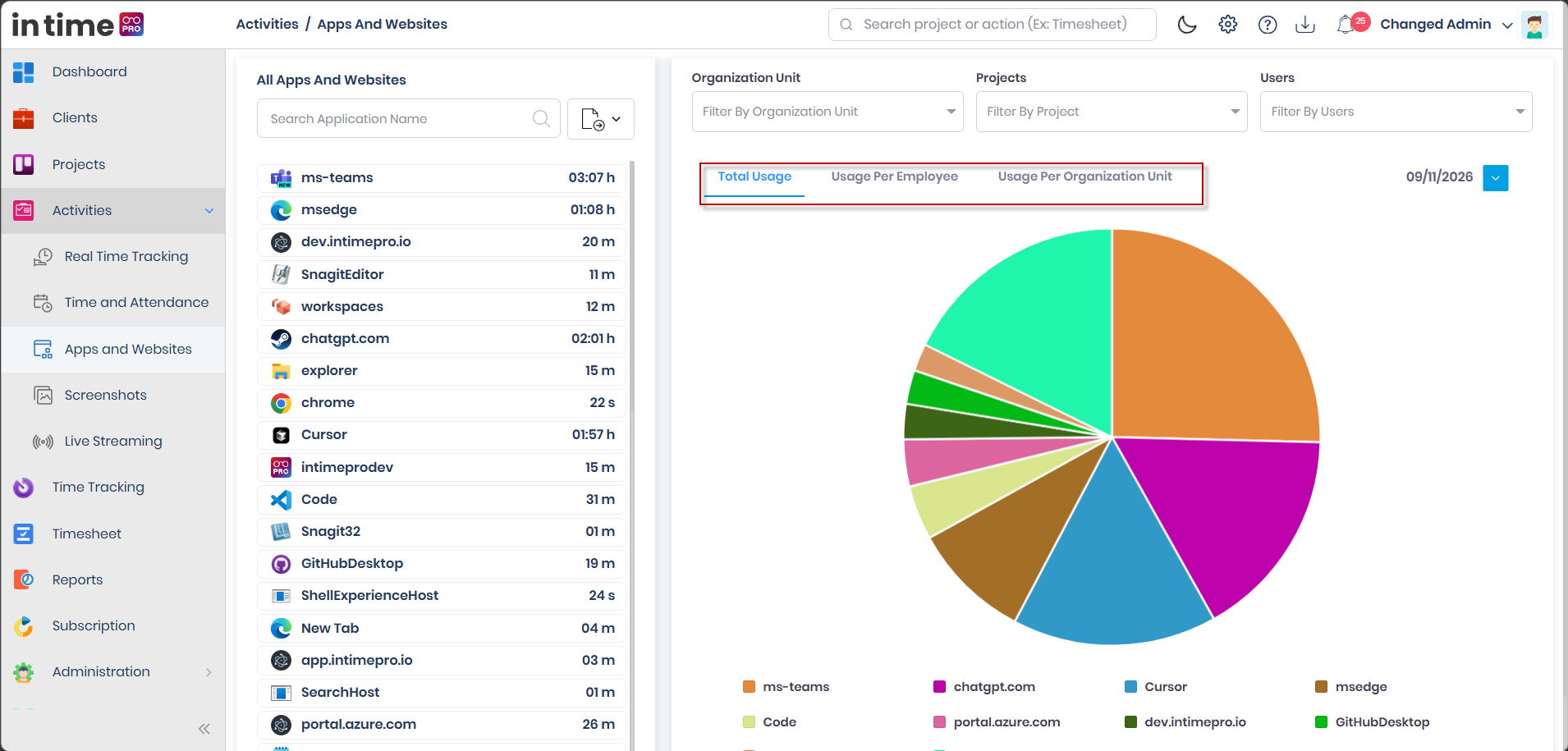
3.3 Right side — Tabs
| Tab | What you see |
|---|---|
| Total Usage | A pie chart showing the share of usage across applications/websites |
| Usage Per Employee | A table of people and how much time each spent |
| Usage Per Organization Unit | A table of organization units and their total time, built by adding up the employee-level rows |
4. What the Numbers Mean
- Each row is the time spent on that application or website for the selected day (and any filters applied).
- The pie chart on Total Usage shows each application's share of that day's total usage.
- Usage Per Employee lists each person, their organization unit, and their total time.
- Usage Per Organization Unit is the same underlying time, grouped by organization unit instead of by person.
There is currently no productivity or category filter on this page — you cannot filter this list down to only Productive or only Unproductive applications here.
5. Application Usage vs. Website Usage
Apps and Websites treats desktop applications and browser/website activity as entries in the same combined list — both appear side by side as items with a name, icon, and time spent. The page does not currently split them into two separate application-only and website-only tabs; the distinction between "this is an app" and "this is a website" shows up in the icon and name of each entry, not as a separate section.
6. Export
Unless exports are hidden for you:
| What you export | Columns |
|---|---|
| Left application list | Application Name, Time Spent |
| Usage Per Employee | Employee Name, Organization Unit, Total Time Spent |
| Usage Per Organization Unit | Organization Unit Name, Total Time Spent |
Files are named Apps and Websites, Usage Per Employee, or Usage Per Organization unit.
7. Who Can Access Apps and Websites
You need the Apps and Websites permission and its edition feature. By default:
| Role | Access |
|---|---|
| Admin / Super Admin | Yes |
| Manager | Yes |
| Program Manager | Yes |
| Accountant | Yes |
| Contractor | Yes |
| Employee | No |
| Client | No |
("Timesheet Approval" is a placeholder role name that is not currently assignable — see Administration → Roles — so it's left out of this table.)
8. Whose Data You See
Two different rules apply on this one page, depending on which tab you're looking at:
- Total Usage and the left-hand application list: filtered only by whatever Organization Unit, Project, or Users filter you've chosen. With no filter selected, these can show usage across the whole organization, for anyone able to open this page.
- Usage Per Employee: if you're not an Admin, you only see people whose manager is you. Admin sees everyone, then applies whatever filters are chosen.
If the Total Usage chart looks broader than you expected, that's expected behavior — apply an Organization Unit, Project, or User filter to narrow it down.
9. Empty and Loading States
| Situation | What you see |
|---|---|
| Page loading | Shimmering placeholder rows |
| No usage to show | No Data Found, with an illustration |
10. Step-by-Step Workflow
- Open Activities → Apps and Websites.
- Pick a date if you need a day other than today.
- Optionally choose one of Organization Unit, Project, or Users to filter — choosing one clears the other two.
- Switch between Total Usage, Usage Per Employee, and Usage Per Organization Unit.
- Click an application on the left to focus the right-hand view on just that application; click it again to clear.
- Use Search Application Name to find a specific application quickly.
- Export the left list, the employee table, or the organization-unit table if you need a copy.
11. Common Questions
Why did choosing a project clear my organization unit filter? Organization Unit, Project, and Users are mutually exclusive on this page — selecting one always clears the other two.
Why can't I filter by Productive or Unproductive here? There is no productivity-type filter on Apps and Websites. Productivity classification is shown on Time and Attendance and Live Streaming instead.
Why does Total Usage look organization-wide when Usage Per Employee is scoped to my team? Total Usage and the left application list aren't limited by the manager-based rule that Usage Per Employee uses. Apply a filter if you want a narrower view.
Why is Employee missing this screen entirely? Apps and Websites isn't granted to the Employee role by default.