Live Streaming
1. Purpose
Live Streaming shows repeated still pictures of selected people's screens, refreshed every few seconds, so you can see what's currently on their screen. It is not a video call and does not use a continuous video connection — it's built from a series of individual still images.
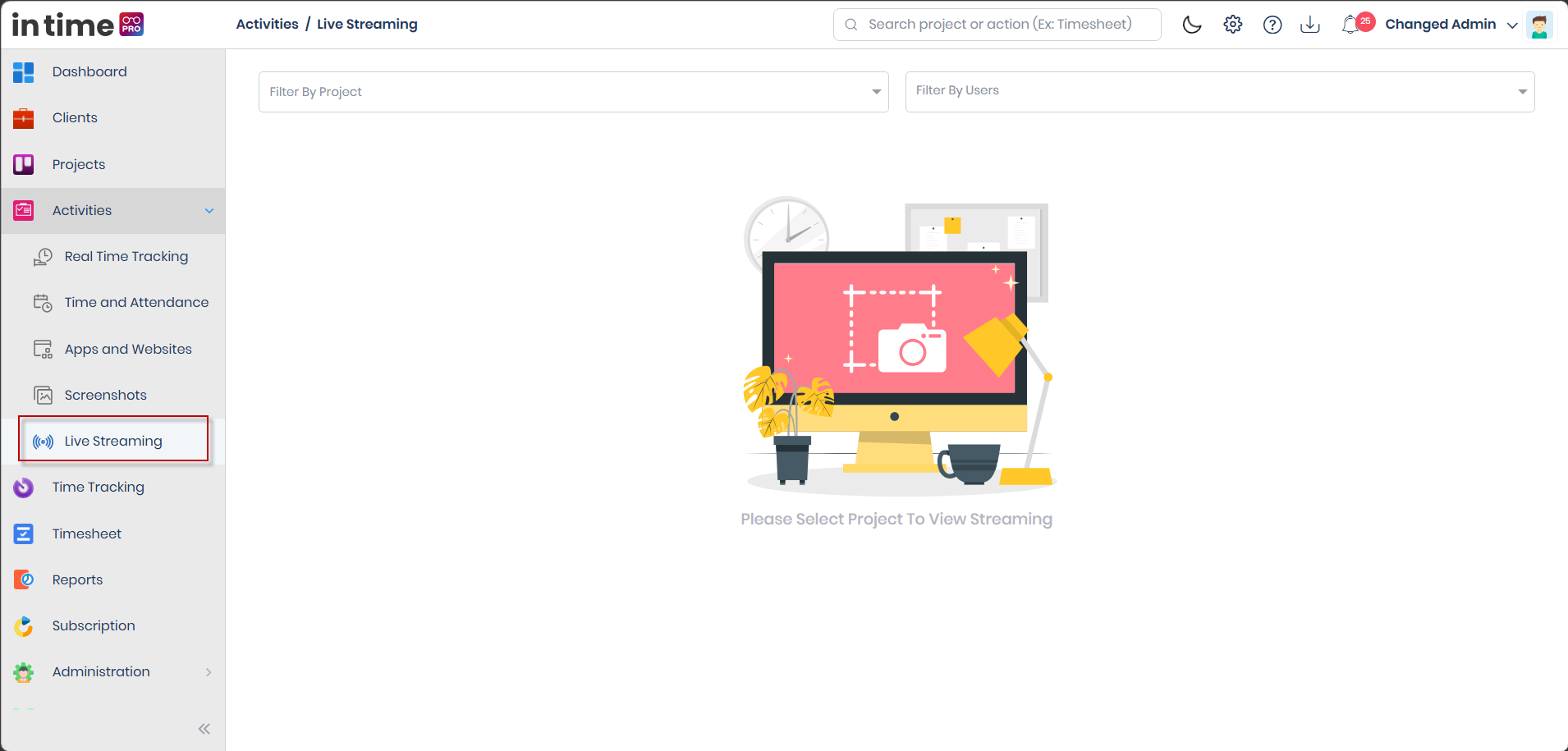
2. How to Open It
Activities → Live Streaming
Requires the Live Stream View permission and the Live Streaming edition feature. This is the only Live Streaming permission — there is no separate permission for starting or stopping a stream.
3. How It Works
- You choose a project and/or one or more users.
- A card appears for each selected person.
- While you're on the page, the system repeatedly asks each selected person's Desktop Application for a new still image, and refreshes the card list on its own.
- Leaving the page stops the requests for new stills — nothing keeps streaming in the background once you navigate away.
There is no separate Start button — selecting people is what begins the requests, and leaving the page is what ends them.
4. Filters
| Filter | Behavior |
|---|---|
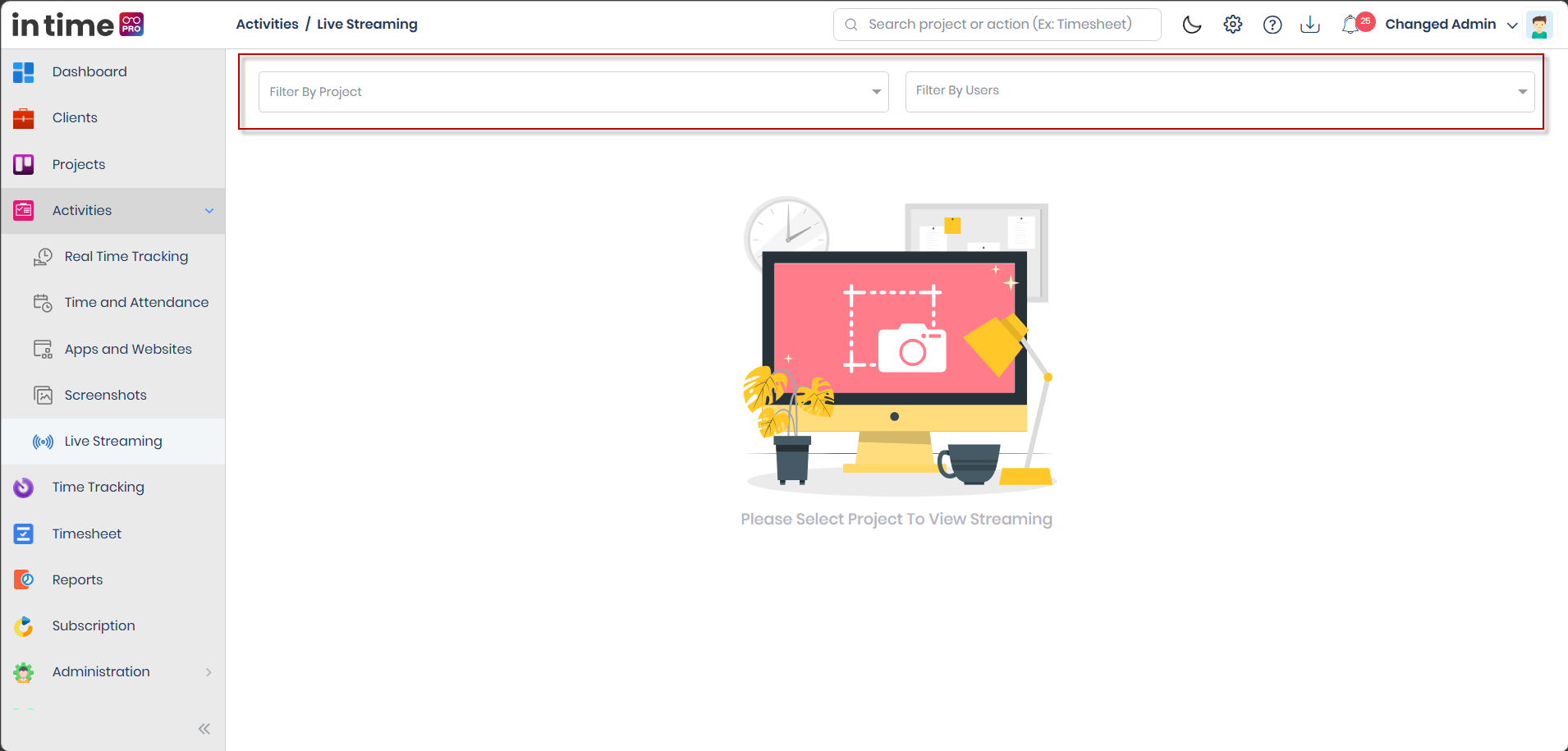
| Filter By Project | Single selection |
| Filter By Users | Multiple selection |
Before you select anything, you'll see: Please Select Project To View Streaming.
5. What a Card Can Show
| Situation | On-screen text/behavior |
|---|---|
| Online or busy, image ready | The still image, plus a View Screen option |
| Waiting for an image | A shimmering placeholder |
| Idle | On a Break, with a time |
| Private time | Private Mode, with a time |
| Checked out | A clocked-out style illustration |
| No status at all | Absent |
| Application in use | The current application name, its Productive / Unproductive / Neutral classification when known, and the current Task, or N/A |
| Unknown location/work type | Unknown |
| Recently inactive | An Inactive overlay |
Click View Screen on a card to enlarge that person's current still image.
If someone is offline or idle, their screen image is cleared, so you won't see a stale or frozen picture for that state — you'll instead see the matching status text above.
6. Who Can Access Live Streaming
You need the Live Stream View permission and its edition feature. By default:
| Role | Access |
|---|---|
| Admin / Super Admin | Yes |
| Manager | Conditional — see note below |
| Employee | Conditional — see note below |
| Program Manager | No |
| Accountant | No |
| Contractor | No |
| Client | No |
("Timesheet Approval" is a placeholder role name that is not currently assignable — see Administration → Roles — so it's left out of this table.)
Conditional — Manager and Employee. Two different setup paths exist for creating a new organization, and they disagree on exactly these two roles: one path grants Live Streaming to Manager but not Employee; the other grants it to Employee but not Manager. Which one applies depends on how your organization's account was originally created — it is not a simple yes/no answer for either role. If Live Streaming access looks unexpected for a Manager or Employee in your organization, check that role's Permissions tab under Administration → Roles directly, rather than assuming a default. An administrator can also just grant or remove the Live Stream View permission for either role to make it consistent with what your organization wants.
7. Who You Can Select
The Filter By Users list is scoped the same way as other Activities employee pickers: Admin can select from everyone except Client users; anyone else can select from people on projects where they're the project manager, program manager, or a teammate. See Activities → Data Visibility.
8. What Happens When You Leave
Navigating away from Live Streaming tells the system to stop requesting new stills for the people you had selected. Coming back to the page and reselecting people starts fresh requests — nothing continues to stream while you're elsewhere in the application.
9. Step-by-Step Workflow
- Open Activities → Live Streaming.
- Choose a project, and/or one or more users.
- Wait for cards to appear — a shimmer placeholder shows while an image is requested.
- Use View Screen on any card to see a larger version of that person's current still.
- Leave the page when you're done, so the Desktop Application stops sending new stills.
10. Common Questions
Is this a video call? No. It's a series of repeated still images pulled from the Desktop Application — there's no audio, no continuous video stream, and no call.
Why do I see "Please Select Project To View Streaming"? You haven't chosen a project or user yet. Pick one to start seeing cards.
Why does my Manager/Employee role not have Live Streaming when I expected it to? This is the known conditional case described in Section 6 — check the role's Permissions tab directly rather than assuming a fixed default.
Why did someone's image disappear and get replaced with a status message? If a person goes idle or offline, their live image is cleared so you don't see a stale picture — you'll see On a Break, Absent, or a similar status instead.
Is there a Start/Stop button? No. Selecting a project or users starts the requests; leaving the page stops them.