Screenshots
1. Purpose
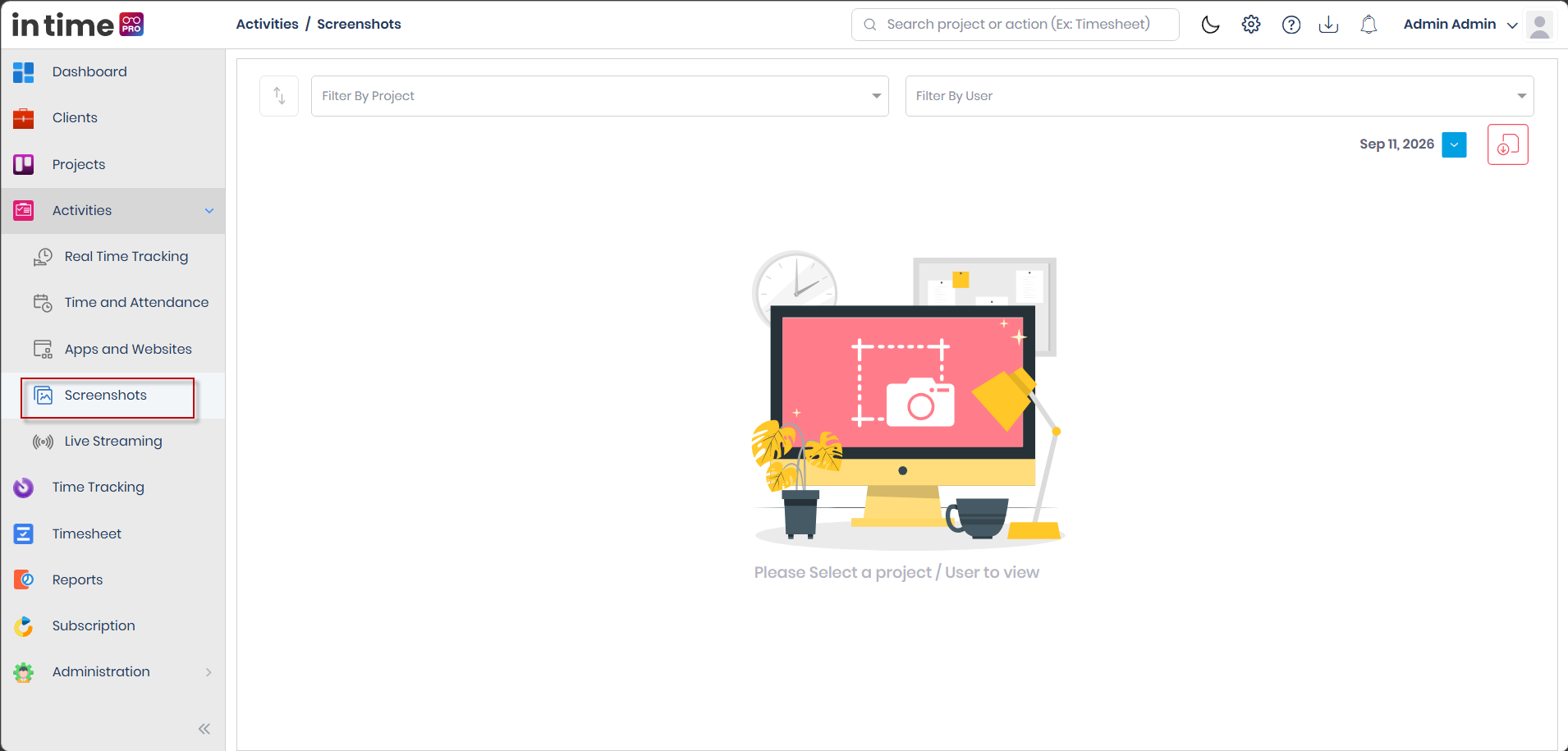
Screenshots lets you browse the screenshots the Desktop Application captured for a selected person on a selected date, grouped by hour. From here you can preview an image, download one image, download a whole day as a zip, and — if you have the right permission — delete a group of screenshots.
2. How to Open It
- Activities → Screenshots
- View All on the Time and Attendance Day view's screenshots strip — this opens Screenshots already pointed at that person and date.
Requires the Screenshots permission and its matching edition feature.
3. Filters (Project, User, Date, Sort)
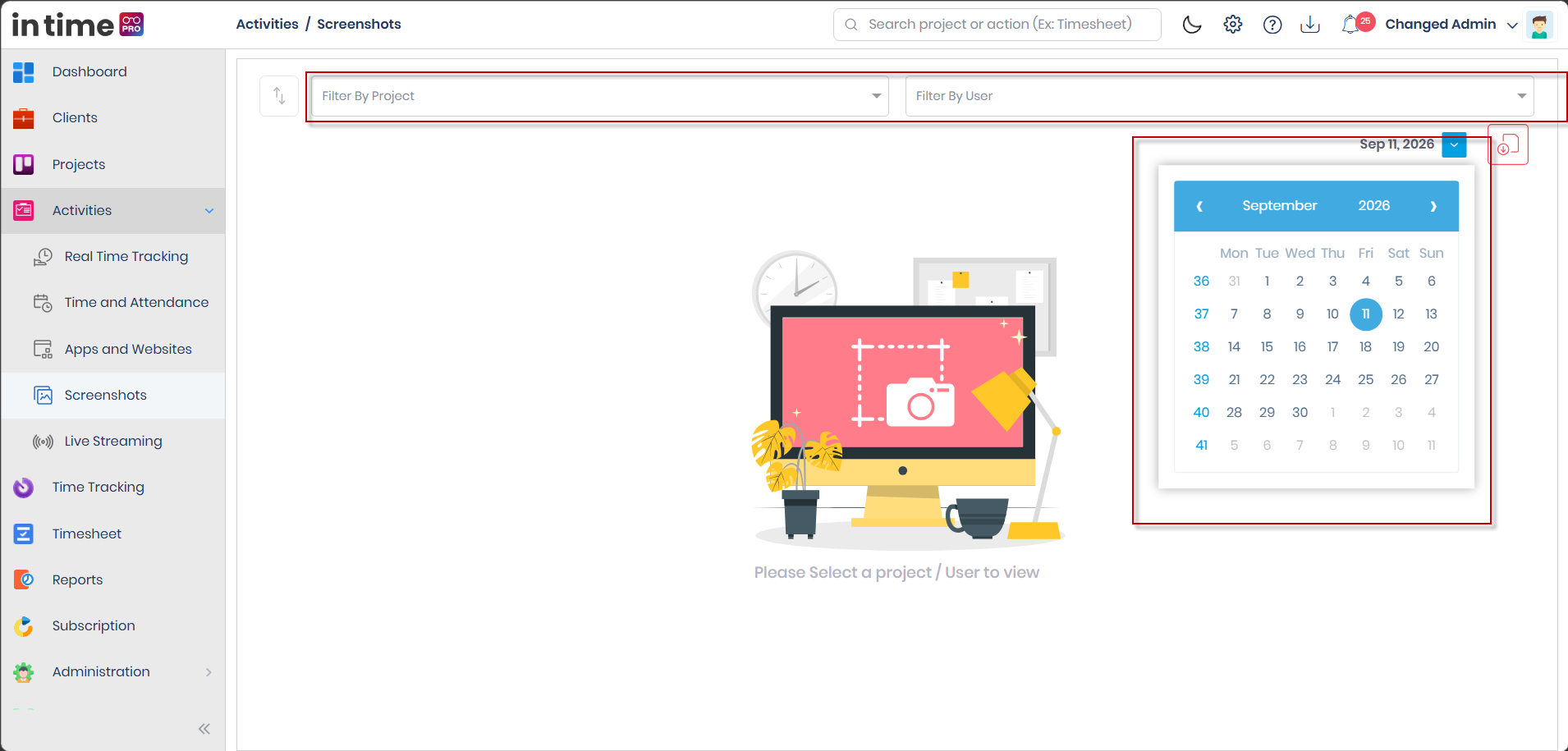
These controls appear on the filter row, which itself only shows if you have the Screenshot View permission — see Section 7.
| Control | What it does |
|---|---|
| Sort By | Choose Newest On Top or Oldest On Top |
| Filter By Project | Narrows the member list down to people on that project |
| Filter By User | Chooses whose screenshots to load |
| Date | Chooses which day to load |
If you haven't picked a project or user yet, you'll see: Please Select a project / User to view.
Without the screenshot view permission, this entire filter row is hidden — but the page can still open if you arrived via View All from Time and Attendance, which brings its own person and date along with it.
4. What You See After Selecting a Person
- Total Active Time / Daily Total Time for that day.
- The day broken into hour groups, each showing that hour's Active Time.
- Thumbnails inside each hour group — hover over a group to see a larger preview.
- View Screen to open a full-size image.
- A Download button (tooltip: Download File) on an individual image.
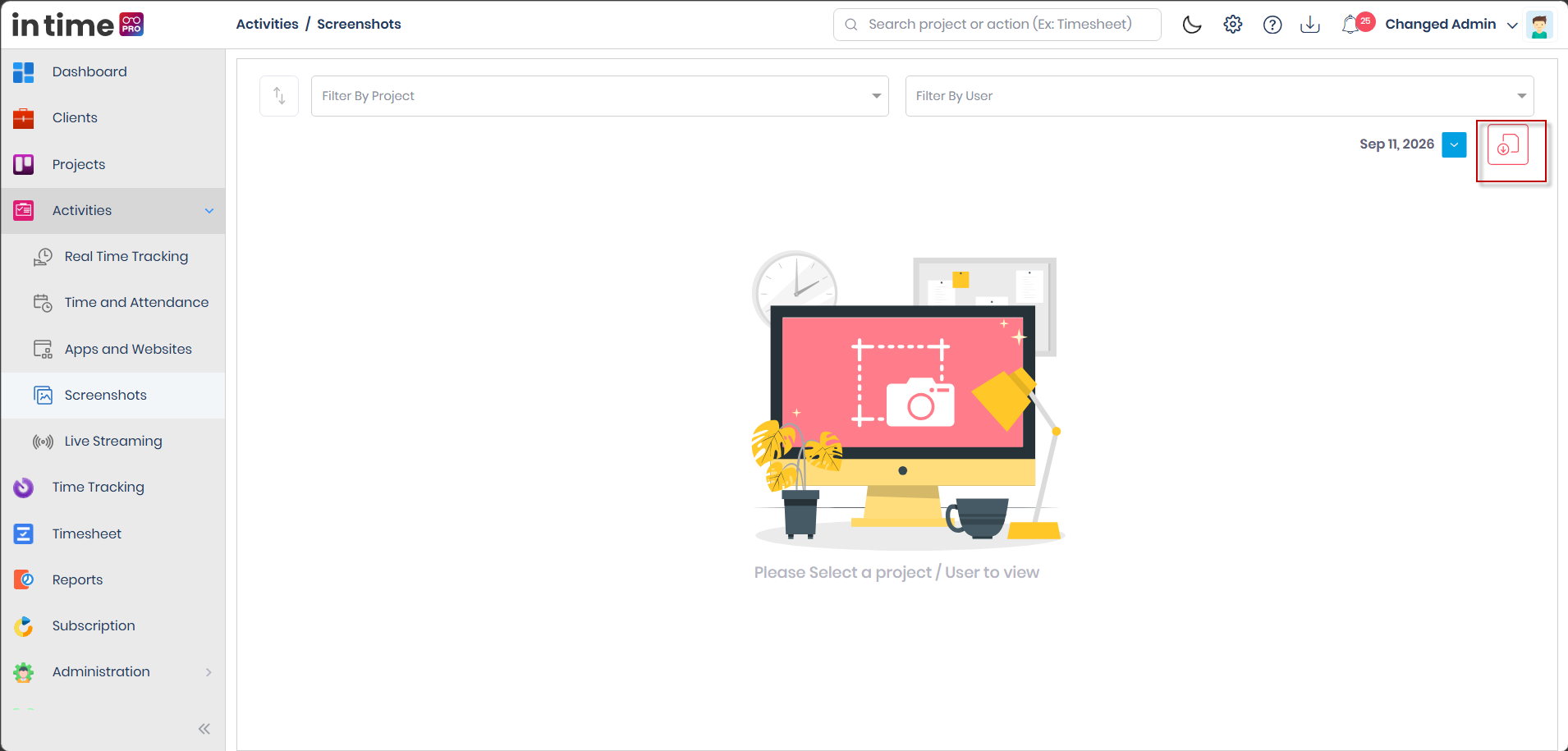
- A toolbar download control that zips up the whole day's images.
- A Delete (trash) icon on a group — only shown if you have the screenshot delete permission (Section 7). Deleting always asks for confirmation first.
If the selected person has nothing to show for that day, you'll see: No screenshots are available for this user.
New screenshots can appear inside the matching hour group automatically while you're on the page, if a new one is captured for the person you currently have selected.
5. Viewing, Downloading, and Deleting
| Action | How to do it | Result |
|---|---|---|
| Preview | Hover a thumbnail | A larger version of the group appears |
| View full image | Click View Screen | The full-size screenshot opens |
| Download one image | Click Download on that image | The image file downloads |
| Download the whole day | Use the toolbar download control | A zip file of that day's images downloads |
| Delete a group | Click the trash icon on a group (permission required), then confirm | The group is removed after a confirmation popup |
6. Who Can See Whose Screenshots
| Layer | What controls it |
|---|---|
| Whether you can open the page at all | The Screenshots permission and its edition feature |
| Who appears in the Filter By User picker | The same project-scoped list used elsewhere in Activities — Admin sees everyone except Client users; anyone else sees people on their own projects (see Activities → Data Visibility) |
| Whether the filter row itself is shown | The screenshot view permission |
| Whether Delete is shown | The screenshot delete permission |
Do not assume "employees can only ever see their own screenshots" as a guaranteed rule of the product. What's confirmed is that the picker only lists people you're allowed to choose from in the first place — a stricter, page-level "you may only fetch your own screenshots" restriction is not confirmed either way.
7. Permissions — View vs. Delete
Screenshots has three separate permissions, and it's important not to combine them, since each controls something different:
| Permission | Controls | If not granted |
|---|---|---|
| Screenshots (menu) | Whether the Screenshots menu item — and the page itself — appears at all | The menu item is hidden |
| Screenshot View | Whether the project/user/sort filter row appears on an otherwise-open page | The page can still open (for example via Time and Attendance's View All), but the filter row is hidden |
| Screenshot Delete | Whether the Delete action appears on a screenshot group | Delete does not appear anywhere on the page |
By default:
| Role | Menu (page opens) | Filter row (View) | Delete |
|---|---|---|---|
| Admin / Super Admin | Yes | Yes | Yes |
| Manager | Yes | Yes | No |
| Program Manager | Yes | Yes | No |
| Accountant | Yes | Yes | No |
| Contractor | Yes | No | No |
| Employee | No | No | No |
| Client | No | No | No |
Contractor is a notable case: Contractor gets the Screenshots menu item by default, but not the view permission, so the filter row is hidden even though the page itself opens.
8. Empty and Error States
| Situation | What you see |
|---|---|
| No project/user selected yet | Please Select a project / User to view |
| Selected person has no screenshots for the day | No screenshots are available for this user. |
| Filter row hidden (no view permission) | The page still opens, but with no filter controls |
9. Step-by-Step Workflow
- Open Activities → Screenshots, or use View All from a person's Time and Attendance Day view.
- If the filter row is visible, choose a project and/or user, and a date.
- Choose Newest On Top or Oldest On Top if you want a specific order.
- Browse the hour groups and hover a thumbnail to preview it.
- Use View Screen to open a full image, or Download to save one image.
- Use the toolbar download control to save the whole day as a zip.
- If you have delete permission, use the trash icon on a group and confirm to remove it.
10. Common Questions
Why can I open Screenshots but not see any filters? You have the Screenshots menu permission but not the screenshot view permission. This is the default for Contractor.
Why don't I see a Delete option? Delete requires a separate, more restricted permission than simply viewing screenshots. By default, only Admin and Super Admin have it.
Can an Employee use this page at all? Not by default — Employee does not get the Screenshots menu permission.
I selected a person and nothing shows up — is that broken? Not necessarily. If that person has no screenshots captured for the selected date, you'll see No screenshots are available for this user.