Administration
Administration is where an organization's administrators manage two things: Roles (what different types of users are allowed to see and do in In Time PRO) and Member Allocation (how much of each team member's time is allocated to which projects). It is a permission-controlled area — most people never see it, and that's expected.
This page documents only the Administration menu itself: Roles and Member Allocation. Day-to-day company configuration — Manage Users, Organization Units, Company Profile, Products & Services, and App Productivity — lives in a separate area called Settings, which has its own Global Settings documentation. See Administration vs. Settings below if you're not sure which one you need.
1. Overview
Administration exists so that a small number of trusted users — typically an Admin or Super Admin — can control:
- Roles — the permission sets that determine what every other role (Manager, Employee, Contractor, Accountant, Client, and so on) can see and do throughout In Time PRO.
- Member Allocation — how much of each person's working capacity is assigned to which projects, along with a short profile for that person (experience, billing status, availability, resume/CV, and connected app integrations).
Both areas are permission-gated: the Administration menu, and each item inside it, only appears for a user whose role has been granted the matching permission. If you don't see Administration in your sidebar, or you see it but not one of its two items, your role simply hasn't been given that access — ask your administrator if you believe you need it.
Administration is intended mainly for administrative users. Most Employees, Contractors, and Accountants will never see this menu, and Client users never see it at all — they sign in through a separate Client Portal.
2. Administration vs. Settings
It's easy to assume everything administrative lives in one place, but In Time PRO splits this across two separate areas:
| This area | What it's for |
|---|---|
| Administration (this guide) | Roles (permission sets) and Member Allocation (assigning people to projects and managing their profile) |
| Global Settings | Manage Users (inviting people and assigning them a role), Organization Units, Company Profile, Products & Services, and App Productivity |
A common point of confusion: assigning a role to a person happens in Settings → Manage Users (when you invite someone or edit their user record), not in Administration → Roles. The Roles page in Administration only lets you edit what a role is allowed to do — it does not assign roles to individual people.
Similarly, Organization Units are a Settings feature and are not used anywhere in Member Allocation. Member Allocation's "Department" information comes from the roles a person holds, not from an organization unit.
3. Accessing Administration
To open Administration:
- Sign in to In Time PRO Web.
- Look for Administration in the left-hand sidebar.
- Expand it to see the items your role has access to.
What you see depends entirely on your permissions:
- A user with full administrative access (Admin or Super Admin) typically sees both Roles and Member Allocation.
- A user without any Administration-related permission won't see the Administration parent item at all — it only appears once at least one item underneath it is available to you.
4. Administration Menu
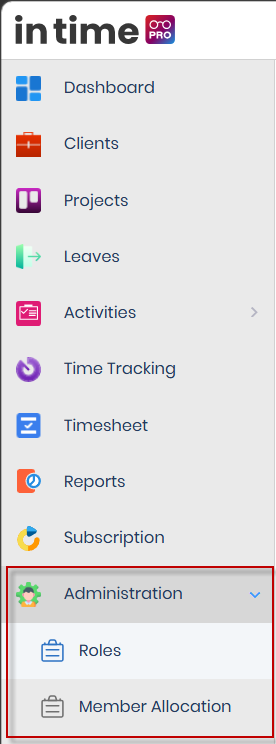
For a typical administrator, the Administration menu contains:
| Menu item | What it's for |
|---|---|
| Roles | View and edit the permission sets that control what each role can do |
| Member Allocation | View and manage how team members are allocated across projects, along with their profile information |
4.1 Roles
Opens the Roles page, where an administrator can review each role in the organization, see whether it's a built-in ("Static") or default role, and edit its permissions. Roles is covered in full in Roles.
4.2 Member Allocation
Opens the Member Allocation page — a list of team members with their current allocation percentage, from which an administrator can open a person's profile to manage their project allocations, availability, and CV. Member Allocation is covered in full in Member Allocation.
Note about Proxy Login: You may notice a Proxy Login item in the sidebar near Administration. Proxy Login (which lets a Super Admin sign in as another user) is not part of the Administration menu — it's a separate, top-level sidebar item of its own, and it is only available to the Super Admin role. Don't confuse it with an Administration feature.
5. Common Questions
Why don't I see Administration in my sidebar?
Your role hasn't been granted access to either Roles or Member Allocation. Ask your administrator if you need this access.