Track Working Days
Track Working Days sets two related things for a work location: which days and hours are considered normal working days (used for things like required timesheet hours and non-working-day calculations), and which days and hours the Desktop Application should be actively tracking activity.
How to access
Settings → Company Profile → Track Working Days tab
What you can do
Fields
| Field | What it means |
|---|---|
| Location | Choose which work location this schedule applies to; changing it reloads that location's schedule |
| Timezone | Shown automatically from the selected location (read-only here — set it on Locations) |
| Working Days | Toggle each day of the week (Monday–Sunday) on or off as a normal working day |
| Work Starts / Work Ends | The normal start and end time of the working day |
| Minimum Hours | Automatically calculated from Work Starts/Work Ends — shows the expected working duration |
| Flexible Working Hours | A switch indicating the location allows flexible start/end times rather than a fixed schedule |
| Tracking Days | Toggle each day of the week the Desktop Application should record activity |
| Tracking Starts / Tracking Ends | The time window during which the Desktop Application records activity each tracking day |
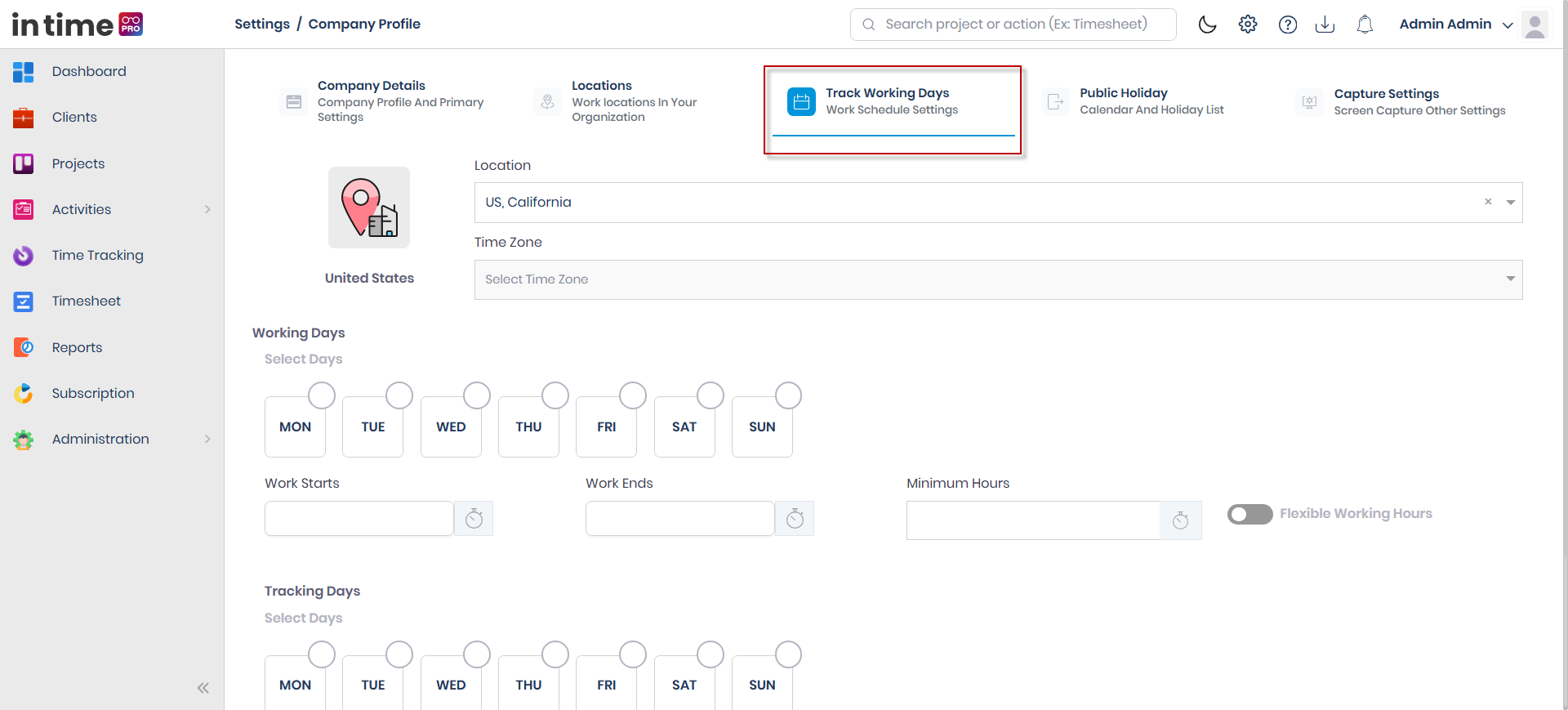
Screenshot: Track Working Days
The Track Working Days tab, with the Location/Timezone selectors, Working Days toggles, Work Starts/Work Ends and Minimum Hours fields, Flexible Working Hours switch, and Tracking Days/Tracking Starts/Tracking Ends fields.
Save
Save is disabled if the end time isn't after the start time, for either the work hours or the tracking hours.
Why this matters
The schedule you set here for a location is used elsewhere in In Time PRO Web:
- Timesheets — your working days are used to work out how many hours are expected from you for weekly, bi-monthly, or monthly timesheet submissions.
- Time and Attendance — your work start/end times are shown as the expected schedule on your attendance record.
- Leave / Time Off — working days, combined with public holidays, determine which days count as non-working days when a leave request is calculated.
- Reports — working-day settings are used when reports calculate expected working days.
- Activities — your tracking schedule feeds into productivity percentage calculations shown in Activities.
There's also a per-user override available on an individual's profile (see Manage Users) if one person's schedule needs to differ from their location's default.
Step-by-step workflow
- Open Settings → Company Profile → Track Working Days.
- Choose the Location whose schedule you want to set or update.
- Toggle the applicable Working Days.
- Set Work Starts and Work Ends; Minimum Hours updates automatically.
- Turn on Flexible Working Hours if this location doesn't follow a fixed schedule.
- Toggle the applicable Tracking Days.
- Set Tracking Starts and Tracking Ends.
- Choose Save.
Expected result
You see a confirmation message: "Changes added successfully." The updated schedule applies to that location, and to users whose reporting location matches it, going forward.
Common validations
| Situation | What you see |
|---|---|
| Work end time before or equal to work start time | Save stays unavailable / end time must be after start time |
| Tracking end time before or equal to tracking start time | Save stays unavailable / end time must be after start time |