Lookup Metadata
Lookup Metadata maintains a shared, organization-wide list of Task Categories (also called "jobs") and the Tasks nested under each one — the master list people pick from when completing a timesheet. Keeping this list centrally maintained keeps timesheet entries consistent, instead of everyone typing free text.
This screen is specifically for timesheet task categories and tasks — it is not a general-purpose metadata editor.
How to access
Settings → Lookup Metadata
Lookup Metadata has two views: Active Task Categories and Deleted Task Categories.
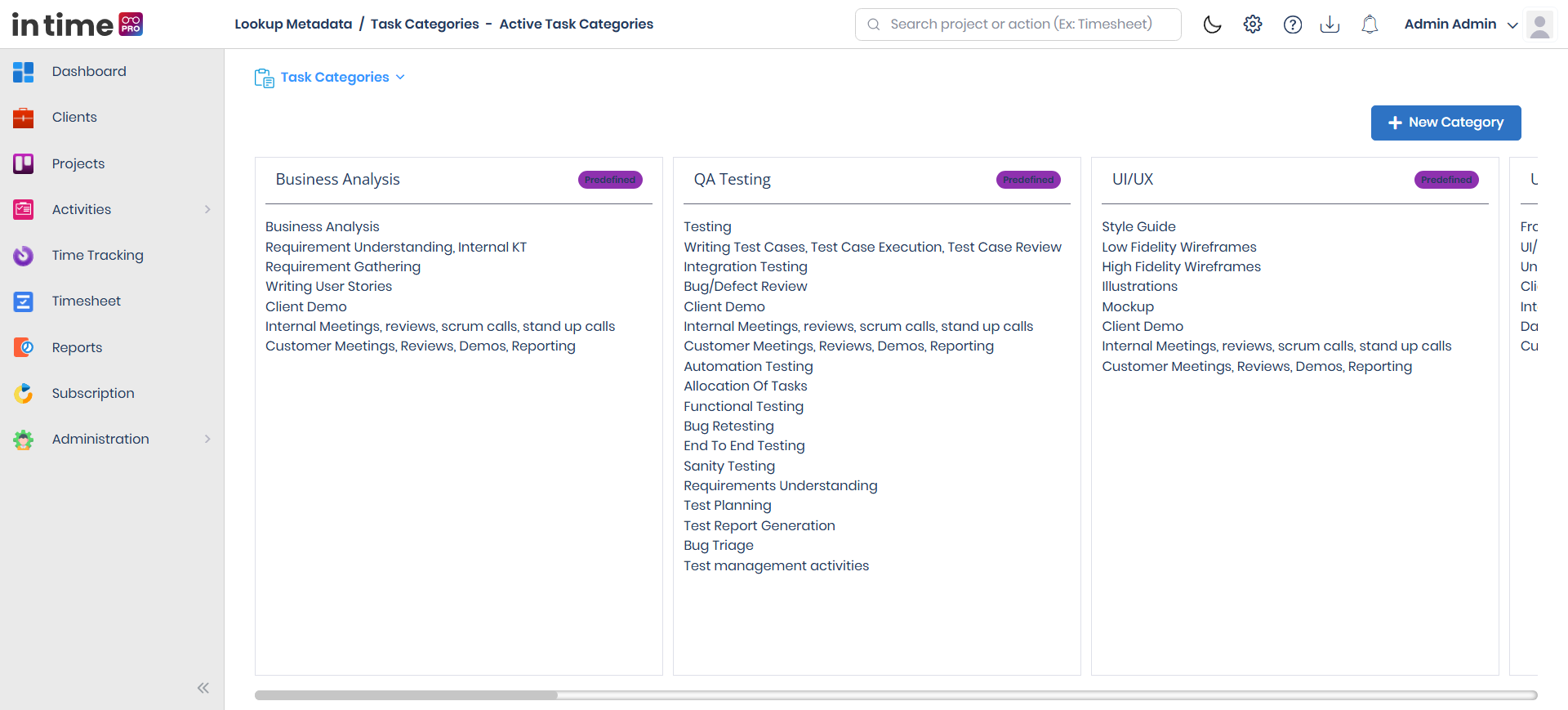
Screenshot: Lookup Metadata — Task Categories
The Active Task Categories view, showing categories and the tasks nested under each one.
Predefined vs. customized
In Time PRO comes with a set of ready-made task categories marked Predefined — for example, categories like Business Analysis, QA Testing, UI/UX, Development, Project Management, and Meetings & Events, among others. Anything your organization adds is marked Customized.
Predefined categories can't be deleted the normal way. Trying to delete one shows a message explaining this, instead of removing it.
What you can do
- New Category — add a category (job). Rename it inline by clicking its name and typing a new one; the change saves automatically when you move away from the field.
- New Task — add tasks under a category you created. This is not available on predefined categories.
- Edit a task's name inline the same way you edit a category name.
- Delete a custom category or task, after confirming.
- Switch to the Deleted view to Restore a category or task you removed.
Step-by-step workflow
- Open Settings → Lookup Metadata.
- Choose New Category, enter a name, then move away from the field to save it.
- Under that category, choose New Task and enter a name.
- Edit a category or task name inline by clicking it, typing a new name, and moving away from the field.
- Delete a custom category or task and confirm.
- Switch to the Deleted view and Restore an item if needed.
Expected result
New categories and tasks appear in the Active view immediately. Edited names update as soon as you leave the field. Deleted custom items move to the Deleted view. Restored items return to Active.
Common validations
| Situation | What you see |
|---|---|
| Blank task name | Task name is not valid. |
| Duplicate task within the same category | Task name already exists. Please try with a different name. |
| Blank category name | Category name is not valid. |
| Duplicate category name | Category name already exists. Please try with a different name. |
| Trying to delete a predefined category | A message explains it can't be deleted, instead of removing it |