Settings
Settings is where administrators configure how the whole company/organization uses In Time PRO Web. This is separate from My Profile, which only affects your own personal account — changes made in Settings apply to everyone in your organization.
How to access
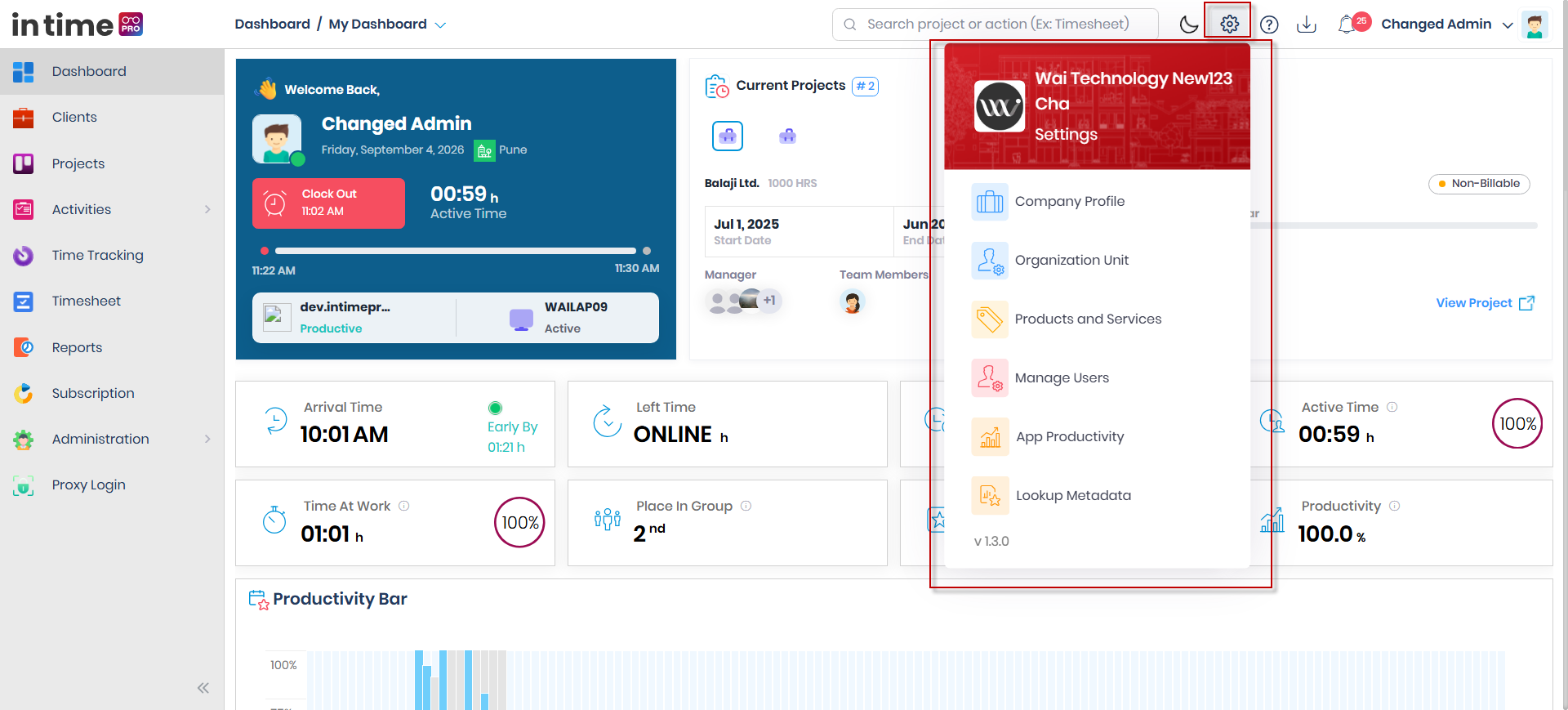
Click the gear icon in the top bar. A menu opens showing your company logo/name at the top, followed by the list of available Settings pages.
Settings is hidden entirely for Client users — it is only available to staff roles with the appropriate access.
Screenshot: Settings Menu
The Settings menu, opened from the gear icon, listing Company Profile, Organization Unit, Products & Services, Manage Users, App Productivity, and Lookup Metadata.
What you can do
Settings contains six pages:
| Page | Purpose |
|---|---|
| Company Profile | Organization details, work locations, working days, public holidays, and screen/activity capture rules |
| Organization Unit | Your company's department/team structure and job-title (designation) structure |
| Products & Services | The catalog of products/services used on projects and billing |
| Manage Users | Invite, edit, and manage the people in your organization |
| App Productivity | Classify applications/websites as productive, unproductive, or neutral, and configure how productivity is calculated |
| Lookup Metadata | Manage the task categories and tasks used in timesheets |
Each Settings page requires its own access. An administrator who hasn't been granted access to a particular page may not see it listed in this menu at all, or may see it in a read-only view.
Step-by-step workflow
- Click the gear icon in the top bar.
- Review the Settings menu — your company logo/name appears at the top.
- Select the page you want to configure, such as Company Profile or Manage Users.
- Make your changes on that page and save them.
Expected result
The page you selected opens, showing the configuration options you have access to. Changes you save there apply company-wide, not just to your own account.
Common validations
| Situation | What you see |
|---|---|
| You don't have access to a Settings page | The page is not listed in the Settings menu, or opens in a read-only view |
| You are signed in as a Client user | The gear icon / Settings menu is not shown |
Notes
The footer of the Settings menu shows the application's version number. This is useful information to have ready when contacting support.