Capture Settings
Capture Settings controls what the Desktop Application records for everyone in your company by default — screenshots, application/website/window activity, mouse activity, idle time, and offline time. These are company-wide defaults; an administrator can still adjust settings for an individual user from that user's profile under Manage Users.
How to access
Settings → Company Profile → Capture Settings tab
What you can do
Screen Capture
| Field | What it controls |
|---|---|
| Enable Screen Capture | Turns periodic screenshots on or off. When off, the interval, quality, and blur options below are disabled. |
| Blur Screen Capture | Blurs captured screenshots for extra privacy. Only available when Screen Capture is enabled. |
| Screen Capture Interval | How often a screenshot is taken: options range from every 3 minutes up to every 30 minutes. |
| Screen Capture Quality | The resolution/quality of captured screenshots (a lower or higher quality option). |
Tracking Controls
Each of these options is phrased as a "Disable" or "Turn off" switch, so turning a tile on means that type of tracking is switched off.
| Field | What it controls |
|---|---|
| Disable App Tracking | Stops recording which applications are used. |
| Disable URL Tracking | Stops recording which web addresses/websites are visited. |
| Disable Window Tracking | Stops recording window titles. |
| Disable Private Time | Stops tracking during time marked as private. |
| Turn Off Mouse Clicks | Stops recording mouse-click activity. |
| Turn Off Mouse Movement | Stops recording mouse-movement activity. |
Other Settings
| Field | What it controls |
|---|---|
| Idle Time Tracking | How long with no activity before a user is considered idle — options from 3 to 30 minutes; defaults to 5 minutes if not set. |
| Offline Time | Whether offline time needs manager approval ("Enable (Approve only)", the default) or is simply disabled. |
| Default Application Productivity | The starting classification (Productive, Unproductive, or Neutral) applied to newly seen applications. Currently this is always set to Neutral and cannot be changed from this screen. |
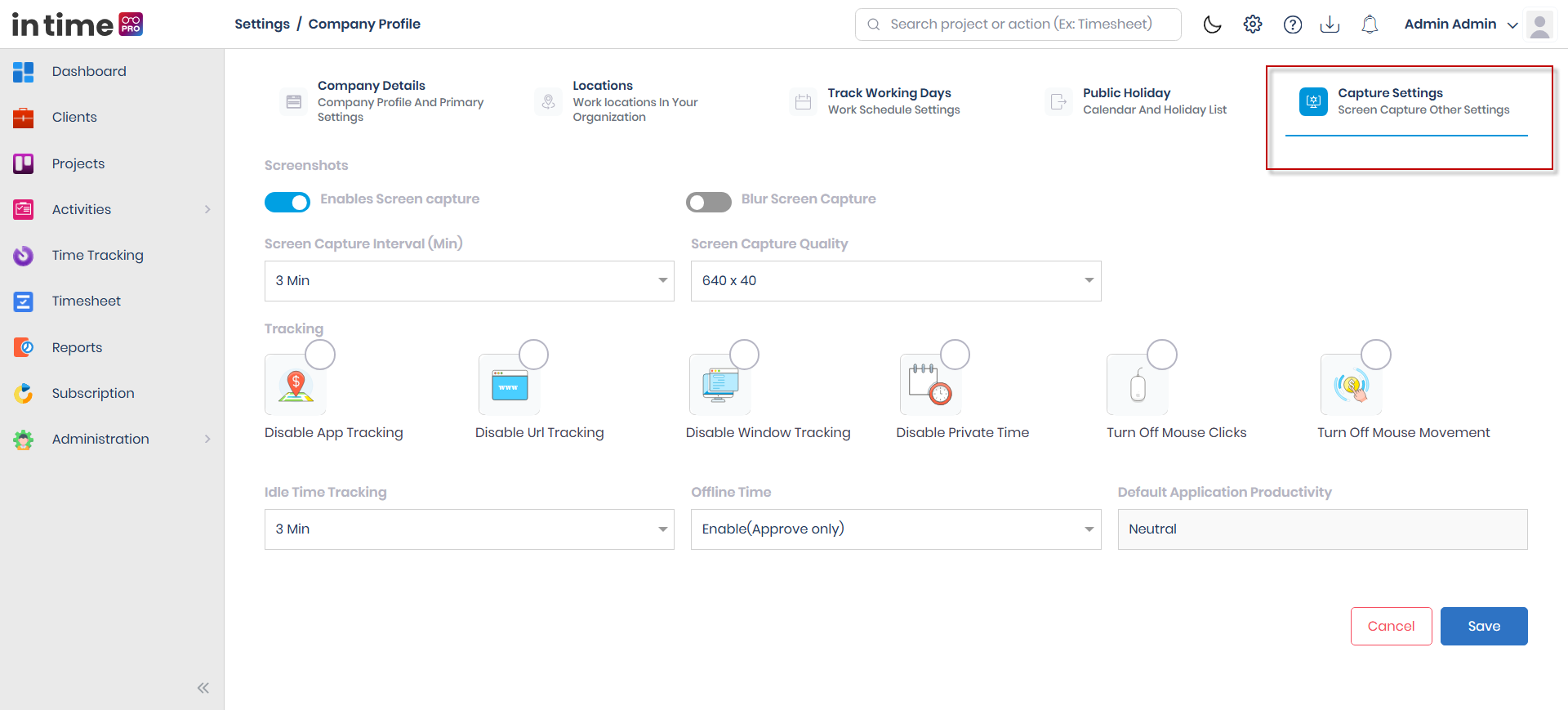
Screenshot: Capture Settings
The Capture Settings tab, with the Screen Capture section, Tracking Controls, and Other Settings (Idle Time Tracking, Offline Time, Default Application Productivity).
What happens when you save
Your choices become the default for every user in the company going forward. An administrator can still override individual settings on a specific user's profile.
Exactly how the Desktop Application behaves for a given combination of these switches is controlled by the Desktop Application itself; this page only documents what each option in the web application controls and saves.
There are no required fields on this page — it's made up of switches and dropdowns, so there's nothing to fill in incorrectly.
Step-by-step workflow
- Open Settings → Company Profile → Capture Settings.
- Turn Enable Screen Capture on or off, and set Blur Screen Capture, Screen Capture Interval, and Screen Capture Quality as needed.
- Set the Tracking Controls switches for the activity types you want to stop tracking.
- Set Idle Time Tracking, Offline Time, and review Default Application Productivity under Other Settings.
- Choose Save.
Expected result
You see a confirmation message: "Changes added successfully." The settings apply as the default for every user in the company going forward.