Products & Services
Use Products & Services to maintain a shared catalog of the products and services your organization offers, so projects and billing can reference a consistent list instead of free text.
How to access
Settings → Products & Services
The page has two tabs: Products and Services. If the menu or actions are missing, ask your administrator to review your access.
Common to both tabs
- Lifecycle views — Active, Archived, and Deleted, reachable from a dropdown/view switcher. Archived and Deleted views are only shown to users with the right access.
- Search by name, plus sort options: Newest On Top, Oldest On Top, Rate Low to High, Rate High to Low.
- Export the list.
- Bulk actions — Archive items from the Active view; Restore or Delete items from the Archived view.
- Table columns — Name, Description, Code, and Rate, plus selection and action columns.
Products
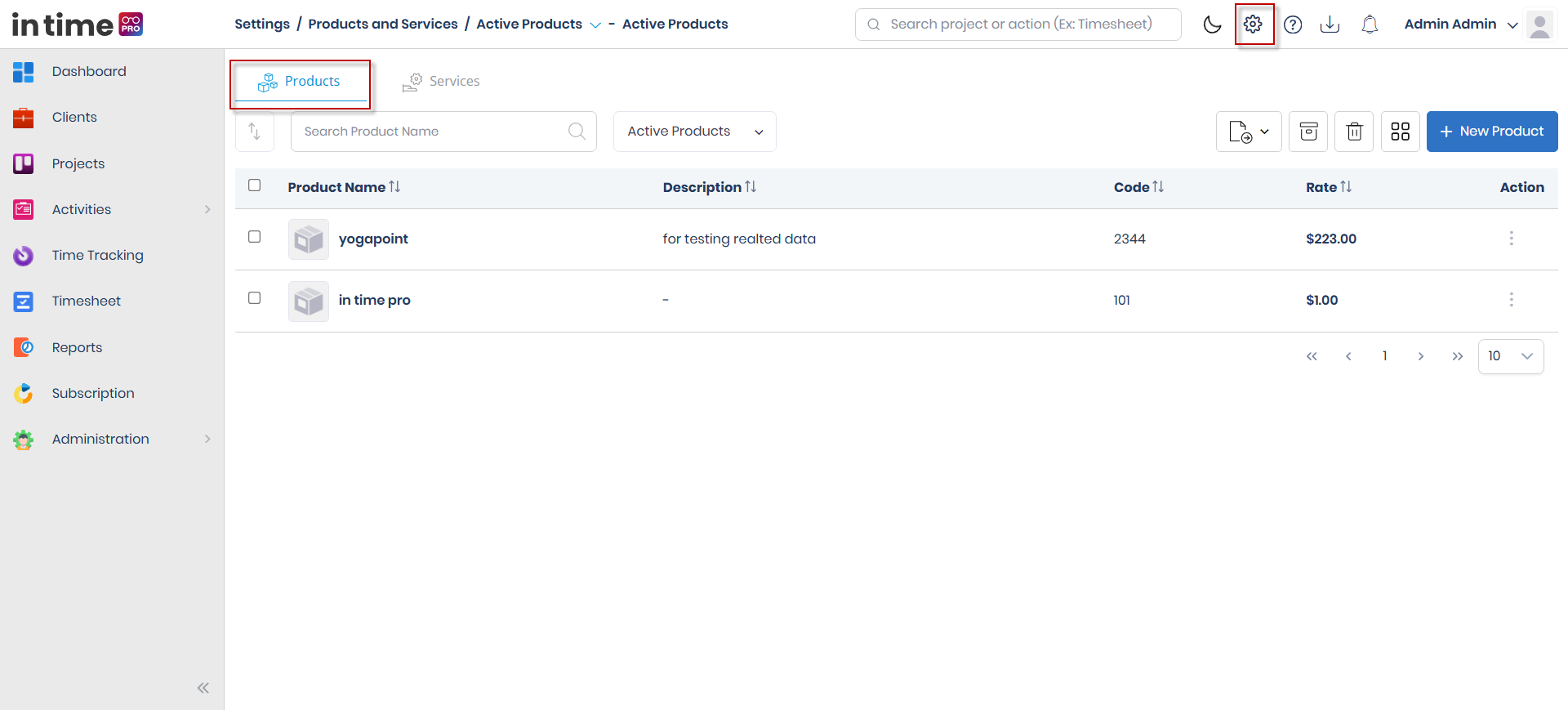
The Products tab lists your product catalog with the common columns above (Name, Description, Code, Rate).
Screenshot: Product Management
The Products tab's Active list, showing the Name, Description, Code, and Rate columns and the Add Product action.
Adding or editing a product
Choose Add Product to open the form. The same form is used to edit an existing product.
| Field | Required | Notes |
|---|---|---|
| Photo | No | Upload or remove |
| Product Name | Yes, max 150 characters | Must be unique; can't be blank or spaces only |
| Description | No, max 180 characters | — |
| Rate | Yes | Numeric, minimum 0 |
| Code | Yes, max 12 characters | Letters and numbers |
Services
The Services tab uses the same kind of form as Products, plus a Billable setting.
| Field | Required | Notes |
|---|---|---|
| Photo | No | Upload or remove |
| Service Name | Yes, max 150 characters | Must be unique; can't be blank or spaces only |
| Description | No, max 180 characters | — |
| Rate | Yes | Numeric, minimum 0 |
| Code | Yes, max 12 characters | Letters and numbers |
| Billable | — | Checkbox marking whether the service is billable or non-billable |
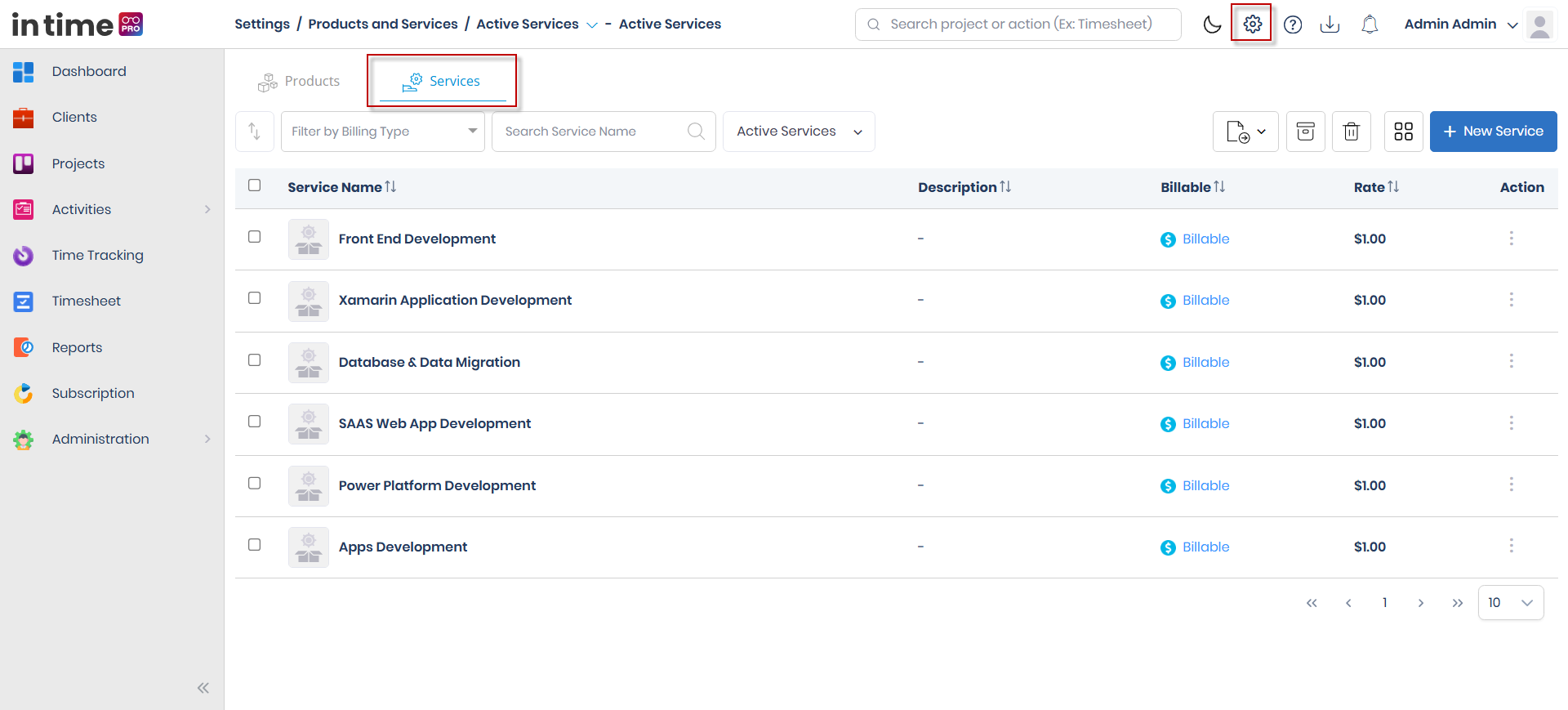
The Services table includes an extra Billable / Non-Billable column, and a matching filter dropdown lets you narrow the list to just billable or just non-billable services. Billable status is also included when you export the list.
Screenshot: Manage Services
The Services tab's Active list, including the Billable/Non-Billable column, filter dropdown, and the Add Service action.
Where this catalog is used
Products & Services items can be assigned when you create or edit a project. See Projects.
Step-by-step workflow
- Open Settings → Products & Services.
- Select the Products or Services tab and make sure you're on the Active view.
- Choose Add Product or Add Service.
- Enter the Product/Service Name, Rate, and Code. For a service, set Billable as needed.
- Optionally add a Description and Photo.
- Save.
- To change an item later, open it, update the fields, and save.
- To archive, restore, or delete items, select one or more and confirm the action — items move between the Active, Archived, and Deleted views accordingly.
Expected result
After adding an item, you see New product added successfully or New service added successfully, and the item appears in the Active list. After an edit, you see Changes updated successfully. Archive, restore, and delete actions move the item to the corresponding view.
Common validations
| Situation | What you see |
|---|---|
| Name missing | Product name / service name is mandatory |
| Rate missing | Rate is mandatory |
| Code missing | Code is mandatory |
| Duplicate name | Product/service name already exists |