My Profile
My Profile is where you view and update your own personal details — your photo, name, and (if applicable) your password. It's the same page for every user; what you can change depends on how your account was set up.
How to open
- Open the User Profile menu in the top-right of the header.
- Select My Profile.
Profile photo
At the top of the page you can manage your profile photo:
- Upload a photo in PNG, JPG, or JPEG format. The upload panel shows the recommended format and size for the image.
- Choose a preset avatar from a set of default avatar images, instead of uploading your own.
- Remove your current photo.
Fields
| Field | What it's for | Required | Can you edit it |
|---|---|---|---|
| Photo | Your profile picture shown across the app | No | Yes |
| First Name | Your given name, shown throughout the app | Yes, max 25 characters | Yes |
| Last Name | Your family name | Yes, max 25 characters | Yes |
| Email ID | Your sign-in email address | — | No, read-only |
| Employee Id | Your company-assigned employee identifier | No | No, read-only |
| Reporting Manager | The manager currently assigned to you | No | No, read-only — set by an administrator |
Email ID, Employee Id, and Reporting Manager are shown for reference only — you can't change them from My Profile. If any of these need to change, contact your administrator; they're managed from Manage Users, not from your own profile.
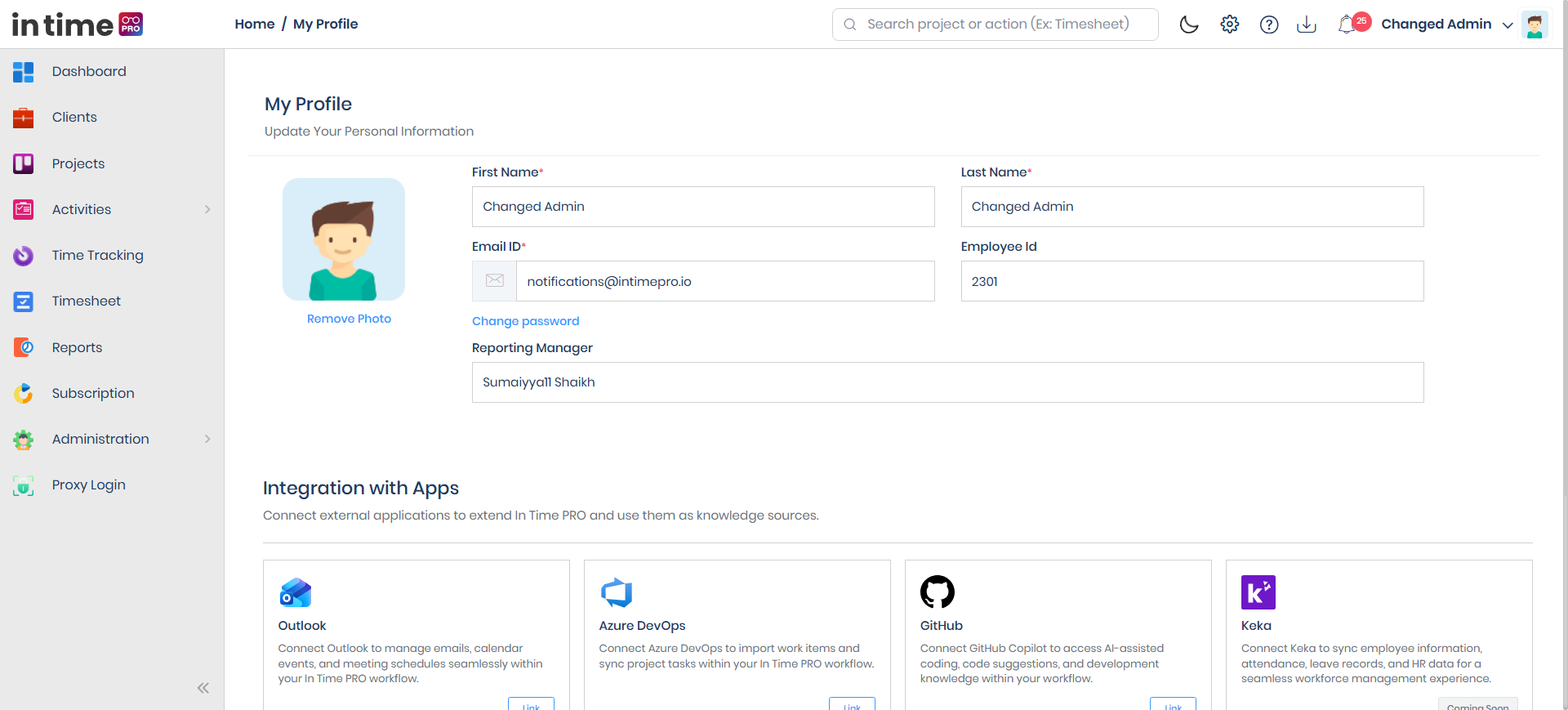
Screenshot: My Profile — Personal Information
The My Profile page, with the photo panel and the First Name, Last Name, Email ID, Employee Id, and Reporting Manager fields.
Change Password
The Change Password option is only shown if your account signs in with a password. If you sign in only through a method such as Microsoft or Google, this option isn't shown.
- Click Change Password to reveal the Current Password, New Password, and Confirm New Password fields.
- Enter your Current Password. This is required and must match your existing password.
- Enter your New Password. It must be at least 6 characters long and include at least one number, one uppercase letter, one lowercase letter, and one special (non-alphanumeric) character.
- Enter the same value again in Confirm New Password. It must match New Password exactly.
A Cancel link next to Change Password hides these fields again without changing your password.
Integrations
My Profile also includes an Integration with Apps section, where you can connect or disconnect optional third-party integrations available to your company, such as Outlook or Azure DevOps. Each integration is shown as a card that you can link or delink, or that may be marked "Coming Soon" if it isn't available yet. This is separate from the integrations managed in the Administration Settings area.
Save / Cancel
| Button | What it does |
|---|---|
| Save | Applies your changes. It stays disabled until you've actually changed something. |
| Cancel | Discards your changes and returns you to the Dashboard. |
What happens after saving
When you click Save:
- If you changed your photo, it's uploaded first.
- Your name and photo update everywhere in the app, including the header.
- If you also set a new password, it's updated as well — you'll need the new password the next time you sign in with a password.
- You'll see a confirmation message: "Changes updated successfully."
- You're returned to the Dashboard.
Common validations
| Situation | What you see |
|---|---|
| First Name left blank | First name is mandatory |
| Last Name left blank | Last name is mandatory |
| Current password missing when changing password | Current password is mandatory |
| Current password incorrect | An "incorrect current password" message |
| New password doesn't meet the complexity rules | A message asking for the required password format |
| Confirm password doesn't match | Passwords don't match |