Public Holiday
Public Holiday keeps a shared list of your company's public holidays so they're automatically accounted for in leave calculations and shown on a calendar for everyone.
How to access
Settings → Company Profile → Public Holiday tab
What you can do
Views
Holidays are organized into two views:
| View | Shows |
|---|---|
| Current | The current calendar year and any future-dated holidays |
| Archive | Holidays from past years, with a count badge |
Alongside the list, a month-by-month calendar view lets you navigate forward and back to see holidays on a calendar layout.
A filter toggle lets you filter the list by column.
Screenshot: Public Holidays
The Public Holiday tab, with the Current/Archive views, the holiday list, and the month calendar view.
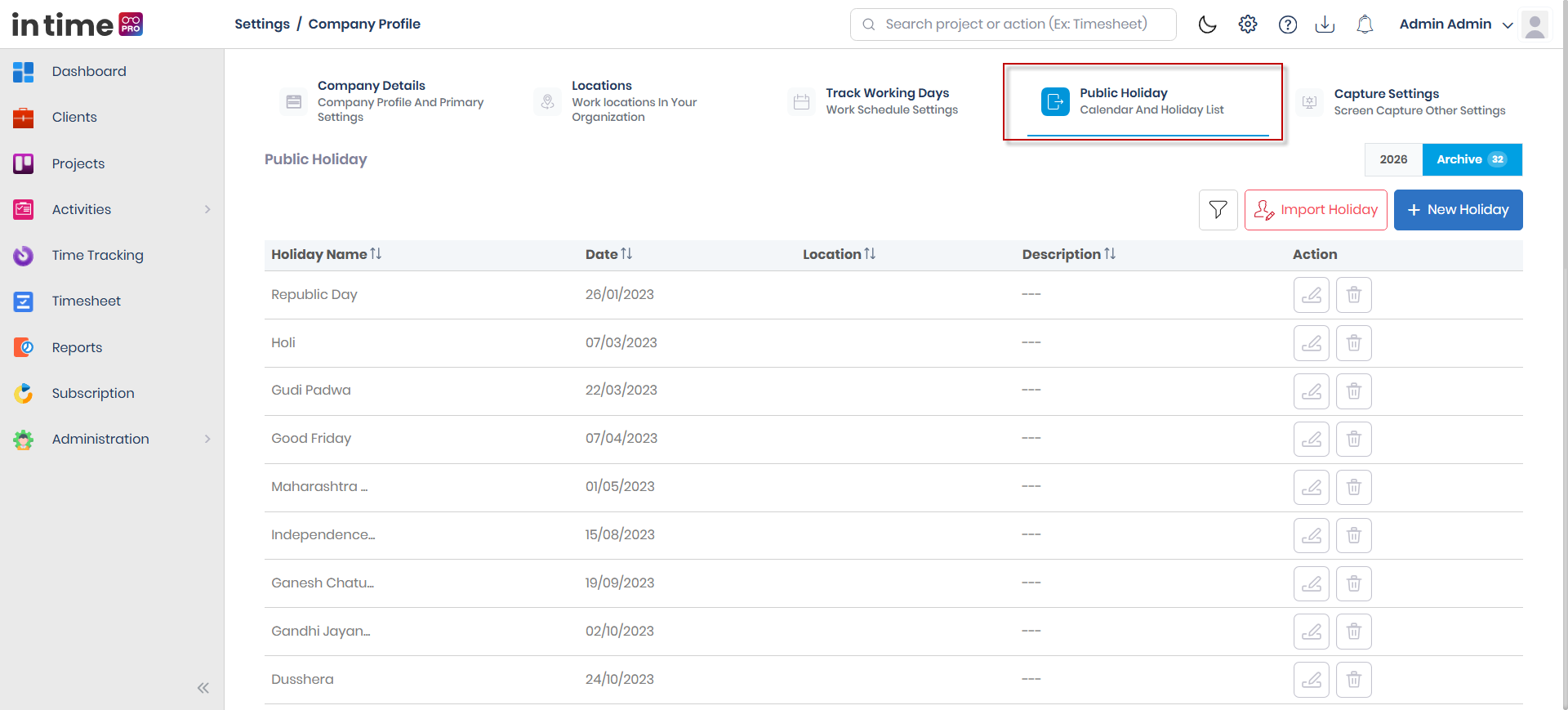
New Holiday / Import Holiday
New Holiday and Import Holiday buttons are only shown to users with edit access (in practice, typically Admin-level users).
New/Edit Holiday fields
| Field | Required | Notes |
|---|---|---|
| Holiday Date | Yes | Cannot be a date before today |
| Holiday Name | Yes | Letters and spaces only |
| Applicable Locations | Yes | Choose one or more work locations the holiday applies to |
| Description | No | Free text |
Creating, editing, and deleting a holiday
To create a holiday: choose New Holiday, fill in the fields, and Save. The holiday appears in the list and on the calendar.
To edit a holiday, open it from the list, update the fields, and save.
A duplicate date/name combination is rejected.
To delete a holiday, choose Delete on it and confirm.
Importing holidays
Import Holiday opens a panel where you upload a spreadsheet file (.csv, .xls, or .xlsx, up to about 10 MB). A sample file is available to download so you can match the expected format.
After import, any rows that couldn't be processed appear as a downloadable "Invalid Holiday List" from your Notifications.
Archive behavior
Once a holiday's year is in the past, it automatically moves from the Current view into Archive — there's no separate "archive" action to take; it happens based on the date.
Step-by-step workflow
- Open Settings → Company Profile → Public Holiday.
- Choose New Holiday.
- Enter the Holiday Date, Holiday Name, Applicable Locations, and an optional Description.
- Choose Save.
- Confirm the holiday appears in the list and on the calendar.
- To add several holidays at once, choose Import Holiday instead, upload your spreadsheet, and check Notifications for any rows that couldn't be processed.
Expected result
Creating a holiday shows "Holiday added successfully." Editing a holiday shows "Holiday updated successfully." Deleting a holiday shows "Deleted successfully." The holiday calendar is used automatically by leave calculations for the locations it applies to.
Common validations
| Situation | What you see |
|---|---|
| Holiday Date before today | Holiday date cannot be less than today |
| Holiday Name contains characters other than letters and spaces | Only letters and spaces are allowed |
| Holiday Date, Holiday Name, or Applicable Locations left blank | Mandatory field message; Save is blocked |
| Duplicate date/name combination | Holiday already exists! |
| Import file not .csv, .xls, or .xlsx, or over about 10 MB | Upload is rejected |