Locations
Different offices or work sites can have their own address, timezone, working hours, holidays, and report settings, instead of forcing one set of rules on the whole company. The Locations page is where you maintain that list of work locations.
How to access
Settings → Company Profile → Locations tab
What you can do
Organization summary
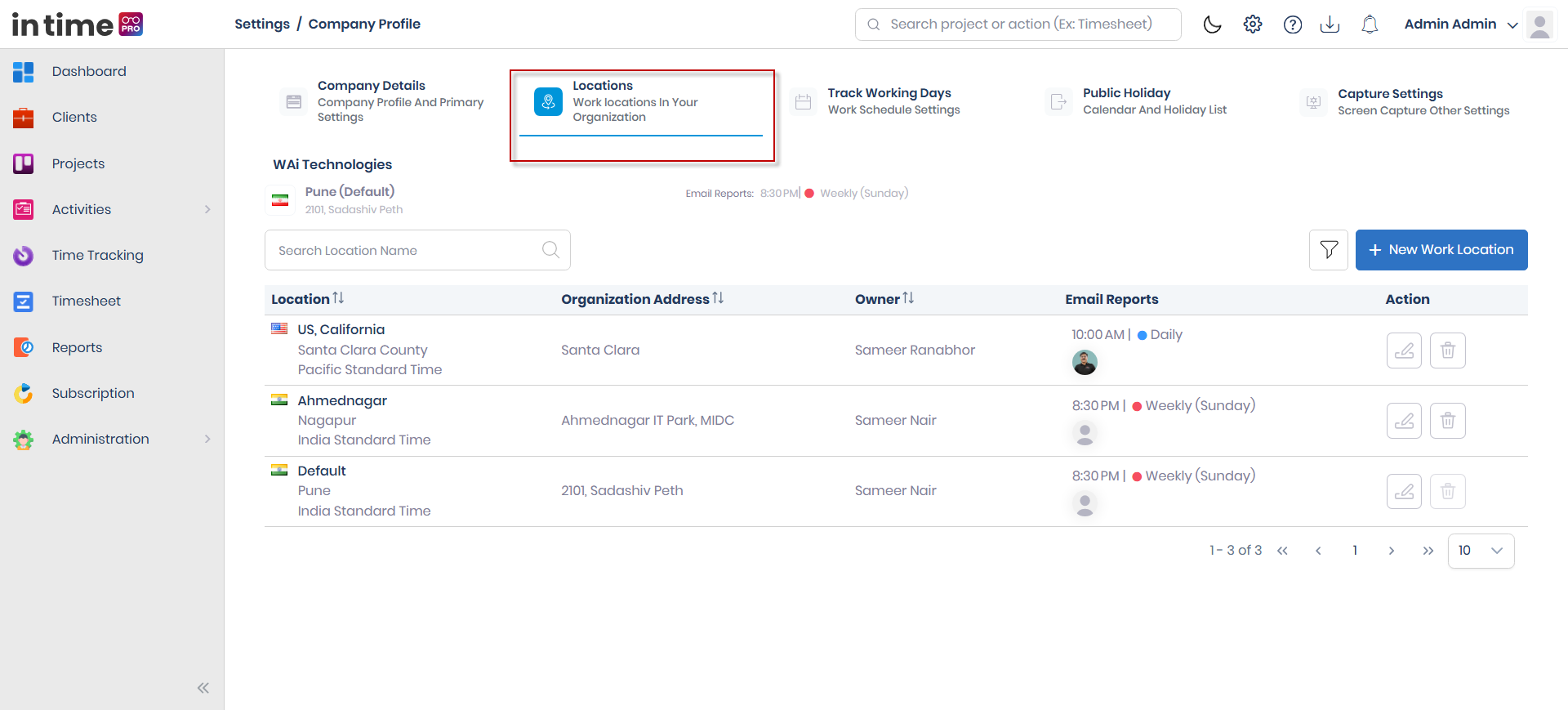
At the top of the page you'll see a summary of your organization: the company name, the default location's city and address, the owner, and the email report schedule. The default location is created automatically from what you entered on Company Details.
Search and filter
Use the Search Location Name box to find a specific location. A filter toggle shows column filters above the location table so you can narrow the list further.
The location table
| Column | What it shows |
|---|---|
| Location | The location's name, timezone, and country flag |
| Organization Address | The location's address |
| Owners | The user(s) who own that location |
| Email Reports | The report send time and Daily/Weekly/Monthly schedule, with recipient avatars |
| Action | Edit/Delete options — shown only if you have edit access |
The table supports pagination, with 10, 20, 30, 50, or 100 rows per page. If no locations match your search or filter, you'll see a "no locations found" message.
Screenshot: Locations
The Locations tab, with the organization summary at the top and the location table listing each work location.
Adding a location
The New Work Location button — shown only if you have edit access — opens a panel to add a location.
New/Edit Work Location fields
| Field | Required | Notes |
|---|---|---|
| Location Name | Yes | Must be unique; can't be blank/spaces only |
| Location Address | Yes | Entering it looks up map coordinates automatically |
| Owners | Yes | — |
| Country | Yes | — |
| State | Yes | — |
| City | Yes | — |
| ZIP Code | Yes | — |
| Timezone | Yes | — |
| Latitude / Longitude | No | Filled in automatically from the address |
| Email Recipient | Yes | — |
| Send Email Reports | Yes | Choose Daily, Weekly, or Monthly, plus the send time; Weekly/Monthly also need a day or date |
Step-by-step workflow
Creating a location
- On the Locations tab, choose New Work Location.
- Fill in the Location Name, Location Address, Owners, Country, State, City, ZIP Code, and Timezone.
- Choose the Email Recipient(s) and set Send Email Reports (frequency, day/date if applicable, and time).
- Choose Save.
- The new location appears in the location list.
Editing a location
- Find the location in the list and choose Edit.
- Update the fields you need to change.
- Choose Save.
Editing the default location (the one created from Company Details) opens the Company Details tab instead of this panel, since the default location's information comes from there. If Company Details isn't complete yet, you'll be asked to complete it first.
Deleting a location
- Find the location in the list and choose Delete.
- Confirm the deletion in the prompt.
The default location can't be deleted. If you try, you'll see a message explaining that instead of a deletion confirmation.
Expected result
- Creating a location shows the confirmation message "Work location added successfully" and the location appears in the list.
- Editing a location shows the confirmation message "Work location updated successfully".
- Deleting a non-default location removes it from the list. Note that in the interface this confirmation appears in an error/warning style even though it means the same as a normal "Deleted successfully" message.
Common validations
| Situation | What you see |
|---|---|
| Location Name blank | Location Name is mandatory |
| Location Name is only spaces | Please enter a valid location name |
| Duplicate location name | Location Name already exists |
| Location Address blank | Location Address is mandatory |
| Owner not selected | Owner is mandatory |
| ZIP/State/City/Timezone blank | A "mandatory"/"required" message for that field |
| Send Email Reports time not set | Time is mandatory |
| Trying to delete the default location | Cannot delete the default location |