User Profile
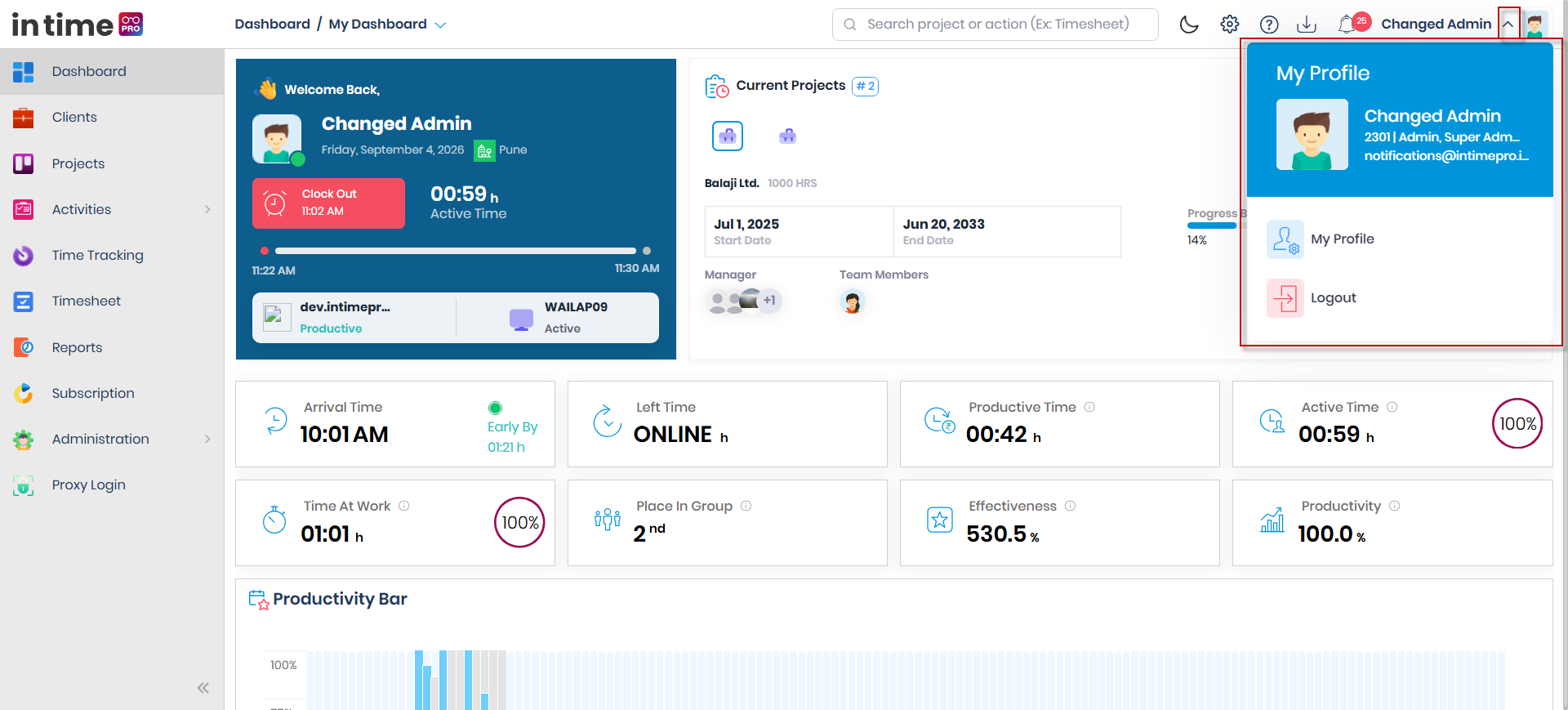
The User Profile menu is your personal account menu, in the top-right corner of the header. It shows who you're signed in as and gives you quick access to your profile and to signing out — from anywhere in In Time PRO Web.
What's shown
The header always shows your photo (or a default avatar if you haven't set one) along with your first and last name, so you can confirm at a glance which account you're signed in with.
When you open the menu, it expands to show:
- Your full name
- Your employee ID (if one has been set for you)
- Your role(s) in the application
- Your email address
Menu options
| Option | What it does |
|---|---|
| My Profile | Opens your personal profile, where you can view and update your details, photo, and password |
| Logout | Signs you out of In Time PRO Web |
Screenshot: User Profile Menu
The User Profile menu, opened from the header, showing your name, employee ID, role(s), email address, and the My Profile and Logout options.
Availability
The User Profile menu has no role restriction — it's shown to every signed-in user, regardless of role or permissions.