Notifications
Notifications keep you informed about things that need your attention — imports, timesheet and time-and-attendance events, leave/time-off activity, project updates, and user-management events — without you having to check each area yourself.
How to open
The bell icon in the top bar shows a red badge with a count when you have unread notifications.
- Click the bell icon in the application header.
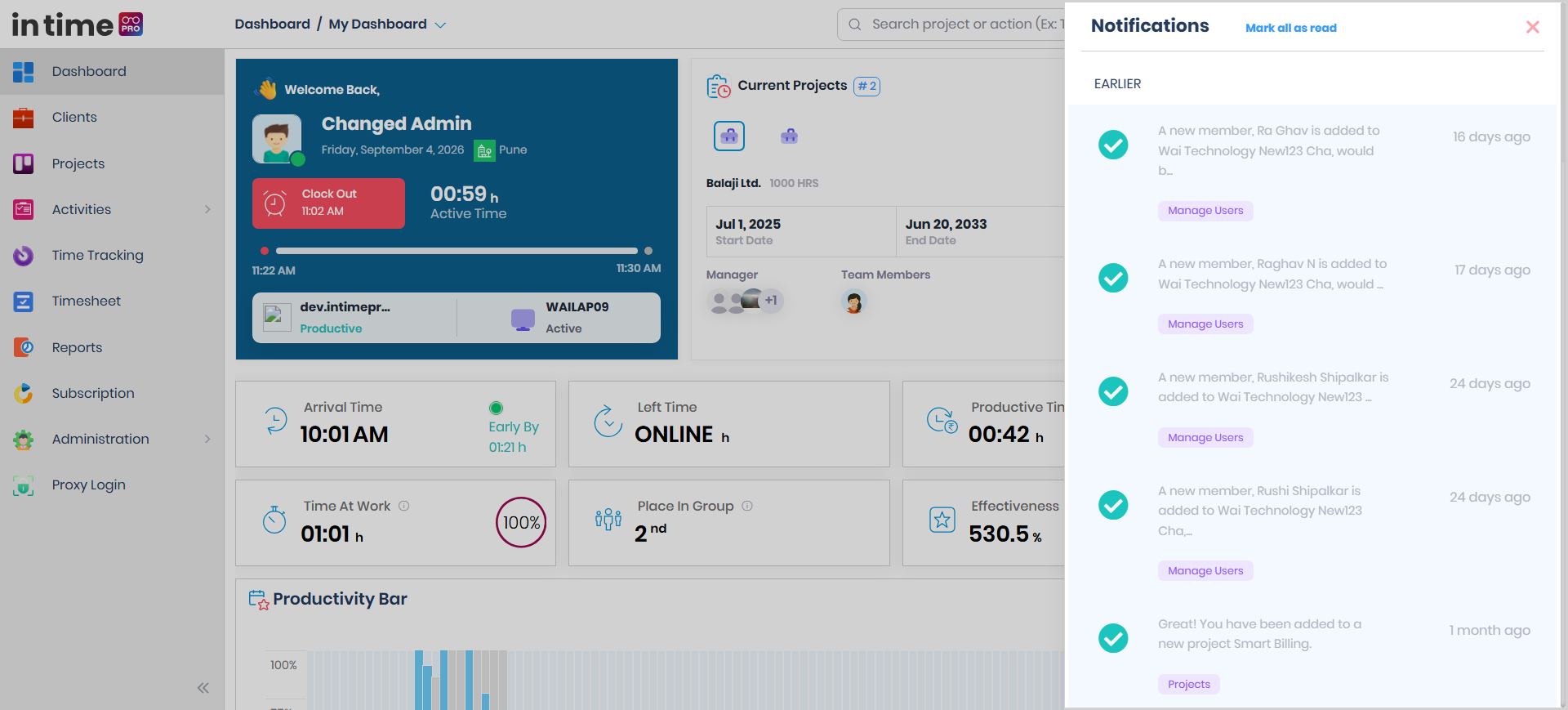
- The Notifications panel slides in from the right.
Screenshot: Notifications
The Notifications panel, open from the header bell icon, grouped into Today and Earlier.
What you'll see
Notifications are grouped into:
- Today — notifications from today
- Earlier — older notifications
Unread notifications are visually highlighted. Clicking a notification marks it as read and, where applicable, takes you to the relevant screen.
| Action | What it does |
|---|---|
| Click a notification | Marks it as read and opens the related screen, if applicable |
| Mark all as read | Marks every notification as read in one action (only appears when you have unread notifications) |
| Scroll down | Loads older notifications |
What notifications typically cover
Notifications can relate to:
- Time tracking
- Time and attendance
- Leave / time off
- Timesheets
- Project-related updates
- User-management actions, such as a new user being added
Clicking a notification takes you to the relevant screen — for example, a timesheet notification opens your timesheet, and a leave notification opens the leave area.
Import notifications
If a bulk import (for example, importing users, tasks, or holidays from a spreadsheet) has invalid rows, a notification lets you download a list of the rows that failed, so you can fix and re-import them.
How to use
- Click the bell icon in the application header.
- Review notifications grouped under Today and Earlier.
- Click a notification to mark it as read and open the related screen.
- Click Mark all as read to clear the unread badge in one action, if you don't need to open each notification individually.
- Scroll down in the panel to load older notifications.
Things to know
- There is no option to delete notifications from this panel — only marking them as read.
- There is no special role restriction on who can see notifications. What a notification lets you open still depends on your normal access to that area.