Download
The Download option lets you download the In Time PRO Desktop Application (shown in the product as the Agent App) — the application installed on your computer that tracks tasks and activity so you can stay organized and track your productivity.
How to open
- Click the Download icon in the top bar.
- A Download Now window opens, showing the available applications.
Screenshot: Download
The Download Now window, opened from the header, showing the Windows and Mac download cards.
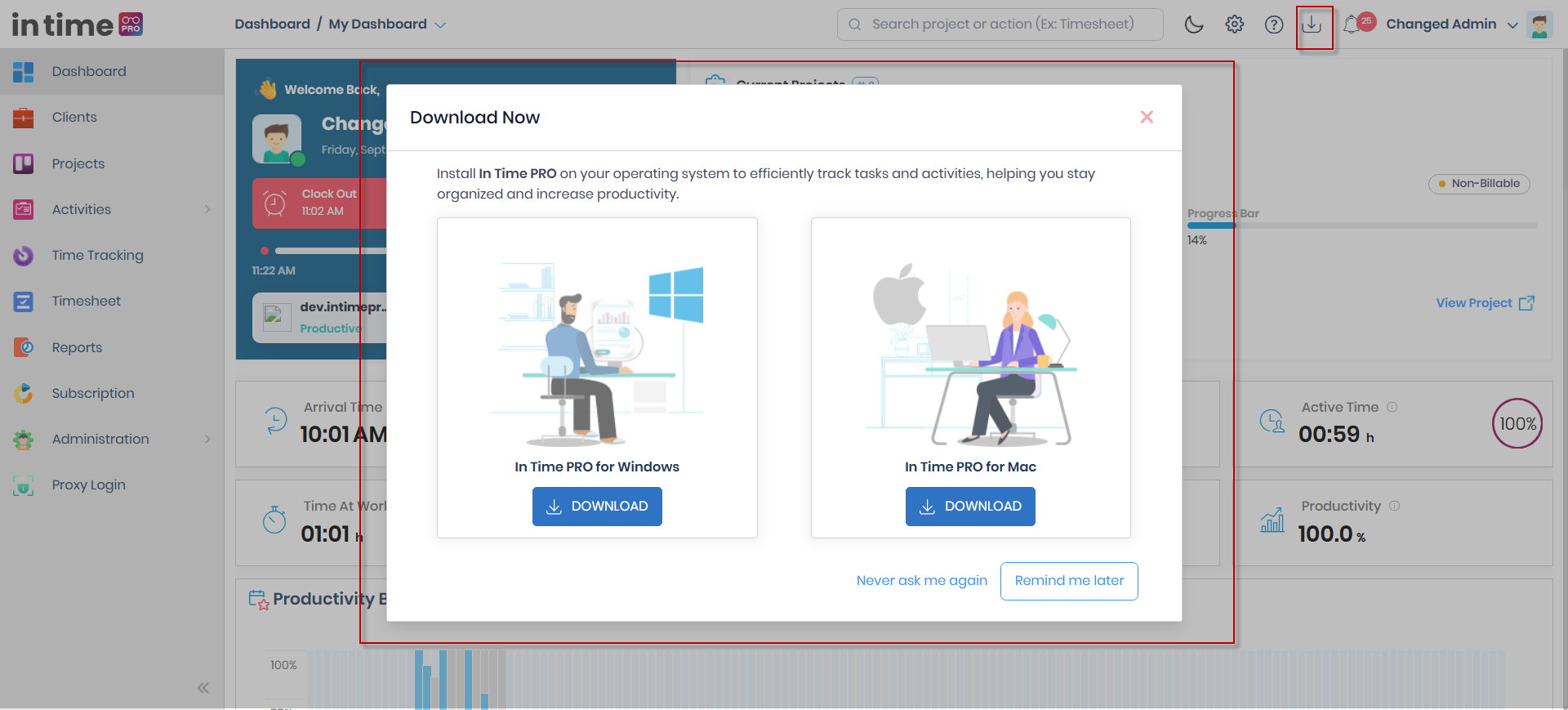
Available applications
| Application | What it's for |
|---|---|
| In Time PRO for Windows | The Desktop Application for Windows computers |
| In Time PRO for Mac | The Desktop Application for macOS computers |
These are currently the only two applications offered from this window.
How to download
- Click the Download icon in the top bar to open the Download Now window.
- Find the card for your operating system — Windows or Mac.
- Click the Download button on that card.
- The installer file downloads to your computer.
- Run the installer and complete installation in the usual way for your operating system.
Other options in the window
| Option | What it does |
|---|---|
| Remind Me Later | Closes the window for now; you may be prompted again later |
| Never Ask Me Again | Dismisses the prompt so it stops appearing automatically |
Who sees Download
Download is hidden for Client users, the same as Settings.
Automatic prompt on first sign-in
This same Download Now window can also appear automatically the first time you sign in, prompting you to install the Desktop Application.