Help
Help gives you a quick way to reach support without leaving In Time PRO Web. It's available from the application header on every screen after you sign in.
How to open
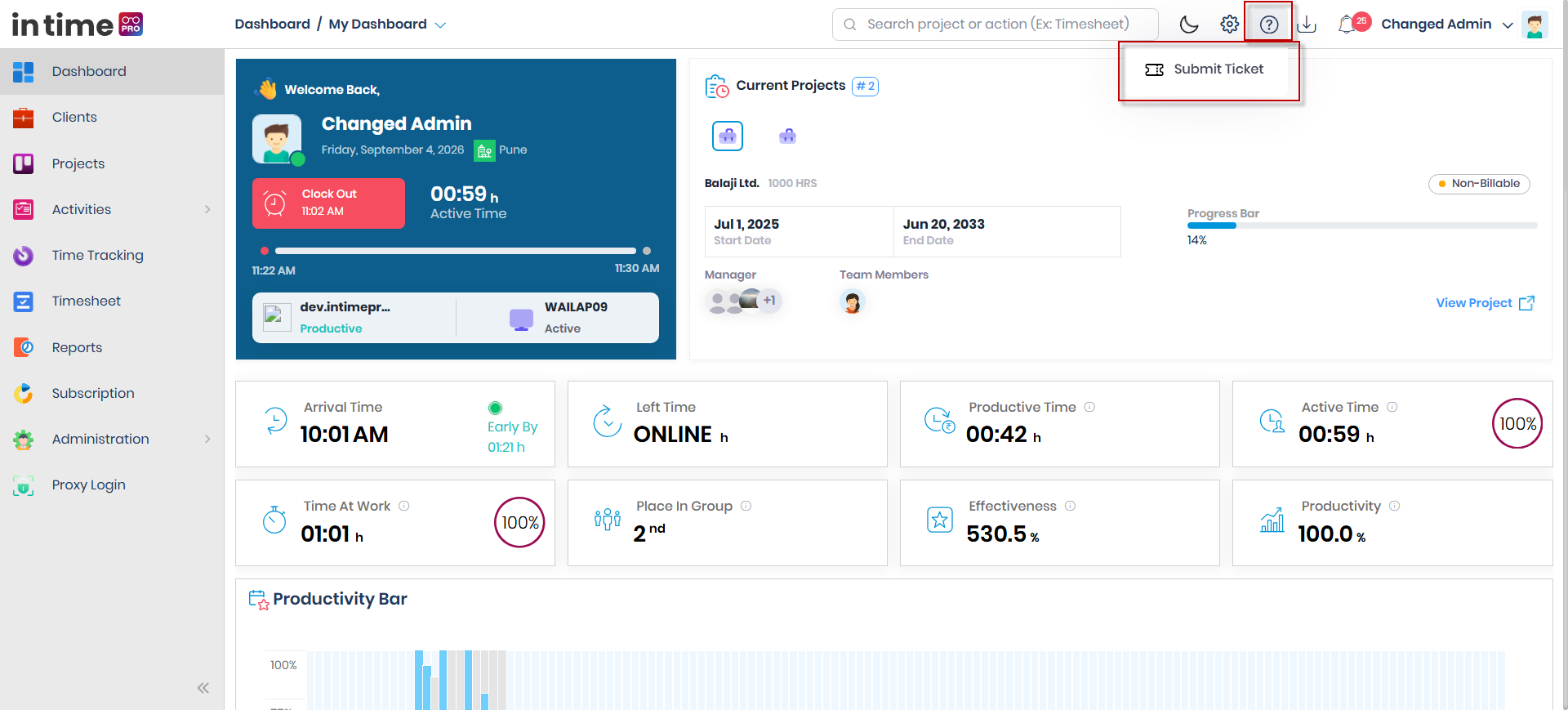
- Click the Help icon (a question mark) in the top bar.
- A small menu opens with the available support option.
Screenshot: Help
The Help menu, opened from the question-mark icon in the header, showing the Submit Ticket option.
Available option
| Option | What it does | Learn more |
|---|---|---|
| Submit Ticket | Opens your email application with a new message addressed to In Time PRO support | Submit Ticket |
Currently, Submit Ticket is the only option available from the Help menu.
Who sees Help
Help is shown to everyone who sees the application header, including Client users. This is different from Settings and Download, which are hidden for Client users.
Help / FAQ area
In Time PRO Web also has a separate in-app Help hub elsewhere in the product, where you can browse help topics by category and search for answers to questions. This Help/FAQ area is not opened from the header Help menu described on this page — the header Help menu only offers Submit Ticket.