Dark / Light Mode
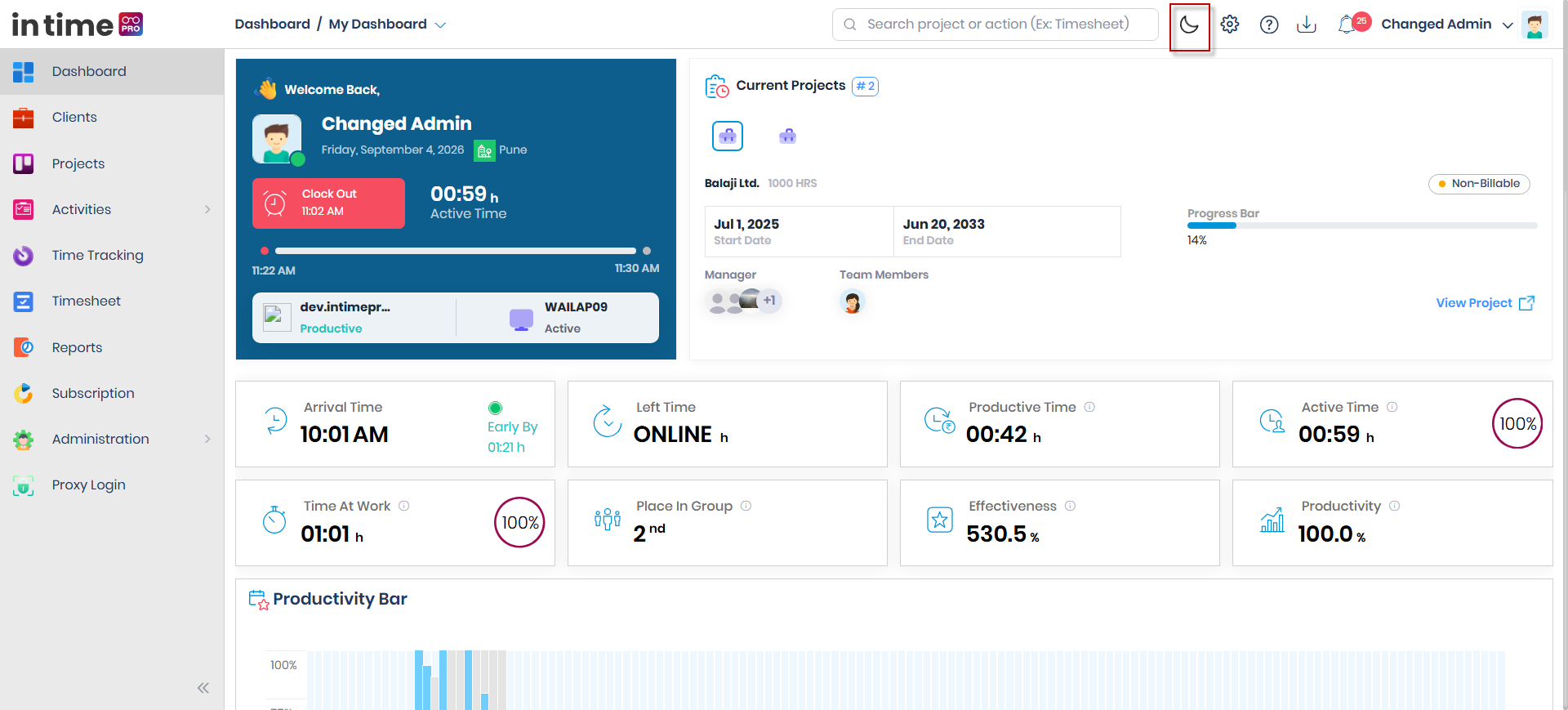
Dark / Light Mode lets you choose how In Time PRO Web looks — a dark background or a light background — based on your visual preference or your lighting conditions. It's available in the application header on every screen, to everyone who can see the header.
Only two modes are available: Dark and Light. There is no automatic option that matches your device or system settings.
How to switch
- Locate the sun/moon icon in the application header.
- Click the icon.
- The application's color scheme updates immediately across the whole application.
The icon and its tooltip always show the mode you'll switch to, not the mode you're currently in:
- A sun icon means clicking it switches you to Light Mode.
- A moon icon means clicking it switches you to Dark Mode.
Screenshot: Dark / Light Mode
The sun/moon toggle in the header, and the application's appearance in Dark and Light Mode.
Default and saved preference
The application defaults to Dark mode for a new user. Once you switch modes, your choice is remembered — it's saved to your account as well as to the current browser — and applied automatically the next time you sign in.
The sign-in screen itself always uses a light appearance, regardless of your saved preference. After you sign in, the application switches to whichever mode you last chose.