Global Search
Global Search is the search box available in the application header, on every screen after you sign in. It also appears on mobile. It lets you quickly jump to a page or a record — such as an employee, project, or client — without navigating through menus.
What you can search for
Depending on your permissions, Global Search can find:
- Application pages and sections you have access to
- Employees
- Projects
- Clients
You'll only see results for pages and records you're normally allowed to open. What you can find depends on your role and permissions — the same search may return different results for different users.
Settings pages themselves (such as Company Profile or Manage Users) are not searchable as "Pages" results. You reach Settings from the Settings menu in the header, not from Global Search.
How to search
- Click into the search box in the application header, or press Alt+K to jump into it from anywhere.
- Type at least 3 characters of what you're looking for.
- Wait briefly — results appear automatically as you type, without needing to click a Search button.
- Review the results, grouped by category.
- Select a result to open it.
Expected result
Matching results appear grouped into categories, shown in this order when available: Pages, Subsections, Employees, Projects, Clients, plus any other applicable categories. Each category shows a limited number of results — a handful of the best matches — so you can quickly scan for what you need.
Selecting a result takes you straight to that page or record:
- Choosing yourself in the Employees results always opens My Profile.
- Choosing another employee opens their Time and Attendance record, if you have access to that area. If you don't have access, you'll see a message letting you know you don't have permission to view Time and Attendance for that person.
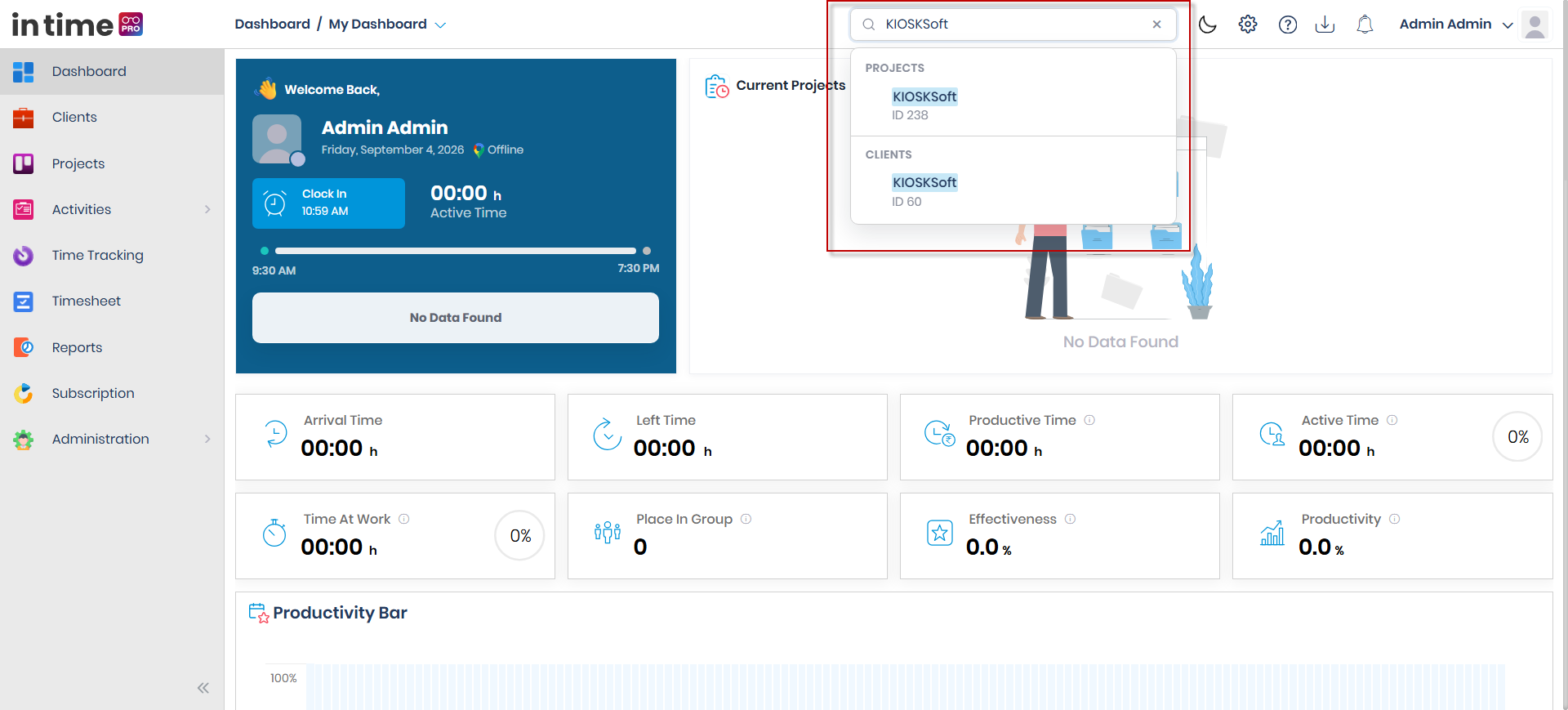
Screenshot: Global Search
The Global Search box with results grouped into categories such as Pages, Subsections, Employees, Projects, and Clients.
Keyboard tips
| Key | What it does |
|---|---|
| Alt+K | Jumps into the search box from anywhere in the application |
| Up / Down arrows | Moves through the list of results |
| Enter | Opens the currently highlighted result |
| Escape | Closes the search box |
Search states
While a search is running, the search box shows Searching…. If nothing matches what you typed, it shows No matches found. If a search temporarily fails to load some results, you'll see a message asking you to try again — results for pages and sections may still display even when this happens.